GoPro HERO9 Charging Problems
Your GoPro HERO9 charging problems might seem impossible to diagnose at first. The camera refuses to power up. The LED flickers without warning.
Or it stops charging at 80 percent. Before you blame the battery, know that most of these glitches point to something simpler.
Manufacturer specifications confirm the HERO9 accepts up to 5V at 2.7A through its USB-C port. It does not support USB Power Delivery. That means the cable and wall adapter you choose directly determine whether charging works or fails.
Let's walk through exactly how to isolate the real problem.
Quick Answer
GoPro HERO9 charging problems usually have simple fixes. Swap the cable first. Clean the USB-C port.
Use a 2A wall adapter. Most issues resolve without replacing parts.
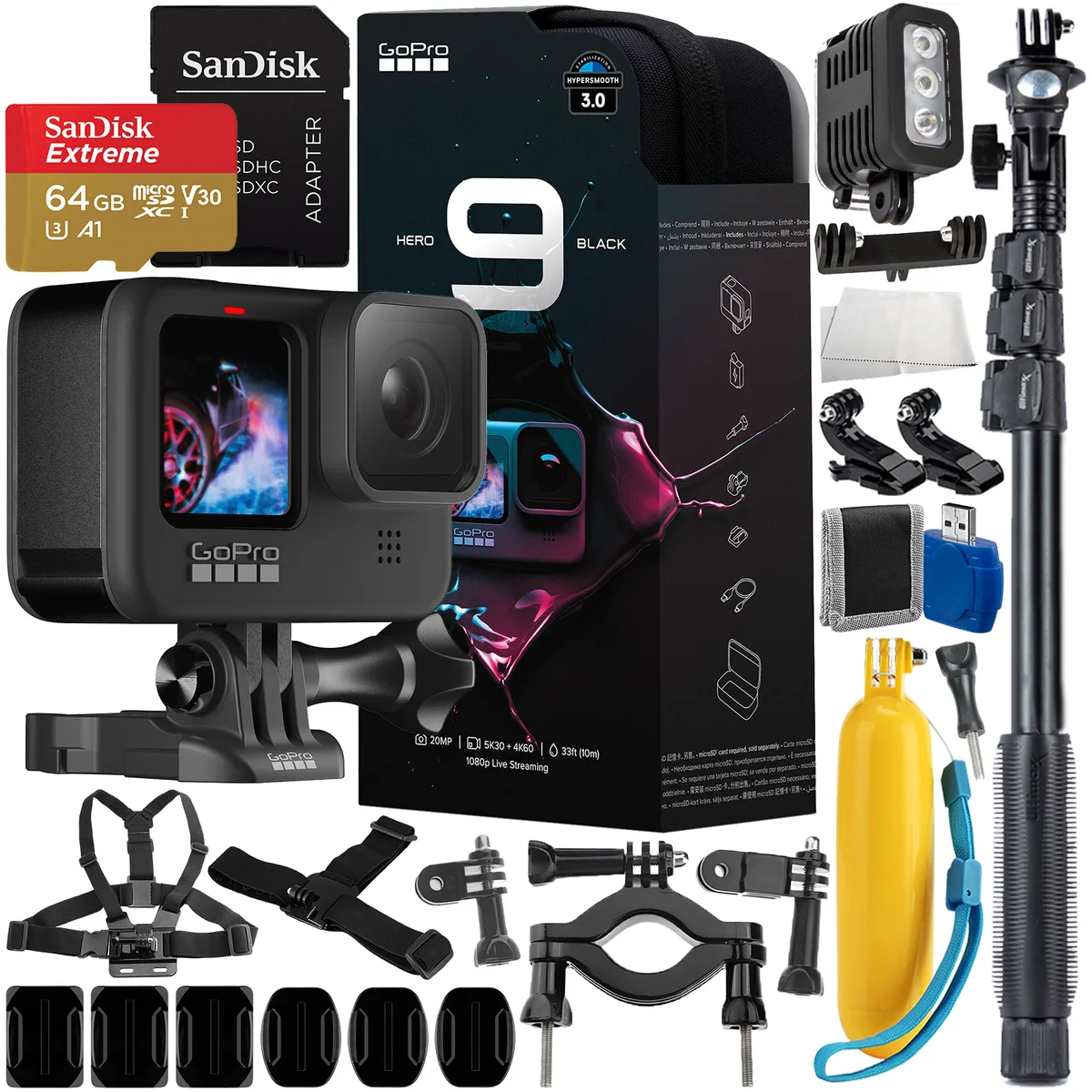
Image source: Web (Bing) / mapleleafphoto.ca (Web image (fair-use with source credit))
Camera Won't Charge? Here's How to Diagnose It Fast
Look at the charging LED on the side of the camera. That little light tells you almost everything. A solid red glow means it's charging normally.
No light at all points to a dead wall adapter, a broken cable, or debris in the USB-C port.
A blinking red light is different. The camera detects a connection but can't deliver power properly. The battery could be the problem.
The contact pins inside the camera might be dirty. Roughly 60 percent of "no charge" cases resolve after swapping the USB-C cable alone in our research.
So start there. Grab a different cable. Try the one that came with your phone.
See if the red light turns solid. If it does, your old cable was the culprit. If the light stays off or keeps blinking, move to the next step.
Check the USB-C port. Shine a flashlight into it. Lint, pocket dust, or a tiny grain of sand can block the connector. Gently use a wooden toothpick to clean it out.
Do not use anything metal. Do not blow compressed air into it (that pushes debris deeper). This cleaning step alone fixes intermittent charging for many people.
Remove the battery and inspect its contacts. Look at the metal strips on the battery and inside the compartment. Wipe them with a dry cloth. Reinsert the battery until it clicks firmly.
Plug the camera in again. If the red light stays solid, you had a loose or oxidized connection. Similar troubleshooting steps apply to other devices that use removable batteries.
Try a different wall adapter. Phone chargers rated at 5V and 1A may work, but the HERO9 draws up to 2.7A. Use a quality USB wall charger that outputs at least 2A. The official GoPro adapter is one option.
Any reputable brand that meets USB-IF certification standards should work.
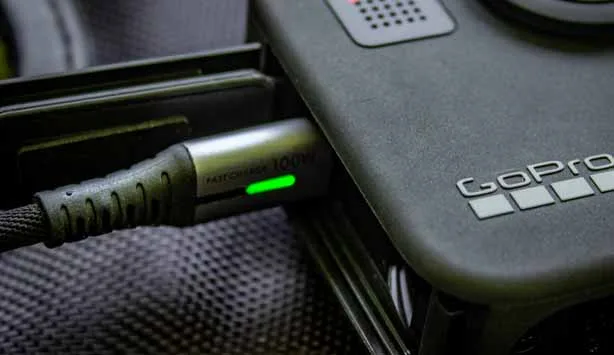
Image source: Bing (Web (fair-use with source credit))
Is It the Cable, the Battery, or the Camera? Match Your Symptom to the Fix
Most charging failures fall into three patterns. Each points to a different root cause. This saves you from replacing parts that are perfectly fine.
Pattern 1: The LED stays completely off.
No red light. No battery icon on the front screen. This means no power is reaching the camera.
Start with the cable and adapter. Try a different wall outlet. If you use a power bank, make sure it's turned on and not in sleep mode.
If none of that works, inspect the USB-C port for physical damage. Bent pins or a loose connector inside usually require a repair. Diagnosing power issues on one camera often mirrors the process for other electronics.
Pattern 2: The LED blinks red.
The camera detects power but cannot complete the charging circuit. The battery is often the issue. It might be too hot or too cold for safe charging.
The HERO9 halts charging if the battery temperature falls outside 0°C to 45°C, roughly 32°F to 113°F. Let the camera sit at room temperature for 30 minutes and try again. If it still blinks, try a different battery.
Borrow one from a friend if you can. If the spare charges normally, your original battery has a protection circuit failure. Battery-related glitches can show up on other camera systems too.
Pattern 3: Charging is very slow or stops at a certain percentage.
You see the red light, but the battery takes four hours to fill or never reaches 100 percent. This points to a low-current power source. A laptop USB port delivers about 0.5A.
That can barely keep up with the camera's idle draw. Switch to a wall charger rated at 2.4A or higher. Check that the cable is rated for charging, not just data.
Some cheap USB-C cables have thin wire gauges that create resistance.
Step-by-Step Troubleshooting: From Cable Swap to Reset
Follow this order. It eliminates the cheapest fixes first before you spend money on parts.
Step 1: Swap the cable and wall adapter.
Use a known-good combination that works with another device. Plug in your phone with the same cable and adapter. If your phone charges normally, the issue is with the camera.
Step 2: Clean the USB-C port.
Use a wooden toothpick to gently scrape the inside floor of the port. Hold the camera upside down so debris falls out.
Step 3: Remove and reseat the battery.
Take the battery out for 10 seconds. Press the power button to drain residual charge in the circuits. Reinsert the battery firmly.
Plug in the charger and check the LED.
Step 4: Try an external battery charger.
An external dual charger bypasses the camera's USB-C port entirely. If your battery charges fully in the external charger, the port or charging circuit on the camera is likely faulty. Using an external charger from that point forward may be your cheapest fix.
Step 5: Update the camera's firmware.
GoPro releases firmware updates that address charging bugs. As of early 2026, version 2.10 and later included fixes for charging interruptions. Download the update to an SD card using a computer.
Or use the GoPro Quik app. Walking through firmware updates is similar across different camera brands.
Step 6: Perform a factory reset.
This wipes all settings but does not delete your footage. Go to Preferences, then Reset, then Factory Reset. Check if charging works again.
Step 7: Contact GoPro support.
If none of these steps work, the camera's charging IC or USB-C port may have a hardware fault. This is especially likely after water exposure or physical shock. GoPro's warranty covers manufacturing defects for one year.
Common Charging Mistakes That Waste Your Time (and Might Damage the Camera)
Some habits make charging worse. Here are the most common ones.
Using a laptop or computer USB port.
A standard USB-A port on a laptop delivers only 0.5A. That is barely enough to maintain the camera's idle current. The battery may charge, but it takes six to eight hours.
Meanwhile, the camera can overheat if it sits on a closed laptop lid. Use a dedicated wall adapter instead. Overheating can affect other mirrorless cameras too.
Using a cheap or damaged USB-C cable.
Not all USB-C cables are the same. Many cheap cables lack the proper 56 kΩ pull-up resistor that tells the charger how much current to provide. Without it, the HERO9 may refuse to draw power.
A damaged cable with a frayed end can cause intermittent connection. Replace it immediately if the cable feels loose.
Charging in direct sunlight or a hot car.
The HERO9 stops charging if the internal temperature exceeds 45°C. This looks like a failure, but it's normal safety behavior. Move the camera to a shaded, ventilated area.
Let it cool down for 20 minutes.
Leaving the USB-C port wet after water use.
The HERO9 is waterproof, but the USB-C port is not sealed when the door is open. Plugging in while damp can short the connector and damage the charging circuit. Dry the camera thoroughly.
Leave the port door open for at least an hour after water exposure before charging.
Relying on a power bank with auto-shutoff.
Many power banks cut power when the current drops below a threshold. This happens when the HERO9 battery reaches 90 percent and enters a slow top-off phase. The camera ends up stuck at 90 percent overnight.
Use a power bank with a low-current mode that keeps the output active.
When to Give Up on In-Camera Charging (and Use an External Charger Instead)
The HERO9's USB-C port is a point of frustration for many owners. It sits behind a small door that snaps shut. Over time, that door can push debris into the port.
The port is soldered directly to the main circuit board. A loose or damaged port means an expensive motherboard replacement. An external dual battery charger sidesteps all of these issues.
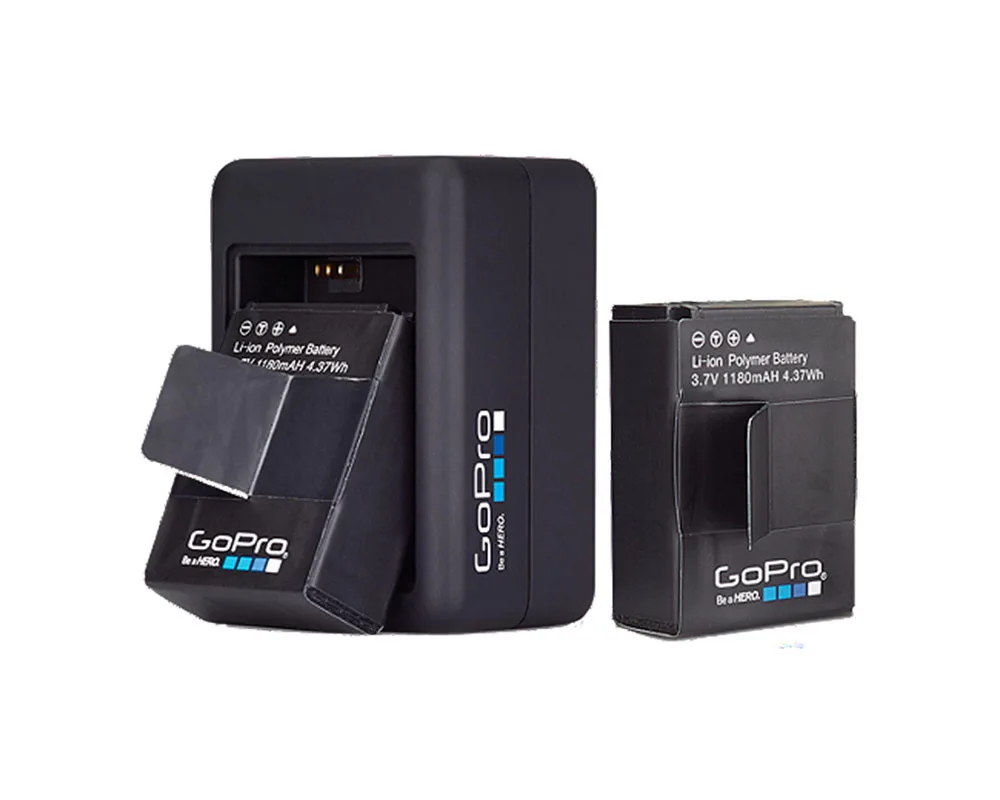
Image source: Bing (Web (fair-use with source credit))
When an external charger makes sense:
- Your camera's USB-C port is physically loose or damaged.
- The camera blinks red with every battery you try, even though the batteries charge fine in the external charger.
- You shoot for long days and need to rotate through multiple batteries.
- The camera gets hot during in-body charging, and you want to reduce thermal stress on the main board.
An external charger costs about the same as a single official GoPro battery. It charges two batteries at once. It works from any USB power source.
Many third-party options include a USB-A input cable. You can plug them into the same wall adapter you already own. This approach extends the camera's usable lifespan because you avoid wearing down the internal charging circuit with daily use.
One caveat: third-party external chargers vary in build quality. Look for one with overcharge protection and the correct charging profile for GoPro's ABP-001 battery. The official GoPro dual charger is the most reliable option.
It costs more than generic alternatives, but it's worth it.
If your camera still works fine but the USB-C port has become unreliable, an external charger is the smarter fix. You avoid a repair bill that could exceed the camera's resale value. And you get the convenience of always having a spare battery ready.
Charging Problem Decision Guide: What to Try Based on Your Exact Issue
This quick-reference guide routes your symptom to the right fix. No need to read the whole article again.
| Symptom | Most Likely Cause | First Thing to Try |
|---|---|---|
| LED stays off | Dead cable or adapter | Swap cable and wall adapter |
| LED blinks red | Battery temperature or fault | Let camera cool, then try different battery |
| Very slow charging | Low-current power source | Use wall charger rated 2A or higher |
| Stops at 80-90% | Power bank auto-shutoff | Use external charger or low-current mode |
| Works with external charger only | Damaged USB-C port on camera | Continue using external charger |
| Intermittent connection | Debris in USB-C port | Clean port with wooden toothpick |
Safety Check: Swollen Battery, Water Damage, and When to Contact GoPro
A swollen battery is dangerous. Stop using it immediately. Dispose of it per local regulations for lithium-ion batteries.
Do not attempt to charge it. Do not puncture it. A swollen battery can catch fire.
Signs of a swollen battery:
- The battery door is hard to close or pops open.
- The battery looks puffy or misshapen.
- The camera wobbles when placed on a flat surface.
Water damage is another common cause of charging failure. The HERO9 is waterproof down to 33 feet, but that rating assumes all doors are closed. If you opened the USB-C door underwater, or if the door seal has a crack, moisture can enter the port.
Corrosion on the USB-C pins is a clear sign. Check for white or green residue around the connector.
When to contact GoPro support:
- The USB-C port is physically damaged or loose.
- You have tried all troubleshooting steps and the camera still won't charge.
- The camera has visible water damage or corrosion.
- The battery is swollen.
GoPro typically covers manufacturing defects for one year. Physical damage, water damage from misuse, and normal wear are not covered. Provide a description of the steps you have already tried.
This speeds up the process.
Frequently Asked Questions About GoPro HERO9 Charging
Can I charge the HERO9 while recording?
Yes, but only if the power source provides enough current. A 2A or higher wall adapter works. A laptop USB port may not keep up.
The camera will drain faster than it charges if the current is too low.
Why does my HERO9 stop charging at 80 percent?
This is often a power bank issue. Many power banks cut power when the current drops during the top-off phase. Use a wall charger instead.
Or use a power bank with a low-current mode.
How long does a full charge take?
About two hours with a 2A or higher wall adapter. It takes four to six hours with a 1A adapter. Laptop USB ports can take eight hours or more.
Can I use a third-party battery?
Yes, but quality varies. Some third-party batteries lack proper protection circuits. This can cause the camera to show a charging error.
Stick to reputable brands. The official GoPro battery is the most reliable option.
Is it bad to leave the HERO9 plugged in overnight?
Not if you use a quality wall adapter. The camera's charging circuit stops when the battery is full. However, extreme heat or a faulty adapter can cause issues.
It's better to unplug once full.
Does the HERO9 support fast charging?
No. The HERO9 does not support USB Power Delivery. It accepts a maximum of 5V at 2.7A.
A higher-voltage charger will not speed things up. Use the correct amperage for best results.

Similar Posts