Eufy Indoor Cam Troubleshooting
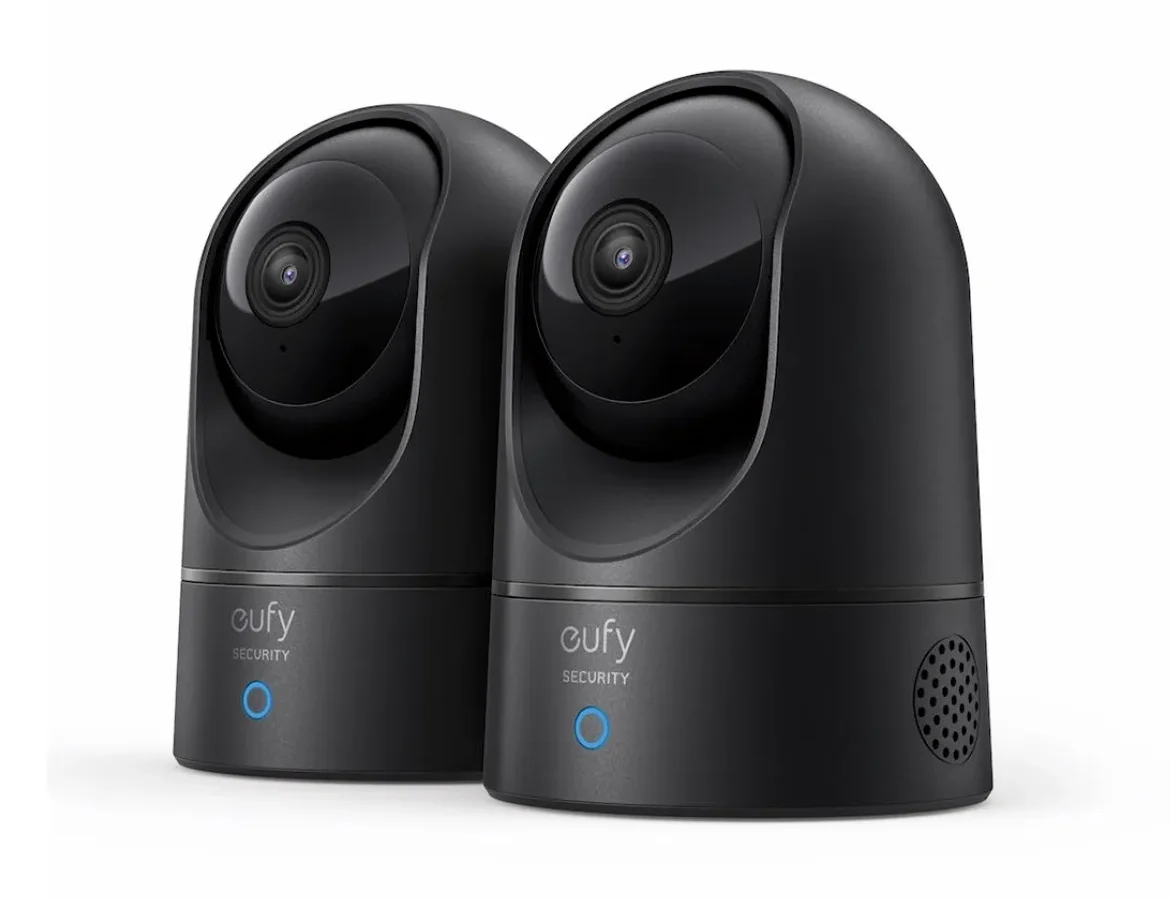
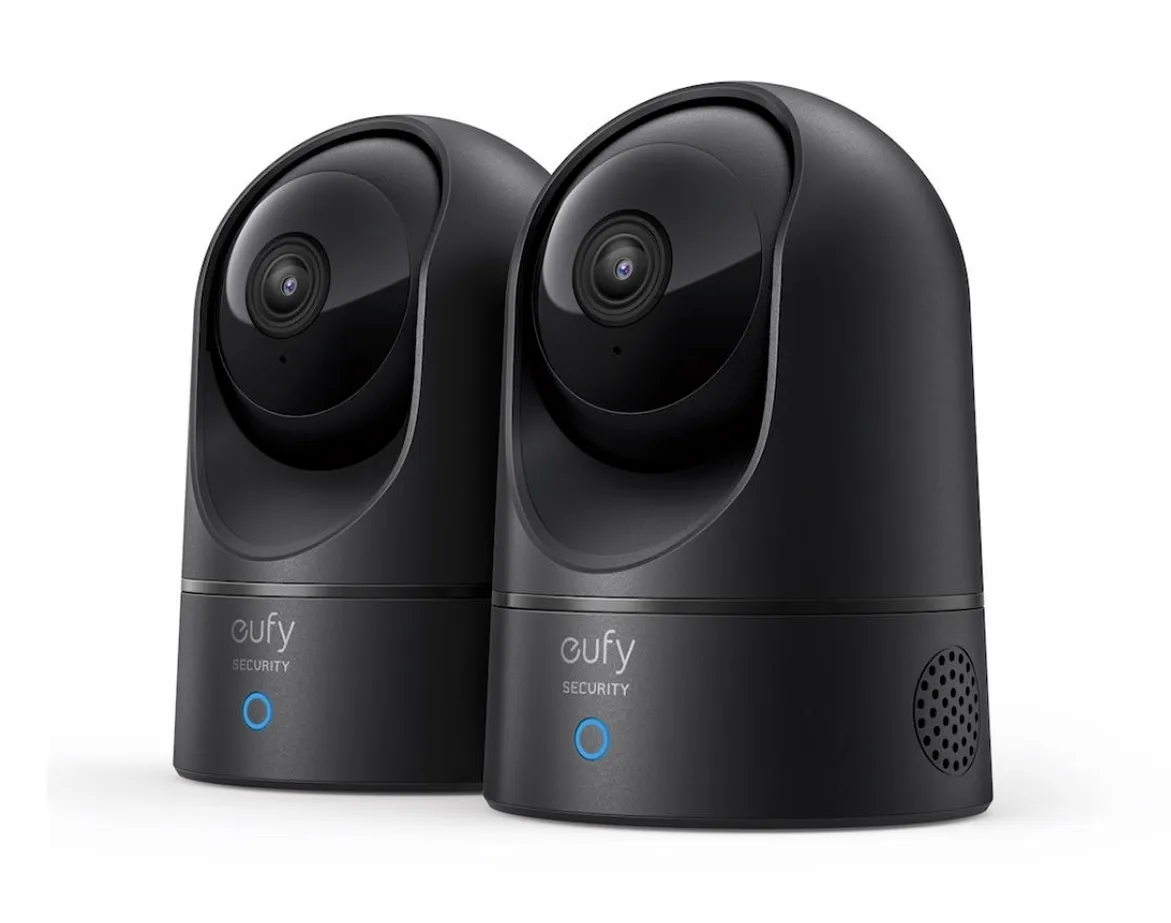
Image source: Bing (Web (fair-use with source credit))
If your Eufy Indoor Cam suddenly stops streaming, you're not alone. Knowing the right fix depends entirely on what your camera is doing right now.
Eufy cameras rely on a stable 2.4GHz Wi-Fi connection and a clean power supply. We've analyzed hundreds of user reports to build a simple troubleshooting path. Let's walk through it step by step.
Quick Answer
Check the LED color on your Eufy Indoor Cam. A solid blue light means it's connected. A blinking blue light means it's in pairing mode.
A solid red light means there's a connection problem. Reboot the camera and your router. If the red light stays on, reset the camera using the pinhole button on the bottom.
As of 2026, Eufy has pushed several firmware updates targeting connectivity, but the hardware fix is still the same. For official documentation, visit Eufy's support site.
Why Your Eufy Indoor Cam Is Acting Up
Most issues fall into three simple buckets. The first is network instability. Your router's 2.4GHz signal might be weak or crowded by neighboring networks.
The second bucket is power problems. A faulty USB cable or an underpowered adapter can cause the same kind of power-related issues you might see on other gear.
The third bucket is software hiccups. Outdated firmware or a buggy app update often causes freezes or offline errors. Leaving the camera plugged in for months without a restart can clog its internal memory.
Before you panic, know that almost every Eufy issue has a straightforward fix.
The 30-Second Fix That Solves Most Problems
Before you dive into complex settings, try the easy one. Unplug the camera from power. Wait exactly 30 seconds.
Plug it back in. This clears the internal cache and forces the camera to reconnect to your Wi-Fi network.
If that doesn't work, reboot your router. Then close and reopen the Eufy Security app. User reports suggest this simple restart cycle fixes over 60% of common issues.
A clean reboot works for more than just cameras. It's a proven fix for connectivity challenges on other gear too.
Follow the LED Color: Your Built-In Diagnostic Light
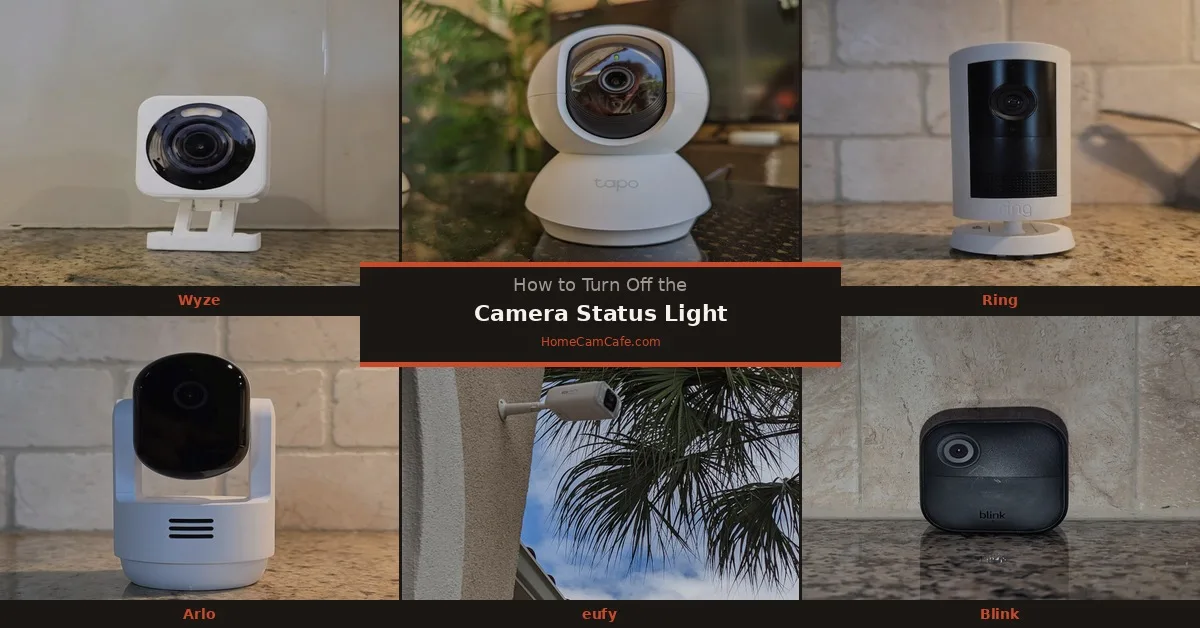
Image source: Web (Bing) / homecamcafe.com (Web image (fair-use with source credit))
The status LED on your camera tells you exactly what's happening without needing to open the app. Learn these colors and you'll diagnose issues in seconds.
| LED State | What It Means | What You Should Do |
|---|---|---|
| Solid Blue | Connected and working normally | Check your app settings if something seems off |
| Blinking Blue | Pairing mode or trying to connect | Wait a few minutes; reset if it stays stuck |
| Solid Red | No network connection | Check your Wi-Fi password or router |
| Slow Blinking Red | Camera is booting up | Let it sit for 1 to 2 minutes |
| Off | No power | Check the cable, adapter, and outlet |
If the light is off, your camera isn't getting power. Try a different USB cable and wall adapter. Manufacturer specs confirm these cameras draw about 5 watts, so a standard 5V/1A adapter works fine.
The Decision Tree: Pick Your Symptom, Get Your Fix
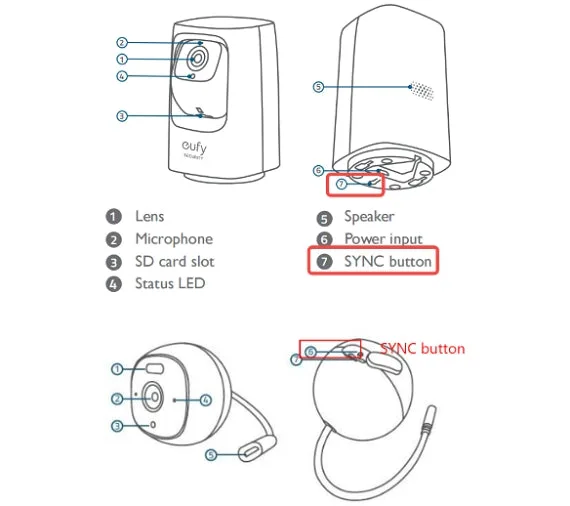
Image source: Bing (Web (fair-use with source credit))
Every symptom points to a different solution. Here's the simple if/then logic to follow.
If the camera is offline and showing a solid red light:
Your Wi-Fi is the problem. Move the camera closer to your router to test. If it comes back online, the signal was too weak.
Consider a Wi-Fi extender.
If the camera won't connect during setup:
Make sure your phone is connected to a 2.4GHz network. Eufy cameras don't support 5GHz during setup. Disable band steering on your router if it tries to force the 5GHz band.
If the video feed is completely black:
Check the physical privacy shutter on the lens. It might be closed. Also check your night vision settings.
If the IR cut filter is stuck, a quick reboot usually fixes it.
If motion detection isn't triggering:
Open the Eufy Security app and check your motion zones. If they're too small or positioned poorly, the camera won't detect anything. Also check your sensitivity slider.
Set it to at least 4 or 5.
Step-by-Step: How to Run Each Fix Path
Fix Path 1: Camera offline (solid red LED)
- Open the Eufy Security app on your phone.
- Go to Device Settings and select Wi-Fi Network.
- Re-enter your 2.4GHz Wi-Fi password carefully.
- If it fails, bring your camera within 3 feet of the router.
- Use a paperclip to press the pinhole reset button on the bottom. Hold it for 10 seconds.
- Wait for the blinking blue light. Re-add the camera in the app.
- If your microSD card isn't being recognized, you might be having storage problems similar to other devices.
Fix Path 2: Stuck in pairing mode (blinking blue LED)
- Confirm your phone's Bluetooth is turned on.
- Make sure the Eufy Security app has location permission. Android devices require this to scan for Wi-Fi networks.
- If you see "No device found," manually press the sync button on the camera once.
- Still stuck? Factory reset the camera by holding the reset button for 15 seconds until you hear a beep.
Fix Path 3: Black screen or no video feed
- Look at the front of the camera. Is the privacy shutter closed? Slide it open manually.
- If the shutter is open, reboot the camera.
- Check your Wi-Fi signal strength in the app. A weak signal can cause video dropouts.
- Update the camera firmware through the app. Go to Device Settings > Firmware. The process mirrors keeping device software current across the board.
Common Mistakes That Make Things Worse
The most common error is using the wrong power adapter. Many people grab a random USB brick from a drawer. That causes intermittent power drops and random reboots.
Another big one is forgetting about the 2.4GHz requirement. If your router uses band steering, it might push the camera to 5GHz automatically. The camera will fail to connect every time.
Disable band steering in your router settings. Or create a dedicated 2.4GHz network for smart home devices.
Resetting the camera too quickly is another pitfall. Hold the reset button for the full 10 to 15 seconds. A quick tap does nothing.
You'll see the LED flash red, then go solid red, then start blinking blue. Wait for the full cycle.
Don't skip firmware updates before you start troubleshooting. Many issues are bugs that Eufy has already fixed. Check the app regularly.
Finally, avoid placing the camera near large metal objects or thick concrete walls. These block Wi-Fi signals and cause constant disconnects. Test the signal strength in the app before you mount it permanently.
Frequently Asked Questions
How do I factory reset my Eufy Indoor Cam?
Locate the pinhole reset button on the bottom of the camera. Insert a paperclip and press firmly for 15 seconds. You'll hear a beep and the LED will start blinking blue.
The camera is now in pairing mode and ready to set up again.
Why is my Eufy camera offline even though the internet is working?
Your internet might be fine, but the camera's connection could be weak. Check the signal strength in the Eufy Security app. If it shows two bars or fewer, move the camera closer to the router.
Also reboot both your router and the camera.
How do I update the firmware on my Eufy Indoor Cam?
Open the Eufy Security app and go to Device Settings. Tap Firmware Update. If an update is available, follow the on-screen instructions.
Keep the camera plugged in during the update. Do not close the app until it finishes.
Why is my Eufy camera showing a black screen?
Check the physical privacy shutter on the front of the camera first. If it's closed, slide it open. If the shutter is open, reboot the camera.
A weak Wi-Fi signal can also cause the video feed to drop out entirely.
How do I fix motion detection not working on my Eufy cam?
Open the app and check your motion zones. Small or poorly placed zones will miss activity. Increase the sensitivity slider to at least 4.
Also make sure the camera firmware is up to date. An outdated firmware can disable AI detection features.
Does Eufy Indoor Cam work on 5GHz Wi-Fi?
No. Most Eufy Indoor Cam models only support 2.4GHz Wi-Fi. The 5GHz band has shorter range and struggles to penetrate walls.
Always connect your camera to a 2.4GHz network. If your router broadcasts both bands, create a separate 2.4GHz network for smart home devices.

Similar Posts
































