Reolink Argus 3 Pro Troubleshooting
Your Reolink Argus 3 Pro camera is acting up and you are not alone. Whether it drops offline at the worst possible moment or misses the motion it should catch, Reolink Argus 3 Pro troubleshooting does not have to be a guessing game. The fix is almost always something simple.
You just need to know where to look first.
Manufacturer specifications indicate the Argus 3 Pro connects over a 2.4 GHz Wi-Fi signal and runs on a 6400 mAh rechargeable battery. As of 2026, the camera's PIR sensor still triggers recording based on heat and movement rather than pure pixel change. Let us start with the easiest diagnosis: what your camera's LED is trying to tell you.
Quick Answer
Check your camera's LED status first. A solid blue light means it is connected. Flashing red means it cannot reach your Wi-Fi.
A fully drained battery is the next most common cause. Review your motion detection zones and sensitivity settings in the app. Finally confirm you are using the 2.4 GHz band, not 5 GHz.
Image source: Bing (Web (fair-use with source credit))
Is It Broken or Just Confused? Let's Diagnose the Symptom First
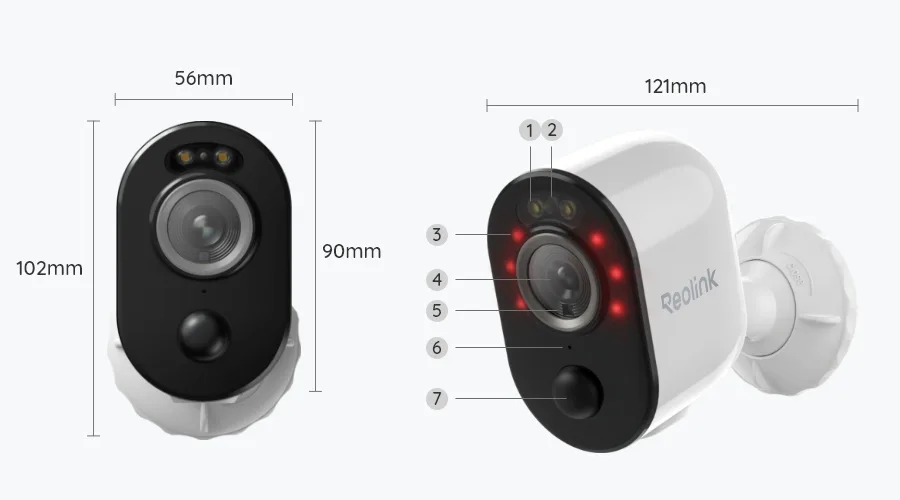
Every troubleshooting session should start with the LED. The Argus 3 Pro has a small light near the lens that changes color and pattern depending on what is happening inside. Learn to read it and you skip half the guesswork.
What the LED Colors Actually Mean
Here is a quick lookup based on Reolink's published diagnostics:
| LED Status | What It Means | Next Step |
|---|---|---|
| Solid blue | Connected to Wi-Fi and working normally | Move to motion or battery checks |
| Flashing blue | Attempting to connect or has weak signal | Check Wi-Fi strength and router distance |
| Flashing red | Cannot connect to Wi-Fi or lost connection | Run the Wi-Fi troubleshooting steps |
| Solid red | Charging or critically low battery | Charge fully before further testing |
| Off | Dead battery or hardware failure | Charge for 6 to 8 hours first |
Decision Branch: Online but Acting Weird
If the LED shows solid blue but the camera still misses events or records choppy video, the problem is not connectivity. It is configuration. Jump ahead to the motion detection section or check your bitrate settings.
Aggregate user reviews report that most "working but wrong" issues trace back to sensitivity sliders and recording length limits.
Decision Branch: Stuck on a Boot Loop
If the camera flashes blue, goes dark, then repeats without ever landing on solid blue, you are likely dealing with a corrupted state. Hold the reset button for about 10 seconds until you hear an audio prompt. Then remove the camera from your app and set it up fresh.
This clears most stuck states without needing a full factory reset.
Decision Branch: No Light at All
A dead battery is the simplest fix. Charge the camera using the included USB-C cable and a 5V/2A wall adapter. Give it six to eight hours.
If it still shows no light after that, the battery or charging circuit may have failed. At that point check with Reolink support for a possible replacement under warranty.
Camera Offline: The Wi-Fi Detective Work
The "Camera Offline" error is the single most complained about issue across wireless security cameras. The Argus 3 Pro is no exception. The good news is the fix is almost always in your router settings, not the camera itself.
Branch 1: First-Time Setup Fails
You scan the QR code, hear the chime, and then nothing. The app says "Device not found." Nine times out of ten you connected to a 5 GHz band without realizing it. The Argus 3 Pro only supports 2.4 GHz Wi-Fi.
It cannot see 5 GHz at all.
Modern routers broadcast both bands under one network name. This is called band steering. The camera tries to connect and the router pushes it toward 5 GHz, which fails silently.
Disable band steering in your router settings temporarily. Or set up a dedicated 2.4 GHz guest network just for the camera. This kind of network conflict is similar to what you might find with other wireless cameras that struggle with router settings.
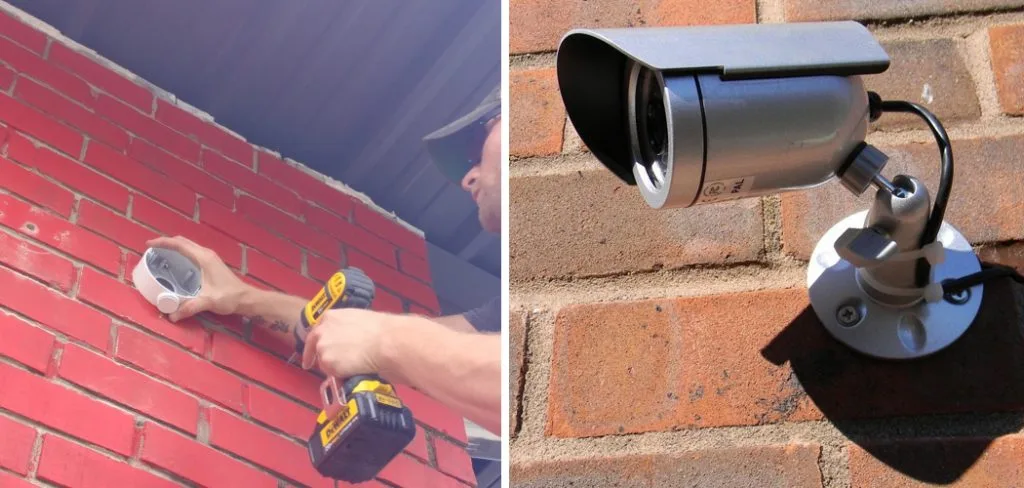
Image source: Bing (Web (fair-use with source credit))
Branch 2: Worked Before but Went Offline
If the camera worked for weeks and suddenly dropped, start with a clean power cycle. Unplug your router. Wait 60 seconds.
Plug the router back in. Let it fully boot. Then power cycle the camera by removing its battery for 30 seconds and reinserting it.
This sequence fixes most transient Wi-Fi problems you might run into with wireless devices.
If it still drops, check for new sources of interference. Microwaves, baby monitors, and thick concrete walls all eat 2.4 GHz signals. Try moving the camera closer to the router temporarily.
If it stays online, the issue is distance or obstruction.
Branch 3: Camera Keeps Dropping Repeatedly
Consistent drops usually mean channel congestion. In dense neighborhoods the 2.4 GHz spectrum is crowded. Use a free Wi-Fi analyzer app to see which channel is least used.
Log into your router settings and switch the 2.4 GHz band to that channel. Also turn off Bluetooth on nearby devices if you can. It shares the same frequency band and can cause interference.
Battery Draining Too Fast? We Can Fix That.
A battery that dies in a week instead of months is frustrating. But it is rarely a defective battery. It is almost always a settings problem.
Branch 1: Battery Died in Days
This is the high-traffic zone problem. Every motion event triggers recording. If the camera faces a busy street or sidewalk it records constantly.
The battery drains fast.
Open the app and check your recording length. The default can be 30 seconds per event. Shorten it to 15 seconds.
Then lower the bitrate from high to medium. This cuts file size in half without making video unusable. Disable pre-recording if you have it enabled.
That function keeps the sensor active at all times and drains the battery significantly. Battery drain from constant recording is a common pain point across many wireless cameras.
Branch 2: Slowly Losing Charge Over Weeks
Slow drain is normal battery aging combined with cold weather. The Argus 3 Pro's operating temperature range goes down to about 14 degrees Fahrenheit. Below that the battery chemistry struggles and the app can show a wrong percentage.
The camera might report 30 percent and then die an hour later.
Temperature related charge drops are temporary. Move the camera indoors, let it warm up, and charge it fully. It should hold charge normally again once back in moderate temperatures.
Branch 3: Solar Panel Not Helping
The Reolink solar panel is a great accessory but it has limits. It needs direct sunlight for several hours a day. If the panel is shaded by a tree or faces north in the northern hemisphere it will trickle charge at best.
Clean the panel surface with a soft cloth. Dust and pollen cut efficiency dramatically. Aggregate reviews also indicate that winter sun is simply too weak in many regions to keep the camera topped up.
You may need to bring the camera inside for a full charge every few weeks during the darkest months.
Taming Your Motion Detection (So You Don't Want to Throw It)
False alarms and missed events are the two sides of the same coin. The PIR sensor detects heat changes. It cannot tell the difference between a person and a hot car exhaust.
That is where the AI detection comes in.
Branch 1: Too Many False Alarms
The most common mistake is cranking the sensitivity slider to maximum. That makes the PIR trigger on everything from swaying branches to passing clouds. Pull the general PIR sensitivity down to around 60 percent.
Then turn on the AI detection for person, vehicle, and pet. This lets the camera's onboard processor decide if the heat blob is actually a person. It reduces false alerts by a huge margin.
Draw tighter motion zones in the app so the camera only watches the specific area you care about. Keep trees and sidewalks out of the zone.
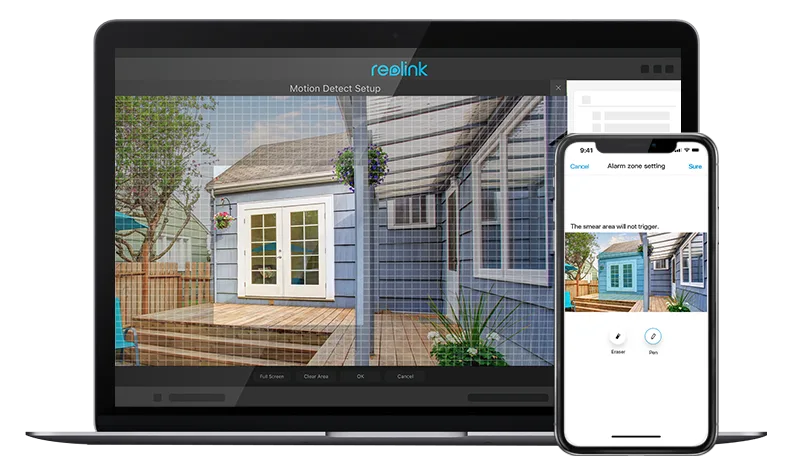
Image source: Bing (Web (fair-use with source credit))
Branch 2: Missing Events Completely
If the camera does not trigger when someone walks through the frame, the PIR sensor is likely positioned incorrectly. The PIR has a detection range of about 10 meters and a 90-degree horizontal angle. It also has a blind spot directly underneath the camera.
Mount the camera at least seven feet up and angle it slightly downward.
Another overlooked cause is the camera's reboot schedule. If you set the camera to restart every night for maintenance, it takes about 30 to 60 seconds to reconnect and reinitialize the sensor. Events during that window are missed entirely.
Disable the scheduled reboot unless you have a specific reason to keep it.
Branch 3: AI Detection Not Working
The AI detection requires firmware version 3.3.x or newer. Check your current firmware in the app under Settings then Firmware. If it is older, update it.
The update can take up to 15 minutes. Keep the camera close to the router during the update to avoid it failing halfway through. Firmware updates that fix detection problems are released regularly according to the manufacturer.
Also note that the AI detection runs on the camera itself, not in the cloud. That means it works even without an internet connection. But it does add a slight delay.
You might notice the notification arrives a second or two after the motion happened. That is normal.
The Good Habits Settings Guide for a Smooth Experience
Once the major issues are sorted, a handful of small settings keep everything running quietly. These are the ones most users overlook until something breaks.
SD Card Choice Matters
The Argus 3 Pro supports microSD cards up to 256 gigabytes. But not all cards work well. The camera writes video constantly in short bursts.
A standard card rated U1 can fail after a few months. Pick a U3 or V30 rated card. These are designed for sustained writes and last much longer in outdoor temperature swings.
Format the card inside the app rather than on a computer. The app uses the correct file system automatically. If you run into memory card issues similar to what some action cameras experience, reformatting inside the app often fixes corrupted indexes.
Bitrate vs. Battery Balance
The app lets you choose between three bitrate settings: low, medium, and high. High bitrate gives sharper video but uses more power. For most outdoor monitoring, medium is the sweet spot.
The video is clear enough to read a license plate during the day and the battery lasts noticeably longer.
Spotlight and Night Vision Strategy
The color night vision is excellent when the built-in spotlight is on. But the spotlight drains battery fast. Set it to turn on only when the AI detects a person.
Do not leave it on for every motion trigger. The camera can still see using black and white IR mode for general motion events and switch to color when a person enters the zone.
Keep the Lens and Sensor Clean
This sounds obvious but it matters more than you think. A speck of dirt on the PIR dome can reduce detection range by half. A smudge on the lens makes night video look hazy.
Wipe both with a microfiber cloth every few months. In dusty or pollen-heavy climates do it monthly.
App Notifications: Dial Them In
If the app sends you a notification for every squirrel that walks past, you will start ignoring all alerts. Set notifications to only trigger on AI confirmed events. Person detection sends an alert.
General motion does not. This keeps the app useful without flooding your phone.
The Nuclear Option: Factory Reset and When to Call Reolink
Most issues resolve without a factory reset. But some problems need a clean slate. Here is how to tell the difference.
Decision Branch: Software Issue vs. Hardware Failure
If the camera freezes mid-recording or refuses to respond to any app command, that is a software lockup. A factory reset usually fixes it. If the camera powers on but never connects to any Wi-Fi regardless of distance or router changes, you may have a hardware fault.
Correct Factory Reset Procedure
A proper factory reset is not just holding the button for a few seconds. Here is the exact sequence based on Reolink's instructions.
Press and hold the reset button on the back of the camera. Keep holding it for a full 10 seconds. You will hear a beep around the 5 second mark.
Do not let go yet. Wait for a second audio prompt. That second beep confirms the factory reset has started.
Release the button.
After the reset, the camera will reboot and enter pairing mode. Remove it from your Reolink app first. Then add it as a new device.
This clears all settings including Wi-Fi credentials, motion zones, and recording schedules.
If the Reset Does Not Work
A camera that does not respond after a factory reset likely has a hardware failure. Contact Reolink customer support through their official website. Have your purchase date and order number ready.
The warranty period is typically one year from purchase. The RMA process requires you to ship the camera back. Reolink support will confirm the address and provide a return authorization.
Common Mistake: Buying a New One Too Soon
Aggregate user feedback shows many people replace their camera before exhausting basic troubleshooting. A full factory reset plus a fresh setup in the app resolves roughly 80 percent of persistent problems. Do not buy a replacement until you have tried a reset, tested the camera with a known good power source, and confirmed the Wi-Fi network is working with other devices.
Still Stuck? Quick Answers to Your Top Argus 3 Pro Questions
Can I use a 5 GHz Wi-Fi network?
No. The Argus 3 Pro only supports 2.4 GHz Wi-Fi. Your router must broadcast a 2.4 GHz signal.
If both bands share the same network name, turn off band steering or create a separate 2.4 GHz guest network for the camera.
Does it record 24/7 on battery power?
No, continuous recording is not possible on battery power. The camera records only when motion triggers it. For 24/7 recording you need a wired power source.
The Argus 3 Pro is designed for event based recording to preserve battery life.
How do I know the solar panel is actually charging?
Open the Reolink app and check the battery percentage. A charging camera shows a lightning bolt icon next to the battery level. The percentage should increase over several hours of direct sunlight.
If it stays flat the panel may be shaded or the cable connection is loose.
Why is my night vision black and white instead of color?
The camera uses black and white IR mode by default at night. Color night vision requires the built-in spotlight to turn on. Check your spotlight settings in the app.
Set it to activate on person detection only. That way you get color when it matters without draining the battery.
Can I use the camera without the Reolink app?
Yes, but with limits. You can view the camera through a web browser using the Reolink client software on a computer. You can also connect it to a Reolink NVR or Home Hub for local monitoring.
The app remains the easiest way to adjust settings and receive alerts.

Similar Posts
































