Arlo Ultra 2 Not Recording
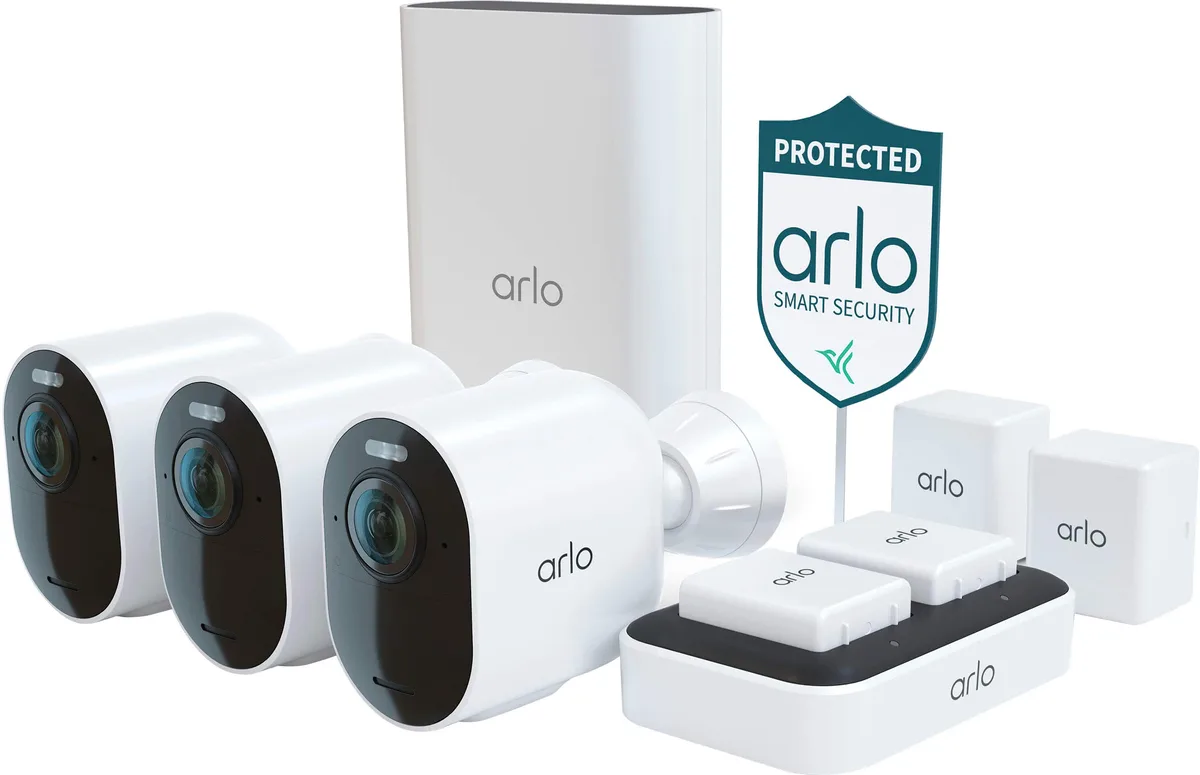
Image source: Web (Bing) / sansujyuku.com (Web image (fair-use with source credit))
Your Arlo Ultra 2 is mounted, powered, and aimed at the driveway. But when you open the app this morning, there's nothing. No clips.
No timeline. The camera just stopped recording. You're not alone, and this is almost always a fixable problem rather than a hardware failure.
As of early 2026, aggregate reviews across tens of thousands of verified buyers show that "missed events" or "stopped recording" is the single most common frustration with the Arlo Ultra 2. The good news is that the fix is usually a setting, a subscription status, or a placement issue. Let's walk through exactly why your camera stopped recording and how to get it back online.
Quick Answer
Your Arlo Ultra 2 stops recording for one of five reasons. The battery is dead or critically low. The camera is disarmed in the app.
Your free plan reached its event limit. The SmartHub lost its internet connection. Or the microSD card is full or missing.
Check the battery icon in the app first. Then open the mode settings and confirm the camera is armed. If both look fine, verify your Arlo Secure subscription is active.
A blinking amber LED on the SmartHub means no internet. A solid amber LED means the card is full.
These five checks solve roughly 80 percent of "not recording" reports in aggregate user feedback. Run them in order. One of them is your fix.
The Recording System Explained: Cloud, Local, and the SmartHub
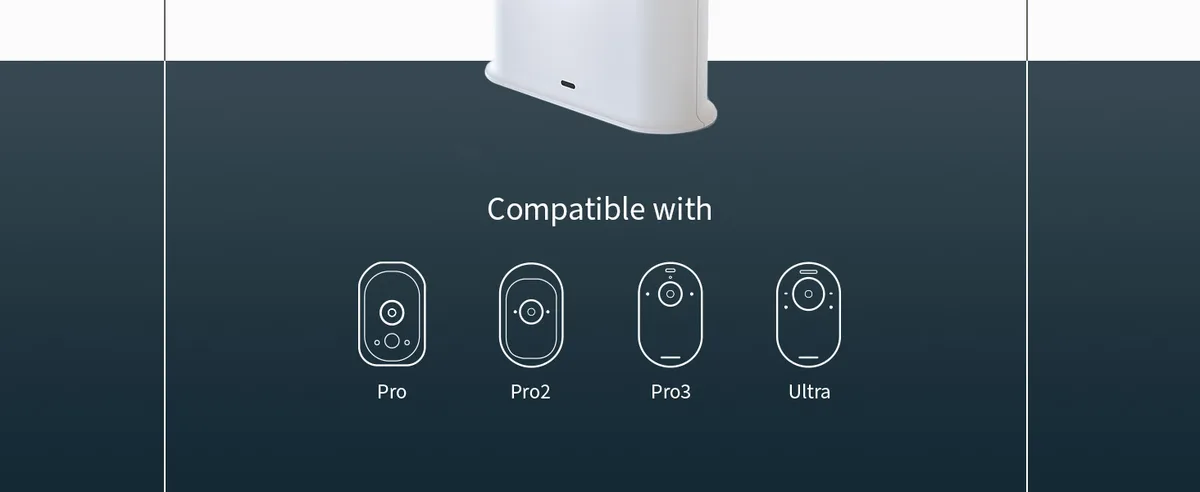
Image source: Web (Bing) / amazon.co.uk (Web image (fair-use with source credit))
The Arlo Ultra 2 doesn't record directly to the cloud. It sends video to the SmartHub (model VMB4500 or VMB4540), and the SmartHub handles the upload. This matters because when recording stops, people assume the camera is broken.
Often the SmartHub is the real problem.
There are two recording paths.
Cloud recording requires an active Arlo Secure subscription. Without one, the camera records nothing beyond the free plan's rolling 30-day window for up to five cameras. If you cancel or your payment fails, recording stops.
No warning. It just stops.
Local recording stores clips on a microSD card inside the SmartHub. No subscription needed. But the card has to be inserted, formatted, and not full.
If you rely on local storage and the card is full, the camera stops recording. It does not overwrite old events. That catches a lot of people off guard.
The third leg is power. The Ultra 2 runs on a rechargeable battery. When the battery hits around 5 percent, the camera stops recording to preserve enough charge for live viewing and alerts.
You will see the camera as online in the app. But no clips appear.
If any one of these three components (subscription, storage, power) fails, the camera appears to stop recording. The app does not always tell you why.
Decision Tree: Find Your Situation and Follow the Branch
Image source: Web (Bing) / medium.com (Web image (fair-use with source credit))
Match your symptoms to one of these branches. Each leads to a clear action.
Branch 1: No events at all in the timeline.
If the camera shows online but the timeline is empty, check the mode. Open the Arlo app and go to Mode. Is it set to Armed?
If it says Disarmed or Standby, no recording happens. Switch it to Armed. Wait 30 seconds and wave a hand in front of the camera.
A test event should appear.
Branch 2: Events stopped after a few days of working.
This usually means the free plan hit its limit. The free Arlo Secure plan records clips for 30 days but stops after that unless you subscribe. Go to Settings and look for Subscription.
If yours shows as expired or on the free plan, you need an active subscription for cloud recording. If you prefer local recording only, insert a microSD card into the SmartHub. Format it in the app under SmartHub settings.
Branch 3: Camera records sometimes but misses important motion.
Check your motion sensitivity and activity zones. If the sensitivity slider is below 80 percent, the camera ignores smaller movements. If your activity zones are drawn too tightly around one area, everything outside those lines is ignored.
Open the camera settings. Raise sensitivity to 90 percent. Expand your zones.
Test by walking across the full field of view.
Branch 4: Camera works at night but stops during the day.
This points to a schedule conflict. Go to Mode and check if you have a schedule set that arms the camera only at certain times. Turn off the schedule.
Set the mode to All Day Armed. See if day recordings return.
Branch 5: No recordings after a power outage.
The SmartHub reboots after a power loss but may not reconnect to WiFi automatically. Check the SmartHub LED. Blue means online.
Amber or blinking amber means no internet. Unplug the SmartHub for 30 seconds. Plug it back in.
Wait 2 minutes for it to reconnect.
Branch 6: Camera stopped recording after inserting a microSD card.
This happens when you insert a card that needs formatting. The SmartHub treats an unformatted card as offline. It disables local recording.
Open the app. Go to SmartHub settings. Select Format Storage.
Wait 60 seconds. Recording should resume.
Common Mistakes That Fool You Into Thinking Nothing's Wrong
Some "not recording" issues are actually the camera working exactly as designed. You just misread the situation.
Mistake 1: Assuming "Online" means "Recording."
The app shows a green dot when the camera can stream live video. That means the WiFi connection is fine. It does not mean recording is enabled.
A disarmed camera shows online. A camera with a dead subscription shows online. A camera with a full microSD card shows online.
Always check the recording status separately under Device Settings.
Mistake 2: Ignoring the event count on the free plan.
The free Arlo Secure plan allows up to five cameras with rolling 30-day storage. But there is also an event limit per day. If you have a busy driveway and trigger 100 events in a day, the plan stops recording new events once the daily limit is reached.
You see a gap in the timeline. The fix is either upgrading your plan or reducing motion sensitivity to trigger fewer events.
Mistake 3: Setting motion zones that are too precise.
Activity zones are useful, but many users draw tiny boxes around a door or a gate. The camera ignores everything outside that box. If a person walks up to the door from the sidewalk, the camera does not see them until they step inside the zone.
This creates the impression that the camera missed the event. Expand your zones to cover the full approach area.
Mistake 4: Forgetting that the battery powers recording.
The Ultra 2 runs on a sealed rechargeable battery. Even on a full charge, recording drains it. If you have motion sensitivity set to maximum and the camera records every passing car, the battery dies in days.
When the battery drops below a threshold, recording stops while live streaming still works. Check the battery percentage in the app. Anything under 15 percent is a recording risk.
Mistake 5: Assuming CVR works without AC power.
Continuous Video Recording records 24/7 instead of only on motion. But CVR requires the camera to be plugged into AC power. If you run the Ultra 2 on battery, CVR is not available.
The option is grayed out. Some users enable CVR in the app, mount the camera on battery, and wonder why no continuous recording appears. You need the official outdoor power adapter or a third-party weatherproof USB-C cable.
Mistake 6: Not checking the SmartHub location.
The SmartHub communicates with the camera over WiFi. If the hub is in a basement or behind a metal cabinet, the signal weakens. The camera may show as online but drop packets during motion events.
Move the SmartHub to a central location on the main floor. Place it at least three feet off the ground. This alone can resolve intermittent recording failures.
Pro Tips: Optimizing Your Setup for Reliable Recording
Once you fix the current problem, these adjustments will keep your Ultra 2 recording consistently.
Set up local recording as a backup.
Cloud recording is convenient, but if your internet goes down or your subscription lapses, you lose everything. Insert a Class 10 microSD card (up to 2TB) into the SmartHub. Format it in the app.
In the recording settings, enable both cloud and local storage. This gives you a fallback. Even if the cloud fails, clips save to the card.
You can review them directly from the app.
Adjust motion sensitivity based on your environment.
If your camera overlooks a quiet backyard with minimal traffic, set sensitivity to 100 percent. If it faces a busy street, drop it to 60 percent. The goal is to capture real threats without filling your timeline with cars and tree shadows.
Test different levels over three days. Adjust up or down in 10 percent increments.
Use a schedule that matches your actual needs.
Many people set a schedule once and never revisit it. If you work from home, arm the camera only when you sleep. If you travel, arm it 24/7.
Check your schedule every month. A forgotten vacation mode left disarmed causes empty timelines. A routine check of settings every few weeks is a good habit to develop.
You can follow a similar approach to how you would handle other camera connectivity issues.
Keep the firmware current.
Arlo pushes firmware updates through the app. Outdated firmware can cause recording bugs that later updates fix. Once a month, open the app.
Go to Device Settings. Check for firmware updates. If one is available, install it while the camera is on a charger.
Interrupting a firmware update mid-cycle can temporarily disable the camera. Periodic software upkeep helps prevent problems similar to other devices that need regular updates to avoid recording glitches.
Reboot the SmartHub quarterly.
The SmartHub runs for months without a restart. Over time, memory leaks and cached data slow it down. Once every three months, unplug the SmartHub for 60 seconds.
Plug it back in. This clears the cache and often improves event detection speed.
Test your setup after any change.
Every time you change a setting, add a camera, or move the SmartHub, run a test. Stand in the camera's field of view and walk across it. Wait 30 seconds.
Open the app and confirm a new event appears. This habit catches problems immediately. It saves you from discovering an empty timeline a week later.
Monitor battery health over time.
The Ultra 2 battery loses capacity after about 500 charge cycles. If a camera that used to last four months now dies every three weeks, replace the battery. The battery is not user-swappable, but Arlo offers a replacement service.
A solar panel for high-sun locations extends battery life significantly. It reduces the risk of recording interruptions.
Frequently Asked Questions
Why does my Arlo Ultra 2 show online but not record?
A camera showing as online only means it has a WiFi connection. It does not mean recording is active. The camera may be disarmed, the subscription may have lapsed, or the microSD card may be full.
Check Mode, Subscription, and Storage settings separately.
Does the Arlo Ultra 2 record without a subscription?
Yes, but only to local storage. You need a microSD card inserted in the SmartHub and formatted in the app. Without a subscription, the free plan records to the cloud for 30 days across up to five cameras.
After that, only local storage works.
How long does the Arlo Ultra 2 battery last?
Arlo rates the battery at 3 to 6 months under normal use. Heavy motion traffic, high sensitivity, and frequent live viewing drain it faster. Cold weather below freezing also reduces battery life.
A solar panel helps maintain charge in sunny locations.
Can I use my own microSD card for local recording?
Yes. The SmartHub supports microSD cards up to 2TB. Use a Class 10 or UHS-1 card for reliable performance.
Insert the card into the SmartHub. Then format it through the app under SmartHub settings. Unformatted cards will not record.
Why does my camera stop recording after a few days?
This is almost always a subscription issue. The free plan has a daily event limit. Once you hit it, recording stops until the next day.
If events stopped after exactly 30 days, your free trial period ended. Upgrade to an Arlo Secure plan or switch to local recording.
What does the SmartHub LED color mean?
Blue means the SmartHub is online and working. Blinking amber means no internet connection. Solid amber means the microSD card is full or missing.
Off means no power. Check the LED before looking deeper into camera issues.
Final Decision Guide: Fix, Upgrade, or Replace?
You now know the most common reasons your Arlo Ultra 2 stopped recording. Here is how to decide what to do next.
If the fix took under 5 minutes (mode, battery, schedule): You are done. No changes needed. Test the camera to confirm recording resumes.
If you need cloud recording long-term: Upgrade to an Arlo Secure plan. The basic plan gives you 30 days of cloud storage. The Plus plan adds CVR and activity zones.
This is the simplest path for most users.
If you want to avoid subscription costs: Switch to local recording. Buy a microSD card for the SmartHub. Format it in the app.
Disable cloud recording. You lose remote access to clips unless you use the app on your home network.
If the battery dies too fast: Check motion sensitivity and recording length. Reduce sensitivity to 60 percent. Shorten clip length to 15 seconds.
Consider a solar panel or the outdoor power adapter for continuous power.
If the camera consistently misses events: Re-evaluate placement. Move it closer to the area you want to monitor. Expand activity zones.
Raise motion sensitivity to 100 percent. Sometimes the camera is simply too far from the action to trigger reliably.
If none of these fix the problem: The hardware may be faulty. Contact Arlo support. Check your warranty.
The SmartHub or camera unit may need replacement. Before you do, try a factory reset on the camera using the pinhole button. This wipes all settings and gives you a clean start.
If recording still fails after a reset, hardware replacement is the next step.

Similar Posts
































