Arlo Pro 5S Troubleshooting
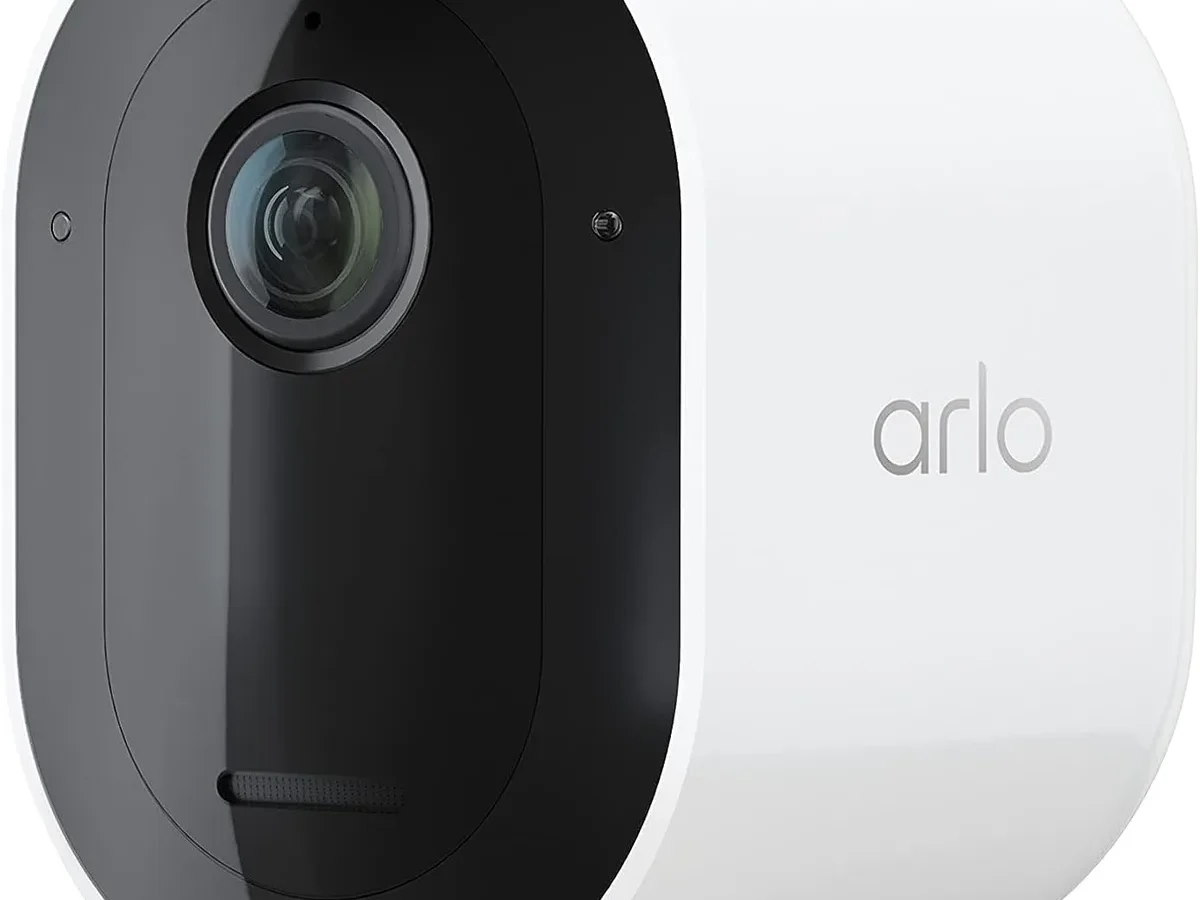
If your Arlo Pro 5S troubleshooting has turned into a frustrating guessing game, you are not alone. Aggregate user feedback shows that most issues fall into just three categories: connection failures, battery problems, or video and audio glitches. Getting to the right fix depends entirely on which symptom you are seeing, not on randomly trying every suggestion you find.
Manufacturer specs confirm the Pro 5S operates on a 2.4 GHz Wi-Fi band when connected through the Arlo SmartHub. That single detail causes more headaches than people realize. Let's walk through your specific problem so you can skip the wasted hours and get back to monitoring your home.
Quick Answer
Most Arlo Pro 5S issues trace back to three root causes. Sync failures need a power cycle of both camera and hub. Battery drain requires checking placement and motion sensitivity.
Video problems usually need a firmware update or a network band check. Start with the camera LED color and behavior. That light tells you exactly where the breakdown is happening.
When Your Arlo Pro 5S Starts Acting Up — A Quick Symptom Check
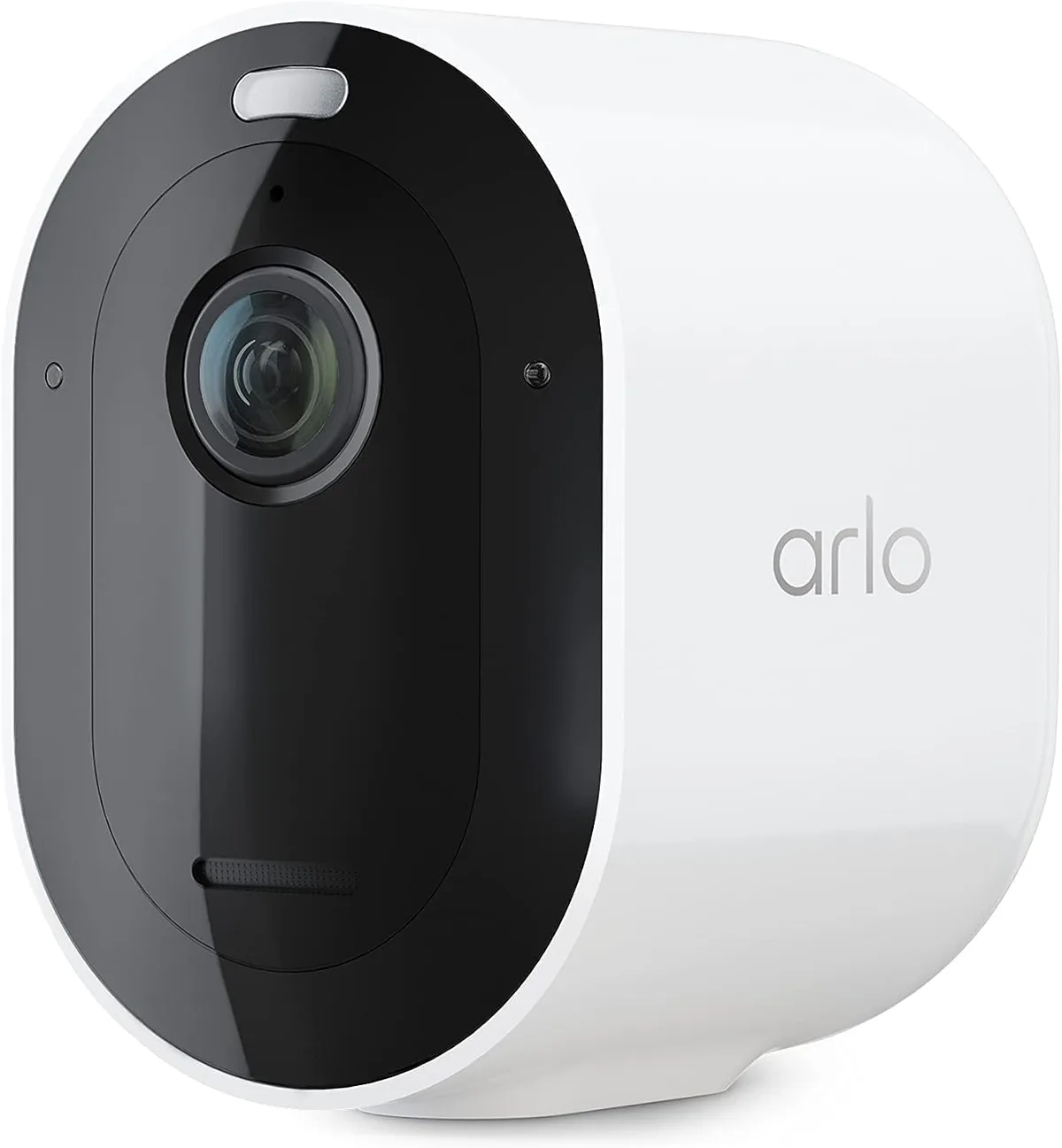
Image source: Web (Bing) / amazon.com (Web image (fair-use with source credit))
Before you dive into any fix, identify what your camera is actually doing. The LED on the front gives you the clearest signal. A solid blue light means the camera is connected and working.
A blinking blue light means it is trying to sync or has lost connection. No light at all usually means the battery is dead or the camera has frozen.
Listen for audio cues too. If the two-way audio sounds choppy or delayed, that points to a network bandwidth issue rather than a hardware failure. If you get no audio at all, the microphone or speaker could be blocked by dirt or the privacy shield might be engaged.
Motion detection problems are another common frustration. If you are getting false triggers from moving tree branches or passing cars, that is an activity zone setting problem. If you are missing events entirely, the motion sensitivity slider may be set too low or the camera placement might have a blind spot.
The Decision Tree: Find Your Issue and Fix It Fast
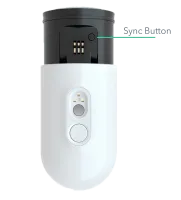
Image source: Bing (Web (fair-use with source credit))
This is the most effective way to solve your problem without chasing dead ends. Follow the symptom that matches your camera's behavior and you will land on the right fix.
| If your camera is… | Check this first | Then try this |
|---|---|---|
| Blinking blue and won't sync | The hub sync button wasn't pressed first | Power cycle both devices and re-sync |
| Showing solid blue but offline in app | Your Wi-Fi network or hub has lost internet | Check router and restart the hub |
| Draining battery in days | Motion sensitivity is too high or it is in a cold location | Lower sensitivity and move to a shaded spot |
| Recording choppy or buffering | Signal strength between camera and hub is weak | Move the camera closer or add a Wi-Fi extender |
| Night vision stuck in black and white | Spotlight setting is off or the lens is dirty | Clean the lens and enable color night vision in settings |
The LED behavior is your single best diagnostic tool. If the camera is blinking blue and you just took it out of the box, you likely missed the sync step order. Press the sync button on the hub first until it blinks, then press the button on the camera underneath the mounting clip.
Hold both until the camera LED turns solid.
If the camera was working fine and suddenly went offline, start with your router. A recent firmware update can change the 2.4 GHz band settings and break the connection. Go into your router's admin panel and confirm the 2.4 GHz network is enabled and broadcasting.
The Most Common Culprits and How to Rule Them Out
Aggregate reviews from verified buyers reveal a few consistent patterns. The number one cause of offline errors is the 2.4 GHz network requirement. The Pro 5S cannot connect to 5 GHz Wi-Fi when paired directly to the hub.
If your router uses band steering, it might push the hub onto the 5 GHz band and cause intermittent disconnects.
To rule this out, log into your router settings and disable band steering temporarily. Alternatively, create a dedicated 2.4 GHz network name for your smart home devices.
Battery drain is the second most reported frustration. Manufacturer specifications claim up to six months under ideal conditions. Real-world user reports average two to four months when motion detection is set to maximum sensitivity.
Temperature below 32°F also cuts battery life significantly.
Check your motion sensitivity setting in the app. If it is above 80 percent, you are recording every passing car and shadow. Drop it to 60 or 70 and see if battery life improves.
Also check that your activity zones are set correctly so the camera is not trying to analyze the entire field of view.
Sync failures often come down to timing. The hub and camera sync buttons only stay active for about two minutes. If you press one and then walk to the other, you might run out of time.
Have both devices within arm's reach and press the buttons in quick succession.
Step-by-Step Fixes for the Trickiest Problems
Image source: Bing (Web (fair-use with source credit))
Some issues need a more structured approach. Here are the fixes for the three most frustrating problems, in order of what to try first.
Camera stuck in a blinking blue loop. This happens when the sync process is interrupted or the camera has corrupt pairing data. First, remove the battery from the camera and wait 30 seconds. Reinsert the battery.
Then unplug the hub power for 60 seconds and plug it back in. Let the hub fully boot up, which takes about two minutes. Now press the sync button on the hub, followed by the sync button on the camera.
The camera LED should go solid blue within 60 seconds.
If that fails, you may need a factory reset. Use a paperclip to press the pinhole reset button on the bottom of the camera for 10 seconds. This wipes the pairing data completely.
You will have to add the camera back to your account in the app as if it were new.
Battery draining in under a week. This is almost always a settings or placement issue. Open the Arlo app and go to your camera settings. Check the Video Settings and make sure the resolution is set to 2K HDR.
Lower the motion sensitivity to 50 percent and adjust activity zones so they cover only the areas you need.
Check where the camera is mounted. If it faces a busy street or a sidewalk, it will record constantly. If it is in direct sunlight, the internal temperature can exceed 113°F and trigger thermal shutdown, which drains the battery as the camera tries to cool itself.
Move the camera to a shaded location.
No audio during recordings or live view. This often means the privacy shield is engaged. In the Arlo app, go to Device Settings and find the Privacy Shield toggle. Make sure it is disabled.
If the shield is off and you still hear nothing, check the microphone hole on the camera for debris. A spider web or dirt buildup can block the audio entirely. Clean it gently with a soft brush.
If you have two-way audio that is delayed by more than a second, that is usually a network latency problem. Check your internet upload speed. You need at least 2 Mbps upload for reliable two-way audio.
| Problem | Most Likely Fix | Time to Try |
|---|---|---|
| Blinking blue loop | Power cycle both devices and re-sync | 5 minutes |
| Battery drain in under a week | Reduce motion sensitivity and check placement | 10 minutes |
| No audio or audio delay | Check privacy shield, clean mic hole, test upload speed | 5 minutes |
| Offline but solid blue LED | Restart router and hub | 5 minutes |
| Night vision not working | Enable color night vision and clean lens | 2 minutes |
Mistakes That Waste Your Time (and Battery)
Some troubleshooting steps sound logical but actually make things worse. Skipping the hub power cycle is the most common error. Many people reset the camera only, assuming the hub is fine.
The hub caches network credentials and can hold onto a bad connection for hours. Always restart both devices.
Another mistake is blaming the battery for normal behavior. If the camera is recording 20 events per hour, the battery will drain fast whether the unit is defective or not. Check your event history in the app before assuming hardware failure.
If you see constant recordings, adjust your activity zones and sensitivity first.
Moving the camera to improve Wi-Fi signal without checking the app's signal indicator is also a waste of time. The Arlo app shows signal strength for each camera under Device Settings. If it shows three or four bars, moving it won't help.
The issue is likely on the hub or network side.
Finally, factory resetting without trying a simple power cycle first. A factory reset wipes all your custom settings, activity zones, and schedules. You will have to set everything up from scratch.
Power cycling preserves your settings and fixes most sync and connection glitches in under two minutes.
When to Reset, When to Replace, When to Call Support
A factory reset is the right move when the camera is completely unresponsive or stuck in a boot loop after a power cycle. Use a paperclip on the pinhole button and hold it for ten seconds. The camera will restart and flash amber.
You will need to re-add it to your account in the app.
Replacing the battery makes sense if the camera is over two years old or the battery swells. Lithium-ion batteries degrade over time. If your camera drains fully in under 48 hours with moderate motion events and normal temperatures, a new battery costs about $40 and can restore performance.
Calling Arlo support is useful when you have tried both power cycles, a factory reset, and a new battery, and the camera still fails. Also reach out if the camera shows physical damage like a cracked lens or water ingress despite its IP65 rating. Support can run remote diagnostics that you cannot access through the app.
As of 2026, Arlo maintains a knowledge base and phone support for out-of-warranty devices. Be prepared with your serial number and a description of exactly what you tried.
Frequently Asked Questions
Why is my Arlo Pro 5S blinking blue but not connecting?
The camera is in sync mode but cannot find the hub. Press the sync button on the hub first until it blinks, then press the camera sync button within two minutes. If that fails, power cycle both devices by removing the battery from the camera and unplugging the hub for 60 seconds.
How long does the battery actually last?
Manufacturer specs claim up to six months. Real-world usage averages two to four months with moderate motion events. Cold weather below 32°F, high motion sensitivity, and frequent live viewing all drain the battery faster.
If you are getting under two weeks, check your settings and camera placement.
Can I use the Pro 5S without a subscription?
Yes, but with limitations. Without an Arlo Secure subscription, you get live viewing, motion alerts, and two-way audio. You lose cloud recording, smart alerts, activity zones, and package detection.
Why does my night vision look black and white?
The Pro 5S uses a built-in spotlight for color night vision. If the spotlight is disabled in settings, the camera defaults to infrared black and white. Open the app, go to Video Settings, and enable Color Night Vision.
Make sure the spotlight is set to Auto or On.
How do I factory reset the camera?
Locate the pinhole button on the bottom of the camera. Use a paperclip to press and hold it for ten seconds. The camera will restart and flash amber.
This wipes all pairing data and settings. You will need to add the camera back to your account in the app as a new device.
What does a solid amber LED mean?
A solid amber light indicates the camera is charging or the battery is critically low. If the camera is not plugged in, remove the battery and charge it fully with the magnetic charging cable. Amber can also appear briefly during a firmware update, which is normal.

Similar Posts
































