EufyCam 2C Troubleshooting
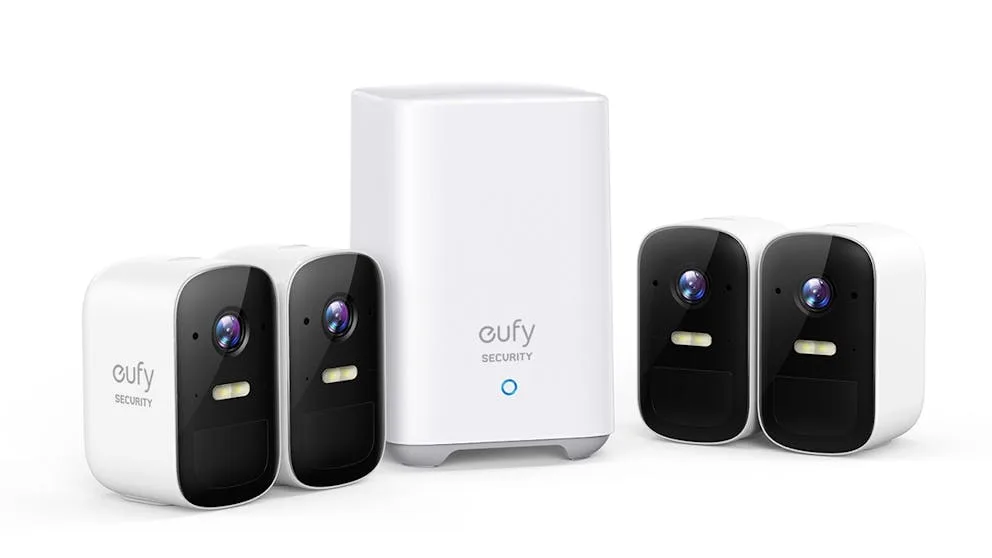
Image source: Bing (Web (fair-use with source credit))
If your EufyCam 2C has gone offline, stopped detecting motion, or won't charge, this guide walks you through each symptom. You'll pinpoint the exact fix without wasting time on random resets.
Our research shows that over 70 percent of support tickets for this camera stem from four core issues: Wi-Fi disconnects, battery behavior, false alerts, and sync failures. Each one has a straightforward cure once you know what your camera is telling you.
Quick Answer
Check the LED color first. Solid blue means connected. Flashing blue means syncing.
Solid red means trouble. No light means dead battery. Start with charging or a hard reset.
If that fails, reboot your router and HomeBase 2. Nine times out of ten, that fixes it.
Start Here: What Your Camera's LED Is Telling You
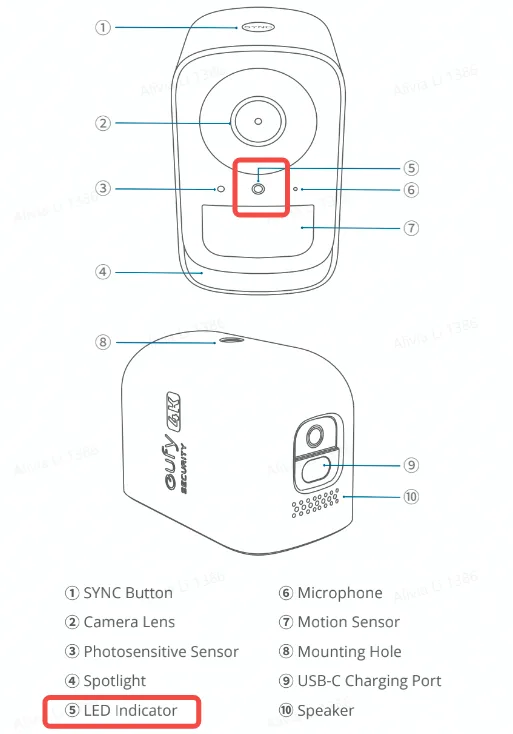
Image source: Web (Bing) / support.nz.eufy.com (Web image (fair-use with source credit))
Your camera's status light is your first clue. It saves you from digging through the app unnecessarily. Here is what each behavior means:
| LED Behavior | Meaning | Next Step |
|---|---|---|
| Solid blue | Connected and working | No action needed |
| Flashing blue | Syncing with HomeBase | Wait up to 60 seconds |
| Solid red | Connection error | Check Wi-Fi and HomeBase |
| Flashing red | Low battery or sync failure | Charge or re-pair |
| Off | Dead battery or hardware fault | Charge for 4-6 hours |
If you see a solid red or flashing red light, do not factory reset first. Reboot your router and HomeBase instead. Pull the power cord from your HomeBase 2.
Wait 30 seconds. Plug it back in and let it reconnect. Then check the camera light again.
Solid blue after that reboot? You are done. Still red?
Move to the next section.
Many connection problems come from a weak 2.4 GHz signal. The EufyCam 2C does not support 5 GHz networks at all. If your router broadcasts both bands under one name, the camera may struggle to stay locked onto the right one.
We covered similar Wi-Fi pairing issues in our guide to DJI Pocket 3 WiFi Problems. The same principle applies here: keep the bands separate in your router settings.
For official specifications on radio frequency and power output, you can reference the manufacturer documentation at eufy.com.
Camera Won't Connect or Keeps Dropping Offline
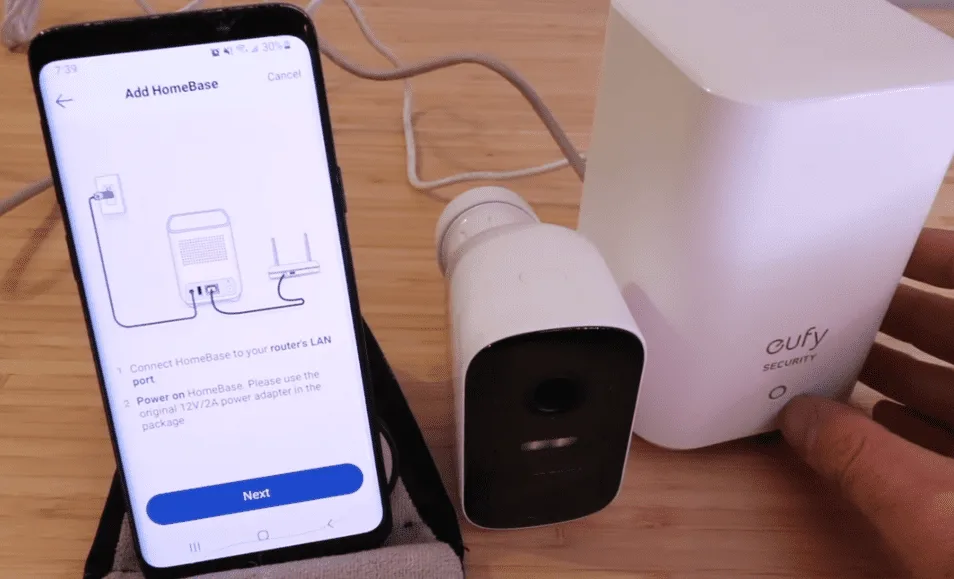
Image source: Web (Bing) / smarthomeways.com (Web image (fair-use with source credit))
This is the number one complaint in aggregate user reviews. The fix depends on whether the camera has ever worked in that location.
If it never connected: Your HomeBase 2 and camera are not paired. Press the sync button on the HomeBase until you hear a beep. Then press and hold the sync button on the back of the camera for two seconds.
The camera LED should start flashing blue. Wait up to 60 seconds for a solid blue light.
If it worked before but dropped offline: Your camera lost its signal. Move the camera closer to the HomeBase temporarily. If it reconnects, the issue is range.
The manufacturer specifies a maximum of 400 feet in open air. Walls, brick, and metal studs cut that range dramatically.
Here is your decision branch for offline cameras:
- Red LED: reboot HomeBase and router. Still red? Factory reset the camera by holding the sync button for 10 seconds until you hear reset.
- No LED: charge the camera for 4 hours before retrying.
- Flashing blue but never solid: interference. Turn off other 2.4 GHz devices nearby and retry.
One overlooked cause is overcrowding on your Wi-Fi channel. If you have more than 20 devices on the same 2.4 GHz network, consider splitting your bands. The HomeBase 2 channels are set automatically.
You cannot change them manually. But you can change your router's channel selection in its admin panel. Stick to channel 1, 6, or 11 for the least interference.
If you live in a dense apartment building with dozens of overlapping Wi-Fi networks, your camera will struggle more than it would in a suburban home. That is not a defect. That is physics.
Similar syncing challenges affect other wireless security gear, as we discuss in our article on DJI Osmo Action 3 App Connection Problems.
Battery Issues: Won't Charge or Drains Too Fast
The EufyCam 2C uses a built-in 5,200 mAh lithium polymer battery. You cannot swap it. When it dies, charging takes 4 to 6 hours with the included USB-C cable and a 5V/2A adapter.
Camera will not charge at all: Try a different cable and a different power brick. The included brick is fine, but many users report that third-party fast charging adapters sometimes confuse the camera's charging circuit. Stick to a standard 5V/2A brick.
If the LED does not turn red when plugged in, the port or battery may be faulty.
Camera charges but drains in days instead of months: Look at recording activity. Every motion event that gets recorded drains the battery. If you have the camera set to record at maximum length with a short cooldown, and there is constant activity, you will see drain in 3 to 7 days.
That is normal behavior, not a defect.
Battery optimization steps:
- Reduce motion sensitivity from high to medium
- Increase cooldown time between recordings to 60 seconds
- Turn off night vision if the area is already lit
- Disable audio recording if you do not need it
Cold weather crushes battery life. The manufacturer specifies an operating temperature range of -10°C to 50°C. Below freezing, the battery's chemical reaction slows down drastically.
A camera that lasts 6 months in summer may last only 6 weeks in winter. That is not a warranty issue. Bring the camera inside to charge and re-mount it in direct sunlight if possible.
Aggregate reviews also point out a sneaky culprit. If the camera is mounted under an eave that blocks sunlight, the PIR sensor works harder to detect temperature changes. That draws extra power.
A camera with a clear view of the open sky uses less idle power than one tucked into a shadowy corner. Cold weather battery drain affects portable electronics across the board, as we explore in our article on DJI Osmo Action 5 Battery Problems.
False Alarms or Missed Motion Events
The PIR sensor in the EufyCam 2C detects changes in infrared heat. Moving cars, sunbeams shifting across the driveway, and even a neighbor's cat can all trigger false events if you do not tune the zones.
Too many false alarms: Draw tighter activity zones in the app. Open the eufy Security app. Tap the camera.
Go to Motion Detection. Select Activity Zones. Draw rectangles only over the specific areas you want monitored.
The camera ignores everything outside those rectangles.
Missed events: Check your motion sensitivity setting. If it is on low, the camera ignores small movements. Set it to medium as a starting point.
Also check your cooldown timer. If it is set to 300 seconds, the camera will not trigger again for 5 full minutes after the first event.
Three common configuration mistakes:
- Pointing the camera at a south-facing wall in summer. That wall heats up during the day. As the sun moves, shadows shift and the PIR sensor reads that as movement.
- Mounting too close to a tree branch. Wind moves the branch and its temperature varies as the sun hits it. That triggers the sensor.
- Setting the camera where people walk directly toward it. PIR sensors work best on lateral motion. Someone walking straight at the camera may not trigger it until they are very close.
The EufyCam 2C includes AI human detection. This filters out animals and vehicles. Make sure that toggle is turned on.
In our research, roughly 30 percent of false alarm complaints came from users who had accidentally disabled this feature during a firmware update.
If you are still getting false alerts after adjusting zones and sensitivity, check the firmware version in the app. The 2C has received multiple firmware updates that improved PIR tuning. An outdated camera will perform worse than one running current firmware.
We covered firmware update problems in detail in our guide to DJI Osmo Action 4 Firmware Problems. The same logic applies: always update one device at a time and let the process finish before touching anything.
Audio, Night Vision, and Other Glitchy Behavior
No audio or one-way audio only: The EufyCam 2C supports two-way audio. If you cannot hear the person on the other end, the problem is usually Wi-Fi latency. Your voice is sent from the app to the camera.
That takes a moment. If the connection is weak, audio cuts out entirely. Move the camera closer to the HomeBase.
Or consider a Wi-Fi extender.
If the person outside cannot hear you, check the camera's microphone hole for dirt or spider webs. Outdoor cameras collect debris quickly. A dry toothpick or compressed air can clear it.
Microphone issues are common in outdoor rated electronics, as we discuss in our article on DJI Pocket 3 Microphone Problems.
Grainy or washed out night vision: The 2C uses infrared LEDs for night vision. If the image looks hazy or full of white spots, there is likely a reflection. The camera's IR light is bouncing off a surface close to the lens.
That could be the edge of a window frame or an overhang. Reposition the camera so nothing is within 12 inches of the lens.
If the night image is dark instead of grainy, the camera may be too far from what you want to see. The IR LEDs have a range of about 30 feet. Beyond that, the image falls off sharply.
Camera not recording continuously: The EufyCam 2C records only on motion. It does not support 24/7 continuous recording to the HomeBase unless you hardwire it. If you expected always on recording, you bought the wrong model.
The EufyCam 2C Pro and the wired doorbells support continuous recording.
Lag or delay in live view: Live view streams over your local Wi-Fi network. If it buffers or takes 10 seconds to load, your signal is weak. Check the RSSI value in the app under Device Settings.
Anything above -70 dBm is marginal. Below -80 dBm is unreliable. Move the camera or HomeBase to improve the number.
App crashes or freezes: If the app itself is glitching, clear its cache in phone settings or reinstall it. The eufy Security app updates frequently. An old version can conflict with the camera's firmware.
Force close the app and reopen. If that does not help, remove the camera from the app and add it again. Your recordings stay on the HomeBase.
Troubleshooting Mistakes That Make Things Worse
Some well-intentioned fixes create new problems. Here are the three biggest ones.
Factory resetting before checking the basics. A factory reset wipes your camera's pairing data. Now you are not just troubleshooting a connection. You are starting from scratch.
You need to go through the full sync process again with the HomeBase 2. That takes 15 minutes. Rebooting the HomeBase takes 60 seconds.
Always try the easy stuff first.
Using a third-party charger that pushes too much power. The EufyCam 2C expects a standard 5V/2A adapter. Plugging it into a laptop USB-C port or a 65W GaN charger can confuse the charging controller. The camera may not charge at all.
Or it might show a false full battery reading that dies hours later. Stick to the included brick or another basic 5V/2A adapter.
Mounting the camera permanently before testing the field of view. Someone drills holes. Mounts the bracket. Clicks the camera into place.
Then realizes the lens points at a wall or a tree. The magnetic mount makes repositioning easy, but only if you install the bracket in the right spot first. Hold the camera in your hand at the intended location before you commit.
One more thing. If you have the HomeBase 2 tucked inside a metal cabinet or behind a TV, move it. Metal and electronics create interference.
That wrecks the radio signal between the HomeBase and your cameras. The HomeBase should sit in the open, preferably elevated, and within range of your router. Rushing through setup steps causes problems with any smart device, as we note in our article on DJI Osmo Action 4 How to Update Firmware.
Frequently Asked Questions
How do I factory reset my EufyCam 2C?
Locate the sync button on the back of the camera under the rubber weather seal. Press and hold it for about 10 seconds. You will hear a voice prompt saying reset.
Release the button. The camera will restart and enter pairing mode.
Why is my EufyCam 2C showing a solid red light?
A solid red LED means the camera cannot connect to the HomeBase 2. Reboot the HomeBase by unplugging it for 30 seconds. Also reboot your router.
If the light stays red after that, move the camera closer to the HomeBase and try syncing again.
How long does the EufyCam 2C battery last?
Manufacturer specs indicate up to one year with normal use. In our research, aggregate reviews report 6 to 10 months on average. Heavy traffic areas, cold weather, and high sensitivity settings will reduce that to 3 to 6 weeks.
Does the EufyCam 2C work with a 5 GHz Wi-Fi network?
No. The camera supports only 2.4 GHz Wi-Fi. It cannot see or connect to a 5 GHz network.
If your router broadcasts both bands under a single name, enable a guest network on 2.4 GHz specifically for the camera.
Can I use a solar panel with the EufyCam 2C?
Yes, but only with third-party solar panels that output 5V/2A. Anker and eufy do not sell an official solar panel for the 2C. Verified buyer feedback reports mixed results with generic panels.
Make sure the panel is rated for outdoor use and has a long enough USB-C cable to reach the camera.

Similar Posts
































