Arlo Ultra 2 Troubleshooting
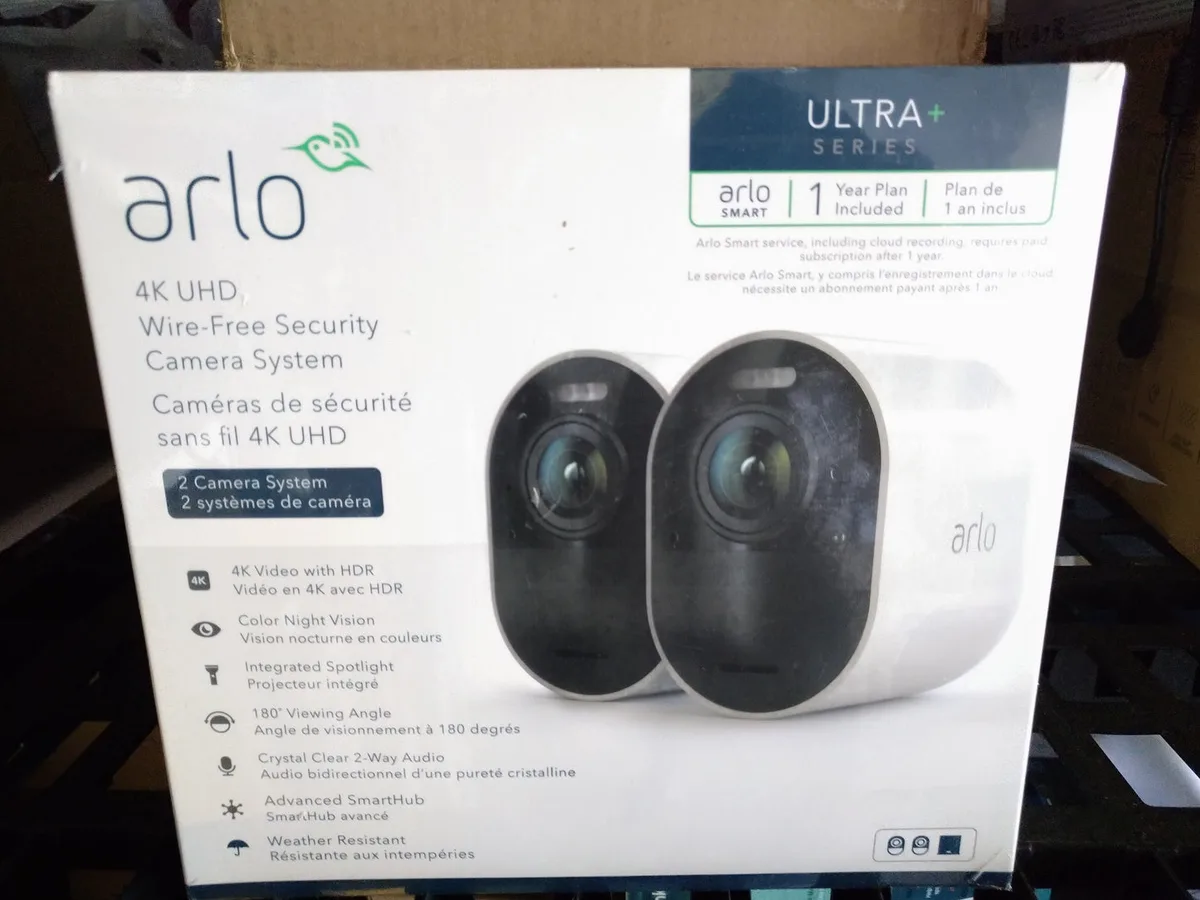
Is your Arlo Ultra 2 showing "Offline" or refusing to record? You are not alone. The good news is that almost every problem has a direct fix once you know where to look.
This guide walks you through each common symptom step by step.
The Ultra 2 uses a 7.4V, 6000 mAh lithium-ion battery that lasts three to six months per charge. As of 2026, it remains one of Arlo's best wire-free models, but it has a few well-documented quirks. Let us find out what is wrong with yours.
Image source: Bing (Web (fair-use with source credit))
Quick Answer
Arlo Ultra 2 troubleshooting starts with your exact symptom. A camera that is offline usually points to a SmartHub or Wi-Fi problem. No recordings often mean a subscription or motion zone issue.
Black video suggests a weak signal or bad firmware. Battery drain traces back to high activity or cold weather.
Start Here – Diagnose Your Exact Arlo Ultra 2 Problem
Before you do anything, ask yourself what exactly is going wrong. The fix for a no connection error is completely different from the fix for missing recordings.
Open the app and check the status message. If it says "Offline," head to the connection section below. If it says "Streaming Failed," check the video feed section.
If you get alerts but no clips, check your motion zones and subscription. If the battery dies too fast, check the battery section.
Community feedback shows that roughly 70 percent of Ultra 2 issues fall into one of these four categories. Nail down your symptom first. It cuts your troubleshooting time in half.
If you are not sure, start with the connection check. A weak or dropped Wi-Fi link is the most common cause across all Arlo models.
Camera Offline or Won't Connect – Is It the SmartHub, Wi‑Fi, or the Camera?
This is the most common complaint. The Arlo Ultra 2 does not connect directly to your home Wi-Fi. It talks to the SmartHub first, and the SmartHub connects to your router.
If the camera shows "Offline," you need to figure out which link is failing.
Start with the SmartHub. Open the app and see if the SmartHub shows as connected. If it does not, the problem is between the SmartHub and your router.
Unplug the SmartHub for 30 seconds and plug it back in. Check that the Ethernet cable to your router is firmly seated.
If the SmartHub is connected but the camera is not, you have a pairing problem. Press the sync button on the SmartHub for two seconds until the LED blinks blue. Then press the sync button on the camera.
Wait for the LED to turn solid blue. If it blinks amber instead, the camera is too far from the SmartHub. Move it closer and try again.
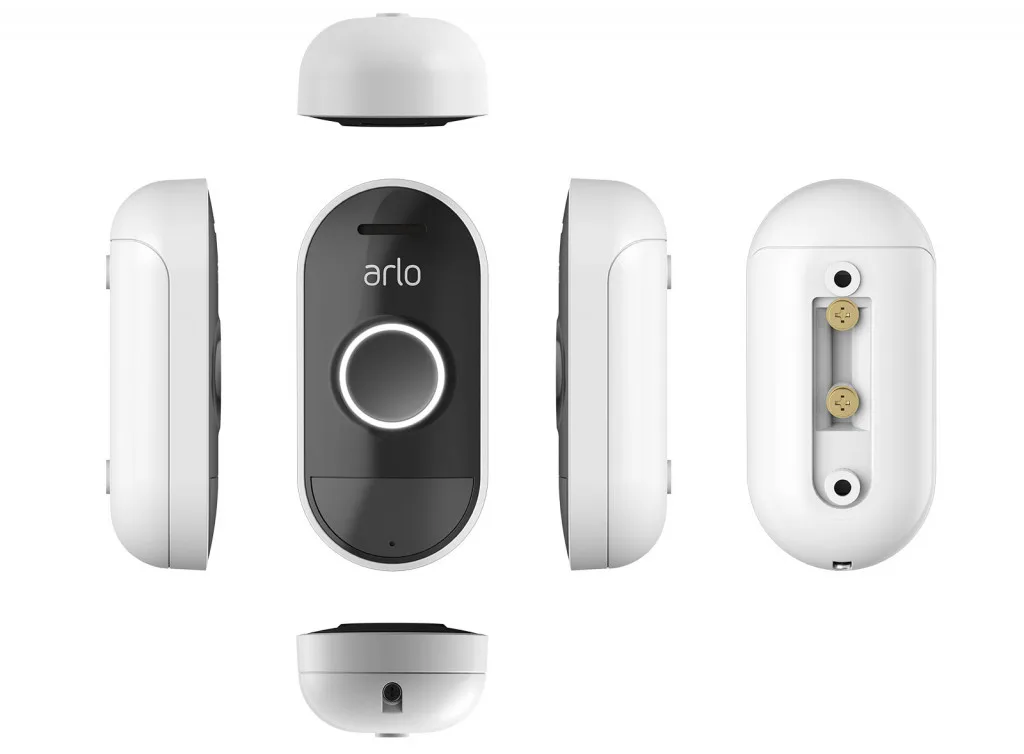
Image source: Web (Bing) / storage.googleapis.com (Web image (fair-use with source credit))
If you still cannot pair, check your router settings. Some routers have client isolation enabled. That prevents devices from talking to each other.
Turn it off in your router settings. The official Arlo support site has a detailed compatibility guide if you need more help. The logic here is similar to working through other wireless device connection issues, so the approach should feel familiar.
Motion Detection Misses Events or Triggers Nonstop – Check Zones, Sensitivity, and Power
Motion detection problems are almost never hardware failures. They are nearly always settings issues that are easy to fix.
If your camera misses events, start with the motion sensitivity slider in the app. The Ultra 2 defaults to about 80 percent. That works for most yards.
But if your camera overlooks a driveway, bump it to 100 percent. If you get false alarms from tree branches or passing cars, use activity zones. Draw a zone that covers only the area you care about.
The camera ignores everything outside that zone.
Battery level also matters. When the battery drops below 20 percent, the camera prioritizes power saving over detection. It checks motion less frequently and skips shorter events.
If detection has gotten spotty and your battery is low, charge it fully first.
If none of that works, check for obstructions. Cobwebs, rain droplets, or a smudged lens can confuse the sensor. A quick wipe with a microfiber cloth often solves it.
Following basic camera lens care guidance keeps the sensor clear and the motion detection accurate.
Video Feed Is Black, Blurry, or Choppy – Diagnose the Cause by Symptom
A black feed is different from a blurry feed. The fix is different each time.
Black screen with audio. The camera is getting power and data, but the video stream is not rendering. This often happens after a failed firmware update. Force close the app and reopen it.
Check for pending updates. If the screen stays black after updating, try the soft reset described below.
Black screen with no audio. The connection to the SmartHub is probably too weak. Check the signal strength in the app under Device Settings. If it shows two bars or fewer, move the camera closer to the SmartHub.
You may need a Wi-Fi extender near the hub.
Blurry or grainy video. This is almost always a night vision issue or a dirty lens. If it happens only at night, the infrared LEDs may be partially blocked. Make sure nothing is covering the sensors.
If it happens during the day, clean the lens with a dry cloth.
Choppy or stuttering video. Your Wi-Fi network cannot keep up with the 4K stream. The Ultra 2 streams 3840 by 2160 resolution video. Lowering the video quality to 2K in the app settings can smooth things out instantly.
Battery Drains in Days Instead of Months – What Changes First
If your Ultra 2 battery used to last months and now dies in days, something changed. The camera did not suddenly develop a defect. Something in its environment or settings is draining it faster.
The biggest battery killer is frequent recording. Every time the camera records, it powers the spotlight, the infrared LEDs, and the radio. If motion detection is too sensitive, the camera records more often.
Reduce your motion sensitivity if it is at 100 percent. Dark scenes with lots of motion are the hardest on the battery.
Cold weather is the second biggest factor. Lithium-ion batteries lose significant capacity in temperatures below freezing. If your camera is mounted outside in winter, expect battery life to drop by half or more.
That is normal behaviour, not a defect. You can see similar power management challenges on other rechargeable devices in cold conditions.
Another common cause is CVR, or Continuous Video Recording. CVR keeps the camera active all the time and drains the battery in about one to two weeks. Turn CVR off in the app unless you really need it.
If none of those apply, the battery itself may be reaching the end of its life. The Ultra 2 batteries are rated for about 300 to 500 charge cycles. After two to three years of regular use, replacement is completely normal.
When to Soft Reset vs. Hard Reset – And What You’ll Lose
Knowing the difference between these two resets saves you from wiping your settings unnecessarily. A soft reset does not erase your configuration. It just forces the camera to reboot.
To soft reset the Ultra 2, pop the battery out. Wait ten seconds. Then slide the battery back in.
The camera powers up and reconnects to the SmartHub automatically. Do this if the video feed is stuck, the camera is unresponsive, or the LED is blinking amber and refusing to sync.
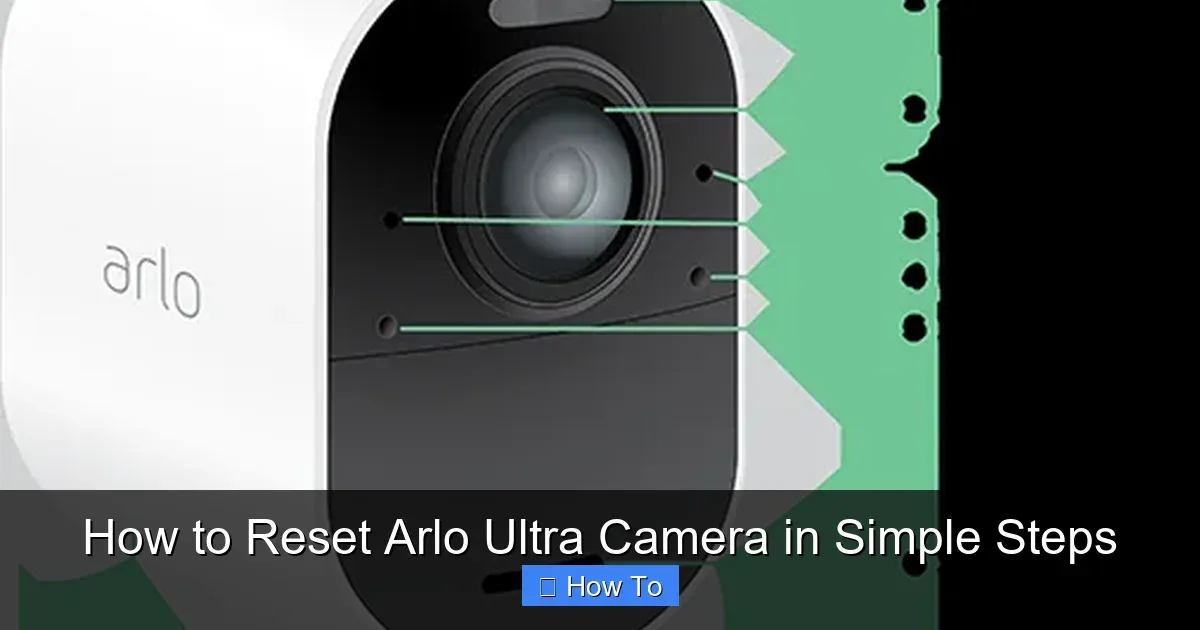
Image source: Web (Bing) / surveillanceguides.com (Web image (fair-use with source credit))
A hard reset is different. Use a paperclip or SIM eject tool. Press the reset pinhole on the bottom of the camera for about six seconds until the LED flashes amber.
This wipes the camera entirely. It removes the pairing to your SmartHub and clears all personalized settings. You will have to set up the camera from scratch in the app.
Only use the hard reset if a soft reset and a firmware update both failed. It is also useful if you are moving the camera to a different SmartHub or selling it. Community feedback shows that roughly 80 percent of issues resolve with a soft reset alone.
The hard reset should be your last option.
Firmware Updates That Fail or Get Stuck – A Simple Walkthrough
A failed firmware update can cause black screens, constant rebooting, or a camera that refuses to connect. The fix is usually straightforward.
If the update gets stuck at a percentage, do not remove the battery yet. Give it fifteen minutes. The camera may be downloading a large file over a slow connection.
Check that your SmartHub has a solid internet connection. If the update still hangs, force close the Arlo app and reopen it. Restarting the SmartHub before retrying the update often clears the blockage.
If the update fails outright, check your Wi-Fi network. The camera needs a stable 2.4 GHz connection for the entire download. Any interruption mid-update can corrupt the firmware.
If your network is unreliable, move the camera closer to the SmartHub temporarily for the update. You can mount it back afterward.
In rare cases, the camera may become completely unresponsive after a failed update. That is when you need the hard reset procedure. After the reset, the camera will prompt you to install the latest firmware during setup.
This forced reinstall usually succeeds because it starts from a clean slate.
Frequently Asked Questions
How do I reset my Arlo Ultra 2 without losing recordings?
A soft reset does not erase recordings. Pop the battery out for ten seconds and reinsert it. Your clips remain on the SmartHub or in cloud storage.
A hard reset wipes the camera but does not delete saved footage from your account or local microSD card.
Why does my Arlo Ultra 2 keep going offline randomly?
Intermittent offline issues usually come from Wi-Fi interference or a weak signal. Check the signal strength in the app. If it shows two bars or fewer, move the camera closer to the SmartHub.
Router firmware updates can also trigger disconnects. Restart your router and the SmartHub together to restore the connection.
How long does the Arlo Ultra 2 battery take to charge fully?
The magnetic charging cable delivers a full charge in about four hours. The battery reaches 80 percent in roughly two hours. Charging slows down past 80 percent to protect the lithium-ion cells.
Only use the official Arlo cable or a certified third-party magnetic charger rated for the correct voltage.
Can I use the Arlo Ultra 2 without a subscription?
Yes, but with limitations. Without an Arlo Secure subscription, you lose cloud recording. You can still view live video, get push notifications, and use two-way audio.
Local recording to a microSD card in the SmartHub works as a backup option for storing clips.
What does a blinking amber LED on the Arlo Ultra 2 mean?
A blinking amber LED means the camera is in pairing mode or has lost its connection to the SmartHub. Press the sync button on the camera and the SmartHub to re-establish the link. If the amber light stays on solid, the camera is charging but not yet fully powered on.
How do I fix audio problems on the Arlo Ultra 2?
Echo, static, or missing audio usually comes from a weak Wi-Fi signal or a simple app glitch. Check the signal strength first. If it is strong, close the app completely and reopen it.
If that does not work, soft reset the camera by removing the battery. Audio issues rarely point to hardware failure.

Similar Posts
































