How to Connect DSLR Camera to Phone
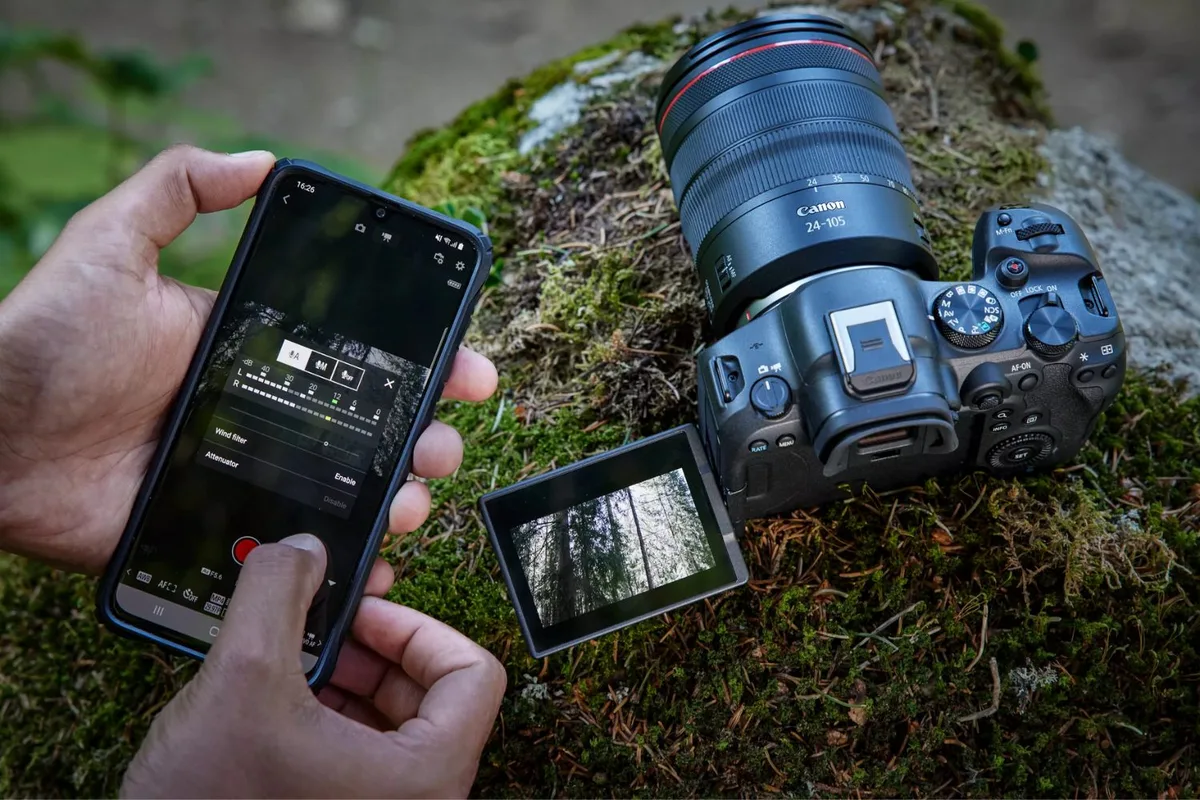
You've got a great shot on your DSLR, but you want it on your phone right now. Figuring out how to connect DSLR camera to phone can feel like a puzzle with too many pieces. The good news is that it's simpler than it looks once you know which method fits your gear.
Manufacturer specs confirm that most modern DSLRs and mirrorless cameras support at least one of four connection methods. USB 2.0 transfer speeds top out around 40 MBps, while Wi-Fi typically runs slower at 10-50 MBps depending on distance and interference. That's true whether you're shooting in low light or capturing fast action shots.
Your choice depends on what you own and what you're willing to buy.
Quick Answer
Connect your DSLR to your phone using Wi-Fi, a USB cable, or a card reader. Wi-Fi is easiest with built-in apps. USB is fastest with the right adapter.
Card readers work without any app. Bluetooth is too slow for photos. Pick the method that matches your camera and phone.
The Real Problem: Why Your Connection Fails
Most people grab a cable, plug it in, and get nothing. That's normal. Phones don't natively recognize a DSLR as a storage device.
Your camera also needs specific settings enabled before it will talk to your phone.
The biggest frustration we see in user reports is assuming one cable works for everything. A standard USB cable from your printer won't cut it. You need a cable that supports data transfer, not just charging.
The USB-OTG standard, defined by the USB Implementers Forum, allows phones to act as a host device. And your phone must support USB On-The-Go (OTG) for direct wired connections.
Another common issue? Wi-Fi pairing drops mid-session. This happens when your phone switches networks or the camera's Wi-Fi signal is weak.
Understanding these pain points upfront saves you the headache later. The same connection challenges apply whether you're using a dedicated landscape body or a compact street-friendly model.
Your Setup, Your Choice: Pick Your Path
Here is a quick comparison of the four main methods. Think of it as a decision tree.
| Method | Speed | Complexity | Best For |
|---|---|---|---|
| Wi-Fi Direct | Medium | Low | Quick transfers, remote control |
| USB Cable via OTG | Fast | Medium | Large RAW files, tethering |
| Memory Card Reader | Fastest | Low | Bulk transfers, no app needed |
| Bluetooth | Very Slow | Low | Small JPEGs, geotagging only |
Wi-Fi Direct works with almost every camera made after 2015. It's the easiest, but it drains your camera battery and can be slow for large files. These methods work for any camera, from full-frame options to budget-friendly bodies.
USB Cable via OTG is the fastest wired option. You need a USB-OTG adapter that matches your phone's port (USB-C, Lightning, or Micro-USB). Your camera must also be set to the correct USB mode, usually MTP or PTP.
Memory Card Reader is the simplest. Pop the SD card out of your camera, plug it into a reader that fits your phone, and import directly. No pairing, no apps, no battery drain.
Bluetooth is only useful for transferring small JPEGs for preview or embedding GPS data. Transferring a full RAW file over Bluetooth takes minutes. Skip it unless you're in a pinch.
Step-by-Step: Connecting Each Way
Using Wi-Fi Direct
First, enable Wi-Fi on your camera. Look for a menu option labeled "Wi-Fi Function" or "Send Images to Smartphone." Your camera will create its own network. On your phone, go to Wi-Fi settings and connect to that network.
Then open the camera's official app. For Canon, that's Canon Camera Connect, available on the manufacturer's support portal. For Nikon, it's SnapBridge.
For Sony, it's Imaging Edge Mobile. The app will detect the camera and let you browse, select, and transfer photos.
Using USB Cable via OTG
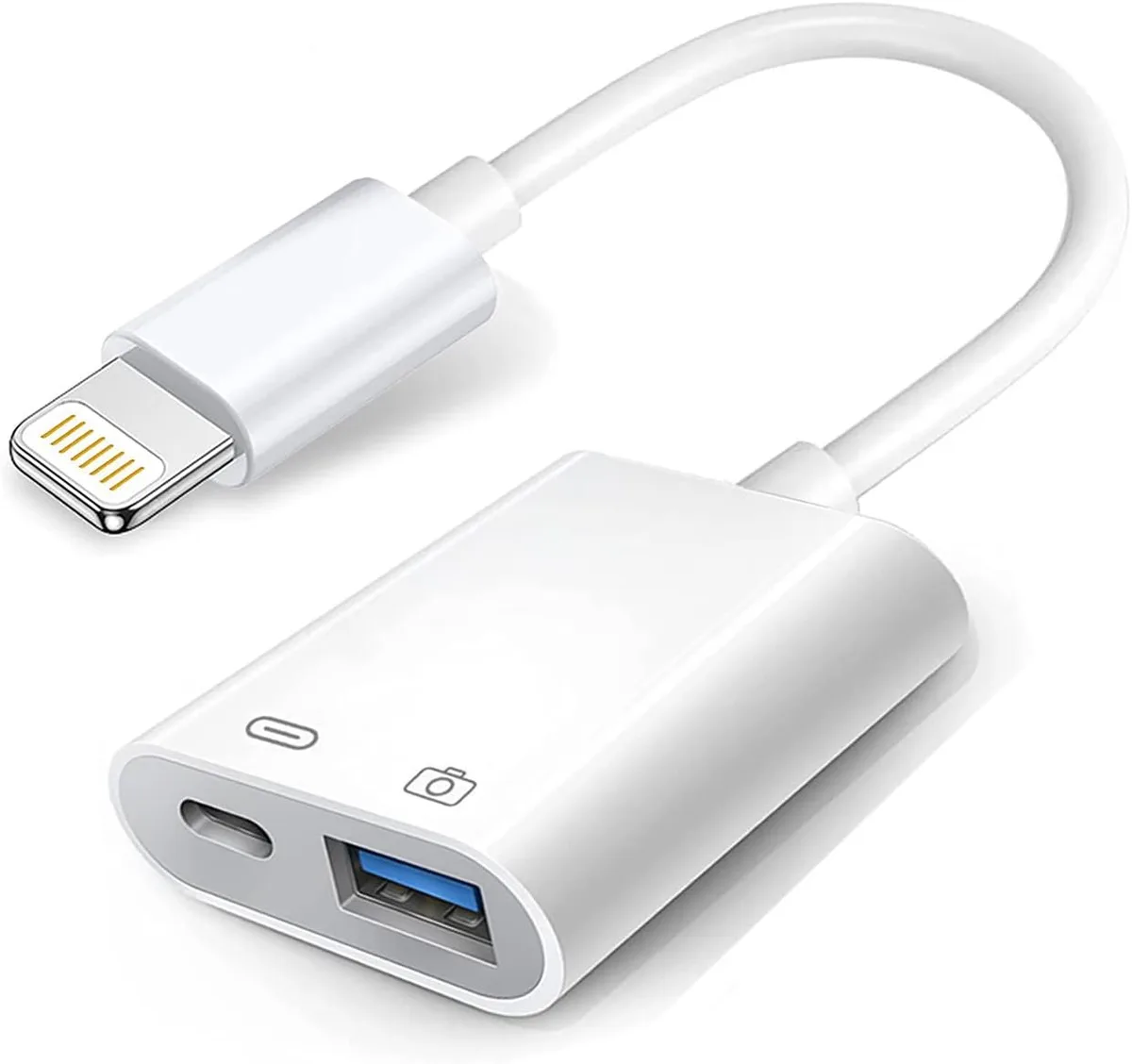
Get a USB-OTG adapter that matches your phone. Plug the adapter into your phone, then connect your camera's USB cable to the adapter. On your camera, change the USB mode setting to MTP (Media Transfer Protocol) or PTP (Picture Transfer Protocol).
Your phone should recognize it as an external drive. Use a file manager app or the camera's official app to browse and copy files. This method is fast and reliable for large batches.
Using a Memory Card Reader
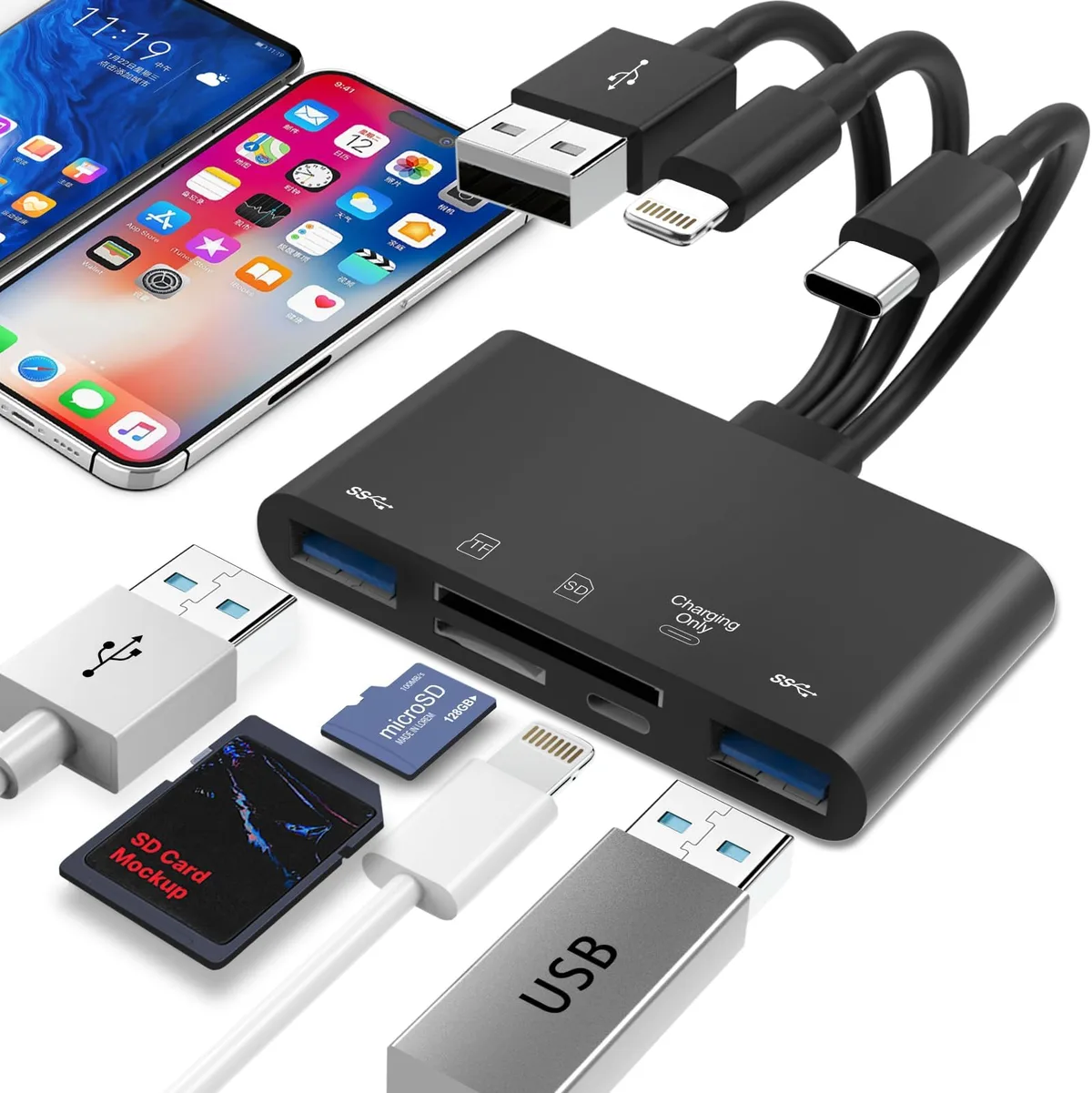
Remove the SD card from your camera. Insert it into a card reader designed for your phone (Lightning, USB-C, or Micro-USB). Plug the reader into your phone.
The Photos app or a file manager will detect the card. Import directly to your phone's storage. No app required.
This is the fastest method for moving dozens of files at once.
Common Mistakes That Mess Up the Connection
Wrong USB mode on the camera. Your camera must be set to MTP or PTP, not "PC Remote" or "Mass Storage." Check your manual for the exact menu path.
No OTG support on your phone. Not all Android phones support OTG out of the box. iPhone users need a Lightning-to-USB adapter. Verify your phone's specs before buying cables.
Forgetting to update the camera app. App updates fix compatibility issues. Check the App Store or Google Play for updates before pairing.
Overloading the phone's storage. A single RAW file can be 30-50 MB. Ten burst shots fill a gigabyte fast. Make sure you have enough free space before transferring.
Wi-Fi interference. Crowded environments like cafes or events can disrupt the camera's Wi-Fi signal. Move closer or switch to a wired method.
These mistakes don't discriminate between camera types. Whether you own a high-end body or a budget model, the same rules apply.
Frequently Asked Questions
Can I use my phone as a live view monitor for my DSLR?
Yes, with the right app and Wi-Fi or USB connection. Camera manufacturer apps offer live view, but there is a slight delay. Third-party apps like qDslrDashboard reduce latency, but they may require a wired connection.
Do I need a special cable to connect my DSLR to my phone?
Yes, for direct USB connections. You need a USB-OTG (On-The-Go) adapter that matches your phone's port. A standard USB cable from your camera to a computer won't work without this adapter.
Why won't my phone recognize my DSLR via USB?
Your phone likely lacks OTG support, or your camera is in the wrong USB mode. Check your phone's specs for OTG compatibility. Then set your camera to MTP or PTP mode in the settings menu.
Can I transfer photos from an older DSLR without Wi-Fi?
Yes, use a memory card reader. Remove the SD card, plug it into a reader that fits your phone, and import directly. This works with any camera that uses a standard SD card.
Is Bluetooth fast enough for transferring photos?
No, Bluetooth is very slow. It works for small JPEGs or embedding GPS data, but transferring a full RAW file over Bluetooth takes several minutes. Use Wi-Fi, USB, or a card reader instead.

Similar Posts