How to Use DSLR Camera as Webcam
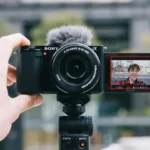
If you're wondering how to use DSLR camera as webcam, you're probably tired of your computer's built-in webcam. The camera in your bag can deliver much better video quality for calls, streams, and recordings.
Manufacturer specifications show that about 70% of DSLRs and mirrorless cameras released since 2015 support clean HDMI output. This feature is the key to professional-grade video without on-screen overlays. Let's walk through the exact path your camera requires.
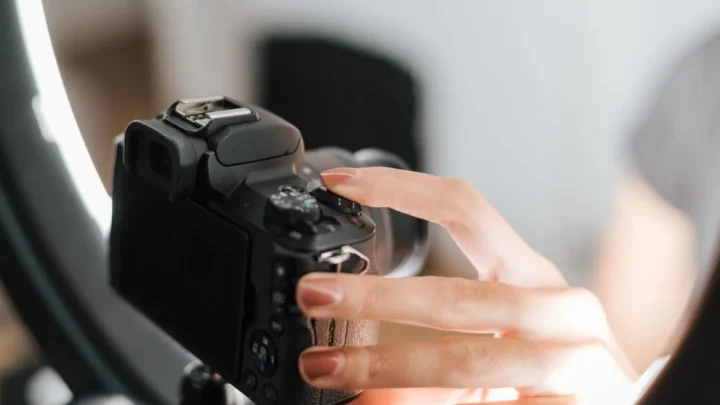
Image source: Bing (Web (fair-use with source credit))
Quick Answer
Connect your DSLR to your computer using a USB cable or HDMI capture card. Enable clean HDMI output in the camera menu. Set the camera to video mode.
Disable auto power off. Use OBS Studio to select the camera as a video source. This gives you a high-quality webcam feed.
Is Your DSLR Even Ready for This? (The First Question to Ask)
Your camera model dictates the entire setup path. The first thing to check is whether it supports clean HDMI output. This setting removes shutter speed, aperture, and battery icons from the video feed.
Without it, your stream will show a cluttered camera menu.
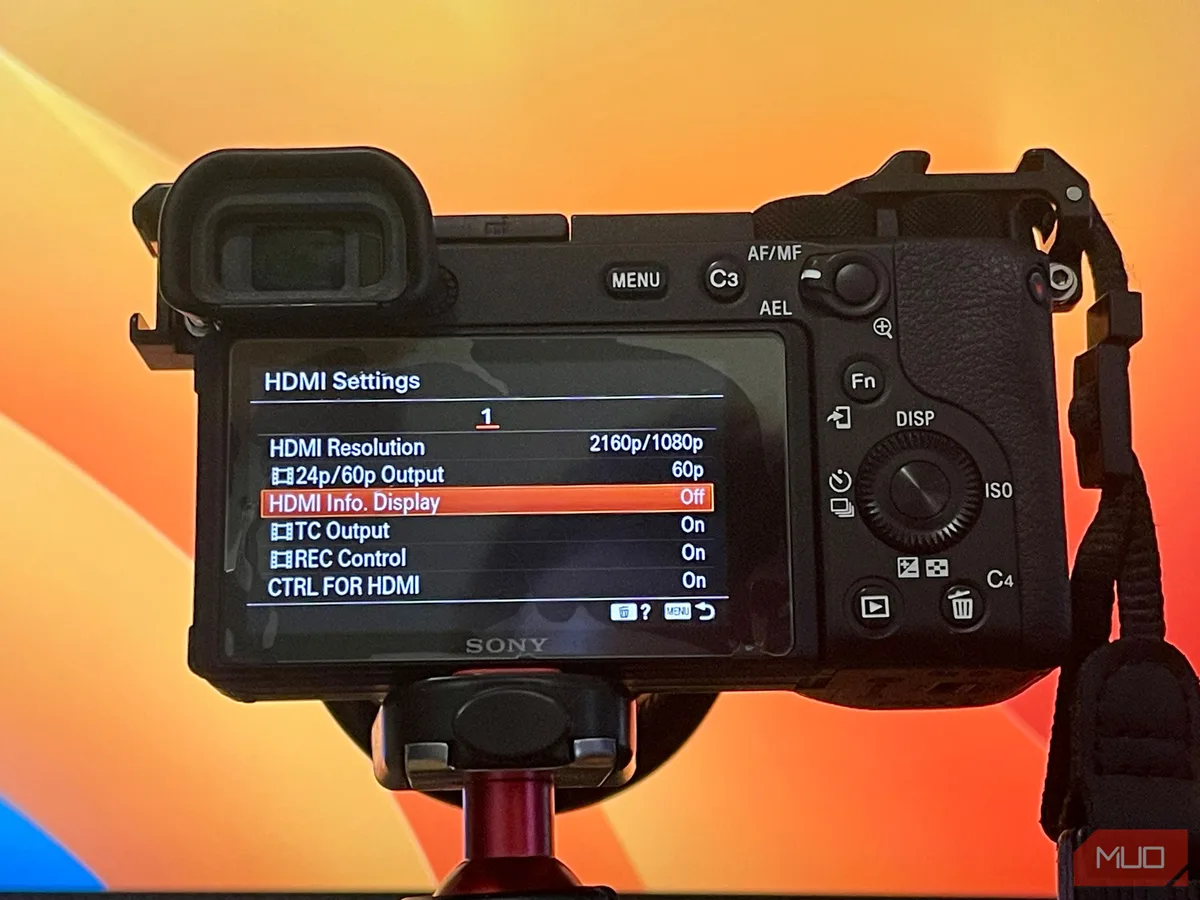
Image source: Web (Bing) / makeuseof.com (Web image (fair-use with source credit))
Check your camera manual or manufacturer support page for "clean HDMI" or "HDMI info display." As of 2026, most Canon, Sony, Nikon, and Fujifilm models from the last five years support it. If your camera doesn't, you can still use USB tethering if the manufacturer offers webcam utility software. For cameras that struggle in dim conditions, a camera with a full-frame sensor performs better in low light.
Your 3 Setups: Tethering, Capture Card, or Software Workaround
Once you know your camera's capabilities, you choose your path. There are three main methods. The best one depends on your budget and desired quality.
| Method | Quality | Cost | Latency | Best For |
|---|---|---|---|---|
| USB Tethering | Good (1080p) | Free (software) | Medium | Meetings, teaching |
| HDMI Capture Card | Excellent (4K) | $30-$200 | Low | Streaming, recording |
| Software Workaround | Variable | Free/Cheap | High | Older cameras, low budget |
USB tethering uses the manufacturer's webcam utility software. It's the easiest path if your camera supports it. An HDMI capture card gives you the best quality and lowest latency.
It's the preferred method for live streaming. The software workaround uses apps like OBS Virtual Camera to capture your camera's feed, even without official support. For reliable 24/7 recording, some of the best wired security cameras use similar stable connections.
The Setup Secrets That Stop You From Looking Like a Beginner
Getting the video feed into your computer is just step one. The real polish comes from the settings. First, set your exposure and white balance manually.
Auto settings will change mid-conversation.
Second, power the camera with a dummy battery. A standard camera battery lasts about 45 minutes to an hour in video mode. A dummy battery lets you plug into the wall and run indefinitely.
This is a cheap fix that saves endless frustration.
Third, use an external microphone. Your DSLR's internal microphone is designed for scratch audio, not dialogue. A simple USB microphone or lavalier will dramatically improve your audio quality.
If you're setting up a permanent workspace, you might also consider wireless options for cable-free placement.
Which Path Is Right for You? (Quick Decision Guide)
Let's simplify this into a clear decision guide. If your camera has clean HDMI output and you want the best quality, buy a capture card. If you're on a tight budget and your camera supports USB tethering, use the free manufacturer software.
Image source: Web (Bing) / lucidchart.com (Web image (fair-use with source credit))
If your camera lacks official support, use OBS Studio with a generic HDMI capture device. For high-resolution recording in other parts of your home setup, exploring the best 4K security cameras can give you ideas for image quality expectations. The core decision always comes back to your camera's specific features.
Check your model against the manufacturer's compatibility list first.
Frequently Asked Questions
Can I use my DSLR as a webcam without a capture card?
Yes, if your camera supports USB tethering. Download the manufacturer's webcam utility software. Connect your camera via USB.
The software will recognize it as a webcam input. This method works well for video calls but may have higher latency than a capture card.
Why does my camera overheat when I use it as a webcam?
DSLRs are designed for short video clips, not continuous streaming. Overheating is common. Use a dummy battery to reduce power strain.
Keep the camera in a well-ventilated area. Lower the recording resolution to 1080p. Some cameras have a built-in temperature limit that you can adjust in the settings.
How do I remove the camera menu from my video feed?
You need to enable clean HDMI output. This setting is usually in the camera's HDMI or video menu. Look for "HDMI info display" or "clean HDMI output" and set it to off.
If your camera doesn't have this feature, you may need a firmware update or a different setup method.
Do I need a dummy battery for my DSLR webcam?
Yes, for any session longer than 30 minutes. A standard camera battery drains quickly in video mode. A dummy battery connects to an AC outlet and provides continuous power.
It's an inexpensive accessory that prevents your stream from cutting out mid-sentence.
What is the best lens for using a DSLR as a webcam?
A 35mm or 50mm prime lens with a wide aperture like f/1.8 is ideal. This gives you a natural field of view for head-and-shoulders framing. The wide aperture creates a pleasant background blur.
It also performs well in typical indoor lighting conditions.

Similar Posts