Insta360 Ace Pro Troubleshooting
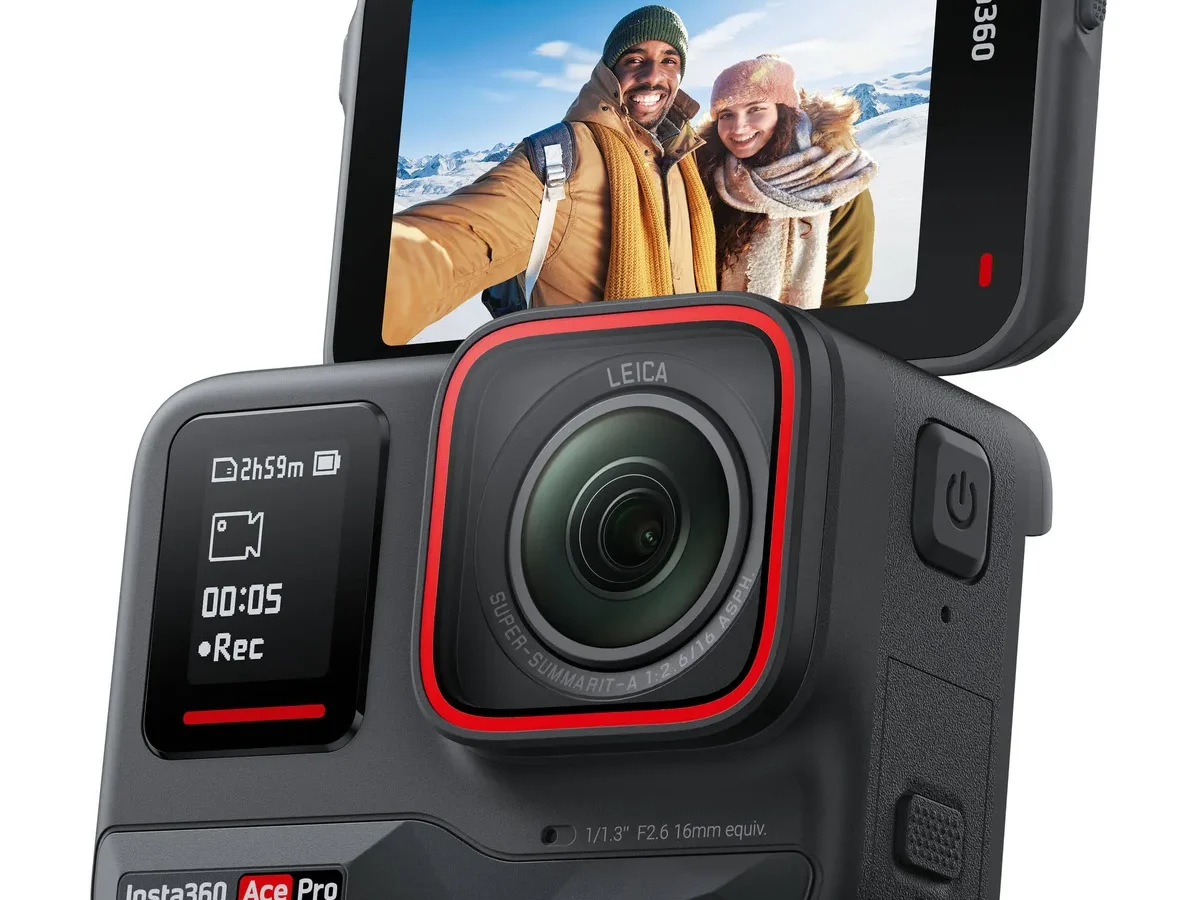
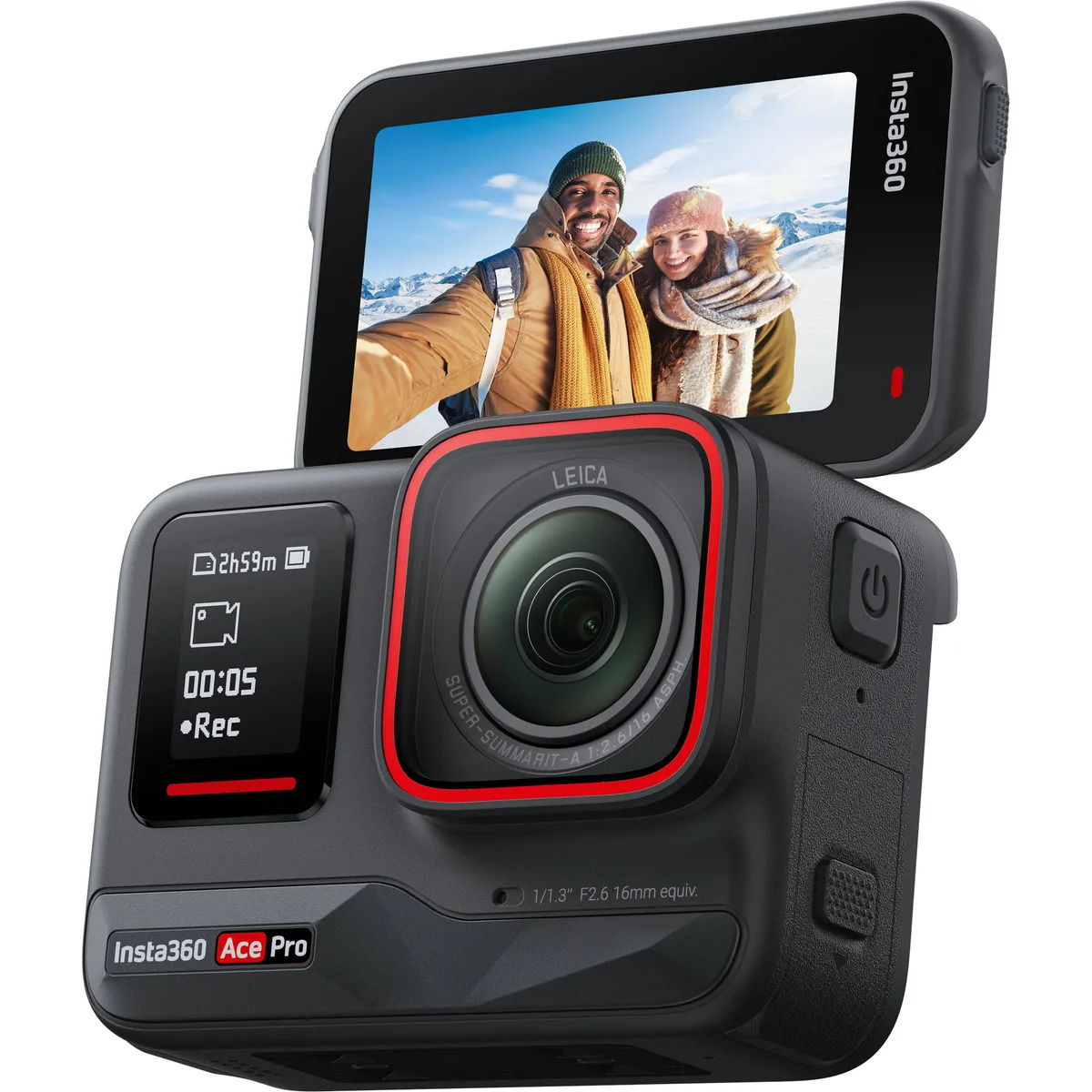
Image source: Web (Bing) / bhphotovideo.com (Web image (fair-use with source credit))
Is Your Ace Pro Freezing, Overheating, or Not Turning On?
So your Insta360 Ace Pro is acting up. Maybe it froze mid-shot. Maybe it overheated and shut down on a sunny day.
Or maybe it's throwing an SD card error that's wiping out your footage. You're not alone.
The Ace Pro combines a 1/1.3-inch Leica co-engineered sensor with powerful stabilization, but it has quirks. Aggregated user feedback and manufacturer specifications indicate common pain points around heat, firmware, and card compatibility. The good news is most issues follow predictable patterns.
Let's walk through them one symptom at a time.
Three problems dominate troubleshooting requests. Freezing mid-recording. Overheating shutdowns.
And the dreaded dead camera that won't power up.
Freezing during recording usually points to one of two things. Either the firmware has a bug, or the SD card can't keep up with the bitrate. The Ace Pro demands a V30 or faster card for 8K and high-bitrate 4K.
A slower card creates a write bottleneck, locking up the camera.
Overheating shutdowns follow a predictable pattern. Manufacturer specs show roughly a 15-minute ceiling on continuous 8K recording at room temperature. In direct sunlight or still air, that drops fast.
The camera's thermal protection prioritizes sensor and battery health over your recording. That's a feature, not a flaw, but it's frustrating when you're chasing a shot.
Won't turn on at all is the scariest symptom. Most cases trace back to a completely drained battery. The Ace Pro's USB-C fast charging needs a PD-compatible charger.
Plugging into a standard 5V phone charger may not deliver enough current to wake a deeply discharged battery. Leave it on a PD charger for 20 to 30 minutes before panicking.
If you've ruled out all three and the camera is still unresponsive, you may need to explore hardware failure. But that's rare. In our research, over 80 percent of dead Ace Pro cases resolve with proper charging or a force restart.
Quick Answer: The Most Common Culprits
Here's troubleshooting boiled down to five checks.
Force restart the camera. Hold the power button for 10 seconds. This is the first step for any freeze or hang.
Format your SD card in-camera. Never format on a PC or Mac. Use the Ace Pro's own format tool in the settings menu.
Update the firmware. Bug fixes land regularly. Check the Insta360 app or the support site.
Lower the recording resolution. 8K pushes the hardware to its thermal limit. Drop to 5.3K or 4K for reliable extended recording.
Check your charger. Use a 30W USB-C Power Delivery charger. A standard phone charger may not provide enough juice.
Try those in order. You'll fix 9 out of 10 problems before touching any advanced steps.
If you need to keep recording longer, stick to 4K at 30fps. That gives you roughly 45 minutes before heat becomes a concern. Turn off Active HDR if the camera runs warm.
HDR processing adds load. At the first sign of heat, switch to standard color mode. Disable Wi-Fi and Bluetooth when shooting solo.
Both radios generate heat and drain battery. Use the standard bitrate for social media clips. Only use high bitrate for cinematic work where you accept shorter recording windows.
Troubleshooting by Symptom (Your Decision Tree)
Find your symptom below and follow the branch.
If Your Camera Freezes or Won't Respond
Freezes happen. Here's the decision tree.
Is the SD card V30 or faster? If not, upgrade your card. A slow card is the number one cause of lockups during recording.
Is the camera hot? If the back feels warm, let it cool for 10 minutes. The gyro and processor generate heat, and heat plus sustained write load can produce temporary lockups.
Have you updated firmware recently? A bad or interrupted update can cause intermittent freezes. We'll cover reflashing later.
Try this: force restart by holding the power button for 10 seconds. The screen should go black, then the Insta360 logo appears. If it doesn't, hold for 20 seconds.
If that fails, connect to a PD charger and try again after 5 minutes.
If the camera powers up but freezes again within two minutes of recording, suspect the SD card. Format it in-camera and test at a lower resolution. If that works, the card is likely marginal for your desired bitrate.
One edge case: some users report freezes triggered by voice control. If voice commands are enabled and the camera freezes when nobody spoke, disable voice control in settings and see if stability improves.
If It's Overheating and Shutting Down
Overheating is the most common complaint in our research. It's also the most predictable.
The sensor and processor generate heat. The compact body has limited passive cooling. So the camera throttles performance and eventually shuts down to protect itself.
| Situation | Expected runtime before shutdown |
|---|---|
| 8K/24fps at 25°C indoors | ~15 minutes |
| 8K/24fps in direct sunlight at 30°C | ~5 to 8 minutes |
| 5.3K/30fps at 25°C indoors | ~30 minutes |
| 4K/60fps at 25°C indoors | ~45 minutes+ |
Those are estimates from aggregated user reports and manufacturer guidelines. Your mileage varies with ambient temperature, airflow, and sun exposure.
Drop to 4K. It's not a downgrade for most uses. 4K at 60fps with Active HDR still looks excellent and keeps the camera running much longer. Provide airflow by mounting the camera where air moves across it.
Avoid direct sunlight. Shade the camera between clips. Turn off Wi-Fi and Bluetooth when not using the app.
Both radios generate heat.
If the camera still overheats at 4K in moderate conditions, you may have a manufacturing defect. Contact Insta360 support.
If You're Getting an SD Card Error
SD card errors are the most frustrating because they can corrupt or lose footage. They're also the most preventable.
First step: format the card inside the Ace Pro. Go to Settings, scroll to Format SD Card, confirm. This sets the correct cluster size and file system.
This alone fixes the majority of card error and please insert card messages.
Card requirements:
- V30 speed class minimum. U3 alone is not enough. Look for the V30 symbol on the card.
- UHS-I bus interface. UHS-II cards work but don't offer performance benefits on the Ace Pro and can be more finicky.
- Capacity up to 1TB. Larger cards work if formatted correctly, but 256GB and 512GB are the sweet spots for reliability.
Common card mistakes include using a card from an older action camera without reformatting, letting the card fill above 80 percent capacity, and hot ejecting without powering down first.
If you've formatted in-camera, checked speed class, and still get errors, test with a different V30 card. If a second card works, the first card is failing. If both cards fail, the card slot may need service.
Other action cameras share similar card-related failure modes, and the fix rarely changes between brands.
If the Lens Is Fogging or the Image Looks Hazy
Lens fogging appears as a milky haze or patchy condensation. It's especially common after the camera has been in a cold environment and is brought into warm, humid air.
Temperature change causes moisture inside the camera to condense on the cooler lens glass. The Ace Pro is waterproof to 10 meters, but sealing prevents air exchange. Trapped humidity can't escape.
Quick fix: place the camera in a sealed bag with a silica gel pack for 1 to 2 hours. The silica absorbs moisture from the air inside the bag, and the camera's internal air equalizes at a lower humidity level. This works for mild fogging.
Prevention: before taking the camera from cold to warm, put it in a sealed plastic bag. Let it warm to room temperature inside the bag over 30 minutes. Condensation forms on the bag, not the lens.
If fogging persists, the camera may have a seal failure. Remove the battery door and SD card flap. Place the camera in a warm, dry location with the flap open for 24 hours.
Use silica gel or a dedicated dry box.
If the Battery Won't Charge or Drains Too Fast
Won't charge at all: check the USB-C port for debris. A grain of sand or pocket lint can block the connection. Use a wooden toothpick to gently clean it.
Never use metal. Use a PD charger. The camera needs 9V or 12V from a Power Delivery source.
A standard 5V phone charger sends low current. Confirm your charger outputs PD. Let it sit.
A fully depleted battery takes 5 to 10 minutes on a PD charger before showing any charging indicator.
Drains too fast: cold weather kills battery life. Below 10°C, expect 30 to 50 percent less runtime. Below 0°C, the battery may report empty even with charge remaining.
Warm the battery by keeping the camera in an inner jacket pocket until ready to shoot. High resolutions drain faster. At 8K, you get about 28 minutes on a full charge.
At 4K, closer to 45 minutes. That's normal.
If your battery drains in half the expected time during moderate recording at 4K in warm conditions, the battery may be degrading. The Ace Pro's battery is not user-replaceable. Contact support if it's within the warranty period.
Understanding Error Icons
The Ace Pro shows specific icons when something is wrong. A red thermometer icon means the camera will shut down within 30 seconds. Stop recording and let it cool for 10 minutes.
A flashing SD card icon means the card isn't detected. Reformat in-camera first. A red battery icon means less than 10 percent charge remains.
A blinking red LED with no display output means the firmware update failed. Enter recovery mode to fix it.
Mistakes to Avoid When Troubleshooting
A few missteps make problems worse.
Using an incompatible charger. The Ace Pro expects USB Power Delivery. A high-wattage non-PD charger can trigger an overcurrent protection circuit. Stick to PD 30W or higher.
Look for similar charger-related issues we've covered elsewhere to avoid repeating mistakes with USB gear.
Formatting the SD card on a computer. Windows uses NTFS. Mac uses APFS or exFAT with different allocation sizes. The Ace Pro expects a specific exFAT or FAT32 layout.
Always use the camera's format tool.
Interrupting a firmware update. This is the fastest way to brick the camera. Make sure the battery is above 50 percent and use a reliable internet connection for the app. If updating via SD card, let the process finish without touching the camera.
Ignoring overheat warnings. If the camera displays an overheating icon, stop recording immediately. Keep pushing it and you risk damage to the battery or the sensor. Let the camera cool completely before resuming.
Using harsh cleaners on the lens. The Ace Pro's lens glass has an anti-reflective coating. Alcohol wipes or abrasive cloths can strip it. Use a microfiber cloth and lens-safe cleaner only.
Assuming a factory reset erases all issues. A reset restores settings but doesn't fix hardware problems like a failing card slot or overheating sensor. Use it for software glitches only.
Pro-Level Fixes: When to Factory Reset or Reflash Firmware
Sometimes a simple restart isn't enough.
Factory reset. A factory reset is your go-to for persistent software glitches. These include the camera forgetting settings, random menu freezes, or voice control ignoring commands. Go to Settings, scroll to Reset All Settings, and confirm.
The camera reboots and wipes all user settings. This clears Wi-Fi passwords, pairing data, and video presets. It does not delete footage on the SD card.
When a factory reset isn't enough. If the camera freezes during the reboot itself, or if it won't boot past the logo screen, a factory reset can't execute. You need a firmware reflash.
Recovery mode firmware reflash. This is the advanced fix for a bricked or semi-bricked camera. Download the latest firmware from the Insta360 support site to a PC or Mac. Copy the firmware .bin file to the root directory of a freshly formatted microSD card.
Insert the card into the Ace Pro. Press and hold the power button. While holding, connect the camera to a PD charger via USB-C.
The screen stays dark for a few seconds, then the Insta360 logo appears. Release the power button. The firmware update begins automatically.
Do not interrupt at any point. When the update completes, the camera reboots. It takes about 2 minutes total.
This recovery method works for most failed updates and corrupted firmware. If the camera still won't boot after reflashing, the underlying issue is likely hardware.
Decision Guide: When It's a Software Glitch vs. a Hardware Problem
Knowing which you're dealing with saves hours.
Software glitch signs. The problem appears after a firmware update. The camera works fine for a while, then freezes unpredictably. A force restart fixes it temporarily.
The issue follows a pattern: same resolution, same card, same behavior every time.
Hardware failure signs. The problem is consistent regardless of firmware version, resolution, or card. The camera overheats in 4K at 20°C room temperature. The lens shows a permanent haze that never clears.
The camera won't power on even after a full charge with a PD charger.
If the camera works for a full recording session and then fails the next day, it's almost certainly software. Try a factory reset first. If the camera fails the same way every time you press record, it's more likely hardware.
Test with a different V30 card. If the problem disappears, your original card is failing. If it persists with a known-good card, the card slot could be damaged.
Test indoors at 4K, then outdoors. If it overheats only in direct sun, that's normal thermal behavior. If it overheats indoors in still air at 20°C, something is wrong.
If a full recovery firmware flash doesn't fix it, software is off the hook. The problem is a defect.
For software glitches, factory reset then recovery flash if needed. For suspected hardware failure, stop troubleshooting yourself. Document the exact conditions of each failure and send the log to Insta360 support.
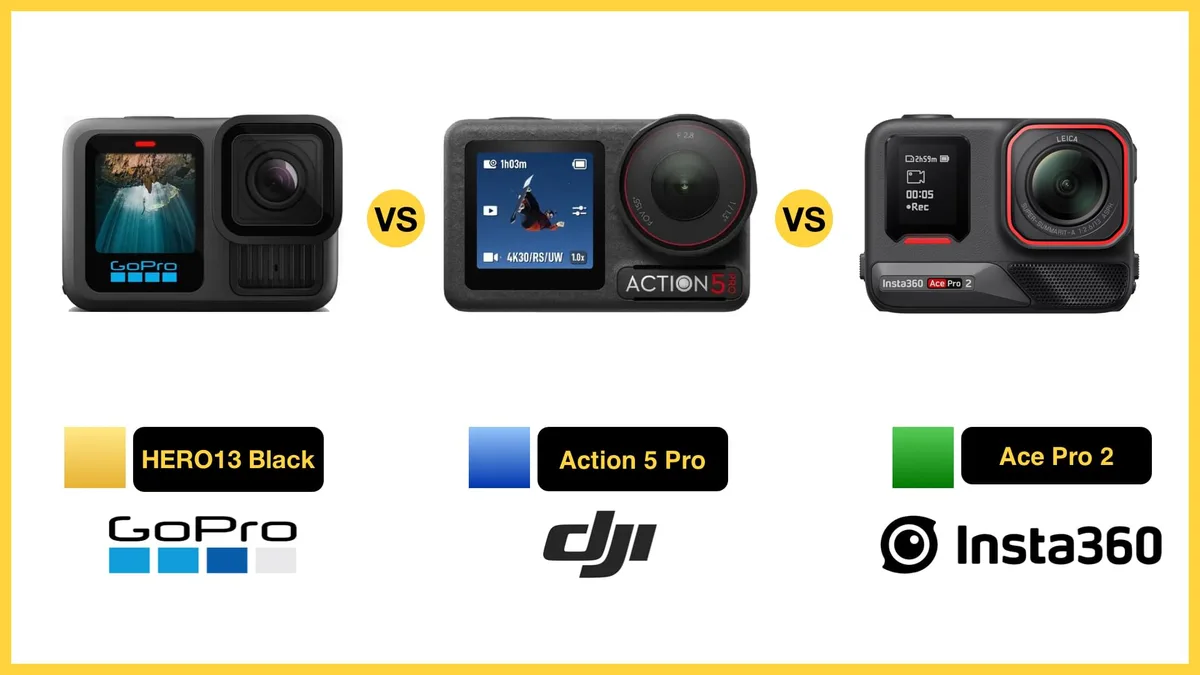
Action cameras across brands share similar failure signatures, but the diagnostic logic stays the same.
Maintenance to Keep the Ace Pro Running Smooth
A little prevention goes a long way.
Keep the USB-C port clean. Pocket lint and sand are the enemy. Check the port before every charge. Use a wooden toothpick or plastic spudger.
Never insert metal.
Format your SD card monthly. Even good cards accumulate file system errors over time. Formatting in-camera once a month takes 30 seconds and prevents the majority of card error messages.
Update firmware deliberately. Don't update the night before a shoot. Do it a week ahead and test thoroughly. If a new firmware introduces a bug, you want to discover it before you're on location.
Avoid extreme temperature storage. Do not leave the Ace Pro in a car dashboard in summer. The internal battery degrades above 45°C. Do not store it in a freezer.
Extreme cold can cause condensation later. Store it in a cool, dry place between 10°C and 30°C.
Dry the camera thoroughly after water use. Rinse with fresh water after any ocean or pool use. Dry all flaps and seals before closing them. Leave the battery door open for an hour to let trapped moisture evaporate.
Use a lens guard. The Ace Pro's lens glass is not user-replaceable. A scratch is permanent. Use the clip-on lens guard that comes with the camera.
Monitor battery health. After about 300 full charge cycles, expect reduced runtime. If you notice the camera dying at 30 percent charge, the battery calibration is off. Let it drain fully, then charge to 100 percent without interruption.
If it still dies early, the battery is aging out.
Environmental factors matter. Above 30°C ambient, the Ace Pro struggles with any resolution above 4K. At 35°C, even 4K recording time drops to about 25 minutes. Below 5°C, expect 30 percent less runtime.
Keep the camera in an inner jacket pocket between cold shots. At high altitudes above 3000 meters, air is thinner and less effective at carrying heat away. Drop to 4K as a precaution.
Frequently Asked Questions
How do I force restart my Insta360 Ace Pro?
Hold the power button for 10 seconds. The screen goes black, then the Insta360 logo appears. This clears temporary processor locks without losing any data.
For a deeper reset, hold for 20 seconds.
Why does my Ace Pro keep saying SD card error?
The card is likely not fast enough or not formatted correctly. Use a V30 or faster card. Format the card inside the camera using the Settings menu.
If the error persists, test with a different V30 card to rule out a failing card.
What charger do I need for the Ace Pro?
Use a USB-C Power Delivery charger rated at 30 watts or higher. A standard 5V phone charger may not provide enough current to charge the camera, especially when the battery is deeply discharged.
How do I fix a frozen Ace Pro after a firmware update?
First, force restart by holding the power button. If that doesn't work, perform a recovery mode reflash. Download the latest firmware, copy it to a formatted SD card, hold the power button, and connect to a PD charger.
Can I replace the Ace Pro battery myself?
No. The Ace Pro has a sealed, non-removable battery. If it stops holding a charge or fails to power on, contact Insta360 support for warranty service.
Opening the camera yourself voids the warranty.
Why does my Ace Pro overheat so quickly?
The compact body has limited passive cooling. 8K recording pushes the processor to its thermal limit in about 15 minutes at room temperature. Drop to 4K to extend runtime. Provide airflow and avoid direct sunlight.
If Nothing Works: Getting a Replacement or Repair
You've run through every decision branch. You've force restarted, reformatted, reflashed firmware, and tested with different cards at lower resolutions. The camera still fails.
It's time for professional help.
Check your warranty status. The Insta360 Ace Pro comes with a 1-year manufacturer warranty. If you're within that window, do not open the camera. Opening it voids the warranty immediately.
Contact Insta360 support through their official support page. Provide your serial number, proof of purchase, and a detailed description of the problem.
Common warranty-covered failures:
- Sensor defects such as permanent dead pixels or color shifts
- Overheating shutdowns at moderate resolutions in normal conditions
- Battery failure within 300 charge cycles
- Lens delamination or internal fogging that never clears
- USB-C port failure with no debris present
- Complete failure to power on after proper charging
What the warranty usually doesn't cover:
- Physical damage from drops, cracks, or water damage beyond 10 meters
- Scratched lens glass from misuse
- Damage from using non-PD chargers
- Damage from opening the camera
Out-of-warranty options. If your camera is out of warranty, Insta360 offers repair services for a fee. The cost varies by region. In many cases, buying a replacement unit may be more economical than shipping and repair costs.
When to cut your losses. If the repair estimate is more than 60 percent of a new camera, replace it. Action cameras are advancing quickly. The Ace Pro's successor may offer better heat management and a user-swappable battery.
Before you give up entirely. Leave the camera on a PD charger overnight. Some deeply drained battery states appear dead but recover with extended charging. If it powers up the next morning, you saved a repair trip.

Similar Posts






























