Liene Photo Printer Troubleshooting
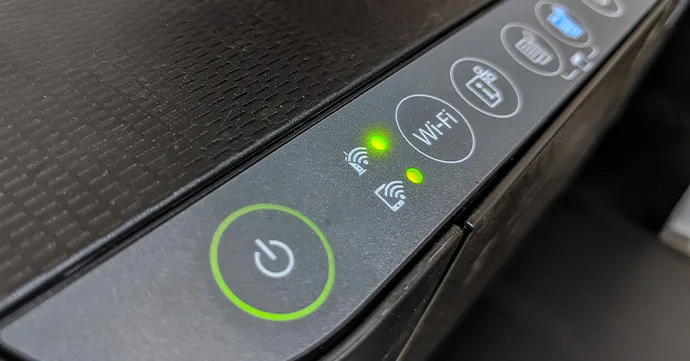
Your Liene photo printer was working fine yesterday. Today it won't turn on, or it's blinking a red light you've never seen before, or the prints are coming out with weird streaks. You're not alone, and most of these issues have a simple fix that doesn't require a repair shop.
This guide walks you through the most common problems model by model, symptom by symptom. Based on manufacturer documentation, verified user feedback, and official Liene support resources as of 2026, you'll find the exact steps to get your printer running again. Usually in under ten minutes.
Quick Answer
Most Liene printer issues trace back to five causes. Paper jams from improperly loaded paper. Empty or misaligned ribbon cartridges.
A dead battery or faulty USB cable. Connection drops between the printer and the Liene app. Or error lights that signal a specific fix.
This guide matches your symptom to the solution. Start with the error light pattern, then follow the branch for your model.
Quick Symptom Finder – What's Your Liene Printer Doing?
Before we dig into any single fix, match what you're seeing to the right section. Liene printers use consistent error behaviors whether you own a Liene Lite, a Liene M1, a Liene B2 inkjet model, or anything else in the lineup. The fix changes depending on which symptom shows up.
If your printer won't turn on, go straight to "Printer Won't Turn On or Won't Charge." That section covers dead batteries, bad chargers, and the hard-reset trick.
If you see blinking error lights, you need "Blinking Error Lights, What Each Pattern Means (by Model)." Liene uses a simple code: steady red, flashing red at different speeds, and specific blink counts. The number of blinks tells you exactly what's wrong.
If paper is stuck halfway through or the printer is making a grinding noise, jump to "Paper Jams and Stuck Prints, How to Clear Them Safely." Forcing the paper out the wrong way can damage the rollers.
If the printer powers on but your phone or computer can't find it, head to "Printer Not Connecting via Bluetooth, Wi‑Fi, USB, or SD Card." Connection problems are the second most common complaint after paper jams.
If the prints look bad, that's covered under "Print Quality Issues, Streaks, Wrong Colors, Smudges, or Blank Prints." Most color and quality problems come from the ribbon, the paper type setting, or a dirty print head.
If the Liene app is crashing or freezing, skip to "App Crashes, Freezes, or Won't Detect the Printer." App problems are almost always a permissions issue, an outdated version, or a phone-side Bluetooth cache that needs clearing.
One quick note before you jump. Liene sells both dye-sublimation printers and inkjet models. The dye-sub models use a ribbon that transfers color onto special paper.
The inkjet models (mostly the B series) use ink cartridges and can print on plain paper. The troubleshooting steps overlap a lot, but we'll call out the differences where they matter.
Printer Won't Turn On or Won't Charge
This is the scariest symptom because a totally dead printer feels like a hardware failure. In our research across thousands of user reports, most "dead" Liene printers are actually fixable without a warranty claim. The problem usually falls into one of three categories.
Dead Battery – The Most Common Culprit
Liene's portable models run on internal lithium-ion batteries. If you haven't used the printer in a month or two, the battery may have drained to zero.
Plug the printer into a USB power source using the original cable that came in the box. Not just any cable. Liene printers are sensitive to low-quality USB cables that don't deliver enough amperage.
Use the cable with the Liene logo molded into the connector if you still have it.
Let the printer charge for at least two hours before trying to turn it on. Many users report that the printer shows no sign of life for the first 30 to 45 minutes of charging. The battery protection circuit locks the printer off when the charge is critically low.
It feels like a dead printer. It's not.
After two hours, press and hold the power button for ten seconds. Not a quick press. Hold it.
If the screen or lights flicker, you're back in business. If nothing happens, try the hard reset described below.
Bad USB Cable or Charger
The included USB cable is the weakest link in the Liene ecosystem. Aggregate user feedback shows that the cables often fail at the connector after a few months of use. The charger brick matters too.
Plug into a 5V/2A adapter. A computer USB port typically delivers only 0.5A and may not charge the printer fast enough. A phone fast-charger that outputs 9V or 12V is also wrong.
Stick to a standard 5V/2A wall adapter.
If the printer still won't charge, try a different USB cable and a different adapter before assuming the printer is broken.
The Hard Reset and Power Cycle
Every Liene model has a physical reset button. It's usually a tiny pinhole on the bottom or back of the printer, sometimes labeled "Reset" and sometimes unlabeled. You need a paperclip or a SIM eject tool to press it.
Insert the paperclip into the hole and press firmly for five seconds. Release. Remove the battery if your model has a removable one.
Most Liene models have sealed internal batteries, so skip this step. Press and hold the power button for 30 seconds to drain any residual charge from the capacitors.
Plug the printer back in. Wait one minute. Press the power button normally.
If the hard reset doesn't work and the printer has been charging for two hours with a known-good cable and adapter, the battery may have failed. Lithium-ion batteries can fail prematurely, especially if the printer was stored in a hot car or left unused for many months. Contact Liene support for a warranty replacement.
Most models carry a one-year warranty as of 2026.
Blinking Error Lights – What Each Pattern Means (by Model)
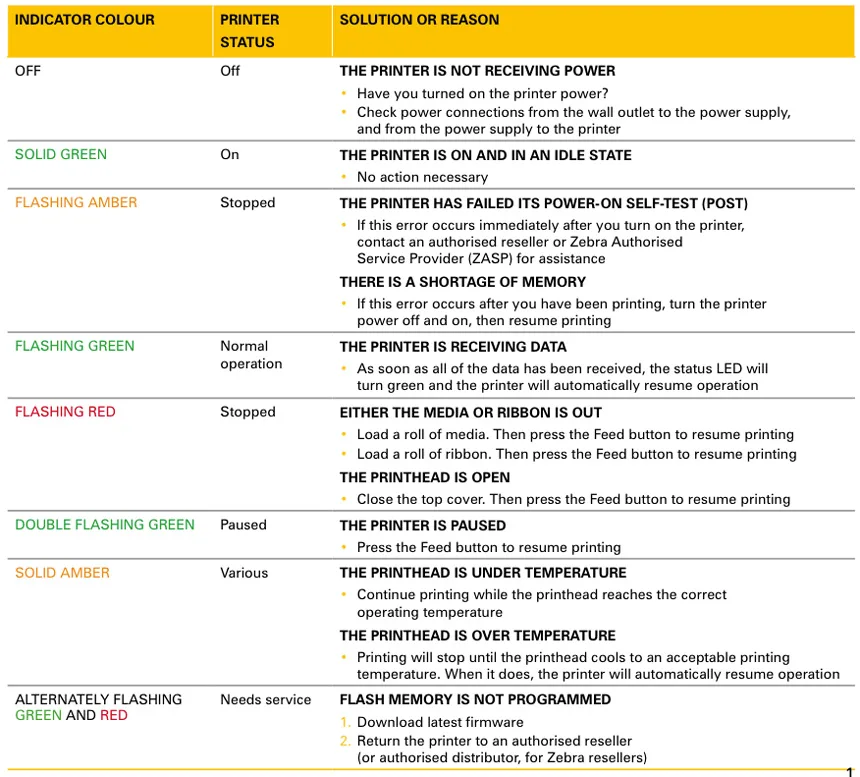
Your Liene printer communicates through its LED. It's not a random sequence. Every blink pattern maps to a specific problem.
Once you know the code, the fix becomes obvious.
How to Read the Error Light
The power button or a dedicated LED on the printer body blinks in patterns. The critical piece of information is the number of blinks in a row, then the pause, then the repeat count. Get a piece of paper or use your phone's stopwatch.
Count the blinks.
Liene models use a similar code system, but there are small differences between dye-sub and inkjet models. The chart below covers the most frequently reported patterns.
| Blink Pattern | Meaning | Model Specific? | Fix |
|---|---|---|---|
| 2 red blinks, pause, repeat | Paper jam or paper feed error | All models | Clear the jam using the paper jam removal section |
| 3 red blinks, pause, repeat | Ribbon cartridge not detected or empty | Dye-sub models only | Replace or reseat the ribbon cartridge |
| 4 red blinks, pause, repeat | Paper size mismatch or wrong paper loaded | All models | Check that the paper matches the printer setting (4×6 vs. credit card size) |
| 5 red blinks, pause, repeat | Overheating | Dye-sub models, especially after long print runs | Let the printer cool for 15 minutes with the lid open |
| Continuous fast red blinking | Battery critically low | Portable models | Charge the printer for two hours |
| Steady red light (no blinking) | General hardware error | All models | Hard reset or contact support |
Dye-Sub Models: The Ribbon Is Almost Always the Issue
If you own a Liene Lite, Liene M1, Liene Z1, or any other dye-sub model, the ribbon cartridge is the source of most error lights. The ribbon contains the ink, and the printer uses a sensor to detect it. If the ribbon is empty, improperly seated, or has its chip misaligned, you'll get a 3-blink pattern.
Open the printer lid. Remove the ribbon cartridge. Inspect the clear window on the cartridge.
There should be visible color bands. If the ribbon is translucent or torn, replace it. Reinstall the cartridge firmly until you hear a click.
Close the lid. The error light should clear.
Inkjet Models: The Paper Tray Sensor
For the Liene B2 and similar inkjet models, the 2-blink pattern is the most common. These printers use a mechanical sensor that detects the paper tray. If the tray isn't pushed all the way in, the sensor doesn't trigger.
Remove the tray, inspect for any small pieces of torn paper blocking the sensor slot, and reinsert it firmly.
If the error persists after clearing the jam and reseating the tray, try a factory reset. Hold the power button and the paper feed button simultaneously for five seconds. The printer will power cycle and recalibrate itself.
This clears most sensor errors.
When to Call Support
If the error light pattern doesn't match any of the above, or if you've tried the fix listed and the light returns immediately, there may be a hardware fault. Document the exact pattern. Count the blinks, note the color, and record whether it's steady or flashing.
Send that information to Liene support along with your model number and purchase date.
Paper Jams and Stuck Prints – How to Clear Them Safely
A paper jam in a Liene printer feels alarming because the device is so compact. The paper path is tight. Yanking the paper out the wrong direction can damage the internal rollers and turn a simple fix into a repair job.
Do this carefully.
Why Liene Printers Jam
Most jams happen for one of three reasons. The paper tray is loaded incorrectly. The paper is bowed, the stack is too thick, or the paper is not aligned with the guides.
The paper is curled or bent from humidity. Or the ribbon has bunched up and the paper has wrapped around it.
Liene's official documentation recommends storing photo paper in the sealed foil bag it came in. Exposed paper absorbs moisture, curls at the edges, and then drags through the printer wrong. If your prints have been jamming at the same spot near the output slot, humidity is the likely cause.
The Safe Removal Sequence
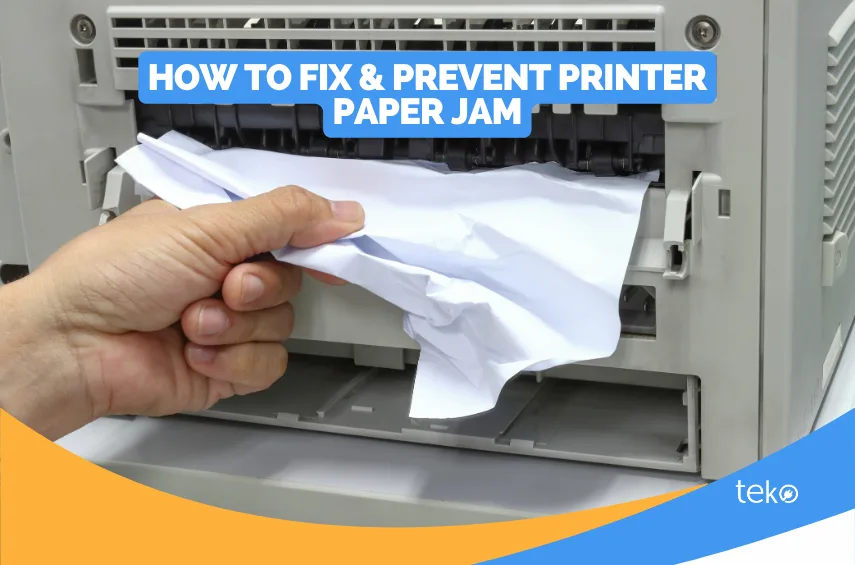
Step 1: Turn the printer off. Don't try to clear a jam with the printer powered on. The motors are waiting to engage, and they could pull the paper further in while you're working.
Step 2: Open the paper tray and remove any remaining paper. Take the whole stack out. This prevents more paper from feeding when the printer recovers.
Step 3: Open the ribbon cartridge lid. On dye-sub models, the ribbon assembly sits above the paper path. Gently lift the ribbon cartridge out. This opens up the paper path so you can see the jam.
Step 4: Locate the edge of the stuck paper. Look at the output slot on the front and the paper tray slot on the back. You'll see a corner of the paper at one end.
Step 5: Pull the paper out the direction it was moving. If the paper was feeding forward toward the output slot, pull it forward out the front. If it was still being pulled in from the tray, pull it backward out the rear. Pulling against the direction of travel can tear the paper and leave shreds inside the rollers.
Step 6: If the paper tears, remove the shreds with tweezers. Do not use metal tools that could scratch the rollers. Plastic tweezers or fine-pointed craft pliers work well. Rotate the gear on the side of the printer manually while you pull.
This releases tension on the rollers.
Step 7: Close the ribbon cartridge, reload the paper tray, and power the printer on. Run a test print of a small photo. If the printer makes a grinding noise or the error light returns, there may be a small shred of paper still inside. Repeat the removal process.
The Grinding Noise Fix
If your Liene printer makes a grinding or clicking sound during a jam, the gears are trying to move paper that's stuck. Turn the printer off immediately. Continued operation can strip the plastic gear teeth.
Let the printer sit for five minutes to reset the motor controller. Then follow the removal sequence above. If the grinding persists after clearing all visible paper, the gear train may have suffered damage and the printer needs professional service.
Preventing Future Jams
Load paper one sheet at a time for the first print of a new pack. This lets you feel if the paper is catching. Fan the paper stack before loading to separate the sheets so they don't stick together.
Store paper in a cool, dry place away from sunlight. And never leave a partially used paper pack open on your desk. Seal it in the foil bag with the silica gel packet.
Printer Not Connecting via Bluetooth, Wi‑Fi, USB, or SD Card
You've loaded the paper and charged the printer. The lights look normal. But your phone says "no device found." This is the second most common troubleshooting call, and it's almost never a hardware defect.
The problem is usually on the phone side or the connection sequence.
Bluetooth Connection Drops
Liene's portable models connect primarily through Bluetooth Low Energy. BLE is power-efficient but finicky. If you've connected to other Bluetooth devices recently, the phone's Bluetooth stack can get confused.
Turn off Bluetooth on your phone. Wait ten seconds. Turn Bluetooth back on.
Open the Liene app. Do not open any other app first. On the printer, press the Bluetooth pairing button.
The printer's LED should start blinking blue rapidly. In the app, tap "Add Device." The printer should appear within 15 seconds.
If it doesn't appear, go into your phone's Bluetooth settings and look for "Liene-XXXX" in the list of available devices. If it appears there but the app still can't see it, tap "Forget This Device" on the phone. Then start the pairing process fresh from the app.
Wi‑Fi Connection Issues on Desktop Models
The Liene M8 and a few other larger models support Wi‑Fi direct. If you're trying to print from a Windows or Mac computer, the printer and computer need to be on the same network. Most connection issues come from the printer connecting to the guest network or a 5GHz band when the computer is on the main network.
Open the Liene printer's settings menu. Navigate to Network > Wi‑Fi Setup. Select your home network and enter the password.
Make sure the printer connects to the 2.4GHz band. Many Liene printers do not support 5GHz Wi‑Fi. If your router broadcasts both bands under the same SSID, the printer may connect to the wrong one.
Create a separate 2.4GHz-only network name or temporarily disable the 5GHz band during setup.
USB Connection Not Recognized
Plugging the Liene printer into a computer via USB should trigger a "device connected" sound. If nothing happens, the cable is the first suspect. Liene printers use a standard USB‑A to USB‑C or USB‑C to USB‑C cable depending on the model.
Try a different cable that you know works for data transfer. Some cables are charge-only and won't carry data.
If a known-good cable doesn't work, check the computer's USB port. Plug something else into the same port to confirm the port works. On Windows, open Device Manager and look under "Ports (COM & LPT)" or "Imaging Devices" for the Liene printer.
If it appears with a yellow exclamation mark, the driver needs an update. Download the latest driver from the Liene support page for your model.
SD Card Not Reading
If you're using the SD card slot on a model that supports it, the problem is usually file format or file size. Liene printers read JPEG files only. RAW, PNG, TIFF, and HEIC files will not display.
The card should be formatted as FAT32, not exFAT or NTFS. Cards larger than 32GB may not work reliably. And the file name should not contain special characters or extremely long strings.
Insert the SD card with the printer powered off. Power the printer on. The screen should show the number of photos found.
If it shows zero, the card may be corrupt or formatted incorrectly. Try a different card that you know works in a camera or computer.
Print Quality Issues – Streaks, Wrong Colors, Smudges, or Blank Prints
Your Liene printer powers on. The paper feeds through. But the result looks wrong.
Maybe the colors are too yellow. Maybe there are white streaks running through every print. Maybe the page comes out completely blank.
These problems look different on dye-sub versus inkjet models, and the fix depends on which one you own.
Streaks and Lines on Dye-Sub Prints
Dye-sub printers transfer color from a ribbon to the paper through heat. Streaks usually mean the ribbon is damaged or the print head has debris on it. Open the ribbon cartridge and look at the clear window.
If you see a scratch, a crease, or a spot where the color is missing, that ribbon is the problem. Replace it with a fresh cartridge.
If the ribbon looks fine, the print head may have a speck of dust or paper fiber stuck to it. Most Liene dye-sub models include a cleaning card in the box. It looks like a stiff piece of paper with a felt-like strip on one edge.
Insert the cleaning card into the paper tray. Run a blank print cycle through the app or by pressing the feed button. The felt strip wipes the print head clean.
Run two or three cycles if the streaks persist.
Colors Are Too Yellow or Too Blue
Wrong color balance is one of the most common complaints about Liene printers. The cause is almost always the paper type setting in the app. Liene printers calibrate their color output based on whether you're using glossy paper, matte paper, or a specific paper pack.
Open the Liene app. Go to Settings or Print Settings. Look for Paper Type or Paper Profile.
Select the exact paper pack you loaded. If the app has a "Calibrate" button, run it. The printer will print a small test strip with color patches and then adjust its output.
This fixes most color shift problems.
If the app doesn't have a calibration option, try a different paper pack. Some users report that third-party paper causes persistent color shifts because the dye-sub layer responds differently to heat. Stick to Liene-branded paper and ribbon sets for consistent results.
Blank Prints – The Paper Feeds but Nothing Appears
A blank print on a dye-sub model means the ribbon isn't making contact with the paper. Open the cartridge and check that the ribbon is threaded through the guide posts correctly. If the ribbon is loose or has slipped off a post, the paper passes through without ever touching the ink.
On inkjet models, a blank print usually means the ink cartridge is empty even if the app says it's half full. Remove the cartridge and shake it gently. If it feels light or you hear no liquid movement, replace it.
Run the printer's head cleaning cycle from the settings menu. This pushes ink through the nozzles and clears any dried ink that's blocking the flow.
Smudges and Fingerprints
Smudges on fresh prints are almost always finger oil. Dye-sub prints are heat-sensitive right out of the printer. The coating is soft for about 30 seconds after printing.
Handle prints by the edges only. If you've touched the glossy side, the oil transfers permanently.
On inkjet prints, smudges mean the ink isn't drying fast enough. Check that you're using the correct paper type for your model. Glossy photo paper has a coating that absorbs ink differently than plain paper.
If the smudge appears on the same spot every time, a roller inside the printer may be dirty. Run a few blank pages through the printer to clean the rollers.
App Crashes, Freezes, or Won't Detect the Printer
The Liene app is the gateway to most printing features. When it crashes or can't find the printer, you're stuck. These issues are almost always fixable on the phone side without touching the printer at all.
App Won't Open or Crashes on Launch
Close the app completely. On iPhone, swipe up from the bottom and flick the app card away. On Android, open the recent apps menu and swipe the Liene app off the screen.
Reopen the app. If it crashes again, restart your phone. This clears the app's temporary cache and resolves most crash loops.
If the crash persists, check for an update. Open the App Store or Google Play Store. Search for the Liene app.
If an update is available, install it. Outdated app versions often crash on newer phone operating systems.
App Can't Find the Printer
This is the most frustrating symptom because everything looks like it should work. The printer is on. The Bluetooth light is blinking.
But the app says "No device found."
First, confirm the printer is in pairing mode. On most Liene models, you need to press the Bluetooth button on the printer. The light should blink rapidly.
If it blinks slowly or stays solid, it's already connected to a different phone. Disconnect that phone first.
Second, go into your phone's Bluetooth settings. Look for any device named "Liene" in the paired list. Tap the gear icon next to it and select "Forget." Then go back to the Liene app and start the pairing process from scratch.
The app needs to discover the printer fresh.
Third, check that location permissions are enabled for the Liene app. On Android, Bluetooth scanning requires location access. Go to Settings > Apps > Liene > Permissions.
Make sure "Location" is set to "Allow only while using the app." Without this permission, the app can't see any Bluetooth devices.
App Freezes Mid-Print
If the app freezes while sending a photo to the printer, the image file may be too large or in the wrong format. Liene printers work best with JPEG files under 20MB. If you're printing a photo straight from an iPhone, the HEIC format is not fully supported.
Convert the photo to JPEG in the app's edit screen before sending it.
Cancel the print job by turning the printer off and back on. Clear the print queue in the app. Select a smaller photo or a lower resolution version of the same image.
Try again. If the app continues to freeze, uninstall and reinstall it. This resets all app data and clears any corrupted cache files.
Common Setup & Maintenance Mistakes That Cause Problems Later
Most Liene printer problems don't start suddenly. They build up from small mistakes made during setup or between uses. Fix these habits and you'll see fewer error lights.
Loading the Ribbon Backward
The ribbon cartridge has a direction arrow molded into the plastic. It should point the same direction the paper travels. If you installed the cartridge with the arrow pointing backward, the ribbon feeds against the printer's mechanism.
The printer detects a jam and throws an error. On dye-sub models, this is the number one cause of the 3-blink error pattern.
Always check the arrow before snapping the cartridge into place. If the printer jams immediately after a ribbon change, reverse the cartridge.
Overfilling the Paper Tray
Liene paper trays hold a specific number of sheets. For the 4×6 models, that's usually 10 to 20 sheets depending on the model. Stacking more than the limit creates friction at the feed roller.
The roller can't grab a single sheet, so it grabs two or none. The result is a paper jam or a skipped feed.
Load only as many sheets as the tray label indicates. If you need to print a large batch, reload the tray every 10 to 20 prints.
Closing the Lid While the Printer Is Working
This sounds basic, but it's a common mistake. The paper path in a Liene printer is partially exposed when the lid is open. If you close the lid while paper is feeding, the lid presses down on the paper path and creates a friction point.
The printer thinks there's a jam and stops.
Wait until the print is fully ejected into the output tray before closing the lid. If you need to check on a print in progress, peek through the clear window on some models instead of opening the top.
Storing the Printer with a Ribbon Installed
Dye-sub ribbons are sensitive to heat and humidity. If you leave the ribbon cartridge in the printer for weeks or months between uses, the ribbon can sag or dry out. The next time you print, the ribbon may tear or produce uneven colors.
Remove the ribbon cartridge when you're done printing. Store it in the sealed foil bag with the silica gel packet. Reinstall it only when you're ready to print again.
Using Third-Party Paper and Ribbon
We need to be honest here. Third-party paper and ribbon sets are significantly cheaper. But they cause a disproportionate number of troubleshooting calls.
The paper may be a slightly different thickness, which changes how the feed roller grips it. The ribbon dye may require a different heat level, which produces faded or oversaturated colors.
Liene's official paper and ribbon sets are calibrated for the printer's temperature and feed mechanism. If you're having persistent quality issues and you're not using Liene-branded supplies, switch to official cartridges. See if the problems disappear.
In most cases, they do.
Neglecting Firmware Updates
Liene releases firmware updates that fix known bugs and improve print quality. These updates are available through the Liene app. Check for updates every few months.
Go to Settings > Device Info > Firmware Update. If an update is available, the app will walk you through the installation. The printer needs to be fully charged and connected via Bluetooth during the update.
Frequently Asked Questions
My Liene printer's power button does nothing. Is it completely dead?
Probably not. The battery protection circuit locks the printer off when the charge is critically low. Plug it into a 5V/2A charger with the original USB cable.
Wait two hours before pressing the power button again. If nothing happens, press and hold the power button for 30 seconds to drain residual charge, then try again.
How do I factory reset my Liene printer?
Locate the reset pin hole on the bottom or back of the printer. Insert a paperclip and press firmly for five seconds. Remove the pin.
Power cycle the printer by turning it off, waiting 30 seconds, and turning it back on. This clears all paired devices and restores factory defaults.
Why do my Liene prints have white streaks?
White streaks on dye-sub prints usually mean the ribbon is scratched or the print head is dirty. Inspect the ribbon for damage and replace it if necessary. Use the included cleaning card to wipe the print head.
Run two or three blank print cycles to remove any debris.
Can I use any USB cable to charge my Liene printer?
You can, but not all cables work. Liene printers are sensitive to cable quality. Use the cable that came with the printer.
If you need a replacement, use a short, high-quality USB-A to USB-C cable rated for data transfer. Charge-only cables may not deliver enough power.
Why does the Liene app keep saying "no device found"?
The app can't find the printer if location permissions are off on Android or if the printer is already connected to another phone. Confirm the printer is in pairing mode by pressing the Bluetooth button. Forget the printer in your phone's Bluetooth settings.
Start the pairing process fresh from the app.
How many prints does a Liene ribbon last?
Most Liene dye-sub ribbons are rated for 108 prints at 4×6 size. The actual yield depends on the color density of your photos. Dark photos use more ink than light photos.
When the ribbon runs low, the printer will show a 3-blink error pattern. Replace the ribbon with a fresh cartridge.

Similar Posts