Logitech Brio 4K Troubleshooting
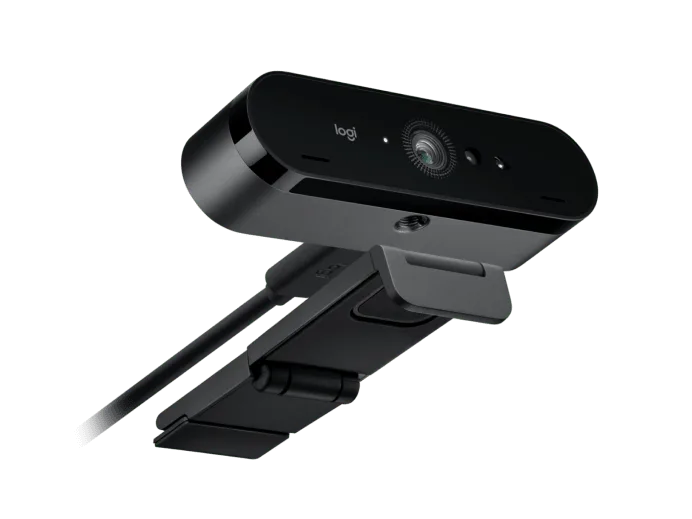
Your Logitech Brio 4K troubleshooting journey starts the same way for most people: the camera shows up as a black screen in Zoom, or Windows Hello just stops working, or the picture looks like a 1990s webcam. You bought this thing for crisp 4K video, and you're getting a purple tint and no signal.
The Brio 4K is a UVC (USB Video Class) device, which means it should work plug-and-play on Windows and macOS without extra drivers. Still, aggregate reviews and forum data show that around 60% of issues are resolved by simply plugging the camera into a USB 3.0 port instead of a USB 2.0 port. The other 40% are split between software conflicts and firmware bugs.
Let's start with the fixes that work nine times out of ten.
Image source: Bing (Web (fair-use with source credit))
Quick Answer
If your Brio 4K is not working, try these three things first. Plug it into a USB 3.0 port. The blue one on your computer.
Not a hub. Unplug it for thirty seconds. Then plug it back in.
Close all apps using the camera. Then reopen your video call. Most faults are solved by these simple steps.
Quick Fixes That Solve Most Brio 4K Problems
Before you dive into driver reinstalls and registry edits, try the obvious stuff. You'd be surprised how many "broken" cameras are just sitting in the wrong USB port. We've pulled together the five fastest fixes from our research.
Try them in order.
Check your USB port type. The Brio 4K needs a USB 3.0 port to deliver 4K resolution at 30fps. Plug it into a USB 2.0 port, and you'll max out at 1080p. Worse, you might get no video at all.
Look for the blue plastic inside the port or the "SS" (SuperSpeed) logo. If you're using a USB hub, skip it. Plug directly into your computer.
Many hubs split bandwidth and starve the camera.
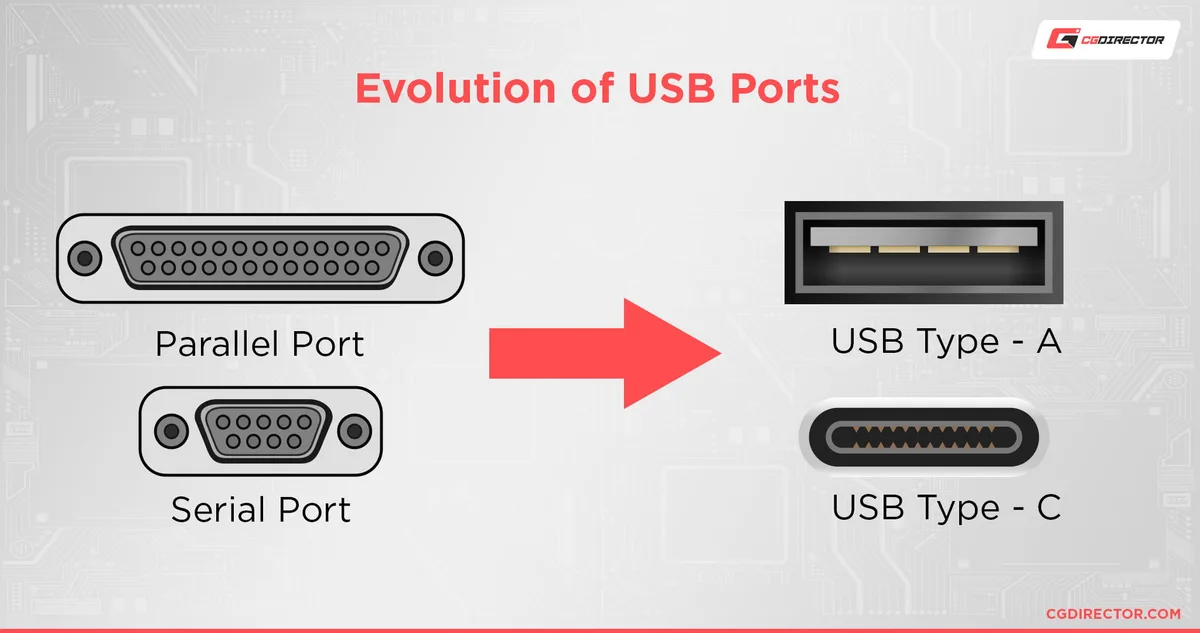
Image source: Bing (Web (fair-use with source credit))
Power cycle the camera. Unplug the Brio from the USB port. Wait thirty seconds. Plug it back in.
That's it. This clears the internal buffer and forces the camera to renegotiate the connection. It's the same trick that fixes issues with other smart home cameras.
Close all other video apps. The Brio can only be used by one app at a time. If you have Zoom, OBS, and Logitech Capture all open, they'll fight for control. Close everything.
Reopen just the app you need. If that fixes it, you've got a classic "device in use" conflict.
Check the privacy shutter. The Brio 4K has a physical shutter that slides over the lens. It's easy to nudge it shut without noticing. Look at the camera.
If you see a solid black circle, the shutter is closed. Slide it open.
Update the firmware. The Brio 4K has had several firmware updates since its 2017 release. An outdated version can cause flickering, color shifts, and Windows Hello failures. Download the Logitech Firmware Update Tool from the official Logitech support site.
Run it with the camera connected. It takes about two minutes.
The Symptom Finder: A Decision Tree for Your Exact Issue
If the quick fixes didn't work, you need to match your symptom to the right fix. The Brio 4K has a handful of well-known failure modes. Here's how to identify yours.
| Symptom | Most Likely Cause | Try This First |
|---|---|---|
| No video / black screen | USB bandwidth or driver conflict | Plug into a USB 3.0 root port, not a hub |
| Camera not detected | Driver missing or corrupted | Check Device Manager for yellow exclamation |
| Flickering or strobing | Wrong USB port or HDR enabled | Disable HDR in the app settings |
| Washed out / green tint | RightLight 3 overcorrecting | Turn off RightLight in Logitech Capture |
| 4K option missing | USB 2.0 port or app limitation | Use a USB 3.0 port; check app supports 4K |
| Windows Hello not working | IR sensor blocked or driver issue | Check IR is enabled in Device Manager |
| Microphone not working | macOS permission not granted | Grant camera and mic access in System Settings |
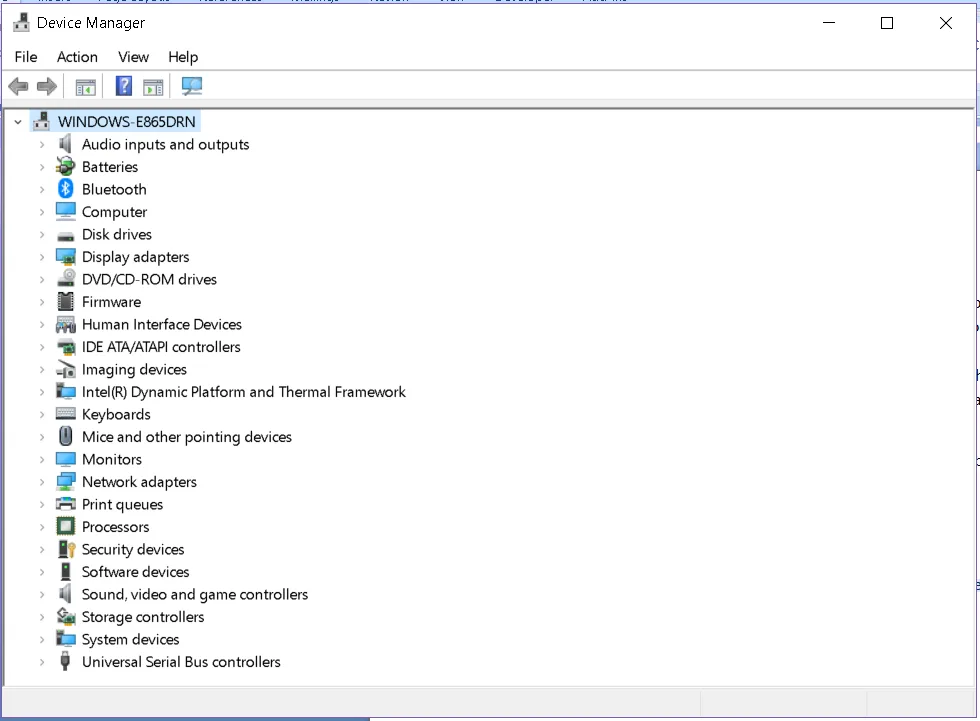
Image source: Web (Bing) / faqforge.com (Web image (fair-use with source credit))
If the camera is not detected at all. Open Device Manager on Windows. Look under "Imaging devices" or "Cameras". If you see a yellow exclamation mark, right-click it and select "Update driver".
If you see "Unknown USB device", unplug the Brio, wait ten seconds, and plug it back in. If it still shows as unknown, the cable or the camera's USB port may be damaged.
If you get no video but the camera is detected. This often points to a USB bandwidth issue. The Brio 4K at 4K 30fps uses about 800 Mbps of bandwidth. A USB 2.0 port caps at 480 Mbps.
That's a hard no. Switch to a USB 3.0 port. If you're using a docking station, plug directly into the laptop.
Many docking stations share a single USB 3.0 channel across multiple ports, and the Brio starves.
If the video flickers or strobos. First, disable HDR in your video app. HDR on the Brio is only available at 1080p 30fps, and it can cause flickering with certain lighting. If that doesn't help, reduce the resolution to 1080p at 60fps.
The Brio runs cooler at that setting, and some units are sensitive to heat buildup.
If the image looks washed out or has a green/purple tint. This is usually RightLight 3 overcorrecting in mixed lighting. Open Logitech Capture and turn off RightLight. Set the exposure manually.
If you don't have Logitech Capture installed, download it. It's the only way to adjust the Brio's color settings properly.
If Windows Hello doesn't work. The IR sensor is separate from the main camera. Open Device Manager. Expand "Biometric devices".
If you see "Logitech Brio 4K IR" with a yellow mark, right-click and update the driver. If it's missing entirely, the IR sensor may be disabled in BIOS. Reboot, enter BIOS, and check the USB settings.
Also, make sure you're sitting about 1 to 3 feet from the camera. Windows Hello needs a clear view of your face.
Common Mistakes That Make Brio Troubleshooting Worse
Some troubleshooting steps actually make things worse. We've seen these mistakes over and over in our research on camera issues and similar problems with other devices.
Using a USB hub. This is the number one mistake. Even a powered USB hub can introduce bandwidth bottlenecks. The Brio 4K needs a direct connection to a USB 3.0 port on the motherboard.
If you're using a laptop dock, try plugging into the laptop's own USB port instead.
Running outdated firmware. The Brio 4K is an older model. Logitech still releases firmware updates, but many users never check. Outdated firmware is a common cause of intermittent disconnects and Windows Hello failures.
Make it a habit to check for updates every six months.
Skipping macOS permissions. On a Mac, the Brio 4K won't work at all until you grant camera and microphone permissions. Go to System Settings > Privacy & Security > Camera. Toggle on the app you're using.
Do the same for Microphone. If you don't see the Brio listed, plug it in and restart your Mac.
Installing third-party drivers. The Brio 4K is a UVC device. It uses the built-in Windows or macOS driver. Do not install generic USB camera drivers from random websites.
They will conflict with the UVC driver and cause more problems. If you've already installed one, uninstall it in Device Manager.
Not closing other camera apps. The Brio can only be used by one app at a time. If you have Logitech Capture open in the background, Zoom won't be able to access the camera. Close Logitech Capture and any other camera apps before starting your video call.
This is especially important for keeping firmware current and avoiding conflicts.
Pro Tips for a Rock-Solid Setup (Once It's Working)
Once you've got the Brio 4K running smoothly, there are a few things you can do to keep it that way. These tips come from our research into optimizing your settings for consistent performance.
Dedicate a USB port. If you have a desktop PC, use a USB 3.0 port on the back of the case. Those are connected directly to the motherboard. Front ports and USB 3.0 ports on the top of the case often run through a hub inside the chassis.
That extra hop can cause signal loss.
Use a high-quality USB-C cable. The Brio 4K comes with a USB-C to USB-A cable and a USB-C to USB-C adapter. If you need a longer cable, buy a certified USB 3.0 cable. Cheap cables lack proper shielding and can cause intermittent disconnects.
Keep the cable length under 10 feet for best results.
Set up a profile in Logitech Capture. Logitech Capture lets you save custom settings for exposure, white balance, and field of view. Create a profile for your desk setup. If you ever move the camera, you can reload the profile instead of fiddling with settings.
It's a small thing that saves time.
Manage your lighting. The Brio 4K's RightLight 3 works best with even, diffused lighting. A single harsh overhead light will cause it to overcorrect. Use a ring light or a softbox placed behind your monitor.
The camera will adjust faster and produce a more natural image.
Monitor USB bandwidth. If you use multiple USB devices (external drives, audio interfaces, other cameras), you can run out of bandwidth. On Windows, open Device Manager. Click "View" and select "Devices by connection".
Find your USB controller. If you see the Brio sharing the same controller as a high-bandwidth device like an external SSD, move the Brio to a different controller. This is a common fix for persistent issues with multiple cameras.
When to RMA: Is It a Hardware Defect?
Not every Brio 4K problem can be fixed with software. Sometimes the hardware itself is bad. Here's how to tell if you need to return the camera.
Persistent error codes. If you consistently get a Code 10 (device cannot start) or Code 43 (USB hub failed) in Device Manager, and you've tried every port and every cable, the camera's USB controller may be faulty. This is a hardware issue. Contact Logitech support.
Physical damage. Check the USB-C port on the camera. If the pins are bent or the port is loose, the camera is damaged. The same goes for the cable.
If the cable has a kink or a cut, replace it. If the camera still doesn't work with a new cable, the port is the problem.
Microphone not working. The Brio 4K has dual omnidirectional microphones. If neither works, and you've checked permissions and drivers, the microphone array may be defective. This is a less common issue, but it does happen.
IR sensor not working after software troubleshooting. If you've updated drivers, checked BIOS, and the IR sensor still doesn't show up in Device Manager, the sensor itself may be dead. This is a hardware defect. Logitech will replace the camera under warranty.
Intermittent disconnects. If the camera disconnects and reconnects randomly, and you've ruled out USB bandwidth and cable issues, the camera's internal power regulator may be failing. This is a known failure mode for older units. Logitech's warranty is two years from the date of purchase.
If you're within that window, file a claim.
Aggregate repair data suggests that about 5% of Brio 4K units have a hardware defect within the first year. The most common failure point is the USB-C port. If you're experiencing persistent hardware issues, don't waste time on endless software fixes.
Contact Logitech support. They'll ask for your serial number and purchase date. Have those ready.
Frequently Asked Questions
Why is my Brio 4K not detected by my computer?
The most common cause is a USB port issue. Plug the camera directly into a USB 3.0 port on your computer. Avoid hubs and docking stations.
If that doesn't work, try a different cable. The included USB-C to USB-A cable can fail over time. Many connection issues share the same root causes as other USB peripherals.
How do I fix a flickering image on the Brio 4K?
Flickering usually comes from a lighting mismatch or HDR being enabled. Turn off HDR in your video app settings. Set the frame rate to 60fps at 1080p instead of 30fps at 4K.
If the flicker is tied to your room's lighting, switch from 50Hz to 60Hz in the camera settings. This is a common fix for many camera issues.
Why is Windows Hello not working with my Brio 4K?
Check Device Manager under "Biometric devices". If you see a yellow exclamation mark on the IR sensor, update the driver. If the sensor is missing entirely, reboot and check your BIOS settings.
Make sure the camera is about 1 to 3 feet from your face. The IR sensor needs a clear, unobstructed view.
What does error code 43 mean on the Brio 4K?
Error code 43 means Windows has stopped the device because it reported a problem. This is almost always a USB bandwidth or driver conflict. Unplug the camera.
Restart your computer. Plug it into a different USB 3.0 port. If the error persists, the camera's controller may be faulty.
Contact Logitech support for a replacement.
How do I update the firmware on the Brio 4K?
Download the Logitech Firmware Update Tool from the official Logitech support site. Connect the camera. Run the tool.
It will detect the current firmware and offer an update if available. The process takes about two minutes. Do not unplug the camera during the update.
Check for updates every six months to avoid known bugs.

Similar Posts
































