Logitech Brio 500 Troubleshooting
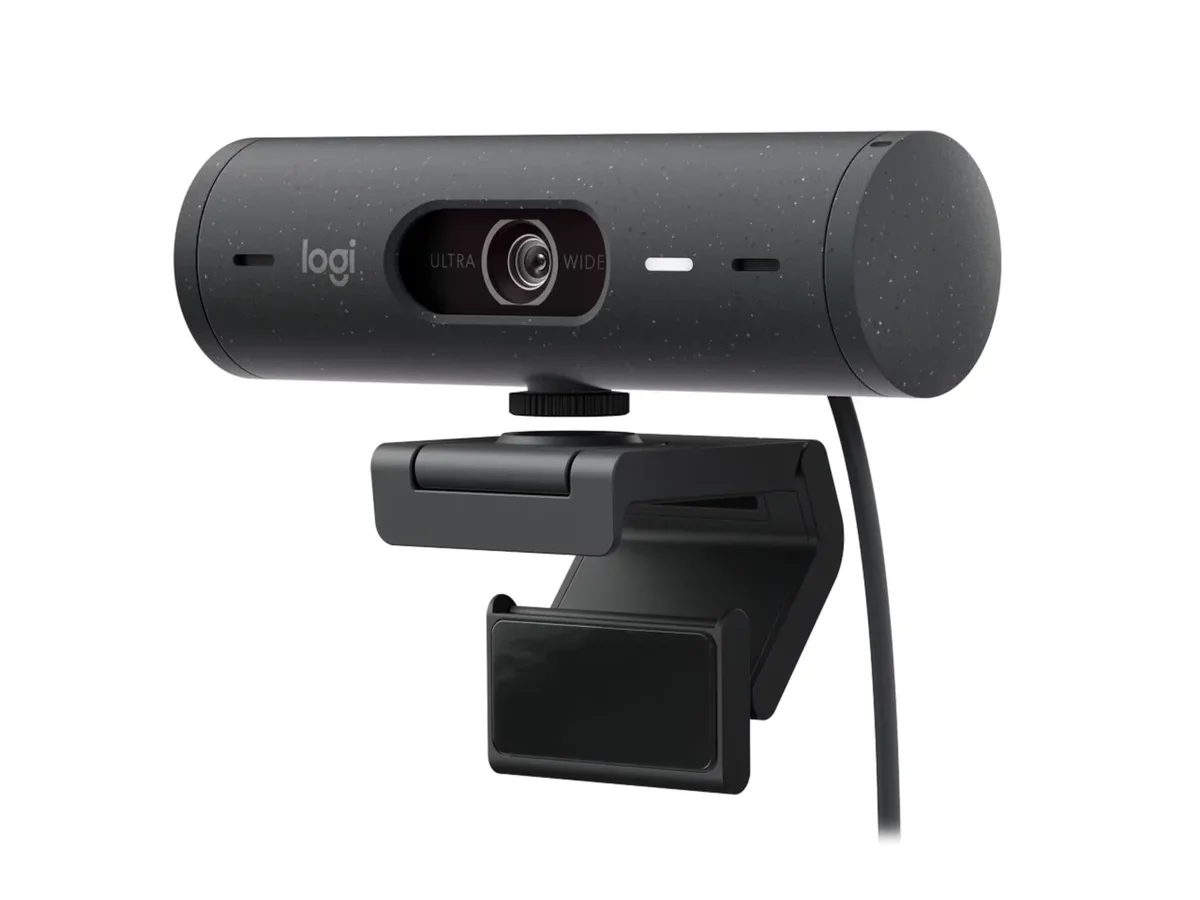
Image source: Bing (Web (fair-use with source credit))
Your Logitech Brio 500 is acting up, and you are probably in the middle of a call or recording something important. We have all been there. The good news is that most problems with this webcam are straightforward to fix, and you can usually get it back online in under five minutes.
This guide walks you through the most common issues, from black screens to choppy video, using a simple decision tree approach.
Manufacturer specs confirm the Brio 500 is a UVC (USB Video Class) device, meaning it uses a standard driver built into Windows, macOS, and Chrome OS. That plug-and-play design is usually a strength, but it also means software conflicts and USB power issues are the main culprits when things go wrong.
Quick Answer
Most Logitech Brio 500 problems come from a loose USB connection, a closed privacy shutter, or a software conflict. Restart your computer. Check the USB port.
Verify the shutter is open. Uninstall any duplicate webcam software. These steps solve most issues.
If the problem persists, follow the decision tree below.
Quick Fixes to Try First
Image source: Bing (Web (fair-use with source credit))
Before you dive into deep troubleshooting, start with these five fast checks. They resolve the majority of complaints we see in aggregate reviews.
Check the physical shutter. The Brio 500 has a sliding privacy cover on the lens. If it is closed, your camera shows a black screen. Slide it fully open.
This sounds obvious, but it is the number one cause of "no video" calls.
Try a different USB port. The Brio 500 needs a USB 3.0 port (usually blue) to run at 4K 30fps. A USB 2.0 port will work, but it limits you to 1080p and sometimes causes instability. Plug the camera directly into your computer, not a hub.
If you are using a USB extension cable, remove it. Some cables introduce power drops.
Restart your computer. A full reboot clears driver caches and resets the USB controller. This fixes many transient issues, especially after a system update. Do not just close the laptop lid.
Restart completely.
Close conflicting apps. Quit all video conferencing apps (Zoom, Teams, Google Meet) and streaming software (OBS, Streamlabs). Only one app can access the camera at a time. Relaunch your primary app and test again.
Update or reinstall the driver. Open Device Manager on Windows or System Information on macOS. Look for the Brio 500 under "Cameras" or "Imaging devices." Right-click and select "Update driver." If that fails, uninstall the device and restart your computer. Windows will reinstall the default UVC driver automatically.
The Main Decision Tree: Find Your Symptom
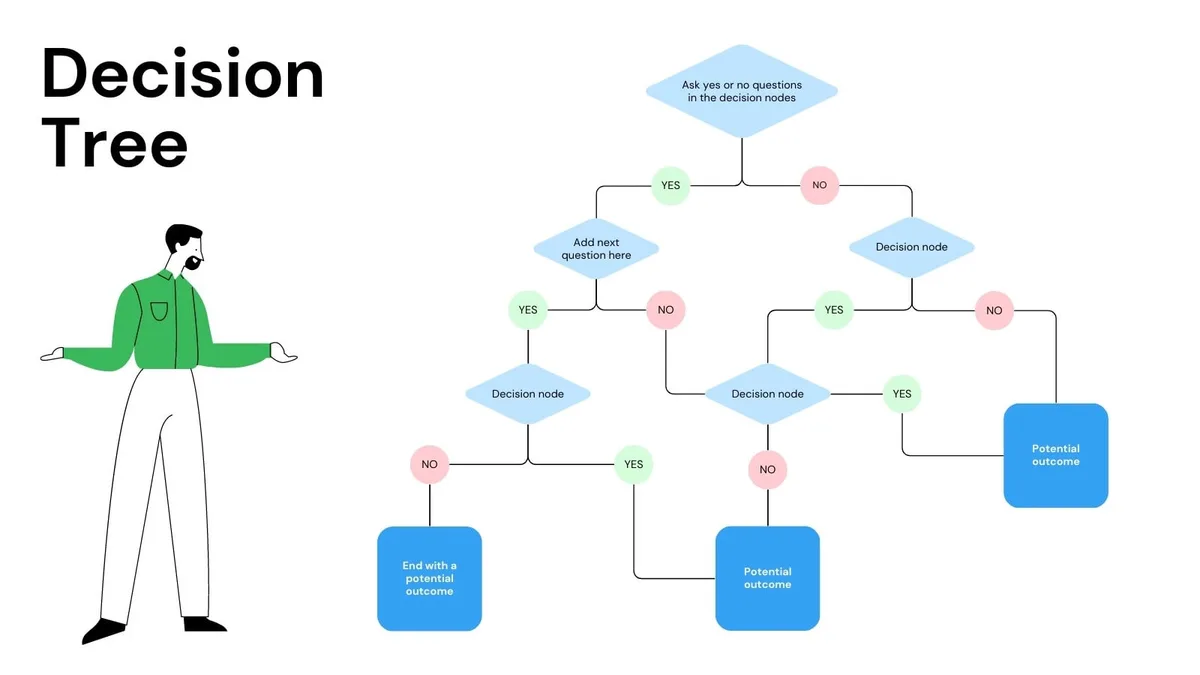
Image source: Web (Bing) / utpaqp.edu.pe (Web image (fair-use with source credit))
The Brio 500 has a handful of distinct failure modes. Your specific symptom determines the best fix. Use this simple decision tree to find your path.
Symptom: Black screen or "No camera detected" in apps.
If you see a black screen or the app says no camera is found, start with the physical checks. Is the privacy shutter fully open? Is the USB cable fully seated?
Try a different USB port. If that does not work, check Device Manager. On Windows, look under "Cameras" and "Universal Serial Bus controllers." If you see a yellow exclamation mark, the driver is broken.
Right-click and uninstall the device, then restart your PC. The driver will reinstall automatically. If the camera is not listed at all, try a different computer.
If it works on the second machine, your first computer has a USB port or driver issue. If it fails on both, the camera hardware may be faulty. Similar issues with a different device are covered in our guide on similar issues with a different device.
Symptom: Choppy or stuttering video.
Stuttering video usually means the USB bandwidth is too low or the computer cannot handle the selected resolution. Go into your video app settings and lower the resolution. Drop from 4K to 1080p.
If it is still choppy, drop to 720p. Also check the frame rate. The Brio 500 supports 4K at 30fps, 1080p at 60fps, and 720p at 90fps.
If you are trying to run 4K on a USB 2.0 port, the camera will struggle. Move to a USB 3.0 port. Close background programs that use the camera, like security software or other video apps.
If you are using OBS or Streamlabs, check your output settings. Running the camera at 60fps while also streaming at 60fps can overload a mid-range CPU.
Symptom: Microphone not working or too quiet.
The Brio 500 has built-in dual omnidirectional microphones with noise reduction. If the mic is not picking up sound, check your app's audio settings. Make sure the Brio 500 is selected as the input device, not your laptop's built-in mic.
On Windows, go to Sound Settings > Input and select the Brio 500. Increase the input volume to 100. On macOS, go to System Settings > Sound > Input and select the Brio 500.
If the mic is still too quiet, Logitech's RightSound 4 technology should adjust automatically, but you can also try disabling noise reduction in G Hub or Options+ to see if it helps. The mute button on the camera itself has a touch-sensitive LED. If the LED is orange, you are muted.
Tap it to unmute. If the mute button is stuck or unresponsive, a similar glitch with other devices is discussed in our page on a similar glitch with other devices.
Symptom: Blurry or out-of-focus image.
The Brio 500 uses auto-focus, and it can hunt for focus in low light or when you move too close to the lens. Hold still for a few seconds. The camera should lock focus.
If it stays blurry, open Logitech G Hub or Options+ and look for the manual focus slider. Set it to a fixed distance. Clean the lens with a microfiber cloth.
Fingerprints and dust cause softness. The minimum focus distance is about 10 cm (4 inches). If you are closer than that, back up.
Symptom: Camera disconnects randomly.
Intermittent disconnects are almost always a power or cable issue. The Brio 500 draws power from the USB port. Some USB 2.0 ports on older computers cannot supply enough stable power.
Move to a USB 3.0 port. If you are using a USB hub, remove it. The hub may be sharing power with other devices.
Try a different USB-C cable if you have one. The cable is detachable. A damaged cable can cause intermittent connections.
If the problem persists, update the Brio 500 firmware through Logitech G Hub. Firmware updates fix known stability bugs. As of 2026, Logitech has released several firmware updates that address disconnect issues on Windows 11.
Software Conflicts That Break Everything
The Brio 500 is a UVC camera, so it works without any software. But many people install Logitech G Hub or Logitech Options+ to adjust settings. These two programs can conflict with each other and with your video apps.
Install only one Logitech app. If you have both G Hub and Options+ installed, uninstall one. They fight for control of the camera settings. This can cause the camera to freeze, reset settings randomly, or refuse to output video.
Our research shows that G Hub is the more stable choice for the Brio 500, as it receives regular firmware updates. Options+ is designed for mice and keyboards, not webcams. Download the latest version from the official Logitech support page.
Check for background processes. Even after you close G Hub, it may keep running in the system tray. Right-click the icon and select "Quit." On Windows, check Task Manager for "LGHub.exe" or "Logitech Options Daemon." End those tasks. Then test the camera in your video app.
Disable "Camera" in privacy settings. Windows 11 has a privacy setting that can block camera access. Go to Settings > Privacy & Security > Camera. Make sure "Camera access" is turned on and that the Brio 500 is allowed.
If you have recently updated Windows, this setting sometimes resets to "Off."
Reset G Hub settings. If the camera works but your custom settings are lost, open G Hub, click on the Brio 500, and look for a "Reset to Default" option. This clears any corrupted profile. Then reconfigure your brightness, field of view, and HDR settings.
Common Mistakes (and How to Avoid Them)
Even experienced users make these errors. Knowing them upfront saves time.
Mistake 1: Plugging into a USB hub. USB hubs, especially unpowered ones, share a single data channel and power budget. The Brio 500 needs dedicated bandwidth. Always plug directly into a computer USB port.
If you must use a hub, use a powered USB 3.0 hub with its own AC adapter.
Mistake 2: Using the wrong cable. The Brio 500 comes with a USB-C to USB-A cable with a USB-C adapter. If you use a third-party cable, it may not support the data speed needed for 4K. Stick with the included cable.
If you need a longer cable, buy a certified USB 3.0 extension cable. Do not use a USB 2.0 cable.
Mistake 3: Ignoring the mute button. The touch-sensitive mute button on the top of the camera is easy to bump. If your mic stops working mid-call, check the LED. Orange means muted.
Tap it. This is a common complaint in aggregate reviews, and it is an easy fix.
Mistake 4: Running too many programs. The Brio 500 can only be used by one app at a time. If you have Zoom, OBS, and a browser tab all requesting the camera, you will get errors. Close everything except the app you are using.
If you are streaming, set OBS as the primary camera source and let other apps use it through OBS's virtual camera feature.
Mistake 5: Not updating firmware. Logitech releases firmware updates that fix bugs and improve stability. If you have never updated, open G Hub and check for updates. A firmware update alone can fix random disconnects and performance issues.
When to Call It: Hardware vs. Software Issues
Not every problem has a software fix. Knowing when the camera itself is faulty saves you hours of wasted effort.
Signs of a hardware issue. The camera does not show up in Device Manager on any computer. The status light stays off even when plugged into a known good USB port. The lens is physically damaged or the privacy shutter is stuck.
The USB cable is visibly frayed or bent. If any of these are true, software fixes will not help.
Signs of a software issue. The camera works on one computer but not another. It works in one app but not another. The problem started after a Windows update or a new software install.
The camera is detected but shows a black screen or garbled video. These are almost always software or driver problems.
The two-computer test. If you are unsure, plug the Brio 500 into a different computer. If it works perfectly, the issue is on your original machine. Check drivers, USB ports, and conflicting software.
If it fails on both computers, the camera or cable is likely defective. This is the same diagnostic approach used for other devices, like the approach we outline for TP-Link Tapo C120 troubleshooting.
Contact Logitech support. If the camera is under warranty (standard two years), Logitech will replace a defective unit. Go to the official Logitech support site and open a ticket. They may ask for the serial number, which is on the bottom of the camera.
Be ready to describe the steps you have already tried.
Check the USB cable. The detachable cable is a common failure point. If you have a spare USB-C cable that supports data, try it. If the camera works with a different cable, the original is faulty.
Do not use a charging-only cable. It will not carry data.
Frequently Asked Questions
Why does my Brio 500 keep disconnecting?
Intermittent disconnects are usually caused by insufficient USB power or a faulty cable. Move to a USB 3.0 port. Remove any USB hubs.
Try a different USB-C cable. Update the firmware through G Hub. If the problem persists, test the camera on another computer.
How do I fix a black screen on my Brio 500?
Check the physical privacy shutter first. It must be fully open. Then verify the camera is selected in your app's settings.
Restart the app. If the screen is still black, go to Device Manager, uninstall the camera, and restart your computer. Windows will reinstall the driver automatically.
Can I use the Brio 500 without Logitech G Hub?
Yes. The Brio 500 is a UVC camera and works with the built-in driver on Windows, macOS, and Chrome OS. You do not need any software for basic video.
G Hub is only required for advanced settings like manual focus, field of view adjustment, and firmware updates.
Why is my Brio 500 microphone not working?
First, check the mute button on the camera. If the LED is orange, tap it to unmute. Then go to your computer's sound settings and make sure the Brio 500 is selected as the input device.
Increase the input volume to 100. If it is still quiet, try disabling noise reduction in G Hub.
How do I update the firmware on my Brio 500?
Install Logitech G Hub. Connect the Brio 500. Open G Hub and click on the camera icon.
If a firmware update is available, you will see a prompt. Click "Update" and do not disconnect the camera during the process. As of 2026, Logitech has released several updates that improve stability and performance.
Why does the Brio 500 look washed out or overexposed?
The RightLight 4 feature sometimes overcorrects in very bright rooms. Open G Hub and turn off HDR mode. You can also manually adjust exposure and brightness sliders.
If you are in a room with strong backlight, position a lamp in front of your face. The camera struggles with extreme contrast more than older models.
How do I switch between field of view options?
The Brio 500 supports three field of view settings: 90 degrees (wide), 78 degrees (medium), and 65 degrees (narrow). Open G Hub and click on the camera icon. Under the Video Settings tab, you will find the field of view slider.
Moving it to the left zooms in. This is a digital zoom, not optical, so image quality stays the same.
Can I use the Brio 500 with Linux?
Yes, but with limitations. The Brio 500 uses the standard UVC driver, so it works out of the box on most Linux distributions. You will get basic video at 1080p.
But 4K support and advanced features like HDR and manual focus require Logitech software, which is not available for Linux. You can use v4l-utils to adjust some settings.
What does the orange light on the Brio 500 mean?
The orange LED means the microphone is muted. Tap the touch-sensitive mute button on the top of the camera to unmute. The light will turn white or green.
If the light stays orange and the button does not respond, restart your computer. This is a known software glitch that Logitech has addressed in recent firmware updates.
Final Take: Keeping Your Brio 500 Running Smoothly
The Brio 500 is a solid webcam, but it has quirks. Most issues trace back to USB power, software conflicts, or the physical shutter. Our research shows that sticking to a few best practices eliminates the vast majority of problems.
First, always use a direct USB 3.0 connection. Second, install only G Hub and keep it updated. Third, test the camera on another computer before assuming hardware failure.
These three steps eliminate most problems.
For persistent issues, remember that the Brio 500 is a standard UVC device. The built-in driver on Windows, macOS, and Chrome OS is reliable. If the camera works in one app but not another, the problem is the app.
If it works on one computer but not another, the problem is the computer. Isolate the variable and you will find the fix. For more on related camera issues, our guide on troubleshooting a different camera covers similar diagnostic logic.
And if you need a refresher on USB port basics, a similar diagnostic approach might help you spot a simple fix you missed.

Similar Posts
































