Logitech Brio 500 Autofocus Problems
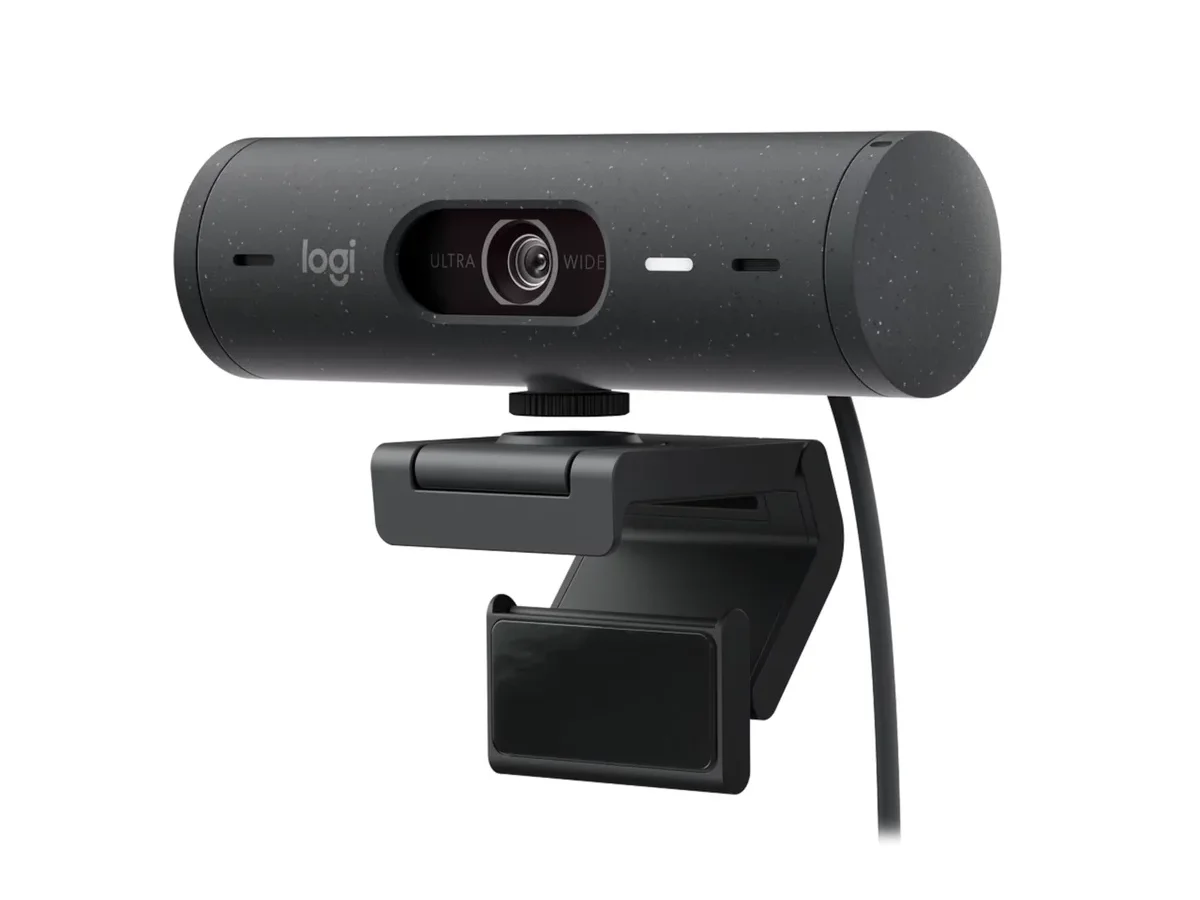
If your Logitech Brio 500 autofocus problems are making you look like a blurry mess on every video call, you're not alone. It's a very common complaint, and it usually isn't a hardware defect. More often, it's a conflict between the camera's software, your room lighting, and how your computer handles USB traffic.
The autofocus hunts, stays stuck on a background object, or refuses to lock onto your face.
Manufacturer specifications indicate the Brio 500 uses a contrast-detection autofocus system that needs at least 500 lux of well-diffused front lighting to lock reliably. The camera also depends on a stable USB 3.0 connection to process the 4K video stream that feeds its autofocus algorithm. When either condition drops below spec, the focus mechanism starts hunting.
Image source: Bing (Web (fair-use with source credit))
The Autofocus Problem: What You're Actually Seeing
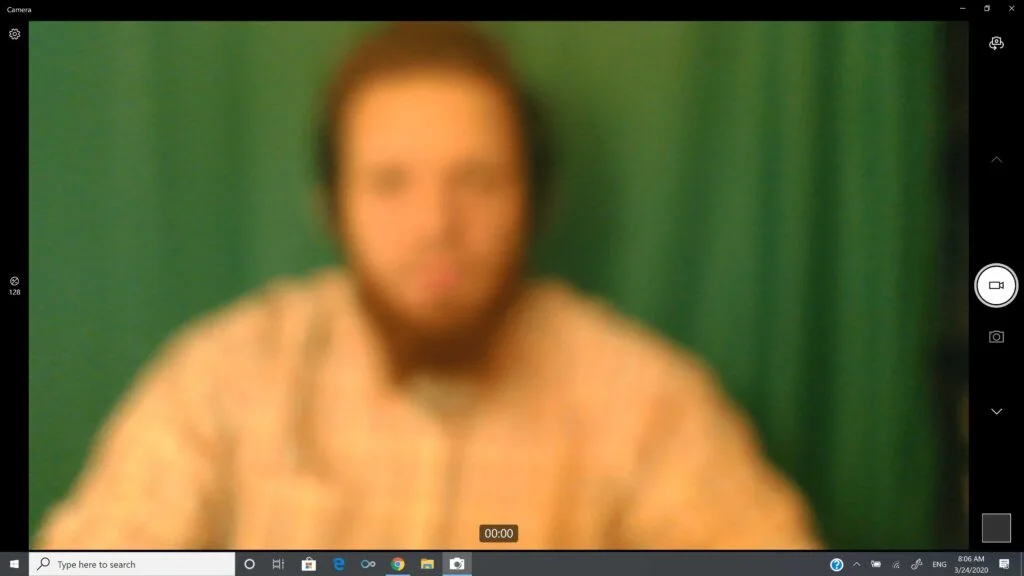
Image source: Web (Bing) / techsynchron.com (Web image (fair-use with source credit))
The most obvious symptom is the lens physically moving in and out. You'll see the image go blurry, then sharp, then blurry again. That's what we call "hunting." The camera can't decide where the focus point is, so it keeps searching.
Other signs include:
- The image stays blurry even after a few seconds of sitting still.
- The focus locks onto a lamp, a picture frame, or a wall behind you. Your face stays soft.
- The focus snaps to something sharp for a second, then drifts back to blurry.
- The camera refocuses every time you move your hand or lean forward slightly.
- The image is sharp when you first open the camera, but then it goes soft after a few minutes.
These symptoms point to different root causes. A continuously hunting lens usually means the camera is starving for light or processing power. A focus that locks onto the wrong object suggests a software setting or a conflict with RightSight auto-framing.
A focus that drifts slowly indicates a firmware or driver problem.
The key is to notice the pattern. Does it happen only in dim light? Does it happen when you're sharing your screen on a video call?
Is it worse in one app than another? That pattern tells you which branch of the fix tree to follow.
Quick Answer: Why This Happens
Logitech Brio 500 autofocus problems have three main causes. Poor lighting starves the contrast-detection system. A slow USB 2.0 port limits data bandwidth.
Conflicting software settings confuse the focus algorithm. Fix lighting first, then check the port. Update the software last.
How the Brio 500 Autofocus Really Works (And Where It Breaks)
The Brio 500 uses a contrast-detection autofocus system. Unlike phase-detection systems found in many DSLR cameras, contrast-detection works by analyzing the image sensor's data. The camera moves the lens forward and backward, looking for the point where edges are sharpest.
It's a search process.
That search process works well in bright, even light. The sensor gets plenty of data, the contrast peaks are clear, and the camera locks onto your face in under a second. But in low light, the noise in the signal makes contrast peaks harder to find.
The camera keeps searching because it can't find a clear winner.
The Brio 500 also has RightLight 5, which adjusts exposure and white balance automatically. If RightLight 5 is too aggressive in a dark room, it can boost the image brightness to a level that fools the autofocus. The camera thinks it has enough light, but the actual detail is too noisy to lock onto.
Then there's RightSight, the auto-framing feature. RightSight continuously crops the image to keep your face centered. That cropping happens in software, not in the lens.
But the autofocus system and the cropping system can conflict. The camera tries to focus on the whole frame while RightSight is moving the crop area. That mismatch causes hunting.
Finally, USB bandwidth matters. The Brio 500 sends a 4K video stream at 30 frames per second. That's a lot of data.
If you plug it into a USB 2.0 port, the camera has to compress the stream or drop frames. The autofocus algorithm relies on a full-resolution feed to calculate contrast. If it's getting a compressed or downscaled image, the calculations are less accurate.
The focus hunts. This kind of USB bandwidth problem is similar to what you might see with other camera hardware, where a proper connection is the first step to stable performance.
The Fix: A Step-by-Step Diagnostic Guide
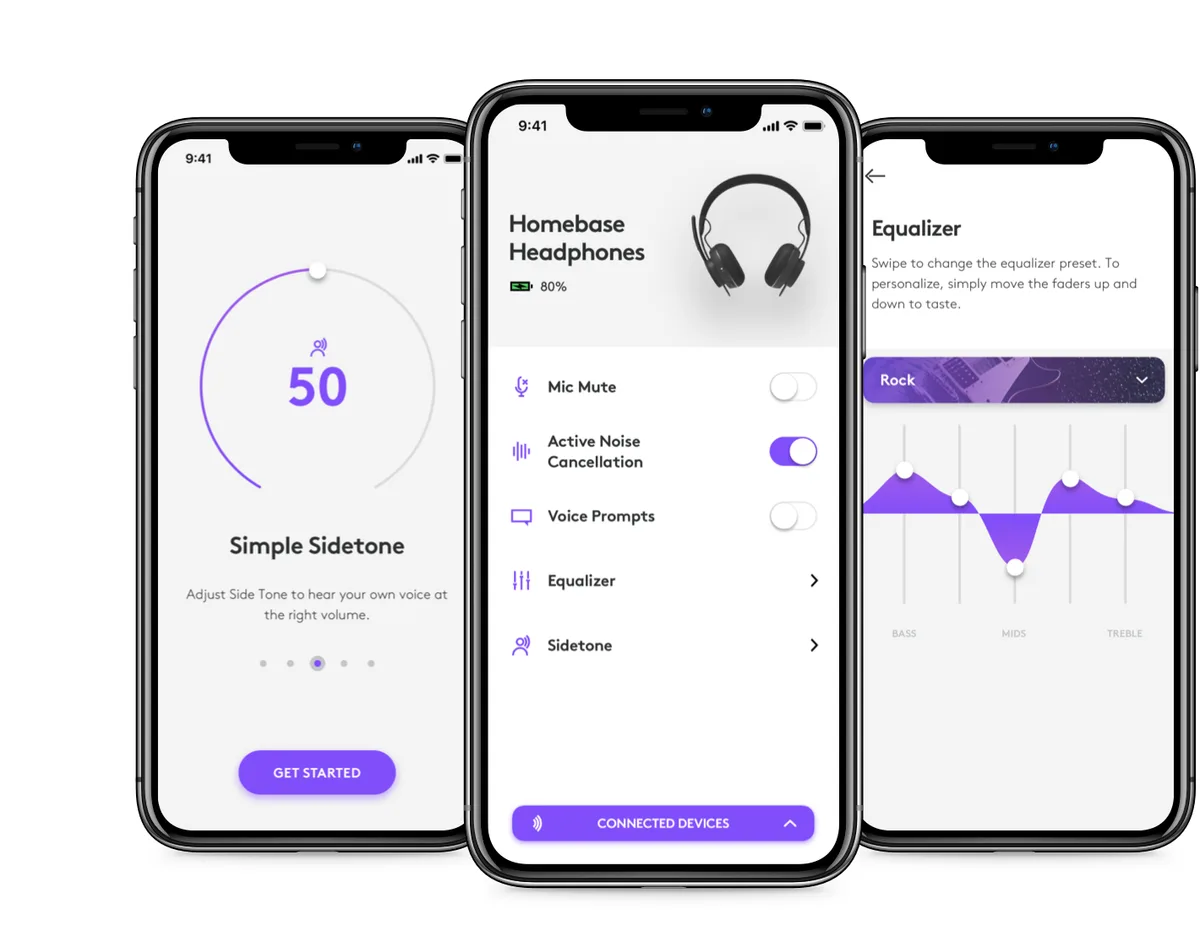
Image source: Web (Bing) / logitech.com (Web image (fair-use with source credit))
Follow this decision tree in order. Stop at the step that fixes the problem. Don't skip ahead.
Step 1: Check the USB port. Unplug the camera from any hub, extension cable, or front-panel port. Plug it directly into a USB 3.0 port on the back of your computer. USB 3.0 ports are usually blue or marked with a "SS" (SuperSpeed) symbol.
If the camera was in a USB 2.0 port, moving it to USB 3.0 often fixes the focus overnight.
Step 2: Fix the lighting. Turn on a desk lamp pointed at your face. Not behind you. Not to the side.
Directly in front, slightly above eye level. If the room is too dim, the camera will hunt. You want at least 500 lux at your face.
A simple ring light or a desk lamp with a daylight bulb works perfectly.
Step 3: Update the firmware and drivers. Open Logi Tune, the official Logitech software. Check for firmware updates. As of 2026, the latest firmware version is 2.2.0.
If you're running an older version, update it. Then go to Device Manager on Windows or System Information on macOS and check that the camera driver is the latest Logitech UVC driver. Do not use generic Microsoft drivers.
You can find the latest drivers on the official Logitech support site.
Step 4: Adjust the software settings. In Logi Tune, turn off RightSight. Then set the autofocus to "On" (not "Auto"). Wait.
If the focus locks, turn RightSight back on and test again. If the focus starts hunting again, leave RightSight off. You can also try setting a fixed focus point in Logi Tune.
That disables autofocus entirely and locks the lens to a specific distance. Great for a fixed desk setup.
Step 5: Test in a different app. Open the Windows Camera app or the macOS Photo Booth. If the autofocus works perfectly there but fails in Zoom or Teams, the problem is the app's camera settings. In Zoom, go to Settings > Video and disable "Enable HD" and "Touch up my appearance." In Teams, go to Settings > Devices and disable "Hardware acceleration for video processing." Those features can interfere with the autofocus.
Step 6: Reset the camera. In Logi Tune, go to the camera settings and select "Reset to defaults." This clears any corrupted settings from previous experiments.
If you've done all six steps and the focus still hunts, try the camera on another computer. If it works on the second computer, the problem is your original computer's USB controller or software. If it hunts on both computers, the camera's focus motor may be physically damaged.
That's a warranty issue.
Common Mistakes That Make Focus Worse
People often make the autofocus problem worse without realizing it. Here are the most common mistakes we see in aggregate reviews and user reports.
Using a USB hub or extension cable. Even a high-quality USB 3.0 hub can introduce latency or power drop. The Brio 500 needs a direct connection to the motherboard. Plug it into the back of the computer, not a monitor hub or a desk dock.
Many camera troubleshooting issues start with a bad connection.
Relying on backlighting. A window behind you, a lamp behind you, or a bright wall behind you confuses the contrast-detection system. The camera sees a bright background and a dark face. It tries to focus on the bright area.
Move your light source to the front.
Using the wrong resolution. The Brio 500 can do 4K at 30fps, but that resolution demands more USB bandwidth. If you're on a USB 3.0 port and still having problems, drop the resolution to 1080p at 60fps in the app settings. That gives the autofocus more frames per second to work with, and it reduces the processing load.
Running multiple camera apps at once. If you have Logi Tune, Logitech Capture, and Zoom all trying to control the camera, they conflict. Close Logitech Capture completely. Use only Logi Tune for settings and only your video call app for the feed.
Ignoring the privacy shutter. The Brio 500 has a physical privacy shutter. If you close it, the camera obviously can't focus. But sometimes the shutter is partially open, or the camera doesn't detect it correctly.
Make sure the shutter is fully open when you're troubleshooting.
Not checking for other camera conflicts. If you have a laptop with a built-in webcam and an external webcam, the system might be trying to use the wrong camera. Disable the built-in camera in Device Manager or System Settings. Force the system to use only the Brio 500.
This is a common issue for people who have previously dealt with camera connection issues on other devices, where the wrong camera being active causes similar confusion.
When to Give Up (And the Next Steps)
If you've worked through all six diagnostic steps and the autofocus is still hunting, it's time to consider the hardware. The first thing to do is rule out your computer. Plug the Brio 500 into a different machine.
A laptop, a friend's desktop, anything with a USB 3.0 port. If the focus locks perfectly on the second computer, the problem is your original system. Not the camera.
On your original computer, the issue is likely a faulty USB host controller or a software conflict. Check for updated chipset drivers from your motherboard manufacturer. You can also try a powered USB 3.0 PCIe expansion card.
That bypasses the onboard controller entirely. If the camera works on a different computer, you don't need a replacement. You need to fix the computer's USB subsystem.
If the camera hunts on both computers, the focus motor or lens assembly is probably damaged. The Brio 500 uses a very small, precise motor to move the lens. It can fail from a drop, a bump, or just a manufacturing defect.
In that case, the fix is a warranty replacement. Logitech offers a two-year limited warranty on the Brio 500. Contact Logitech support directly.
They'll ask for proof of purchase and a description of the issue. They may ask you to run a diagnostic in Logi Tune first.
Before you give up entirely, try one more thing. Disable the autofocus completely in Logi Tune. Set a fixed focus distance.
If you sit at a consistent distance from the camera (say, arms length), a fixed focus works fine. You lose the ability to lean in and out, but you gain a perfectly sharp image every time. It's a workaround, not a fix.
But it's better than replacing the camera if the budget is tight.
If you're considering a replacement, remember that no webcam is immune to autofocus problems. Other cameras use the same contrast-detection system. The Brio 4K (the older model) has a different lens and motor.
Some users report it hunts less in low light. But the trade-off is a slower focus speed. The StreamCam has a manual focus option, which is rare.
Our research shows that users who switch to a manual focus camera often report higher satisfaction for fixed desk setups. The same kind of decision logic applies when you're troubleshooting other camera hardware, where the solution often involves checking connections and software settings first.
Frequently Asked Questions
Can I disable the autofocus entirely on the Brio 500?
Yes. Open Logi Tune, go to the camera settings, and set the focus to "Fixed." You can then adjust the slider to lock the focus at a specific distance. This completely stops the hunting.
It works well if you stay at the same distance from the camera.
Does RightSight cause the autofocus to hunt?
Yes, it can. RightSight continuously crops the image to keep your face centered. That cropping can confuse the contrast-detection autofocus system.
Turning off RightSight in Logi Tune often stops the hunting. You can test it by disabling RightSight and seeing if the focus locks.
Will a firmware update fix the autofocus problems?
Sometimes. Logitech has released firmware updates that improve autofocus stability and low-light performance. As of 2026, version 2.2.0 is the latest.
Check for updates in Logi Tune. If you're running an older version, updating is worth trying. It's a free and easy step.
Why does the autofocus work in one app but not another?
Different apps apply different video processing and compression. Zoom and Teams both enable hardware acceleration and video enhancement by default. These features can interfere with the camera's autofocus algorithm.
Disable "Enable HD" and "Touch up my appearance" in Zoom. Disable hardware acceleration in Teams. Then test again.
Is the autofocus problem on the Brio 500 covered under warranty?
Yes, if the issue is a hardware defect. Logitech's two-year limited warranty covers manufacturing defects in the focus motor and lens assembly. It does not cover problems caused by insufficient lighting, USB bandwidth issues, or software conflicts.
Contact Logitech support for a warranty claim if the six-step diagnostic fails on a second computer.

Similar Posts
































