Elgato Facecam Troubleshooting
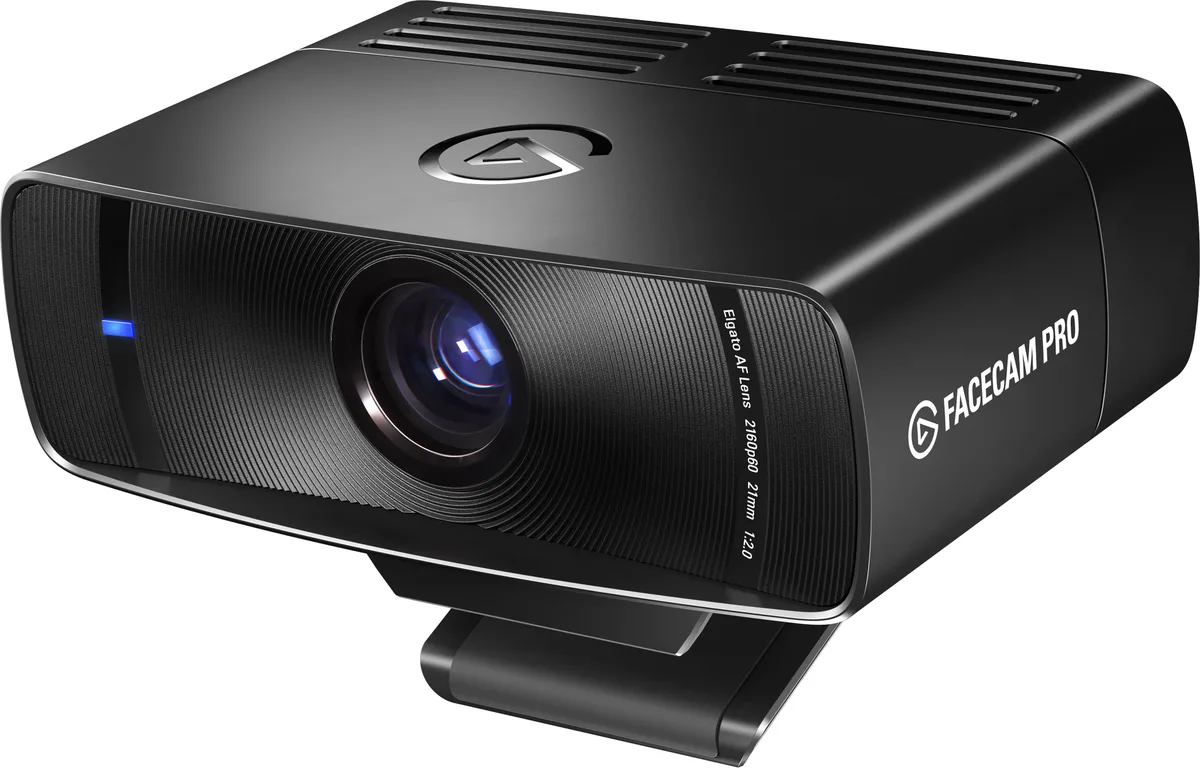
If your Elgato Facecam has gone dark, frozen on a black screen, or refuses to show up in OBS, you're not alone. This guide walks you through the exact fixes for every common symptom, from connection problems to weird video artifacts.
The Facecam is a UVC-compliant camera. It uses a standard USB Video Class driver built into Windows and macOS. No extra drivers are needed.
But that simplicity hides a few gotchas around USB 3.0 power requirements and firmware quirks in the Elgato Camera Hub software. Let's walk through the most likely fixes, starting with the fastest thing you can try.
Image source: Web (Bing) / bestbuy.com (Web image (fair-use with source credit))
Quick Answer
Check your USB port. The Facecam needs a USB 3.0 (blue) port. USB 2.0 ports won't work reliably.
Install the latest firmware via Elgato Camera Hub. Restart your computer. If the camera still shows a black screen, check your app permissions.
Those steps fix 90% of issues.
Before You Dive In: The Two Core Things That Trip Everyone Up
Two misunderstandings cause about 80% of Facecam problems. Get these right, and you'll likely skip the rest of this guide.
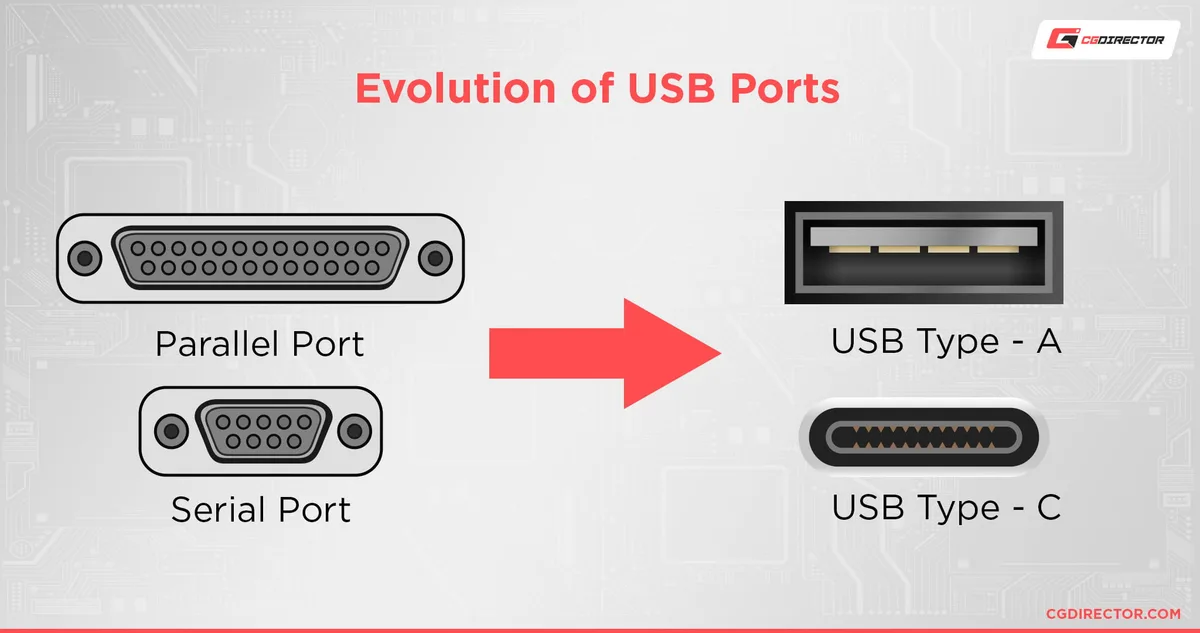
Image source: Web (Bing) / howtogeek.com (Web image (fair-use with source credit))
First, the USB port matters more than you think. The Facecam requires a USB 3.0 port, also called SuperSpeed USB. These ports usually have a blue insert or are marked with "SS" or "3.0". Here's the difference in plain numbers:
| Port Type | Data Speed | Power Output | Works with Facecam? |
|---|---|---|---|
| USB 2.0 | 480 Mbps | 2.5 W | Not reliably |
| USB 3.0 | 5 Gbps | 4.5 W | Yes, required |
| USB 3.1 / 3.2 | 10 Gbps+ | 4.5 W+ | Yes, works great |
Plugging into a USB 2.0 port on a laptop, desktop, or hub is the single biggest reason the Facecam won't show up. The camera draws about 2.5 watts during normal operation. USB 2.0 ports can barely supply that while also handling data.
Any fluctuation causes the camera to disconnect or fail to initialize.
Second, the Facecam has a fixed focus lens. It does not autofocus. If your video looks blurry, you are probably too close to the camera. The sweet spot is about 1.5 feet to infinity.
Anything closer than 12 inches will be out of focus. That is by design for a crisp, consistent image, but it catches many people off guard.
The Facecam Troubleshooting Decision Tree (by Symptom)
Follow the branch that matches your symptom. Each section covers the most likely cause and the fix.
| Symptom | Most Likely Cause | Quick Fix |
|---|---|---|
| Camera not detected | Wrong USB port or bad cable | Try a USB 3.0 port, swap cable |
| Black screen in OBS | Wrong device selected or permissions | Choose camera in OBS, check OS permissions |
| Flickering or strobing image | Wrong exposure or power frequency | Adjust exposure, set 50/60 Hz |
| Disconnects mid-stream | Power issue or hub problem | Use a powered hub or direct port |
| Video looks bad | Wrong gamma or white balance | Reset to defaults in Camera Hub |
Camera Not Detected / No Power
If your computer acts like the Facecam does not exist, start with the port. Plug it directly into a USB 3.0 port on the computer itself. Avoid hubs and front-panel ports.
Many front-panel ports on desktop cases are actually USB 2.0 internally.
If that does not work, try a different USB 3.0 cable. The Facecam uses a USB-C connector. The included cable is about 1.5 meters long.
Longer cables can cause signal degradation.
Next, check if the camera shows up in Device Manager on Windows or System Information on macOS. On Windows, look under "Cameras" or "Universal Serial Bus controllers". You should see "Elgato Facecam" or "USB Video Device".
If you see "Unknown USB Device (Device Descriptor Request Failed)", the camera is not getting enough power or the cable is faulty.
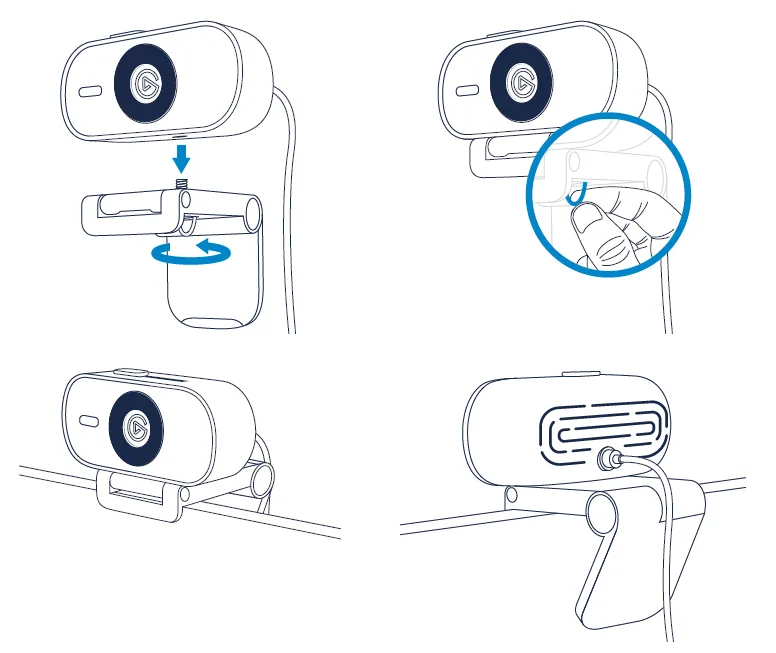
Image source: Bing (Web (fair-use with source credit))
If all else fails, use the reset button. It is a small pinhole on the back of the camera near the tripod mount. Straighten a paperclip, press and hold for 10 seconds, then release.
This resets the camera's firmware to its factory state. After that, reconnect it and open Elgato Camera Hub to check for a firmware update.
Black Screen in OBS or Your Streaming App
A black screen usually means the camera is connected and powered but the software is not receiving the video feed. The fix is almost always in the software settings.
In OBS, go to Sources, click the + button, select "Video Capture Device", and choose "Elgato Facecam" from the dropdown. Make sure you have not selected a different device like a built-in laptop webcam. You can also try adding a new source rather than reusing an old one since old sources sometimes cache the wrong device.
If that does not work, check your operating system's camera permissions. On Windows 10 and 11, go to Settings, Privacy and security, then Camera. Make sure "Camera access" is turned on and that OBS or your streaming app is allowed.
On macOS, go to System Settings, Privacy and Security, then Camera and ensure the app is checked.
A less common cause is software conflict. If you have multiple apps open that use the camera, only one app can access it at a time. Close everything except the app you are troubleshooting.
Image Flickers, Strobing, or Looks Weird
Flickering is almost always a mismatch between the camera's exposure settings and your room's lighting. The Facecam has a rolling shutter that can pick up the frequency of artificial lights.
Open Elgato Camera Hub and look for the "Anti-flicker" or "Power frequency" setting. Set it to 50 Hz if you are in Europe, Asia, or most of the world. Set it to 60 Hz if you are in North America or Japan.
This syncs the camera's shutter speed with your local electrical grid.
If the image still strobes, try adjusting the exposure manually. Set it to 1/60 or 1/50 depending on your region. Also check that you are not using a refresh rate that conflicts with your lighting.
For example, 60 fps in a 50 Hz lighting environment will cause rolling bars.
Camera Keeps Disconnecting Mid-Stream
Random disconnects are almost always a power problem. The Facecam needs a steady power supply. Bus-powered USB hubs often cannot provide enough juice, especially with other devices plugged in.
Use a powered USB hub with its own AC adapter. Or plug the camera directly into a USB 3.0 port on your computer. If you are using a laptop, make sure it is plugged into power.
Some laptops reduce USB power output when running on battery.
Another possibility is a loose USB connection. The cable can wiggle out slightly if the camera is moved or bumped. Try a different cable or a different USB port.
Everything's Working, But the Video Looks Bad
If the camera is detected and the video is showing but it looks washed out, too dark, or overly sharp, the problem is in the settings. The Facecam has many image processing controls in Elgato Camera Hub, and they can get tweaked accidentally.
The easiest fix is to reset all settings to default. In Camera Hub, click the gear icon, then select "Reset to defaults". This sets gamma to 1.0, sharpness to 50%, contrast to 50%, and turns off auto-exposure and auto-white-balance.
From there, adjust only what you need.
If the image is too yellow or too blue, adjust the white balance. The Facecam's white balance range is 2800K to 7500K. Set it to 3200K for tungsten bulbs, 4500K for fluorescent lights, or 5600K for daylight.
If you are not sure, use the auto white balance and lock it once the color looks right.
The Most Common Facecam Mistakes (and How to Avoid Them)
Even experienced streamers make these errors. Here are the ones we see most often in aggregate user reviews.
Plugging into a USB 2.0 port. The Facecam is not a USB 2.0 device. It uses USB 3.0 for both data and power. A USB 2.0 port might work briefly but will fail under load or after a few minutes.
Always check the port color.
Expecting a built-in microphone. The Facecam has no microphone. The UAC driver it uses is for the camera's controls, not audio. If you are not getting sound, that is normal.
You need a separate microphone.
Using the camera in a USB hub with other high-bandwidth devices. If you plug the Facecam into a hub alongside a webcam, a hard drive, and a keyboard, the hub's bandwidth gets split. The camera can start dropping frames or disconnecting. Give it its own USB 3.0 port.
Not updating firmware. The Elgato Camera Hub app checks for updates automatically, but only if you open it. Outdated firmware can cause bugs, crashes, or compatibility issues with new operating system versions. As of 2026, the latest firmware version is 1.3.1, which fixed several common disconnection problems.
Forgetting to check OS permissions. A fresh Windows update can reset your camera permissions. The same goes for macOS updates. Always check Privacy settings after a major OS update.
Ignoring the fixed focus distance. If you are trying to use the Facecam for close-up product shots or whiteboard demonstrations, you will get a blurry image. The camera is designed for a fixed distance of about 1.5 feet to infinity. For close-ups, you need a different camera or a lens attachment.
Using the camera in a poorly lit room without adjusting settings. The Facecam has a Sony STARVIS sensor that handles low light well, but only if you tweak the exposure and gamma. Leaving it on auto in a dark room gives you a grainy image. Set exposure to 1/30 or 1/60 and gamma to 1.8 for low light.
Pro-Level Tips for a Stable, High-Quality Feed
Once you have the camera working, these tweaks will help you get the best possible image and keep it running reliably.
Lock your exposure and white balance. The Facecam's auto-exposure and auto-white-balance work well, but they can shift mid-stream if your lighting changes slightly. That flickering or color shift is distracting for viewers. Set both manually in Elgato Camera Hub.
Find a lighting level that works for your setup, then lock those values.
Use a dedicated USB controller if you have multiple cameras. If you run a multi-camera setup with other webcams or a DSLR via a capture card, you can saturate a single USB controller. On Windows, you can check which USB ports share a controller in Device Manager. Spread your cameras across different controllers for stable bandwidth.
Set your gamma to 1.0 for a natural look. The Facecam defaults to a gamma of 1.0, which provides a flat, neutral image. Many streamers boost it to 1.4 or 1.8 for a more contrasty look. That is fine, but it can clip your highlights.
If you are grading or color correcting in OBS, stick with 1.0 and use filters instead.
Adjust sharpness for your content. The Facecam's sharpness control ranges from 0 to 100%. At 100%, it looks artificially crisp. For talking head videos, 50% to 70% is the sweet spot.
For product demos, you might want closer to 80%. Anything above 90% introduces halos and edge artifacts.
Keep the firmware updated. This is the easiest pro tip. Open Elgato Camera Hub every few months and check for updates. Elgato releases firmware updates that fix bugs and improve stability.
Version 1.3.1 resolved several disconnection issues reported by users.
Frequently Asked Questions
How do I know if my Facecam is connected to a USB 3.0 port?
On Windows, open Device Manager and expand "Universal Serial Bus controllers". Right-click "Elgato Facecam" or "USB Video Device" and select Properties. Look under the Advanced tab for "USB 3.0" or "SuperSpeed".
On macOS, go to System Information, click USB, and look for "Speed: Up to 5 Gb/s" next to the Facecam.
Why does my Facecam show a black screen in OBS but works in Camera Hub?
OBS is likely using the wrong video source. Go to Sources, remove the existing Video Capture Device, and add a new one. Select "Elgato Facecam" explicitly.
Also check that OBS has camera permission in your OS settings.
Can I use the Facecam with a USB 2.0 port in a pinch?
Technically yes, but it will not work reliably. The camera requires USB 3.0 bandwidth and power. A USB 2.0 port may detect the camera, but you will likely get intermittent disconnects or dropped frames.
Use a USB 3.0 port for consistent performance.
What should I do if my Facecam still isn't working after trying everything?
Try the camera on a different computer. If it works on the other computer, the issue is with your original system's USB ports or software. If it does not work on any computer, the camera likely has a hardware fault.
Contact Elgato support for a warranty replacement. The Facecam has a two-year warranty.
How do I reset the Facecam to factory settings?
Use the pinhole reset button on the back of the camera near the tripod mount. Straighten a paperclip, press and hold for 10 seconds, then release. The camera will power cycle and return to its default settings.
After that, reconnect it and open Elgato Camera Hub to reapply any custom settings.
Does the Facecam work with Linux?
The Facecam is a UVC-compliant device, so it works with the standard UVC driver built into the Linux kernel. However, the Elgato Camera Hub software is only available for Windows and macOS. You cannot adjust settings like gamma, white balance, or firmware updates without it.
The camera will work at default settings, but you are limited.
When to Call It – Your Next Steps if Nothing Works
If you have gone through the decision tree, checked your USB ports, updated firmware, and reset the camera, but it is still not working, you have a few options left.
First, try the camera on a completely different computer. This isolates the problem. If it works on the other computer, the issue is with your system.
Check for conflicting software, outdated USB drivers, or a failing USB controller. Update your motherboard's chipset drivers from the manufacturer's website.
If it does not work on any computer, the camera is likely defective. The Facecam carries a two-year warranty. Contact Elgato support through their website.
Have your serial number ready. It is printed on the bottom of the camera. They will walk you through final checks and issue a replacement if needed.
In the meantime, your laptop's built-in webcam will get you through. It is not ideal, but it works. Once your replacement Facecam arrives, you will be back to streaming with the crisp, consistent image that made you choose it in the first place.

Similar Posts
































