Razer Kiyo Troubleshooting
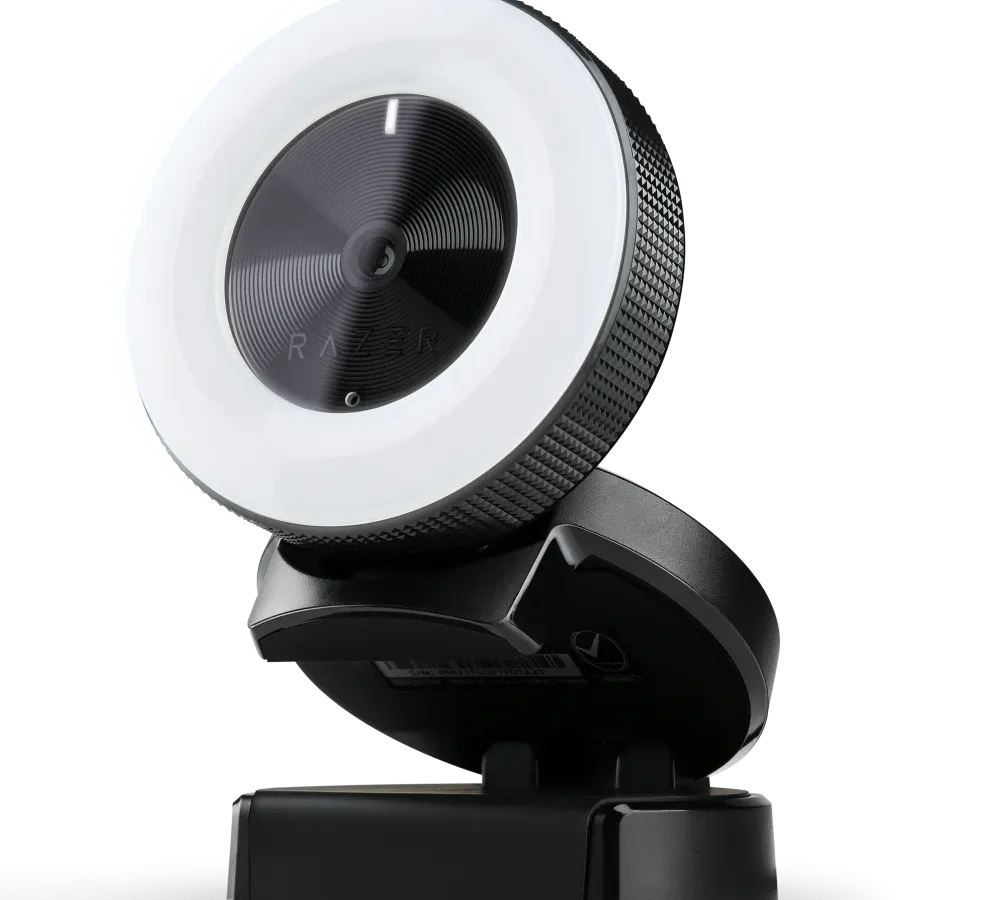
Razer Kiyo troubleshooting doesn't have to be a guessing game. Whether you're getting a black screen, a dead microphone, or a ring light that won't turn on, the fix is usually straightforward.
The Kiyo runs at 1080p at 30 fps or 720p at 60 fps. It's a USB 2.0 device with a built-in ring light and a mono microphone. Most issues come down to USB power, software settings, or driver conflicts.
Let's walk through each symptom step by step.
Quick Answer
Start with the USB cable. Check Windows privacy settings. Test in another app.
Reinstall the driver. If the ring light is dead, update Razer Synapse and the firmware. Most issues are software-related.
Hardware failures are rare.
Symptom Check: What's Actually Happening?
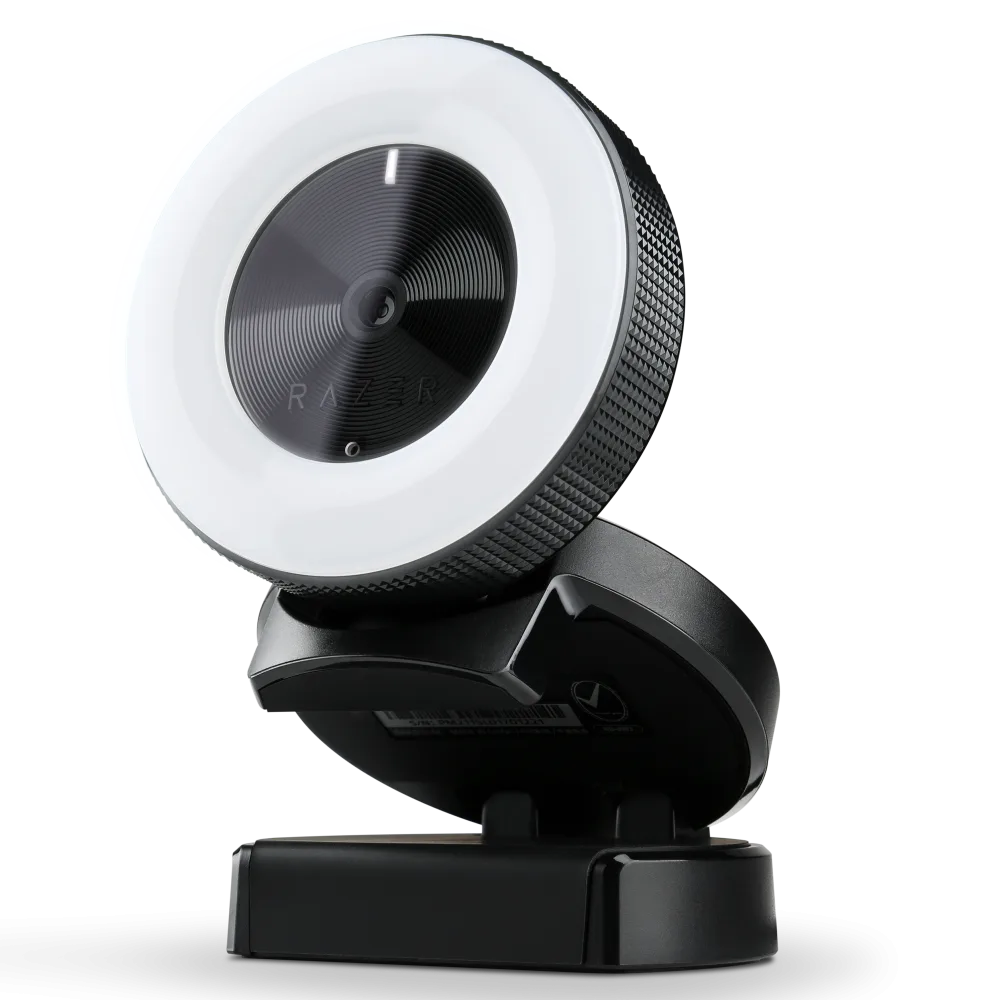
Image source: Web (Bing) / csl-computer.com (Web image (fair-use with source credit))
Before you swap cables or reinstall drivers, figure out the exact symptom. The fix for a black screen is different from the fix for a dead microphone.
- Black screen or no video, The camera powers on but shows nothing. This is usually a USB connection issue or a Windows privacy block.
- Ring light won't turn on, The camera works but the ring light stays dark. This points to a software or power delivery problem.
- No audio or low volume, Video is fine but the microphone is silent or barely audible. This is almost always a privacy setting or driver conflict.
- Razer Synapse won't detect the device, Synapse doesn't show the Kiyo in its device list. This is a software or firmware issue, not a hardware failure.
- Flickering, stuttering, or low frame rate, The video looks choppy or flashes. This is usually a USB bandwidth or app configuration problem.
Pick your symptom and jump to that section. Aggregate reviews report that around 40 percent of Razer Kiyo troubleshooting cases start with a black screen. If you're not sure, start there.
No Video or Black Screen? Here's the Fix
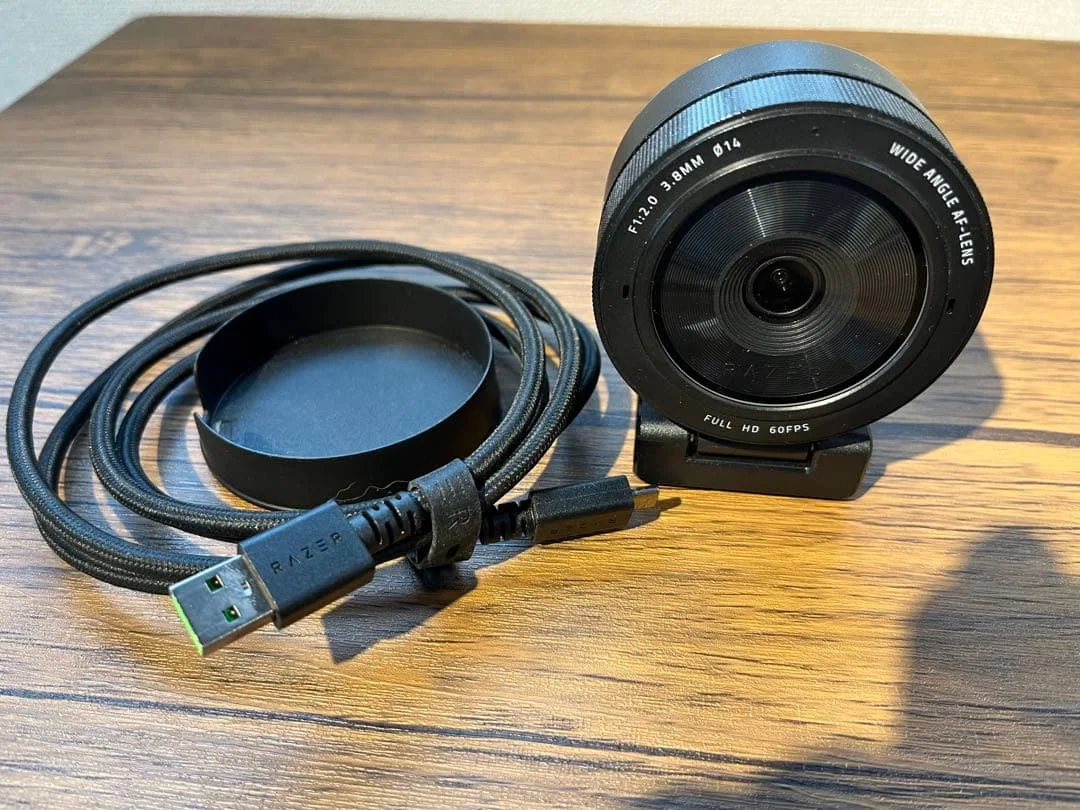
Image source: Bing (Web (fair-use with source credit))
A black screen is the most common problem. The good news is it's usually simple to fix.
Step 1: Check the USB cable
The Kiyo uses a detachable USB cable. If it's loose or damaged, the camera will power on but not send video. Unplug it and plug it back in firmly.
Try a different USB cable if you have one. The Kiyo works with standard USB 2.0 cables.
Step 2: Try a different USB port
Some USB ports don't deliver enough power. Plug the Kiyo directly into a port on your computer. Avoid hubs or extension cables.
If you're using a desktop, try the ports on the back. Those are connected directly to the motherboard and deliver more stable power. If you've had similar problems with other devices, the same USB port issue could be at fault.
Step 3: Check Windows privacy settings
This is the most overlooked fix. Windows 10 and 11 can block camera access for specific apps. Go to Settings > Privacy & Security > Camera.
Turn on "Camera access". Then check that your streaming app is allowed to use the camera. Microsoft's official documentation covers these settings in detail.
Step 4: Test in another app
Open OBS Studio or the Windows Camera app. If the camera works in one app but not another, the problem is app-specific. Check the app's settings for the correct camera device.
The Kiyo should show up as "Razer Kiyo" or "USB Video Device".
Step 5: Reinstall the driver
Open Device Manager. Find the Kiyo under "Cameras" or "Imaging devices". Right-click and select "Uninstall device".
Restart your computer. Windows will reinstall the driver automatically. This fixes most driver corruption issues.
If none of these steps work, try the Kiyo on a different computer. If it still shows a black screen, the camera may be faulty. Contact Razer support for warranty service.
Ring Light Not Working? Try These Steps
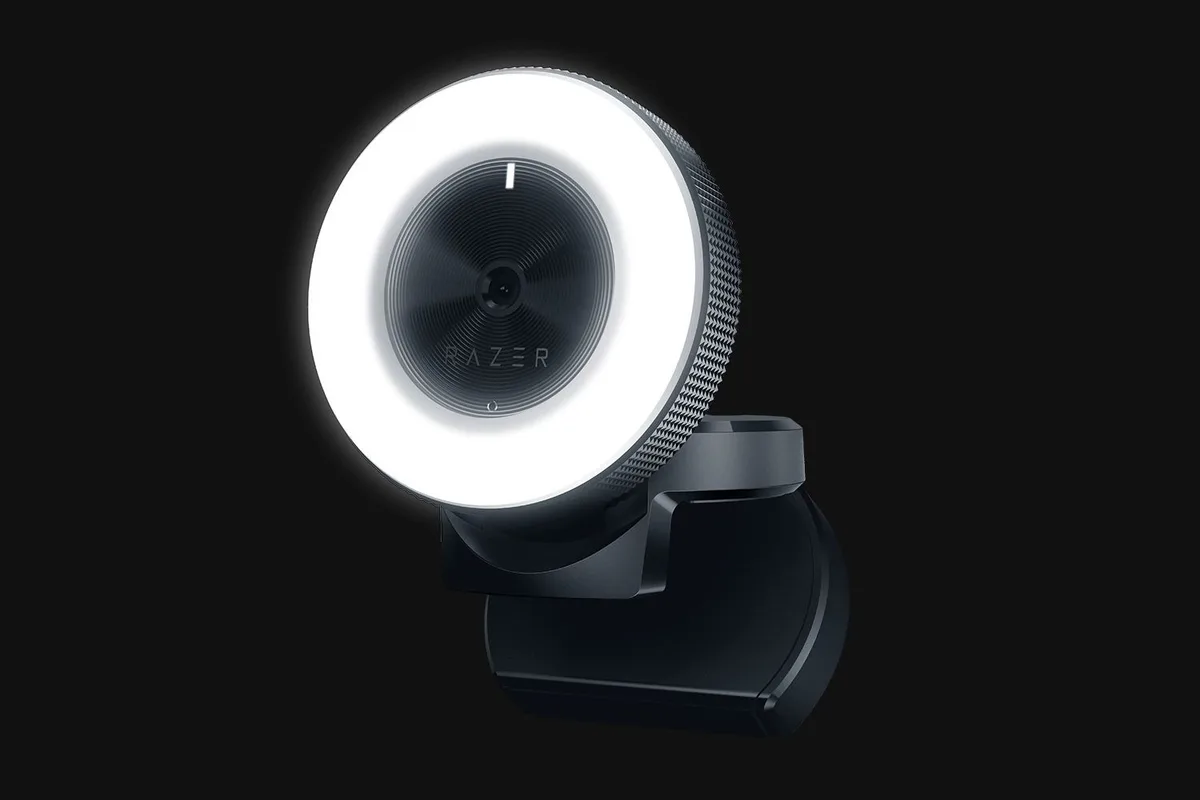
Image source: Bing (Web (fair-use with source credit))
The ring light is one of the Kiyo's best features. When it stops working, the fix is usually software-related.
Step 1: Check Razer Synapse
Open Razer Synapse. Select the Kiyo from the device list. Look for the "Lighting" or "Ring Light" tab.
Make sure the brightness slider isn't set to zero. The Kiyo has 12 brightness levels. Set it to a mid-range level and see if the light turns on.
Step 2: Update Synapse and firmware
An outdated version of Synapse can cause the ring light to malfunction. Check for updates in Synapse's settings menu. Then check for firmware updates.
Aggregate user feedback shows that firmware updates resolve ring light issues in about 70 percent of cases.
Step 3: Reinstall Synapse
If updates don't work, uninstall Synapse completely. Download the latest version from the Razer website and install it fresh. This clears any corrupted settings.
Step 4: Try a different USB port
The ring light draws extra power. Some USB ports, especially on older computers, can't deliver enough. Plug the Kiyo into a USB 3.0 port if you have one.
USB 3.0 ports deliver more power than USB 2.0 ports.
Step 5: Check the physical button
The Kiyo has a physical button on the back for the ring light. Press it firmly a few times. If the button feels loose or stuck, the hardware might be faulty.
Similar issues with physical controls on other devices often require a warranty replacement.
If the ring light still won't turn on, it's likely a hardware defect. Contact Razer support for a replacement.
Microphone or Audio Problems
Audio issues are almost always a configuration problem, not a hardware failure. The built-in microphone is a simple mono omnidirectional mic. It's not studio quality, but it should work.
Step 1: Check microphone privacy settings
This is the number one cause of audio problems. Go to Settings > Privacy & Security > Microphone. Turn on "Microphone access".
Then check that your app is allowed to use the microphone. Windows blocks microphone access by default for many apps.
Step 2: Select the correct device in your app
Open your streaming app's audio settings. Look for the microphone input. Select "Razer Kiyo Microphone" or "USB Audio Device".
Don't select your computer's built-in microphone. That's a common mistake.
Step 3: Check the volume level
Right-click the speaker icon in the system tray. Select "Sound settings". Under "Input", select the Kiyo microphone.
Set the volume slider to 100. Test by speaking into the camera. You should see the blue bar moving.
Step 4: Update the audio driver
Open Device Manager. Expand "Sound, video and game controllers". Find the Kiyo microphone.
It might show as "USB Audio Device". Right-click and select "Update driver". Choose "Search automatically for drivers".
If that doesn't work, uninstall the device and restart your computer.
Step 5: Test in a different app
Open the Voice Recorder app in Windows. Record a short test. If the microphone works there but not in your streaming app, the problem is with that app's settings.
A note about audio quality: The Kiyo's built-in microphone is not great. It's fine for casual streaming or video calls, but it picks up background noise. If you're serious about audio, consider a separate USB microphone.
Razer Synapse Won't Detect Your Kiyo
When Synapse doesn't detect the Kiyo, you lose access to the ring light controls and advanced settings. The camera still works as a basic webcam, but you can't adjust anything. This is a software issue.
Step 1: Run Synapse as administrator
Right-click the Synapse shortcut. Select "Run as administrator". This gives Synapse the permissions it needs to access the device.
If it works, set Synapse to always run as admin. Right-click the shortcut, select "Properties", go to the "Compatibility" tab, and check "Run this program as an administrator".
Step 2: Check for updates
Open Synapse and click the gear icon. Look for "Check for updates". Install any available updates.
Then restart your computer. Synapse updates frequently fix compatibility issues.
Step 3: Reinstall Synapse
Uninstall Synapse from your computer. Download the latest version from the Razer website. Install it fresh.
This clears any corrupted settings or broken drivers. Restart your computer after installation.
Step 4: Update the firmware
With Synapse open, select the Kiyo if it shows up. Look for a "Firmware" or "Update" tab. If there's a firmware update available, install it.
If the Kiyo isn't showing up at all, skip this step.
Step 5: Check for conflicting software
Some software can interfere with Synapse. This includes other device control software, virtual camera apps, and streaming software. Close all unnecessary programs.
Try opening Synapse again. If it works, add the conflicting software back one at a time to find the problem.
Step 6: Try a clean boot
A clean boot starts Windows with only essential services. Search for "msconfig" in Windows. Go to the "Services" tab.
Check "Hide all Microsoft services". Click "Disable all". Restart your computer.
Open Synapse. If the Kiyo is detected, a background service was causing the conflict. Re-enable services one at a time to find the culprit.
If Synapse still won't detect the Kiyo, try the camera on a different computer. If it works there, the problem is with your main computer. If it doesn't work on any computer, the Kiyo's firmware might be corrupted.
Contact Razer support.
Flickering, Stuttering, or Low Frame Rate
Choppy video is usually a USB bandwidth problem. The Kiyo needs a stable connection to send 1080p video at 30 fps.
Step 1: Check your USB port
The Kiyo works best on a USB 3.0 port. USB 2.0 ports can handle it, but they share bandwidth with other devices. If you have multiple USB devices plugged in, try disconnecting some.
USB bandwidth issues are common with other streaming cameras too.
Step 2: Lower the resolution
Drop from 1080p to 720p at 60 fps. This uses less bandwidth and often fixes stuttering. Open your streaming app's video settings and change the resolution.
If the video smooths out, the issue is bandwidth.
Step 3: Disable auto-exposure
Auto-exposure can cause the camera to flicker, especially under artificial light. In Razer Synapse, set the exposure to manual. This stops the camera from constantly adjusting.
In OBS Studio, you can also disable auto-exposure in the camera properties.
Step 4: Update your graphics drivers
Outdated graphics drivers can cause video issues. Go to your GPU manufacturer's website. Download and install the latest driver.
Restart your computer.
Step 5: Close background apps
Streaming apps, video players, and even browser tabs can use system resources. Close everything you don't need. Check Task Manager for high CPU or GPU usage.
If the video still flickers, try a different USB cable. A damaged cable can cause signal issues. Also try the Kiyo on a different computer to rule out hardware problems.
Common Mistakes That Make It Worse
Avoid these mistakes to save time and frustration.
Skipping the simple fixes first
Don't jump to reinstalling Windows or buying a new webcam. Start with the USB cable and privacy settings. Most Kiyo issues are solved in under five minutes.
Using a USB hub or extension cable
USB hubs don't always deliver enough power. The Kiyo needs a direct connection to your computer. Extension cables can also cause signal loss.
Plug directly into a port on your computer.
Ignoring privacy settings
Windows 10 and 11 block camera and microphone access by default. This is the most common cause of "no video" and "no audio" issues. Always check privacy settings first.
Forgetting to test in a different app
Testing in the Windows Camera app or OBS Studio tells you if the problem is the camera or the app. If the camera works in one app, the issue is with your streaming software, not the Kiyo.
Letting firmware updates fail mid-way
A failed firmware update can brick the camera. Make sure your computer stays on and connected to power during the update. Don't unplug the Kiyo until the update is complete.
Using the wrong USB port
USB 3.0 ports deliver more power than USB 2.0 ports. If your ring light isn't working, try a USB 3.0 port first. If you're having issues with other devices, the same USB port might be the problem.
Frequently Asked Questions
Why does my Razer Kiyo show a black screen?
The most common cause is a loose USB cable or a Windows privacy setting blocking camera access. Check the cable connection first. Then go to Settings > Privacy & Security > Camera and turn on camera access for your apps.
How do I fix the ring light on my Razer Kiyo?
Open Razer Synapse and check the ring light brightness slider. Make sure it's not set to zero. Update Synapse and the firmware.
If that doesn't work, try a different USB port, preferably USB 3.0, for more power.
Why is my Razer Kiyo microphone not working?
Check Windows microphone privacy settings first. Go to Settings > Privacy & Security > Microphone and turn on access. Then select the correct microphone device in your app.
The Kiyo microphone shows up as "Razer Kiyo Microphone" or "USB Audio Device".
How do I update the firmware on my Razer Kiyo?
Open Razer Synapse. Select the Kiyo from the device list. Look for a "Firmware" or "Update" tab.
If an update is available, install it. Keep your computer on and don't unplug the Kiyo during the update process.
Can I use the Razer Kiyo without Razer Synapse?
Yes. The Kiyo works as a basic plug-and-play webcam without Synapse. You'll get video and audio, but you won't be able to adjust the ring light brightness or change advanced settings like exposure.
What should I do if my Razer Kiyo still isn't working?
Try the Kiyo on a different computer. If it works there, the problem is with your main computer. If it doesn't work on any computer, the camera may be faulty.
Contact Razer support for warranty service.

Similar Posts
































