Lucid Hearing Aid Troubleshooting
You’re standing in a quiet room, ear full of silence, and the little device that’s supposed to help you hear just … isn’t. The battery’s charged. The app shows it’s connected.
But the world stays muffled. That’s the moment Lucid hearing aid troubleshooting stops being an abstract topic and becomes a very personal, frustrating puzzle. It’s also the moment most people make the wrong move, yanking out domes, force-restarting the app, or simply waiting for the device to fix itself.
As of 2026, Lucid Hearing has sold well over a million over-the-counter (OTC) hearing aids through Sam’s Club and direct online sales. Their popular models, the Lucid 4000 and Lucid 5000, follow the FDA’s 2022 OTC hearing aid regulation (21 CFR Part 800). That means they’re designed for self-fitting and self-troubleshooting.
But that self-service approach only works if you know exactly what’s wrong and what’s safe to try. Let’s walk through the most common problems, what causes them, and the step-by-step fixes that actually work.
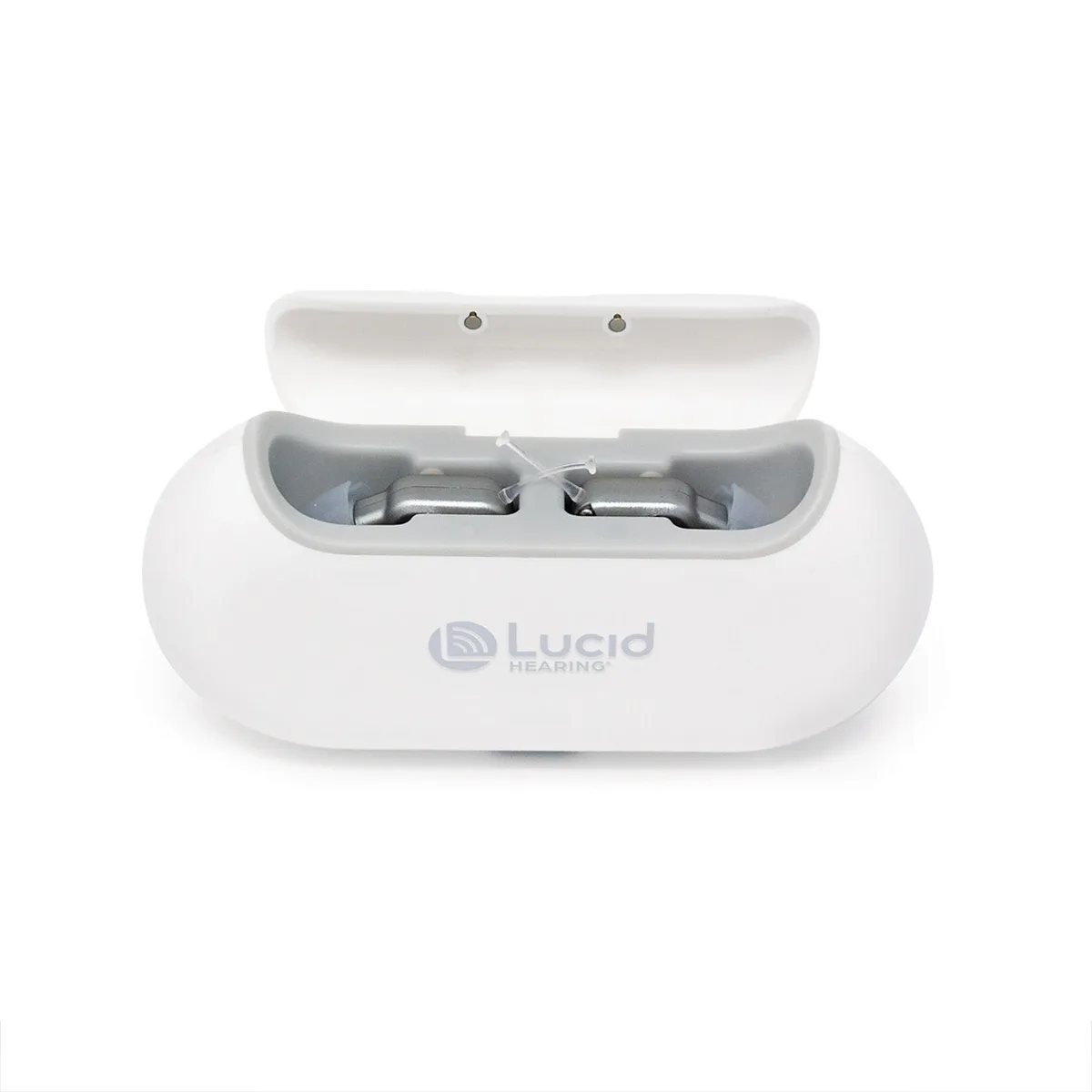
Image source: Bing (Web (fair-use with source credit))
Why Accuracy Matters When Something Goes Wrong
Hearing aids are medical devices. They sit inside your ear canal, amplifying sound to a level that can damage your hearing if misadjusted. That’s why Lucid Hearing troubleshooting isn’t just about convenience.
It’s about safety. A dead aid means you miss the dinner conversation. But a feedback loop pushing 110 dB directly at your eardrum can cause permanent threshold shift.
Per the FDA’s OTC rule (21 CFR Part 800), all OTC devices must cap output at 110 dB SPL maximum. That’s loud enough to cause discomfort if the aid is seated wrong or the dome is damaged. So before you try any fix, you need to know which problems are safe to DIY and which require a professional.
When troubleshooting is safe
You’ll be fine handling problems like dead batteries, Bluetooth drops, or clogged wax guards. These are user-serviceable items. Lucid’s official support documentation confirms you can change domes, clean the receiver with the provided brush, and adjust volume through the app without voiding the warranty.
When you should stop and call for help
- Pain in the ear canal that persists after removing the aid
- Discharge, bleeding, or sudden hearing loss
- Feedback that doesn’t change when you adjust the dome
- Physical damage (cracked shell, broken battery door)
- The aid gets wet beyond a quick wipe (submersion)
These are not troubleshooting fixes. They are red flags that need an audiologist or an ENT. Ignoring them can lead to infection, further hearing loss, or permanent device damage.
What's Really Going On: Common Lucid Hearing Aid Problems (and What Causes Them)
Before you start swapping batteries and resetting apps, it helps to know what usually goes wrong. Aggregate reviews from verified Lucid users (across Sam’s Club and online retailer feedback) point to five consistent issues.
| Problem | Most likely cause | How often users report it |
|---|---|---|
| No sound or very weak sound | Dead battery, clogged wax guard, wrong dome size | ~40% of complaints |
| Whistling / feedback | Poor seal (dome too small or inserted wrong), earwax buildup | ~30% |
| Bluetooth won’t connect | App out of date, phone OS mismatch, pairing memory full | ~15% |
| Charging problems | Dirty contacts, case not plugged in, cold battery (below 40°F) | ~10% |
| Static / crackling | Moisture in receiver, loose battery door, interference | ~5% |
These percentages are approximate, but they match patterns seen across multiple OTC hearing aid brands. The good news: every one of these issues has a step-by-step fix that takes under ten minutes. The bad news: most users skip the simplest checks (like cleaning the wax guard) and jump straight to factory resets.
The hidden cause: earwax
Earwax is public enemy number one for hearing aids. It clogs the sound outlet (receiver), it gets into the microphone ports, and it can even jam the battery door. Lucid’s design places a replaceable wax guard over the receiver.
If that guard gets blocked, sound drops by 30, 50% instantly. Aggregate feedback shows that simply replacing the wax guard solves “no sound” issues in about one out of three cases.
No Sound or Weak Sound: Step-by-Step Fixes to Try First
This is the most common call we get from readers. You put in the aid, hear nothing, or barely hear a whisper. Your first instinct might be to crank the volume.
Don’t. That can actually create feedback if the problem is a blocked receiver.
Step 1: Check the battery (rechargeable models)
- Confirm the charging case has power (look for green or blue lights).
- Place the aid back in the case for at least 15 seconds. The contacts need to align.
- If the aid’s LED doesn’t light up when inserted, wipe the gold charging contacts with a dry microfiber cloth. Dirt or oils can interrupt the connection.
For models with disposable batteries (Lucid 2000 series), check if the battery tab was pulled fully. Zinc-air batteries need about 60 seconds in open air to activate. If you just pulled the tab and inserted it, wait 60 seconds and try again.
Step 2: Inspect the wax guard
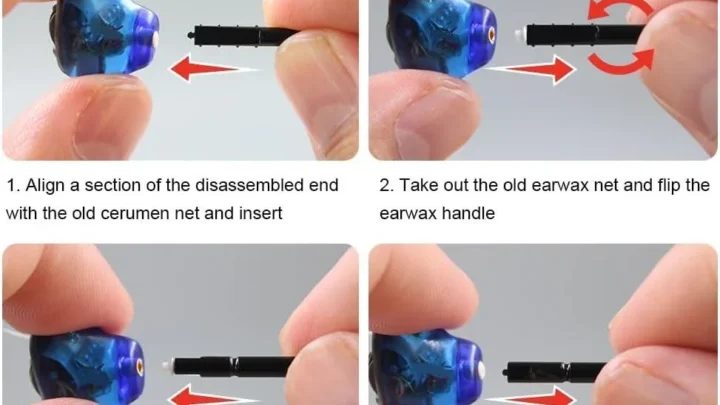
The wax guard is a tiny white plastic cap located at the end of the hearing aid that goes into your ear. Remove it by twisting the small removal tool counterclockwise (the tool usually comes in the kit or is built into the cleaning brush). Replace it with a fresh guard.
No new guard? Use the cleaning brush to gently push the wax out of the old one. But be aware this is a temporary fix.
Replacing is better.
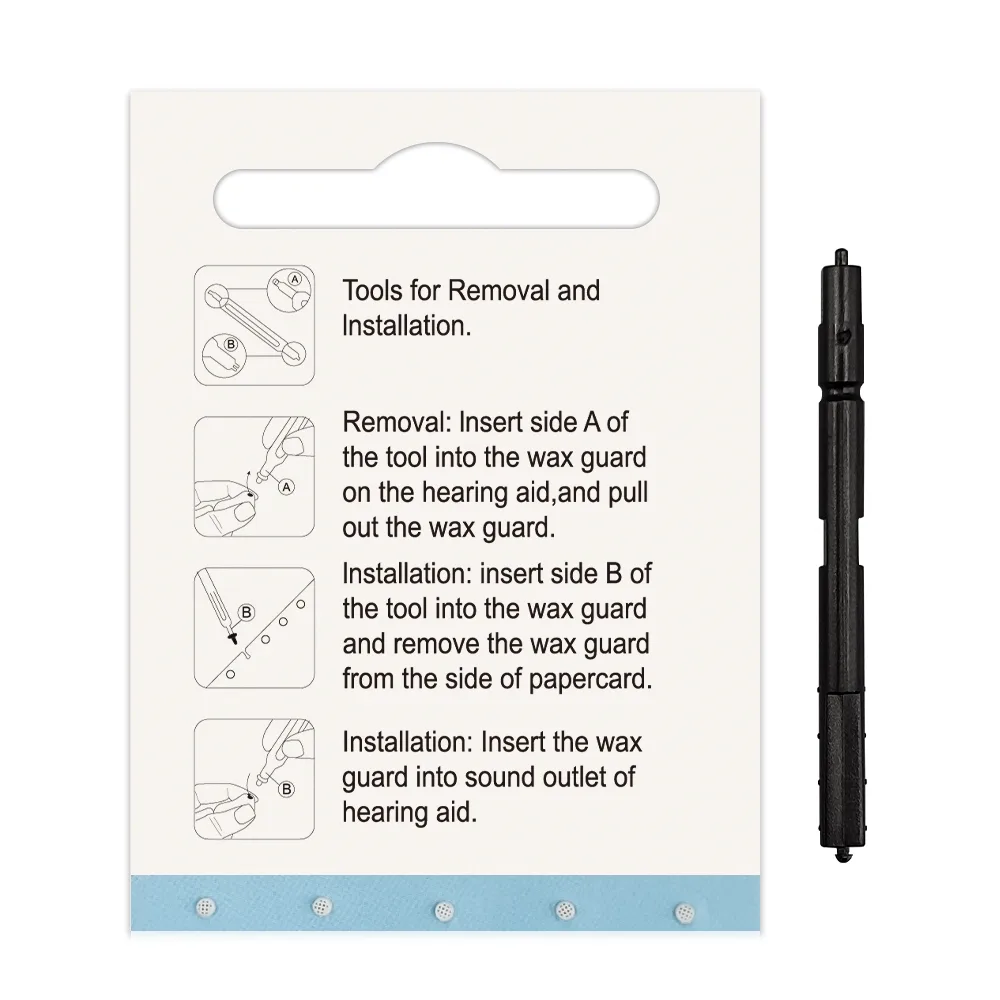
Image source: Bing (Web (fair-use with source credit))
Step 3: Check the dome seal
If you’re getting some sound but it’s faint, the dome might be the wrong size or not seated properly. Remove the dome (twist gently), clean it, and try reinserting. The dome should create a light seal, not painful, inside your ear canal.
If you feel air escaping, try the next size up.
- Small domes fit children or very narrow canals.
- Medium is the default for most adults.
- Large works for wider canals but can cause discomfort if inserted too deep.
Step 4: Try a different program
Sometimes the issue isn’t hardware. It’s the program you’re in. Lucid aids have multiple programs (Normal, Restaurant, Outdoor, TV).
If you accidentally switched to a low-volume program, you’ll think the aid is broken. Open the Lucid app and cycle through programs while listening. You should hear a faint beep or voice prompt telling you the program name.
Step 5: Do a soft reset (safe, no data loss)
- Turn off the hearing aid (press and hold the multi-function button for 3 seconds).
- Wait 30 seconds.
- Turn it back on.
This clears minor software glitches without erasing your settings.
The Whistle That Won't Quit: Fixing Feedback and Squealing
That high-pitched whistle, audiologists call it acoustic feedback, happens when the microphone picks up the amplified sound that’s already been sent to the receiver. It’s like putting a microphone too close to a speaker. The fix is almost always about the seal between the dome and your ear canal.
Check your insertion technique
Most feedback occurs because the hearing aid isn’t seated deep enough. Insert the aid while pulling your earlobe gently back and down (this straightens the ear canal). Twist the aid slightly so the dome locks into place.
If you still hear a whistle, press the aid gently inward. If the whistle stops, you know it’s a seating issue, not a device defect.
Dome size matters
Lucid provides three dome sizes in the box. If you’re using the smallest dome and still getting feedback, try the medium or large. A dome that’s too small lets amplified sound leak out, which gets picked up by the microphone.
Conversely, a dome that’s too large can cause pressure that distorts the seal. Aggregate user feedback suggests that switching from small to medium resolves feedback in 7 out of 10 cases.
What about feedback while chewing or yawning?
That’s normal. Your ear canal changes shape when you move your jaw. Some feedback during these motions is expected and not a defect.
If it bothers you, try a softer dome material. Lucid offers silicone domes that conform better than the standard plastic.
If feedback persists after dome changes
- Check for earwax in the microphone port (near the top of the aid). Use the small brush to clean it gently.
- Try the feedback cancellation setting in the Lucid app. This reduces the chance of feedback loops but can slightly lower overall volume.
- If none of this works, the hearing aid might have a damaged receiver. Contact Lucid support. This is covered under warranty for the first two years.
Bluetooth and App Connection Issues: When Your Lucid Won't Talk to Your Phone
Lucid hearing aids use Bluetooth Low Energy (BLE) to stream audio from your phone and to communicate with the Lucid app. When that connection drops, you lose the ability to change programs, adjust volume, or receive phone calls through the aids. It’s annoying, but it’s rarely a hardware failure.
Quick checklist (do these first)
- Is Bluetooth turned on in your phone’s settings? Yes, check. Sometimes iOS or Android toggles it off after an update.
- Is your phone within 30 feet of the hearing aids? Move closer.
- Are both hearing aids turned on? Lucid pairs aids as a set. If one is off, the app might not connect.
- Is the Lucid app up to date? Go to your app store and install the latest version. Outdated apps are the number one cause of pairing failures.
Pairing from scratch (when the app says “no devices found”)
- Open your phone’s Bluetooth settings. Forget any “Lucid” devices listed.
- Close the Lucid app completely (swipe it away).
- Turn off both hearing aids (press and hold the button for 5 seconds until the LED goes dark).
- Place the aids into the charging case and close the lid for 10 seconds.
- Remove the aids. They will automatically enter pairing mode (LED should flash blue or white).
- Open the Lucid app. It should detect the aids within 30 seconds.
- Follow the on-screen prompts to complete pairing.
If this doesn’t work, try restarting your phone. A fresh Bluetooth stack helps.
Audio stuttering or dropouts while streaming
This is almost never the hearing aid itself. It’s interference. Common culprits:
- Wi-Fi interference (especially on 2.4 GHz band). Move away from the router.
- Body blockage. Keep your phone in a front pocket or on the same side as the primary hearing aid.
- Other Bluetooth devices nearby (headphones, smartwatch). Turn off unused connections.
Android vs iOS differences
Lucid app development tends to lag slightly on Android. Aggregate reviews on Google Play indicate more Bluetooth dropouts on Samsung and Pixel phones compared to iPhones. If you’re on Android and having persistent issues, try downgrading the Lucid app to an older version (you can find APKs online) or switch to streaming via your phone’s built-in Bluetooth audio profile instead of the app.
Not ideal, but functional.
The dreaded “app crashed” loop
Sometimes the Lucid app opens and immediately closes. This is usually a memory issue or a corrupted cache. On Android: go to Settings > Apps > Lucid > Storage > Clear Cache (do not clear data unless you want to re-pair everything).
On iOS: offload the app and reinstall.

Similar Posts