Moultrie Mobile Edge Troubleshooting
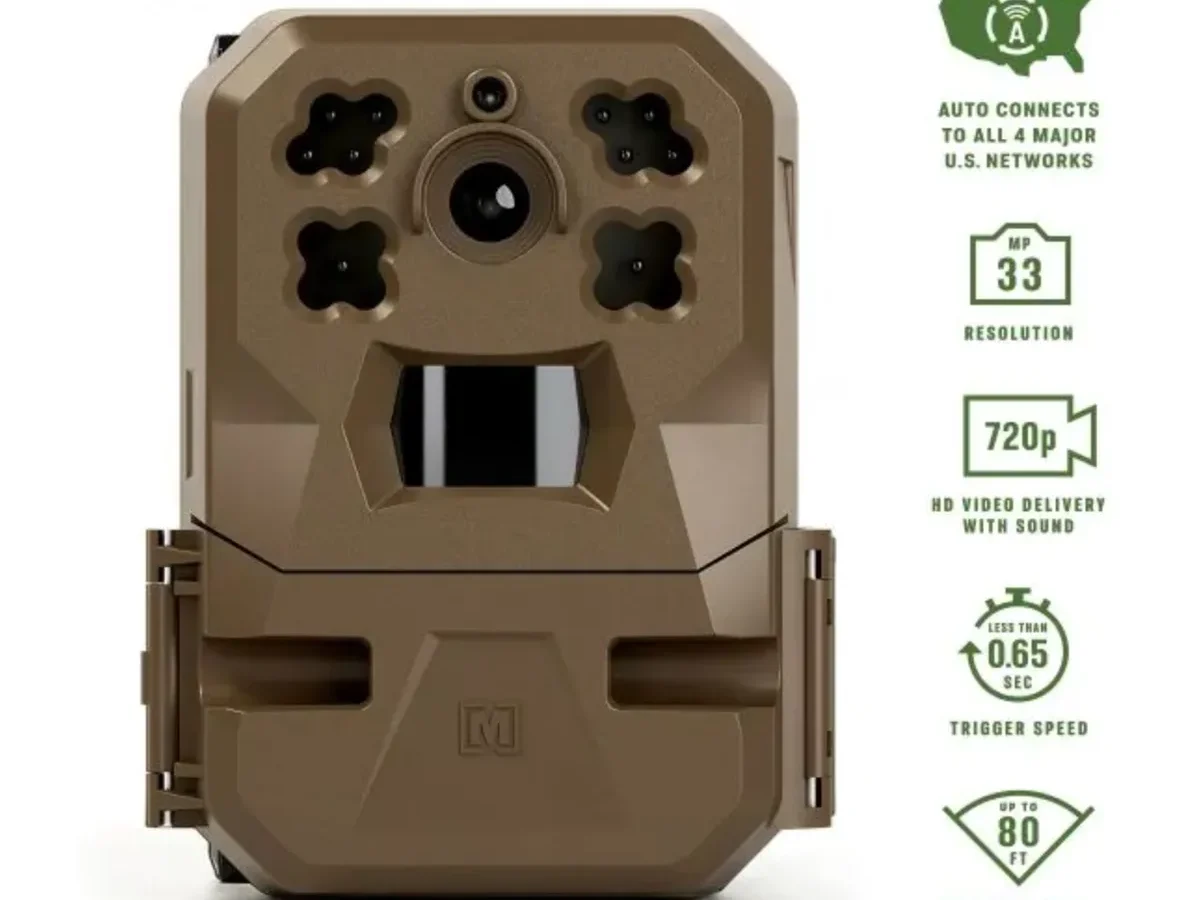
Your Moultrie Mobile Edge troubleshooting doesn't have to be a guessing game. When your trail camera goes quiet, it's not giving you silent treatment. It's flashing clues you just haven't learned to read yet.
Once you know what those blinks and app messages mean, most fixes take under five minutes.
Manufacturer specifications indicate the Edge runs primarily on Verizon's LTE network, with signal strength that drops fast under heavy canopy. Aggregate reviews show that most problems come down to three issues: improper SD card formatting, the wrong battery chemistry, and firmware that hasn't been updated since the last revision. Let's walk through the exact clues your camera gives you.
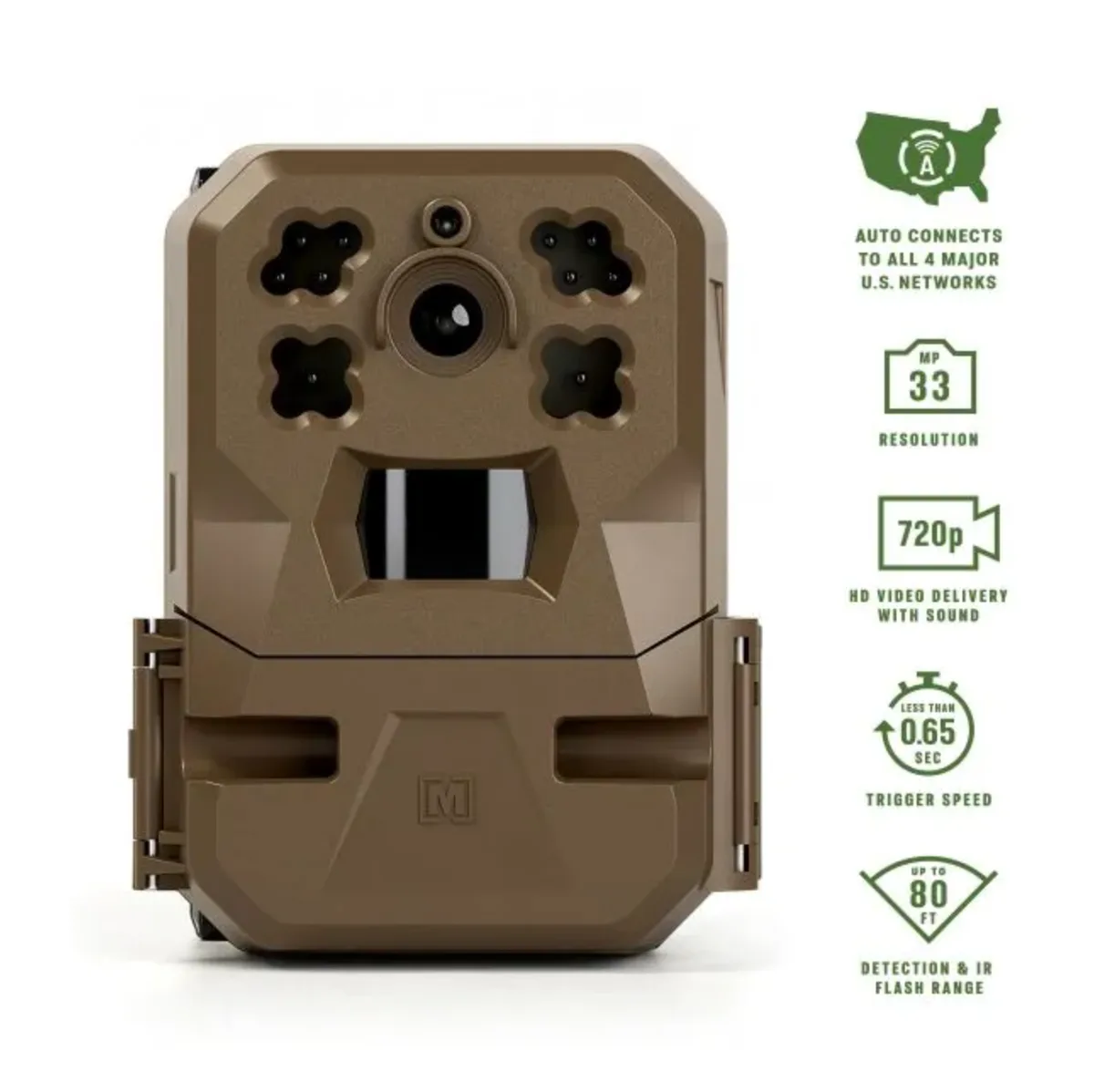
Image source: Web (Bing) / huntngearonline.com (Web image (fair-use with source credit))
Quick Answer
Moultrie Mobile Edge troubleshooting starts with the LED light. Solid red means an internal error. Fast red flash means no cellular service.
Slow green flash means the camera is waiting for a sync. Check the light first. Then look in the app for error codes.
Most problems fix in under a minute.
What's Wrong? Reading the LED and App Clues
The LED is your straightest line to the problem. Each color and blink pattern tells you exactly which system has an issue. You just need the translation guide.
Solid red means the camera has a hardware or connection error. This usually comes from a failed sync attempt or a corrupted file. Power cycle the camera by removing batteries for 30 seconds.
If the red stays after reboot, try a factory reset.
Fast red flash means the SIM card can't find a cell tower. This is the "no signal" alert. You will see this under heavy tree cover or when the camera is in a valley.
Move the unit to higher ground or a clearing.
Slow green flash means the camera is trying to sync. It should connect within a few minutes. If it keeps flashing green without completing the sync, you likely have a data plan issue or the camera isn't registered to your account.
Solid green means the camera is powered on but not actively connecting. This is normal if you just turned it on or if it's between scheduled uploads. No LED at all means dead batteries or a failed power switch.
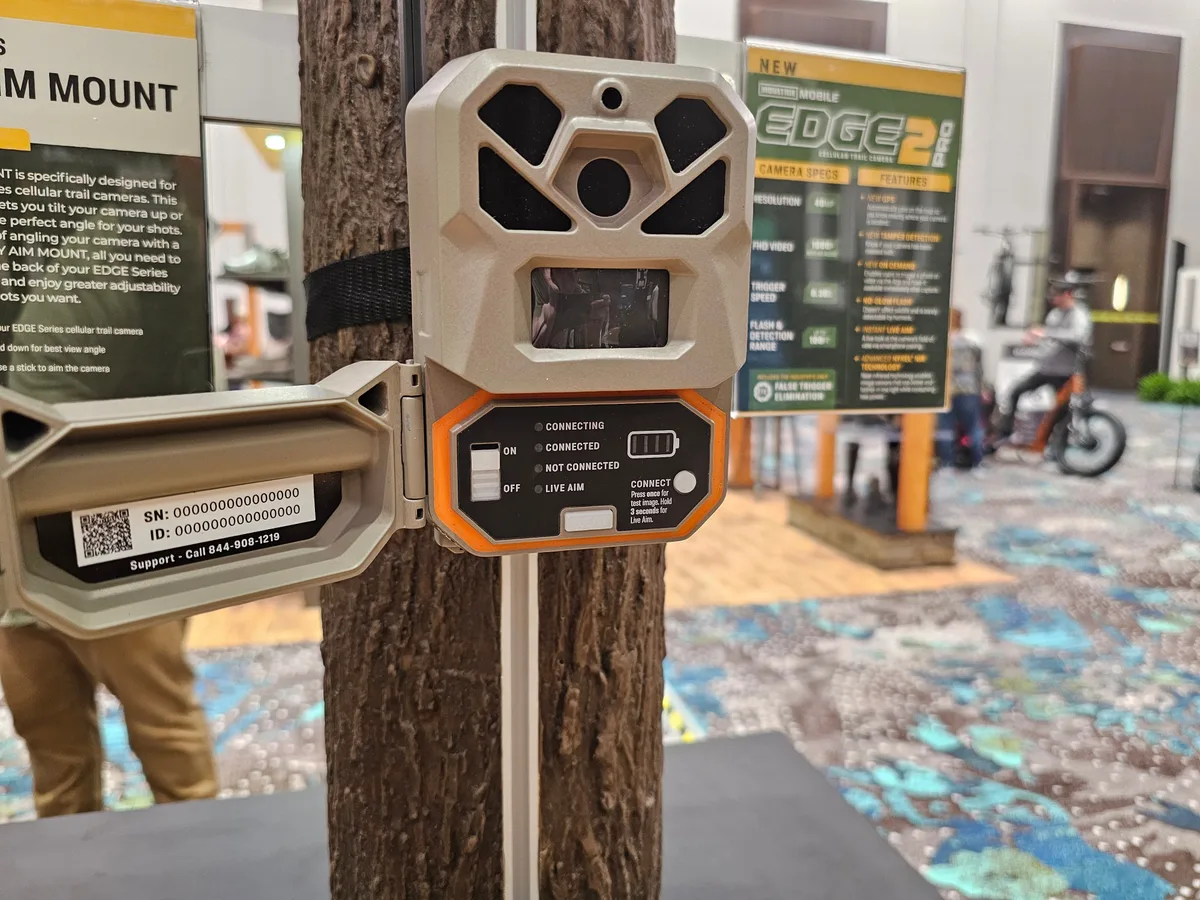
Image source: Bing (Web (fair-use with source credit))
Check the app for a message that says "Camera Offline." If you see that combined with a fast red flash, your fix is about cellular coverage. If the LED looks normal but the app says offline, your account or plan needs attention.
The Big One: Camera Won't Send Photos
This is the most frustrating issue and the one that generates the most support tickets. The camera sits in the woods for a week. You open the app.
Nothing.
Start with the cellular signal. The Moultrie Mobile Edge uses Verizon's LTE bands, and the antenna is internal. Take your phone to the exact mounting location and check signal strength.
If you see one bar or less, move the camera to a different tree or higher up the trunk.
The antenna is straight up, right? This sounds basic, but a tilted camera often tilts the internal antenna. Mount the unit with the antenna pointing directly skyward. Avoid metal brackets, feeders, or tree stands that can block the signal.
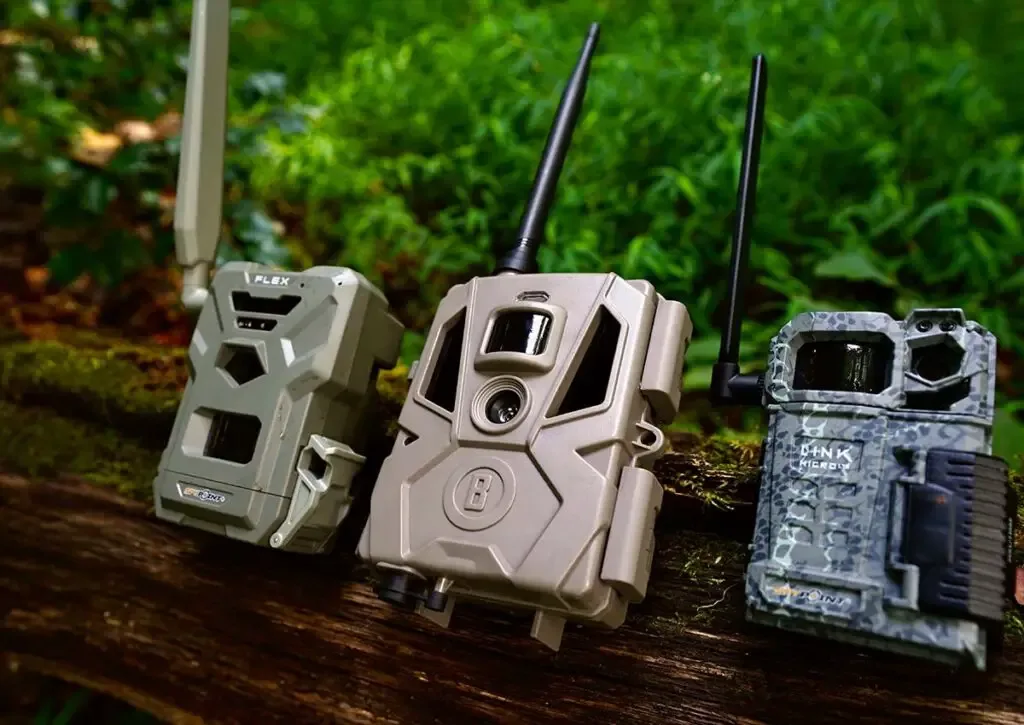
Image source: Bing (Web (fair-use with source credit))
Next, verify the data plan. Log into the Moultrie Mobile app and tap the camera name. Look for "Plan Status." An expired plan or one that ran out of data will stop all photo delivery.
Many users discover this after a few months of use.
Also confirm the camera is synced to your account. If you bought a used camera or reset it, the serial number must be registered. Check Settings > My Cameras.
If the camera isn't listed, add it using the serial on the back.
A simple app connection check can also help. If the app itself won't load your camera list, force close it and reopen. If that fails, log out and log back in.
Some firmware quirks resolve with nothing more than a fresh session.
If all looks good but photos still won't send, factory reset the camera. Press and hold the sync button for 10 seconds until the LED flashes rapidly. Release it.
The camera will reboot. You will need to re-register it in the app, but this clears most stubborn connection errors. For additional help, check the Moultrie Mobile support page.
Camera Not Triggering or Taking Too Few Photos
Several factors can cause the Edge to miss movement or capture only one or two images per day. Let's rule them out one by one.
Placement is everything. The PIR sensor detects heat and motion within about 80 feet in optimal conditions. If the camera faces directly into the sun at sunrise or sunset, the sensor can get overwhelmed. Angle the camera slightly north or south to avoid direct sun hitting the lens and sensor.
Point it parallel to game trails, not straight at a feeder from 50 yards.
Trigger interval settings matter. Check the "Minimum Trigger Interval" in the app. If it's set to 5 minutes or longer, the camera will ignore movement during that window. For scouting, set it to 30 seconds.
For security or high-traffic areas, 10 seconds is better.
Sensitivity is adjustable. The app has Low, Medium, and High settings. High catches everything, including wind-blown grass and swaying branches. Medium works best for most setups.
Low is for open fields where you only want large animals.
Also verify Multi Shot mode isn't turned off. In the app, check capture mode. If it's set to Single Photo, you will get one shot per trigger.
Switch to Multi Shot to capture the full approach and exit.
Test the trigger yourself. Walk in front of the camera at about 15 to 20 feet. Do it slowly. Do it fast.
If the camera still doesn't trigger, the sensor may be faulty. A failed PIR sensor is rare but not unheard of. Contact Moultrie support if the test fails at close range in good lighting.
Battery Dying Fast or Camera Won't Power On
Battery life on the Edge varies based on usage, temperature, and battery brand. Manufacturer specs claim 1 to 3 months on 8 AA lithium cells with moderate uploads. Cold weather cuts that significantly.
Use lithium batteries, not alkaline. Alkaline cells lose voltage fast in cold temperatures. Many users report dead alkalines after two weeks in 30°F weather. Lithium AA batteries hold voltage down to about -20°F.
Per Moultrie's own documentation, lithium is the recommended chemistry for all cellular cameras.
Don't mix old and new batteries. Replace all eight at the same time. Mixing partial cells causes uneven discharge and early shutdown.
The internal rechargeable pack option. Some Edge variants accept a rechargeable battery pack. If you use one, verify it's charged before installation. Rechargeable packs typically provide fewer total shots than a set of high-quality lithium AAs.
Plan to recharge every two to three weeks if the camera is active.
Check the power switch. The Edge has a physical power switch near the battery compartment. If the camera won't turn on and shows no LED, open the compartment and toggle the switch off and back on. Sometimes it gets bumped to the off position during battery changes.
Cold weather also impacts battery capacity. Battery life at or below freezing can drop by 40 to 50 percent. If your camera sits in a northern climate, consider using an external battery pack or scheduling fewer photos per day during winter months.
The Moultrie Mobile app allows you to set camera inactivity windows to reduce drain.
If nothing revives the unit and the LED remains dark, the camera may have a failed internal component. Contact Moultrie support with your serial number ready. Their warranty covers manufacturing defects for one year from purchase.
SD Card and Firmware Gremlins
Your SD card can cause more phantom issues than any other part of the camera. The Moultrie Mobile Edge expects FAT32 format. Cards larger than 32GB should work, but many users report problems with 64GB and above.
Stick with a 32GB or smaller card unless you have confirmed compatibility.
Format the card in the camera, not a computer. Insert the card, power on the camera, and use the app's "Format SD Card" option. If your camera won't power on, format the card in a PC using FAT32. Then insert it and format again in-camera.
SD card speed class matters. Use a Class 10 or UHS-I card. Slower cards can cause write errors, missed photos, or corrupted files.
Firmware updates fix bugs. Open the Moultrie Mobile app and go to Camera Settings > Firmware Update. If an update is available, run it only when the camera has a strong signal and fresh batteries. A firmware interruption with low battery can brick the unit.
After updating, power cycle the camera to apply changes.
Firmware update failures do happen. If the update starts but stops mid-progress, remove the batteries for 30 seconds. Reinsert them.
The camera should boot using its fallback firmware. Try the update again from a location with better signal. If it fails twice, factory reset then update.
Known firmware bugs as of early 2026. Firmware version 1.13.0 and earlier had a sync timeout issue that caused the camera to appear offline after 48 hours of no uploads. If you are on that version, update to 1.13.2 or later. The fix improves keep-alive polling so the camera stays connected longer.
The SD card error message. If the app reports "SD Card Error," the card may be corrupted. Try formatting it again in-camera. If the error persists, replace the card.
Some Edge units are sensitive to card brand.
A note about memory card issues. If you run into persistent card errors after trying two different cards, the camera's write circuit may be failing. This is rare but does happen. Test with a third card from a different manufacturer before calling warranty support.
The Most Common Mistakes People Make
A few patterns show up again and again across user reports. Avoid these and you will dodge most of the frustration.
Mounting the camera too low or with bad aim. The Edge sensor covers roughly 80 feet at a 45 degree field of view. If you place it at knee height or point it at the ground, triggers drop fast. Mount it at chest height.
Angle it slightly downward for trails or level for feeders.
Using alkaline batteries in cold weather. This causes more mid-season failures than anything else. Alkalines lose voltage below freezing. The camera powers on but cannot transmit.
The result is a dead unit that looked fine on installation day. Stick with lithium AA cells for any camera that stays out past October.
Ignoring firmware updates. Many users set up the camera, get it working, and never check for updates. Firmware bugs pile up. Sync issues, battery drain, and missed photos all get fixed in later versions.
Check for updates every few months. It takes two minutes in the app.
Forgetting the data plan expires. The camera keeps running but stops sending photos. You walk to the tree expecting a full card. Instead you find weeks of stored images that never uploaded.
Set a calendar reminder for your plan renewal date.
Formatting the SD card on a computer. The camera uses a specific allocation size that a PC or Mac may not apply. Always format the card inside the camera using the app. This prevents write errors that show up days later with no clear cause.
Frequently Asked Questions
How do I factory reset a Moultrie Mobile Edge?
Press and hold the sync button for 10 seconds. The LED will flash rapidly. Release the button.
The camera reboots and clears all settings. You will need to re-register the camera in the app using the serial number on the back.
Why is my camera blinking red but not solid?
A fast red flash means no cellular service. The SIM card cannot find a Verizon tower. Move the camera to higher ground or a clearing.
Check signal strength with your phone at the same location before reinstalling.
Can I use the Moultrie Mobile Edge without a data plan?
No. The camera requires an active data plan to send photos. Without a plan, the camera will store images on the SD card but cannot upload them.
You must retrieve the card manually to view photos.
What size SD card works best for the Edge?
A 32GB Class 10 UHS-I card is the most reliable option. Cards larger than 32GB sometimes work but can cause write errors. Format the card in the camera using the app for best results.
How do I update the firmware on my camera?
Open the Moultrie Mobile app. Go to Camera Settings and tap Firmware Update. Only run the update with fresh batteries and a strong signal.
Power cycle the camera after the update finishes to apply changes.
Why is my camera not showing up in the app?
The camera must be registered to your account. Check My Cameras in the app. If it is not listed, tap Add Camera and enter the serial number from the label inside the battery compartment.
The camera needs to be powered on during registration.
The Final Decision Guide: Pick Your Fix
| Symptom | LED Pattern | First Fix to Try |
|---|---|---|
| No photos in app | Fast red flash | Move camera to stronger cellular signal |
| Camera not triggering | Solid green | Adjust placement and check PIR sensor aim |
| App says offline | Slow green flash | Restart camera and verify data plan status |
| Camera won't power on | No LED | Check power switch and replace with fresh lithium batteries |
| SD card error | Solid red | Format card in camera using app |
| Stuck on firmware update | Random flashing | Remove batteries 30 seconds, retry update with better signal |
If your symptom and LED pattern match a row above, start with that fix. It resolves the issue in most cases. If the problem persists after the first fix, move to the second option described in the earlier sections of this guide.
For anything that does not respond after a factory reset, a battery swap, a fresh SD card, and a location change, the camera likely has a hardware fault. Contact Moultrie support with your serial number and purchase date. Their warranty team handles verified defects within one year of purchase.

Similar Posts
































