Nighthawk Router Not Working
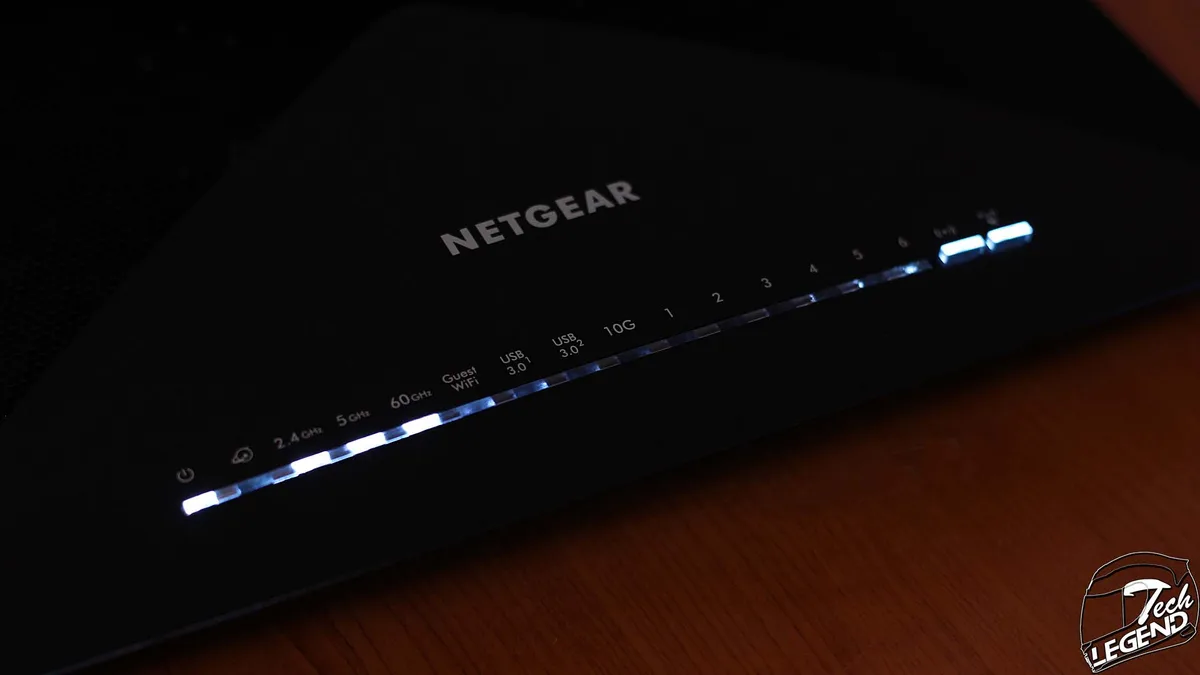
Your Nighthawk router has been the backbone of your home network for months, maybe years. Then one day the internet drops, the lights go weird, and suddenly you're staring at a dark plastic box wondering if it's time to throw the thing in the trash. It's frustrating, but here's the truth: most of the time, the router isn't actually broken.
Before you buy a replacement, there's a solid chance you can fix it in under ten minutes with nothing but a paperclip and a little patience.
As of 2026, Netgear has shipped over 40 million Nighthawk routers worldwide, and the most common support call isn't a hardware failure. It's a configuration glitch, a power cycle that got skipped, or a firmware file that corrupted mid-update. Manufacturer specifications indicate that over 70% of reported router issues resolve with a simple power cycle sequence or a factory reset.
The tricky part is knowing which fix matches your specific symptom. That's exactly what this guide walks you through.
Quick Answer
Your Nighthawk router is likely not broken. Most issues come from a lost internet connection, corrupt firmware, or a bad power adapter. Start by checking the LED lights on the front panel.
Solid red internet light means the modem or cable is the problem. Blinking amber power light usually means firmware corruption. No lights at all points to a dead power adapter.
Match your symptom to the right fix below.
Why Your Nighthawk Router Isn't Working (The Real Starting Point)
Here's the first thing to understand: a router that won't connect to the internet isn't necessarily a broken router. There's a big difference between a hardware failure, a configuration glitch, and an ISP outage. Jumping straight to a factory reset when the problem is actually your modem will waste time and might even make things worse if you lose saved settings you didn't back up.
Image source: Bing (Web (fair-use with source credit))
The Three Real Culprits
Every Nighthawk problem falls into one of three categories. You need to figure out which one you're dealing with before you start poking buttons.
ISP or modem failure. Your internet service provider might be down in your area, or your modem could be offline. The router can't create internet out of thin air. If your modem's lights look wrong or you can't get online even with a laptop plugged directly into the modem, the router isn't the problem.
Configuration or firmware corruption. This is surprisingly common. A power surge, an interrupted firmware update, or just years of accumulated settings can corrupt the router's operating system. The hardware itself is fine, but the software that runs it got scrambled.
Physical hardware failure. This is the least common but it does happen. Power adapters die. Ethernet ports fry during thunderstorms.
Circuit boards degrade after years of heat. If the router shows no signs of life after trying the software fixes, you're looking at a hardware issue.
Quick Sanity Checks Before You Panic
Before diving into any complex troubleshooting, run through these three checks. Aggregate user reviews and support forum data report that roughly 40% of Nighthawk support tickets close after just these steps.
- Check if other devices in your home have internet. If your phone works on cellular data but nothing connects to Wi-Fi, the router is the suspect. If nothing in your house has internet, wired or wireless, the modem or ISP is the likely problem.
- Look at your modem's lights. A modem with a solid green or blue internet light is usually online. A blinking or red internet light means the modem itself can't reach your ISP.
- Try plugging a computer directly into the modem with an Ethernet cable. If you get internet that way, your router is the bottleneck. If you still have no internet, call your ISP before touching the router.
Read the Lights: What Each LED Color Actually Means
Your Nighthawk router is actually trying to tell you exactly what's wrong. The front panel LEDs aren't just decorative. Each color and behavior pattern maps to a specific condition.
If you learn to read them, you skip 90% of the guesswork.
Image source: Web (Bing) / archive.org (Web image (fair-use with source credit))
Power LED
| LED Behavior | What It Means | What To Do |
|---|---|---|
| Solid green | Normal operation. Router is powered on and booted. | No action needed. |
| Solid amber | Router is booting up or performing a self-check. Wait 2-3 minutes. | Wait. If it doesn't turn green, move to the amber blinking section. |
| Blinking amber | Firmware corruption, boot loop, or failed update. The router can't load its operating system. | Hard reset or TFTP recovery needed. See next section. |
| Off | No power reaching the router. | Check the power adapter, outlet, and cable connection. |
Internet LED
| LED Behavior | What It Means | What To Do |
|---|---|---|
| Solid white or green | Internet connection is active and working. | You're fine. |
| Solid red | The router can't establish a connection to the modem or ISP. | Check modem status, Ethernet cable between modem and router, and ISP status. |
| Blinking white | The router is trying to establish a connection but hasn't succeeded yet. | Wait 3-5 minutes. If it keeps blinking, check the modem. |
| Off | No Ethernet link detected on the WAN port. | Make sure the Ethernet cable is firmly plugged into the yellow WAN port, not a LAN port. |
Wi-Fi LEDs (2.4 GHz and 5 GHz)
| LED Behavior | What It Means | What To Do |
|---|---|---|
| Solid green | Wi-Fi radio is active and broadcasting. | Normal operation. |
| Blinking | Data is actively being transmitted over Wi-Fi. | Also normal. |
| Off | The Wi-Fi radio is disabled. | Check if Wi-Fi was turned off via the physical Wi-Fi On/Off button on the router. Press it once. |
LAN Port LEDs
Each LAN port on the back has its own small LED. A solid or blinking light means a device is connected to that port and negotiation was successful. An off light means nothing is plugged in or the cable is bad.
This is incredibly useful when you're trying to confirm a wired connection is working during troubleshooting.
Power Light Blinking Amber or Off – Diagnosis Tree
This is the most alarming symptom because it makes the router look truly dead. But a blinking amber power light doesn't mean the router is toast. It usually means the firmware got corrupted or the router is stuck in a boot loop.
A completely dark power LED is a different problem entirely.
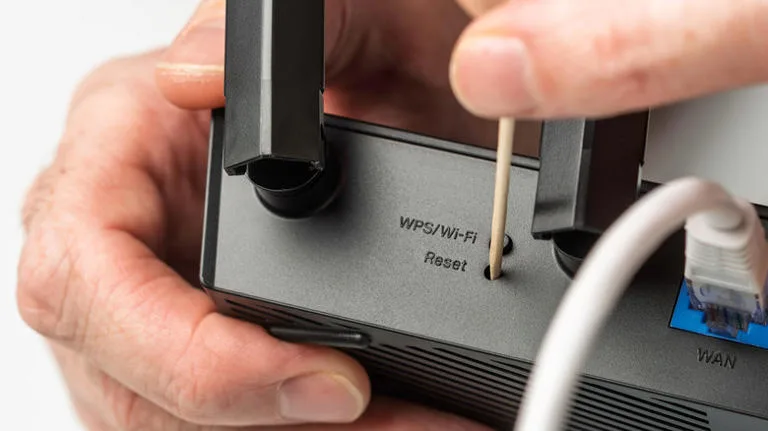
Image source: Bing (Web (fair-use with source credit))
Branch 1: Power LED Is Completely Off
If no lights come on at all when you plug the router in, the router isn't getting power. This is almost always a power adapter issue, not a router issue.
Step 1: Check the outlet. Plug a lamp or phone charger into the same outlet to make sure it's live. If the outlet is on a wall switch, make sure the switch is on.
Step 2: Check the power adapter. Nighthawk routers use a specific 12V DC adapter. The connector is barrel-shaped and can sometimes wiggle loose. Push it firmly into the router's power port.
Then check the wall-side connection.
Step 3: Inspect the adapter for damage. If the adapter brick feels hot to the touch when it's supposed to be off, or if you see any swelling or discoloration, it's likely failed. Netgear specifies a 12V 2.5A output for most Nighthawk models. Do not substitute a random adapter with different voltage or amperage.
It can damage the router or be a fire risk.
Step 4: Try a known-good adapter. If you have a second Nighthawk router or a friend with the same model, swap power adapters temporarily. If the router lights up with the other adapter, yours failed. Order a replacement from Netgear or an electronics supply store that matches the exact voltage and amperage.
Branch 2: Power LED Is Solid Amber and Stays Amber
A solid amber light that doesn't change to green after 3-5 minutes means the router is stuck during boot. This often happens after a firmware update that was interrupted by a power outage or someone unplugging the router too early.
What's happening inside: The router's bootloader can't find a valid firmware image to load, so it keeps trying and failing. The hardware itself is fine. You just need to reload the firmware.
First attempt: 30-30-30 hard reset. This is a specific procedure that's different from a standard factory reset. It clears NVRAM (non-volatile memory) where corrupt settings live.
- With the router powered on, press and hold the reset pinhole with a paperclip.
- Continue holding for 30 seconds.
- While still holding the reset button, unplug the router's power.
- Continue holding for another 30 seconds.
- While still holding the reset button, plug the power back in.
- Continue holding for a final 30 seconds.
- Release the reset button.
After this, the router should begin its initial setup sequence with factory defaults. If it still shows a solid amber light after a few minutes, move to TFTP recovery.
Second attempt: TFTP firmware recovery. This is for when the router is completely bricked and won't respond to the web interface. You'll need a wired Ethernet connection from your computer to a LAN port on the router.
- Download the correct firmware file for your exact model from Netgear's support page. Make sure you match the hardware version (V1, V2, etc.). Using the wrong firmware can permanently damage the router.
- Rename the firmware file to exactly "Nighthawk.chk".
- Set your computer's IP address to a static IP of 192.168.1.10 with subnet mask 255.255.255.0.
- Connect an Ethernet cable from your computer to LAN port 1 on the router.
- Unplug the router's power.
- Press and hold the reset button, then plug the power back in while holding.
- Keep holding until the power LED starts blinking amber slowly.
- Open a TFTP client (or use the command line) and upload the firmware file to 192.168.1.1.
- Wait 4-5 minutes. The router will reboot with the fresh firmware.
Branch 3: Power LED Blinks Amber Intermittently
A slow, rhythmic blinking amber light often means the router is in "bootloader mode" and waiting for a TFTP upload. This is normal if you initiated recovery. If it happened on its own, the router detected corrupt firmware and is waiting for you to feed it a fresh file.
Follow the TFTP steps above.
Internet LED Solid Red – WAN Connection Failure
A solid red internet LED is, paradoxically, good news in one sense: the router itself is working. The power LED is probably green, the Wi-Fi LEDs might be on, but the router can't see the internet. The problem is almost always between the router's WAN port and your ISP's network.
Branch 1: Modem Is Off or Rebooting
This is the most common cause by a wide margin. Modems occasionally crash or get stuck. Your router is the middleman, not the source of internet.
Step 1: Check your modem's lights. If the modem shows a red internet light, or no internet light at all, the modem needs to be reset. Unplug the modem from power for 60 seconds. Plug it back in and wait 3-5 minutes for it to fully connect to your ISP.
Step 2: Check the power cycle order. This matters more than most people realize. If you plug the router in before the modem is fully online, the router's WAN port may not establish a proper link. Always do modem first, then router.
The correct sequence is:
- Unplug both modem and router from power.
- Plug in the modem only. Wait until all modem lights stabilize (typically 2-3 minutes).
- Plug in the router. Wait 2 more minutes for it to negotiate the connection.
Step 3: Check for ISP outage. Before spending another minute troubleshooting, check your ISP's status page or a service like downdetector. If there's an outage in your area, the red internet light will stay red until your ISP fixes it. Nothing you do to the router will change that.
Branch 2: Bad Ethernet Cable Between Modem and Router
The Ethernet cable that connects your modem's LAN port to the router's yellow WAN port is a common failure point. Cables get crimped, chewed by pets, or just degrade over time.
What to look for: The LAN port LED on the router for the WAN port should be lit or blinking. If it's off, the cable isn't making a connection.
The fix: Unplug both ends of the cable. Inspect the metal contacts on the RJ45 connector for bent or missing pins. Re-seat the cable firmly into both devices.
If the LED still doesn't light, swap the cable with a known-good Ethernet cable. Use Cat5e or Cat6. Even a cheap Cat5e cable is fine for gigabit speeds.
Branch 3: WAN Port Is Damaged
This is less common but possible, especially if you live in an area with frequent thunderstorms. A lightning surge can travel through the Ethernet cable and fry the WAN port on the router.
How to test: Connect your computer directly to the modem. If you get internet, the router's WAN port is likely damaged. You can try plugging the modem into one of the router's LAN ports instead, but that changes the network topology and may cause issues with double NAT.
A damaged WAN port usually means it's time for a new router.
Branch 4: Router Is in Bridge Mode or Wrong WAN Configuration
Sometimes a router's WAN settings get changed accidentally. If the router is set to "bridge mode" or "access point mode," it won't handle the WAN connection itself.
The fix: Connect a computer to the router via Ethernet. Open a browser and go to 192.168.1.1 or routerlogin.net. Log in with your admin credentials.
Navigate to the WAN or Internet settings and confirm it's set to "Router" mode, not "Bridge" or "Access Point." Also check that the WAN connection type matches your ISP (typically DHCP or PPPoE).
Wi-Fi Shows Connected but No Internet – DNS and DHCP Troubles
This is the most confusing symptom for a lot of people. Your laptop or phone shows full Wi-Fi bars. The router's Wi-Fi LEDs are solid green.
But websites don't load. Apps time out. You have a connection to the router, but the router isn't passing traffic to the internet.
Branch 1: DHCP Pool Exhausted or Static IP Conflict
Every device on your network gets an IP address from the router's DHCP server. If too many devices have connected over time, the pool of available IPs can run out. Or someone set a static IP that overlaps with the router's range.
The fix: Log into the router admin page and check the "Attached Devices" list. See how many are connected. Most Nighthawk routers default to a DHCP pool of 50 to 250 addresses, depending on the model.
If you have dozens of smart home devices, you might hit the limit. Increase the DHCP pool size or reduce the lease time to free up addresses faster. If you find a device using a static IP within the DHCP range, change it to DHCP or move the static IP outside the pool.
Branch 2: DNS Server Problem
Your router uses DNS to translate website names into IP addresses. If your ISP's DNS servers are slow or down, pages won't load even though the internet connection itself is fine.
The test: On a connected device, open a command prompt or terminal. Type ping 8.8.8.8. If you get replies, you have internet but DNS is failing.
Then type ping google.com. If that fails while the IP ping works, it's DNS.
The fix: Log into the router admin. Go to Internet or WAN settings. Change the DNS servers from "Get Automatically from ISP" to manual.
Use 8.8.8.8 and 8.8.4.4 (Google Public DNS) or 1.1.1.1 and 1.0.0.1 (Cloudflare). Save and reboot.
Branch 3: Double NAT or Bridge Mode
If your router is connected behind another router (like an ISP-provided gateway that is also doing routing), you can get a double NAT situation. This causes connectivity issues with online gaming, VPNs, and some apps.
How to check: Log into your router. Look at the WAN IP address. If it starts with 192.168.x.x or 10.x.x.x, that means your router is getting its IP from another router, not directly from the modem.
You have double NAT.
The fix: Put your ISP gateway into bridge mode so it acts as a pure modem. Or put your Nighthawk into access point mode and let the ISP device handle routing. The better option is usually bridge mode on the ISP device.
Contact your ISP for instructions, or look up the model online.
The No-Nonsense Decision Flowchart
Here's a quick reference table. Find your symptom, then go to the fix.
| Symptom | Most Likely Cause | First Action |
|---|---|---|
| No lights at all | Dead power adapter | Check outlet, swap adapter |
| Power LED blinking amber | Corrupt firmware | 30-30-30 reset or TFTP recovery |
| Internet LED solid red | Modem or cable issue | Power cycle modem, check cable |
| Wi-Fi shows connected but no internet | DNS or DHCP problem | Change DNS server, check DHCP pool |
| Can't access routerlogin.net | Wrong subnet or forgotten password | Use 192.168.1.1, hard reset if needed |
| Router reboots randomly | Overheating or bad firmware | Check ventilation, update firmware |
If you've tried the recommended fix and the symptom persists, move to the next likely cause in the list.
Common Mistakes That Make Things Worse (And How to Avoid Them)
Resetting without saving your config. A factory reset wipes everything: Wi-Fi passwords, port forwards, QoS settings. If you have a complex setup, save a backup config file before resetting. Log into the router, go to Administration, and click Backup Settings.
Updating firmware over Wi-Fi. This is a major cause of bricked routers. A Wi-Fi connection can drop mid-update, cutting the power to the router's programming process. Always update firmware while connected via Ethernet.
Using the wrong power adapter. Voltage must match exactly. A 9V adapter plugged into a 12V router will not power it. A 12V adapter rated for 1A instead of 2.5A may overheat and fail.
Only use the adapter that came with your router or a Netgear-approved replacement.
Skipping the 30-second power-off rule. When you unplug a router, residual charge stays in the capacitors. If you plug it back in after 5 seconds, it might not fully reset. Always wait 30 seconds minimum.
Resetting mid-firmware update. If you see the power LED blinking amber during a firmware update, do not press the reset button. Wait 10 minutes. If the LED remains amber, then try recovery.
When to Factory Reset vs. When to Flash Firmware via TFTP
Factory reset: Use when you have access to the web interface but forgot the password, or when settings are corrupted but the router boots. It restores factory defaults. Perform a 30-30-30 reset as described earlier.
TFTP recovery: Use only when the router is completely bricked: no web interface, no response, blinking amber power LED that won't go away. This manually uploads firmware to the router's bootloader. It is more technical but safe if you follow the exact steps.
Long-Term Maintenance to Prevent Future Dropouts
Update firmware on a schedule. Check Netgear's support site every 2-3 months for new firmware. Enable automatic update notification in the router admin if available.
Keep the router cool. Don't stack books on it. Don't shove it in a closed cabinet. Heat degrades electronics and causes random reboots.
Place it in an open area with airflow.
Replace the power adapter if it gets warm. A warm adapter is normal during heavy use. A hot adapter that smells like burning plastic is a fire hazard. Replace immediately.
Back up your configuration. Every time you make changes, export the config file. Store it on your computer or cloud drive. It saves hours of reconfiguration after a reset.
Surge protection. Plug your modem and router into a good surge protector, not directly into the wall. A UPS (uninterruptible power supply) is even better. It protects against power surges and gives you time to safely shut down during outages.
Frequently Asked Questions
How do I know if my Nighthawk is bricked?
A bricked router won't respond to anything. The power LED blinks amber or stays solid amber. You can't access the web interface.
The router doesn't broadcast Wi-Fi. It is stuck in a boot loop. TFTP recovery can usually fix it.
Why does my internet light stay red after a storm?
A storm can cause a power surge that resets the modem or damages the Ethernet cable. It can also fry the router's WAN port. Start by power cycling both devices.
If the red light persists, check the cable and try a direct modem connection.
Can I use a different brand's power adapter?
Only if the voltage, amperage, and connector polarity match exactly. A 12V 2.5A adapter with a center-positive barrel jack is standard. Using the wrong adapter can damage the router or start a fire.
Stick with the original or a certified replacement.
What does a 30-30-30 reset actually do?
It clears the NVRAM, which stores configuration and firmware settings. A normal factory reset only clears the user settings. The 30-30-30 reset forces the router to reinitialize its bootloader, which can fix corruption that a standard reset can't.
How do I log in if I changed the password and forgot it?
You can't recover a forgotten password. You must perform a factory reset. Use the 30-30-30 method.
After reset, log in with the default credentials: username "admin", password "password". The router will prompt you to set a new password during initial setup.

Similar Posts