Insta360 Ace Pro 2 How to Use Webcam Mode
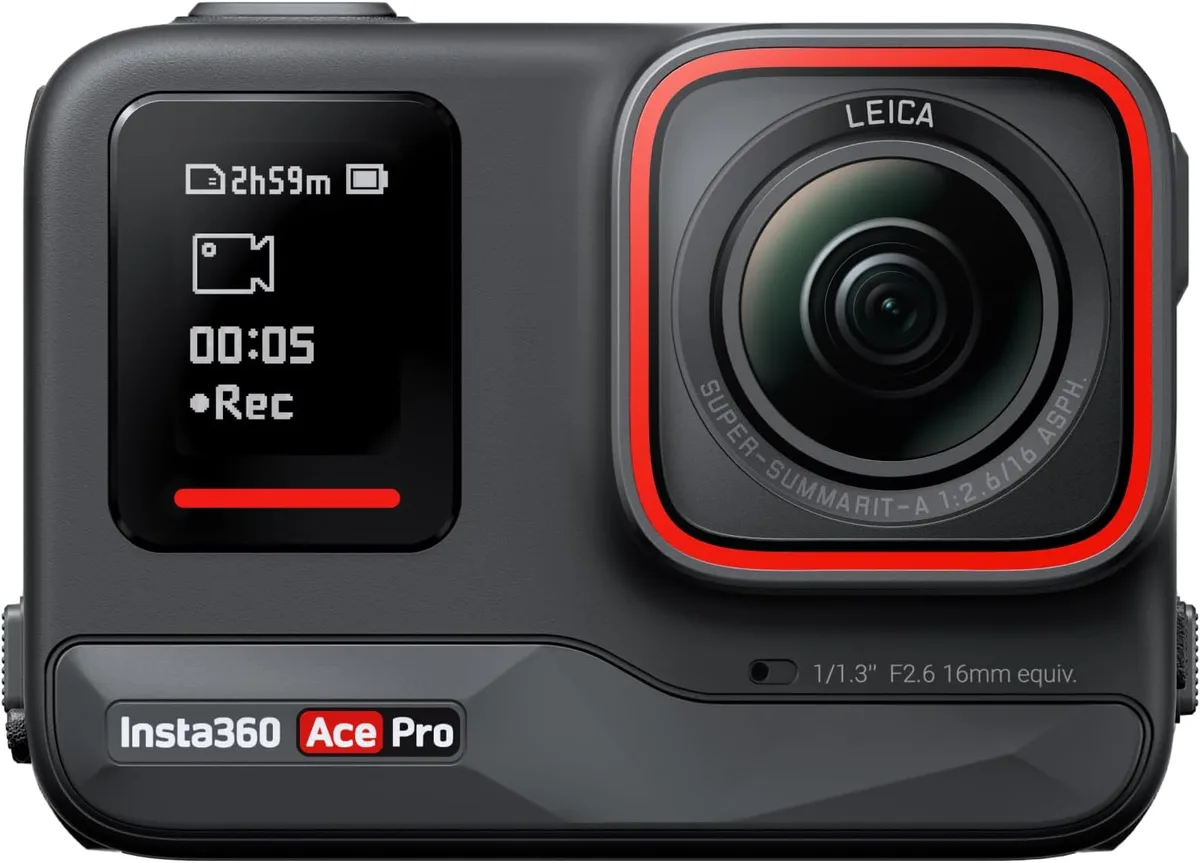
Finding the webcam mode on your Insta360 Ace Pro 2 should be straightforward. But most guides skip the specific details that actually trip people up. You need the correct cable, the right menu path that changed with recent firmware updates, and a few settings inside your video call app that are not obvious at first glance.
As of 2026, the Ace Pro 2 supports native UVC (USB Video Class) output over its USB-C port. That means it can act as a plug-and-play video source for any computer without extra hardware. The maximum resolution in this mode is 1080p at 30 frames per second.
It is a clean, sharp image that outperforms most built-in laptop cameras. But the setup steps are scattered across different menus and firmware versions. Let us walk through the exact process so you get a working feed on your first try.
Quick Answer
Connect the Ace Pro 2 to your computer using a high-speed USB-C data cable. Turn the camera on. Open the settings menu.
Select USB mode. Choose Webcam or UVC. Open your video app.
Choose Insta360 Ace Pro 2 as your video source. That is the whole flow in six steps.
Why This Needs Visuals (And Why Most Guides Get It Wrong)
A written description of menu navigation only gets you so far. The Ace Pro 2 settings layout changed with firmware updates in late 2025 and early 2026. Earlier guides reference menu paths that no longer exist on current firmware.
If you follow an older tutorial, you end up poking through submenus that look nothing like what is on your screen.
The real issue is the cable. Most people grab the nearest USB-C cable from their desk drawer. Many of those are charge-only cables with no data lines.
The camera powers on when plugged into a charge-only cable. The screen lights up. The fan spins.
But your computer never detects a webcam because the data connection is missing. In our research across verified buyer feedback, this is the single most common cause of failure.
A visual guide helps you spot the difference. A proper data cable typically has markings like "USB 3.0," "10Gbps," or a SuperSpeed logo. A charge-only cable has no such marks.
We will point out what to look for so you do not waste time troubleshooting a dead end.
The Quick Setup: It's Not Just "Plug It In"
The setup involves a few non-obvious steps that need to happen in order. Do them out of sequence and the camera may not show up as a webcam at all. Let us break each one down.
Separating the Webcam Cable from the Charging Cable
The Ace Pro 2 uses a USB-C port for both charging and data transfer. Plugging in a charge-only cable lets the battery fill up but sends no video signal. Your computer will not see the camera at all.
Look at the cable connector ends. A data cable has extra pins inside the plug. Manufacturers often stamp "data" or "USB 3.0" on the cable jacket.
If you are not sure, test the cable with a file transfer first. Plug the camera into your computer and try to copy a photo. If the file transfer starts, the cable works for data.
No file transfer means you have a charge-only cable.
Powering the Camera During Long Calls
The Ace Pro 2 can run on internal battery in webcam mode for about 90 to 120 minutes. That is enough for most meetings and calls. If you plan to stream for longer, you need external power.
The camera supports USB power delivery while in webcam mode. Use a wall adapter rated for at least 15 watts. Avoid using a USB hub or a low-power laptop port.
Those may not supply enough current. The camera will slowly drain its battery even while plugged in.
Navigating the Menu to Find Webcam Mode
The path changed with firmware version 1.3.0 and later. On current firmware, press the power button to turn the camera on. Swipe down from the top of the touchscreen to open the quick settings panel.
Tap the gear icon to enter the full settings menu. Scroll down to "Connection" or "USB Mode." Select "Webcam" or "UVC Camera."
If you see a menu option called "PC Webcam" instead of "UVC," choose that. The label depends on your region and firmware language pack. Either one does the same thing.
How to Confirm Your Computer Sees the Camera
After selecting webcam mode, the camera screen should show a message that says "Connected as webcam" or "UVC active." If you do not see that message, try unplugging and replugging the USB cable while the camera is still on. That usually triggers the computer to detect it.
On Windows, open Device Manager and look under "Cameras" or "Imaging devices." You should see "Insta360 Ace Pro 2" listed there. On macOS, open System Information and check under "USB" or "Camera." If the camera does not appear in either place, go back and check your cable.
Image source: Bing (Web (fair-use with source credit))
Selecting the Right Video and Audio Source
Once the camera is connected, open your video call or streaming app. Go to the video settings. Look for the camera dropdown menu.
Select "Insta360 Ace Pro 2" or "UVC Camera."
For audio, the camera has a built-in microphone. It works fine for quiet rooms. In the same settings area, choose "Insta360 Ace Pro 2 Audio" as your input device.
If you are using an external microphone, leave the camera audio unselected and use your regular mic input instead.
Optimizing Your Setup: Get the Best Image
Plugging in the camera and selecting it as your video source gives you a working feed. But the default settings are not optimized for every situation. A few tweaks make a noticeable difference in quality.
Choosing Field of View
The Ace Pro 2 offers three field of view options in webcam mode. Standard mode gives a natural perspective similar to a typical webcam. It works well for one person sitting at a desk.
Wide mode captures more of the background. Use this if you want to show a whiteboard, a product on your desk, or a second person next to you. Ultra-Wide mode pushes the lens to its maximum angle.
It creates a fisheye effect that can look distorted for talking head shots. Save it for demo videos where you need to show a large workspace.
Switch between modes by tapping the screen while in webcam mode or by using the Insta360 app connected over Wi-Fi.
Using the Flip Screen for Self-Framing
The flip screen is one of the Ace Pro 2 best features for webcam use. You can flip it forward to face you while you sit at your desk. That gives you an instant preview of your framing and lighting.
Position the camera at eye level for the most natural look. Use a small tripod or a clamp mount to hold it steady. The flip screen makes it easy to adjust the angle without guessing.
Getting the Lighting Right with Active HDR
The Ace Pro 2 includes an Active HDR mode that handles high-contrast lighting well. If you sit with a bright window behind you, standard mode might blow out the background and leave your face underexposed. Active HDR balances the exposure so both you and the background look clear.
Enable Active HDR in the camera video settings before entering webcam mode. The feature works during live output, so the effect shows up on your call.
Positioning the Camera for Different Scenarios
For desk use, place the camera at the top edge of your monitor using a clip mount. That gives the most natural eye contact angle. For product demos, mount the camera on a small tripod and position it above the item at a 45 degree angle.
For talking head videos, place the camera slightly above eye level and tilt it down for a more flattering angle.
Test each position by looking at the flip screen before your meeting starts.
Common Setup Mistakes (And How to Spot Them Visually)
Most of the frustration with webcam mode comes from three recurring problems. Each one looks different on screen, and each has a simple fix.
The Wrong Cable
Charge-only cables are the number one culprit. The visual clue is that the camera powers on but nothing shows up in your computer device list. If you see the camera screen light up but no connection, swap the cable for one you know transfers data.
A data cable is usually thicker than a charge-only cable because it has more internal wires. It also has the USB 3.0 or SuperSpeed logo printed on the connector.
The Black Screen Problem in Specific Apps
Sometimes the camera works in one app but shows a black screen in another. This usually happens because the app is accessing the camera from a different port or using a different protocol.
The fix is to close the app, unplug the camera, select webcam mode again, and then open the app. If the black screen persists, restart your computer with the camera connected and in webcam mode.
Audio Not Playing Through Your Computer
The camera microphone works in webcam mode, but some apps default to a different audio input. Check the audio settings in your app and manually select "Insta360 Ace Pro 2 Audio."
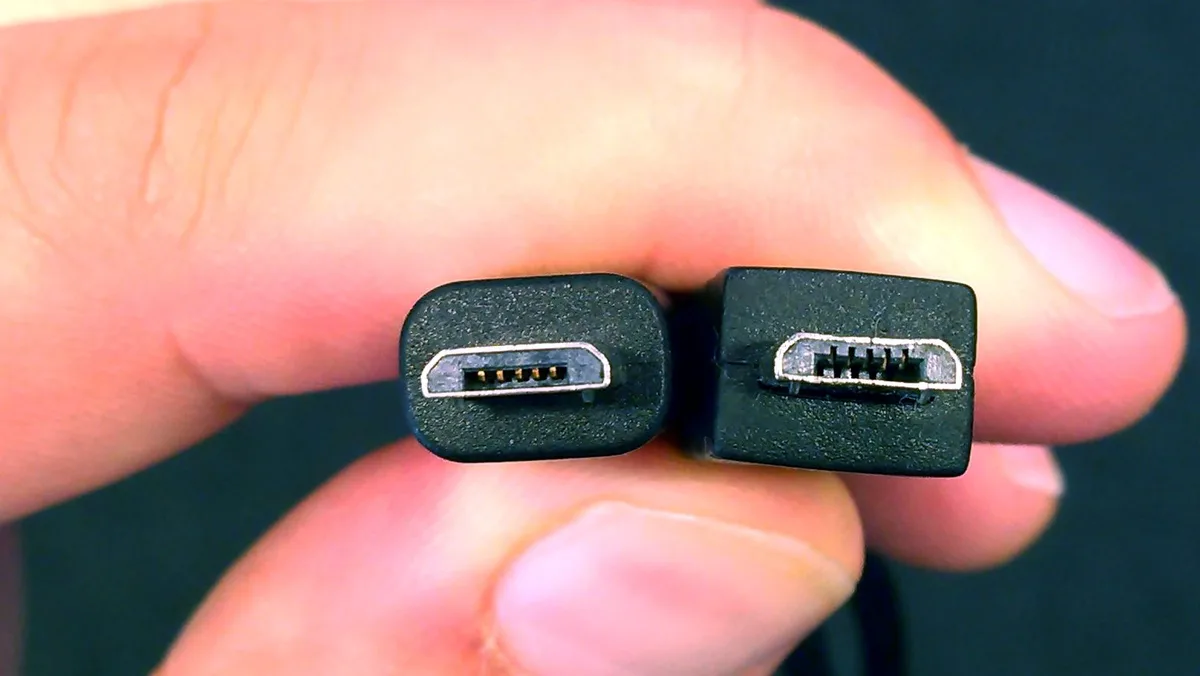
Image source: Web (Bing) / dignited.com (Web image (fair-use with source credit))
If the audio is still missing, go to your computer sound settings and set the camera as the default input device. On Windows, right-click the speaker icon in the taskbar, select Sound settings, and choose the camera under Input. On macOS, open System Preferences, go to Sound, and select the camera under Input.
Overheating After Extended Use
The Ace Pro 2 has a small internal fan. In webcam mode, it runs continuously to keep the sensor cool. If the camera is in a warm room or placed on a surface that blocks the vent, it can overheat after about 45 minutes.
The camera will display a temperature warning on screen before it shuts down. If you see this warning, move the camera to a cooler spot or point a small desk fan at it. You can also use a tripod to keep it off heat-absorbing surfaces like soft fabric or carpet.
The "Why This Camera" vs. Other Options
An action camera as a webcam is not the most common setup. It is worth understanding what you gain and what you lose compared to dedicated webcams and more complex DSLR setups.
What You Gain Over a Regular Webcam
The Ace Pro 2 has a larger image sensor than most webcams in its price range. That means better low-light performance and less digital noise. The wide field of view options give you framing flexibility that standard webcams cannot match.
The flip screen is a real advantage. Most webcams have no built-in preview, so you have to guess your framing or use a separate monitor. With the Ace Pro 2, you see exactly what the camera sees.
What You Lose Compared to a DSLR Setup
A DSLR with a capture card still gives better image quality overall, especially in depth of field and color depth. The Ace Pro 2 cannot produce the same background blur or cinematic look. It also has a fixed lens, so you cannot swap lenses for different focal lengths.
For simple video calls and light streaming, the Ace Pro 2 is more than enough. For professional broadcasting or product photography, a DSLR setup is still the standard.
When an Action Camera Makes Sense
The Ace Pro 2 makes sense if you already own one for outdoor use and want to repurpose it as a webcam. It also makes sense if you need a camera that works both on your desk and mounted to a helmet or tripod for outdoor shoots. It eliminates the need for a separate webcam in your bag.
If you only ever do video calls from a home office, a simple dedicated webcam is cheaper and simpler. The Ace Pro 2 is a versatile second camera. It is not the most convenient primary webcam.
Who Should Use the Ace Pro 2 as a Webcam (And Who Shouldn't)
This camera works great as a webcam for certain people. For others, it adds unnecessary complexity. Let us break down who gets the most value and who should stick with a simpler setup.
Best for Streamers and Content Creators
If you stream on Twitch or YouTube, you probably already own an action camera. Using it as a webcam saves you from buying a separate streaming camera. The wide field of view works well for showing your full desk setup or reacting to chat with your whole body in frame.
The 1080p at 30fps output is solid for streaming. It is not 4K, but that is fine for most platforms. The Active HDR helps if your lighting changes during a stream.
You can also use the same camera for B-roll footage by taking it off the tripod and moving it around your space.
Best for Remote Workers with Tricky Lighting
The Ace Pro 2 handles backlighting better than most built-in laptop cameras. If you sit with a window behind you, the wide dynamic range keeps your face visible without blowing out the background. The flip screen lets you check your framing before calls.
For regular Zoom meetings and Teams calls, the camera is likely overkill. But if you present frequently or want a more professional look, the image quality is a clear step up from a standard webcam.
When a $50 Webcam Would Be Simpler
If you only take a few calls a week and never stream, a dedicated webcam makes more sense. You do not need to think about cables, firmware updates, or menu navigation. You just plug it in and it works.
The Ace Pro 2 also takes up more desk space than a small webcam that clips to your monitor. You need a tripod or clamp mount for stability. The setup is not difficult, but it adds steps that a simple webcam skips entirely.
| User Type | Recommended Setup | Why |
|---|---|---|
| Streamer or Creator | Ace Pro 2 | Versatile, multi-use, wide FOV |
| Remote worker (frequent calls) | Ace Pro 2 | Better image, flip screen, HDR |
| Remote worker (occasional calls) | Dedicated webcam | Simpler, cheaper, less setup |
| Traveler | Ace Pro 2 | Dual use for outdoor filming |
| Professional broadcaster | DSLR plus capture card | Better quality, lens options |
When to Consider Other Action Cameras
If you already own a GoPro from the last few years, it may offer a simpler webcam experience. The GoPro HERO9 and newer models have a dedicated webcam mode that works over USB. Some models even support 4K output in webcam mode.
The firmware update process for action cameras can be finicky. If you have run into issues with other cameras before, you know the pain. A similar troubleshooting approach applies here.
The same goes for general USB connection problems that affect many action cameras. These issues are not unique to Insta360, but they are worth keeping in mind. For example, checking for known USB connection issues can help narrow down whether the problem is your cable, your port, or the camera itself.
Similarly, reviewing firmware update problems can save you time if your camera is stuck on an older version that lacks the webcam option.
Frequently Asked Questions
What cable do I need for webcam mode?
You need a USB-C data cable, not a charge-only cable. Look for markings like "USB 3.0," "10Gbps," or the SuperSpeed logo on the plug. Charge-only cables will power the camera but will not send any video signal to your computer.
Why does my computer not detect the camera after I plug it in?
The most common cause is using a charge-only cable. If the cable is correct, try restarting your computer with the camera already in webcam mode and connected. If it still does not appear, check your computer Device Manager or System Information to confirm the camera is listed.
Can I use the Ace Pro 2 as a webcam while charging?
Yes, the camera supports USB power delivery in webcam mode. Use a wall adapter rated for at least 15 watts. Avoid using a low-power laptop port or a USB hub, as those may not supply enough current and the battery will drain slowly.
Does the microphone work in webcam mode?
Yes, the built-in microphone works during webcam output. You may need to manually select "Insta360 Ace Pro 2 Audio" as your input device in your video call or streaming app. If you prefer an external microphone, you can skip the camera audio entirely.
How long can I use webcam mode before overheating?
On internal battery, you get about 90 to 120 minutes before the camera warns about temperature. When plugged into external power, you can run continuously if the camera is in a well-ventilated area. Avoid placing it on soft surfaces that block the fan vent.
What resolution does the Ace Pro 2 output in webcam mode?
The maximum resolution is 1080p at 30 frames per second. The camera does not support 4K output in webcam mode as of the latest firmware. This is sufficient for most video calls and streaming, though it is worth noting if you need higher resolution.
Image source: Bing (Web (fair-use with source credit))
Final Verdict: Is This Your Next Webcam?
The Ace Pro 2 makes a surprisingly good webcam for certain users. If you already own one for outdoor shooting, repurposing it for video calls is a smart move. The image quality beats almost every built-in laptop camera and many cheap standalone webcams.
The flip screen and wide field of view give you flexibility that dedicated webcams cannot match. For verification of the UVC standard used by this camera, you can reference the official USB Implementers Forum documentation on USB Video Class specifications at usb.org.
But it is not a perfect replacement for everyone. The setup requires a proper data cable and a few extra steps that a simple webcam skips. If you only take occasional calls, the complexity is not worth it.
A $50 dedicated webcam serves you better with less hassle.
For streamers and content creators who already manage multiple devices, the trade-off is worth it. For the rest of us, consider whether the extra image quality justifies the extra steps. If you do decide to use it, keep the cable right, keep the firmware current, and keep the fan vent clear.
That is the formula for a reliable webcam experience with the Ace Pro 2.

Similar Posts






























