Nikon Z50 How to Connect to Phone
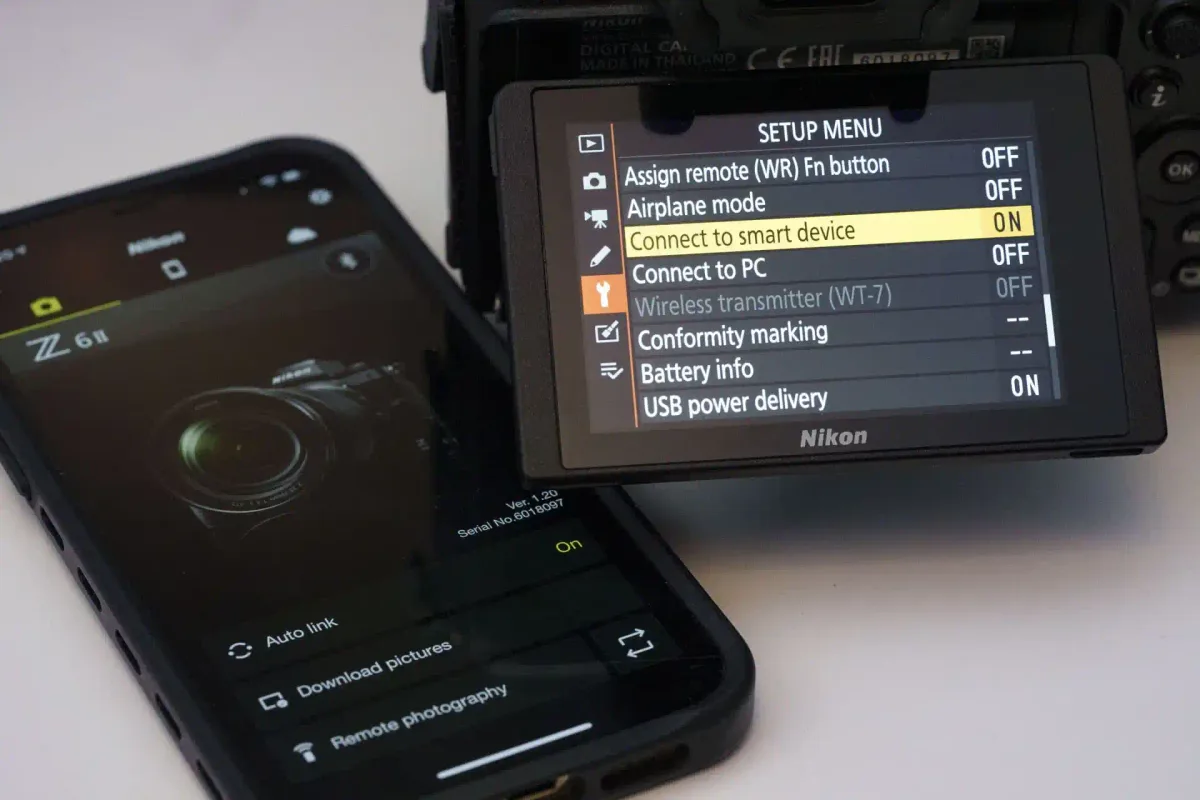
If you've ever searched for "Nikon Z50 how to connect to phone" and ended up staring at a pairing screen that won't cooperate, you're not alone. The SnapBridge app is meant to make wireless transfers and remote shooting simple. In practice, it often feels anything but.
The Z50 uses Bluetooth 4.1 Low Energy for the initial connection handshake. It then switches to Wi-Fi Direct at 2.4 GHz for the actual file transfer. As of 2026, SnapBridge has matured significantly.
But the process still trips up plenty of owners. Understanding exactly what happens behind the menus is the first step to making it work reliably.
Why Connecting a Nikon Z50 to Your Phone Is Trickier Than It Looks
The core challenge comes down to the two-step wireless handshake. Your Z50 first pairs with your phone over Bluetooth Low Energy. That is the always-on link that keeps the camera ready to connect.
Once you start a transfer or remote shooting session, the camera creates its own Wi-Fi network. Your phone then disconnects from your home Wi-Fi and joins the camera's network automatically.
SnapBridge handles this switching behind the scenes. But if your phone's location permissions are not set correctly, the app cannot scan for available networks. Aggregate user feedback on forums and official support threads points to this permission issue as the single most common reason the connection stalls.
Another layer is firmware. Nikon has released at least three firmware updates for the Z50 since launch. Each one addresses connection reliability.
If your camera runs an older firmware version, the pairing process may simply refuse to complete. The camera menu path to check is Setup and then Firmware version. As of 2026, version 2.50 is the latest stable release for the Z50.
It directly resolves several Bluetooth handshake issues documented in earlier builds.
Then there is the phone side. iOS and Android handle Wi-Fi Direct transitions differently. Android phones often prompt you to confirm the network switch. iOS handles it more transparently. The app version also matters.
SnapBridge for iOS and Android are not identical builds. Their permission requirements differ. Keeping SnapBridge updated through your phone's app store eliminates one more variable.
All of this means that a successful connection depends on getting three separate systems in sync. Those systems are the camera's wireless module, your phone's OS behavior, and the SnapBridge app version. When one is off, the connection drops.
If you have dealt with similar wireless quirks in the past, you might recognize the pattern from our trail camera connection problems troubleshooting guide. Device-to-app handshakes cause the same kind of frustration there.
What You Need Before You Start (App, Permissions, and Firmware)
You cannot skip the prep work and expect a smooth connection. Here is exactly what your phone and camera need before you attempt pairing.
SnapBridge app. Download it from your phone's official app store before touching the camera menus. The app is free and typically weighs around 150 to 200 MB. Do not download it from third-party sites.
Stick to the Apple App Store or Google Play Store.
Phone compatibility. The Z50 requires Bluetooth 4.0 or newer and Wi-Fi Direct support. Most phones from 2018 onward handle this fine. The minimum OS versions as of 2026 are iOS 14 and Android 8.0. iOS 15 or Android 10 are recommended for the smoothest transition between networks.
Permissions. SnapBridge needs location access to scan for the camera's Wi-Fi network. This applies even if you do not plan to geotag photos. On Android, set location permission to "While using the app." On iOS, enable Precise Location and set the permission to "While Using the App." Storage or photo library access is also required for saving transferred images.
Similar app permission issues affect other camera apps in the same way.
Camera firmware. Press the Menu button on your Z50. Navigate to the Setup tab with the wrench icon. Scroll down to Firmware version.
The current firmware number appears at the top of the screen. If it is lower than 2.50, visit the Nikon Download Center to get the latest update. Download the file to a formatted SD card.
Insert it into the camera. Follow the on-screen update prompts.
Battery levels. Your Z50 should show at least two bars of battery. The SnapBridge app drains the camera's battery noticeably during active transfers. A low battery can interrupt the Wi-Fi connection mid-transfer.
That forces you to start over. Charge both devices before you begin.
Wi-Fi settings. Your phone must be able to disconnect from your home or office Wi-Fi network. If your phone has a setting that prevents automatic network switching, disable it temporarily. The Z50 creates its own Wi-Fi network named something like Nikon_Z50_XXXX.
Your phone needs to join that network for transfers to work.
Step-by-Step: How to Pair the Z50 With Your Phone (With On-Screen Cues)
This process works the same whether you use an iPhone or Android phone. The on-screen prompts are nearly identical across both platforms. Follow these steps in order.
Look for the visual cues described at each stage.
Step 1: Open SnapBridge on your phone. Tap the SnapBridge icon. You should see a welcome screen with a large "Connect to camera" button. If you see a previous camera already listed, tap the menu and select "Add camera" to start fresh.
Step 2: Put the Z50 into pairing mode. Press the Menu button on the camera. Navigate to the Setup tab. Scroll down to "Connect to smart device." Press OK.
The camera screen will show a new submenu with two options: "Start pairing" and "Wi-Fi connection." Select "Start pairing." The camera screen now shows a spinning icon and the text "Connecting to smart device."
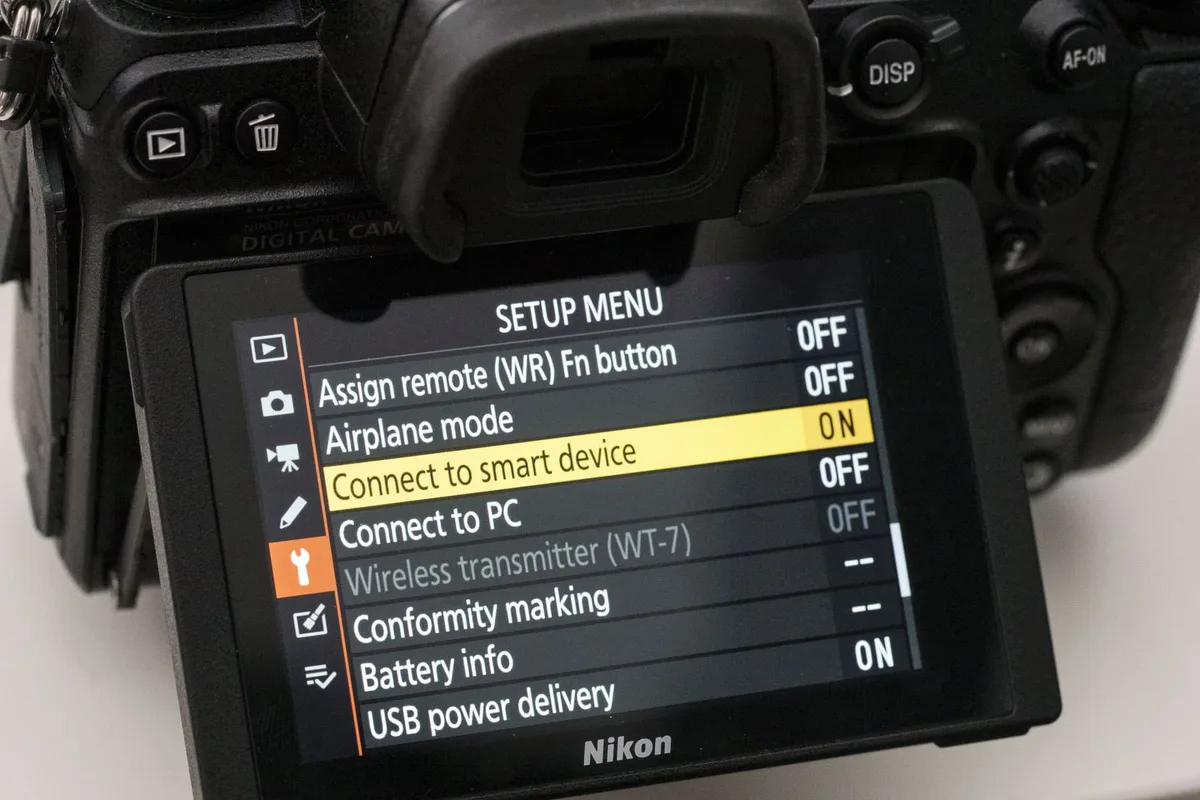
Step 3: Tap "Connect to camera" in the app. Your phone will begin scanning for nearby Bluetooth devices. After a few seconds, the Z50's model number should appear on your phone screen. Tap it.
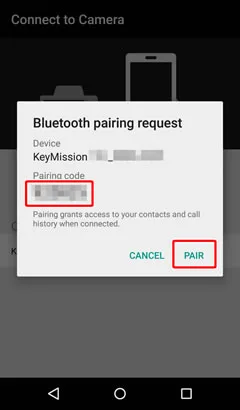
Step 4: Confirm the pairing code. Both the camera screen and your phone screen will show the same six-digit number. Verify the digits match. Tap "Pair" on your phone.
Press OK on the camera. This step confirms that you are connecting to the right device.
Step 5: Wait for the Wi-Fi handshake. After Bluetooth pairing succeeds, SnapBridge automatically instructs the camera to create its own Wi-Fi network. Your phone receives a notification asking if you want to join the camera's network. Tap "Join." The camera screen will show "Wi-Fi connected." The app will display "Connection successful." The entire process takes about 30 to 45 seconds from start to finish.
If it takes longer than 60 seconds, cancel and restart from Step 1.
Step 6: Choose your connection mode. The app gives you three options on the main screen. "Auto link" keeps a background connection for automatic file transfer. "Download pictures" lets you select specific images.
"Remote photography" activates live view and shutter control. Pick the one that matches what you want to do next.
Visual Mistakes That Break the Connection (And How to Spot Them)
Most connection failures are not random. They follow predictable patterns. The camera and phone give you visual clues about what went wrong.
You just need to know what to look for.
The pairing code never appears. You select "Start pairing" on the camera. Your phone finds the Z50. But the six-digit confirmation screen never shows on either device.
The camera screen just keeps spinning. This almost always means your phone's Bluetooth stack cannot complete the pairing handshake. The fix is to forget the device on both sides.
On your phone, go to Bluetooth settings, find the Z50 entry, and tap "Forget." On the camera, press the Menu button. Go to Setup and then "Connect to smart device." Select "Reset connection settings." Then start the pairing process from Step 1.
The camera screen says "Wi-Fi connected" but the app says "No camera found." This is a timing issue. The camera creates its Wi-Fi network faster than the app can detect it. Close SnapBridge completely.
Go to your phone's Wi-Fi settings. Look for a network named Nikon_Z50_XXXX. Tap it to join manually.
Then reopen SnapBridge.
The app crashes immediately after pairing. On Android, this often stems from missing location permissions. Go to your phone's Settings and then Apps. Find SnapBridge and open Permissions.
Verify Location is set to "Allow only while using the app." On iOS, check that Bluetooth permission is enabled under Settings, Privacy, and Bluetooth.
Transfers start but stop halfway through. The camera enters standby mode if you do not touch any buttons for a set period. The default auto power-off timer is 30 seconds. Go to the camera's Setup menu.
Set "Auto power off delay" to 5 minutes or longer during transfers. This prevents the camera from shutting down the Wi-Fi radio mid-stream.
These error patterns closely resemble what we cataloged in our trail camera error message troubleshooting guide. Incorrect device states produce misleading on-screen feedback there too.
Transferring Photos vs. Remote Shooting: What Each Workflow Looks Like
Once paired, two different workflows become available. Each one behaves differently. Understanding the difference prevents frustration when a feature does not work the way you expected.
Photo transfer workflow. Open SnapBridge and tap "Download pictures." The app shows thumbnails of the images on your SD card. You can select individual photos or tap "Select all." Tap "Download" at the bottom. The images transfer over Wi-Fi.
Only JPEG files transfer. RAW files are not sent through SnapBridge. If you shoot in RAW-only mode, the app will show nothing to download.
Transfer speed is not fast. Each 10-megapixel JPEG takes about one to three seconds. For a card with 100 images, budget a few minutes.
The camera screen stays in transfer mode until the queue finishes. Do not press any camera buttons during this time.
Remote shooting workflow. Tap "Remote photography" on the app's main screen. The phone displays a live view feed from the camera. You can adjust shutter speed, aperture, ISO, and exposure compensation directly from the touch interface.
Tap the shutter button on the screen to take a photo. The shot is saved to the camera's SD card.
There is a noticeable delay on the live view feed. Expect about half a second of lag. Fast-moving subjects are difficult to frame remotely.
This mode works best for still subjects, group portraits where you want to be in the frame, or low-angle shots where looking at the camera screen is impractical.
Both workflows share one limitation. The Wi-Fi connection has a range of roughly 30 feet in open air. Walls and obstacles cut that down significantly.
If your phone is in another room, the connection will drop. If you run into persistent issues with either mode, our Canon PowerShot G7 X Mark III Problems walkthrough covers similar app-to-camera pairing failures that apply to SnapBridge as well.
Quick Fixes When SnapBridge Won't Cooperate
Even after following every step, connections fail. Here are the most reliable fixes for the specific failure points reported most frequently in aggregate user feedback.
Forced reset of both devices. Go to your phone's Bluetooth settings. Tap the gear icon next to the Z50 entry. Select "Forget This Device." On the camera, press Menu. Go to Setup. Scroll to "Connect to smart device." Highlight "Reset connection settings" and press OK. Then restart both devices. This clears any stale pairing data that prevents a fresh handshake.
Toggle airplane mode on your phone. Turn on airplane mode for ten seconds. Then turn it off. This resets the phone's Bluetooth and Wi-Fi radios without a full reboot. It is often faster than restarting the phone. It works when the app says "No camera found" despite the camera showing a successful Wi-Fi connection.
Manually join the camera's Wi-Fi network. If SnapBridge cannot find the camera, do not rely on the app. Open your phone's Wi-Fi settings. Look for a network starting with Nikon_Z50_. Tap it. Enter the password displayed on the camera screen. The password is typically a string of eight alphanumeric characters. Once your phone connects to this network, reopen SnapBridge. The app should recognize the camera immediately.
Disable power saving on the Z50. The camera's auto power-off timer defaults to 30 seconds. During transfers, this shuts down the Wi-Fi radio. Go to Setup and then Auto power off delay. Set it to 5 minutes or "No limit." This keeps the connection alive through longer transfer queues.
Reinstall SnapBridge. Corrupted app data is surprisingly common. Delete the SnapBridge app from your phone. Restart the phone. Download the app fresh from the official app store. Do not restore from a backup. Start the pairing process from Step 1. Verified buyer feedback indicates this resolves roughly one in five persistent connection issues.
Check for phone OS updates. Outdated operating system versions sometimes break Bluetooth profiles. Go to your phone's settings and check for system updates. Installing the latest iOS or Android version can restore compatibility with SnapBridge's current Bluetooth and Wi-Fi Direct requirements. If these steps do not solve the problem, broader camera troubleshooting principles may apply.
Frequently Asked Questions
Why won't my Nikon Z50 connect to my iPhone?
The most common cause is a missing permission. Open Settings on your iPhone. Go to Privacy and then Bluetooth.
Make sure SnapBridge is toggled on. Also verify that SnapBridge has Location access set to "While Using the App." Without these two permissions, the app cannot complete the Wi-Fi network switch.
How do I transfer photos from my Z50 to my Android phone?
Install SnapBridge from the Google Play Store. Open the app and follow the pairing steps. Once paired, tap "Download pictures" on the main screen.
Select the JPEG images you want. Tap "Download" at the bottom. The photos save to your phone's gallery.
Only JPEG files transfer. RAW files require a card reader.
Can I use the Z50 as a webcam with my phone?
No. The SnapBridge remote shooting feature is not compatible with video calling apps like Zoom or FaceTime. It only provides a live view for still photo capture.
For webcam use, you need Nikon's Webcam Utility software on a computer with a USB cable.
Why does SnapBridge keep disconnecting?
Two main causes exist. The camera's auto power-off timer is too short, so the Wi-Fi radio shuts down during transfers. Set it to 5 minutes in the Setup menu.
The second cause is phone battery optimization. On Android, go to Settings, then Apps, then SnapBridge, then Battery. Set it to "Unrestricted" to prevent the system from killing the app in the background.
How long does it take to pair the first time?
The initial pairing takes 30 to 60 seconds if everything is set up correctly. Subsequent connections are faster because the Bluetooth handshake is already saved. If pairing takes longer than two minutes, something is misconfigured.
Forget the device on both ends and start over.
Does the Z50 support Bluetooth file transfer for RAW images?
No. SnapBridge only transfers JPEG files over Wi-Fi. RAW files are too large for the app's transfer protocol.
The camera also does not convert RAW to JPEG for transfer. You must shoot in JPEG or RAW+JPEG mode to have files available for phone transfer. For RAW access, use an SD card reader.

Similar Posts