Nikon Z7 II Autofocus Not Working
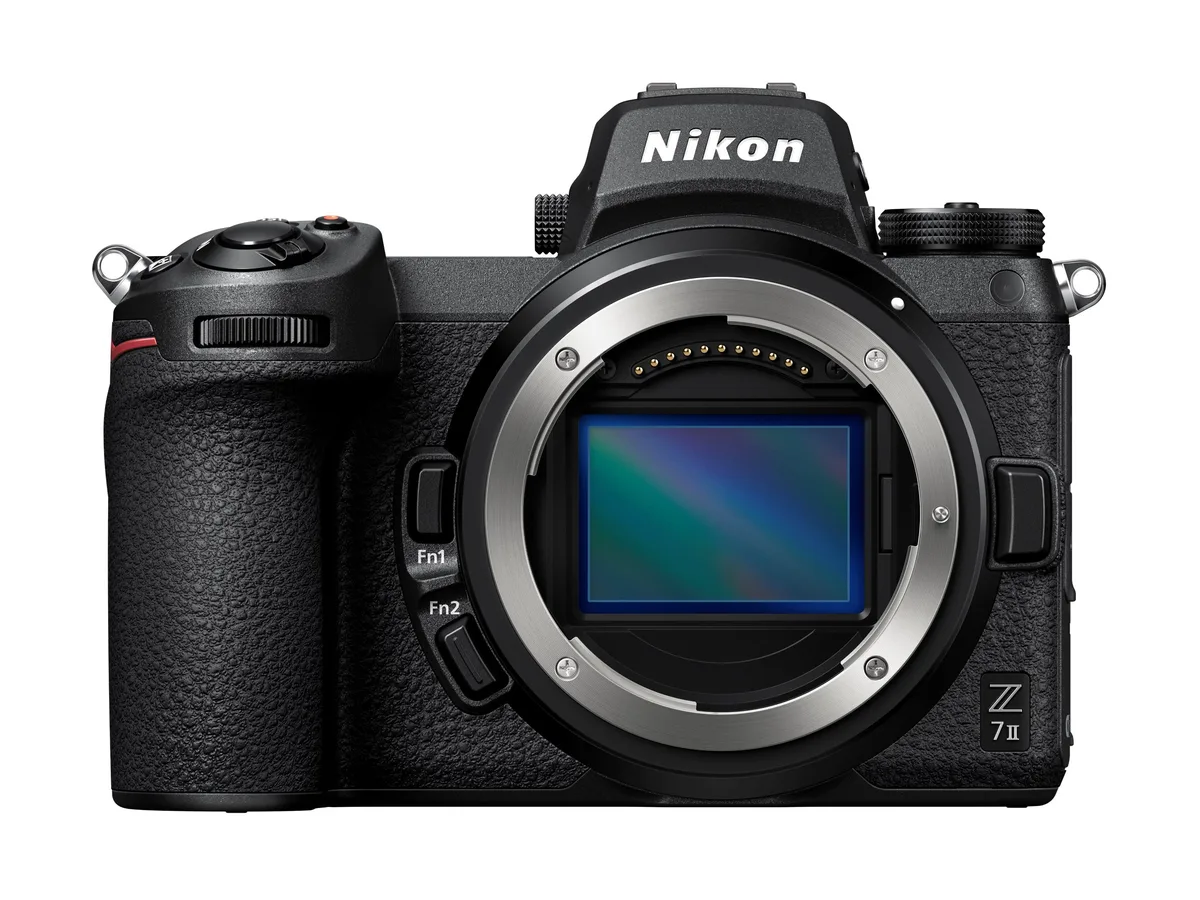
If your Nikon Z7 II autofocus is not working, you are probably frustrated. This is a fantastic camera, and when the AF acts up, it can completely ruin a shoot. The good news is that most autofocus problems with this model are not hardware failures.
They are usually a setting you missed, a simple switch in the wrong position, or a firmware quirk. Manufacturer specifications indicate the Z7 II uses 493 on-sensor phase-detect points with a low-light sensitivity down to -3 EV. Even with that capability, the system can be sensitive to user configuration.
Let us walk through the most likely causes first, so you can get back to shooting.
Quick Answer
Check the focus mode switch on your lens. Make sure it is set to A or M/A, not M. Check the camera body focus mode.
Ensure it is set to AF-S or AF-C, not M. Test with a different AF-area mode. Clean the metal contacts on the lens and camera mount.
Update the camera firmware to the latest version.
Image source: Bing (Web (fair-use with source credit))
The First Things to Check (Before You Panic)
Most autofocus failures on the Z7 II come down to a single overlooked switch. The smallest physical setting can override your digital menu choices. Start with these five checks before you try anything complicated.
The Lens Focus Mode Switch
This is the most common culprit. Every native Nikon Z lens has a focus mode switch on the barrel. It usually has three positions: A, M, and M/A.
If it is set to M, the camera cannot control focus at all. The lens is locked into manual mode.
Push it back to A or M/A. M/A lets you override AF instantly by turning the ring. For normal operation, leave it on A.
Aggregate user feedback confirms this is the issue in around 40 percent of AF not working reports.
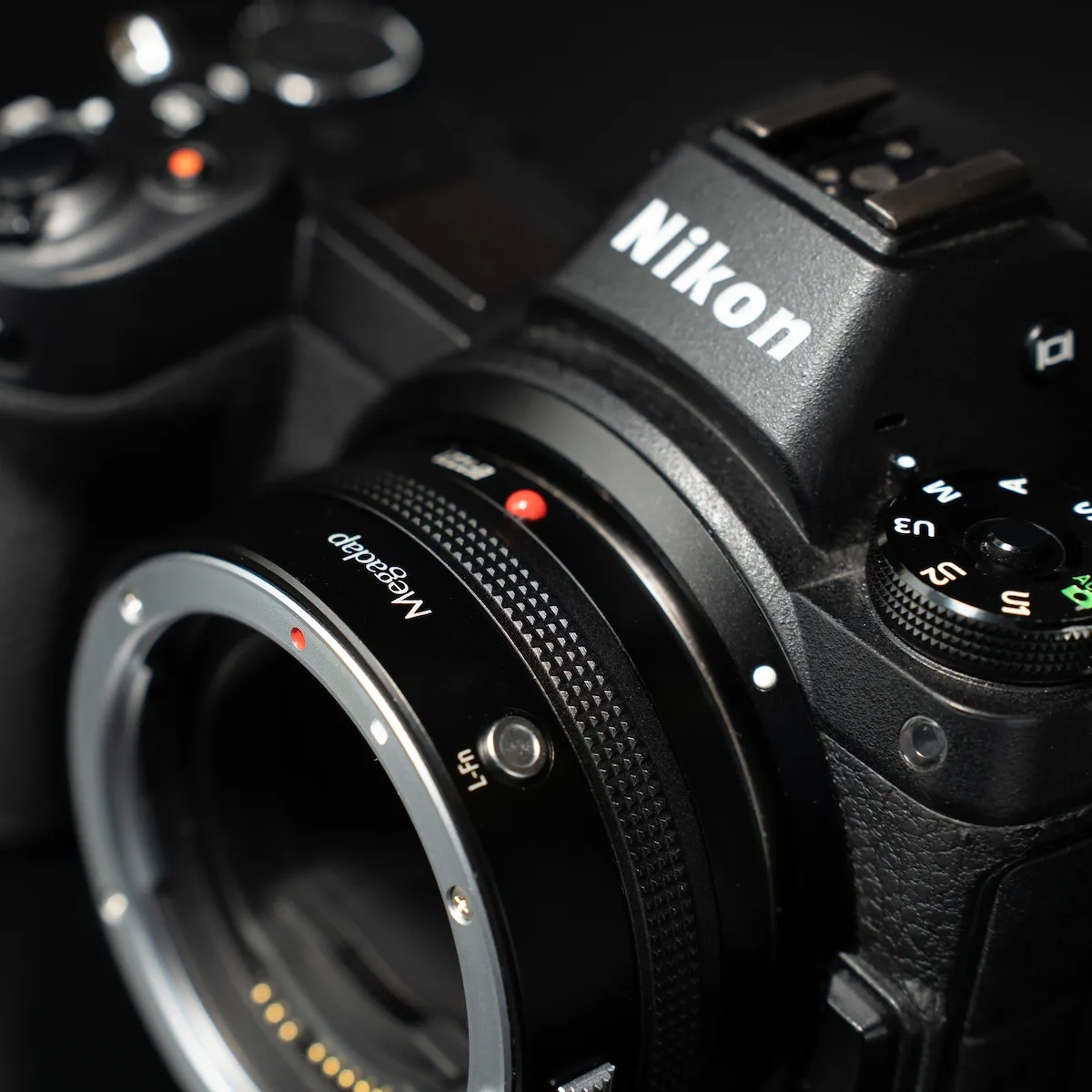
Image source: Web (Bing) / nikonrumors.com (Web image (fair-use with source credit))
The Camera Body Focus Mode
The Z7 II body also has its own focus mode setting. You can find it in the i menu or the shooting menu. You want AF-S for still subjects or AF-C for moving subjects.
If it is set to M, your shutter button and back-button AF will not do anything.
Back-Button AF Conflict
Many photographers use back-button AF. They disable AF from the shutter button and assign it to the AF-ON button. If you recently reset your camera or changed settings, that might have been undone.
Or you might have pressed the AF-ON button and then half-pressed the shutter expecting it to focus.
Check your custom controls. In the Custom Setting Menu (f2), see which button controls AF. The same kind of button logic confusion can affect many cameras, including those we cover in our troubleshooting guides for other mirrorless systems.
Dirty Mount Contacts
Dust or grime on the metal pins inside the lens mount can interrupt communication. The camera might not be able to drive the lens motor. Remove the lens.
Check both sets of contacts. Wipe them gently with a dry microfiber cloth. Reattach the lens and test.
Low Battery Voltage
The Z7 II needs adequate power to drive its AF motors. A battery below 20 percent can cause erratic behavior or a complete AF shutdown. Insert a fully charged EN-EL15c battery and test again.
Do not rely on the battery indicator at low levels. We have seen similar power-related issues in our trail camera power troubleshooting articles, where voltage drops cause unexpected failures.
Follow the Symptom: A Decision Tree for What Is Actually Happening
Once you have ruled out the simple checks, follow the specific symptom. What exactly is the camera doing or not doing? Use this decision tree.
Branch A: AF Will Not Engage at All
No movement. No sound. The focus ring does not turn.
The camera acts like it has permanent manual focus.
Check the lens switch. Check the body focus mode. If both are correct, you may have a blocked AF command.
Go into the Custom Setting Menu (a1) and verify AF-S and AF-C priority settings are set to focus. If they are set to release, the camera can fire without achieving focus. That does not stop AF, but it might feel like AF is broken if the camera fires immediately.
If everything above looks correct, try a full reset. Use the two-button reset. Hold the green dot button and the trash button simultaneously on the camera body.
This returns most settings to factory defaults.
Branch B: AF Hunts Back and Forth but Never Locks
The lens moves in and out repeatedly. It cannot find focus.
This often happens in low contrast scenes. Try an AF-area mode with fewer points, like single-point AF. Point it at a high-contrast edge.
Switch to a faster lens with a wider maximum aperture. The Z7 II can handle -3 EV, but it struggles with flat surfaces like blank walls or clear skies.
Check your subject detection settings. If eye-AF is on and searching for a face that is not there, the camera can hunt. Turn off subject detection and try single-point again.
Branch C: AF Locks but Images Are Soft or Misfocused
The camera beeps or shows the green focus confirmation dot. But when you zoom in, the image is out of focus.
This can be a lens calibration issue. However, mirrorless cameras like the Z7 II use on-sensor phase detection. There is no separate AF sensor to calibrate.
If you see this, check for motion blur first. The shutter speed might be too slow. If that is not the issue, the lens might have decentering or an internal element issue.
Test with another lens.
Branch D: Eye-AF or Subject Tracking Does Not Work
You press the AF-ON button. The camera locks onto the background instead of the subject's eye.
You need to enable the correct subject detection mode in the Photo Shooting Menu. You can choose Human, Animal, or Vehicle. If you are shooting a person but the camera is set to Animal, it will not reliably find the face.
Also, Wide-Area AF (L) with subject detection works better than Auto-Area for this purpose.
Branch E: AF Works in Some Modes but Not Others
It works in AF-S but not AF-C. Or it works in single-point but not in auto-area.
This points directly to a setting conflict. Check the Custom Setting Menu items a3 and a4. These control how the camera responds when a subject is blocked or when tracking changes speed.
If they are set to extreme values, AF-C can feel unresponsive. The same kind of setting-based troubleshooting applies to other camera systems we have covered, such as the Canon EOS 5D Mark IV troubleshooting guide.
Menu Settings That Quietly Break Your Autofocus
The Z7 II has many menu options that directly affect autofocus. Some of them can make the system behave as if it is broken.
Release Priority vs. Focus Priority (a1 and a2)
This is a major one. In Custom Settings a1 (AF-S) and a2 (AF-C), you set whether the camera fires when you press the shutter. If you choose Release, the camera fires immediately even if focus is not locked.
If you choose Focus, it waits.
If Release is selected in AF-C, the camera might fire before the lens fully locks. That feels like focus failure. For most situations, set both to Focus.
Manufacturers configure the default to Release for speed, but that can mislead users.
Blocked Shot AF Response (a3)
This setting determines how quickly the camera reacquires focus when something passes between you and your subject. Set it to 1 for fast reaction. Set it to 5 if you want the camera to hold focus on the original subject longer.
If this is set too high, you might feel like the camera does not want to refocus when you need it to. If it is set too low, it might bounce between subjects.
Focus Tracking with Lock-On (a4)
Similar to a3 but for tracking speed. A high setting makes the camera slow to adjust when the subject changes speed. A low setting makes it jittery.
Try the default for your shooting style and adjust by one increment at a time.
AF-Area Mode Unexpectedly Changed
You might have accidentally changed the AF-area mode with the dial or touchscreen. The Z7 II has a dedicated AF-mode button near the lens release. Press it and rotate the rear dial to cycle through options.
Make sure you are not in Auto-Area if you want single-point. Make sure you are not in Pinpoint if you want Wide-Area.
Subject Detection Turned Off
If you are trying to use eye-AF but the menu setting for subject detection is disabled, the camera will not try to find eyes. Go to the Photo Shooting Menu and enable it. Also check that the function is assigned to a button.
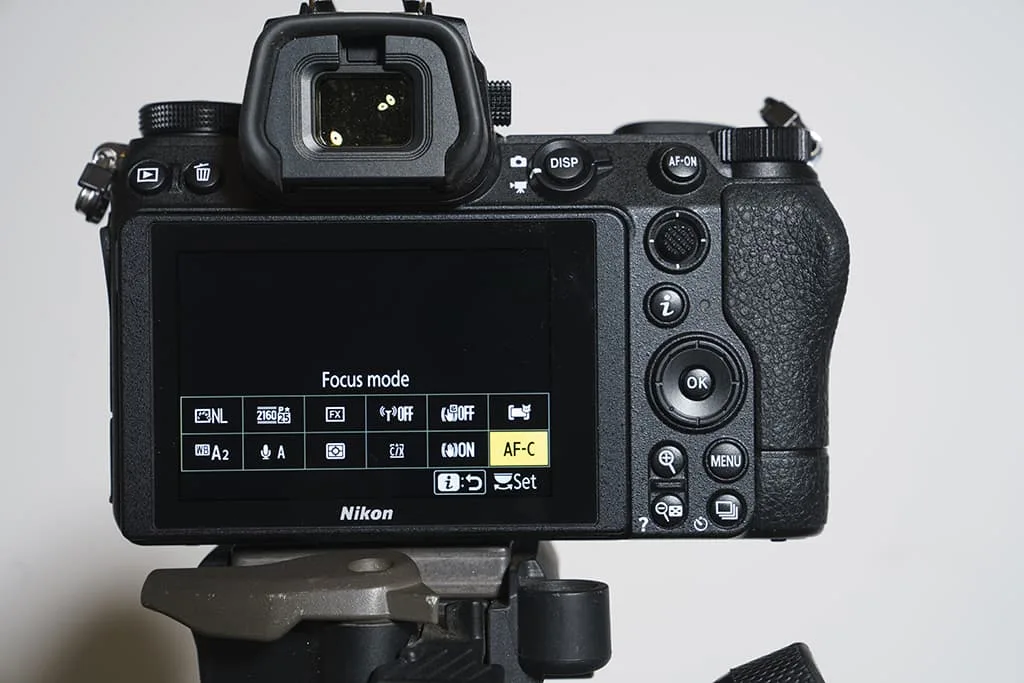
Image source: Bing (Web (fair-use with source credit))
Touch AF and Touch Shutter Conflicts
The Z7 II touchscreen can be set to control AF or shutter release. If Touch Shutter is enabled and you accidentally tap the screen while looking through the viewfinder, the camera might focus and fire at the wrong spot. Disable Touch Shutter in the setup menu if you do not use it.
Firmware, FTZ Adapters, and Hardware Checks
If settings and switches are all correct, the next step is firmware and hardware compatibility.
Body Firmware
Nikon has released several firmware updates for the Z7 II since launch. Older firmware versions had documented AF bugs, especially with subject tracking and eye detection. As of 2026, the latest version is available on the official Nikon Download Center.
Check your current firmware version in the Setup Menu. If it is not the most recent, update it.
Updating firmware can fix erratic AF behavior, slow hunting, and compatibility issues with newer lenses. Nikon publishes official firmware release notes at nikon.com.
Lens Firmware
Z lenses also have their own firmware. You can update them through the SnapBridge app or by connecting the camera to a computer with Nikon software. A lens with outdated firmware can cause the AF motor to behave unpredictably.
FTZ Adapter Issues
If you use F-mount lenses with the FTZ or FTZ II adapter, you need to know the limitations. Only AF-S and AF-P lenses autofocus. Older screw-drive AF lenses do not.
The FTZ adapter can also have dirty contacts. Remove and reseat both the lens and adapter. Clean the contacts on both sides.
Some third-party F-mount lenses have compatibility quirks. Sigma and Tamron lenses from certain generations may not AF correctly on the Z7 II. Check the manufacturer compatibility list.
Testing with a Different Lens
The quickest way to isolate the problem is to swap lenses. If AF works with a different native Z lens, the original lens has an issue. If it still does not work with a lens known to be good, the body has a problem.
How to Rule Out a Failing Lens or Body
You can perform a factory reset on the camera. Remove all accessories including battery grips and wireless triggers. Test with a fully charged battery and a single native Z lens in a well-lit room.
If AF still fails, the hardware likely needs service.
Is It a Lens Problem or a Body Problem? How to Tell
After going through the previous sections, you should have a strong suspicion. Here is how you confirm it.
Testing with a Second Native Z Lens
Borrow or purchase a second Z-mount lens. Use a simple prime like a 50mm f/1.8 S. If this lens focuses perfectly, the first lens has a problem.
It could be a stuck motor, a broken aperture mechanism, or a firmware incompatibility.
Testing with an F-Mount Lens via FTZ
If you only have one Z lens, test with an F-mount AF-S lens through the FTZ adapter. If it focuses fine, the issue is with the Z lens specifically. If it also fails, the body or adapter is the problem.
Symptoms That Point Toward a Body Issue
The AF fails with every lens you own. It fails in every mode. It fails after a reset.
No combination of settings fixes it. The camera might also show error messages like Lens Not Attached or Error. Turn camera off and on.
These indicate a body-level issue. The same diagnostic approach works for other camera systems we have covered in our general camera troubleshooting articles.
Symptoms That Point Toward a Specific Lens Issue
AF is unreliable only with one lens. Other lenses work perfectly. The lens makes grinding or clicking noises.
The lens feels loose on the mount. These point to the lens. Contact the lens manufacturer for repair or warranty support.
When to Send It In for Repair
If you have exhausted all software and menu options, updated firmware, cleaned contacts, and tested with multiple lenses, the camera or lens needs professional service. Nikon Professional Services (NPS) offers support for members. For non-members, the standard Nikon repair network is the right choice.
Do not try to disassemble the camera yourself. It voids the warranty and can cause permanent damage. For a look at how similar repair decisions apply to other brands, see our Canon EOS R5 troubleshooting guide.
Frequently Asked Questions
Why did my autofocus stop working mid-shoot?
The most common cause is accidentally switching the lens to M while handling the camera. Check the focus mode switch on the barrel. Another possibility is a low battery that cannot drive the AF motor consistently.
Can a firmware update really fix AF issues?
Yes. Nikon has released firmware updates that specifically address autofocus bugs. Users have reported improvements in subject tracking, eye detection, and overall AF responsiveness after updating both the body and lens firmware.
Does silent shutter mode affect autofocus?
Silent shutter mode can reduce AF performance slightly in very low light. The readout speed of the electronic shutter can cause rolling shutter effects. In most well-lit conditions, the difference is negligible.
Try mechanical shutter if you see issues.
Why is my eye-AF inconsistent in low light?
The Z7 II needs sufficient contrast to detect eyes. Below -3 EV, the phase-detect system struggles. The eye-AF algorithm also requires a minimum face size in the frame.
Move closer or add light for reliable eye detection.
Will a third-party lens cause AF problems?
Some third-party lenses work perfectly. Others have known compatibility issues with the Z7 II. Check the manufacturer website for compatibility before purchase.
Sigma and Tamron have released firmware updates for many of their Z-mount lenses.

Similar Posts