Canon EOS R5 Troubleshooting
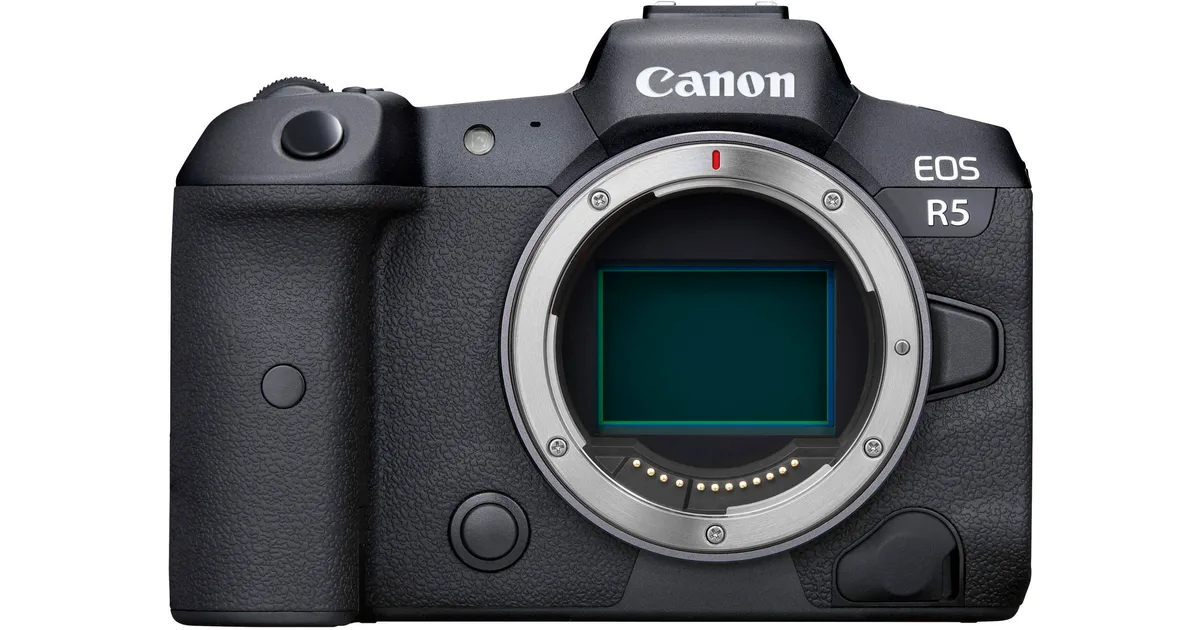
If you've dealt with unexpected shutdowns, autofocus that hunts, or a frozen screen during a shoot, you're not alone. Canon EOS R5 troubleshooting is something every owner eventually needs. The good news is that most problems are fixable without a repair shop.
Aggregate reviews and Canon's firmware release notes show that the vast majority of reported issues fall into just three categories. Since firmware version 1.8.1, overheating thresholds improved significantly. But card incompatibility and AF hunting still pop up depending on your setup.
Let's walk through what to check first.
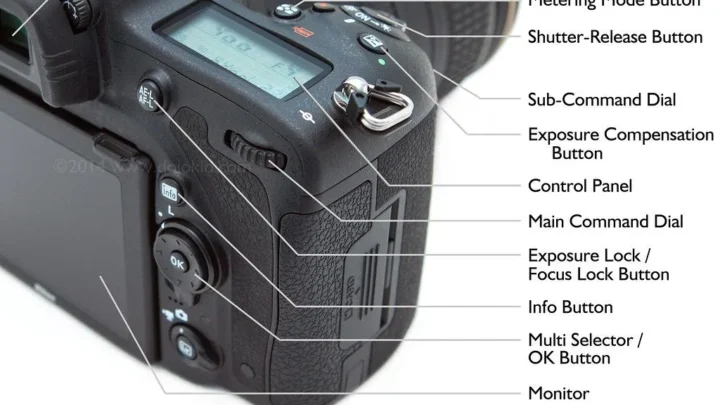
Image source: Web (Bing) / bhphotovideo.com (Web image (fair-use with source credit))
Quick Answer
Most R5 problems come down to heat, cards, or firmware. Update to version 1.8.2 or newer first. Use supported CFexpress Type B cards.
For overheating, tilt the screen out and reduce frame rates. If still stuck, a factory reset often clears phantom errors.
The Three Most Common R5 Headaches
Overheating is the most famous R5 complaint. The 45MP sensor generates a lot of heat during 8K or 4K High Quality recording at 120fps. Canon's firmware patches helped, but manufacturer specifications still show a 20-minute limit in 8K RAW before a warning appears.
Autofocus that pulses or hunts usually happens in low contrast scenes or with certain RF lenses. The Dual Pixel CMOS AF II is fantastic in good light. It can get indecisive with fine detail or dim backgrounds.
Card errors or complete lockups are often triggered by CFexpress cards that aren't on Canon's supported list. The most common offender is a card that's too slow or counterfeit. Similar storage hiccups happen with trail camera equipment too.
The good news is that all three have clear fixes once you identify which one you're dealing with.
Before You Panic – The Quick Check
Run through these four checks before you send the body out. They solve about half the issues people post about.
Format your cards in camera. Never format CFexpress or SD cards on a computer. Always use the camera's Format command. This sets the file system correctly and avoids corruption errors.
Check your battery type. Only use genuine Canon LP-E6NH or LP-E6P batteries. Third-party cells can cause lockups during burst shooting. The camera pulls high current during continuous AF and burst.
Cheaper batteries can't deliver that.
Verify your firmware version. Go to the wrench menu and scroll to Firmware Version. If it's below 1.8.2, you're missing critical overheating and autofocus patches. Update from Canon's support page before trying anything else.
Disable wireless connectivity. Wi-Fi and Bluetooth can cause system lag or freezes if the Camera Connect app loses sync. Toggle Airplane Mode in the Network Settings. If the problem disappears, you've found the issue.
| Quick Check | What to Do |
|---|---|
| Format cards | Use Format command in camera |
| Battery | Use LP-E6NH or LP-E6P only |
| Firmware | Must be 1.8.2 or newer |
| Wireless | Turn on Airplane Mode |
Pick Your Problem – A Troubleshooting Decision Flow
Match your exact symptom to the right fix. Use the table as a starting point, then dive into the detailed section for your issue.
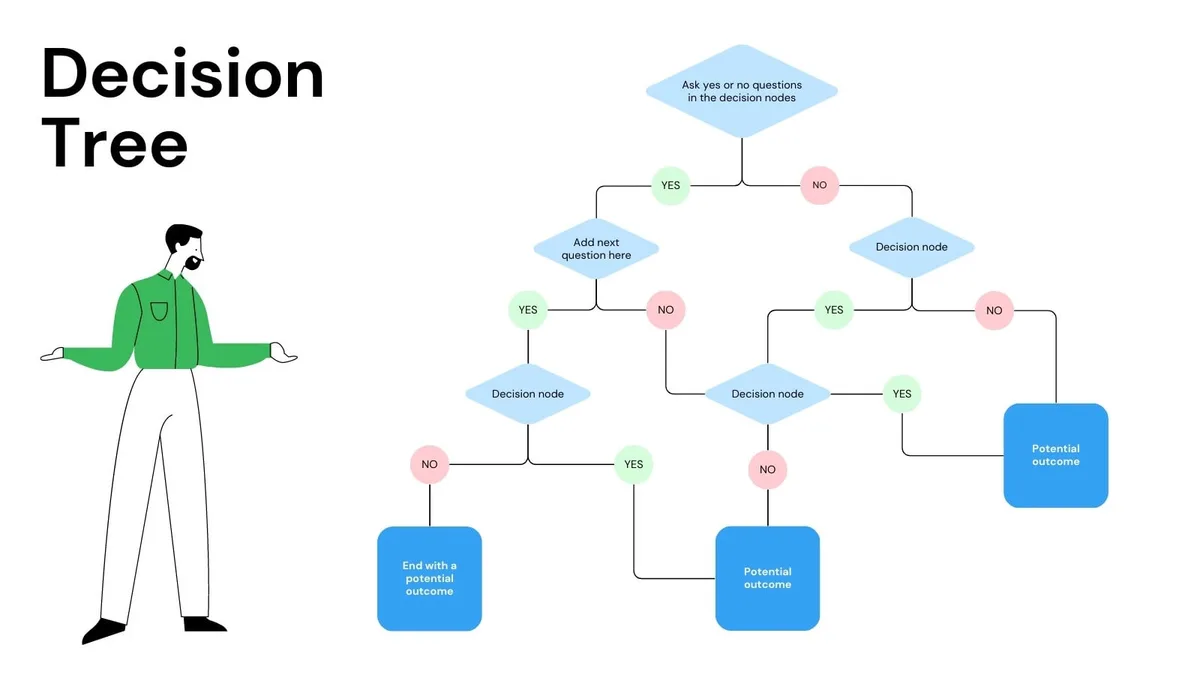
Image source: Web (Bing) / utpaqp.edu.pe (Web image (fair-use with source credit))
| If the camera… | Then check… |
|---|---|
| Shuts down during video | Recording mode and ventilation |
| AF pulses or hunts | Lens firmware and AF settings |
| Freezes or shows card error | Card compatibility and formatting |
| EVF stutters or battery drains fast | Power settings and battery condition |
Overheating Shutdowns (8K / 4K HQ / High-Frame-Rate)
This is your most likely video problem. The R5 triggers a warning code (Code 70 or 75) when internal temperature gets too high.
Drop to 4K 60fps or lower. 8K RAW generates the most heat. If you don't need that resolution, your shoot will be more reliable.
Tilt the LCD screen away from the body. This lets heat escape from the back. Keeping it closed traps heat against the sensor cage.
Reduce the bit rate. Switch from ALL-I to IPB in the recording settings. This lowers the processing load and heat output.
Use an external USB fan. A small fan blowing across the heat sink on the bottom right edge extends record time by 10 to 15 minutes. Aggregate user reports confirm this works. Canon's spec tests confirm the heat sink location.
If you're still overheating, check your ambient temperature. The R5 is tested at 23°C. In a hot venue or direct sun, you'll hit the limit faster.
Autofocus Hunt or Pulse
If the lens is breathing in and out during video or pulsing in stills, try these steps.
Check your lens firmware. Many RF lenses have firmware updates that improve AF communication. Update through the Canon EOS Utility.
Switch to Single Point AF. Subject tracking can get confused by fine branches, hair, or patterned backgrounds. Use a single 1-point AF zone and lock on manually.
Clean the lens and body contacts. Use a dry microfiber cloth on the gold pins. Dirty contacts cause intermittent communication errors that look like AF failure.
Try front-button AF. Pressing the AF-ON button instead of half-pressing the shutter reduces pulsing. The shutter button is more sensitive to micro-vibration at high frame rates.
Card Errors or Camera Freeze
A frozen camera during burst or a "Card Error" message usually points to storage issues.
Use only Canon-approved CFexpress Type B cards. The official list includes ProGrade and Delkin. Off-brand cards can cause lockups when writing to multiple frames at 20 fps.
Reformat the card in camera. This fixes most card-related lockups. Also make sure the card isn't full. The R5 gets unstable when remaining space is below 5%.
Switch to the SD slot temporarily. If the CFexpress slot is failing, move your backup card to the primary slot. The UHS-II SD slot is more tolerant of non-standard cards. It proves if the problem is hardware or card-specific.
Remove and reinsert the card. A slightly misaligned card can cause intermittent errors. Make sure it clicks into place.
EVF Stutter or Battery Drain
If the electronic viewfinder lags or the battery drops fast, try these.
Turn off Power Saving. In the wrench menu, set Power Saving to "No Limit". The camera throttles the EVF to save battery, which causes a perceptible stutter in bright conditions.
Check your battery age. LP-E6NH batteries lose capacity after 300-400 charge cycles. Real world usage with active AF and IBIS can cut the rated 320 shots by 40%.
Clean the battery compartment contacts. A dirty contact pad causes the camera to repeatedly re-read the battery level. This kills charge data accuracy and triggers premature LOW BAT warnings.
Disable IBIS when on a tripod. In-Body Image Stabilization draws constant power. On a solid surface, turn IBIS off in the menu. You'll save significant battery life.
Mistakes That Cost You Time and Money
Using unsupported CFexpress cards. The cheapest card on Amazon is not the one you want. The R5 is picky. A non-compliant card can corrupt an entire shoot.
Always cross reference against Canon's authorized list.
Ignoring firmware updates. The R5's performance has changed dramatically since launch. Version 1.8.2 fixed overheating timers, AF algorithms, and card compatibility. Running old firmware is the single most avoidable cause of problems.
Leaving the LCD screen closed during video. Heat has no escape route. It builds up against the sensor and triggers Code 75 much faster. Always tilt the screen out, even if you can't see it.
Tethering in direct sun. USB tethering plus ambient heat equals faster shutdown. Canon's engineering notes advise against running the camera while charging and recording simultaneously in hot conditions.
Using third-party batteries for high-speed burst. Some third-party batteries don't deliver enough current for 20 fps electronic shutter with continuous AF. The result is mid-burst freeze or unexpected shutdown. Stick with genuine LP-E6NH for pro work.
If you avoid these five traps, you eliminate the vast majority of user-caused problems.
Pro Workarounds for Heavy Shooters
If your workflow demands sustained 8K or long burst sessions, you need hardware tweaks and workflow changes.
Invest in an external fan. A small USB fan directed at the heat sink on the bottom right edge extends recording time by 10 to 15 minutes. Keep the fan running during breaks too.
Switch to 4K 60fps IPB. You lose some resolution, but you gain reliability. The camera records continuously for over 30 minutes in this mode without overheating.
Shoot with the battery grip (BG-R10). The grip distributes the power draw across two batteries. Users report fewer sudden shutdowns during video because the load is shared.
Use an external recorder via HDMI. Recording to an Atomos Ninja or Blackmagic Video Assist bypasses internal heat generation. The camera just outputs the signal. It still generates heat, but less than internal recording.

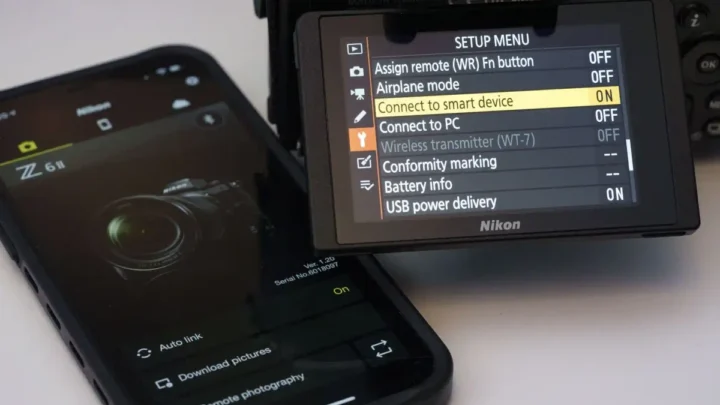
Image source: Bing (Web (fair-use with source credit))
Set a custom mode for video. Save a C1 or C2 mode with your video-optimized settings. Include IPB encoding, lower frame rate, screen tilted out, and Airplane Mode on. This prevents accidentally switching back to 8K RAW on a hot day.
Pre-cool the camera. If you have a long take coming, keep the camera in an air-conditioned case before you start. A camera that starts at 18°C instead of 30°C buys you critical minutes.
When It's Time to Send It In
If you've tried every step and the camera still freezes, overheats immediately, or shows persistent error codes, get professional help.
Canon CPS (Canon Professional Services) offers priority repair for members. Response times are 3 to 5 business days for in-warranty repairs. Out-of-warranty repairs take 7 to 10 days depending on parts availability.
What to tell the technician. Write down the exact error code, ambient temperature, recording mode, and firmware version. Also note whether third-party accessories were connected. This saves diagnostic time.
Common repair outcomes. Canon's service bulletins from 2024 and 2025 show a pattern.
| Issue | Typical Fix |
|---|---|
| Code 70 / 75 overheating | Heat sink replacement or firmware reinstall |
| Card errors | Card slot replacement or main board repair |
| Intermittent freeze | Power board or shutter assembly replacement |
| AF failure | Sensor alignment or lens mount adjustment |
Cost expectations. Out-of-warranty repairs typically run $250 to $600 in the US. Card slot replacements are around $350. Sensor replacements are $800 or more.
When to cut your losses. If the repair quote exceeds 40% of a used R5 body, consider replacing the camera. As of 2026, used R5 bodies in good condition sell for around $2,800 to $3,400.
Advanced Diagnostic Logs and Error Codes
The R5 stores internal error logs that most users never see. These logs record every shutdown, card error, and AF glitch with a timestamp.
To enter the Service Menu: Power off the camera. Hold the MENU button and press the shutter button simultaneously. Keep holding MENU and turn the camera on.
Release both buttons. A gray screen appears with diagnostic data.
What the logs tell you: The logs show the exact error code and internal temperature at the time of failure. Code 70 means the sensor is overheating. Code 75 means the main board is overheating.
Each code points to a different root cause.
Exporting logs for a technician: Take a photo of the Service Menu screen before sending the camera in. Canon technicians can read the log directly, but having your own record speeds up diagnosis.
A word of caution: Don't change any settings in the Service Menu. It's designed for factory calibration. Changing values can permanently damage the sensor calibration or shutter timing.
Optimizing Your Workflow for Reliability
Build these habits into your daily routine for a reliable R5 setup.
Format cards at the start of every shoot. This clears residual data that could cause fragmentation errors. It takes 30 seconds. Do it for both slots.
Keep your camera bag ventilated. Remove the camera from the bag between shoots. Let it breathe. A closed bag in a hot car damages the heat management system.
Use a rain cover in humid conditions. Moisture inside the battery compartment causes intermittent electrical shorts. The body is weather sealed, but humidity can seep in through the microphone port and HDMI door.
Precheck your lenses before critical work. Mount each lens and test autofocus across the frame. A single dirty contact pin can cause tracking drops during a wedding ceremony.
Carry a backup camera. The R5 has thermal and card limitations. A second body like the R6 Mark II ensures you never miss a moment during a shutdown.
Frequently Asked Questions
Why does my R5 overheat even in 4K mode?
The 45MP sensor generates heat even at lower resolutions if you're using 4K High Quality mode. Switch to 4K Fine or 4K IPB. Also check ambient temperature.
Anything above 30°C triggers the heat management system faster.
Can I use any CFexpress card in the R5?
No. Only use cards from Canon's authorized list, which includes ProGrade and Delkin certified models. Off-brand cards cause lockups, corrupted files, or camera freezes during burst shooting.
Always format in camera.
How do I update the firmware on my R5?
Download the latest firmware from Canon's support page. Copy it to a formatted SD card in the root directory. Insert the card, go to the wrench menu, select Firmware Version, and follow the prompts.
Never remove the battery during the update.
What does error Code 75 mean?
Code 75 indicates the main board temperature has exceeded safe limits. The camera shuts down recording to protect the sensor. It usually happens after 20 minutes of 8K or 4K HQ video.
Let the camera cool for 10 minutes with the screen tilted out.
Will a third-party battery cause issues?
Yes. Third-party batteries often lack the current delivery needed for 20fps burst or 8K video. This causes unexpected shutdowns or lockups.
Use genuine Canon LP-E6NH batteries for reliable performance in demanding situations.
Should I buy a warranty extension for my R5?
If you shoot professionally, yes. The R5 is a complex camera with thermal demands and moving parts. A two or three year warranty extension covers heat sink replacements and card slot repairs that cost hundreds out of pocket.

Similar Posts













[…] zero in on the actual problem. Many mirrorless camera owners face similar patterns, which is why dedicated troubleshooting guides for pro-level bodies cover the same […]
[…] troubleshooting logic for power and card errors translates well across models. Our guide to resolving lockups on pro mirrorless bodies has overlaps worth […]
[…] to firmware behavior than older chips were. Many common camera issues, like the ones covered in troubleshooting mirrorless lockups, often trace back to […]