Sony A6700 How to Reset
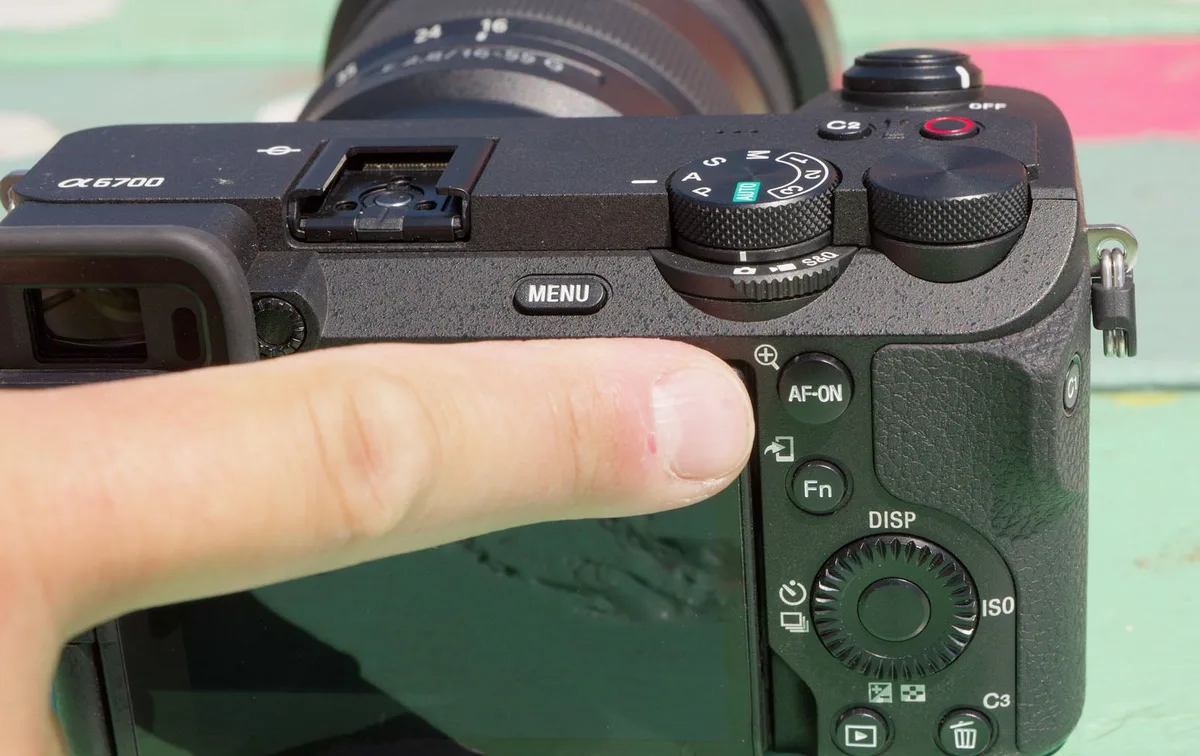
If you're searching for Sony A6700 how to reset, you're probably facing a glitchy screen, a frozen menu, or you're about to sell the camera. The wrong reset can wipe out your carefully tuned custom profiles. So knowing the difference between the two options matters.
The A6700 runs on Sony's BIONZ XR processor, the same one found in the A7 IV. As of 2026, the menu system has been refined, but the reset path remains the same. Let's walk through the process step by step.
Image source: Bing (Web (fair-use with source credit))
Quick Answer
Press the Menu button. Navigate to the Setup tab (toolbox icon). Scroll to "Reset Default" or "Initialize".
Confirm with OK. The camera restarts.
When and Why You'd Reset Your A6700
Resetting your A6700 isn't something you do every day. But it's the right move in a few clear situations.
- Selling or trading the camera. A full reset wipes your Wi-Fi passwords and custom button assignments. The next owner gets a clean slate.
- Fixing software glitches. If the screen lags, the menu hangs, or you get a persistent error, a reset often clears it. Sony's support documentation recommends a reset as a first step for common software issues.
- Starting fresh after experimenting. Did you change every setting and lose track? A reset brings you back to factory defaults.
- Handing the camera to someone else. Whether it's a rental or a family member, resetting avoids confusion.
The key is choosing the right reset type. That's what we cover next.
The Two Reset Options: Reset vs. Initialize
The A6700 offers two distinct reset options. They sound similar, but they do very different things. Choosing the wrong one can cost you hours of setup time.
| Reset Option | What It Erases | What It Keeps | Best For |
|---|---|---|---|
| Reset Default | Most settings (picture profiles, custom buttons, Wi-Fi) | Saved memory cards, registered lens data, date/time | Quick fixes, troubleshooting |
| Initialize | Everything (including stored profiles, network settings, copyright info) | Serial number, shutter count, region settings | Selling the camera, deep clean |
Reset Default is the safer choice. It returns your camera to its out-of-box settings, but it keeps your lens correction data and registered memory cards intact. Use this for most glitches.
Initialize is a full factory wipe. It's the more thorough option, but it also erases your custom presets and Wi-Fi passwords. Use this only if you're selling the camera or if a standard reset didn't fix the problem.
A good rule of thumb: try Reset Default first. If that doesn't work, go with Initialize. It's like comparing a quick restart to a full format on a computer.
Resetting your camera is a good first step for troubleshooting, much like resolving a card error on a Sony A7 IV. But you don't want to reset if you don't need to.
Step-by-Step: How to Reset Your Sony A6700
The process is straightforward. But the menu layout on the A6700 is different from older Sony cameras. Here's the exact path.
- Insert a fully charged battery. A reset mid-process with a weak battery can corrupt settings.
- Remove the lens cap if you have one. The camera needs to boot properly.
- Press the Menu button. The touchscreen should light up.
- Use the touchscreen or the directional pad to navigate to the Setup tab. It's the toolbox icon at the bottom of the menu.
- Scroll down to page 3 or 4. You'll see either "Reset Default" or "Initialize".
- Tap on the option you want. A confirmation screen appears.
- Select OK. The camera will restart automatically.
That's all it takes. The entire process takes about 15 to 20 seconds from start to finish.
If you're selling the camera, make sure to also format the memory card separately. The reset doesn't delete your photos and videos.
After the reset, you'll need to re-set the language, date, and time. The camera will prompt you on the first boot.
For a deeper look at other common issues, you might want to check for SD card issues. A card error can look like a settings glitch.
Lost or Can't Get to the Menu? Try This
Sometimes the camera freezes so thoroughly that the menu won't respond. You can't navigate to the reset option. What do you do?
The A6700 has no physical reset button or pin hole. That's a myth carried over from older electronics. The only way to force a restart is to remove the power source.
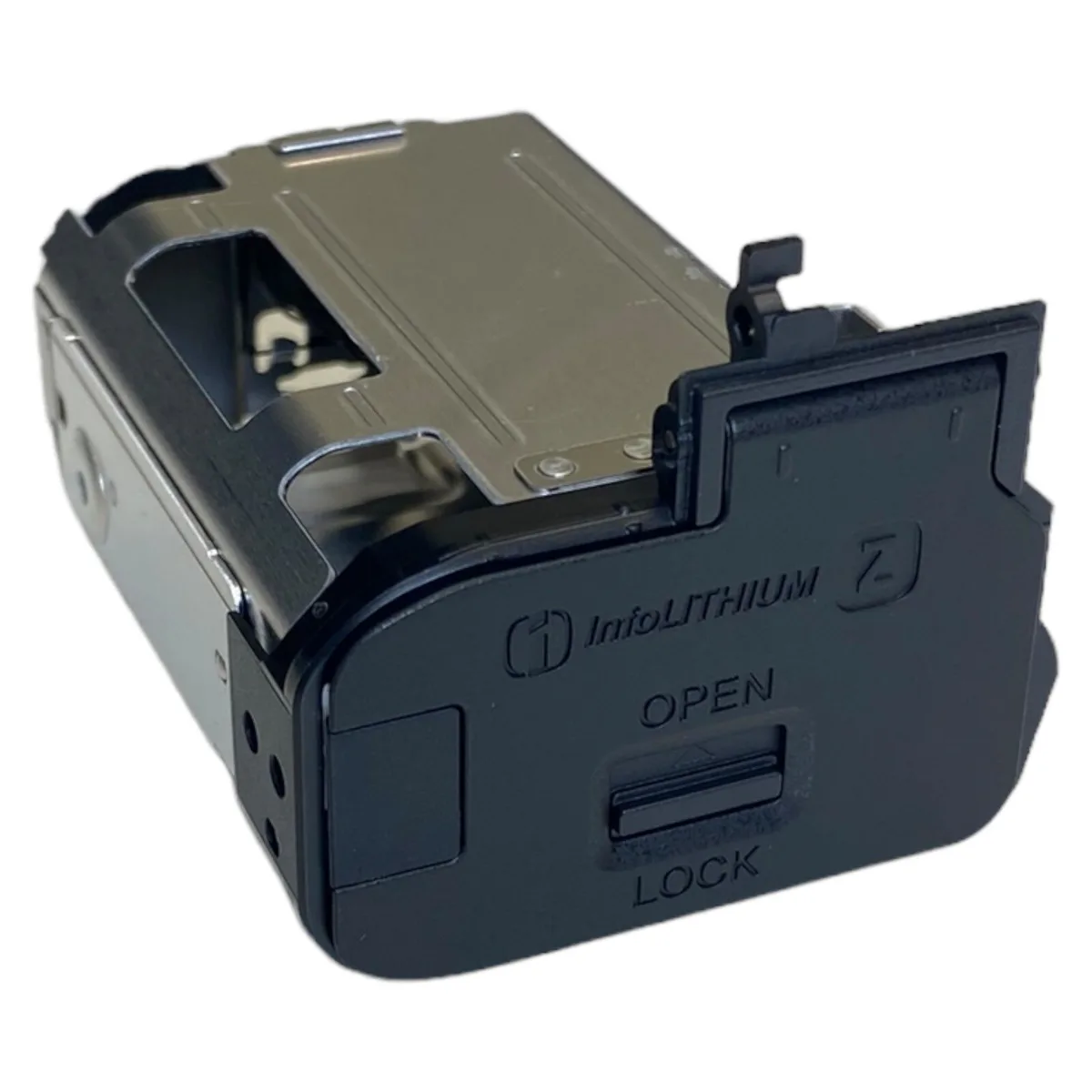
Image source: Bing (Web (fair-use with source credit))
The battery pull method:
- Turn off the camera if possible.
- Open the battery compartment door.
- Remove the battery.
- Wait at least 30 seconds. This drains any residual charge from the internal capacitors.
- Reinsert the battery.
- Turn the camera on.
This acts as a hard reset. It clears the temporary memory without affecting your saved settings. It's the same principle as handling a frozen action camera.
If the camera still doesn't respond, try a different battery. A depleted or faulty battery can cause startup issues.
Once the camera boots, you can then proceed with the menu reset we covered earlier.
Biggest Mistakes to Avoid When Resetting
A reset is simple, but a few common mistakes can cause headaches. Here's what to watch out for.
Confusing Reset with Initialize. This is the most common error. Tap "Reset Default" when you only want a partial reset. Tap "Initialize" when you need a full wipe.
Read the on-screen warning before confirming.
Forgetting to back up custom settings. The A6700 lets you save your profiles to an SD card. Use the "Save/Load Settings" option in the menu before you reset. It takes 30 seconds and saves hours of reconfiguration.
Leaving the memory card in during a full initialize. The initialize process does not format the card. But it's still a good practice to remove the card. This prevents any accidental data loss.
Starting the reset with a low battery. Sony recommends at least 50% charge. A reset that fails halfway through can leave the camera in a strange state.
Image source: Bing (Web (fair-use with source credit))
Resetting to fix a hardware problem. A reset only clears software settings. If your lens is stuck or the sensor is making noise, a reset won't fix it. That's a hardware issue.
For battery-related issues, a reset won't help. You'll need to check the battery itself or consider a replacement.
Avoid these mistakes, and the reset process will be smooth.
What to Do After the Reset
The reset is done. The camera restarts. Now you need to set it up again.
Here's the order that makes the most sense.
Set the language, date, and time first. The A6700 prompts you on the first boot. Skipping this can cause weird timestamp issues in your files. Inaccurate EXIF data is a common headache after a reset.
Restore your custom settings from the SD card backup. If you used the Save/Load Settings option before the reset, this takes 30 seconds. Go to the Setup tab, select Load Settings, and pick your saved file. Your button assignments, My Menu, and picture profiles come back instantly.
Reconnect your wireless and Bluetooth. The reset clears all paired devices. You'll need to re-pair your smartphone through the Imaging Edge Mobile app. It's a minor inconvenience, but it only takes a minute.
Reassign your custom buttons. The A6700 has seven assignable buttons. The reset sets them to factory defaults. Take a few minutes to map them the way you like.
It's worth the effort.
Check your firmware version. The reset doesn't change the firmware. But it's a good time to verify you're on the latest version. Sony periodically releases updates that improve performance and fix bugs.
A quick check on the official Sony support site is all it takes.
Format the memory card if you're selling the camera. The reset doesn't delete your photos and videos. You need to format the card separately. Use the camera's Format function in the Setup tab.
That's it. Your A6700 is ready to go. The whole process takes about five minutes from start to finish.
If you're still seeing issues after the reset, it might be a hardware problem. For example, persistent glitches could point to an overheating issue. Our research on the Sony A6700 overheating problem shows that a reset won't fix actual thermal throttling.
Frequently Asked Questions
Will a reset delete my photos and videos?
No. A reset only clears settings. Your photos and videos on the memory card stay untouched.
You need to format the card separately if you want to erase them.
Does resetting affect the shutter count or serial number?
No. The shutter count is stored in the camera's hardware. The serial number is permanent.
A reset only wipes user settings and network data.
Can I reset the A6700 using the smartphone app?
No. The Imaging Edge Mobile app does not include a reset function. You must use the camera's physical menu system or remove the battery for a hard reset.
How long does the reset process take?
The entire process takes about 15 to 20 seconds. The camera restarts automatically. Setting up the language, date, and time afterward adds about a minute.
Will a reset fix a sticky shutter or sensor error?
No. A reset only clears software settings. A sticky shutter is a mechanical issue.
A sensor error could be hardware or dirt. Try cleaning the lens contacts first. If the problem persists, it's a hardware repair.
What's the difference between Reset Default and Initialize?
Reset Default returns most settings to factory defaults while keeping lens data and registered cards. Initialize wipes everything including saved profiles and network settings. Use Reset Default for troubleshooting.
Use Initialize only when selling the camera.

Similar Posts
































