Sony A7R V How to Connect to Phone
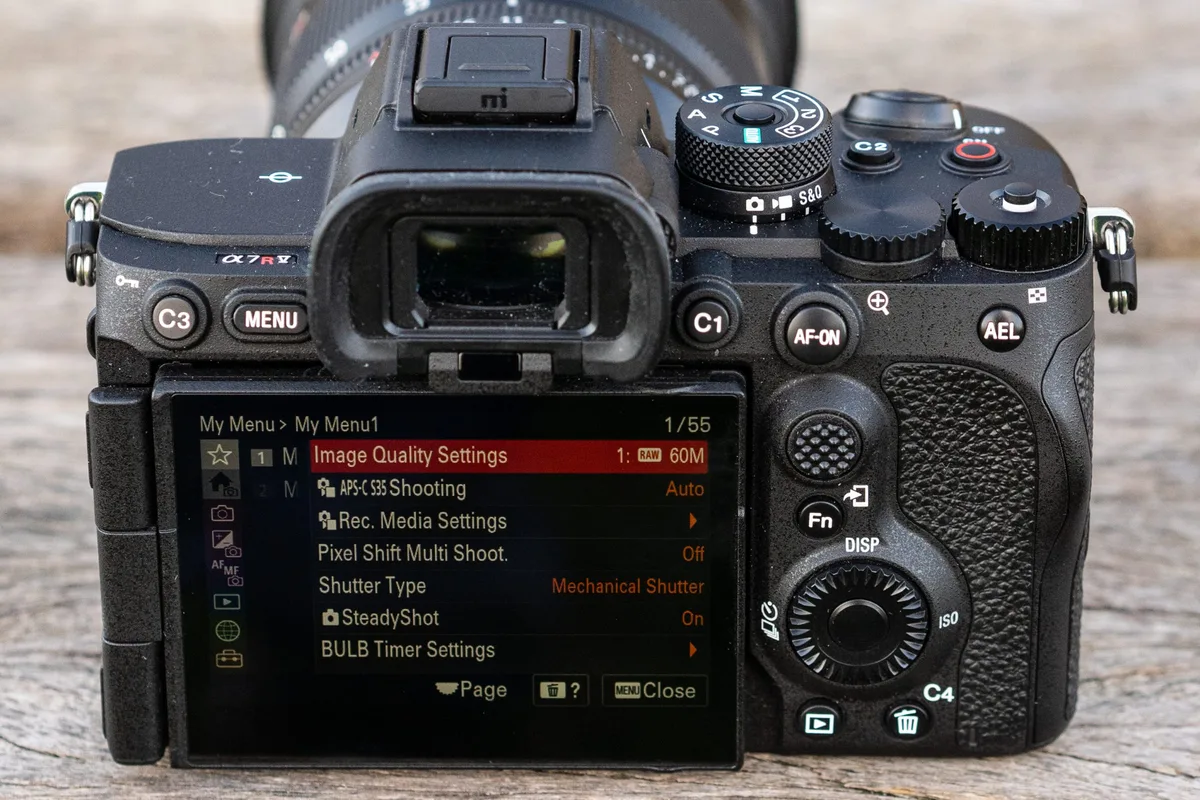
Connecting your Sony A7R V to your phone sounds simple. But if you've ever stared at a "connection failed" message for ten minutes, you know it's not always that smooth. The Sony A7R V how to connect to phone process offers several paths.
Picking the wrong one for your situation usually causes the headache.
The A7R V supports Wi-Fi on both the 2.4 GHz and 5 GHz bands. The 5 GHz connection offers noticeably faster transfers for those 61-megapixel RAW files. But which method works best depends on your phone model, your patience, and whether this is a first-time setup.
Let's walk through the options so you can pick the right path.
Quick Answer
Download Imaging Edge Mobile. Turn on the camera. Open the app.
Scan the QR code on the camera screen. Confirm the pairing. That's it for most users.
If the QR code fails, use NFC or manual Wi-Fi instead. The whole process takes about 30 seconds.
Before You Start: What You'll Actually Need
The A7R V comes with built-in Wi-Fi and Bluetooth. But the app that talks to it is not pre-installed. You need to download that yourself.
The official app is called Imaging Edge Mobile. It's available on both the Apple App Store and Google Play Store. As of 2026, Sony has also introduced the Creator's App for some newer models.
But the A7R V still works best with Imaging Edge Mobile. Stick with that one.
| Requirement | iOS | Android |
|---|---|---|
| App name | Imaging Edge Mobile | Imaging Edge Mobile |
| Permission needed | Local network access | Location (Wi-Fi scanning) |
| NFC support | iPhone 7 and later | Most models with NFC |
| 5 GHz Wi-Fi | Supported | Supported |
There is a key quirk with Android phones. You need to grant location permission to the app. This is a Google requirement for any app that scans for Wi-Fi networks.
It is not a Sony thing. Without it, the app won't find your camera.
iOS users do not have this issue. But you do need to make sure the app has access to your local network. Go to Settings, find Imaging Edge Mobile, and toggle local network access on.
You also need to check your phone's Wi-Fi band support. The A7R V can broadcast on both 2.4 GHz and 5 GHz bands. Most modern phones handle both.
Some older budget models only support 2.4 GHz. If your phone is on the older side, switch the camera to 2.4 GHz mode in the network settings menu.
Finally, make sure your camera's firmware is up to date. Sony has released updates that improve connection stability. You can check the current firmware version in the camera's setup menu under "Version." If you are already dealing with a distinct problem, you might want to check into other common issues with the A7R V before you start.
The Quickest Way to Connect: QR Code (Works for Most People)
The QR code method is the fastest way to connect your Sony A7R V to your phone. It handles the Wi-Fi handshake automatically. You do not need to type a password or remember a network name.
Here is how to do it. Turn on your camera. Press the Menu button and go to the Network tab.
Look for "Smartphone Connect" or "Use Smartphone Control." Select it. The camera screen will display a QR code.
Open Imaging Edge Mobile on your phone. Tap the QR code icon in the app. Point your phone's camera at the QR code on the camera screen.
Hold it steady for a few seconds. The app will read the code and connect automatically.
Image source: Bing (Web (fair-use with source credit))
The whole process takes about 30 seconds. Once connected, you can transfer photos or use your phone as a remote shutter. The 5 GHz band kicks in automatically for faster transfers.
But here is where it can go wrong. The QR code method fails if the lighting is too bright or too dim. Glare on the camera screen can prevent the scan.
If your phone's camera lens is dirty, wipe it clean first. The QR code also has a timeout of about 30 seconds. If you take too long, the camera goes back to standby.
Just press the shutter button halfway to wake it up.
Another common issue is holding the phone too close or too far away. Aim for about 6 to 8 inches of distance. Make sure the entire QR code is visible inside the scanning frame.
If you plan to use the live view feature for extended periods, keep an eye on the camera temperature.
If the QR code method works, you are done. You can skip the rest of the connection steps. If it does not work, do not worry.
There are two other methods that are just as reliable.
When QR Doesn't Work: NFC or Manual Wi-Fi
If the QR code method fails, you have two backup options. Which one you use depends on your phone. Let's walk through both.
Branch A: Your phone has NFC
NFC stands for Near Field Communication. It is the same technology used for contactless payments. If your phone supports NFC, this is the next easiest method.
On the Sony A7R V, the NFC chip is located on the left side of the camera grip. Look for the small N-mark icon. To use it, make sure NFC is enabled on your phone.
Open Imaging Edge Mobile. Tap the NFC icon in the app. Then touch your phone's NFC area to the camera's N-mark.
Hold them together for a few seconds.
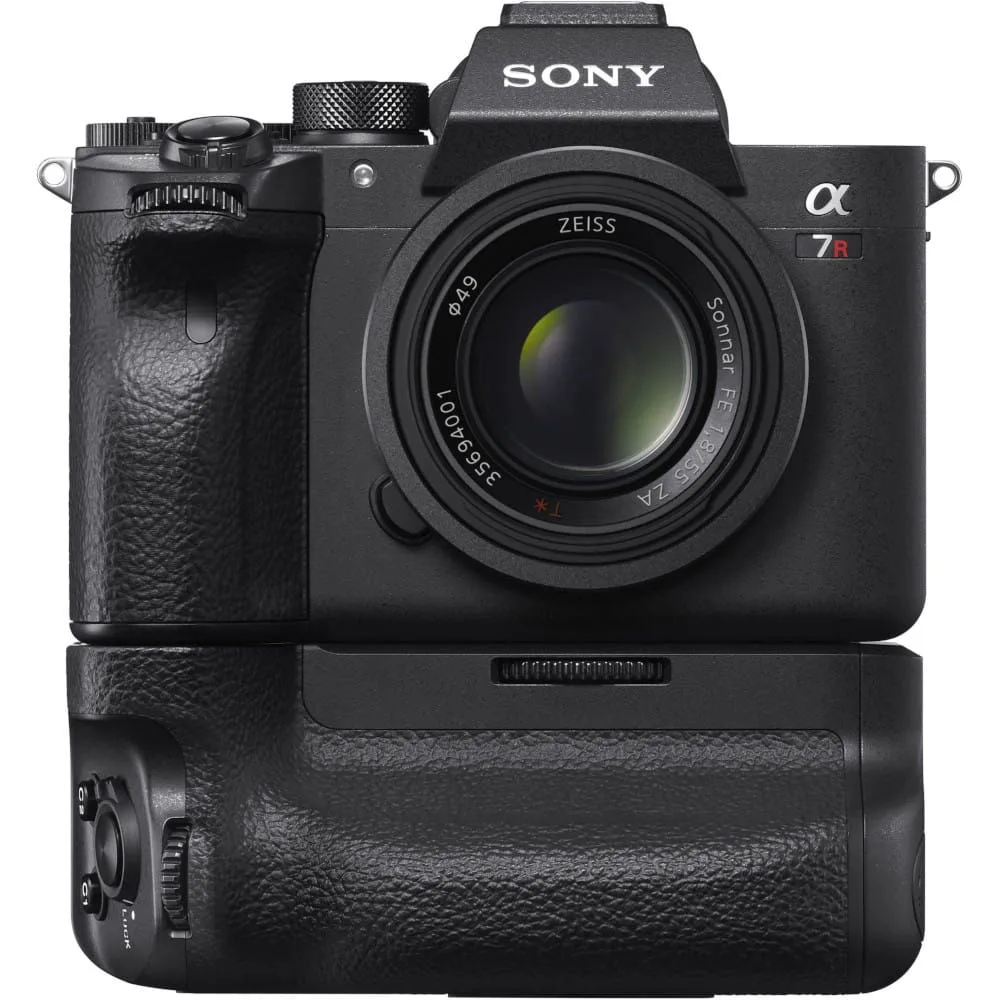
Image source: Bing (Web (fair-use with source credit))
The phone will vibrate or beep to confirm the connection. The camera will then pair automatically. This method works on iPhone 7 and later models.
It also works on most Android phones from the last few years.
Branch B: Your phone doesn't have NFC
If your phone does not have NFC, or if the NFC tap fails, use manual Wi-Fi. This is the most reliable method. But it takes a bit more effort.
On your camera, go to the Network menu. Select "Smartphone Connect" and then "Show Info." The camera will display the Wi-Fi network name (SSID) and password. The password is usually a long string of random characters.
Write it down or take a photo of the screen.
On your phone, open the Wi-Fi settings. Look for the camera's network name in the list. Select it and enter the password.
Once connected, open Imaging Edge Mobile. The app should recognize the camera and establish the connection.
One thing to watch out for. Your phone might try to reconnect to your home Wi-Fi when it notices no internet access. This can break the camera connection.
If this happens, go back to your phone's Wi-Fi settings. Select the camera network again. You might need to "forget" your home network temporarily.
The Bluetooth Handshake: Why It's Not Just Wi-Fi
A lot of people think the connection between the A7R V and their phone is purely Wi-Fi. It is not. Bluetooth plays a key role.
Understanding what it does can save you a lot of frustration.
Bluetooth handles the initial handshake. It is what allows the camera and phone to find each other. It also exchanges the Wi-Fi credentials.
Once the Wi-Fi connection is established, Bluetooth takes a back seat. It stays active in the background to maintain the pairing. But it does not handle the actual photo transfer.
Think of Bluetooth as the introduction. Wi-Fi is the conversation. Bluetooth says "hello, here is how to connect." Wi-Fi does the heavy lifting of sending photos.
To pair Bluetooth for the first time, go to your camera's Network menu. Select "Bluetooth Settings" and then "Pairing." The camera will start searching for your phone. On your phone, open Imaging Edge Mobile.
Go to the Bluetooth settings. Select your camera from the list. Confirm the pairing on both devices.
The key thing to remember is that Bluetooth draining your battery is a common concern. In practice, the A7R V uses Bluetooth Low Energy (BLE). This means the battery impact is minimal.
You can leave Bluetooth enabled on both devices without worrying about significant drain. Sony's documentation indicates the connection uses very little power when idle. If you are concerned about battery drain on other gear, it helps to understand how much power similar devices use.
However, there is one gotcha. If you have Bluetooth turned off on your phone, the camera cannot re-establish the Wi-Fi connection automatically. You will need to go through the pairing process again.
So keep Bluetooth enabled on your phone if you plan to connect regularly.
Bluetooth also enables geotagging. The phone sends its GPS location to the camera. This adds location data to your photos without needing a separate GPS unit.
It is a handy feature for landscape and travel photographers.
Mistakes That Will Break Your Connection (And How to Fix Them)
Even when you follow the steps correctly, things can go wrong. Here are the most common issues and how to fix them.
The QR code won't scan
This is the most frequent complaint. The usual cause is glare on the camera screen. Try increasing the screen brightness.
You can do this in the camera's setup menu. Also, make sure you are not in direct sunlight. If the screen is dirty, wipe it with a microfiber cloth.
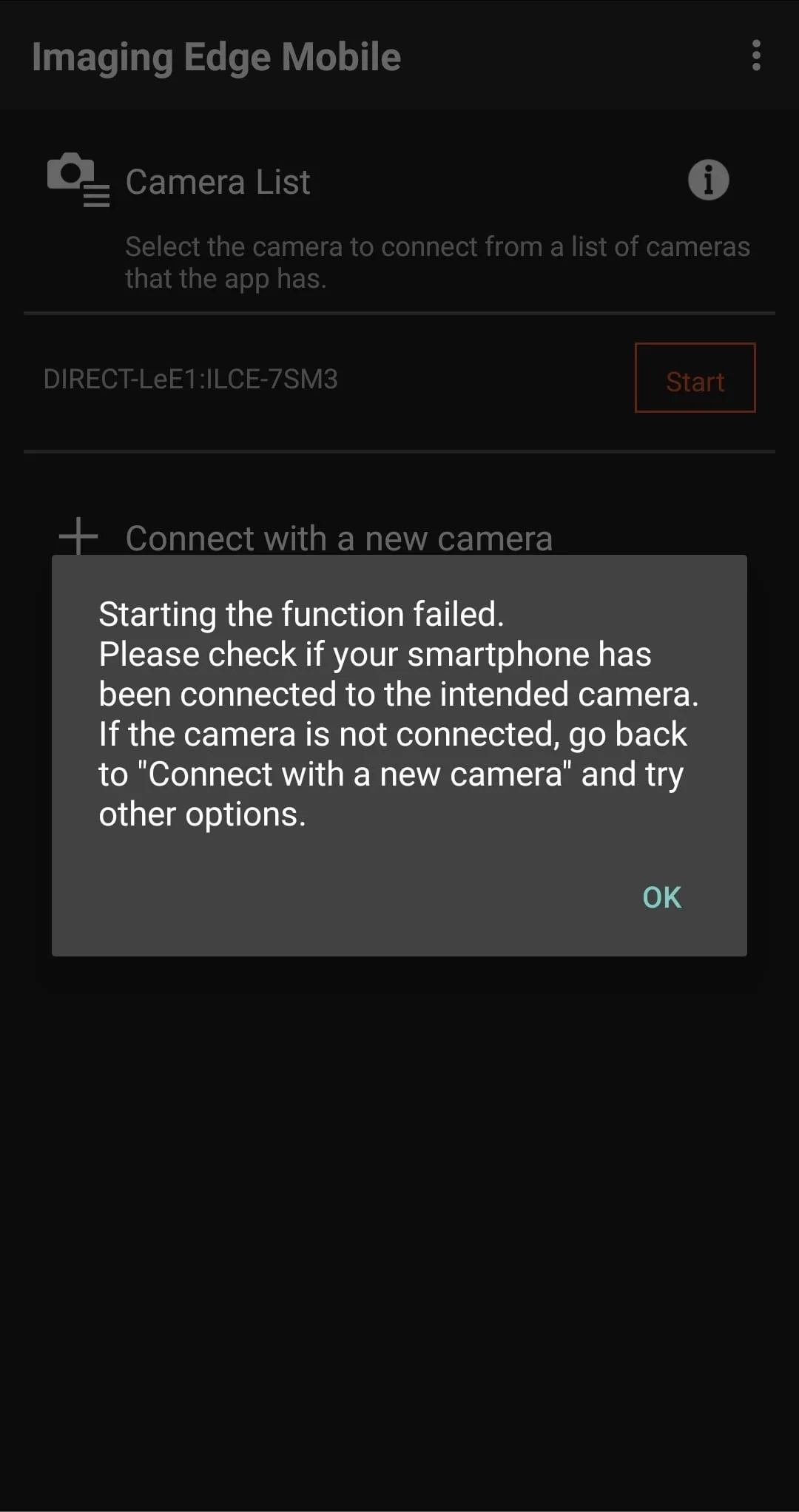
Image source: Bing (Web (fair-use with source credit))
Android location permission
This is a common trap. Without location permission, the app cannot scan for Wi-Fi networks. Go to your phone's Settings, find Apps, select Imaging Edge Mobile, and enable location permission.
Set it to "While using the app." This is a Google requirement. It is not a Sony limitation.
iPhone won't find the camera
On iOS, the app needs local network access. Go to Settings, find Imaging Edge Mobile, and make sure "Local Network" is toggled on. If it is off, the app will not see the camera.
This happens even if they are both on the same Wi-Fi network.
App crashes or freezes
This usually happens when the app is outdated. Check the App Store or Google Play Store for updates. If the app is up to date, try restarting your phone.
If it still crashes, uninstall and reinstall the app. This clears out any corrupted settings.
Firmware updates break the connection
Sometimes a camera firmware update changes the Wi-Fi settings. If you recently updated your A7R V and the connection stopped working, you might need to re-pair the devices. Go to the camera's Network menu and select "Reset Network Settings." Then set up the connection from scratch.
This usually fixes the issue.
Phone connects to the wrong network
Your phone might remember an old network and try to connect to it instead of the camera. Go to your phone's Wi-Fi settings. "Forget" any old camera networks.
Then try the connection again. Also, check that your phone is not connected to a 5 GHz home network while the camera is on 2.4 GHz. Mismatched bands can prevent the connection.
If you run into persistent card-related errors during transfers, it is worth checking into that separately.
Different Ways to Use the Connection (Beyond Just Transferring Photos)
Once you have the connection established, there are several useful things you can do with it.
Remote shooting
Your phone becomes a wireless shutter release. Open Imaging Edge Mobile and tap the remote control icon. You will see a live view of what the camera sees.
You can adjust focus, aperture, shutter speed, and ISO right from your phone. This is great for self-portraits, group shots, and long exposure work where touching the camera would cause shake.
Geotagging your photos
Turn on location linking in the camera's Bluetooth settings. The phone will send its GPS data to the camera. Every photo you take will have the location stamped into the metadata.
No need for a separate GPS tracker. This is a huge time saver for travel and landscape photographers.
Transferring selected images
You do not have to dump the whole card. In playback mode on the camera, you can select individual photos to send. Press the Fn button, choose "Send to Smartphone," and pick the images you want.
This is much faster than transferring everything and then deleting on your phone.
Bulk transfers
If you need to move a lot of files, connect via USB-C instead. A direct cable connection is faster and more reliable than Wi-Fi. You can also pop the SD card into a reader that plugs into your phone.
This bypasses the camera entirely.
Using your phone as a monitor
The live view function in the app turns your phone into an external monitor. This is useful for low-angle shots or video work where you need to see the frame without crouching. The latency is good enough for static shots but not ideal for fast-moving subjects.
Frequently Asked Questions
Why does my A7R V keep disconnecting from my phone?
The most common cause is the phone switching back to your home Wi-Fi network. Your phone notices the camera network has no internet access. It drops the connection to reconnect to your home network.
Turn off "auto-join" for your home network temporarily. Or set your phone to stay connected to the camera network.
Can I transfer RAW files to my phone?
Yes, but it is slow. Each 61-megapixel RAW file is around 120 MB. Transferring multiple files over Wi-Fi takes a while.
The 5 GHz band helps, but it is still not as fast as a cable. For a few files, it is fine. For a whole card, use a USB-C cable or an SD card reader.
Does the app work with an iPad?
Yes. Imaging Edge Mobile works on iPadOS. The larger screen is actually better for reviewing photos.
The remote control features work the same way. Just make sure you have downloaded the iPhone version of the app. It scales up to fit the iPad screen.
What's the difference between Imaging Edge Mobile and Creator's App?
Imaging Edge Mobile is the older app. It works with the A7R V and most older Sony cameras. The Creator's App is the newer platform.
It offers a cleaner interface and cloud storage integration. But the A7R V does not fully support the Creator's App yet. Stick with Imaging Edge Mobile for now.
Why does my phone need location permission to connect?
This is a Google requirement on Android. Any app that scans for Wi-Fi networks needs location permission. It is not a Sony thing.
The app does not actually track your location. It needs the permission to see the list of available networks. Grant it "While using the app" permission and you are good.
How do I update my camera firmware using the app?
Open Imaging Edge Mobile. Go to the settings menu. Look for "Camera Firmware Update." The app will check if a new version is available.
If yes, it will download the file and transfer it to the camera. Keep the camera powered on and the app open until the update finishes. Do not turn off the camera during the update.

Similar Posts
































