Sony BRC-AM7 Troubleshooting
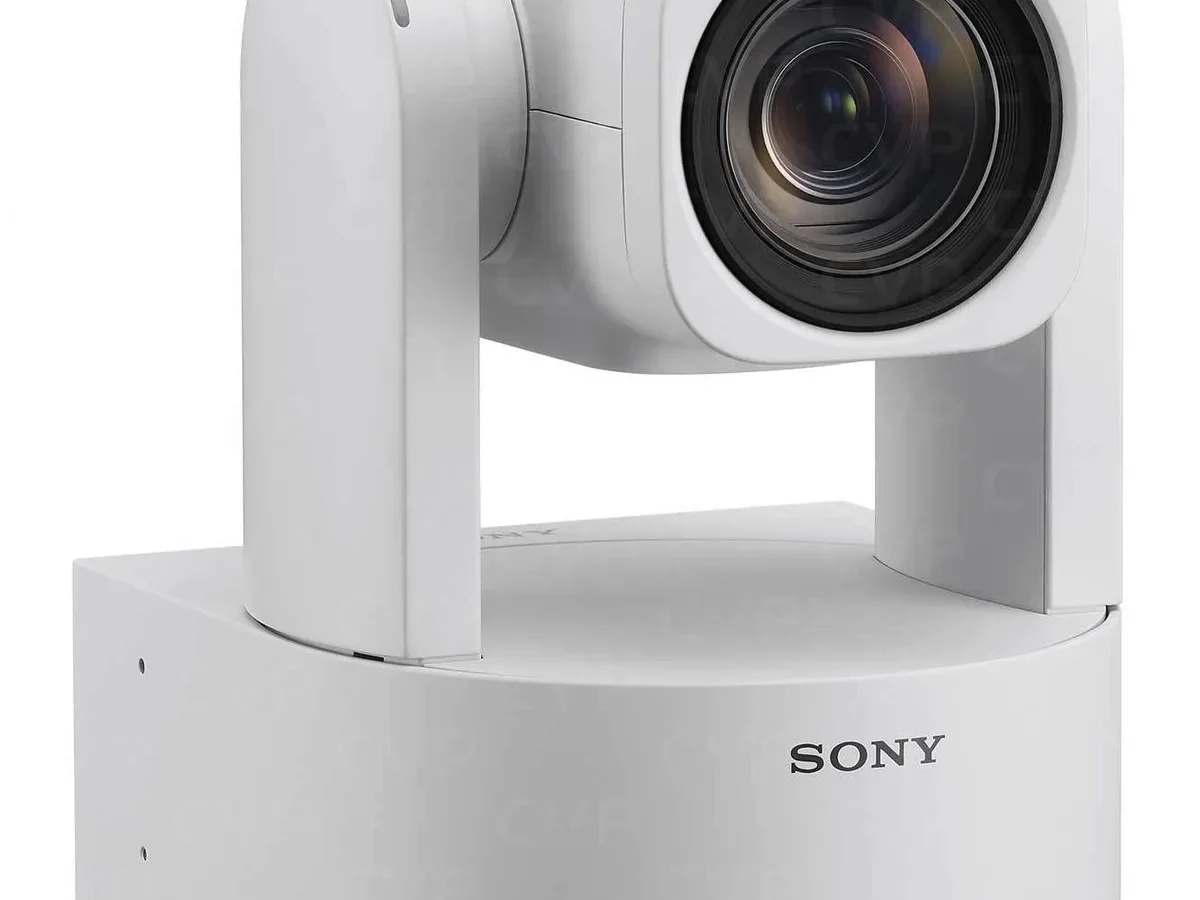
Your Sony BRC-AM7 is a serious piece of broadcast gear. When it stops working mid-production, you need answers fast. Sony BRC-AM7 troubleshooting doesn't have to be a guessing game.
Most issues fall into one of five categories: power, video, network, movement, or presets.
Per the IEEE 802.3at standard, this camera requires a PoE+ switch that delivers at least 25.5 watts per port. Many "no power" calls trace back to a switch that doesn't meet that spec. Once you know what to check first, you can isolate the problem in minutes rather than hours.
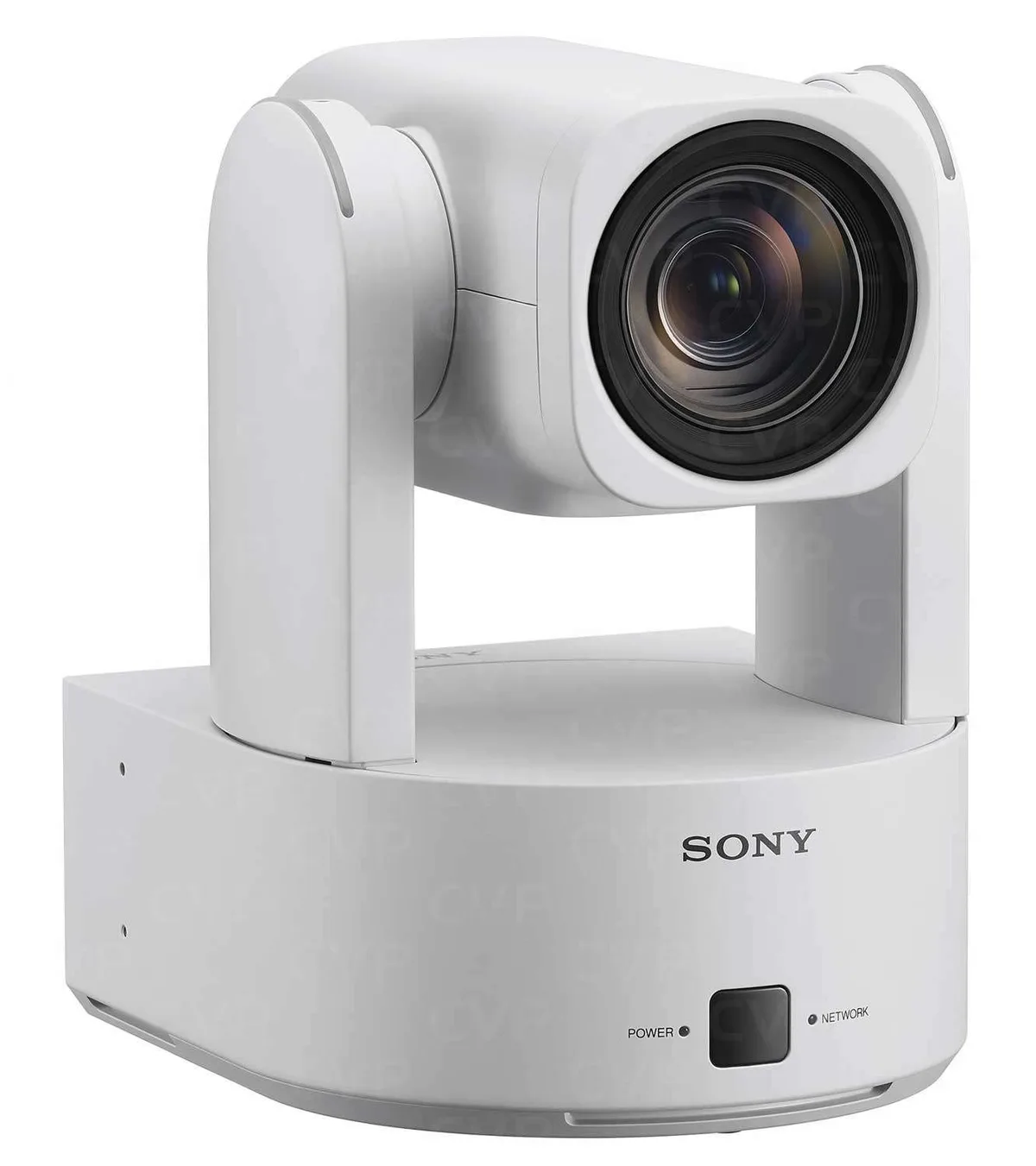
Image source: Web (Bing) / cvp.com (Web image (fair-use with source credit))
Quick Answer
Most BRC-AM7 problems come from power or network issues. Check the PoE+ switch wattage first. Verify the Ethernet cable is Cat5e or better.
Confirm the camera's IP address is on the same subnet as your controller. If none of that works, try a factory reset.
Start Here: What's Wrong with Your BRC-AM7?
The first step is figuring out which category the problem falls into. The five most common symptom groups are:
- No power at all, LEDs are off, camera doesn't respond to any command
- No video output, black screen on SDI, HDMI, or the IP stream
- Network issues, can't find the camera, constant dropouts, or no control response
- Pan/tilt problems, won't move, jerky motion, or drifts off target
- Preset failures, won't store new positions, won't recall, or drifts between calls
Start with the physical checks. Look at the power LED on the back panel. A solid green light means the camera is getting power.
No light at all points to the PoE+ source or the cable run. A blinking amber light usually signals a firmware or network issue.
Check the Ethernet cable next. It needs to be Cat5e or Cat6, and the run should be 100 meters or less. Even a slightly damaged cable or a loose RJ45 connector can cause intermittent problems.
If you're dealing with similar issues on other gear, our guide to general camera network dropouts covers the same diagnostic principles.
If the camera is brand new out of the box, don't overlook the transport lock. That small screw on the bottom plate keeps the pan/tilt mechanism locked during shipping. You have to remove it before applying power, or the camera won't move at all.
If you've gone through these basics and the camera still won't cooperate, the decision tree below walks through each symptom in detail. If you're seeing error codes you can't decode, or if the camera smells like burnt electronics, skip the tree and call Sony support directly.
The Decision Tree: Diagnose Your Exact Issue
Match your specific symptom to the right fix. Follow the branch that fits your situation.
Branch 1: No Power, Won't Turn On
Check the PoE+ switch first. The BRC-AM7 needs 802.3at compliance, which means at least 25.5 watts per port. A standard PoE switch (802.3af, 15.4 watts) won't cut it.
Verify the port you're using is actually PoE+ enabled. Some switches have mixed ports.
Test with a known-good PoE+ injector. If the camera powers up with the injector but not through the switch, the switch port is the problem. If it doesn't power up with either, the issue is likely the camera's power supply board or the Ethernet cable itself.
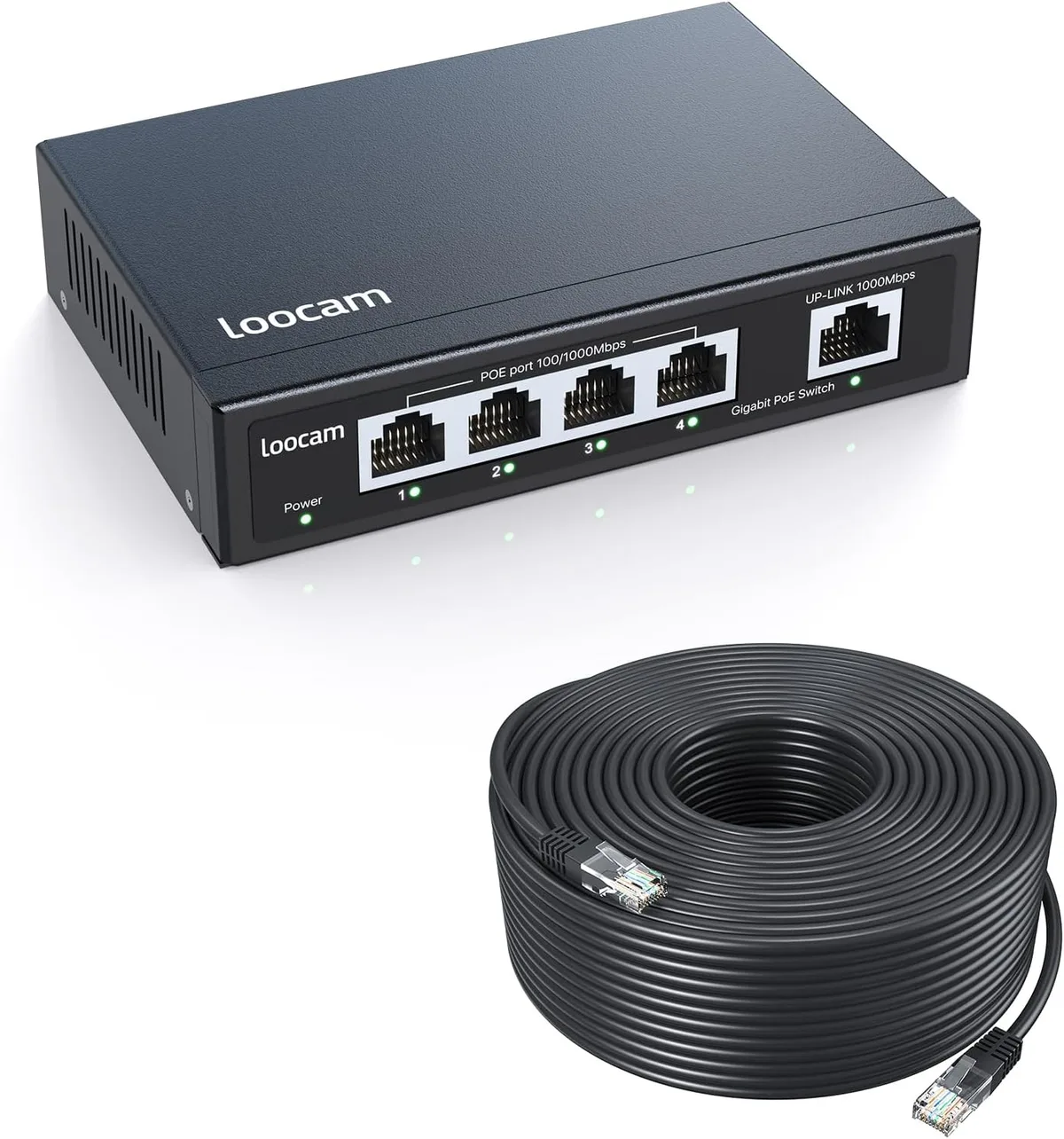
Image source: Bing (Web (fair-use with source credit))
Branch 2: No Video Output
You have three output options: SDI, HDMI, and IP streaming. If one works and the others don't, the problem is usually a setting mismatch. Check the output format in the web GUI.
The camera defaults to 4K 60p, but your monitor or switcher might not support that.
For SDI issues, verify the cable is rated for 12G-SDI if you're running 4K. Standard 3G-SDI cables can cause a black screen at higher resolutions. For HDMI, make sure HDCP isn't interfering.
The BRC-AM7 supports HDCP, but some downstream devices don't handle it well.
For IP streaming, check the streaming settings in the web GUI. The camera supports H.264 and H.265. If the bitrate is set too high for your network, the stream may drop out or never appear.
Branch 3: Network Issues (Can't Find Camera, Dropouts, No Control)
This is the most common category. Start by confirming the camera has an IP address. Use a network scanner like Angry IP Scanner or Advanced IP Scanner to find it.
The camera ships with DHCP enabled by default, so it should pick up an address from your router.
If you can't find it on the network, try a direct connection. Plug a laptop directly into the camera's Ethernet port with a static IP on the same subnet (try 192.168.0.100 with a 255.255.255.0 mask). The camera's default IP is usually 192.168.0.100.
If you can reach it this way, the problem is with your network configuration, not the camera.
For VISCA over IP control, make sure the camera and controller are on the same subnet. VISCA uses UDP ports 52381 and 52382 by default. If a firewall is blocking those ports, the camera won't respond to control commands.
The same troubleshooting steps apply to other IP cameras on your network, and our general IP camera connectivity guide covers those scenarios in more detail.
Branch 4: Pan/Tilt Won't Move or Jerky Motion
If the camera was working and suddenly stopped moving, check for physical obstructions. The BRC-AM7 has a wide pan range of ±170 degrees, but cables or mounting brackets can block the movement.
If the movement is jerky or stuttering, the issue is usually the control protocol. VISCA over IP can suffer from network latency. Try switching to a direct RS-422 serial connection.
If it moves smoothly with RS-422, the network is the bottleneck.
If the camera is brand new and won't move at all, check that transport lock screw. It's a common oversight.
Branch 5: Presets Not Working or Recall Fails
Presets store pan, tilt, zoom, and some setting values. If a preset recalls the wrong position, the camera may have drifted due to a mechanical issue. Resave the preset and test it again.
If the camera won't store presets at all, the memory may be corrupted. A factory reset usually clears this. Back up any custom settings first, because a reset wipes everything.
If presets drift over time, the issue is often a loose mount or vibration. Check that the camera is securely mounted and that the tripod or bracket isn't shifting.
Branch 6: Firmware Update Fails or Camera Bricks
Never update firmware over Wi-Fi. Always use a wired Ethernet connection. Download the firmware file from the Sony support site and verify the file isn't corrupt by checking the MD5 checksum.
If the update fails mid-process and the camera won't boot, try the USB recovery method. Insert a USB drive with the firmware file into the camera's USB port, then hold the reset button while powering up. This forces the camera into recovery mode.
If recovery mode doesn't work, the firmware chip may be damaged. That's a hardware repair and requires a service center.
Mistakes That Will Waste Your Time (and How to Avoid Them)
These are the pitfalls that trip up even experienced AV engineers. Steer clear of them and you'll save hours.
Using a non-PoE+ switch or underpowered injector. The BRC-AM7 is not optional about its power requirements. A standard PoE switch gives you 15.4 watts. The camera needs 25.5 watts.
You'll get an intermittent power-up or no power at all. Check the label on your switch or injector before you do anything else.
Forgetting the subnet. This is the number one cause of "can't find the camera" calls. The camera and your controller must be on the same IP subnet. If your network uses 10.0.1.x and the camera defaults to 192.168.0.x, they'll never see each other.
Use a network scanner to verify the camera's IP, then set your computer to the same range.
Assuming SFP modules are plug-and-play. The BRC-AM7's SFP slot is picky about which modules it accepts. Sony recommends using their own modules or a tested third-party brand. A dirty fiber connector can also cause intermittent signal loss.
Clean the connector with a fiber optic cleaning pen before you blame the camera.
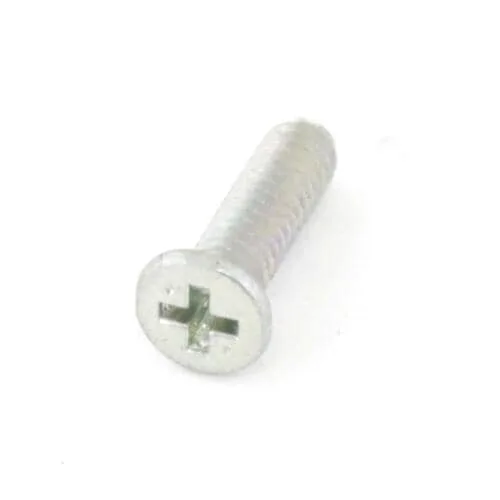
Image source: Web (Bing) / sonyparts.com (Web image (fair-use with source credit))
Overlooking the transport lock screw. This is the most common mistake on new cameras. The transport lock screw is located on the bottom of the camera. It's a small Phillips-head screw with a plastic washer.
If you power up the camera with this screw still in place, the pan/tilt mechanism won't move. It may even make a grinding noise that sounds like a hardware failure. Remove it before you do anything else.
Updating firmware over a weak Wi-Fi connection. A dropped connection mid-update is a one-way ticket to a bricked camera. Always use a wired Ethernet connection for firmware updates. If you don't have a wired connection, wait until you do.
Resetting without backing up presets. A factory reset clears all 256 presets. If you've spent hours dialing in camera positions, export the settings through the web GUI before you reset. The export saves an XML file you can import later.
Ignoring heat and ventilation. The BRC-AM7 has a built-in fan, but it needs airflow. If the camera is mounted in a tight space with no ventilation, it will overheat. Overheating causes random shutdowns, video artifacts, and eventually permanent damage.
Leave at least 4 inches of clearance around the vents.
Pro Tips for Stubborn Issues
Some problems don't give up easily. These are the tricks that work when the standard steps don't.
Use a network scanner to find hidden IPs. The camera may have a static IP from a previous installation that you don't remember. Angry IP Scanner or Advanced IP Scanner can scan a full subnet in seconds. Look for the manufacturer's MAC address prefix (00:1D: for Sony) to spot the camera in the list.
Test with a known-good PoE+ injector. A PoE+ injector removes the switch from the equation. If the camera powers up with the injector, the switch port or the cable between the switch and the camera is the problem. This is the fastest way to isolate a power issue.
Force a factory reset via the physical button. The reset button is on the back of the camera, near the Ethernet port. Power on the camera, then press and hold the reset button for 10 seconds. The camera will reboot with factory defaults.
This works even if you can't access the web GUI.
Check the system log in the web GUI. The camera logs errors internally. Access the web GUI, go to System > Log, and look for error codes. A log entry like "E-01-00" points to a specific subsystem.
Sony's service manual decodes these codes. Knowing the code saves you from guessing.
Try a different VISCA command format. The BRC-AM7 supports VISCA over UDP, TCP, and serial RS-422. If UDP commands aren't working, try TCP. If TCP doesn't work, switch to RS-422.
Network conditions can affect one protocol but not the others.
Verify the camera's firmware version. Sony releases firmware updates that fix known bugs. As of 2026, the latest version addresses several preset recall issues and improves network stability. Check the version in the web GUI under System > Information.
If you're running an older version, update it.
Keep spare cables on hand. Ethernet cables fail more often than people expect. A bent pin or a loose RJ45 crimp can cause symptoms that look like a camera failure. Swap the cable first.
It's the cheapest and fastest thing to try.
Document your network settings. Write down the IP address, subnet mask, gateway, and DNS settings for each camera. Take a screenshot of the web GUI. When something goes wrong, you'll have a reference point.
This is especially important in multi-camera installations where each camera has a different static IP.
Frequently Asked Questions
What do the different LED colors on the BRC-AM7 mean?
Solid green means the camera has power and is operating normally. Blinking amber indicates a firmware update is in progress or the camera is in boot mode. No light at all means no power, which points to the PoE+ source or the cable.
Red usually signals a hardware fault and requires service.
Can I power the BRC-AM7 with a standard PoE switch?
No. The camera requires PoE+ (802.3at), which delivers at least 25.5 watts per port. A standard PoE switch (802.3af) only provides 15.4 watts.
The camera may power on briefly but will shut down or behave erratically. Check the label on your switch before you connect anything.
How do I find the camera's IP address if I forgot it?
Use a network scanner like Angry IP Scanner or Advanced IP Scanner. Scan the subnet your camera is connected to. Look for the manufacturer's MAC address prefix (00:1D: for Sony) in the results.
If you still can't find it, connect a laptop directly to the camera with a static IP on the 192.168.0.x subnet and try accessing 192.168.0.100.
The camera was working fine, then stopped. What changed?
Start with the physical environment. Did someone move cables? Did a switch get replaced or rebooted?
Did the camera get bumped? Check for loose Ethernet connections and verify the PoE+ switch hasn't lost power on that port. Network changes like a new router or a DHCP scope change are also common culprits.
Do I need a special license for NDI on the BRC-AM7?
Yes. NDI support requires a separate license key from Sony. The camera ships without NDI enabled.
You purchase the license, install it through the web GUI, and the NDI option becomes available. Without the license, the camera outputs IP video using standard H.264 or H.265 streaming.
Is it safe to use a third-party SFP module?
It can work, but it's not guaranteed. The BRC-AM7's SFP slot is tested with Sony's own modules. Third-party modules may have compatibility issues, especially with link negotiation.
If you use a third-party module and get intermittent signal loss, try a Sony module before you dig deeper into the camera.
Why does the camera lose presets after a firmware update?
Firmware updates can reset the camera's memory, including preset storage. Always back up your presets through the web GUI before updating. The export saves an XML file that you can import after the update completes.
If you forget to back up, you'll have to reprogram all 256 positions manually.
Quick Reference: Your Troubleshooting Decision Guide
| Symptom | First Check | Likely Fix | Escalate If |
|---|---|---|---|
| No power, no LEDs | PoE+ switch wattage, cable integrity | Replace cable or switch port | Injector test also fails |
| No video on SDI | Cable rating (12G-SDI for 4K), output format in web GUI | Change cable or resolution setting | No signal on any output |
| Can't find camera on network | IP subnet match, network scanner | Set static IP on same subnet | Direct connection also fails |
| Pan/tilt won't move | Transport lock screw, power cycle | Remove screw or reboot camera | No movement after reset |
| Presets recall wrong position | Re-save preset, check for drift | Resave and test | Drift persists after reset |
| Firmware update fails | Wired connection, file integrity | Use USB recovery mode | Recovery mode also fails |
Final checklist before calling Sony support:
- Verified PoE+ switch delivers 25.5W per port
- Tested with a known-good Ethernet cable
- Confirmed the camera and controller are on the same subnet
- Removed the transport lock screw
- Checked the system log for error codes
- Tried a factory reset via the physical button
- Tested with a PoE+ injector to isolate the switch
If you've gone through every item on this list and the camera still isn't working, the issue is likely a hardware fault. Contact Sony professional support or an authorized service center. Have your camera's serial number and the error codes from the system log ready.
That information will save you time on the phone and get you closer to a fix faster.

Similar Posts

































[…] you have dealt with similar camera troubleshooting issues before, you might find our guides on Sony BRC-AM7 troubleshooting or Canon VIXIA HF G70 SD card problems helpful for comparison. The core principles are often the […]