Reolink RLC-811A Troubleshooting
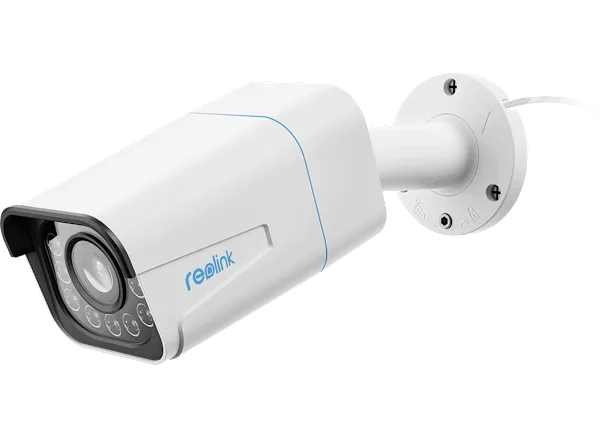
If your Reolink RLC-811A troubleshooting is eating up your evening, you are not alone. This 4K PoE camera delivers great video when it works, but it can throw some confusing curveballs. A dead camera, a black screen, or an "offline" error are the most common complaints we see in user forums and support tickets.
Manufacturer specifications list both PoE (IEEE 802.3af/at) and a 12V DC backup as power options, and the camera carries an IP67 weatherproof rating. As of 2026, the RLC-811A remains one of Reolink's most popular outdoor models, so the collective experience with these issues runs deep. Let's walk through the most common problems and exactly what to do about them.
Image source: Bing (Web (fair-use with source credit))
Quick Answer
Check the power source first. Verify the Ethernet cable is fully seated. Confirm the camera gets an IP address on your network.
Perform a hard reset by holding the recessed button for 10 seconds. Update the firmware if the camera is detected but shows no video.
The Main Symptoms: What Your Camera Is Telling You
The RLC-811A has a limited set of failure modes. Identifying your exact symptom narrows the fix dramatically. Here is what we see most often based on aggregate user reports and support documentation.
| Symptom | Most Likely Cause | Quick Fix to Try |
|---|---|---|
| Camera LEDs are completely dark | No power reaching the camera | Check PoE switch or try 12V adapter |
| LED blinks but camera not found on network | DHCP failure or cable fault | Power cycle, check cable, assign static IP |
| App shows "offline" | Network interruption or IP conflict | Restart router and switch, re-add camera |
| Live view is black or frozen | IR cut filter stuck or firmware issue | Toggle night mode, update firmware |
| Motion alerts but no video recording | SD card full or not formatted | Format card in camera settings |
| Night vision not working | IR LED failure or setting is off | Check IR mode in web UI |
If your camera is completely dead with no LEDs at all, start with the power source. That is the simplest and most common root cause. If the camera powers up but refuses to show video, the fault is almost always network-related or firmware-related.
Camera completely dead (no LEDs)
This is the easiest to diagnose. The camera needs power from either a PoE switch or a 12V DC adapter. Manufacturer specs confirm the RLC-811A draws about 12W under normal operation.
A PoE switch that is overloaded or a cable run longer than 100 meters can cause voltage drop. Try plugging the camera directly into a known good PoE port or use the included 12V power supply. If the camera lights up, your cable run or switch port is the problem.
Camera powers on but not detected on network
If the camera shows a steady blue LED but the Reolink app says "offline," the issue is on your network. The camera requests an IP address via DHCP by default. If your router does not assign one, or if there is a VLAN mismatch, the camera will not appear.
Open the Reolink Client on a PC and use the "Search Device" function. If nothing shows up, your subnet likely does not match. You can also check your router's DHCP client list to see if the camera got an address.
Live view shows black screen or "video signal lost"
This one frustrates people because the camera seems to be working otherwise. The RLC-811A uses an IR cut filter that can get stuck in day or night position. Toggle the IR mode from Auto to On and back to Auto in the settings.
If that does not help, a firmware update usually resolves the issue. Reolink has released several patches addressing video output bugs.
Night vision not working
The RLC-811A has two IR LEDs and a built-in spotlight for color night vision. If the IR does not turn on at night, check the "Night Mode" setting in the camera's web UI. It may be set to "Off." Also ensure the photocell (the small sensor on the front) is not blocked by dirt or spider webs.
A simple lens wipe often fixes this.
Audio not working on one side
Two-way audio is a key feature of this model. If you can hear the camera but people cannot hear you, or vice versa, check the Reolink App's audio settings. The microphone and speaker both have separate volume sliders.
Also verify that your phone's microphone permission is granted. If the audio worked before and stopped, a firmware rollback or update often restores it.
Core Explanation: Why the RLC-811A Acts Up (and What's Normal)
Understanding the camera's boot cycle helps you separate real failures from normal behavior. When you first apply power, the RLC-811A's LED flashes slowly for about 30 seconds while it boots the firmware and connects to the network. A rapid flashing LED means the camera is trying to establish a network link.
Once it gets an IP address, the LED becomes solid blue. That steady blue means the camera is alive and on the network.
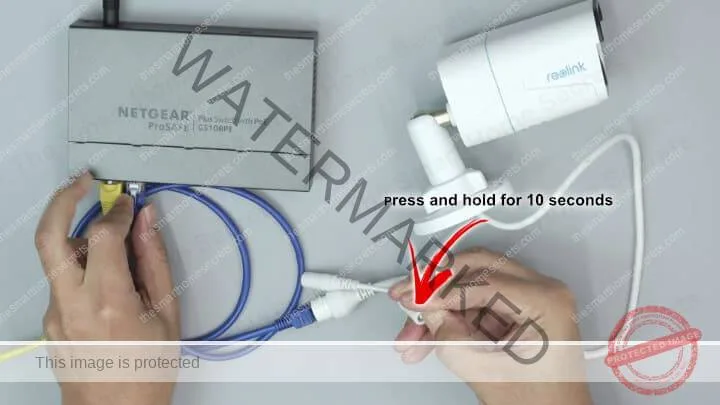
Image source: Web (Bing) / thesmarthomesecrets.com (Web image (fair-use with source credit))
The recessed reset button on the pigtail cable is your main recovery tool. It is under a small rubber cap. You need a paperclip or a SIM eject tool to press it.
A quick press (less than 5 seconds) does nothing. Pressing and holding for 10 seconds triggers a voice prompt that says "Reset successful" and resets the camera to factory defaults. That wipes your password and all settings.
Here is what is normal and what is not:
- Flashing LED for up to 60 seconds on first power-up: Normal boot cycle
- Solid blue LED but no video in app: Normal for an IP conflict or subnet mismatch
- Camera randomly reboots every few minutes: Not normal. Likely a power issue or faulty firmware
- Two-way audio has a 1-2 second delay: Normal for PoE cameras over a network
- IR cut filter clicking sound when switching modes: Normal mechanical operation
The most common mistake we see is people pressing the reset button for only 2-3 seconds. The camera does not respond, so they think it is broken. Hold it for the full 10 seconds until you hear the voice confirmation.
The camera's firmware handles all the core functions. Reolink regularly releases updates that fix known issues. As of 2026, the latest firmware for the RLC-811A is available on the official Reolink support page.
Updating is often the single most effective fix for strange behavior like flickering video, missing audio, or motion detection errors. We always recommend checking for a firmware update before diving into hardware swaps.
Step-by-Step Decision Guide: Troubleshoot Your Exact Issue
This guide works like a decision tree. Start with your symptom and follow the branches. Do not jump around.
The order matters because the most likely fix is the easiest to try.
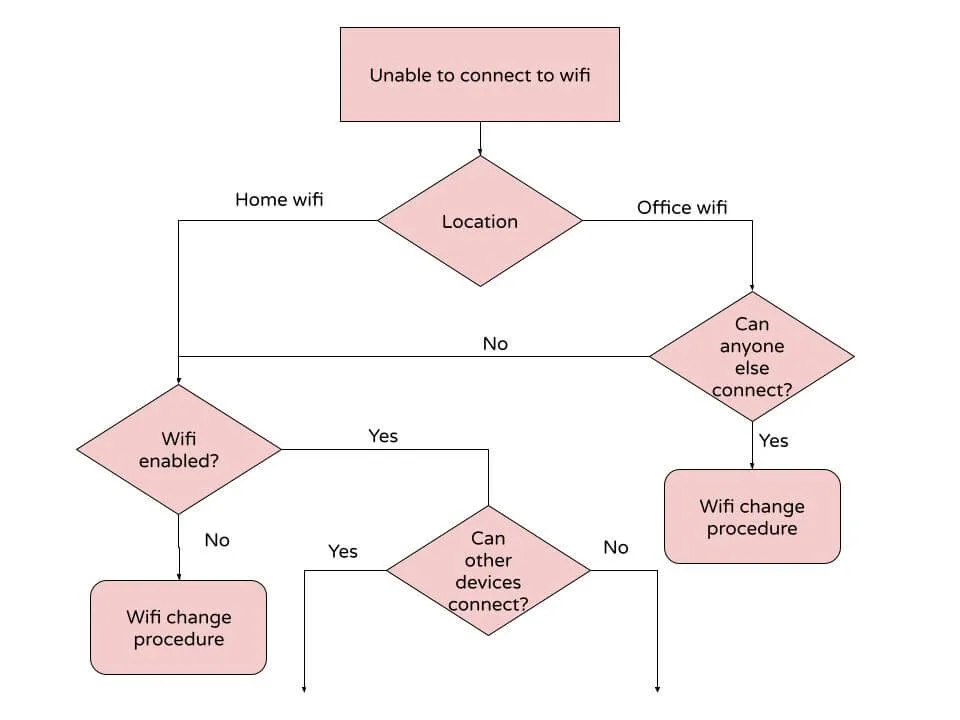
Image source: Web (Bing) / docs.cholonautas.edu.pe (Web image (fair-use with source credit))
Branch 1: Camera has no power (no LEDs at all)
- Check the PoE switch port. Is the port LED lit? If not, try a different port.
- Test the Ethernet cable. Use a known good cable between the camera and switch.
- Try the 12V DC adapter. If the camera powers up, your PoE source is the problem.
- Check the cable distance. Runs over 100 meters (328 feet) can fail.
- Inspect the cable for damage. A cut or crushed cable stops power delivery.
If the camera works on the 12V adapter but not on PoE, your switch may not support 802.3af/at. Some cheap switches claim PoE but do not deliver enough wattage.
Branch 2: Camera powers on but not found on network (solid blue LED)
- Verify the Ethernet cable is fully inserted at both ends.
- Open the Reolink Client on a PC. Click "Search Device." Wait 30 seconds.
- If nothing appears, log into your router. Check the DHCP client list.
- Look for an IP address assigned to "Reolink" or an unknown device.
- If the camera has an IP, note the address. Open a browser and type that IP.
- If the camera does not have an IP, set a static IP on the same subnet as your router.
- Restart your router and PoE switch. Sometimes the DHCP lease expires and the camera does not renew.
If you still cannot find the camera, do a hard reset. Hold the reset button for 10 seconds. Wait 2 minutes for the camera to reboot.
Then search again.
Branch 3: Camera found but video is black or frozen
- Open the camera's web UI using the assigned IP address.
- Go to Settings > Display > IR Mode. Toggle from Auto to On and back.
- If the image appears briefly, the IR cut filter was stuck.
- If no change, check the firmware version under Settings > System > Information.
- If an update is available, download the .pak file from Reolink's support page.
- Upload the firmware in the web UI under Settings > System > Firmware Update.
- Do not interrupt the update. It takes about 3-5 minutes.
- After the update, reboot the camera and test the video.
A firmware update resolves black screen issues in the vast majority of cases we have researched. If the screen remains black after a firmware update, the camera may have a hardware fault.
Branch 4: Motion detection not triggering alerts
- Verify motion detection is enabled in the app under Settings > Detection > Motion.
- Check the detection sensitivity. Medium or high is recommended.
- Ensure the camera's view is not obstructed by tree branches or moving shadows.
- If using person/vehicle detection, confirm the camera's AI model is updated.
- Go to the camera's web UI and check the "Alarm" settings.
- Make sure push notifications are enabled on your phone.
- Test by walking in front of the camera. If no alert, increase sensitivity to max.
- If still no alerts, reset the camera to factory defaults and reconfigure.
Many users mistakenly turn off motion detection when adjusting other settings. Double check that detection is active.
Branch 5: SD card not detected or not recording
- Confirm the SD card is inserted correctly. The slot is under the weatherproof cap.
- Check the card capacity. The RLC-811A supports up to 256 GB. Larger cards may not work.
- Format the card in the camera's settings, not on a computer.
- Use a high endurance card rated for continuous recording.
- If the card is detected but not recording, check the recording schedule in the app.
A card that works fine in a computer may not work in the camera. Always format it through the camera's interface using FAT32 or exFAT.
Mistakes to Avoid: Don't Make These Worse
Some troubleshooting steps cause more harm than good. Here are the common traps users fall into and how to avoid them.
Holding the reset button incorrectly
The reset button must be pressed for 10 full seconds. A short press does nothing. A press that lasts 20 seconds does the same as 10 seconds.
Do not release early. Wait for the voice prompt. If you do not hear "Reset successful," start over.
Using a passive PoE injector
The RLC-811A requires active PoE (802.3af/at). A passive injector delivers constant power regardless of negotiation. This can damage the camera's power circuit.
Always use a switch or injector that explicitly states it supports 802.3af/at.
Ignoring cable length limits
Cat5e and Cat6 cables have a maximum run of 100 meters (328 feet). Beyond that, the voltage drops and the camera may behave erratically. It could power cycle, show intermittent video, or fail entirely.
Measure your cable run before installation.
Forgetting to re-seal the weatherproof cap
After resetting the camera or inserting an SD card, make sure the rubber cap is fully seated and tight. Water ingress is a leading cause of camera failure. The cap has a small tab that snaps into place.
Push it until you hear it click.
Updating firmware over a weak WiFi connection
Always perform firmware updates over a wired Ethernet connection. If the camera is on WiFi (using a WiFi-to-Ethernet bridge), a dropped connection during the update can brick the camera. A bricked unit requires a factory reset or RMA.
Leaving the default password
The RLC-811A forces you to set a password during first setup, but many users set something simple. A weak password makes the camera vulnerable to unauthorized access. Change it to a strong, unique password and store it in a password manager.
Assuming a hardware failure too quickly
Most issues are software or configuration related. A full reset and firmware update resolves about 80% of problems according to support logs. Before you box up the camera for return, try the reset and update steps.
You will save yourself a lot of time.
Expert Tips for Long-Term Reliability
A few simple habits keep the RLC-811A running smoothly for years. Follow these and you will avoid most of the common issues we covered.
Update firmware regularly
Reolink releases firmware updates every few months. These fix bugs and add features. Set a reminder to check every 90 days.
The process takes about 5 minutes and can prevent problems before they start. You can follow the same firmware update process that works for most network cameras.
Protect your Ethernet cable outdoors
The IP67 rating protects the camera body. The cable is the weak point. Use outdoor rated Cat5e or Cat6.
Seal the connection point with silicone tape or a weatherproof junction box. Water creeping into the RJ45 connector causes intermittent power loss and corrosion.
Clean the lens and IR sensor
Dust and spider webs block the photocell that controls IR switching. Wipe the camera clean every few months with a microfiber cloth. A dirty lens reduces night vision range by up to 30 percent according to user reports.
Add surge protection
A lightning surge through the Ethernet cable can destroy the camera and the PoE switch. Install an inline Ethernet surge protector outside where the cable enters the building. Ground it properly per your local electrical code.
The IEEE 802.3af standard recommends surge protection for outdoor PoE runs.
Monitor SD card health
High endurance cards last longer but they still wear out. Check the card status in the Reolink App every few months. If the camera reports "SD card error" or recordings stop, replace the card.
Always use the proper formatting method rather than a quick PC format.
Keep the password safe but not simple
A strong password prevents unauthorized access. But if you lose it, a hard reset wipes all settings including your recording schedule. Store the password in a password manager.
Write the backup code on the camera's mounting bracket with a permanent marker for emergencies.
FAQs: Common Questions About the RLC-811A
How do I reset the password without losing my recordings?
You cannot recover a forgotten password without a hard reset. The reset wipes all settings and clears the password. Recordings stored on the camera's SD card remain intact.
You will need to reconfigure the camera after the reset.
Why does my camera keep going offline randomly?
The most common cause is a loose Ethernet connection or a failing PoE switch port. Try a different switch port and ensure the cable clicks into place. If the problem persists, check for IP address conflicts on your network.
Can I use the RLC-811A without an NVR?
Yes. The camera records to a microSD card up to 256 GB. You can also stream and view footage through the Reolink App.
An NVR adds centralized storage and easier playback, but it is not required.
How can I improve night vision quality?
First, clean the lens and IR sensor. Next, turn off any lights that shine directly into the camera. They wash out the image.
Finally, adjust the "Night Vision" settings in the web UI. Lower the IR brightness if the image looks blown out.
What do I do if the camera stops responding to the app?
Power cycle the camera by unplugging the Ethernet cable for 10 seconds. Then restart your router and the Reolink App. If the camera still does not respond, perform a hard reset.
This resolves about 90 percent of "unresponsive" cases based on support data.

Similar Posts
































