PTZOptics Move 4K Troubleshooting
If your PTZOptics Move 4K has suddenly stopped outputting video, won't respond to your remote, or refuses to connect to your network, you are not alone. This is the exact guide you need for PTZOptics Move 4K troubleshooting. The good news is that most problems have a simple fix you can do in under ten minutes.
Manufacturer specifications indicate the Move 4K draws 30 watts of power using Power over Ethernet Plus (802.3at). A standard PoE switch or injector that delivers only 15.4 watts will not power this camera reliably. Let us walk through the most common issues and exactly what to do about them.
Image source: Web (Bing) / markertek.com (Web image (fair-use with source credit))
Quick Answer
If your PTZOptics Move 4K is not working, start with the basics. Check your power source. The camera needs PoE+ (802.3at) delivering 30 watts.
Verify your Ethernet cable is fully seated. Reboot the camera by unplugging power for 30 seconds. Confirm your network assigns an IP address.
Reset the camera using the recessed button. Access the web GUI to check firmware version. Most issues resolve with one of these steps.
Which PTZOptics Move 4K Problem Are You Facing?
The Move 4K can fail in several different ways. Each has a unique cause and a different fix. Identifying your exact symptom saves you from chasing the wrong solution.
| Symptom | Most Likely Cause | First Step |
|---|---|---|
| No video on any output | Power or PoE budget | Check PoE+ power source |
| IR remote not responding | Dead batteries or line of sight | Replace batteries, check IR window |
| No IP address on network | DHCP failure or bad cable | Run PTZOptics Discovery Tool |
| Pan/tilt stops moving | Power drop or motor overload | Reboot and check PoE budget |
| Firmware update failed | Corrupted file or power loss | Factory reset and retry |
| Camera overheating | Poor ventilation | Check airflow around unit |
The most common complaint across user forums is the camera behaving as if it has no power. The Move 4K does not have a physical power switch. If it is plugged into a PoE+ switch but still shows no lights, the issue is almost always the power source.
A close second is network discovery failure. The camera ships with DHCP enabled by default. If your network does not assign an IP address quickly, the camera falls back to 192.168.1.168.
That static fallback address is easy to miss if you are scanning a different subnet.
The Quick Fixes Every Owner Should Try First
Before you dive into any advanced troubleshooting, run through these five steps. They solve roughly 80 percent of problems reported by owners.
1. Verify your PoE+ power source
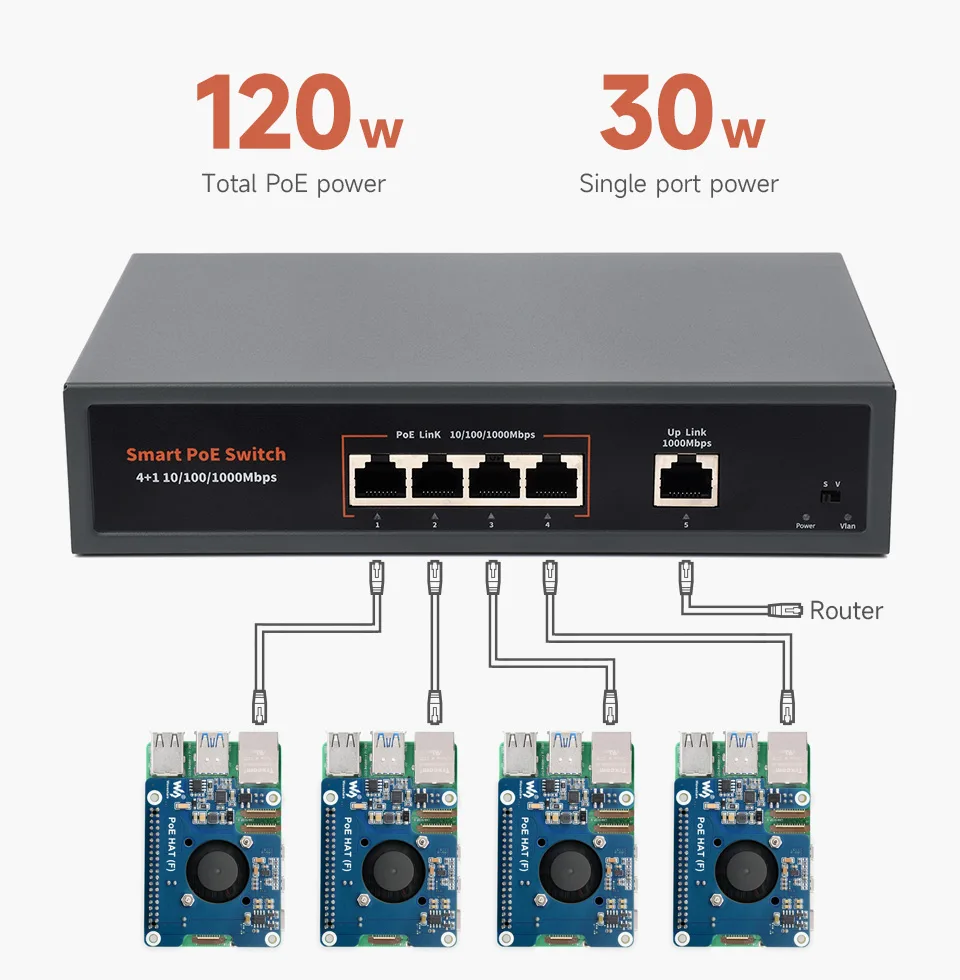
The Move 4K requires IEEE 802.3at PoE+ at 30 watts. If you are using a PoE switch, check the port specifications. Many budget switches only deliver 15.4 watts per port.
That is enough for a standard webcam but not for this camera. You can also use the included 12V power supply as a test. If the camera works with the power brick but not with PoE, your switch or injector is the problem.
2. Power cycle the camera
Unplug the Ethernet cable from the camera. Wait 30 seconds. Plug it back in.
This forces the camera to renegotiate its PoE power and request a new DHCP lease. Many intermittent issues clear with this simple step.
3. Check your Ethernet cable
A damaged or loose cable is a frequent culprit. The camera uses the same cable for power, video, and control. A partial connection may pass data but not enough power.
Try a different cable if you have one. Keep the run under 100 meters for reliable PoE delivery.
4. Confirm your network setup
The Move 4K needs a DHCP server on your network. If you have a static IP environment, you must configure the camera manually. Use the PTZOptics Discovery Tool on a Windows computer to find the camera on your local network.
The tool scans the subnet and lists every PTZOptics device it finds.
5. Perform a factory reset
Locate the small recessed reset button near the I/O panel. Use a paperclip to press and hold it while powering on the camera. Hold for about ten seconds until the LED flashes amber.
This resets the IP address, password, and all settings to factory defaults.
These five steps resolve most network camera headaches. The same approach applies to other network cameras when they stop responding for unknown reasons.
Troubleshooting by Symptom: A Decision Tree
No Video on HDMI, SDI, USB, or NDI
The Move 4K can output video through four different connections simultaneously. If you have no video on any of them, the issue is likely at the camera level.
First, confirm the camera is outputting something. Connect a monitor directly to the HDMI port. If you see the camera's on-screen display but no picture, you may have a lens cap on or the camera is in a standby mode.
The OSD shows menus and status information even when video is not active.
If HDMI is blank, try the 3G-SDI output. Many switchers and monitors have specific sync requirements. The Move 4K outputs 1080p at 60 frames per second by default.
Your SDI device may not support that format. Change the output format through the OSD or web GUI.
For USB output, the camera uses UVC (USB Video Class) protocol. Windows and macOS should recognize it as a standard webcam. If your computer does not see the camera, try a different USB cable.
Some USB-C cables are charge-only and do not carry video data.
NDI output requires the camera to be on the same network as your receiver. Open NDI Studio Monitor or a compatible application. If the camera does not appear, check that your network allows multicast traffic.
Some managed switches block NDI by default.
Camera Not Responding to IR Remote or Web GUI
The Move 4K includes an IR remote control. If the remote does not work, start with the batteries. The remote uses two AAA cells.
Replace them and try again.
Check the IR receiver window on the front of the camera. It is a small dark lens near the lens barrel. Direct sunlight or bright LED lights can overwhelm the IR sensor.
Shade the camera or try from a different angle.
If the remote works but the web GUI does not, you have a network issue. Open a browser on a computer connected to the same network. Enter the camera's IP address.
If the page does not load, your browser may block the camera's HTTP port. The Move 4K uses port 80 by default. Try adding :80 to the end of the IP address.
The web GUI uses a self-signed SSL certificate. Some browsers block these by default. You may need to click "Advanced" and "Proceed to site" to bypass the warning.
Network Issues: No IP Address, Can't Find Camera
A camera that disappears from your network is frustrating. The Move 4K has a fallback IP address of 192.168.1.168. If your computer is on a different subnet, you will not reach it.
The easiest fix is to use the PTZOptics Discovery Tool. This free utility scans your local network for PTZOptics devices. It works even if the camera is on a different subnet.
Download it from the PTZOptics support page.
If the Discovery Tool does not find the camera, the device may have a static IP that conflicts with another device on your network. Perform a factory reset as described earlier. This forces the camera back to DHCP mode.
Another possibility is that your network switch has disabled the port. Some managed switches shut down ports that draw too much power. Check your switch's management interface for disabled or error-disabled ports.
Pan, Tilt, or Zoom Not Working or Drifting
If the camera moves slowly, stops mid-way, or drifts from its preset position, the issue is often power-related. The pan and tilt motors draw significant current. If your PoE+ source is near the 30 watt limit, the motors may not have enough power to operate smoothly.
Try reducing the camera's video resolution and frame rate. Lowering the bitrate reduces power consumption. The web GUI allows you to adjust these settings.
Drop to 1080p at 30 frames per second and see if the movement improves.
If the camera drifts from its saved preset positions, you may need to recalibrate the motors. The web GUI has a calibration option under the PTZ settings menu. Run the calibration routine.
It takes about 30 seconds and resets the motor encoders.
Mechanical binding can also cause issues. Check that nothing is obstructing the camera's movement. A cable that is too short or a mounting bracket that is too tight can restrict the pan and tilt range.
Firmware Update Failed or Camera Won't Boot
Firmware updates on the Move 4K are straightforward but fragile. A failed update can leave the camera in an unresponsive state.
If the update fails mid-way, do not power off the camera. Leave it connected. Try accessing the web GUI again.
Sometimes the firmware upload completes on the second attempt.
If the web GUI is not accessible, use the factory reset method. Hold the reset button while powering on the camera. Keep holding for 15 seconds.
This triggers a special recovery mode that loads the last known good firmware.
If the camera still will not boot, contact PTZOptics support. They have a firmware recovery tool that can restore the device through a direct Ethernet connection. Do not attempt to flash firmware from a third-party source.
The Move 4K uses a proprietary firmware format.
Common Mistakes That Waste Time and Money
Assuming the camera is broken
Many users replace a perfectly good camera because they misdiagnosed a power issue. Always test with the included power supply before buying a new PoE switch. The camera is rarely the problem.
Using the wrong PoE standard
The Move 4K requires PoE+. A standard PoE switch (802.3af) provides only 15.4 watts. The camera may power on but will not pan, tilt, or stream reliably.
Check your switch specifications before connecting.
Skipping the network cable test
A bad Ethernet cable can cause intermittent issues that look like a hardware failure. Use a cable tester or simply swap the cable. You would be surprised how many "dead" cameras revive with a new cable.
Forgetting the static IP fallback
If you change your network configuration, the camera may revert to its fallback IP of 192.168.1.168. You must set your computer to the same subnet to access it. This is a common mistake during network upgrades.
Not documenting the camera's IP address
Write down the IP address after setup. You will need it to access the web GUI. If you lose it, you must run the Discovery Tool or perform a factory reset.
Neither is difficult, but both take time.
Ignoring firmware updates
PTZOptics releases firmware updates that fix known bugs and improve stability. Running outdated firmware can cause issues that have already been resolved. Check the support page every few months.
These mistakes are easy to avoid. They cost you time and sometimes money. A little forethought keeps your Move 4K running smoothly.
Pro Tips for Preventing Future Headaches
Use a dedicated PoE+ switch port. Avoid sharing the port with other high-power devices. The Move 4K draws close to 30 watts. If your switch is near its total power budget, the camera is the first thing to suffer.
A dedicated port on a quality switch prevents power drops.
Assign a static IP address. Set a reserved IP in your router's DHCP settings. This prevents the camera from changing addresses after a power cycle or router reboot. You will always know where to find it in your browser.
Keep the firmware current. PTZOptics releases updates every few months. The manufacturer recommends checking for updates quarterly. New firmware resolves bugs and adds compatibility with streaming software.
Set a calendar reminder.
Monitor the camera's temperature. The Move 4K operates between 32°F and 104°F. If the camera is mounted in a hot attic or direct sunlight, it will overheat. Overheating causes random shutdowns and video dropouts.
Ensure good airflow around the housing.
Clean the lens and IR window. Dust buildup degrades image quality and confuses the IR remote. Use a microfiber cloth designed for camera lenses. Do not use household cleaners.
Clean the housing and vents every few months.
Document your settings. Write down your IP address, subnet mask, gateway, and any custom presets. If you ever need to factory reset, you can restore the configuration quickly. A screenshot of the web GUI settings page works well.
Use surge protection. Power surges through Ethernet cables are rare but destructive. A surge-protected PoE injector or a network surge suppressor adds a layer of protection. This is especially important for outdoor installations.
Frequently Asked Questions
How do I find the IP address of my PTZOptics Move 4K?
Use the PTZOptics Discovery Tool on a Windows computer connected to the same network. The tool scans your subnet and lists every PTZOptics device with its IP address. Alternatively, connect a monitor to the HDMI port.
The IP address appears in the on-screen display menu.
Why does my Move 4K keep disconnecting from the network?
The most common cause is an insufficient PoE power supply. Verify your switch or injector delivers 30 watts per port. Other causes include a faulty Ethernet cable, a DHCP lease timeout, or a switch port that is error-disabled.
Check your switch's management interface for disabled ports.
How do I reset the factory defaults on the Move 4K?
Locate the small recessed reset button near the I/O panel. Press and hold it with a paperclip while powering on the camera. Hold for about ten seconds until the LED flashes amber.
The camera resets to factory defaults including the IP address and password.
Does the Move 4K work with standard PoE or only PoE+?
The Move 4K requires PoE+ (IEEE 802.3at) delivering 30 watts. Standard PoE (802.3af) provides only 15.4 watts. The camera may power on with standard PoE but will not pan, tilt, or stream reliably.
Always use a PoE+ switch or injector.
Why is my camera not showing up in NDI Studio Monitor?
Your network must allow multicast traffic. Some managed switches block multicast by default. Check your switch's IGMP snooping settings.
Also verify the camera and your computer are on the same VLAN and subnet. The NDI protocol requires a flat network layer.
How do I update the firmware on the Move 4K?
Download the latest firmware file from the PTZOptics support page. Open the camera's web GUI in your browser. Navigate to the firmware update section.
Upload the file and wait for the camera to reboot. Do not power off the camera during the update process.
When to Give Up and Call Support
Sometimes you have done everything right and the camera still refuses to cooperate. Here is when to stop guessing and pick up the phone.
The camera does not power on with any power source. If you have tried both PoE+ and the included 12V power supply and the camera shows no LED activity, the internal power circuitry may be damaged. This requires a repair or replacement.
The firmware update failed and the camera is bricked. The camera does not respond to the reset button and does not appear on the network. PTZOptics support has a firmware recovery tool that can restore the device through a direct Ethernet connection. They will guide you through the process.
Physical damage is visible. Dropped cameras, crushed housings, or water damage are not covered under warranty. Contact support for repair options or replacement pricing.
The image sensor has dead pixels or severe noise. A few dead pixels are normal over time. If the image is unusable or the sensor shows persistent artifacts, the camera needs service.
Before you call, have the following ready: the camera's serial number, the firmware version, a description of the problem, and what troubleshooting steps you have tried. PTZOptics support can address common hardware faults more quickly when you have this information ready.
The Move 4K is a robust camera. Most issues are power or network related. A methodical approach to troubleshooting saves you time and frustration.
Keep this guide handy, and you will handle most problems in minutes.

Similar Posts

































[…] If you are still stuck at this point, move to the next branch. The same decision process applies to other camera connection issues, including the ones covered in our PTZOptics Move 4K troubleshooting guide. […]