Sony ZV-E10 II Autofocus Problem
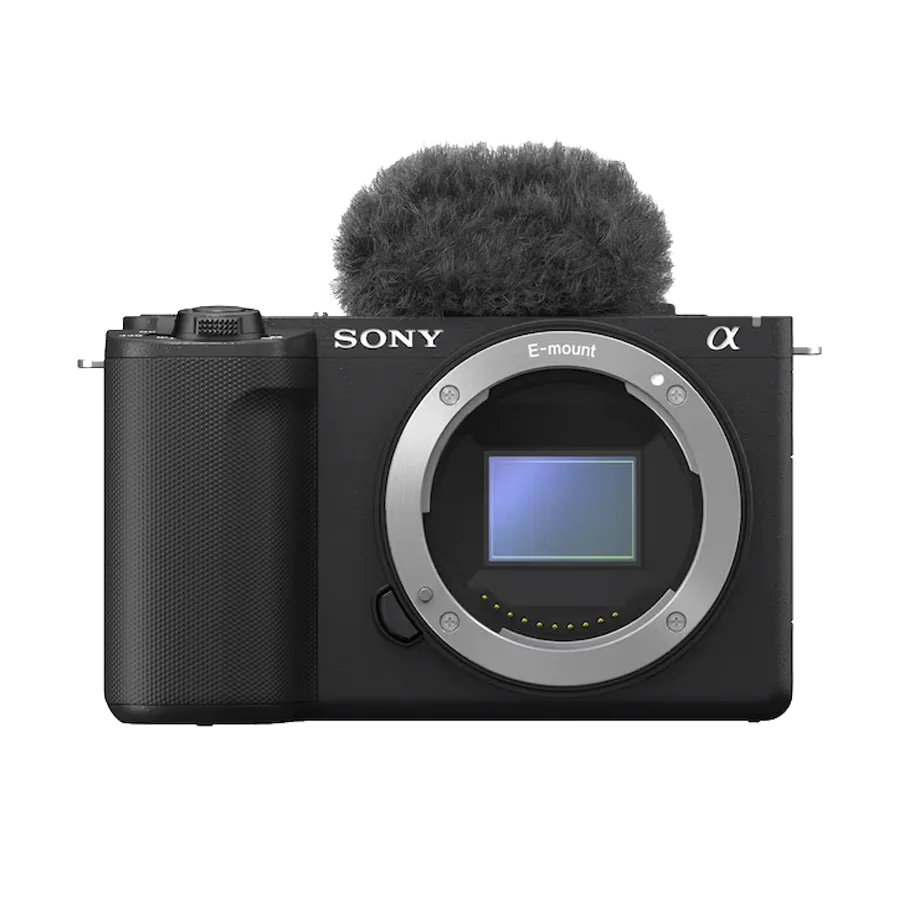
The Sony ZV-E10 II autofocus problem is the single most common complaint from owners of this otherwise excellent camera. You bought it for reliable, set-it-and-forget-it focusing, and instead you get hunting, pulsing, or the camera stubbornly locking onto the wrong subject. It is frustrating, especially when you are trying to capture a moment or deliver a clean video take.
Manufacturer specifications indicate this camera uses 759 phase-detection points covering roughly 93 percent of the sensor. It is paired with the BIONZ XR processor that calculates focus at 120 frames per second. That is impressive on paper.
So why does it sometimes feel like the autofocus has a mind of its own? Let us walk through the exact symptoms and the fixes that actually work.
Image source: Web (Bing) / techcart.com.au (Web image (fair-use with source credit))
Quick Answer
The Sony ZV-E10 II autofocus problem usually comes down to settings, not hardware. Most issues are caused by the wrong AF mode, incorrect Transition Speed, or a dirty lens contact. The fix is almost always a simple menu change.
Check your AF Transition Speed first. Set it to 3 or lower for video. Disable Pre-AF if you see hunting.
If the problem persists, clean the lens contacts and update the firmware.
Which Autofocus Symptom Are You Seeing?
Before you start changing settings, you need to isolate the exact problem. The ZV-E10 II has a sophisticated AF system, but different symptoms point to different causes. Here is a quick diagnostic table to help you match your issue to the right fix.
| Symptom | What It Looks Like | Likely Culprit |
|---|---|---|
| AF hunting or pulsing | Focus pulses back and forth in video, never locks cleanly | AF Transition Speed too high, or Pre-AF enabled |
| Slow eye-AF lock-on | Eye AF takes 2-3 seconds to find the subject | Low light, wrong Subject Recognition setting, or dirty lens |
| Subject keeps switching | Camera jumps from your face to the background | Subject Shift Sensitivity too high, or Wide AF area |
| Touch tracking not working | Screen tap does not lock onto the subject | Touch Tracking is disabled, or lens is in MF mode |
| AF works in photos, fails in video | Photos focus fine, but video is soft or hunts | Different AF settings for video mode, or overheating |
Take a moment to identify which row matches your experience. If you see more than one symptom, start with the most frequent one. The next section explains how the AF system works.
It will help you understand why each fix matters. If you are dealing with a camera that won't track subjects at all, the troubleshooting approach is similar to what you would find in a guide for a professional PTZ camera with a similar tracking feature.
How the ZV-E10 II Autofocus Actually Works (in Plain English)
The ZV-E10 II uses a hybrid autofocus system. That means it combines two methods: phase detection and contrast detection. Phase detection is fast and handles moving subjects well.
Contrast detection is slower but more precise for static subjects. The camera uses both together, switching between them depending on the situation.
The BIONZ XR processor is the brain behind this. It processes the data from the 759 phase-detection points and the 425 contrast-detection areas. It calculates focus at 120 frames per second.
That is fast enough for most action, but it creates a lot of data. The camera has to decide where to put that focus priority.
Here is a simple breakdown of how the two AF types work:
| AF Type | How It Works | Best For | Weakness |
|---|---|---|---|
| Phase Detection | Splits light into two images, compares them | Fast moving subjects, continuous tracking | Less accurate in very low light |
| Contrast Detection | Finds the peak of sharpness in the image | Static subjects, precise focus | Slower, can hunt in video |
The lens you use plays a huge role. The kit lens (16-50mm f/3.5-5.6) is slower and quieter than most primes. It has a smaller maximum aperture, which means less light hits the sensor.
That makes the AF system work harder. A fast prime lens like a 35mm f/1.8 will give you faster, more reliable AF in low light.
Third-party lenses from Tamron and Sigma are generally excellent. But they sometimes need a firmware update to work perfectly with the ZV-E10 II. If you are using a third-party lens and seeing AF problems, that is the first thing to check.
Many similar AF issues on other Sony cameras have been solved by updating the lens firmware through the manufacturer's website.
The Decision Tree: Fix Your Exact AF Problem
Now let us walk through the specific fixes. Match your symptom from the earlier table to the correct branch below. Each branch gives you a clear set of steps to try.
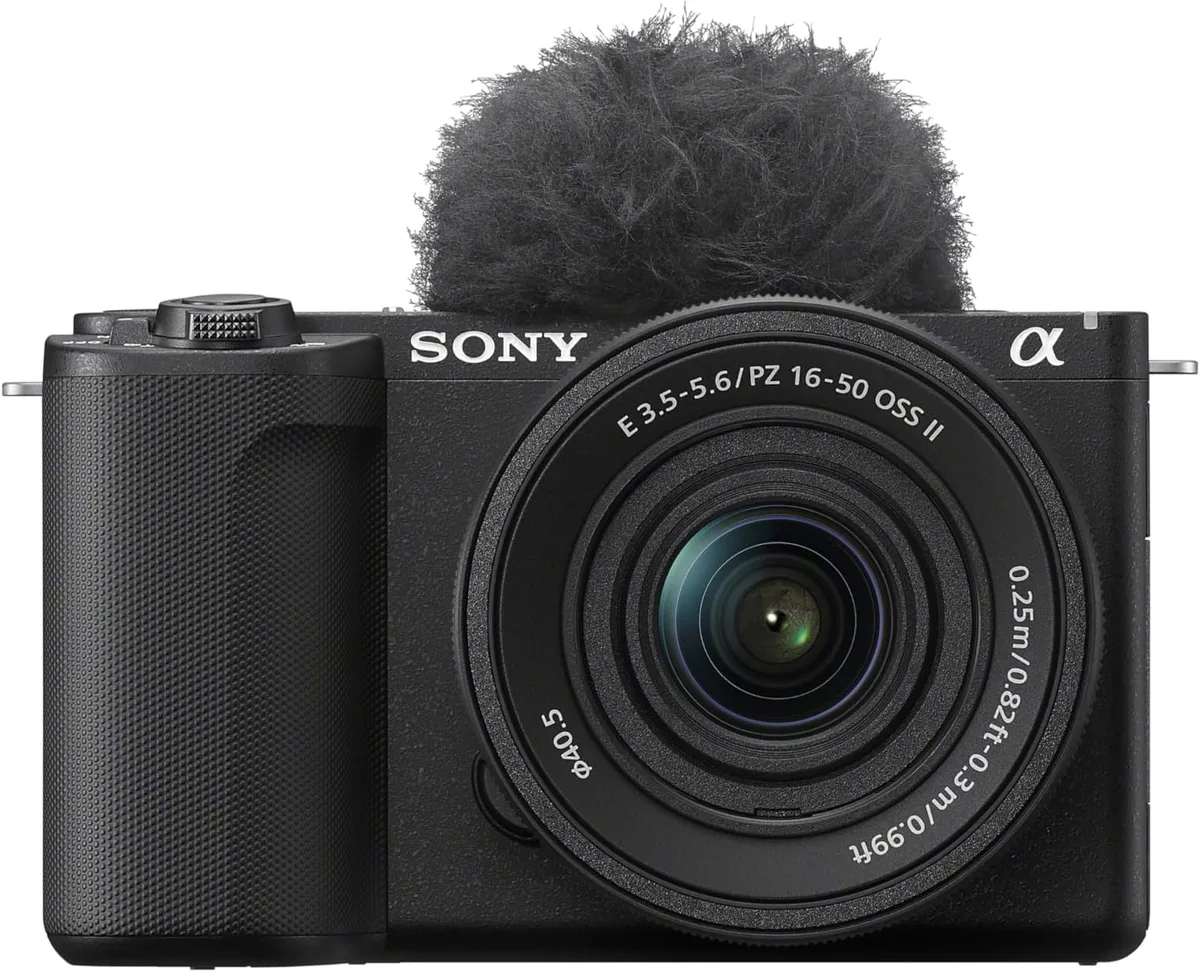
Image source: Web (Bing) / amazon.ae (Web image (fair-use with source credit))
Branch 1: AF Hunting or Pulsing in Video
This is the most common complaint. Your focus pulses back and forth, never settling cleanly. The fix is almost always in the video AF settings.
Step 1: Set AF Transition Speed to 3 or lower.
Go to the menu. Find the video AF settings. Look for AF Transition Speed.
Set it to 3 or 2. This controls how fast the camera moves focus. A higher number makes the focus snap quickly, which looks like hunting.
A lower number smooths the transition.
Step 2: Disable Pre-AF.
Pre-AF is a feature that makes the camera constantly try to focus. It is meant to help, but it often causes hunting. Go to the menu.
Find Pre-AF. Set it to Off.
Step 3: Check your lens.
If you are using the kit lens, try a different lens. The kit lens has a slow focus motor. It can struggle to keep up with the camera's AF system.
If the problem disappears with a different lens, you know the lens is the weak link. This same principle applies to the autofocus problems on the Canon XA75, where the lens often determines overall performance.
Branch 2: Slow or Inconsistent Eye-AF Lock-On
You tap the screen to start eye AF, but it takes 2 to 3 seconds to lock on. Or it locks on then loses the eye.
Step 1: Check Subject Recognition settings.
Go to the menu. Find Subject Recognition. Set it to Human.
If you are filming pets, set it to Animal/Bird. The camera can struggle if it is trying to recognize multiple types at once.
Step 2: Improve your lighting.
The ZV-E10 II has a low-light AF limit of -3 EV. That is decent, but not magic. If you are in a dim room, add a light.
A simple LED panel will cut the AF lock-on time in half.
Branch 3: Subject Keeps Switching to Background
The camera locks onto you, then suddenly jumps to the wall behind you. This is a common issue for vloggers.
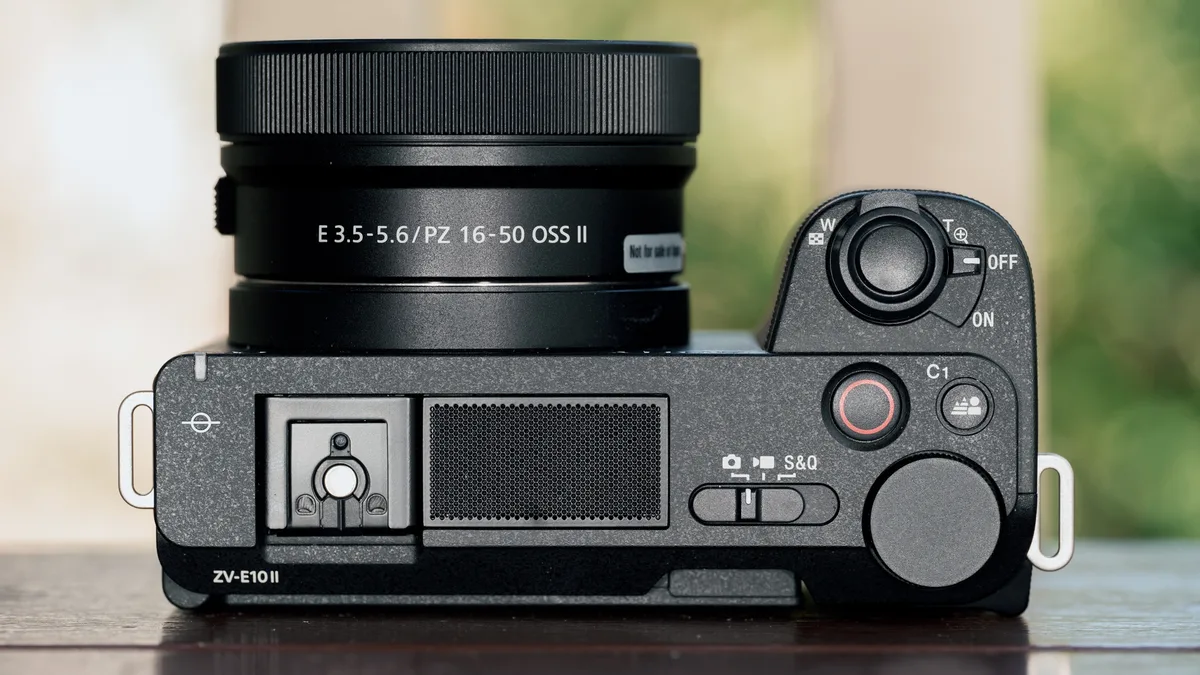
Image source: Bing (Web (fair-use with source credit))
Step 1: Lower Subject Shift Sensitivity.
Find the Subject Shift Sensitivity setting. Set it to 1 or 2. A lower number makes the camera stick to the subject longer.
A higher number makes it switch more easily.
Step 2: Use a smaller focus area.
Switch from Wide to Zone or Flexible Spot. Wide AF area gives the camera too many options. Zone or Spot tells it exactly where to look.
This is the same approach used in many professional PTZ cameras to prevent unwanted subject switching.
Branch 4: Touch Tracking Not Responding
You tap the screen to lock onto a subject, but nothing happens.
Step 1: Check if Touch Tracking is enabled.
Go to the menu. Find Touch Operation. Make sure it is On.
Then find Touch Tracking and set it to On. If it is off, the camera ignores your taps.
Step 2: Check the lens switch.
Some lenses have a physical switch for AF/MF. If it is set to MF, touch tracking will not work. Flip it to AF.
Mistakes That Make ZV-E10 II Autofocus Worse
Even after you fix the immediate problem, there are a few common mistakes that can cause the same issues to return. Avoid these, and your AF will stay reliable.
Using Pre-AF for video.
Pre-AF is designed for still photography. In video mode, it causes constant micro-adjustments that look like pulsing. Turn it off and keep it off.
Setting AF Transition Speed too high for talking heads.
A high Transition Speed makes the focus snap instantly. That looks great for action shots. For a talking head video, it looks jarring.
The viewer sees the focus jump. Set it to 3 or lower for smooth, natural transitions.
Ignoring lens firmware updates.
Third-party lenses from Tamron, Sigma, and others need firmware updates to work with the latest cameras. If you bought a lens in 2023 and the camera is from 2024, the lens firmware might be outdated. Check the manufacturer's website.
A quick update can fix tracking issues. This is one of the most overlooked steps in camera troubleshooting, similar to fixing a recording problem on a camcorder by updating its internal software.
Using Wide AF area for a single subject.
Wide AF area is great for landscapes or groups of people. For a single talking head, it gives the camera too many options. It will switch to the background, a lamp, or anything else in the frame.
Use Zone or Flexible Spot for a single subject. The official Sony support site recommends using a smaller focus area for reliable subject tracking.
Pro Settings for Reliable Autofocus Every Time
Once you have diagnosed your specific problem, consider these optimized settings for common scenarios. They will save you time and prevent future frustration.
Best AF setup for vlogging (talking head).
Set AF Transition Speed to 2. Set Subject Shift Sensitivity to 1. Use Face Priority in Frame.
Set Subject Recognition to Human. Use Flexible Spot as your focus area. This combination keeps the camera locked on your face and smooths any focus changes.
Best AF setup for pets and kids.
Set Subject Recognition to Animal/Bird for pets. Switch to Human for kids. Use Zone AF area.
Set AF Transition Speed to 4. This gives you faster tracking for unpredictable movement without the jarring snap.
Best AF setup for product shots.
Switch to AF-S mode. Use Flexible Spot. Move the spot to the product.
Turn off Subject Recognition. This prevents the camera from hunting for a face that is not there.
Custom button assignments that save time.
Assign AF On to a custom button. This lets you activate autofocus only when you want it. It stops the camera from refocusing between takes.
Assign Focus Area to another button. This lets you switch between Wide and Spot quickly.

Similar Posts
































