Spectrum Internet Outage Troubleshooting

Image source: Bing (Web (fair-use with source credit))
You're mid-scroll, the WiFi icon drops off your laptop, and the smart TV in the next room starts buffering on a loop. You check your phone, still connected to the router but with zero actual internet. Everyone in the house is suddenly looking at you like you run the network.
We've all been there. Spectrum Internet outage troubleshooting doesn't have to be a guessing game, though. There's a logical order to figuring out what's actually broken, and most fixes take under five minutes.
Here's the thing you need to understand right now: roughly 70% of reported internet disruptions trace back to customer premises equipment, not the provider's network itself. In plain terms, that means your modem and router are usually the problem. But before you start unplugging everything like it's a game of Jenga, you need to figure out whether the issue is even on your side of the cable.
That's exactly where we're headed.
Quick Answer
Check Spectrum's outage map first. If there's a reported outage in your area, wait it out. If the map is clear, power cycle your modem and router.
Wait 30 seconds before reconnecting.
Test a wired connection directly to the modem. If that works, the problem is your WiFi router. Check your coaxial cable connections and signal levels.
Call Spectrum support if issues persist.
Is It a Spectrum Outage or Your Equipment?
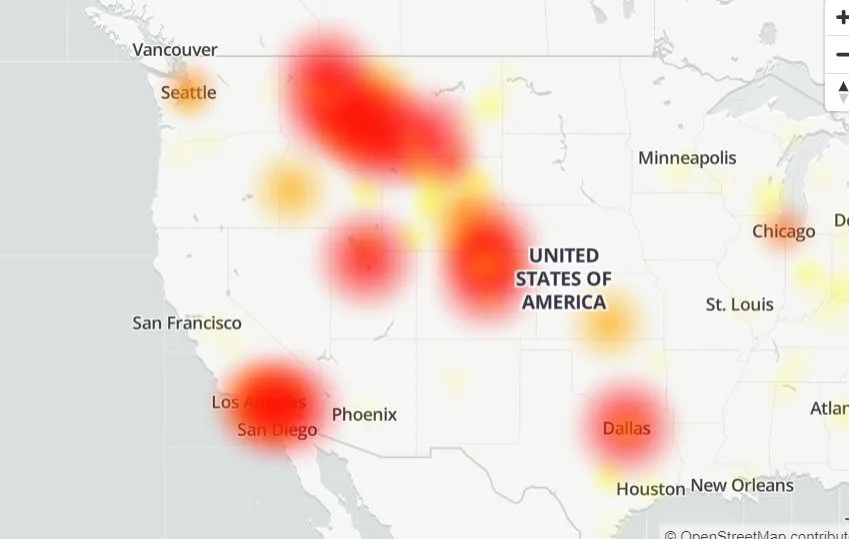
Image source: Bing (Web (fair-use with source credit))
The very first question you need to answer is a simple one: is this a Spectrum-wide problem, or is it just your house? Getting this wrong means you'll waste twenty minutes resetting equipment for nothing. The fastest way to check is the Spectrum outage map, which you can access either through the My Spectrum app or through their website.
If there's a flagged outage near your zip code, the issue is on their end. You can also check third-party sites like Downdetector, which aggregate user reports in real time. If you see a spike in complaints matching your area, that's a pretty strong indicator a regional problem exists.
If the map shows nothing, look at your neighbors. That sounds nosy, but it's genuinely useful. If their internet is working fine and yours isn't, the problem is inside your home.
If your neighbors are also down, it's likely a node or tap issue on Spectrum's infrastructure. That happens more often than you'd think, especially in older neighborhoods where the coaxial plant is decades old. In that situation, no amount of router resetting will help.
You might as well wait it out or call Spectrum directly to report it.
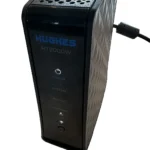
Another quick check is the status lights on your modem itself. This is where you'll see a clear signal. A solid blue or green light on the modem typically means you have a good connection to Spectrum's network.
Flashing lights, or worse, a red or orange light, indicate a signal problem. That points to something physically wrong, like a damaged cable or an issue on the pole outside your house.
A blinking "Online" light on a Spectrum modem usually means the modem is in a reboot loop or failing to lock onto the downstream channel. That's a classic equipment problem. If that's what you're seeing, skip the outage map entirely and move straight to the power cycling section.
A factory reset might be needed later, but the first step is always a clean reboot.
The Quick Diagnostic Flowchart (Start Here)
When your internet goes down, you run a simple decision tree. It doesn't matter if you're not technical. You just need to work through this in order.
The order matters because each step eliminates a potential cause, narrowing the field until you find the actual culprit.
Here's the flowchart in plain language:
Step 1: Check the Spectrum outage map.
If there's a reported outage, stop here. Wait for Spectrum to resolve it. You can sign up for alerts through the app.
If there's no outage, move to Step 2.
Step 2: Check all your devices.
If your laptop, phone, and TV are all offline, the issue is network-wide.
If only one device is offline, restart that device first. Sometimes it's just a stuck network stack.
Step 3: Test a wired connection directly to the modem.
Unplug your router, plug a computer straight into the modem via Ethernet, and see if you get internet. This is the most important test you'll run.
If the wired connection works, your router is the problem. Move to the WiFi troubleshooting section.
If the wired connection also fails, the problem is the modem or the incoming signal.
Step 4: Power cycle the modem.
Unplug it, wait 30 full seconds, plug it back in. Watch the lights sync up. This is the most common fix for a dead connection.
If the modem doesn't come back online after a few minutes, you're looking at a signal problem or a hardware failure.
Step 5: Call Spectrum if nothing works.
Skip the long phone menus if you can. Use the "Call Me Back" feature in the My Spectrum app, which holds your place in the queue.
The key takeaway here is that you're isolating the problem step by step. You're not guessing. You're using a logical elimination process.
That's exactly the way a field technician would approach it.
Step-by-Step: Power Cycling the Right Way
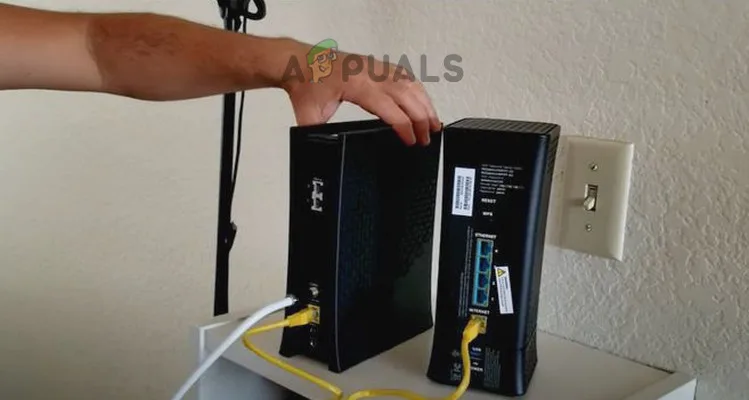
Image source: Bing (Web (fair-use with source credit))
Everyone says "just restart your modem," but very few people do it correctly. They yank the cable out, count to three, and plug it back in. That's almost useless.
The modem needs enough time to fully discharge its internal capacitors. If you don't let it drain, the problem comes right back because the modem boots up with the same glitched state.
Here's the exact sequence that works:
Unplug the modem from power. Do this at the wall outlet, not by pulling the barrel connector out of the back. Pull the wall plug, and you cut power at the source.
If you have a separate router, unplug that too. Most Spectrum setups have either a combined gateway or a separate modem and router. Unplug both.
Wait 30 full seconds minimum. Time it. Thirty seconds feels much longer than you think. Count it out loud.
The wait allows all the capacitors to drain completely. Most technicians recommend 30 to 60 seconds. One minute is better, and it doesn't cost you anything.
Plug the modem back in first. This is critical. The modem needs to establish a connection with Spectrum's network before the router knows how to connect. Give it time to boot and lock onto the cable channels.
This takes anywhere from 2 to 5 minutes. Watch the lights. The "Online" or "Internet" light should go solid, not stay blinking.
Once the modem is fully online, plug the router back in. Wait another 2 minutes for the router to establish its own connections and hand out IP addresses to your devices. If you plug everything back in at once, both devices compete for power and signal negotiation. A sequential boot always works better.
The modem is back online when the "Online" light is solid. It's not enough for just the "Power" and "DS" lights to be on. The actual data light needs to sync.
If you're looking at a Spectrum-branded modem, a solid blue light indicates full connectivity in most models.
If you have a battery backup, check it before power cycling. Some Spectrum modems, especially older models, have built-in battery backups. You need to unplug that battery or remove it before the power cycle.
Otherwise, the modem stays powered and never actually resets.
Checking Your Signal Levels: What the Numbers Mean
Alright, you've power cycled, the lights say things should be working, but your internet is still crawling. This is where you need to look under the hood. Every cable modem has a diagnostic page that tells you exactly what signal it's receiving from Spectrum.
You don't need any special tools, just a laptop or phone connected to the network.
Open a browser and go to 192.168.100.1. That's the standard gateway address for most Spectrum and DOCSIS 3.0/3.1 modems. If that doesn't work, check the sticker on the bottom of your modem for the exact address. You're looking for a page labeled "Status," "Signal," or "Connection."
Here's what you're looking for, based on DOCSIS 3.1 specifications levels:
Downstream Power: This measures the signal coming from Spectrum to your modem. The acceptable range is roughly -10 dBmV to +10 dBmV. The ideal number sits somewhere between 0 and 5 dBmV. If you see something like -20, you have a weak signal.
Upstream Power: This measures your modem talking back to Spectrum. The acceptable range sits between 30 and 50 dBmV. The sweet spot is around 40 to 45. If the modem is cranking out 55 dBmV or higher, it's struggling to be heard.
Signal-to-Noise Ratio (SNR): This measures how clear your connection is. Higher is better. You want to see anything above 30 dB. Lower numbers mean noise is corrupting your data, which translates to packet loss and slow speeds even when you're "connected."
If your numbers fall outside these ranges, you have a physical cabling issue. This is almost never a software problem you can fix. The issue is likely a bad connector, a damaged coaxial cable, or water getting into the line outside your house.
Most self-diagnosed signal issues trace back to loose or corroded coax fittings.
Here's a quick reference table to make sense of it:
| Signal Metric | Acceptable Range | Ideal Range | What It Means If Off |
|---|---|---|---|
| Downstream Power | -10 to +10 dBmV | 0 to +5 dBmV | Weak or overloaded signal |
| Upstream Power | 30 to 50 dBmV | 40 to 45 dBmV | Modem can't reach Spectrum |
| Downstream SNR | 30+ dB | 35+ dB | Signal clarity is too low |
Now, here's the honest part. You can check these numbers and understand them, but you probably can't fix a bad signal yourself. You can check your in-home coaxial cables for obvious damage like severe kinks, exposed copper, or corrosion.
That's a physical inspection you can do. If you find a bad cable, you can replace it with a new RG-6 coaxial cable.
But if the signal is bad at the modem and your inside cables look okay, the problem is the drop line coming into your house or something at the tap on the pole. That's a Spectrum truck roll situation. Call it in and save yourself the headache.
You're not going to fix a water-damaged fitting three floors up.
WiFi vs. Wired Connection: Isolating the Problem
Let's say your signal levels are perfect, the modem is online, and your internet works when you plug a laptop directly into the modem. That means Spectrum's network is fine. The problem lives in the WiFi side of things.
This is the most common fix, so be patient and work through these steps.
First, confirm the problem is WiFi-only. Hardwire a device into your router or modem and browse to a few heavy sites. If everything loads instantly on the wired connection but your phone or laptop crawls on WiFi, you're looking at a wireless issue, not an internet issue. That's an important distinction, because your router can have a perfectly good internet connection and still broadcast a terrible WiFi signal.
The usual WiFi culprits in a home are literally predictable. One, you're too far from the router. Two, the signal is blocked by something physical like a thick wall or a metal appliance.
Three, your router is sitting in a cabinet or behind your TV, which traps the signal and spreads the heat. Four, you're on the same WiFi channel as six of your neighbors. Spectrum's default router settings usually handle channel selection automatically, but older routers or ones that have been manually configured get stuck on crowded channels.
Move the router first. The most effective fix is often the cheapest one. A router should be in a central location, elevated, and out in the open. Not in a closet.
Not behind your entertainment center. If it's on the floor, put it on a shelf. This genuinely changes your coverage in most homes.
Second, check which band you're on. Most modern Spectrum routers broadcast both 2.4 GHz and 5 GHz bands. The 2.4 GHz band travels farther but is slower and more susceptible to interference. The 5 GHz band is faster but has a shorter range.
If you're far from the router and everything loads slowly, you're probably on 2.4 GHz. If you're close and still slow, you might have your device negotiating with the wrong band.
You can split the bands in the router settings so you can connect to them manually. If you do that, name them differently, like "NetworkName_2G" and "NetworkName_5G." That way your phone always latches to the better band for its location.
Third, reboot your router a second time if you've made changes. WiFi settings and channel changes don't always apply cleanly without a restart. Give it a proper power cycle and reconnect all your devices.
Fourth, check the channel congestion. You can use a free WiFi analyzer app on your phone to see which channels are the busiest in your building or neighborhood. You want to pick a channel that isn't heavily used. In the 2.4 GHz space, channels 1, 6, and 11 are the only non-overlapping choices.
If your neighbors are all on channel 6, choose 1 or 11.
If you've done all of that and your WiFi is still dropping or crawling, look at the router's age. WiFi 5 routers, which have been standard for years now, support theoretical speeds up to 3.5 Gbps, but they degrade with heat and time. Spectrum-provided routers typically hold up fine for 2 to 3 years before performance dips noticeably.
When the router itself is the bottleneck, no amount of configuration gets you out of it. You don't necessarily have to rent Spectrum's router forever. The company allows you to use your own compatible modem and router.
That can save you a monthly fee and give you better control over your settings. Just check the approved modems list on Spectrum's website before you buy, because they maintain a specific compatibility list.
If your wired connection is also slow, by the way, you've already eliminated WiFi as the issue. Don't keep tweaking router channels if a hardwired PC is crawling. Check your speed test results against your subscribed plan first.
Then check your signal levels, because slow-but-working usually means borderline signal, not an outage.
When to Call Spectrum Support
You've done the flowchart. You've power cycled. You've checked your signal levels.
You've moved the router around your house like it's a piece of modern art. But the problem is still there. This is where you need to make the call.
There are a few situations where you should skip the self-diagnosis and contact Spectrum immediately:
- Signal levels are far outside the acceptable range. If your downstream power is sitting at -20 dBmV or your upstream is pushing 55 dBmV, you have a physical plant problem. No amount of resets fixes that.
- Your modem won't lock onto the upstream or downstream channels at all. If the lights keep cycling through the boot sequence without ever going solid, the modem is either failing or it can't hear the network.
- You see physical damage to the drop line. If the cable coming into your house from the pole or the underground pedestal is cut, chewed by animals, or showing exposed copper, don't touch it. That's Spectrum's responsibility.
- Your neighbors are also having problems. If you confirmed it's not just your house, it's a node issue. Spectrum needs to roll a truck to fix the tap or the amplifier.
Here's a practical tip for the phone call itself. Skip the long phone menus if you can. Use the "Call Me Back" feature in the My Spectrum app, which holds your place in the queue.
That way, you're not sitting on hold with the phone pressed to your ear for forty-five minutes. You can go about your day, and the phone rings when a representative is actually available.
When you do get a technician on the line, be ready to give them specifics. Don't just say "my internet is slow." Say "my downstream power is reading -15 dBmV and my upstream is at 50. I've already power cycled, and the modem won't lock onto the upstream channel." That tells the technician exactly where to start.
It saves you both time.
If the technician asks you to power cycle again, just do it. It's a scripted step for them, and it takes two minutes. But if they keep asking you to reset and you've already told them your signal levels are bad, firmly remind them that the issue is physical, not configurable.
You're not being difficult; you're just saving everyone time. Their dispatch system will eventually route a truck to your house, and you'll be ahead of the queue because you did your homework.
What About Weather-Related Outages?
Severe weather is one of the few times you genuinely just have to wait. Heavy rain, lightning strikes, and high winds all wreak havoc on cable infrastructure. Water gets into fittings, tree branches take down lines, and lightning surges fry equipment at the tap.
If a storm just rolled through and your internet is dead, check the outage map first. In these situations, the outage map usually lights up like a Christmas tree. If there's a reported outage, you're waiting.
There's nothing else to do. The average storm-related outage resolves within a few hours, but major events like hurricanes can take days.
One thing you should do after a lightning storm: check your modem and router for physical damage. A surge can travel through the coax line and kill both devices even if they were plugged into a surge protector. If your modem's power light won't come on after a storm, the device is likely fried.
You'll need to replace it or have Spectrum swap it out. If you rent your modem from Spectrum, they'll replace it for free. If you bought your own, you'll need to buy a new one.
Lightning strikes are also a good reminder to check the grounding on your cable line. The coax drop should be grounded to your house's electrical ground, usually at the point where it enters the home. If you see a loose ground wire or no ground at all, call Spectrum to fix it.
That's a safety issue, not just a reliability one.
The Equipment Factor: Modem and Router Age
Let's talk about the gear itself, because it deserves its own section. Cable modems and routers are not built to last forever. They're consumer electronics, and consumer electronics wear out.
The average lifespan of a cable modem, based on general equipment lifecycles, is about 3 to 5 years. If you've been running the same modem for six years, you're past the expected service window. The capacitors age, the heat cycles take their toll, and the software gets buggier with each firmware update.
A tired modem will drop connections, run hot, and deliver speeds far below what you're paying for.
Routers have a similar lifespan. A good router can last 4 to 5 years, but it won't perform like new after year three. The WiFi part is the first thing to degrade.
Heat is the biggest enemy, and most routers sit in poor ventilation spots. If your router's case feels hot to the touch, that heat is cooking the internal components.
If your equipment is old and you're troubleshooting persistent issues, sometimes the fix is just replacing the hardware. It's not glamorous, but it's honest.
Here's the breakdown of your options:
| Option | Pros | Cons | Best For |
|---|---|---|---|
| Rent Spectrum's modem/router combo | No upfront cost; instant replacement if it fails; tech support handles it | Monthly fee adds up over time; less control over settings | People who don't want to manage equipment |
| Buy your own modem | No rental fee; better hardware specs; you control firmware | Upfront cost; you're responsible for replacements; must be on Spectrum's approved list | People comfortable with self-installation |
| Buy your own router | Better WiFi coverage; advanced features like mesh support; no rental fee | Adds complexity; you handle all setup | People with larger homes or specific needs |
If you do buy your own modem, check Spectrum's approved list first. They maintain a specific compatibility list, and using an unapproved modem will cause boot loop issues or reduced speeds. Get a DOCSIS 3.1 modem at minimum.
The 3.0 models are nearly a decade old at this point and cap out at lower speeds.
A DOCSIS 3.1 modem will handle gigabit-class speeds and has better signal processing. It's a worthwhile upgrade if you're replacing aging gear. A standard DOCSIS 3.1 model from a reputable brand costs between $60 and $120.
If you plan to stay with Spectrum for more than a year, buying your own modem pays for itself in rental fee savings.
When the Fix Is Actually on Your Side: Speed and Data Caps
Sometimes the problem isn't signal levels or hardware. Sometimes it's just how you're using the connection.
Spectrum doesn't enforce strict data caps on residential plans, but heavy usage patterns can still cause issues in specific neighborhoods. During peak evening hours, the local node can get congested. If everyone on your block is streaming 4K video at 8 PM, your speeds will drop, even if your signal levels are perfect.
If you notice a pattern where your internet is fine during the day but crawls every evening, you're likely experiencing network congestion at the node level. That's not something you can fix with a router reset. It's a capacity issue on Spectrum's end, and they may or may not be actively upgrading infrastructure in your area.
If you want to check your actual speed, use a reliable speed test tool like Speedtest.net or the one built into the My Spectrum app. Run it at different times of day to see if there's a pattern. Then compare that number to the plan you're paying for.
If you're on a 300 Mbps plan and you're consistently seeing 150 Mbps during peak hours, that's congestion.
If you're seeing 30 Mbps on a 300 Mbps plan, that's a different story. That's a signal or equipment issue, and you should work through the troubleshooting sections above.
Final Tips for a Stable Connection
Once you've fixed the current outage, take a few minutes to prevent the next one. A little proactive work goes a long way:
- Label your cables. If you have multiple coax and ethernet cables behind your entertainment center, label both ends. When something goes wrong at 11 PM, you won't want to trace cables by hand.
- Keep your modem and router in a well-ventilated area. Heat kills electronics. Don't stack them on top of each other. Don't put them in a closed cabinet. Give them room to breathe.
- Update your firmware. Check the manufacturer's app or web interface for firmware updates every few months. Many reliability issues get fixed in firmware patches.
- Restart your equipment monthly. A quick scheduled reboot, say once a month, clears out any memory leaks or stale connections before they become a problem. You don't need to do it weekly; that's overkill. Monthly keeps things fresh.
From start to finish, the steps are straightforward. Check the outage map, power cycle correctly, verify your signal levels, isolate WiFi vs. wired, and call Spectrum when the problem is physical. You're not just throwing darts at a board.
You're running a logical elimination process that gets you back online as fast as possible.

Similar Posts