Jitterbug Phone Troubleshooting
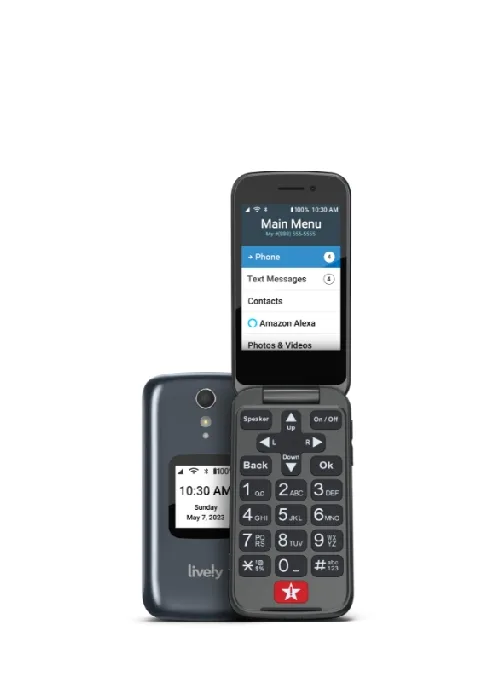
Image source: Bing (Web (fair-use with source credit))
Your Jitterbug phone is more than just a device, it's your connection to family, doctors, and emergency services. When it stops working right, it's stressful. But here's the good news: most Jitterbug problems have simple fixes you can handle at home in minutes.
We've gone through manufacturer documentation, user reports, and support guides to bring you clear, step-by-step solutions. Whether you're dealing with a frozen screen, dropped calls, battery drain, or hearing aid connection issues, this guide walks you through exactly what to do.
Let's get your phone working again.
Quick Answer
Start with the basics: check power, signal, and volume. Restart your phone to clear minor software glitches. Toggle Airplane Mode to refresh your network connection.
If the screen is frozen, do a forced restart. For battery issues, clean the charging port and check your charger.
Most problems are software-related and fixable at home. If you're still stuck after working through these steps, contact Lively customer support for advanced diagnostics or warranty service.
Jitterbug Won't Turn On or Screen Is Frozen
A dead screen is alarming. But in most cases, it's a software hiccup, not a hardware failure. Here's how to work through it.
Check the Power First
Plug your phone into the charger that came in the box. Use a wall outlet, not a computer's USB port, computers often don't deliver enough power. Leave it charging for at least 15 to 20 minutes.
Here's something most people don't know: when the battery is completely drained, the phone needs time to "pre-charge" before it can even show the charging icon. So don't give up after two minutes. Give it a full 20 minutes to wake up.
Do a Forced Restart
If the phone charges but the screen stays black, the operating system is likely frozen. A forced restart clears this.
Press and hold the Power key and the Talk (green phone) button at the same time. Keep holding for 10 to 15 seconds. Don't let go when the screen flashes, hold through it.
The phone will vibrate or show the startup logo when it reboots.
This is the equivalent of unplugging your router to reset it. It clears temporary software issues that cause the screen to freeze.
Check the Side Switch
Some Jitterbug models have a switch on the side that silences notifications and turns off the screen. If this switch is in the wrong position, the phone might appear to be off when it's actually just in silent mode. Flick it up and down a few times to make sure it's seated properly.
Still Not Turning On?
If the forced restart doesn't work, leave the phone plugged in for a full hour. Then try the forced restart again. Lithium-ion batteries can occasionally get into a state where they need a slow, steady charge before they respond.
If the screen still won't come on after all this, it's likely a hardware problem. Jitterbug phones are built to be reliable, so sudden hardware failures are rare. But they happen.
At this point, call Lively's support team for warranty service.
No Signal, No Service, or Dropped Calls
Image source: Bing (Web (fair-use with source credit))
Seeing "No Service" on your screen is isolating. Before you think about switching carriers, let's run through the likely fixes.
Jitterbug phones operate on major U.S. networks, specifically Verizon's network. Coverage is generally excellent, but even the best networks have gaps. Here's how to find yours.
Toggle Airplane Mode
This is the first thing tech support will have you try, and it works more often than you'd think.
Swipe down to open your quick settings. Turn on Airplane Mode. Wait 30 seconds.
Turn it off. This forces your phone to re-register with the nearest cell tower and refresh its connection to the network.
Check for Network Outages
Even major carriers have localized outages. Check the status page on your carrier's website. If there's a reported outage in your area, the problem isn't your phone, it's the network.
Wait it out and try again in a few hours.
Remove and Reinsert the SIM Card
A loose or dirty SIM card can cause signal problems. Here's how to fix it:
- Turn the phone off.
- Find the SIM card tray (usually on the side or under the battery).
- Use the included tool or a paperclip to pop it out.
- Check the gold contacts for grime or oxidation. Gently wipe them with a soft, dry cloth.
- Reinsert the SIM card firmly.
- Power the phone back on.
This simple step resolves many connectivity issues.
Move Toward a Window
This sounds too simple to work, but it's a real solution. Building materials like brick, concrete, and metal foil insulation block or weaken signals. If you're inside, moving closer to a window can dramatically improve reception.
Check Your Coverage Map
If you consistently see "No Signal," you might be in a genuine dead zone. Check the official coverage map for Jitterbug's network to see if your address falls in a weak area. If it does, you might need a signal booster for your home.
These devices amplify the existing network signal to a usable level.
Texting Won't Send or Receive
Texting is a lifeline for many Jitterbug users. It's quick, simple, and doesn't require hearing a ringing phone. When messages fail, it's frustrating.
The issue is often tied to your APN (Access Point Name) settings.
Think of the APN as a gateway. It tells your phone how to connect to the carrier's messaging servers. If these settings get corrupted, texts and picture messages fail.
Here's how to fix them.
Check Your Network Mode
Sometimes the phone defaults to a network mode that doesn't support picture messages (MMS). Go to Settings > Network > Connections. Make sure it's set to "Global" or "LTE/3G" rather than "LTE only." Toggle this setting and test a text.
Verify Your Message Center Number
This is a hidden setting that tells your phone where to send texts. It's a special number assigned by your carrier. If it's wrong or blank, your texts fail silently.
You can find this under Settings > Messaging or Text Settings. It's usually labeled "Message Center" or "SMSC." If it's empty, you'll need the correct number for your carrier. Lively support can provide this if you can't find it in your documentation.
Turn Off Wi-Fi to Test
When you're on Wi-Fi, your phone might try to send texts using that connection. If your internet is slow or configured incorrectly, the text will fail.
Turn off Wi-Fi, leaving cellular data on, and try sending a message. If it works, you've found the problem. Your Wi-Fi network needs a stricter security protocol.
Perform a Soft Reset
If you're still having trouble, do a soft reset. This means removing the battery (if possible) or holding the power button to fully shut down, then restarting. This refreshes the connection to the network and clears temporary data glitches that block texting.
Battery Draining Fast or Charger Not Working
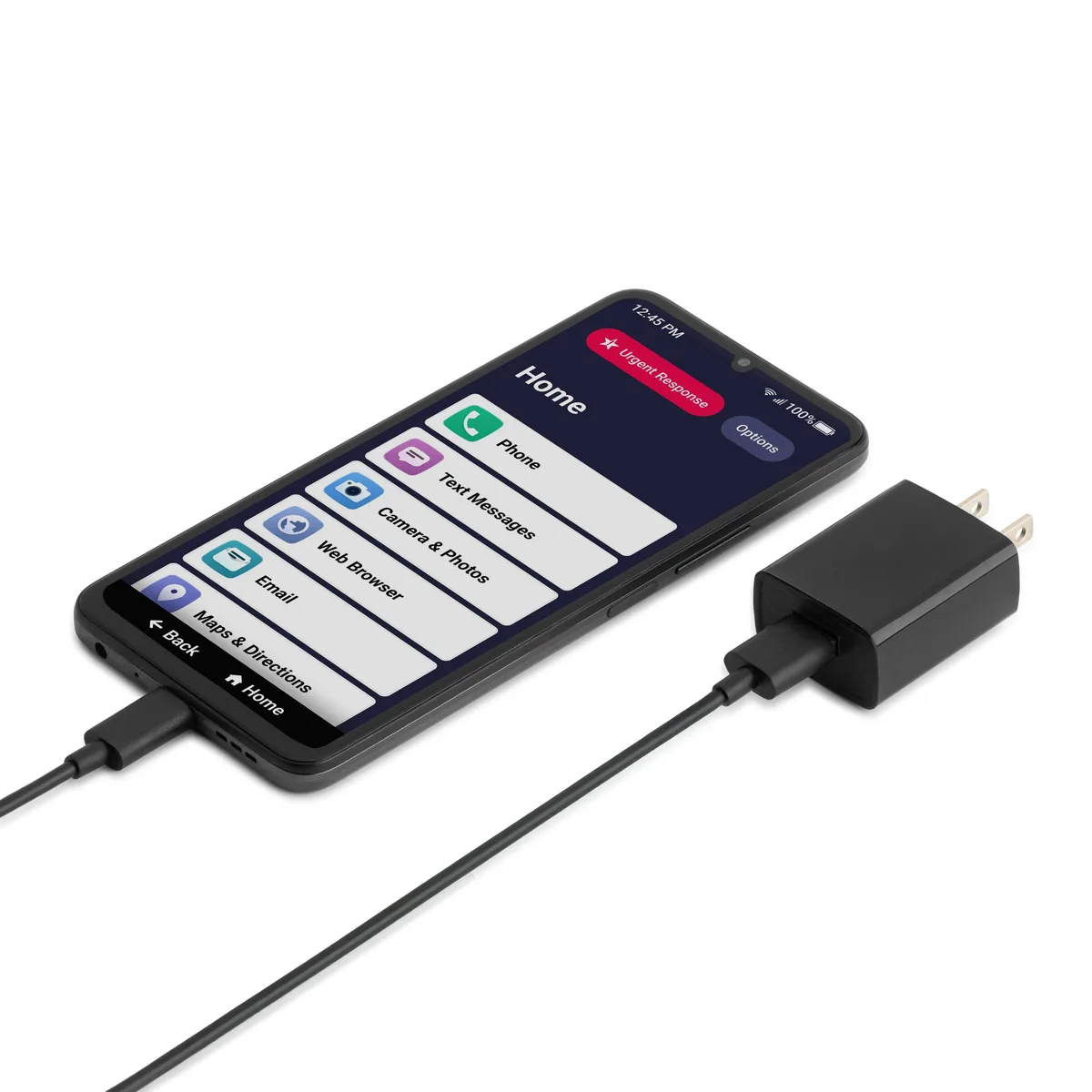
Image source: Bing (Web (fair-use with source credit))
A phone that dies by afternoon is useless. Jitterbug phones have excellent battery life, typically rated for 7 to 10 days of standby. But apps, background processes, and weak signals can drain it faster.
Charging issues are equally annoying, but both are usually fixable.
Clean the Charging Port
This is the number one cause of charging problems. The charging port collects dust, lint, and pocket fuzz. Over time, this prevents the charger from making a solid connection.
Use a wooden toothpick or a can of compressed air to gently clean out the port. Do NOT use metal. Metal can short-circuit the pins and permanently damage your phone.
Check the Charger and Cable
Cables fail, and so do wall adapters. Try a different cable that you know works. Also, make sure you're using a charger with the correct amperage.
A low-power charger from an older phone might charge very slowly, or not at all if the screen is on.
Close Background Apps
Double-press the Home or recent apps button. Swipe away any apps you aren't using. Apps running in the background are the biggest battery drain.
Social media, weather apps, and email polling all suck power when you're not looking.
Lower Screen Brightness
Go to Settings > Display. Turn down the brightness slider. The screen is the biggest power consumer on any phone.
You can also set the screen timeout to 30 seconds or 1 minute so it shuts off quickly when idle.
Check Your Signal Strength
Here's a counterintuitive tip: a weak signal drains your battery faster. When the phone can't find a strong tower, it works harder, boosting its antenna power to search for a signal. If you're in a dead zone, your battery will drain faster than normal.
Solving your signal problem will also solve your battery drain.
Hearing Aids, Bluetooth, and Volume Issues
For many Jitterbug users, connecting hearing aids is the whole point. The phone is designed to be hearing-aid compatible, it's a core feature. But pairing and volume issues can create confusion, especially if you've never used Bluetooth before.
If you're having trouble hearing calls, the fix might be in the audio settings, not the volume buttons.
Turn Off Bluetooth for Standard Calls
Some users keep Bluetooth on, and the phone tries to send audio to a hearing aid that isn't paired correctly. If you're having trouble hearing the person on a call, check the Bluetooth toggle. If it's on, turn it off.
The phone's internal earpiece will take over, which is usually louder and clearer.
Pair Your Hearing Aids Correctly
If you want to use your hearing aids as headphones, you'll need to pair them like any other Bluetooth device:
- Put your hearing aids into pairing mode.
- Go to Settings > Bluetooth on the Jitterbug.
- Search for devices.
- Select your hearing aids from the list.
- Your phone will play a confirmation sound when connected.
Adjust the In-Call Volume
During a call, press the up volume button on the side of the phone. Don't just adjust the master volume. The in-call volume is a separate setting and is often turned down by default.
If your phone has a "boost" setting for calls, turn it on. Jitterbug phones often have an extra volume boost tied to the "5 Star" or "Urgent Response" buttons. Check your manual for this specific setting.
Check the Mute Switch
It sounds obvious, but this happens constantly. Look at the side of the phone. There's a small switch that silences the ringer and turns off the microphone.
Make sure it's flipped up, away from the screen.
Remove the Phone Case
Sometimes a thick protective case blocks speakers or microphones. If the volume suddenly drops, try removing the case. You might be blocking a tiny port at the bottom of the phone.
Emergency Response Button Issues
The urgent response button is why many people choose a Jitterbug. It's a direct line to help when you need it most. If it's not working, that's a serious problem.
But it's often a simple configuration issue.
Check Your Agent Settings
The urgent response button connects you to a live agent. If it's not working, the service might not be activated or the subscription might have lapsed. Check your plan status with Lively.
Test the Button
Press and hold the urgent response button for about 3 seconds. You should hear a confirmation tone or see a message on the screen. If nothing happens:
- Make sure the phone has battery power.
- Check that you're in an area with cellular coverage, the button needs a signal to connect.
- Restart the phone and try again.
Contact Lively Support
If the button still doesn't work, don't wait. Contact Lively's support team immediately. This is a safety feature, and you need it functioning properly.
Bluetooth Won't Connect or Keeps Dropping
Bluetooth pairing problems are common across all phones, not just Jitterbug. Here's how to get devices connected and keep them connected.
Forget and Re-Pair
Sometimes the phone saved a corrupted connection profile. Here's how to clear it:
- Go to Settings > Bluetooth.
- Find the device you're having trouble with.
- Select "Forget" or "Remove" this device.
- Put your device (hearing aids, headset, speaker) into pairing mode.
- Search for it again on the Jitterbug and pair fresh.
Keep Devices Close
Bluetooth has a limited range, about 30 feet, but walls and obstructions reduce that. Keep your paired device close to the phone. If you're walking into another room, expect the connection to drop.
Charge Both Devices
Low battery on either device can cause Bluetooth connections to drop. Make sure both your phone and your connected accessory are charged.
Wi-Fi Connection Problems
Wi-Fi issues can prevent app updates, internet browsing, and sometimes messaging. Here's how to get connected.
Restart Your Router
This fixes most Wi-Fi problems for any device. Unplug your router, wait 30 seconds, plug it back in. Wait for the lights to stabilize, then try connecting again.
Forget and Rejoin the Network
On your Jitterbug, go to Settings > Wi-Fi. Tap on your network and select "Forget." Then tap the network again and enter your password fresh.
Check Your Password
It's easy to mistype a password, especially with hidden characters. Double-check that you're entering it correctly. Remember that Wi-Fi passwords are case-sensitive.
Move Closer to the Router
Wi-Fi signals weaken with distance and walls. If you're too far from the router, the connection will be slow or fail entirely. Move closer and try again.
Software Updates
Keeping your Jitterbug updated is one of the best things you can do to prevent issues. Updates fix bugs, patch security holes, and improve performance.
Check for Updates
Go to Settings > About Phone > Software Updates. Tap "Check for Updates." If an update is available, download and install it while connected to Wi-Fi.
Update Over Wi-Fi
Software updates are large files. They'll download faster and won't use your cellular data if you're on Wi-Fi. Make sure you're connected before starting an update.
Charge Before Updating
Don't start an update with a low battery. If the phone dies during an update, it can corrupt the operating system. Plug in your phone or make sure it's above 50% before updating.
When to Try a Factory Reset
If you've tried everything and the phone still isn't working right, a factory reset is the last step before contacting support. This erases all your data and returns the phone to its original out-of-the-box state.
Before You Reset
Back up your contacts and photos. You'll lose everything on the phone, apps, settings, messages, and call history. Jitterbug phones usually have a backup feature in Settings.
Check your manual for how to access it.
How to Factory Reset
Go to Settings > System > Reset > Factory Data Reset. You'll need to confirm your decision. The phone will restart and take several minutes to reset.
After the Reset
You'll need to set up the phone again: connect to Wi-Fi, sign in to your accounts, and pair your hearing aids again. It's a hassle, but it's the most thorough fix for persistent software problems.
When to Contact Lively Support
Sometimes you need professional help. Contact Lively's customer support if:
- The screen stays black after charging and forced restart.
- The urgent response button doesn't work.
- No signal in multiple locations after restarting.
- The phone won't hold a charge even with a new cable.
- You've done a factory reset and the problem persists.
Lively's support team can run diagnostics remotely and arrange warranty service if needed. Jitterbug phones come with a warranty, and they're good about honoring it.
Quick Fix Reference
| Problem | Quick Fix |
|---|---|
| Phone won't turn on | Charge for 20 minutes, then forced restart |
| Frozen screen | Press and hold Power + Talk for 15 seconds |
| No signal | Toggle Airplane Mode, check for outages |
| Text won't send | Check network mode, check message center number |
| Battery drains fast | Close background apps, lower brightness |
| Won't charge | Clean charging port, check charger and cable |
| Can't hear calls | Turn off Bluetooth, adjust in-call volume |
| Hearing aids won't pair | Forget device, re-pair fresh |
| Bluetooth keeps dropping | Keep devices close, charge both |
| Wi-Fi won't connect | Restart router, forget and rejoin network |
Final Thoughts
Jitterbug phones are built for simplicity and reliability. Most problems are minor software issues that clear up with a restart or a quick settings change. You don't need to be tech-savvy to fix the vast majority of issues on your own.
Work through the steps in this guide in order. Start with the simplest fix, restart the phone, and move through the checklist until the problem is solved. If you get stuck, Lively support is genuinely helpful.
Don't hesitate to call them. That's what they're there for.
Your Jitterbug is your connection to the world. With these troubleshooting steps, you'll keep that connection strong.

Similar Posts