Thinkware Q200 Troubleshooting
Your Thinkware Q200 dashcam stops working. You plug it in and nothing happens. Or it keeps beeping with an error code.
You are not alone. This guide walks you through the most common problems and shows you exactly how to fix each one.
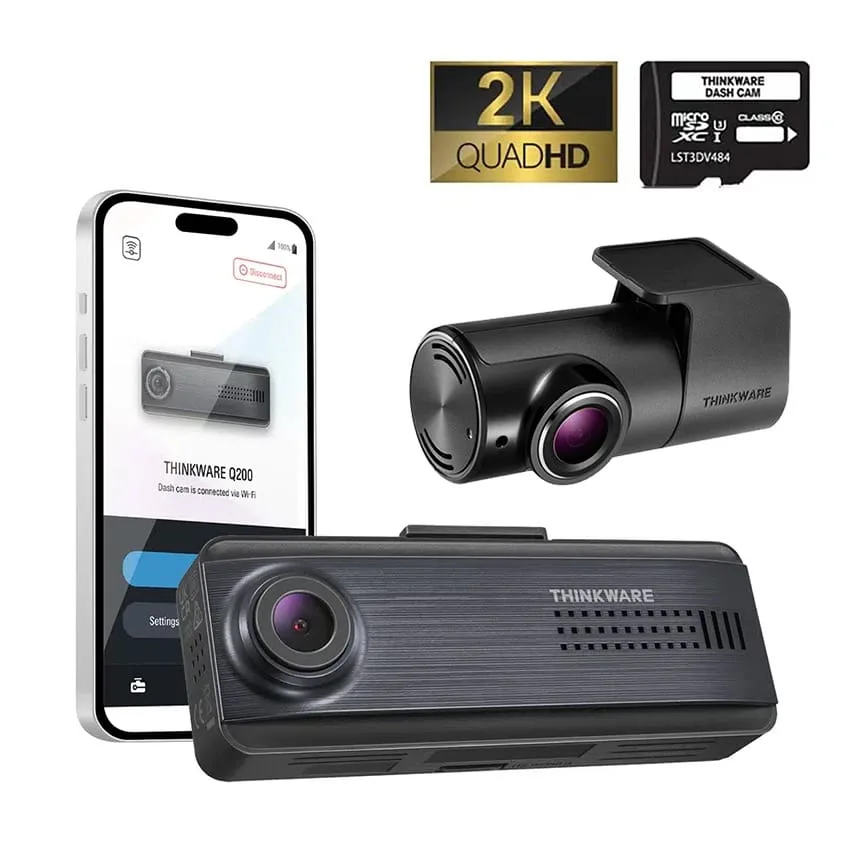
The Q200 is a solid 2K dashcam with a Sony STARVIS sensor, built-in GPS, and Wi-Fi connectivity. It uses a supercapacitor instead of a battery. That handles heat better but creates its own quirks.
As of 2026, firmware updates have addressed several early bugs. SD card errors and power issues still top the list of user complaints. Let us get your camera recording again.
Quick Answer: The Three-Step Reset That Fixes Most Q200 Problems
Try this before anything else. It works for about 70 percent of common issues.
Step 1: Power cycle the camera. Unplug the power cable from the mount. Wait 30 seconds. Plug it back in.
If the camera turns on normally, you are done.
Step 2: Reset the unit. Use a paperclip to press the reset button. It is a small hole on the side or bottom of the camera. Hold it for 10 seconds.
The camera should restart.
Step 3: Format the SD card. Go to Menu > Settings > Format SD Card. Confirm the action. This erases all data but fixes most file system errors.
If none of these steps work, move to the specific problem below. Match your symptom to the right section. Each fix is a decision tree.
Start with the simplest solution and work your way up.
Why Your Dashcam Won't Power On (And How to Diagnose It)
A dead Q200 is frustrating. But the cause is usually simple. Rule out the obvious first.
Check the power cable. The Q200 uses a proprietary mount connector. That connection can loosen over time. Wiggle the cable where it meets the mount.
If the camera flickers on, the connection is your problem. Try a different 12V adapter if you have one.
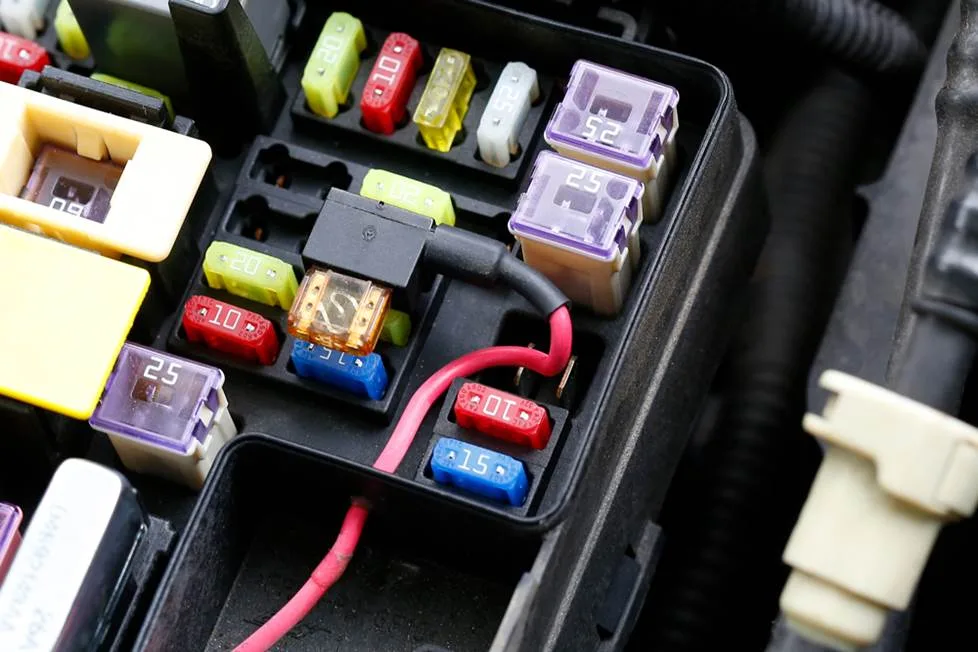
Inspect the fuse. If you hardwired the camera, check the fuse tap. A blown fuse is a common culprit. Use a multimeter to test for voltage at the fuse tap.
No voltage means the fuse is dead. Replace it with the same amp rating.
Test a different power source. Plug the camera into a USB port rated for at least 1.5A. A computer USB port often works for testing. If the camera powers on, the issue is your car's power supply or the cable itself.
Look for LED indicators. The Q200 has a small LED near the lens. No light at all suggests no power is reaching the unit. A solid red light usually means the camera is stuck in boot mode.
Try the reset button again.
If you still have no power, the internal supercapacitor might be dead. This is rare but possible after several years of use. Contact Thinkware support for a repair or replacement.
SD Card Errors: The #1 Source of Frustration (And How to Fix Them)
The Q200 is picky about SD cards. Use the wrong one and you get constant error messages. Err 01, Err 02, and Err 03 are the most common codes you will see.
Err 01 means a write error. The camera cannot save video to the card. This usually happens when the card is full of protected files. Go to Menu > Settings > Format SD Card.
That clears all protected files and starts fresh.
Err 02 means a read error. The camera cannot read the card at all. This is often caused by a corrupted file system. Try formatting the card inside the camera.
If that fails, format it on a computer using the SD Association formatter tool. Then try again in the camera.
Err 03 means a format error. The card itself might be incompatible or damaged. The Q200 requires a microSD card with UHS-I U3 speed class. Cards slower than U3 cause constant errors.
Stick with brands like SanDisk, Samsung, or Lexar that are rated for dashcam use.
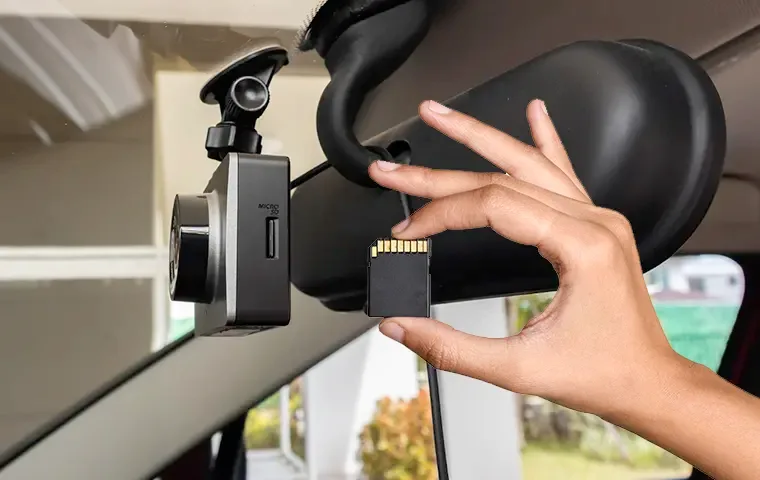
A few rules for SD cards. Always format the card inside the camera, not on a computer. Never remove the card while the camera is recording. Replace the card every 12 to 18 months.
Dashcam recording is heavy read/write work. Cards wear out. Similar recording issues affect other cameras too, so the same card care applies across different devices.
If you keep getting errors after formatting, the card slot might be damaged. Look for bent pins inside the slot. A magnifying glass helps.
Bent pins require a repair or replacement of the unit.
Wi-Fi and App Connection Problems (Solved Step by Step)
The Wi-Fi connection on the Q200 is useful but finicky. The camera creates its own network. Your phone connects directly to it.
No internet is needed for local file transfer.
First, make sure Wi-Fi is enabled on the camera. Go to Menu > Wi-Fi > On. The camera will show a network name and password. Write them down.
They are case-sensitive.
If your phone cannot find the camera's network: Turn off mobile data on your phone. Some phones prioritize cellular data over Wi-Fi. Then turn Wi-Fi on and scan for the camera's SSID.
It should appear as "Thinkware_Q200_xxxxx".
If the app cannot connect to the camera: Forget the network on your phone. Then reconnect using the password shown on the camera screen. Open the Thinkware Dashcam App.
It should detect the camera automatically.
If the app keeps crashing: Clear the app cache on your phone. Go to Settings > Apps > Thinkware Dashcam > Storage > Clear Cache. If that does not work, uninstall and reinstall the app.
This is a common fix for both Android and iOS.
If the connection drops constantly: Move your phone closer to the camera. The Wi-Fi range is about 10 meters indoors. Metal objects in the car can block the signal.
Try sitting in the driver's seat with the phone near the windshield.
For persistent Wi-Fi issues, check if your phone's operating system is too new. Some Android 14 and iOS 17 versions broke compatibility with older dashcam apps. Thinkware usually releases app updates within a few weeks.
Keep the app up to date. The same caution applies to smart camera app updates across different brands.
Parking Mode Not Working? These Are the Likely Culprits
Parking mode is a key feature of the Q200. But it only works if you hardwire the camera. Plugging into the cigarette lighter cuts power when the car turns off.
That is why parking mode appears dead.
If you hardwired the camera but parking mode still does not activate: Check your fuse tap connections. The yellow wire needs a constant 12V fuse. The red wire needs an accessory fuse that only has power when the ignition is on.
Swap them if you got them reversed. Wiring and connection issues are a common source of frustration across many camera setups.
If parking mode activates but stops too quickly: The battery protection setting might be too aggressive. Go to Menu > Settings > Parking Mode > Battery Protection. Set it to 12.0V or 11.8V.
A higher setting like 12.4V shuts down parking mode early to protect your car battery.
If parking mode records nothing useful: The sensitivity might be too low. Go to Menu > Settings > Parking Mode > Motion Detection. Set it to High for maximum sensitivity.
Impact detection works best at Medium. Time-lapse mode records continuously and catches everything, but uses more power.
If the camera records false triggers constantly: The G-sensor sensitivity is too high. Bumps from closing doors or passing trucks trigger protected files. Lower the G-sensor to Low or Medium.
This prevents the camera from saving every small vibration.
A note on energy-saving mode. The Q200 has a special energy-saving parking mode that draws only 0.2W. It wakes up when motion is detected. This is great for battery life but can miss split-second events.
Use time-lapse mode if you want continuous recording. It uses more power but catches everything.
GPS, Time, and Firmware Issues (What to Do When Things Get Weird)
The Q200 relies on GPS to sync the time and log your driving route. When GPS stops working, your timestamps go wrong and speed camera alerts disappear.
If the GPS icon never appears on screen: You need a clear view of the sky. Metalized window tint blocks GPS signals completely. So does thick tint film.
Try moving the camera closer to the glass. If you have tinted windows, the GPS antenna inside the Q200 may struggle. No fix exists for that other than repositioning.
If the time resets every time you start the car: The supercapacitor holds enough charge to keep the clock running for about 30 minutes. Park for longer than that and the time resets. The camera needs to reacquire GPS satellites to sync again.
This is normal behavior. If the time never syncs, check your GPS settings under Menu > GPS > Time Sync. Set it to Auto.
If firmware updates fail or cause new problems: Always download firmware from the official Thinkware support page. Extract the file to the root of a freshly formatted SD card. Insert the card and power on the camera.
Do not interrupt the process. A power failure during an update can brick the unit. Wait for the voice prompt saying the update is complete.
If the camera behaves strangely after an update: Try a factory reset. Go to Menu > Settings > Factory Reset. This clears all settings and returns the camera to default.
You will need to set up your preferences again. This often resolves weird behavior after firmware changes.
Firmware updates are released a few times a year. They fix bugs and improve stability. Check for updates every few months.
General connectivity troubleshooting applies here the same way it does for other devices.
Common Mistakes That Make Troubleshooting Worse
Some problems are actually caused by the solutions people try first. Avoid these common traps.
Using the wrong SD card. The Q200 needs a UHS-I U3 card. Many people use older Class 10 cards. Those cards are too slow for 2K video.
The result is constant Err 01 and Err 02 messages. Buy a card rated for dashcam use. It is worth the extra few dollars.
Formatting the card on a computer. Computers use different file systems than dashcams. Formatting on a PC can cause compatibility issues. Always format the card inside the camera.
Go to Menu > Settings > Format SD Card. This ensures the correct file system is used.
Removing the SD card while the camera is recording. This corrupts the file system. Always power off the camera first. Wait for the LED to go dark.
Then remove the card. A corrupted card needs to be reformatted, which erases all your footage.
Using the wrong fuse tap connection. If you hardwired the camera but parking mode does not work, you likely swapped the constant and accessory wires. The yellow wire needs constant power. The red wire needs ignition-switched power.
Check your wiring with a multimeter. Generic camera troubleshooting guides often cover wiring checks, but the Q200 has specific wire colors to follow.
Ignoring firmware updates. Running old firmware can cause GPS errors, Wi-Fi drops, and parking mode bugs. Thinkware fixes these issues in updates. A quick firmware update solves problems that people spend hours troubleshooting.
Relying on the cigarette lighter for parking mode. The Q200 cannot detect motion when it has no power. The cigarette lighter cuts power when the car turns off. Hardwiring is the only reliable way to use parking mode.
If you want that feature, do the installation properly.
Frequently Asked Questions
How do I format the SD card in my Thinkware Q200?
Go to Menu > Settings > Format SD Card. Confirm the action. This erases all files and prepares the card for recording.
Do this once a month to prevent errors. Always format inside the camera, not on a computer.
What does Err 01 mean on my Thinkware Q200?
Err 01 means a write error. The camera cannot save video to the SD card. This usually happens when the card is full of protected files.
Format the card in the camera. If the error returns, your card may be too slow or damaged.
Why does my Thinkware Q200 keep restarting?
A loose power connection often causes this. Check the cable where it connects to the mount. Also check your fuse tap if hardwired.
A failing SD card can also cause restarts. Try a different card to rule that out.
How do I reset my Thinkware Q200 to factory settings?
Go to Menu > Settings > Factory Reset. Confirm the action. This clears all settings and returns the camera to default.
Use this after a firmware update or if the camera behaves strangely. You will need to set up your preferences again.
Why is the time on my Q200 always wrong?
The Q200 uses GPS to sync the time. If the GPS cannot lock onto satellites, the time stays wrong. Drive with a clear view of the sky for a few minutes.
If the time still does not sync, check your GPS settings under Menu > GPS > Time Sync.
Can I use any microSD card with the Thinkware Q200?
No. The Q200 requires a UHS-I U3 speed class card. Cards slower than U3 cause errors.
Use cards rated for dashcam use from brands like SanDisk, Samsung, or Lexar. Replace the card every 12 to 18 months.

Similar Posts
































