How to Connect DSLR Camera to Computer
If you’ve ever plugged your DSLR into your computer and got nothing but a blank screen, you know the frustration. Learning how to connect DSLR camera to computer isn’t always plug-and-play, but it doesn’t have to be a mystery either. Most issues come down to one wrong setting or a missing driver.
Manufacturer specifications indicate that USB 2.0 is the standard for most DSLRs released before 2020, while newer models support USB 3.0 for faster transfers. As of 2026, every major camera brand supports some form of wired or wireless connection. The right method depends on your camera model and what you want to do.
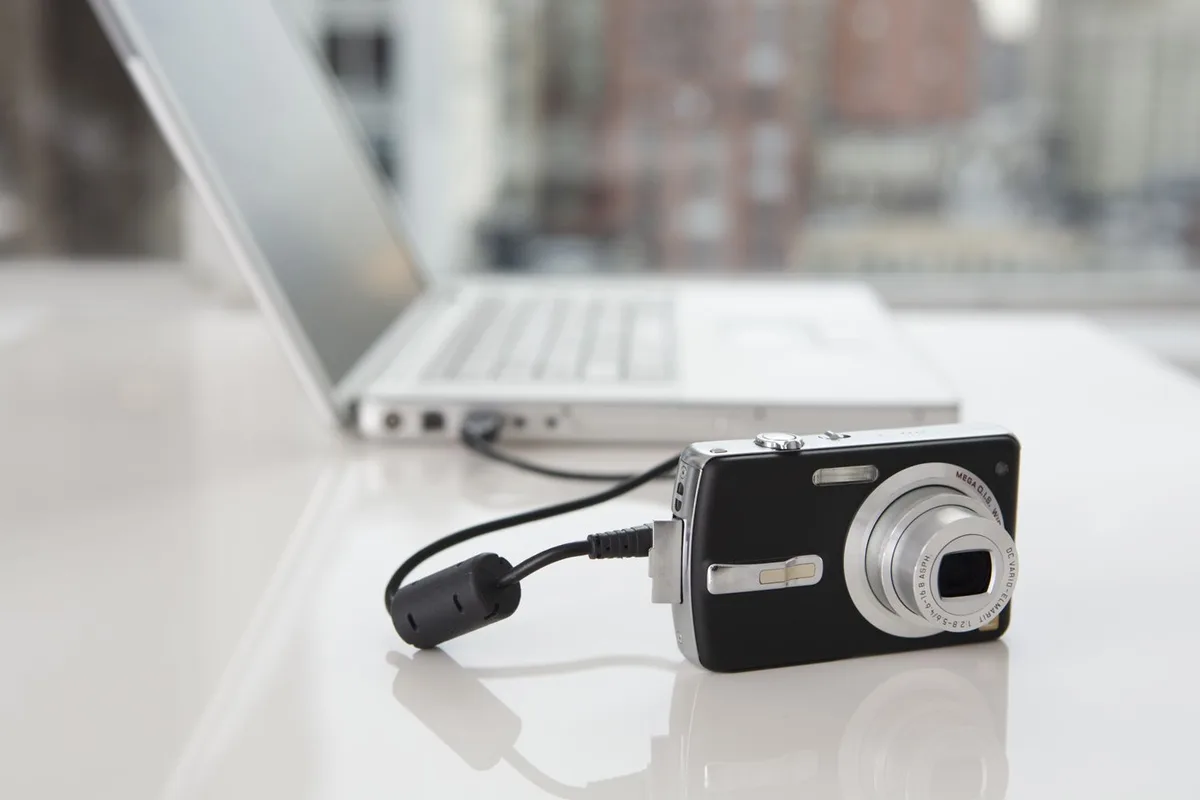
Image source: Web (Bing) / lifewire.com (Web image (fair-use with source credit))
Quick Answer
Connect your DSLR using a USB cable. Set the camera to PTP or PC Remote mode. Install the manufacturer’s driver.
Launch tethering software if needed. For bulk transfers, use a card reader instead.
Why Your Computer Isn’t Seeing Your DSLR (And How to Fix It)
The most common reason a computer doesn’t detect a DSLR is the camera’s USB mode. Most cameras default to a mass storage setting that older operating systems handle fine. But modern Windows and macOS versions expect the camera to be in PTP (Picture Transfer Protocol) or MTP (Media Transfer Protocol) mode.
Check your camera’s menu for a USB connection setting. Switch it to “PTP” or “PC Remote” depending on your brand. For Canon cameras, that’s often under the wrench menu.
For Nikon, it’s in the setup menu under “USB mode.” Sony cameras usually call it “PC Remote” or “MTP.”
If the mode is correct, the next culprit is a bad cable. Not all USB cables carry data. Some cheap ones are charge-only.
Use the cable that came with your camera or a known data-transfer cable. Also try a different USB port on your computer. Rear ports on a desktop often deliver more power and a more stable connection.
Driver issues are another common wall. Windows may need a manufacturer-specific driver for older DSLRs. macOS has built-in support for most cameras, but you may need to grant camera access in System Settings under Privacy & Security. If you’re still stuck, restart both the camera and computer before trying again.
The Three Ways to Connect: USB, Wi-Fi, and Card Reader
You have three main paths to get photos from your DSLR to your computer. Each has a different trade-off between speed, convenience, and control.
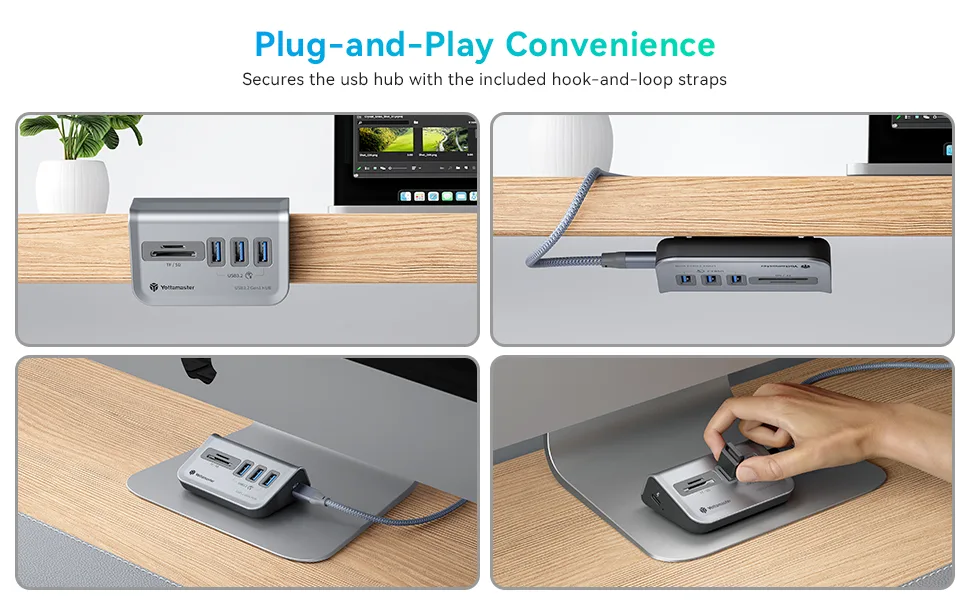
USB cable is the most reliable method for tethering and live view. It gives you direct control over the camera from software like Capture One or Lightroom. Transfer speeds vary by USB generation.
USB 2.0 tops out around 30-40 MB/s in real-world use. USB 3.0 can hit 300-400 MB/s. The downside is the cable range.
Stick to 3-6 feet to avoid signal loss.
Wi-Fi is convenient for quick transfers without cables. Most modern DSLRs have built-in Wi-Fi or Bluetooth. Pairing takes a few minutes, and transfer speeds are slower.
Expect 50-100 MB/s under ideal conditions. It’s fine for JPEGs but painful for large RAW files. Battery drain is also higher on both camera and computer.
Card reader is the fastest way to move a large batch of files. A USB 3.0 card reader can transfer a full 64GB card in under five minutes. No camera battery needed.
No driver issues. No software conflicts. It’s the best choice for bulk transfers but doesn’t support tethering or live view.
| Method | Best For | Speed | Tethering |
|---|---|---|---|
| USB cable | Tethered shooting, live view | Medium (USB 2.0/3.0) | Yes |
| Wi-Fi | Quick JPEG transfers | Slow (50-100 MB/s) | Limited |
| Card reader | Bulk file transfer | Fast (300+ MB/s) | No |
Which Method Should You Use? (Based on What You’re Trying to Do)
If you’re shooting in a studio and need to review shots on a big screen, use a USB cable with tethering software. That gives you live view, focus control, and immediate file saving to your computer. For DSLR users who also shoot video, a clean HDMI output can feed a capture card for streaming.
That’s a separate setup with its own cable.
If you’re out in the field and just want to send a few photos to your laptop for social media, use Wi-Fi. It’s slower but saves you from carrying extra cables. Just be patient with transfer times if you shoot RAW.
If you’re coming home from a shoot with hundreds of files, skip the cable entirely. A card reader is the fastest and most reliable option. It also avoids any camera-side issues like battery drain or mode conflicts.
For photographers who shoot landscapes or wildlife, a card reader paired with a laptop is the standard workflow. You can read more about picking the right gear for outdoor shooting in our guide to the best cameras for landscape photography.
10 Common Mistakes That Will Ruin Your Connection (And How to Avoid Them)
- Using the wrong USB mode. Set your camera to PTP or PC Remote, not mass storage.
- Using a charge-only cable. Check that the cable carries data. Test with another device.
- Plugging into a front USB port. Rear ports on desktops provide more stable power.
- Forgetting to install the driver. Check the manufacturer’s website for your camera model.
- Leaving the camera in playback mode. Switch to the “shoot” mode before connecting.
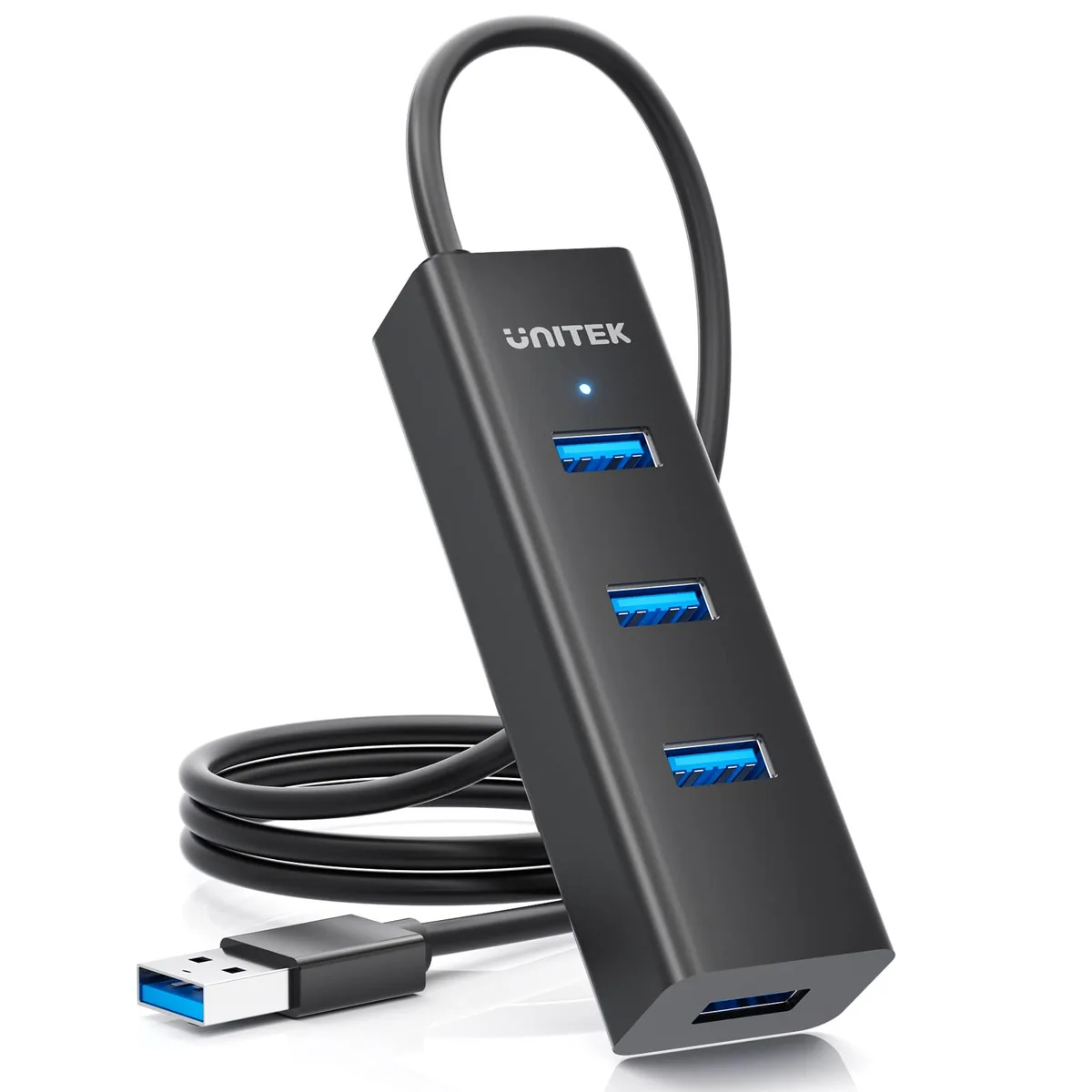
- Using an unpowered USB hub. A powered hub is essential for long cable runs.
- Ignoring battery level. Tethered shooting drains the battery fast. Use an AC adapter.
- Not updating firmware. Older firmware can cause connection drops on newer OS versions.
- Blocking the software in the firewall. Tethering apps need network access to function.
- Ejecting without closing the software. Always quit the tethering app first to avoid file corruption.
Frequently Asked Questions
Why does my computer say “USB device not recognized”?
This usually means the camera is in the wrong USB mode or the driver is missing. Switch to PTP mode in your camera’s menu. If that doesn’t work, try a different USB port and cable.
Can I connect my DSLR to a computer wirelessly?
Yes, most modern DSLRs have built-in Wi-Fi or Bluetooth. Pair the camera with your computer using the manufacturer’s app. Speed is slower than USB, and battery drain is higher.
Do I need special software to connect my DSLR?
For basic file transfer, no. Your operating system handles it. For tethering and live view, you need software like Capture One, Lightroom, or the manufacturer’s own utility.
How long does a tethered USB connection last?
Battery life depends on the camera. With live view active, expect 1-3 hours. Use an AC adapter for extended studio sessions to avoid interruptions.
What if my camera doesn’t have a USB-C port?
Most older DSLRs use USB-A to USB-B cables. Adapters work fine for connecting to a USB-C laptop. Make sure the adapter supports data transfer, not just charging.
Can I use a DSLR as a webcam?
Yes, many models support clean HDMI output. You’ll need a capture card to convert the signal for your computer. Some manufacturers offer a free webcam utility for USB connection.

Similar Posts