Vantrue E1 Troubleshooting
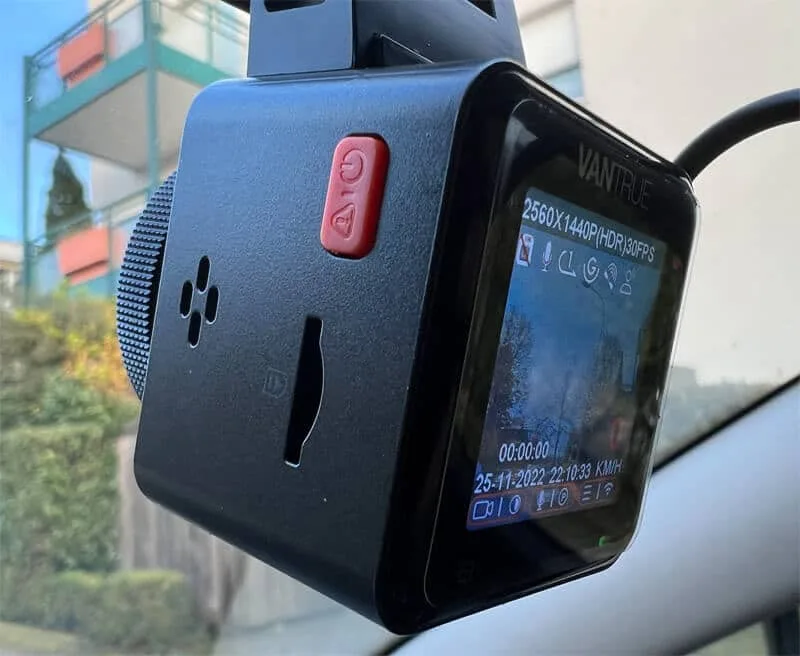
Image source: Web (Bing) / runkelmusik.de (Web image (fair-use with source credit))
If your Vantrue E1 dashcam is glitching, you need Vantrue E1 troubleshooting that actually works. Black screen, card error, constant beeping, or a frozen display. All of these are fixable without sending the camera back.
The E1 uses a Novatek processor and a supercapacitor instead of a battery. That means it handles heat better than battery-powered dashcams, but it has specific quirks. Most problems come down to three things: power delivery, SD card compatibility, or settings.
Let's walk through each one.
Quick Answer
Most Vantrue E1 problems are caused by the power source or the SD card. Check the USB cable and adapter first. Use a U3 or V30 card formatted in the camera.
Press the reset button for 5 seconds. Lower the G-sensor sensitivity if you get false alerts. If the camera still won't work, update the firmware.
Start Here: What's Actually Going Wrong?
Match your symptom to the right section below.
If the camera won't turn on or keeps restarting, the issue is almost always power. Jump to the power problem section.
If you see a card error, "Card Full," or the camera won't record, it's an SD card issue. Jump to the SD card trap section.
If the screen is locked, the camera beeps constantly, or the G-sensor triggers randomly, check the freeze and beep loop section.
If the GPS isn't syncing, the time resets, or timestamps are wrong, head to the GPS and time issues section.
These four categories cover 90% of problems. We'll break each one down step by step.
The Real Power Problem (Not Turning On / Keeps Restarting)
This is the most common complaint. The camera won't turn on, or it turns on and immediately restarts. The cause is almost always the power source, not the camera.
| Step | Action | What to Check |
|---|---|---|
| 1 | Check the car's 12V socket | Does it power other devices? Try a phone charger. |
| 2 | Test the included USB cable | Try a different cable. Look for kinks or damage. |
| 3 | Try a different power adapter | The E1 needs 5V and 2A. A 1A adapter causes restarts. |
| 4 | Press the reset button | Use a paperclip to press the pinhole reset for 5 seconds. |
| 5 | Leave the camera on for 5 minutes | The supercapacitor needs time to charge and keep settings. |
If the camera still won't turn on after these steps, it might be a hardware fault. But most power issues are solved by swapping the cable or adapter. The reset button is a close second.
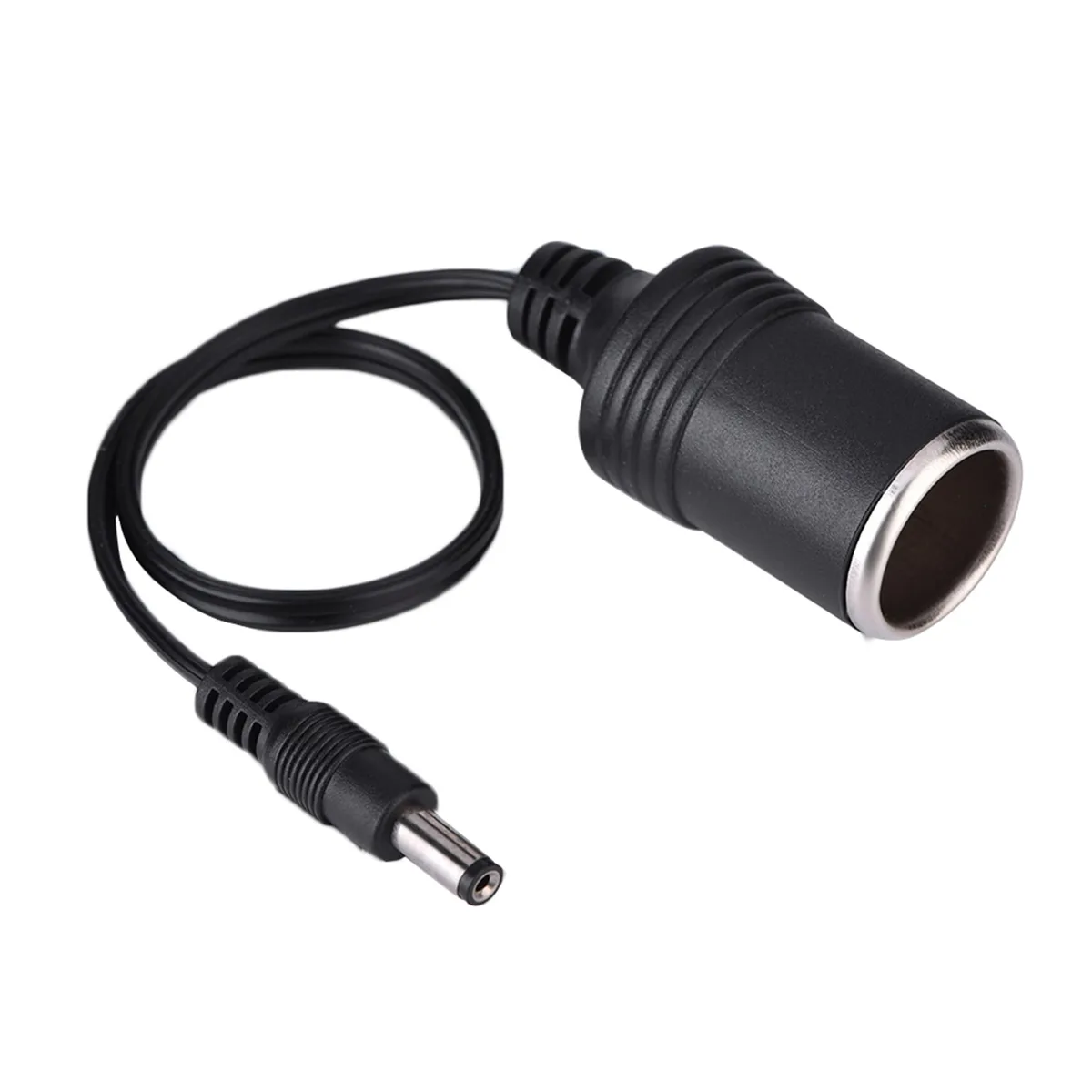
Image source: Web (Bing) / walmart.com (Web image (fair-use with source credit))
Power problems are common across many dashcams, not just the Vantrue E1. Our guide on similar power-related problems covers the same steps for other models.
The SD Card Trap (Card Error, Not Recording, "Card Full")
The second most common issue is the SD card. The Vantrue E1 is picky about cards. If you use a slow or cheap card, you get errors.
Vantrue specifies a U3 or V30 card. That means a minimum write speed of 30 MB per second. Slower cards can't keep up with the bitrate, which causes errors or dropped frames.
| Symptom | Likely Cause | Fix |
|---|---|---|
| Card Error | Card not formatted in camera | Format in the camera's menu |
| "Card Full" | Loop recording not enabled | Turn on loop recording in settings |
| Not recording | Card too slow | Use a U3 or V30 card |
| File corruption | Improper ejection | Always stop recording before removing the card |
How to format correctly. First, format in the camera itself. Go to the menu, select Format, and confirm.
If that fails, format on a PC using FAT32 with a 32KB cluster size. The SD Association's official formatting tool works well for this.
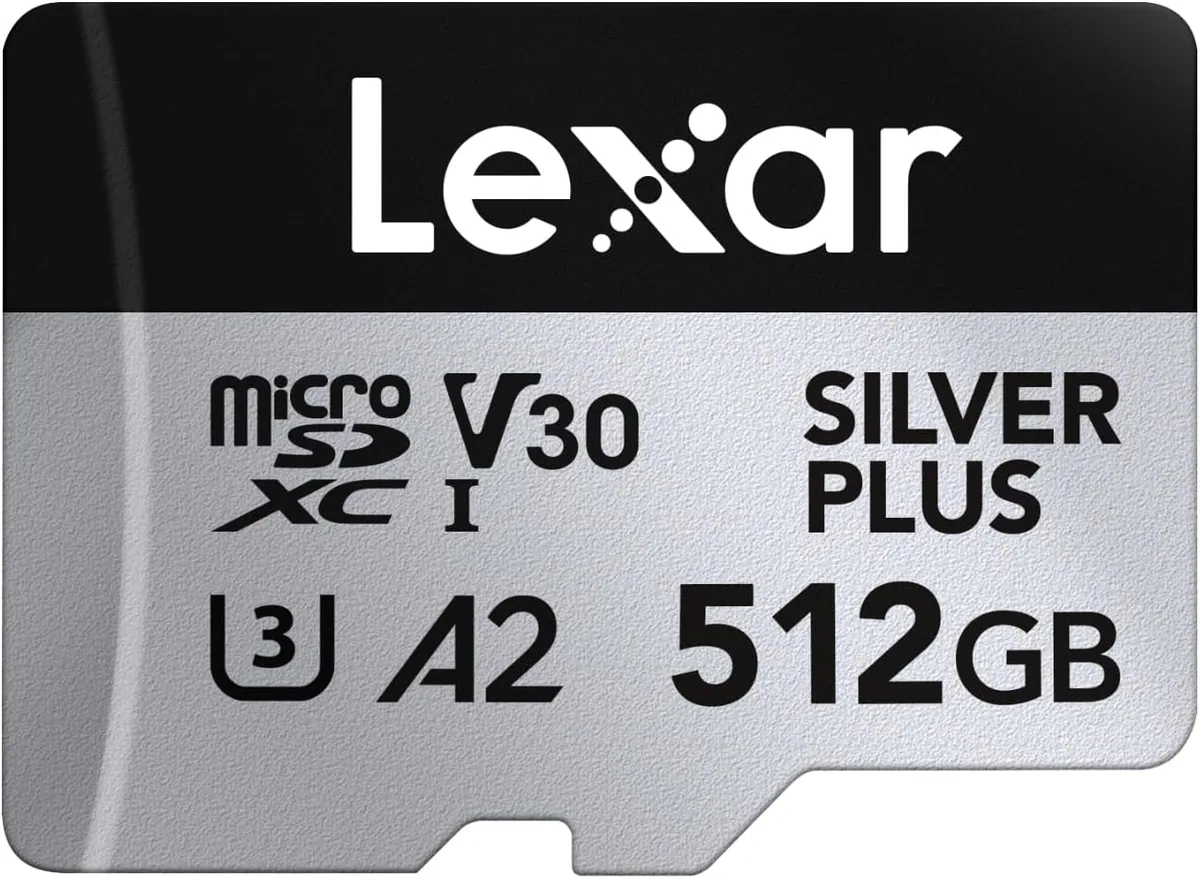
Image source: Web (Bing) / amazon.co.uk (Web image (fair-use with source credit))
Storage medium issues are a recurring theme in dashcam troubleshooting. The Reolink RLC-811A has storage medium issues we've documented separately.
The Freeze and Beep Loop (Screen Locked, Constant Alerts, and G-Sensor False Alarms)
If the camera is stuck on a screen or beeps constantly, the G-sensor is usually the culprit. The G-sensor detects impact and locks the current file. If it's too sensitive, bumps in the road trigger false alarms.
The fix is simple. Go to the menu and lower the G-sensor sensitivity from High to Medium or Low. You can also turn off the audible alert in the settings.
Loop recording length also matters. A 1-minute loop is safer than a 5-minute loop. Shorter clips mean less data loss if a file corrupts.
The bitrate is around 15 Mbps, so 1-minute files are about 110 MB.
Overheating is another cause. The E1 operates between -20 degrees Celsius and 65 degrees Celsius. In direct sunlight, the lens can get hot enough to freeze the camera.
Park in the shade or use a sunshade.
| Cause | Fix |
|---|---|
| G-sensor too sensitive | Lower sensitivity to Low or Medium |
| Loop recording too long | Set to 1 minute |
| Overheating | Move out of direct sunlight |
| Firmware bug | Update to latest firmware |
Freezing or looping issues appear in other models too. The Wyze Cam Pan V3 has freezing or looping issues we've covered in a separate guide.
GPS and Time Issues (Jumping Timestamps, No Signal, Date Resets)
The GPS module in the Vantrue E1 is built into the mount. If the time is wrong or the GPS icon isn't turning green, the issue is usually signal acquisition.
First, drive in an open area. Buildings and trees block the signal. A cold start can take 30 to 60 seconds.
If the time still resets, the capacitor may not have charged enough. Leave the camera powered on for 5 minutes before driving.
Some cars have metal coatings on the windshield that block GPS signals. If your car has a metallic tint, the mount may need to be placed near the edges or on a different spot.
If GPS fails, set the time manually. Go to the menu, find Time Settings, and enter the correct time. This is a workaround, not a fix, but it gets you by.
| Symptom | Likely Cause | Fix |
|---|---|---|
| No GPS signal | Car tint or metal coating | Move mount to a different spot |
| Time resets | Capacitor not charged | Leave camera on for 5 minutes |
| Wrong timestamp | GPS not synced | Drive in open area for 60 seconds |
| Date keeps resetting | Firmware issue | Update firmware to latest version |
GPS sync issues are common in many dashcams. The Google Nest Cam has GPS sync issues we've covered in a separate article.
Other Quick Fixes (Mount Falling Off, No Sound, Blue Screen, Firmware Update Failed)
Some problems don't fit neatly into the main categories. Here are quick fixes for the rest.
Mount falling off. The 3M adhesive wears out over time. Clean the windshield glass with isopropyl alcohol. Let it dry completely.
Apply a new adhesive pad. Press firmly for 30 seconds. Wait 24 hours before mounting the camera.
No sound. Check the microphone setting in the menu. It might be disabled by default. Turn it on and test by recording a short clip.
If sound still doesn't work, try a factory reset.
Blue screen or colored lines. This points to a hardware failure. It could be a loose ribbon cable inside the camera or a bad image sensor. Try a reset first.
If that doesn't fix it, the camera needs to be replaced under warranty.
Firmware update failed. This happens when the update file is corrupted or the wrong version. Download the firmware again from the official Vantrue support page. Format the SD card to FAT32.
Copy the firmware file to the root of the card. Insert the card and power on the camera. The update process starts automatically.
Don't remove power during the update.
Firmware issues are common across many cameras. The Reolink Duo 3 has recording problems we've covered that are sometimes firmware related.
Quick Reference Flowchart (Symptom to Likely Cause to Fix)
Use this table to quickly find the right fix for your problem.
| Symptom | Most Likely Cause | Fastest Fix |
|---|---|---|
| Won't turn on | Dead adapter or cable | Swap the adapter and cable |
| Turns on then restarts | Weak power supply | Use a 5V 2A adapter |
| Card error | Card not formatted | Format in camera menu |
| "Card Full" | Loop recording off | Enable loop recording |
| Freezes during recording | Overheating or G-sensor | Move out of sun, lower sensitivity |
| Constant beeping | G-sensor too sensitive | Lower sensitivity to Low |
| No GPS signal | Metal tint on windshield | Move mount to clear area |
| Time resets daily | Capacitor not charged | Leave camera on for 5 minutes |
| Blue screen | Hardware failure | Reset, then warranty claim |
| No sound | Microphone disabled | Enable mic in settings |
| Mount falls off | Worn adhesive | Clean glass, apply new pad |
| Firmware update fails | Corrupt file | Re-download, reformat card |
Frequently Asked Questions
How do I reset my Vantrue E1?
Use a paperclip to press the reset button on the bottom of the camera. Hold it for 5 seconds. The camera restarts and clears any temporary glitches.
This doesn't erase your settings or recorded files.
Why does my Vantrue E1 keep saying card full?
Loop recording is probably turned off. Go to the menu and enable loop recording. Set it to 1 or 3 minutes.
The camera will then overwrite old footage when the card fills up.
What SD card does the Vantrue E1 need?
The E1 requires a microSD card with a U3 or V30 speed rating. That means a minimum write speed of 30 MB per second. The maximum supported capacity is 256GB.
Cards from Samsung and SanDisk work well.
How do I update the firmware on my Vantrue E1?
Download the latest firmware from the official Vantrue support page. Format your SD card to FAT32. Copy the firmware file to the root of the card.
Insert the card and power on the camera. The update starts automatically. Don't remove power until it finishes.
Why does my Vantrue E1 keep beeping?
The G-sensor is too sensitive. It detects bumps in the road as impacts and locks the file. Go to the menu and lower the G-sensor sensitivity from High to Medium or Low.
How do I fix the GPS on my Vantrue E1?
Drive in an open area with a clear view of the sky. The GPS needs 30 to 60 seconds for a cold start. If your windshield has a metallic coating, move the mount to a different spot.
You can also set the time manually as a backup.

Similar Posts