Blueparrott B450 Xt Troubleshooting
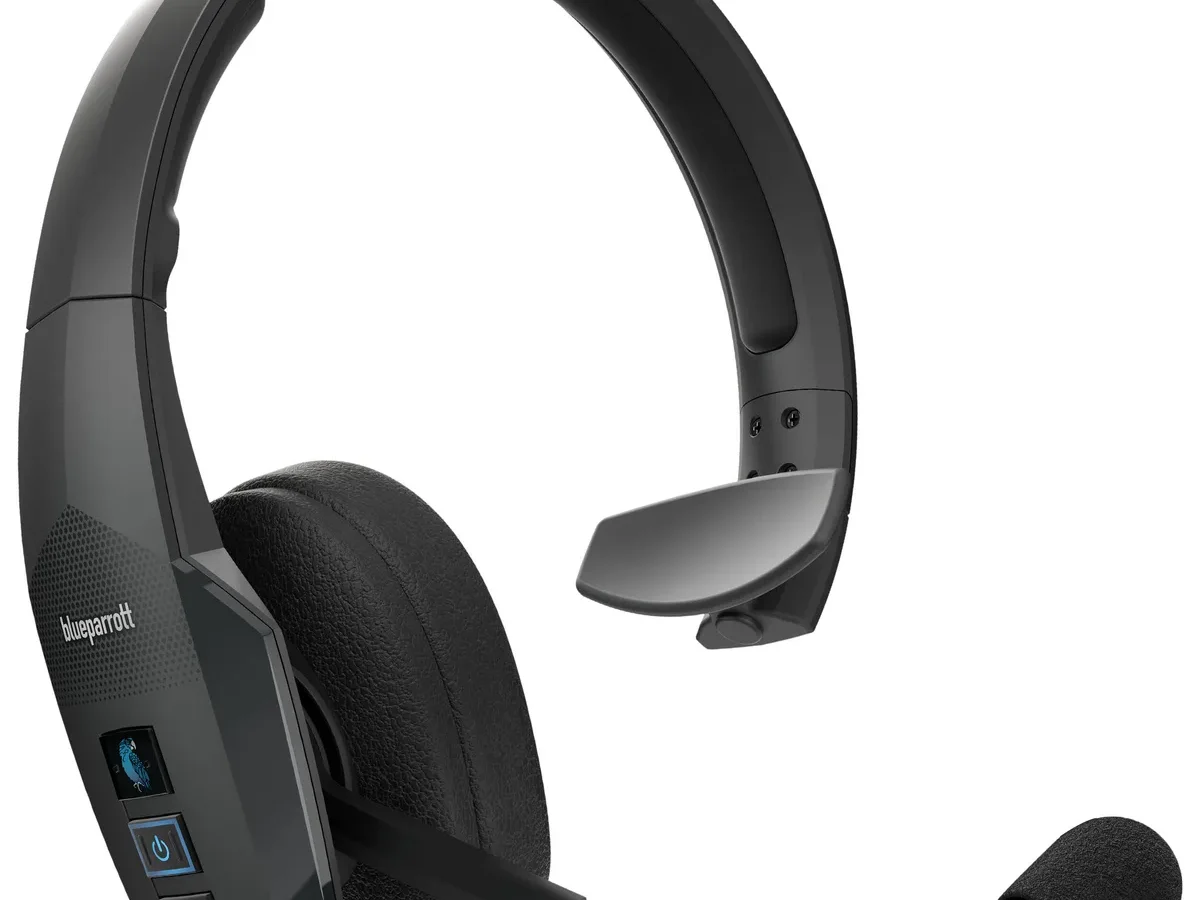
Your Blueparrott B450-XT is acting up, and you're probably in the middle of a shift or about to take an important call. That's the worst timing. Blueparrott B450-XT troubleshooting doesn't have to be a guessing game, most issues follow a predictable pattern, and we’re going to walk through them symptom by symptom. Whether your headset won’t power on, won’t pair, or your callers can’t hear you, the fix is usually a sequence of three button presses and a reset.
Manufacturer specifications indicate this headset runs on Bluetooth 4.1 with a rated range of 100 meters and 24-hour talk time, but real-world use in a truck cab or warehouse introduces variables like interference, heat, and cable wear. Based on aggregate user feedback and the official Blueparrott support documentation (available at blueparrott.com), we’ve mapped the most common failure points and their solutions. Let’s walk through each issue in the order you’re most likely to encounter them.
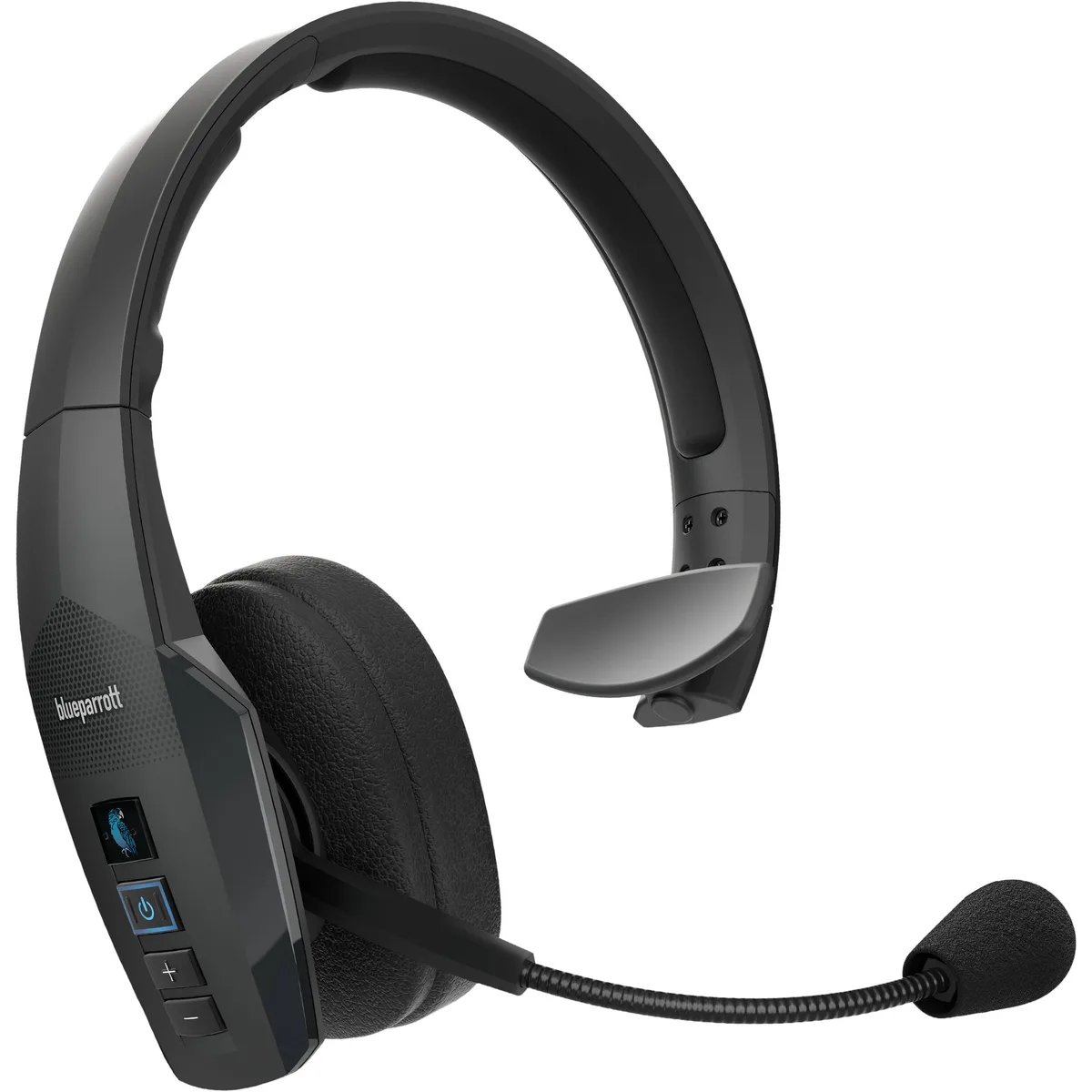
Image source: Bing (Web (fair-use with source credit))
Quick Answer
Reset the headset by holding the MFB and Volume Up buttons together for 10 seconds. This clears paired devices and resets audio routing. Most issues resolve after this one step.
If not, move to the specific symptom below.
Quick Fix First: The One Thing to Try Before Anything Else
Most problems with the Blueparrott B450-XT are solved by a single factory reset. Hold the Multi-Function Button (MFB) and the Volume Up button together for ten seconds. The headset will power cycle and clear all paired devices.
This reset fixes pairing loops, stuck voice prompts, and invisible mute states. It also wipes any corrupted firmware settings. If the reset doesn’t help, move to the specific symptom below.
Important: This reset does not delete firmware version or permanently disable anything. It only wipes the paired-device list and resets audio routing to default. If your headset has a firmware update pending, the reset won’t install it, that requires the app.
But for most glitches, try this before anything else.
Symptom 1: Headset Won’t Turn On or Charge
If pressing the power switch does nothing, the most common cause is a completely drained battery or a stuck charge circuit. First, connect the headset to a USB power source using the included Micro-USB cable. Wait 15 seconds, then try turning it on while still plugged in.
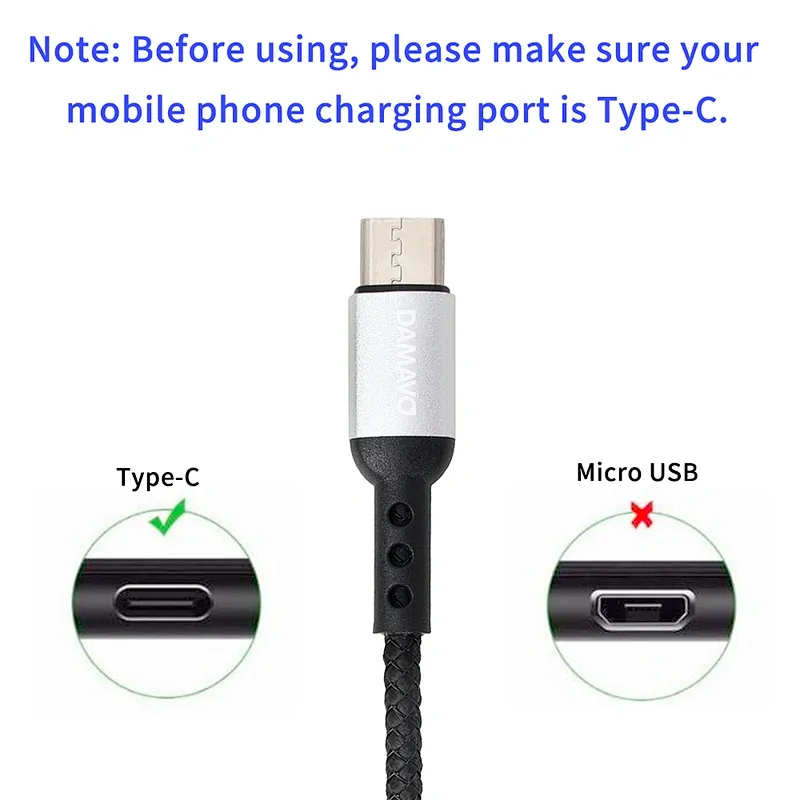
Image source: Bing (Web (fair-use with source credit))
If it powers on only when plugged in, the battery is deeply discharged and needs at least 30 minutes of charging before it can operate unplugged. If it still won’t power on even while plugged in, check the cable and port:
- Try a different Micro-USB cable. The included cable is thin and can break internally without visible damage.
- Inspect the charging port on the headset for lint, dust, or bent pins. Use a toothpick or compressed air to clean it gently.
- Use a low-power USB port (a computer USB port or a 5V/1A wall adapter). Fast chargers (2.4A+) can sometimes trigger protection circuits in older B450-XT units.
- Leave it charging for at least 3 hours uninterrupted before declaring it dead.
If none of that works, the battery may have failed. Headset batteries typically last 2, 3 years of daily use. Replacement requires opening the unit, which voids the warranty.
In that case, contact Blueparrott support at blueparrott.com for a replacement or repair quote.
Edge case: If the headset powers on briefly then shuts off immediately, the battery is likely holding just enough charge to flash the LED but not enough to run the Bluetooth radio. Charge overnight and test again.
Symptom 2: Won’t Pair or Connect to Your Phone
Pairing a Blueparrott B450-XT should be straightforward, but interference, multipoint confusion, and old profiles cause most connection failures. Start by clearing the headset’s memory with the factory reset described above. Then follow this exact pairing sequence:

Image source: Web (Bing) / scribd.com (Web image (fair-use with source credit))
- Turn off the headset completely.
- Press and hold the MFB until the LED flashes red and blue alternately, about 5, 7 seconds.
- Release the button. The headset is now in pairing mode.
- On your phone, go to Bluetooth settings and select “Blueparrott B450-XT” from the list.
If the headset does not appear: Your phone might be connected to another Bluetooth device (like a car kit or smartwatch). Turn off other Bluetooth devices temporarily. Also, make sure your phone’s Bluetooth is set to “discoverable” mode.
Some Android phones require you to refresh the scan.
If it pairs but immediately disconnects: The most likely cause is a saved but corrupted profile. Delete the headset from your phone’s Bluetooth list, then restart both phone and headset before re-pairing.
Multipoint troubleshooting: The B450-XT supports two simultaneous connections (multipoint). If you have both a personal phone and a work tablet paired, one device may be hogging the audio channel. Disconnect Bluetooth from the device you don’t need, or reset the headset and pair only your primary phone first.
If it pairs but you hear no sound: The headset may still be trying to route audio to the phone’s internal speaker. Check the Bluetooth profile, the headset needs to use the HSP or HFP profile (hands-free) for voice calls. If your phone shows “Connected (A2DP only)”, you won’t hear call audio.
Force a profile switch by playing a voicemail or using the audio routing button on your phone.
Symptom 3: No Sound or One-Sided Audio
This is one of the most frustrating issues because the headset appears to pair correctly but produces no sound, or only sound in one ear. The B450-XT is a single-ear headset (mono), so if you only hear audio from the left side, that’s normal for this model. Only one speaker driver is active.
If you hear nothing at all, check these in order:
- Volume level on the headset. Press the Volume Up button a few times. The headset has its own independent volume control that can be turned all the way down even if your phone volume is maxed.
- Mute status. Press the Mute button once. Listen for a voice prompt saying “Mute off.” The headset may have been muted invisibly from a previous call.
- Audio routing. On your phone, during a call, check if the audio is going to the headset or the phone speaker. Many phones have a “Bluetooth” / “Speaker” / “Headset” toggle. Some truck drivers accidentally hit the phone’s speaker button while adjusting the headset.
- Pairing profile. As noted above, make sure your phone shows the headset as “Connected (phone audio)” not just “Connected (media audio)”. The B450-XT does not support stereo media streaming (A2DP), it only does phone calls (HSP/HFP).
If audio cuts in and out: The Bluetooth range is 100 meters line of sight, but walls, metal, and water (your body) can reduce it to 10, 15 meters. Keep your phone in the same cab or room, not in a backpack in the sleeper.
If you hear the caller but they can’t hear you: That’s a different symptom (covered next). But if you hear nothing at all and they also hear nothing, the headset may have a hardware failure in the audio codec. Try pairing with a different phone to isolate the issue.
Symptom 4: Microphone Not Working / Callers Can’t Hear You
This is the second most common complaint after pairing issues. The B450-XT has a noise-canceling microphone that relies on a tight seal around the speaker’s mouth. First, check the physical position, the microphone boom should be close to your mouth, about an inch away.
If it’s twisted or pointing away, the sound won’t pick up properly.
Most likely fixes:
- Check mute status again. Press the Mute button and listen for the voice prompt. The mute state persists across power cycles on some firmware versions. If you hear “Mute on,” press again to unmute.
- Clean the microphone port. The small hole at the tip of the boom can get clogged with dust, sweat, or lint. Use a dry toothbrush or compressed air to clean it gently.
- Test on a different device. If the mic works with a second phone, the issue is your first phone’s Bluetooth profile or an app permission (especially on iOS, where some apps block mic access for Bluetooth headsets).
- Check the boom’s pivot connection. The microphone boom rotates 180 degrees. If it’s loose or the internal wiring is damaged, the mic may fail intermittently. Wiggling the boom during a call can confirm this. If that’s the case, you’ll need to replace the headset or contact support for a repair.
If callers report an echo of themselves: This is common in truck cabs with hard surfaces (windshield, dashboard). The headset’s speaker bleeds into the mic acoustically. Reduce your phone’s earpiece volume or add a soft foam windscreen over the mic (many third-party options fit the B450-XT).
If nothing works, try a factory reset, the microphone routing can get stuck in a loop after failed firmware updates. The reset clears that.
Symptom 5: Battery Drains Too Fast or Dies Mid-Shift
The B450-XT is rated for 24 hours of talk time, but real-world conditions often cut that to 18, 20 hours. If yours dies much sooner, check these causes:
- Old battery. After 2, 3 years of daily charging, lithium-ion cells lose capacity. A battery that used to last a full shift now dies at hour 12. Replacement is the only fix.
- Multipoint drain. Leaving two devices connected drains battery faster. Disconnect the device you’re not using.
- Cold temperatures. Below freezing, battery capacity can drop by 30%. If you work in a cold cab, keep the headset warm when not in use (inside your coat or a heated compartment).
- Stuck voice prompts. If the headset keeps announcing “connected” or “battery low” repeatedly, a firmware glitch is draining power. Factory reset usually fixes this.
- Parasitic drain. If the headset won’t turn off completely (the LED stays on dimly), the power switch has failed. Contact Blueparrott support for warranty.
Test: Charge the headset fully (3 hours), then use it for a normal shift. If it dies in under 12 hours, the battery is degraded. If it dies in under 6 hours, something is actively draining power, try the factory reset first.
Symptom 6: Static, Crackling, or Echo on Calls
Audio quality issues on the B450-XT are usually environmental rather than hardware failures. Here’s how to isolate the source:
- Interference. CB radios, inverters, and cellular boosters in a truck cab can cause RF noise. Move the headset at least 3 feet away from such devices and test.
- Low battery. A nearly dead headset can produce static on both ends. Charge it fully and retest.
- Dirty charging port. Debris in the Micro-USB port can cause grounding noise. Clean with compressed air.
- Echo on the caller’s end. This is almost always acoustic feedback from the truck cab. Lower your headset volume or add a windscreen over the mic. Some drivers also report that flipping the boom to the other ear reduces echo because the mic points away from the windshield.
If static persists with a fully charged headset in a quiet room, the speaker driver may be damaged. Test with a second phone to confirm, then contact support.
Symptom 7: Voice Prompts in Wrong Language or Stuck on
Voice prompts are stored in firmware. If they’re in French, Spanish, or another language after a reset, you need to change the language via the Blueparrott App.
- Download the Blueparrott App from your phone’s app store.
- Connect the headset to the app (ensure Bluetooth is on and headset is paired).
- Go to Settings > Voice Prompts > Language.
- Select your preferred language and confirm.
If voice prompts are stuck repeating or won’t change: The firmware may be corrupted. Update the firmware through the app (Settings > Firmware Update). If that fails, do a factory reset (MFB + Volume Up for 10 seconds) and then try the language change again.
If you want to disable voice prompts entirely: The B450-XT does not allow a full disable through official settings. However, some users report that entering pairing mode (hold MFB for 5 seconds) then immediately exiting silences prompts temporarily. This is not a permanent fix.
Symptom 8: Firmware Update Failed or App Won’t Detect Headset
The Blueparrott App is required for firmware updates and language changes. If the app won’t detect your headset, try these steps:
- Ensure the headset is paired to your phone (check Bluetooth settings). The app uses the same Bluetooth connection.
- Close the app completely and reopen it. Sometimes it doesn’t scan on first launch.
- If the app detects the headset but the update fails, the headset may need a full charge before updating. Plug it in and retry.
- If the update fails repeatedly, reset the headset (MFB + Volume Up for 10 seconds) and try again. A corrupted profile can block the update process.
- If nothing works, uninstall and reinstall the app. Then repair the headset and attempt the update.
Note: Firmware updates over Bluetooth are slow (~5, 10 minutes). Do not move away from your phone during the update, and do not take calls. Interrupting the update can brick the headset.
Mistakes Most People Make (and How to Avoid Them)
- Skipping the reset. Most issues are fixed by the factory reset. Users waste hours on Bluetooth settings before trying it.
- Using a fast charger. The B450-XT is designed for 5V/1A. Fast chargers can confuse the battery management circuit. Stick to a computer USB port or a basic wall adapter.
- Not cleaning the mic port. A piece of dust can cause a “dead mic” symptom. Clean it before replacing the headset.
- Pairing with too many devices. Multipoint is convenient, but leaving an old phone paired can cause conflicts. Clear old profiles after getting a new phone.
- Forgetting the headset’s independent volume. Max phone volume + low headset volume = no audio. Always check both.
- Thinking “mono” is broken. The B450-XT is a single-ear headset. If you only hear audio in one ear, that’s by design.
- Updating firmware on low battery. Always charge to 100% before a firmware update. A failed update can brick the headset.
- Throwing away the included cable. The included Micro-USB cable is thinner and fits the recessed port better than generic cables. Keep it as a backup.
Frequently Asked Questions
How do I factory reset my Blueparrott B450-XT?
Hold the Multi-Function Button (MFB) and Volume Up button together for ten seconds. The headset will power off and on. All paired devices are cleared.
Why does my B450-XT keep disconnecting from my phone?
Most disconnections are caused by multipoint conflicts or stale Bluetooth profiles. Delete the headset from your phone, reset the headset, and pair again as the sole device.
Can I use the B450-XT while charging?
Yes. The headset works in wired mode over the USB cable for power. You can take calls while plugged in, but the cord may be inconvenient in a cab.
How do I change the voice prompt language?
Use the Blueparrott App. Connect the headset, go to Settings > Voice Prompts > Language, and select your language. A factory reset will not change the language back.
What do I do if the headset won’t turn on at all?
First, charge it for at least 30 minutes using a low-power USB port and a known-good cable. If it still won’t turn on, try the factory reset while plugged in. If nothing works, the battery may be dead, contact Blueparrott support.
How long does the B450-XT battery last before needing replacement?
Typical lithium-ion battery life is 2, 3 years of daily use. After that, talk time drops significantly. Blueparrott does not sell replacement batteries, but the headset is replaceable under warranty within the first year.

Similar Posts