Browning Strike Force SD Card Problem
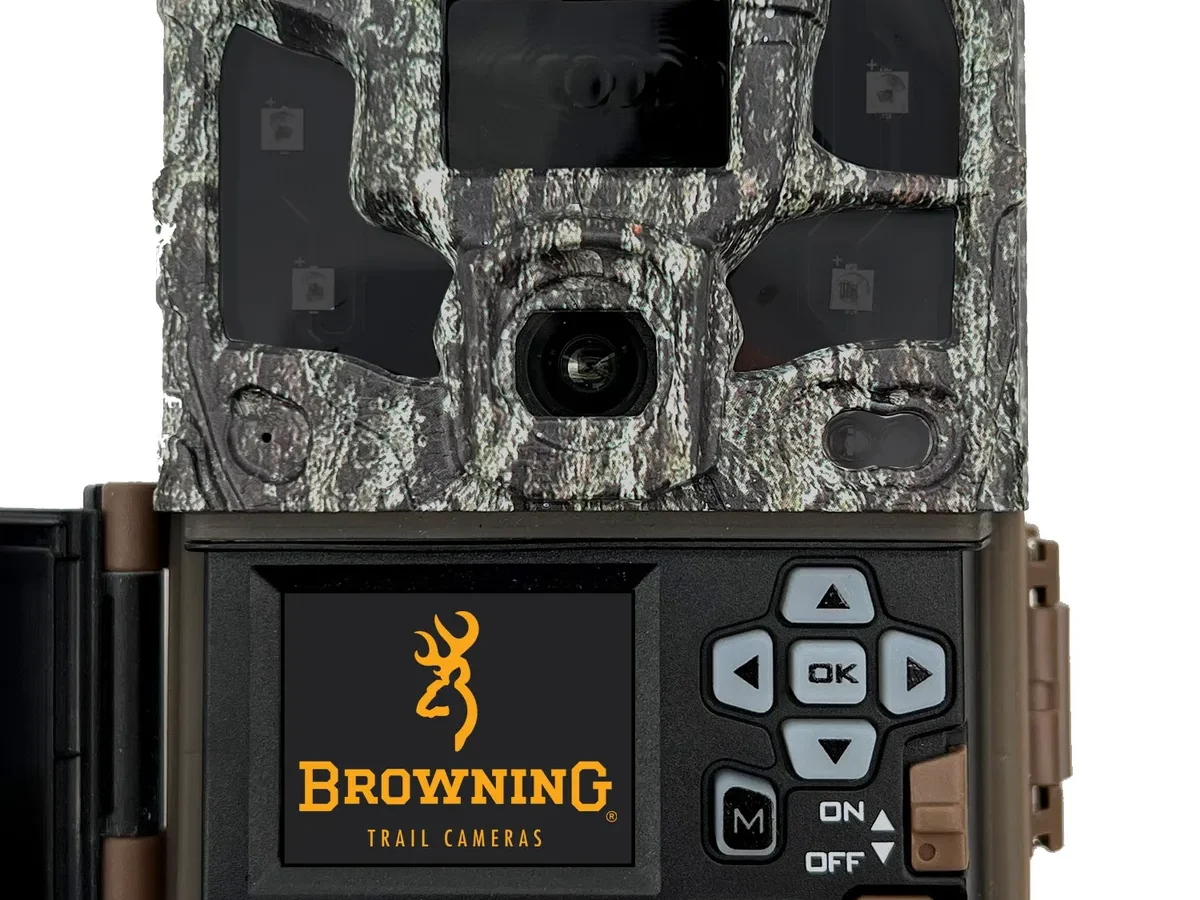
If your Browning Strike Force trail camera is flashing a “Card Error” message or refusing to save photos, you’ve hit the most common frustration owners report. The Browning Strike Force SD card problem usually looks worse than it is. The camera rejects the card, displays a warning, or simply stops writing images.
It’s annoying, but it’s almost always fixable.
Per the SD Association standards, trail cameras like the Strike Force require a specific file system format. Most models support cards up to 32GB using FAT32. Newer versions can handle up to 512GB, but only if formatted correctly.
Let’s walk through what’s actually going wrong and how to fix it.
Quick Answer
The Browning Strike Force SD card problem usually comes down to three things. The card is formatted wrong (needs FAT32, not exFAT). The card is too large for your camera model.
Or the card is locked or damaged. Run these checks first. Format the card in the camera if possible.
That fixes most cases.
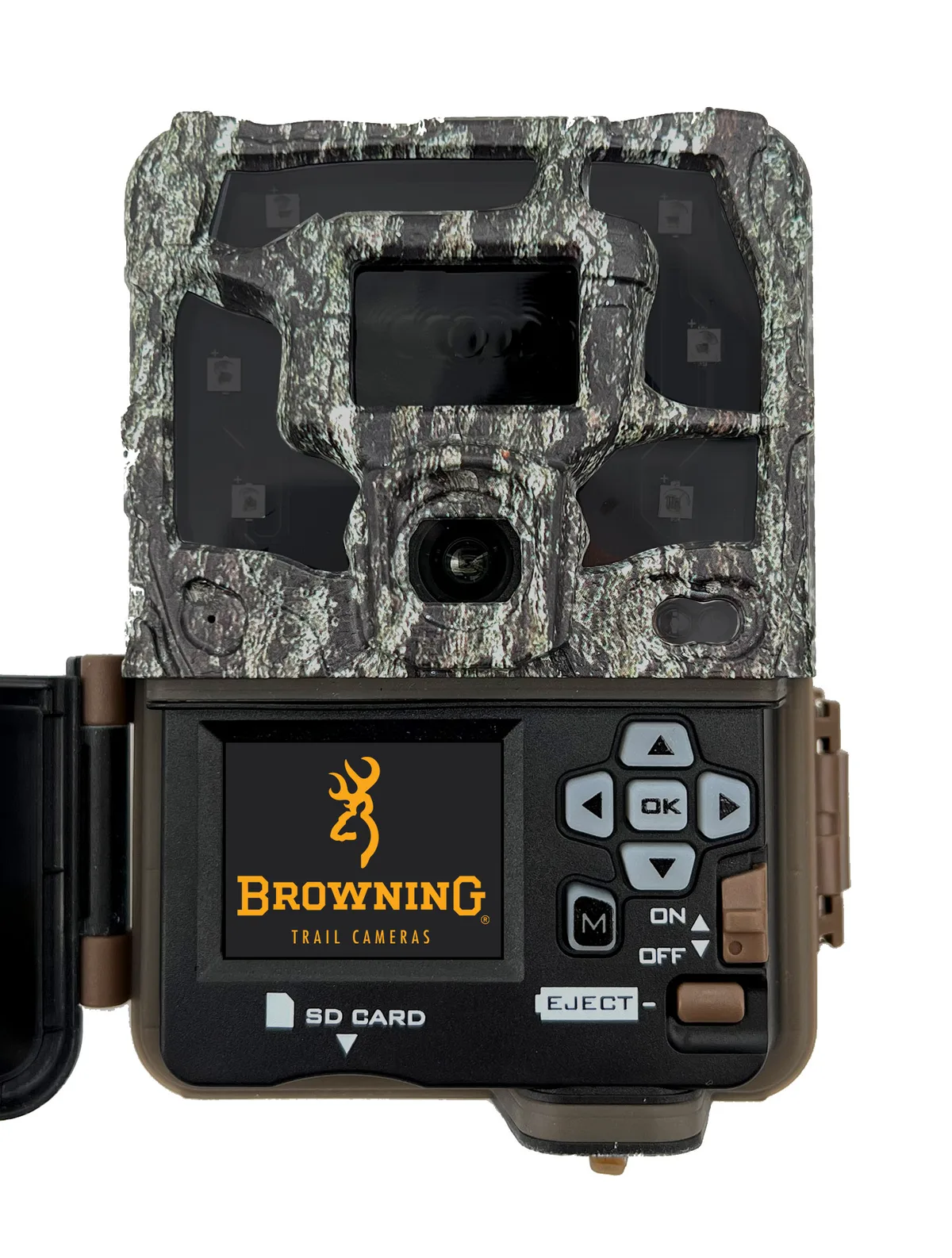
Image source: Web (Bing) / browning.com (Web image (fair-use with source credit))
The Problem: How to Tell if Your Browning Strike Force Has an SD Card Issue
The camera gives you clear signals. The most common symptom is a “Card Error” message on the display. That’s the camera telling you it cannot read or write to the card.
Sometimes you’ll see “No Card” even though a card is inserted. Other times the camera freezes mid-operation or shows a black screen.
Another sign is a “Card Full” message when the card has plenty of space. The camera thinks the card is full because it cannot read the directory properly. You might also notice that photos save for a few shots and then stop.
Or the camera writes corrupted files that won’t open on your computer.
You can also check the card itself. Remove it and inspect the metal contacts. Look for dirt, scratches, or bent pins.
Check the write-protect switch on the side of a full-size SD card. If it’s slid down to the “Lock” position, the camera cannot write to it. That gives you the same error as a faulty card.
If you’re seeing any of these symptoms, the card is almost certainly the problem. The camera itself is usually fine. The same kind of issue can pop up on other devices that use SD cards, from pro camcorders to PTZ cameras.
If you’ve dealt with general memory card troubleshooting before, the fixes here will feel familiar.
Quick Checks to Run First (Before You Blame the Camera)
Run these three checks. They take about two minutes total and solve a surprising number of cases.
Check the write-protect switch. Full-size SD cards have a tiny slider on the left edge. If it’s pushed down, the card is locked. Slide it back up.
This is the single easiest fix and the most overlooked.
Try the card in another device. Put the card into your computer or another camera. If the computer can read it and the other camera can write to it, the card is fine. The problem is in the Browning camera.
If neither device reads the card, the card is likely corrupted or damaged.
Try a different card in the camera. Borrow a card from a friend or use a spare. If the camera works fine with a different card, you’ve narrowed it down to the original card. If it still shows errors, the camera may have a hardware issue.
These basic checks follow the same approach you’d use for troubleshooting steps on any electronic device. Start with the simplest possibility. Eliminate it before moving to more complex fixes.
If all three checks pass and the camera still shows an error, move to the decision tree below. The exact error message tells you exactly what to do next.
The Decision Tree: Diagnose Your Exact Error Message
The error message on the display is your best clue. Each message points to a different root cause. Follow the branch that matches what you see.
If you see “Card Error”: This is the most common message. It means the camera cannot read the card’s file system. The card is likely formatted as exFAT or NTFS instead of FAT32.
Format the card to FAT32 using your computer or the camera’s built-in format function. If that doesn’t work, the card may be too large for your camera model. Check the capacity limit in the next section.
If you see “No Card”: The camera thinks the slot is empty. Remove the card and reinsert it firmly. Make sure it clicks into place.
If it still shows “No Card,” try a different card. If that works, the original card has a bad connection or is dead. If no card works, the camera’s card reader may be faulty.
If you see “Card Full” with space remaining: The card’s directory structure is corrupted. The camera cannot read the free space. Format the card in the camera.
If that doesn’t work, format it on your computer using the SD Card Formatter tool from the SD Association. This wipes the directory and rebuilds it correctly.
If the camera freezes after inserting a card: Power cycle the camera. Remove the batteries and the card. Wait 30 seconds.
Reinsert the batteries and the card. If it freezes again, the card is incompatible. Try a different brand or capacity.
Some cards have timing issues that cause the camera to lock up.
If photos save but won’t open on your computer: The card may be failing. Copy the files to your computer. Then format the card in the camera.
If the problem returns, replace the card. Cheap or counterfeit cards fail this way often.
This same approach applies to diagnosing error codes on other devices. If you’re comfortable with this kind of systematic troubleshooting, you’ll also find similar patterns in professional camera troubleshooting guides.
The Format Fix: Why FAT32 Matters and How to Do It Right
The Browning Strike Force requires the FAT32 file system. It does not support exFAT or NTFS. This is a hard requirement, not a suggestion.
The camera’s firmware reads the card’s allocation table using FAT32 only. If the card is formatted to anything else, the camera cannot access it.
Why FAT32? It’s an older file system with a 4GB file size limit. That’s fine for trail cameras since individual photos are small. FAT32 is also simpler for embedded devices to read.
The camera’s processor is not powerful enough to handle exFAT’s more complex structure. This is consistent across most trail camera brands.
How to format on Windows: Insert the card into your computer. Open File Explorer. Right-click the card drive and select “Format.” Under File System, choose FAT32.
If FAT32 is not an option, the card is larger than 32GB. Use a third-party tool like the SD Card Formatter (free from the SD Association website). Set format type to “Full” and file system to “FAT32.”
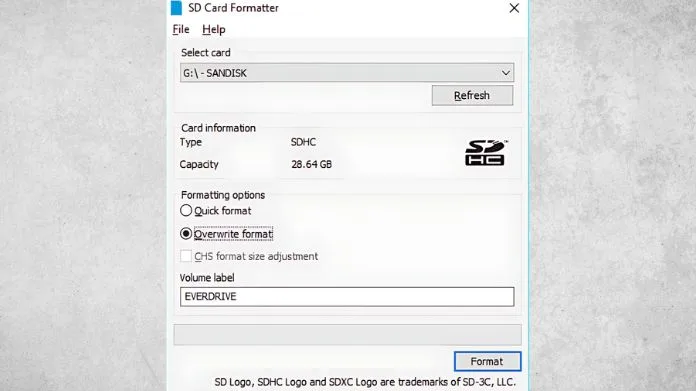
Image source: Bing (Web (fair-use with source credit))
How to format on Mac: Insert the card. Open Disk Utility. Select the card from the sidebar.
Click “Erase.” Set Format to “MS-DOS (FAT)” and Scheme to “Master Boot Record.” Click Erase. MacOS calls FAT32 “MS-DOS (FAT)” for compatibility reasons. It’s the same thing.
How to format in the camera: Insert the card into the Browning Strike Force. Go to the Setup menu. Find the Format option (usually under System or Memory).
Select Format and confirm. The camera handles the file system itself. This is the safest method because it matches the camera’s exact requirements.
One important warning: Always format the card in the camera before first use. Even if you formatted it on your computer, do an in-camera format as well. The camera creates its own folder structure.
That structure is different from what a computer creates. Missing folders can cause write errors even with the correct file system.
Some device-specific format requirements vary by manufacturer. The basic principle is the same across most cameras: use the file system the device expects.
The Capacity Trap: Why a 64GB or 128GB Card Might Not Work
This is the second most common cause of the Browning Strike Force SD card problem. You bought a big card thinking more storage is better. The camera rejects it.
The card is too large for your specific model.
Older Browning Strike Force models have a hard 32GB limit. They cannot read cards larger than 32GB. The camera’s firmware was written before large-capacity cards became common.
If you insert a 64GB or 128GB card, the camera either shows “Card Error” or simply ignores it.
Newer Browning Strike Force models (manufactured after approximately 2020) can handle up to 512GB. But only if the card is formatted to FAT32. Here’s the catch: Windows and Mac will not format a card larger than 32GB to FAT32.
You need a third-party tool to force FAT32 on a 64GB or larger card.
How to check your model’s limit: Look at the camera’s serial number or manufacturing date. Check the user manual for your specific model number. If you don’t have the manual, search Browning’s support site by model.
The capacity limit is listed in the specifications.
The safe choice: Use a 32GB card. It’s cheap, widely available, and works with every Browning Strike Force model ever made. You can store thousands of photos on a 32GB card.
Unless you’re recording video constantly, you don’t need more than 32GB.
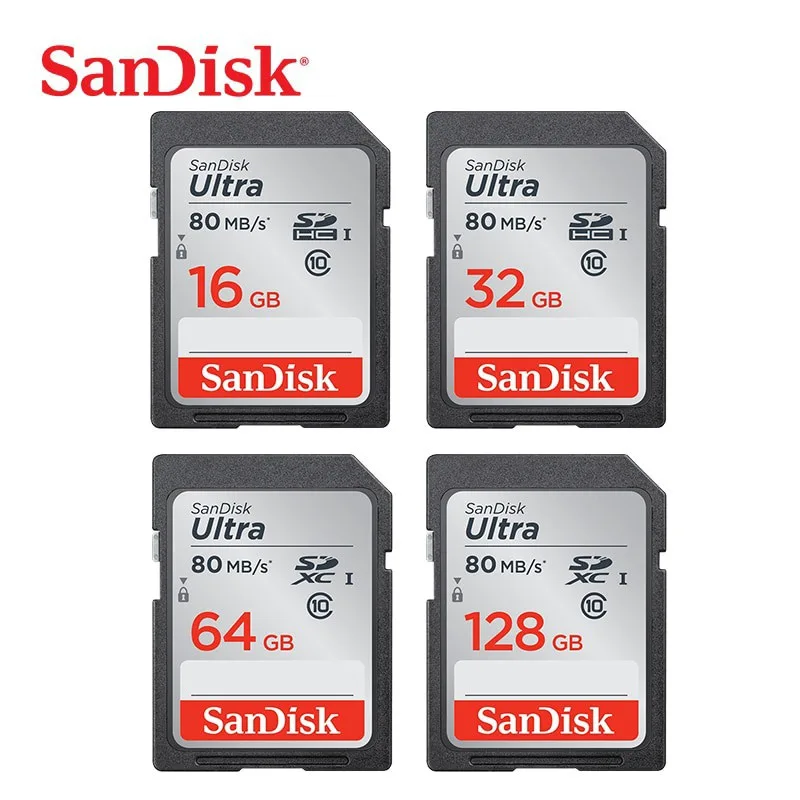
Image source: Web (Bing) / thaipick.com (Web image (fair-use with source credit))
What about 64GB cards? If you have a newer model, a 64GB card can work. Format it to FAT32 using the SD Card Formatter tool. Set the allocation unit size to 32KB or 64KB.
Test it in the camera before relying on it for a full deployment.
What about 128GB and 256GB? These work on the newest models. But you must format them to FAT32. The larger the card, the more likely you’ll run into issues.
The camera’s processor has to manage a much larger allocation table. That can slow down writing and cause timeouts.
The bottom line: If you’re having trouble, try a 32GB card first. If that works, the card capacity was the issue. You can then decide whether to upgrade to a larger card with proper formatting.
Most users find that 32GB is plenty for a typical hunting season.

Similar Posts
































