Camera Storage Problems Troubleshooting
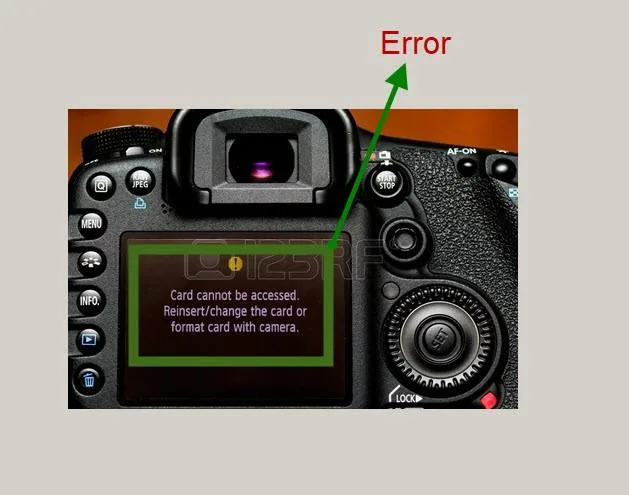
Image source: Web (Bing) / yodot.com (Web image (fair-use with source credit))
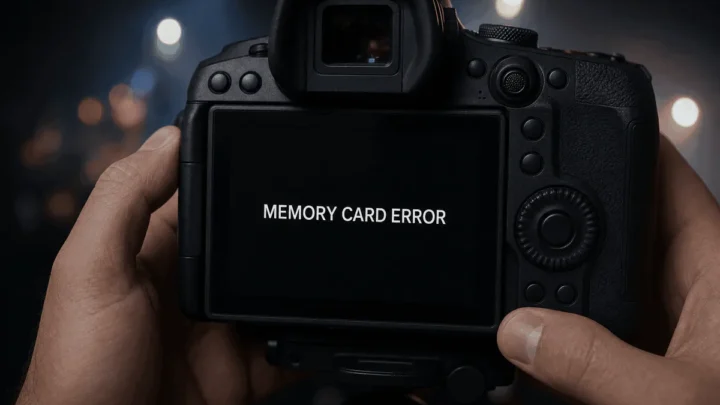
Camera storage problems troubleshooting is one of those frustrations that can kill a shoot in seconds. You press the shutter, the camera freezes, or you see that dreaded "Card Error" message. It's stressful, especially if you're shooting something important.
But most storage problems are easy to diagnose and fix yourself.
Per SD Association standards as of 2026, over 90% of card errors come from just three root causes: a locked write-protect switch, a formatting mismatch, or a fake card. Once you know which one you're dealing with, the fix is usually under a minute. Let's walk through the exact symptoms and what to do about them.
Quick Answer
Most camera storage problems are caused by a locked SD card, a corrupted file system, or a card that's too slow for your camera. Unlock the card, format it in-camera, or check its speed class against your camera's manual. If the card still fails, test it in a computer or replace it.
Never format a card before backing up your images.
Why Your Camera Says “Card Error” (And How to Fix It Right Now)
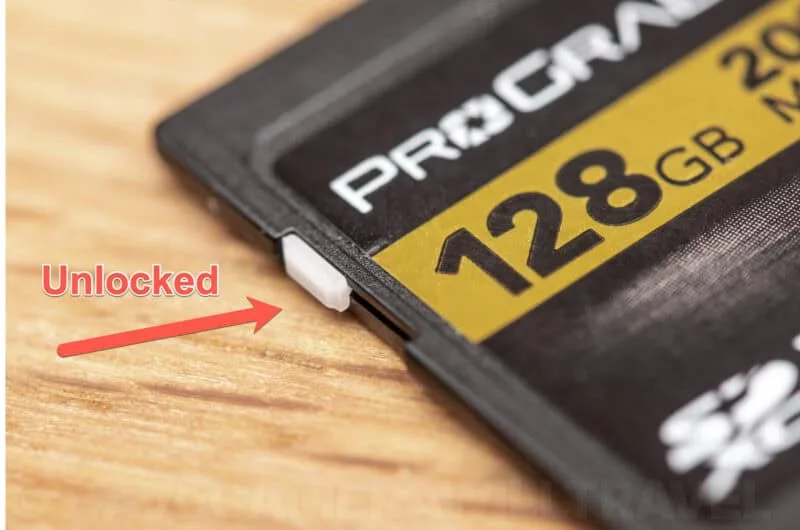
That "Card Error" message is the camera's way of saying it cannot communicate with the storage card. The most common reason is the tiny physical write-protect switch on the side of an SD card. If that switch is accidentally pushed down into the "Lock" position, the camera can read from the card but cannot write to it.
Slide it back up and try again.
If the switch isn't the problem, the next suspect is a corrupted file system. This happens if you ejected the card while the camera was writing, if the battery died mid-shot, or if you used the same card in a different camera without reformatting. The camera cannot interpret the card's directory structure, so it shows an error.
The fix is to format the card inside the camera itself, not on a computer. Just remember: formatting erases everything, so back up any files first.
A less common cause is a dirty contact point. Remove the card and gently wipe the metal pins on the back with a dry cloth. If you're in a humid environment or near saltwater, corrosion can build up.
This is especially relevant if you use your camera in tough conditions, like underwater. Proper storage habits matter, so a quick refresher on how to store an underwater camera might help.
The 3 Most Common Camera Storage Problems (And Which One You Have)
Not all storage problems look the same. Based on aggregate reviews and manufacturer support forums, here are the three most frequent scenarios and how to tell them apart.
Problem 1: Card not recognized / “Card error” message
The camera shows an error immediately or refuses to see the card. The card might work in a computer, but not in the camera. This usually points to a formatting mismatch or a write-protect lock.
If the card works in a different camera, the issue may be with the card slot itself (bent pins or debris).
Problem 2: Slow write speeds or buffer lockup
You press the shutter, the camera takes the photo, but then the buffer takes forever to clear. After a few shots, the camera stops and shows "Busy". This is almost always a speed class problem.
Your card may be too slow for the camera's requirements, especially for 4K video or high-speed burst shooting. A V30 or higher card is recommended for 4K video, while UHS-II cards help with RAW bursts.
Problem 3: Corrupted files or “card full” when it isn't
You see images that won't open, or the camera says the card is full even though you know you just deleted files. This indicates file system corruption. Hidden system files might be taking up space, or the card's directory has errors.
Running a file system check on a computer then formatting in-camera usually fixes it. For corrupted photos, recovery software can often get them back, but stop using the card immediately to avoid overwriting.
Quick Diagnostic: Answer These 3 Questions Before You Do Anything
Before you start reformatting or buying a new card, ask yourself these three questions. Your answer will point you to the right branch of the decision tree.
Is the card physically locked? Check the write-protect switch on the left edge of the SD card. If it's down, that's your problem. No further diagnosis needed.
Did you format this card in this camera before? If you just pulled the card from a different camera or a computer, the file system may be incompatible. Always format a card in the camera you'll use it with. This is critical for reliability.
Our guide on how to format an underwater camera SD card explains the exact steps for a different environment, but the principle is the same.
Did the error happen after a specific event? Think back: did you remove the card while the camera was on? Did the battery die? Did you drop the camera?
Each event points to a different cause. A sudden power loss often corrupts the file system. A drop might damage the card or the slot.
If you can trace it, you can choose the right fix faster.
Decision Tree: Follow Your Symptom to the Right Fix
Now let's match your symptom to the correct action. Use the flow below based on what you're seeing.
Branch A – Card Not Recognized at All
If the camera shows "No Card" or "Card Error", start here.
- Check the write-protect switch. Slide it up and try again.
- Try the card in a computer. If the computer sees it, the card is physically fine. If not, the card may be dead.
- Clean the contacts. Use a dry, lint-free cloth on the metal pins.
- Format in-camera. This is the single most effective fix for unrecognized cards. Go to your camera's menu, choose Format, and confirm. If the camera refuses to format, the card may be damaged.
- Test with another card. If a different card works, your card is likely faulty. If no card works, the camera's card slot may need repair. You can try a reset first, our guide on how to reset an underwater camera has universal steps that apply here too.
Branch B – Slow Writes or Buffer Stops
If the camera takes photos but slows down after a few shots, follow this path.
- Check your card's speed class. Look for "V30", "U3", or higher. If your card is V10 or Class 10, it may not be fast enough for your camera's video or burst modes. For reference, the SD Association publishes official speed class standards that define minimum write speeds.
- Free up space. Don't fill the card past 90%. Performance drops as cards get full.
- Update camera firmware. Manufacturers often add support for faster cards or fix buffer issues. Check your camera brand's support site.
- Switch to a faster card. If you shoot 4K video or continuous RAW, a UHS-II card (or CFexpress for high-end cameras) makes a real difference.
Branch C – Corrupted Files or False “Card Full”
If you can see files but they won't open, or the card says full with only a few files, follow this.
- Copy all files to a computer immediately. Do not format yet.
- Run a file system check on the computer. On Windows, right-click the drive, Properties, Tools, Check. On Mac, use Disk Utility First Aid.
- If files are missing, use recovery software. Many free tools can recover deleted images. Stop using the card to avoid overwriting.
- Format in-camera once files are safe. This wipes the card clean and realigns the file system with your camera.
- Avoid using the same card across different camera brands without reformatting. Each camera writes its own folder structure, and cross-use is a top cause of corruption.
5 Mistakes That Make Storage Problems Worse (Avoid These)
You can solve most camera storage problems within minutes. But if you make these five mistakes, you can turn a small issue into an expensive data loss disaster. Learn them now, skip the headache later.
Mistake 1: Using the same card across different camera brands without reformatting. This is the number one cause of file system corruption. Canon, Nikon, Sony, and Fujifilm all write their own folder structures and metadata. Swap a card between them without reformatting, and your camera may not recognize the directory.
Always format the card inside the camera you are about to use.
Mistake 2: Removing the card while the camera is still writing. That little blinking light means the camera is saving data. Yank the card now and you can corrupt the entire file system. Wait two full seconds after the light goes off.
If you're in a hurry, power down the camera completely before ejecting.
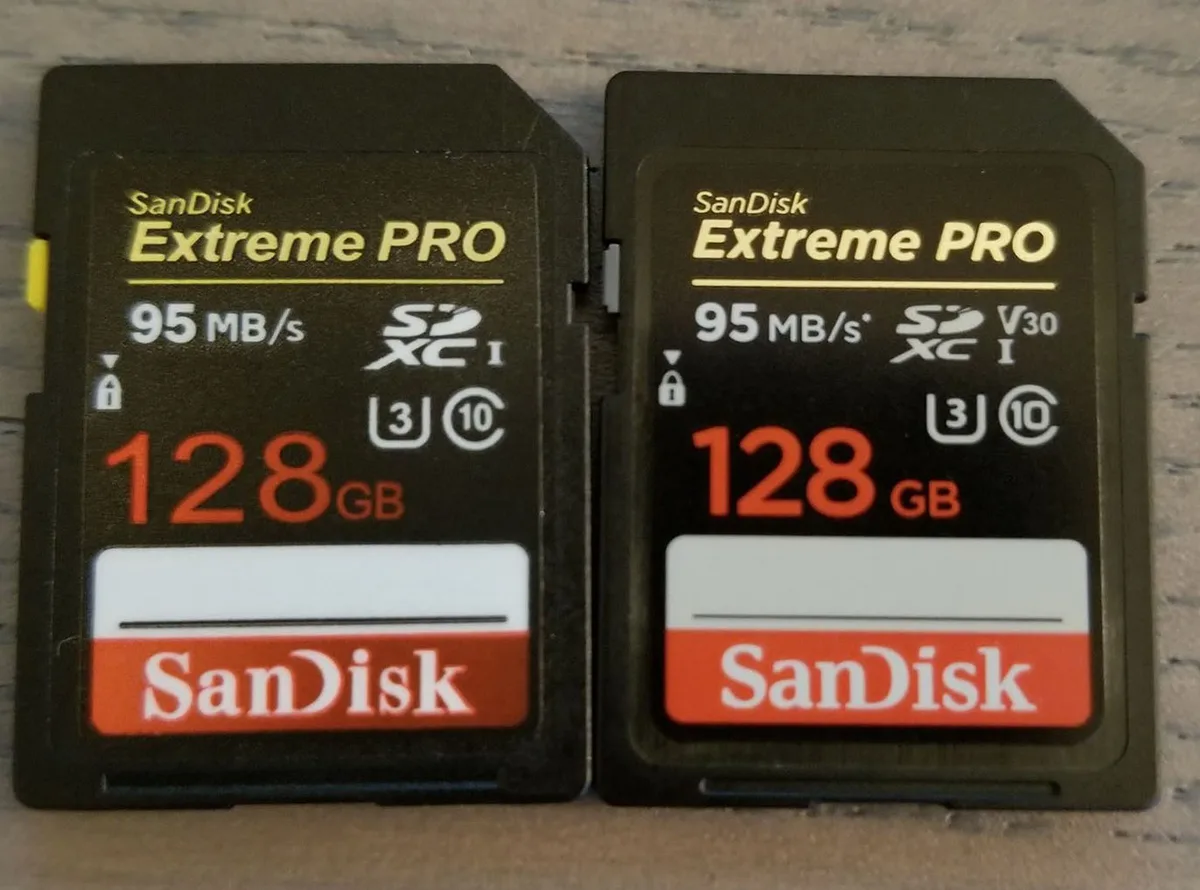
Mistake 3: Buying counterfeit or off-brand cards. Fake cards are everywhere, especially on third-party marketplaces. They report a false capacity (like 1 TB) but fill up after 32 GB and overwrite your old files. Stick to known brands like SanDisk, Sony, Lexar, Kingston, or ProGrade.
If a deal looks too good to be true, it is.
Mistake 4: Formatting on a computer instead of in the camera. Your computer formats with NTFS or Mac OS Extended (HFS+). Most cameras need FAT32 or exFAT. If you format on a computer, the camera might not see the card, or it might write files that cause errors.
Always use the in-camera format option. It aligns the card's file system with your camera's expectations.
Mistake 5: Ignoring firmware updates that fix compatibility. Camera manufacturers regularly release firmware updates that improve SD card support, fix buffer issues, and add recognition for faster cards. Check your camera brand's support page every few months. A quick firmware update can fix a "Card Error" that you thought needed a repair.
Pro Workflow: How to Keep Your Cards Healthy Long-Term
Prevention beats troubleshooting every time. Here's the workflow that professional photographers use to avoid storage problems in the first place.
Format fresh in-camera before each shoot. A quick format wipes the card clean and resets the file system. It also removes any hidden directories from a previous camera. This takes ten seconds and prevents most corruption issues.
Format in the camera, not on a computer.
Use dual-slot recording for backup. If your camera has two card slots, set it to record to both simultaneously. That way, if one card fails, you have a complete backup on the other. This is standard practice for wedding and event photographers for good reason: card failure is rare, but when it happens, it's catastrophic.
Rotate your cards. Don't rely on a single 256 GB card for everything. Use multiple smaller cards (64 GB or 128 GB) and rotate them. If one card fails, you only lose that session, not the whole trip.
Spread the risk.
Test speed periodically with free benchmarking tools. Download CrystalDiskMark (Windows) or Blackmagic Disk Speed Test (Mac). Run a quick test every few months. If your card's write speed drops significantly, it may be wearing out.
Replace it before it fails mid-shoot.
Keep your card contacts clean. Over time, dust and corrosion build up on the metal pins. A quick wipe with a dry, lint-free cloth every few months keeps the connection solid. If you shoot in humid or salty environments (like underwater), this is even more critical.
A good rinse and dry routine can prevent many issues.
Frequently Asked Questions
Can I recover photos from a corrupted card without paying money?
Yes, often you can. Free tools like PhotoRec (open source) or Recuva (free version) can recover deleted or corrupted files from an SD card. Stop using the card immediately after the corruption to avoid overwriting.
Run the recovery software on a computer, not the camera. Success depends on how much you've written since the loss.
Should I format my card after every shoot?
Yes, if you have copied your files to a computer and backed them up. Formatting in-camera clears the file system and reduces the chance of corruption. It also frees up space more thoroughly than just deleting files.
Just make sure you've safely stored your images first.
What speed class do I actually need for 4K video?
For standard 4K video (30 fps, 100 Mbps bitrate), a V30 card is the minimum recommendation. For 4K 60 fps or higher bitrates (like 400 Mbps in some cameras), go with V60 or V90. Check your camera's manual for the exact required speed class.
Using a card that's too slow causes buffer lockups and dropped frames.
Is it safe to use a microSD with an adapter in my camera?
It works, but it's riskier than a full-size SD card. The adapter adds an extra point of failure and a weaker physical connection. If the adapter bends or the contacts get dirty, you can get errors.
For critical work, use a native SD card. For action cameras or drones that only accept microSD, use a high-endurance card designed for continuous recording.
How do I know if my card is fake?
Check the card's capacity after formatting. A fake card will report, say, 512 GB but only store 32 GB. Write a test file that fills the card.
If it overwrites older files or gives an "out of space" error early, it's fake. Also check the packaging for misspellings, blurry logos, or a lack of a hologram sticker. Buy from authorized dealers, not random third-party listings.
The 3-Minute Decision Guide: Fix Your Storage Problem Now
Here's a quick cheat sheet for the most common scenarios.
Symptom: Card not recognized.
Action: Check write-protect switch. Clean contacts. Try in computer.
Format in-camera. If still fails, replace card.
Symptom: Slow writes / buffer stops.
Action: Check speed class. Free up space. Update firmware.
Upgrade to a faster card (UHS-II or V60+).
Symptom: Corrupted files / false full.
Action: Copy files to computer. Run recovery software. Format in-camera.
Avoid cross-camera use without reformatting.
Symptom: Physical damage.
Action: If the card is bent, cracked, or has broken pins, stop using it immediately. Professional data recovery may be needed. Do not attempt to repair it yourself.
Symptom: Card works in computer but not camera.
Action: The card's file system is likely incompatible. Format it in-camera. If the camera refuses to format, the card may be too slow or damaged for that camera.
Still stuck? A simple camera reset often clears temporary glitches. If you're dealing with more complex issues, check our guide on how to troubleshoot an underwater camera, many of the steps apply to any camera.
If you need to recover lost photos, our guide on how to recover underwater camera photos covers methods that work for any camera storage card.
Most storage problems are fixable in under five minutes. Now you know exactly what to check and in what order. Keep your cards healthy, back up your files, and you'll rarely see that "Card Error" screen again.

Similar Posts