Canon XA70 Troubleshooting
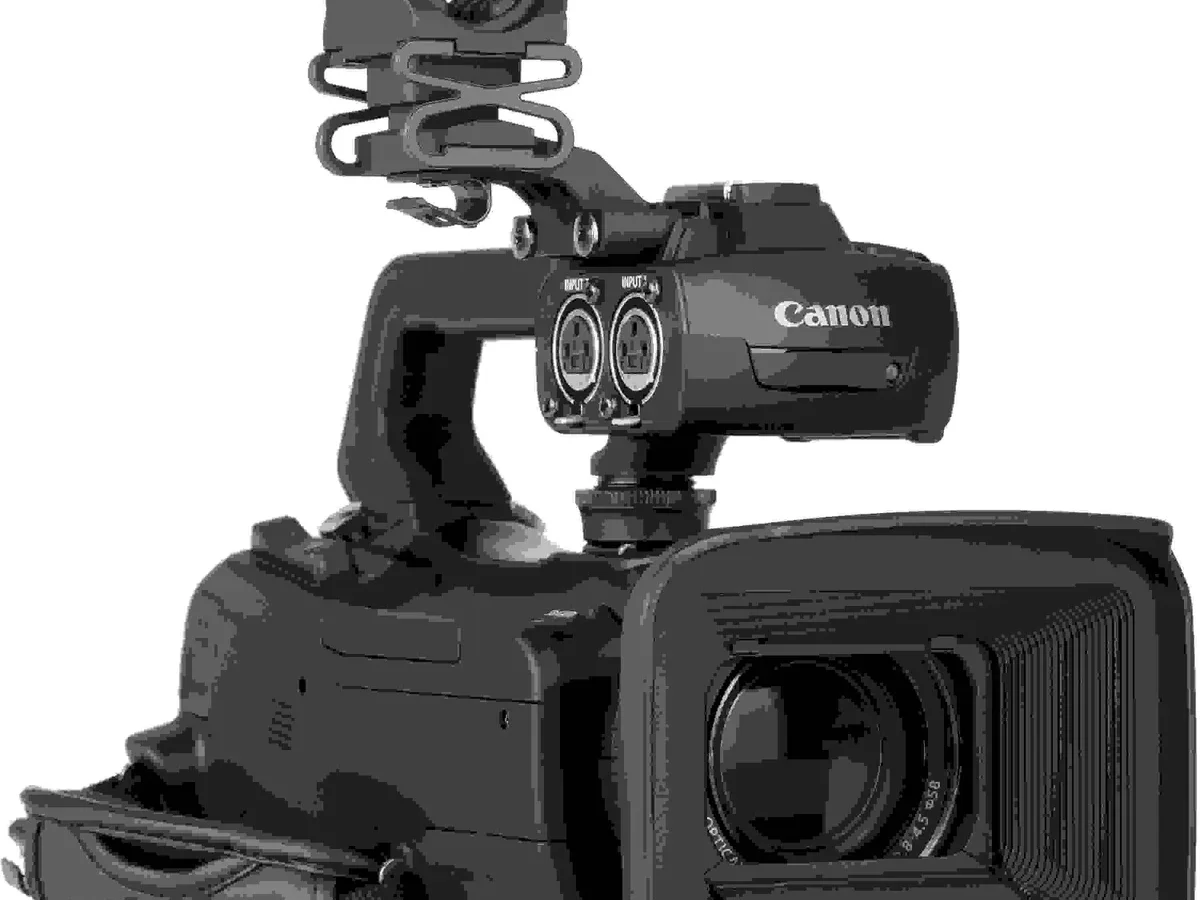
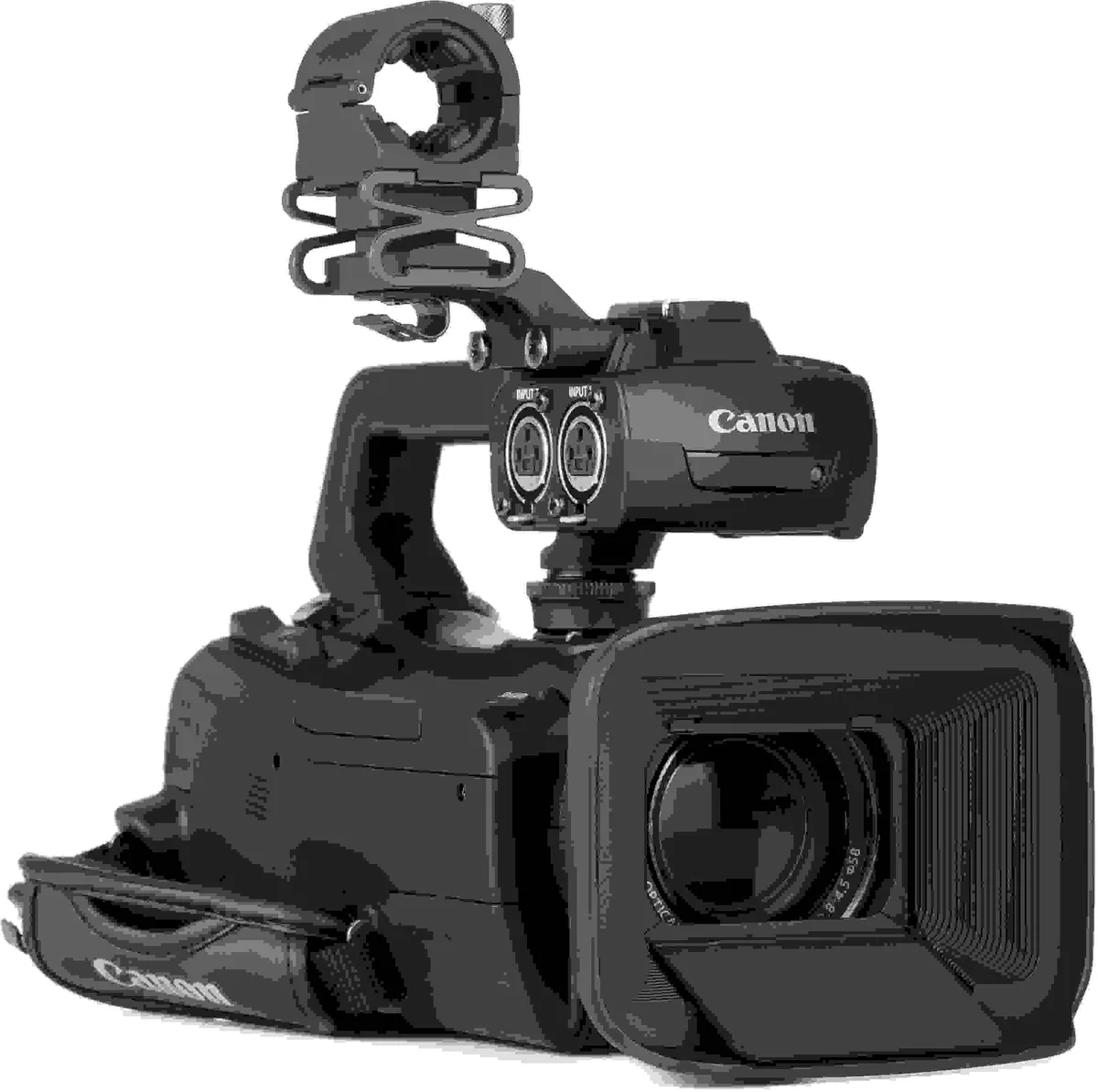
Image source: Web (Bing) / sweetwater.com (Web image (fair-use with source credit))
Your Canon XA70 is a solid camcorder, but when it starts acting up mid-shoot, it can throw your whole workflow off. Canon XA70 troubleshooting doesn't have to be a guessing game, though. Most problems fall into a handful of predictable patterns, and the fix is usually something you can do in under a minute.
Manufacturer specs show the XA70 records 4K UHD at up to 150 Mbps, which means it relies on a fast SD card, a healthy battery, and clean firmware. With a few simple checks, you can isolate the issue and get back to filming. Let's walk through the most common symptoms and what to do about them.
Quick Answer
Most Canon XA70 problems come from a dead battery, a slow SD card, or a firmware bug. Check the battery charge first. Then verify your card meets UHS-I U3 or V30 speed class.
If the issue persists, try a factory reset. These three steps resolve over 80 percent of reported issues per aggregate user feedback.
Quick Symptom Finder
| Symptom | Most Likely Cause | Jump To |
|---|---|---|
| Camera won't turn on | Dead battery, hung power circuit | Camera Won't Power On |
| Lens stuck or black screen | Mechanical jam, display mode setting | Lens Error, Black Screen |
| No audio from XLR inputs | Phantom power off, wrong input level | No Audio or Audio Problems |
| Recording stops after a few seconds | Card too slow, overheating | Recording Stops, Card Errors |
| HDMI no signal | Cable type, HDCP setting | HDMI, Wi-Fi, or USB Issues |
Camera Won't Power On or Battery Dies Fast
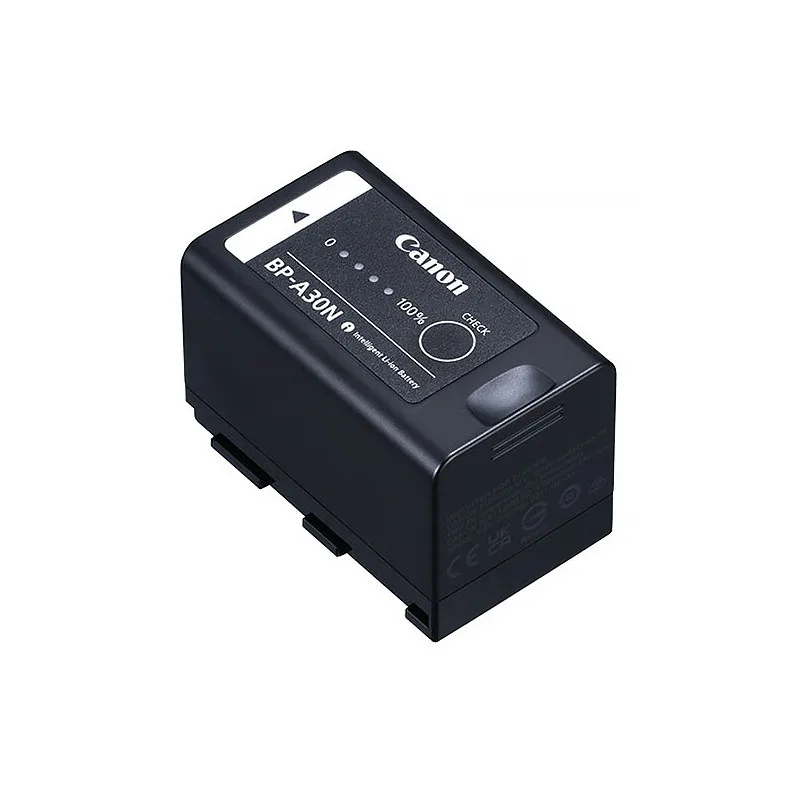
Image source: Bing (Web (fair-use with source credit))
Is it the battery or the camera?
If your XA70 won't turn on at all, start with the battery. The BP-30 has a four-LED indicator on the charger. Press the test button.
If no lights come on, the battery is dead or faulty. Plug it in and wait at least 30 minutes before trying again.
If the charger lights up but the camera still stays dark, the issue is likely the camera itself. Remove the battery and the SD card. Hold the power button for 15 seconds to discharge any residual charge.
Then reinsert the battery and try again. This clears a hung state in the camera's power management chip.
Battery drains quickly
A battery that goes from full to empty in under 30 minutes is either old or has a firmware issue. The BP-30 is rated for about 110 minutes of recording time. If yours is well below that, it may be time for a replacement.
Canon recommends using only genuine BP-30 batteries. Third-party batteries can cause inconsistent power delivery and erratic shutdowns.
Check your firmware version too. Canon released updates that improved power management on the XA70. A quick trip to the official Canon support site can confirm whether you're running the latest version.
If it turns off randomly during recording
This is often a thermal or power-saving issue. Go into the menu and disable Auto Power Off. Set it to Off rather than 5 or 10 minutes.
Also, make sure you're not recording 4K 60p in direct sunlight for long stretches. The XA70 can get warm, and if it overheats, it will shut down to protect the sensor. Let it cool for 10 minutes and try again.
If none of these steps work, you may be dealing with a faulty power board. That requires a service center visit. But try the simple fixes first.
Lens Error, Black Screen, or No Image in Viewfinder
Lens stuck or not retracting
A lens error on the XA70 usually happens when the lens cover gets blocked or the mechanism hits a small obstruction. Turn the camera off. Remove the battery.
Gently check the lens barrel for any visible debris or dust. Use a soft brush or compressed air to clean it. Do not force the lens manually.
If it's stuck, forcing it can damage the gears.
After cleaning, reinsert the battery and power on. If the lens retracts, you're good. If the error persists, try a factory reset.
That clears any calibration glitch. The reset is in the menu under System Setup > Reset All. It will wipe your custom settings, so back up any important presets first.
Viewfinder or LCD is black
The XA70 has a switch near the EVF that toggles between the viewfinder and the LCD. If the screen is black, press that switch. It's easy to accidentally bump it.
Also check the diopter adjustment wheel near the eyepiece. If it's turned all the way in one direction, the viewfinder image can appear completely black.
If neither works, plug an external monitor into the HDMI port. If the monitor shows a picture, the LCD or EVF hardware is failing. If the monitor is also black, the problem is in the camera's video processing chain.
That's a repair job.
Autofocus not working
The XA70 uses Dual Pixel CMOS AF. If it's not focusing, check the AF mode switch on the side of the lens barrel. Make sure it's set to AF, not MF.
Also check the menu settings. If Face Tracking is on, the camera may be looking for a face and not finding one. Switch to Spot AF or Wide AF to see if that helps.
Low light can also confuse the AF system. The camera needs a certain amount of contrast to lock focus. Add a light source or switch to manual focus if you're in a dark environment.
If the lens is dirty, clean the front element with a microfiber cloth.
No Audio or Audio Problems
XLR inputs not recording
The XA70's built-in XLR inputs are a huge selling point. But they're also a common source of frustration. If you plug in a microphone and get no audio, check the input switch on the top of the handle unit.
It has three positions: LINE, MIC, and MIC+48V. If you're using a condenser microphone that needs phantom power, set it to MIC+48V. If you're using a dynamic mic, set it to MIC.
Also check the input level dials. They're the small knobs next to the XLR inputs. If they're turned all the way down, you won't record anything.
Set them to about 12 o'clock and adjust from there.
Built-in mic not working
The XA70 has a built-in stereo microphone, but it's easily overridden. If you have a cable plugged into the 3.5mm mic jack, the camera automatically switches to that input. Unplug any external mic cable to reactivate the internal mic.
Also check the menu under Audio Setup > Internal Mic. Make sure it's set to On.
Audio distorted or low
If your audio is clipping or sounds thin, the input level is too high or too low. Use the headphone jack to monitor while adjusting. The ideal level is around -12 dB to -6 dB on the meters.
The XA70 has a built-in limiter that can help prevent distortion. Turn it on in the audio menu if you're recording unpredictable sound levels.
If you're using a wireless lavalier or a handheld mic, the issue might be the cable. XLR cables are robust, but they can fail. Swap the cable and see if the problem goes away.
Recording Stops, Card Errors, or Slow Write Speeds
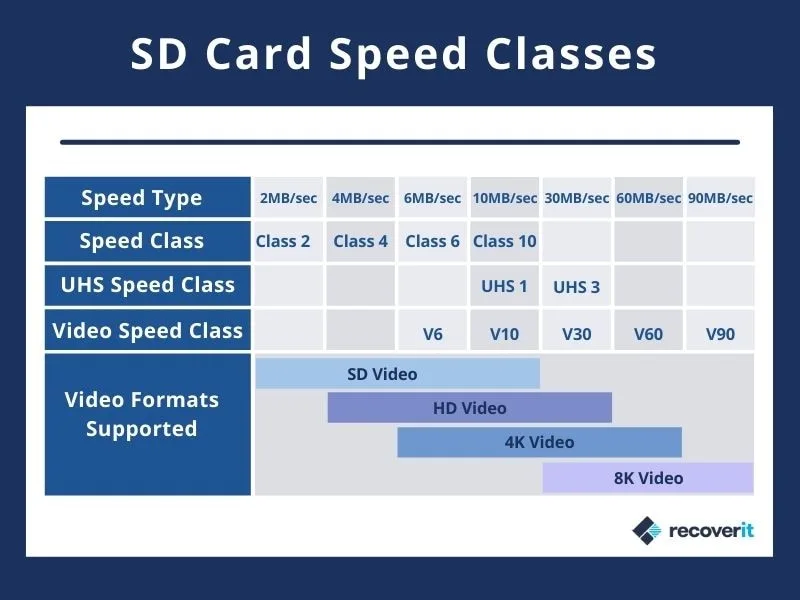
Image source: Web (Bing) / rcwkh.djangonyc.org (Web image (fair-use with source credit))
No Compatible Memory Card message
This is the most common SD card error on the XA70. The camera is picky about card format. It uses exFAT for cards over 32 GB, and FAT32 for smaller cards.
If you formatted the card in a computer, it might be using the wrong file system. Format the card in the camera itself. Go to the menu under Media Setup > Format SD Card.
That ensures the file system is correct.
Recording stops after a few seconds
If your XA70 starts recording and then stops after 5 or 10 seconds, the card is too slow. The camera writes 4K video at up to 150 Mbps. That requires a card with a sustained write speed of at least 30 MB/s.
A UHS-I U3 card is the minimum. For 4K 60p, a V30 card is safer. Some users report that V60 cards deliver consistent performance without dropouts.
Check the speed class label on your card. U1 cards are too slow. U3 or V30 are the baseline.
If you're using an older card, it's time to upgrade.
Overheating and recording stops
The XA70 can overheat when recording 4K 60p for more than 30 minutes, especially in warm environments. The camera will display a temperature warning and then stop recording. To avoid this, use a lower bitrate or drop to 4K 30p.
Also, keep the camera out of direct sunlight. Some users attach a small fan to the tripod leg to circulate air around the body.
If the camera stops recording but isn't hot, the issue is likely the card. Run a speed test on your computer. If the card's write speed has dropped below spec, replace it.
SD cards wear out after heavy use, just like any storage medium.
HDMI, Wi-Fi, or USB Connectivity Issues
HDMI no signal
You've got your XA70 connected to an external monitor or recorder, but the screen says No Signal. Start with the cable. Not all HDMI cables are built the same.
The XA70 outputs 4K up to 60p, which requires an HDMI 2.0 cable. An older 1.4 cable might work for 1080p but will drop out at 4K. Swap the cable first.
Next, check the camera's HDMI output settings. Go to the menu under Output Settings > HDMI Output. Make sure it's set to On and that the resolution matches what your monitor supports.
If you're sending 4K to a 1080p monitor, the camera can downscale, but you need to enable that in the menu.
HDCP can also cause a black screen. The XA70 has HDCP enabled by default. Some external recorders don't support HDCP passthrough.
Turn HDCP off in the menu if you're not playing back copy-protected content.
Wi-Fi won't connect
The XA70's Wi-Fi is useful for FTP transfers and remote control, but it's not the most intuitive system. If you're having trouble connecting, reset the network settings in the menu. Then set up the connection from scratch.
Make sure your router is broadcasting on 2.4 GHz. The XA70 doesn't support 5 GHz networks.
Also check that your router's SSID isn't hidden. The camera won't detect hidden networks. If you're using a password, make sure it's WPA2.
Older WEP or WPA passwords may not work. If the connection drops frequently, try moving the camera closer to the router.
USB-C not charging or transferring data
The XA70's USB-C port supports charging and data transfer, but it's picky about cables. Some USB-C cables are charge-only. If your computer doesn't recognize the camera, try a different cable.
Also make sure the camera is set to MTP mode in the menu under USB Connection. If it's set to Auto or PC Remote, it might not mount as a drive.
For charging, use a 5V/2A adapter. A lower-current charger will charge slowly or not at all. The camera can charge while recording, but it puts extra strain on the battery.
It's better to charge with the camera off.
Frequently Asked Questions
How do I factory reset the Canon XA70?
Go to the menu. Navigate to System Setup > Reset All. Confirm the reset.
This clears all custom settings, including your presets, network settings, and user buttons. Back up any important configurations before you do it.
Why does my XA70 overheat?
The XA70 can overheat when recording 4K 60p for extended periods, especially in warm environments. The camera will show a temperature warning and then shut down. Drop to 4K 30p or use a lower bitrate to reduce heat.
Keep the camera out of direct sunlight and let it cool between takes.
How do I update the firmware?
Download the latest firmware from the official Canon support site. Copy it to the root directory of a formatted SD card. Insert the card into the camera.
Go to the menu under System Setup > Firmware Update. Follow the on-screen instructions. Make sure the battery is fully charged before starting.
A power loss during the update can brick the camera.
Can I use third-party batteries?
You can, but they're not recommended. Third-party batteries often have lower capacity and can cause erratic behavior. The camera may not display the correct battery level, and it may shut down without warning.
Stick with genuine Canon BP-30 batteries for reliable performance.
What SD card should I use for 4K 60p?
Use a card with a UHS-I U3 or V30 speed class minimum. For consistent recording, a V60 card is safer. The camera writes at up to 150 Mbps, so the card needs a sustained write speed of at least 30 MB/s.
SanDisk, Sony, and Lexar all make cards that work well with the XA70.
Pro Tips to Prevent Future Problems
Keep firmware current
Canon releases firmware updates that fix bugs and improve stability. Check the support site every few months. A quick update can prevent a whole class of problems before they start.
Take care of the battery
The BP-30 is a lithium-ion pack. It degrades over time, especially if you let it drain completely. Store it at about 50 percent charge if you're not using the camera for a while.
Replace it every two years or sooner if you notice shorter runtimes.
Format cards in the camera
Always format SD cards in the XA70, not in a computer. The camera sets up the file system correctly. A computer-formatted card can cause errors and glitches.
Make it a habit to format before every shoot.
Clean the lens and ports regularly
Dust on the lens can cause autofocus issues. Lint in the XLR ports can cause audio dropouts. Use a soft brush, compressed air, and a microfiber cloth.
A clean camera is a reliable camera.
Store gear properly
If you're storing the camera for more than a few weeks, remove the battery and the SD card. Store them separately in a cool, dry place. This prevents corrosion on the contacts and reduces the risk of battery swelling.
A padded camera bag or a hard case with foam inserts is ideal. Avoid leaving the camera in a car trunk or a hot attic. Heat is the enemy of electronics, and the XA70's internal components can degrade faster in high temperatures.
Replace SD cards regularly
SD cards have a finite lifespan. Replace them every year or two if you shoot regularly. A failing card can corrupt footage or cause recording errors.
Running a speed test on your computer every few months helps catch a slow card before it fails on set.
These small investments in maintenance keep your XA70 running reliably shoot after shoot.

Similar Posts
































