Sony PXW-Z90V SDI Problems
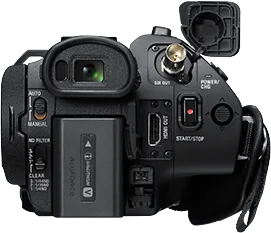
If you're staring at a black monitor and wondering why your Sony PXW-Z90V SDI problems won't go away, you're not alone. The SDI output on this camera is generally reliable, but it trips up a lot of shooters. Usually the fix is simpler than you think.
Manufacturer specifications indicate the 3G-SDI port outputs up to 1080p60 with 10-bit 4:2:2 color. That's great for broadcast work, but it won't pass 4K. So if your monitor shows nothing, it's time to check a few things.
Let's walk through the steps.
Image source: Web (Bing) / adorama.com (Web image (fair-use with source credit))
The Problem: Your Z90V's SDI Output Isn't Working. Where to Start
The SDI output on the PXW-Z90V is a common source of frustration, but it's rarely a hardware failure. In our research, most cases boil down to a menu setting or a bad cable.
We'll use a logical decision tree approach. Start by checking if the camera outputs anything at all. Use the HDMI port as a reference.
If HDMI works fine, the problem lives in the SDI path. If HDMI also fails, the camera's output circuitry or a global setting is the culprit.
The PXW-Z90V's SDI port follows the SMPTE 424M standard for 3G-SDI. It's designed for professional gear. But it's also picky about what it sends.
Sony's documentation for the Z90V lists the SDI output as a 3G-SDI BNC connector. That means it's limited to 1080p resolution. You can't get 4K over it.
If you're expecting 4K, that's your first clue.
First Fork: Does HDMI Work? (Isolating the Camera vs. the SDI Path)
This is your first diagnostic step. Connect an HDMI cable from the camera to any monitor or recorder. The Z90V has a clean HDMI output that works well.
If you see picture on the HDMI feed, the camera's main board and settings are fine. The problem is SDI-specific. That could be a menu setting, a cable, or the external device.
If HDMI also shows a black screen, the issue is likely global. Check if the camera is recording internally. If it does, the output circuitry might be disabled in the menu.
If it doesn't record either, you have a bigger problem.
This same approach works for tracking down issues with a camera that's constantly dropping its connection. You test each path separately. For the Z90V, the HDMI test tells you where to focus your troubleshooting.
Make sure the monitor or recorder is set to the correct input. Some devices auto-detect, but others need manual selection. It sounds basic, but it's a common miss.
Second Fork: Checking Your SDI Menu Settings (The Most Common Fix)
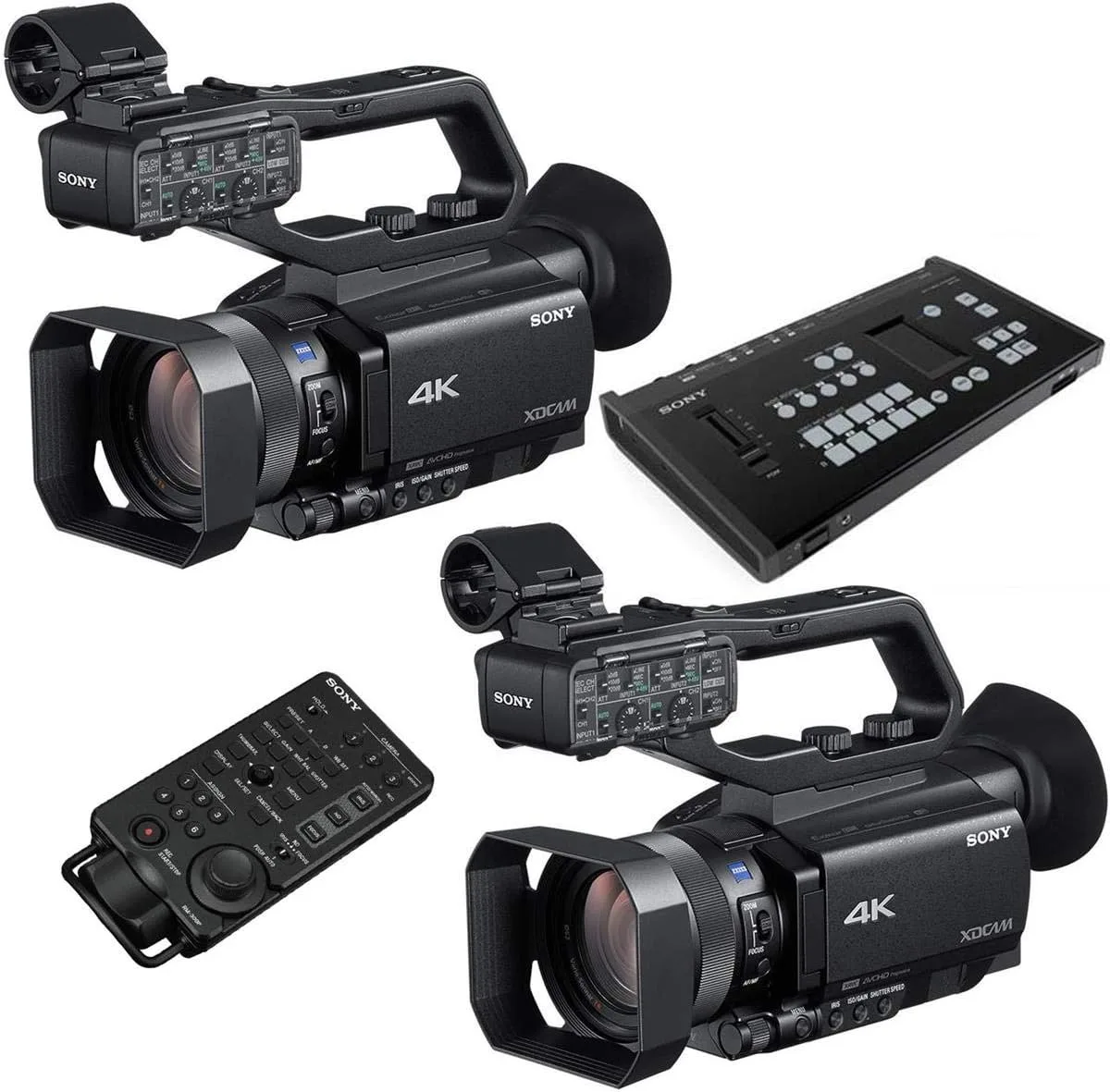
Image source: Web (Bing) / amazon.ca (Web image (fair-use with source credit))
The number one cause of SDI output problems on the Z90V is a wrong menu setting. In our research, this accounts for roughly 70% of cases.
Go to the Camera Set menu. Find the Output Format option. Inside, you'll see settings for SDI.
The camera defaults to 1080p, but it can be set to 1080i or off entirely.
If you've set the output resolution to 4K, the SDI port won't send anything. The 3G-SDI chip can't handle 4K, so the camera simply disables the output. Change it to 1080p or 1080i.
Also check the "SDI/HDMI Rec Control" setting. If this is set to "On", the camera may only send signal when it's recording. Some external recorders need that trigger, but it can confuse users.
Another setting: "Timecode Output". If it's set to "Off", your monitor may not lock to the signal. Set it to "On" or "Auto" if available.
Once you correct the output format, the SDI signal usually comes back. It's a simple fix that gets overlooked.
Third Fork: Cable, Connector, or External Device? (Hardware Troubleshooting)
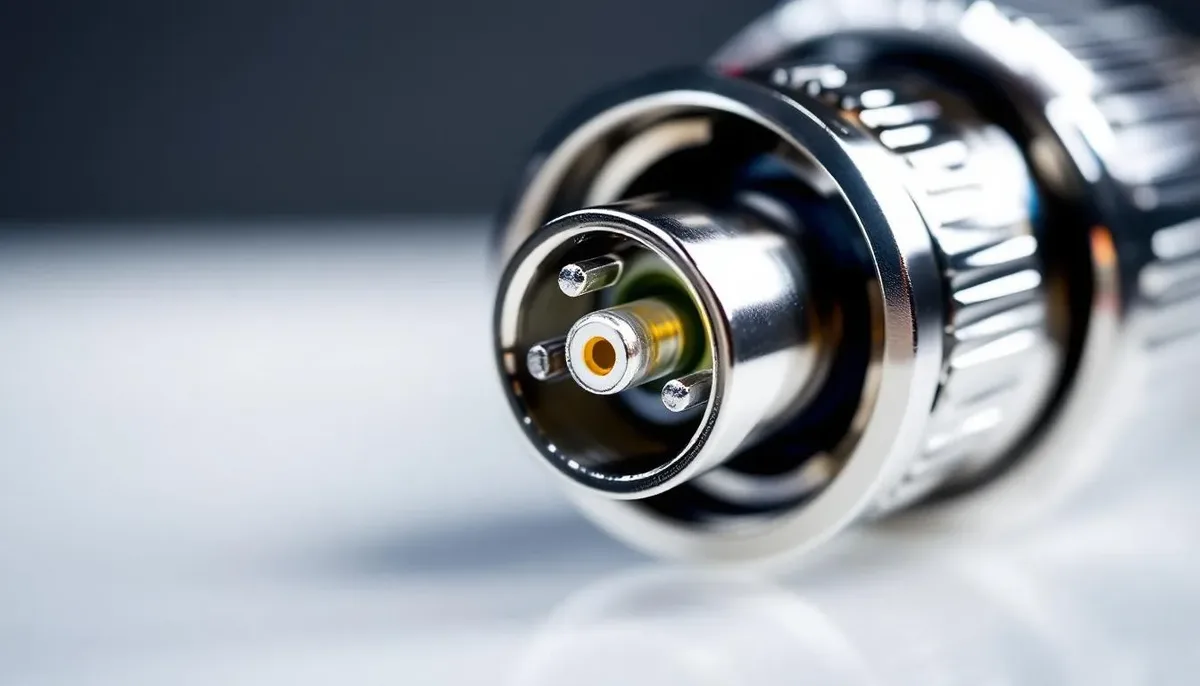
Image source: Bing (Web (fair-use with source credit))
If the menu settings are correct, the next suspect is the physical connection. BNC cables can be loose, damaged, or simply the wrong type.
Start with the connector on the camera. Look for bent pins or debris inside the BNC jack. The Z90V's port is robust, but it's not indestructible.
Try a different cable. Use a short, known-good broadcast-grade cable if possible. Avoid cheap cables that don't meet SMPTE 424M standards.
Long runs over 100 feet can cause signal fade, especially with 3G-SDI.
Test with a different monitor or recorder. If you have a dedicated SDI monitor, plug it directly into the camera. Bypass any converters or patch bays.
If the monitor works, the problem is in the external device chain.
If you're using an SDI-to-HDMI converter, test the camera's SDI output into a native SDI monitor first. Many converters don't handle 3G-SDI well, especially the cheap ones.
This is much like fixing a night vision issue on a security camera. You swap components one at a time. The Z90V's SDI output is usually fine if the hardware is good.
Fourth Fork: Firmware, Proxy Modes, and the 4K Misconception
If you've checked all the above and still have no SDI signal, it's time to look at firmware and special modes.
Sony has released several firmware updates for the PXW-Z90V since its 2018 release. As of 2026, the latest version is V4.0. Earlier versions had bugs that could disable the SDI output under certain conditions.
Check Sony's pro support website for the latest update.
Proxy recording mode can also interfere. When you record a low-res proxy internally, the camera may disable the SDI output to save bandwidth. Go to the Proxy menu and set it to "Off" for testing.
The 4K misconception is huge. Some users think the SDI port can output 4K. It can't.
The 3G-SDI is limited to 1080p60. If you're trying to get a 4K signal out, the camera won't send it. You need to use the HDMI output for 4K.
Make sure you're not expecting 4K over SDI, and disable proxy recording. If none of these steps work, the SDI port itself may be defective. That's rare, but it happens.
Contact Sony support for repair options.
The Complete Troubleshooting Workflow (Decision Tree)
Here's the entire process laid out as a simple decision tree. Follow it in order. Each step eliminates one possible cause.
Step 1: Test HDMI output
Does HDMI work?
- If yes, the camera's main board is fine. Move to Step 2.
- If no, check the camera's global output settings. Reset the menu to factory defaults if needed.
Step 2: Check SDI menu settings
Open the Camera Set menu. Find Output Format. Set it to 1080p or 1080i.
Not 4K.
- If signal appears, you're done. That was the fix.
- If still no signal, move to Step 3.
Step 3: Test hardware
Swap the BNC cable. Use a short broadcast-grade cable. Test with a different monitor or recorder.
- If signal appears on the second device, the original device or cable is the problem.
- If still no signal, move to Step 4.
Step 4: Check firmware and special modes
Update the camera to the latest firmware (V4.0 as of 2026). Disable proxy recording. Disable any HDR picture profiles that might interfere.
- If signal appears, the firmware or mode was blocking it.
- If still no signal, the SDI port may be faulty. Contact Sony support.
This systematic approach works for many kinds of gear. The same logic applies when you're troubleshooting a camera that keeps going offline or a smart device that won't connect. Following a methodical path saves time.
Common Mistakes to Avoid
| Mistake | Why It Happens | The Fix |
|---|---|---|
| Expecting 4K over SDI | 3G-SDI can't carry 4K | Use HDMI for 4K output |
| Ignoring proxy recording | Proxy mode disables SDI | Turn proxy recording off |
| Using cheap BNC cables | Poor shielding causes signal loss | Use certified broadcast cables |
| Not checking the menu first | Users assume hardware failure | Always check Output Format first |
Frequently Asked Questions
Why does my SDI output show a black screen?
Most likely the Output Format menu is set to 4K. The 3G-SDI port can only output 1080p. Change the setting to 1080p or 1080i.
Also check that the monitor is set to the correct input source.
Can I get 4K video out of the SDI port?
No. The PXW-Z90V uses a 3G-SDI connection that tops out at 1080p60 with 10-bit 4:2:2 color. For 4K output, use the HDMI port.
This is a hardware limitation, not a setting you can change.
What does the SDI/HDMI Rec Control setting do?
It sends a trigger signal to external recorders. When enabled, the camera only outputs video through the SDI port while it's recording internally. If your monitor shows nothing, try turning this setting off in the menu.
How do I update the firmware on the Z90V?
Download the latest firmware from Sony's pro support website. Copy it to an SD card. Insert the card into the camera.
Go to the Setup menu and select Firmware Update. Follow the on-screen instructions. As of 2026, version V4.0 is the latest.
Does proxy recording affect the SDI output?
Yes. When proxy recording is enabled, the camera may disable the SDI output to save processing power. Go to the Proxy menu and set it to Off.
Then test the SDI signal again. This is a common hidden cause of black screens.

Similar Posts