Razer Kiyo Pro Troubleshooting
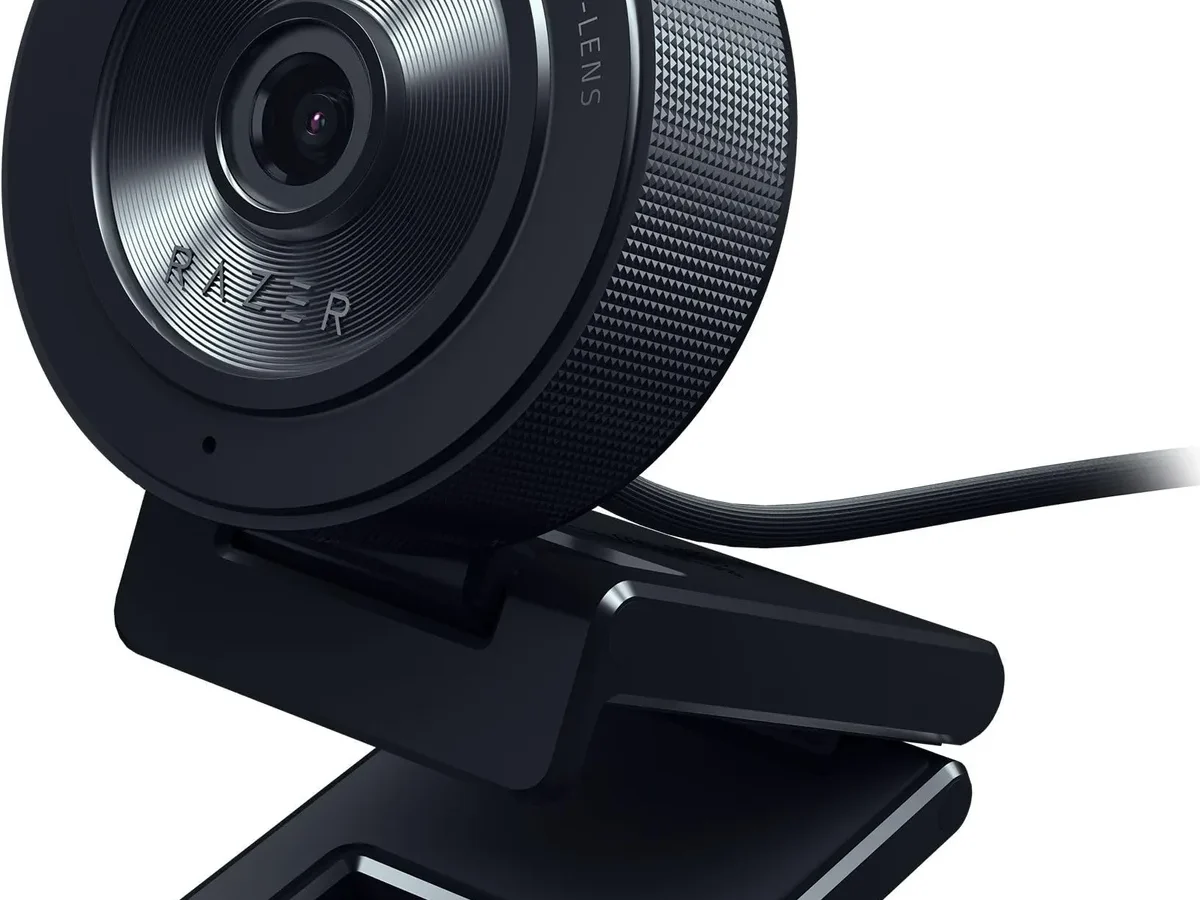
Your Razer Kiyo Pro troubleshooting starts with one simple question: why isn't it working? The camera might show a black screen, refuse to be detected, or produce choppy video. Most of these problems have straightforward fixes you can try right now.
Manufacturer specifications indicate the Kiyo Pro needs a USB 3.0 port to deliver its full 1080p 60fps signal. Without that bandwidth, the camera may not appear at all or might drop to a lower resolution. As of 2026, the most common cause remains a simple port mismatch.
Here are the likely culprits and fixes.
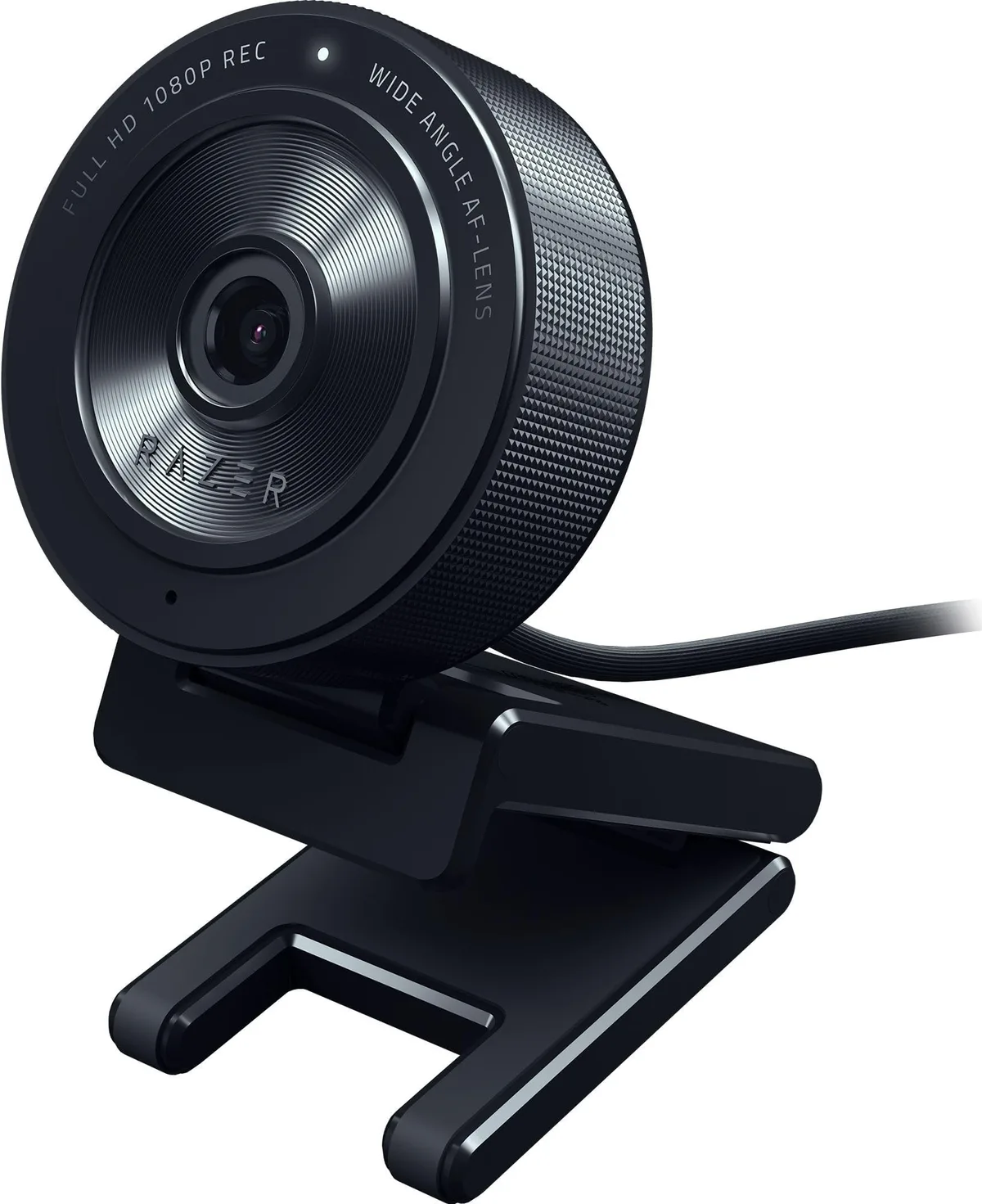
Image source: Web (Bing) / amazon.fr (Web image (fair-use with source credit))
Quick Answer: What to Do When Your Kiyo Pro Isn't Working
Check your USB port first. The Kiyo Pro needs a USB 3.0 port for full signal. Update firmware through Razer Synapse next.
Restart your computer. Test the camera in OBS. These steps fix most issues.
Is It a Connection Problem? (USB 3.0, Cable, Port Mapping)
This is the single most common reason the Kiyo Pro stops working. The camera requires a USB 3.0 port, which delivers enough power and data bandwidth to handle uncompressed 1080p video at 60 frames per second. Plug it into a USB 2.0 port and it may not show up at all.
How do you tell which port is which? USB 3.0 ports usually have a blue insert inside the connector. They are also marked with a "SS" (SuperSpeed) logo.
Front panel ports on a desktop case are often USB 2.0, even if the motherboard has USB 3.0 ports on the back.
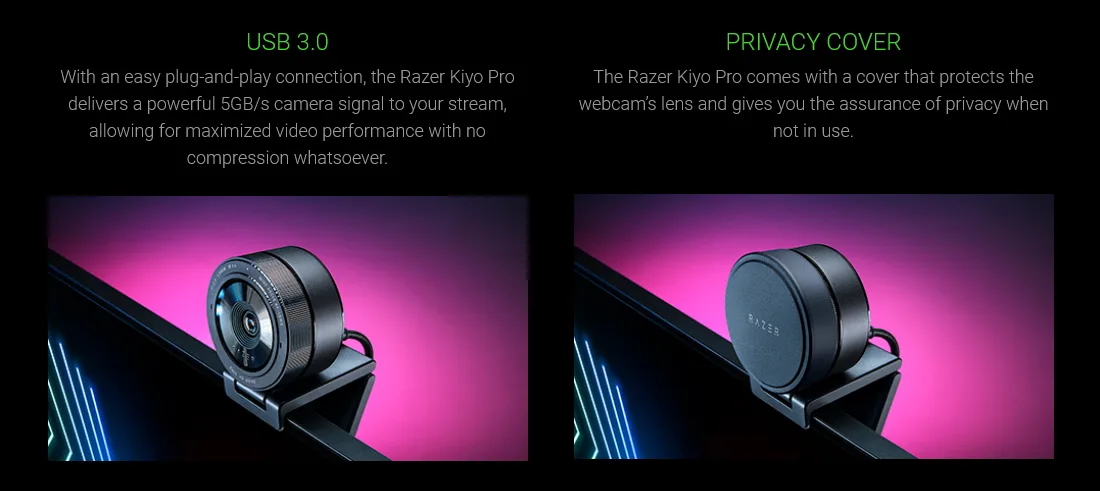
Image source: Bing (Web (fair-use with source credit))
Try the following steps in order:
- Move the camera to a rear USB port on your desktop. Avoid front panel ports or USB hubs.
- Check the cable for damage. The Kiyo Pro has a fixed USB-C cable. Bent or frayed sections near the connector can cause intermittent signal loss.
- Try a different USB 3.0 port on your computer. Some ports share a controller and bandwidth drops when multiple devices are active.
- Test the camera on a different computer. If it works there, the issue is your original machine, not the camera.
If the camera still isn't detected, the problem may be a driver conflict or a firmware issue. This is similar to fixing an offline camera, where the USB connection is the first thing to check.
Is It a Software or Driver Issue? (Razer Synapse, Firmware, OBS)
Once you confirm the camera is getting power and being detected by your computer, the next suspect is software. The Kiyo Pro relies on Razer Synapse for firmware updates, settings adjustments, and HDR control. Without Synapse installed, the camera still works as a basic plug-and-play device.
But you lose access to features like field of view switching and the adaptive light sensor.
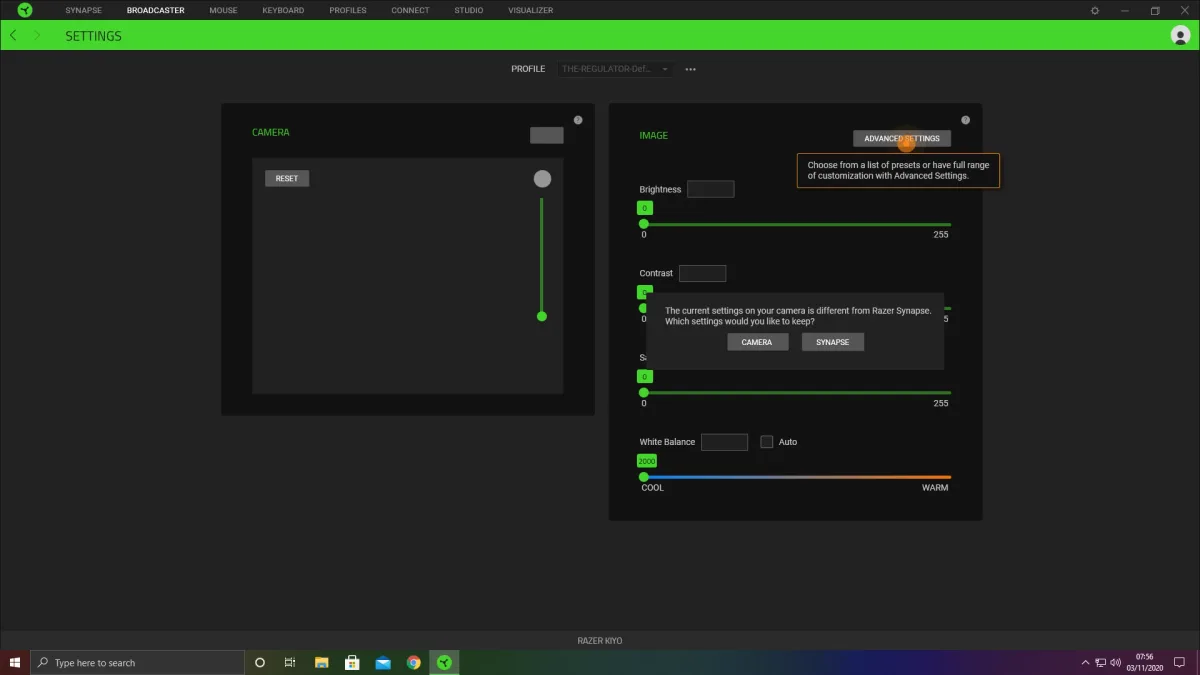
Image source: Web (Bing) / storage.googleapis.com (Web image (fair-use with source credit))
Start here:
- Install or update Razer Synapse from the official website. Do not use third-party download sites. For the latest firmware, check the official Razer support site.
- Open Synapse and go to the Kiyo Pro module. Check for a firmware update. Outdated firmware can cause black screens or stuttering video.
- If the camera doesn't appear in Synapse, unplug it, restart your computer, and plug it back in. This forces a fresh driver handshake.
- Check for conflicting software. Programs like OBS, Zoom, or Discord can lock the camera. Close all apps that might be using it, then reopen Synapse.
Aggregate user reviews report that the most common software fix is a clean firmware update. If Synapse still doesn't detect the camera, try uninstalling it, rebooting, and reinstalling the latest version. This process is similar to troubleshooting cameras that won't connect, where driver conflicts are a frequent cause.
Is It a Video Quality or Performance Problem? (HDR, Low Light, Frame Drops)
Your camera is detected and working. But the video looks off. It might be washed out, too dark, or stuttering.
These issues usually come down to settings rather than hardware faults.
The Kiyo Pro uses a STARVIS 2 sensor, which performs well in low light down to 0.01 lux. But the HDR mode can cause problems if your lighting situation doesn't match the scene. HDR tries to balance bright and dark areas.
In a room with even lighting, it can make the image look flat or washed out.
Try these fixes:
- Turn off HDR in Razer Synapse if your room has consistent lighting. HDR is best for high-contrast scenes like a window behind you.
- Switch the field of view to 80 degrees if you're too close to the camera. Wider angles can make you look small and pick up more background.
- Check your frame rate setting. The camera can do 1080p at 60fps, but only through a USB 3.0 port. A USB 2.0 connection forces 30fps or lower.
- In OBS, set the video capture device to 1080p and 60fps. Also check that the color space is set to YUV and not RGB, which can cause banding.
If your video still looks grainy in low light, the camera's auto gain control may be boosting the signal too much. You can manually adjust exposure in Synapse or use an external light source. This is similar to fixing grainy footage, where low-light settings are the main culprit.
Is It a Microphone or Audio Problem?
The Kiyo Pro includes a built-in mono microphone. It's not the camera's strongest feature, but it should work out of the box. If no audio is coming through, the issue is almost always a software selection problem.
The Kiyo Pro appears as two devices in your operating system: one for video, one for audio. Some apps only pick up the video device. You need to manually select the audio source.
Here's what to check:
- In OBS, add a new Audio Input Capture source and select "Razer Kiyo Pro" from the dropdown. The default microphone may be set to your computer's internal mic.
- In Windows, right-click the speaker icon in the system tray and select "Open Sound settings". Under Input, choose the Kiyo Pro. Speak into the camera and watch the test bar move.
- On macOS, go to System Preferences, then Sound, then Input. Select the Kiyo Pro.
- If the audio is too quiet or picks up background noise, lower the gain in Synapse. The microphone is omnidirectional, so it captures sound from all directions.
If you've selected the correct device and still get no audio, check the physical privacy shutter. The Kiyo Pro has a sliding lens cap. When it's closed, the microphone may still work, but the video goes black.
Also check that your operating system hasn't disabled the microphone globally.
Console-Specific: Using the Kiyo Pro on PS5
The Kiyo Pro works with the PlayStation 5, but the setup process is different from a PC. Console streaming has its own quirks and limitations you need to know about.
The PS5 recognizes the Kiyo Pro as a standard USB camera. It appears in the broadcast settings menu. But there's a catch.
The PS5 can only use the camera as a video source during streaming. It does not allow the camera for party chat or general system use.
Follow these steps to set it up:
- Go to Settings > Captures and Broadcasts > Broadcasting. Select your streaming platform.
- Plug the Kiyo Pro into a USB port on the back of the PS5. The front USB-A ports work fine, but the rear USB-C port may require an adapter.
- In the broadcast settings, choose the Kiyo Pro as the camera. The PS5 will detect it automatically.
- Adjust the field of view using the physical switch on the camera. You cannot change it through the PS5 interface.
There is one important limitation. The PS5 does not support HDR mode on the Kiyo Pro. The HDR toggle in Razer Synapse is only available on PC.
On console, the camera defaults to SDR mode. This is fine for most streamers, but it means you lose the main advantage of the Kiyo Pro's sensor.
If you experience stuttering or dropped frames during PS5 streaming, check your internet upload speed. The PS5 needs at least 5 Mbps for 720p streaming and 10 Mbps for 1080p. The camera itself is not the bottleneck.
This is similar to fixing connection problems, where network bandwidth is the real issue.
Mistakes to Avoid When Troubleshooting
Some common errors make troubleshooting harder than it needs to be. Avoid these pitfalls and you'll save time and frustration.
Skipping the USB 3.0 check. This is the number one mistake. Users plug the camera into a USB 2.0 port and assume it's broken. Always verify the port type first.
Look for the blue insert or SS logo.
Forgetting to update firmware. An outdated firmware can cause black screens, stuttering, or detection failures. Check for updates in Razer Synapse at least once a month. This is especially important after a major Windows update.
Closing OBS incorrectly. If OBS is using the camera, it locks the feed. Other apps cannot access it. Close OBS properly before trying to use the camera in another program.
Force-closing OBS can leave the device locked and require a reboot.
Ignoring physical obstructions. The Kiyo Pro has a sliding privacy shutter. If it's closed, the video feed is black. This is an easy fix that people often overlook.
Also check the lens for dust or smudges.
Using a USB hub. Powered hubs can work, but passive hubs often lack enough power. The Kiyo Pro draws up to 0.9 amps from a USB 3.0 port. A hub shared with other devices may not supply enough current.
Plug directly into the computer.
Assuming the camera is defective. Aggregate user reviews show that very few Kiyo Pro units have genuine hardware defects. Most issues are software or connection related. Exhaust all software fixes before seeking a replacement.
This approach applies to other cameras too, as we've seen in common troubleshooting mistakes.
Frequently Asked Questions
Why does my Kiyo Pro show a black screen in OBS?
The most common cause is a USB 2.0 port. Move the camera to a USB 3.0 port with a blue insert. If that doesn't work, close OBS, unplug the camera, restart your computer, and plug it back in.
Then reopen OBS.
Can I use the Kiyo Pro without Razer Synapse?
Yes, the camera works as a plug-and-play device without Synapse. You get basic 1080p video at 30fps. But you lose HDR, field of view switching, and firmware updates.
Install Synapse for full functionality.
Does the Kiyo Pro work with macOS?
Yes, the Kiyo Pro is compatible with macOS. It appears as a standard UVC camera. However, Razer Synapse for macOS has limited features.
You may not be able to adjust HDR or field of view settings on a Mac.
How do I fix stuttering video on the Kiyo Pro?
Stuttering usually means the camera is on a USB 2.0 port or the USB controller is overloaded. Move it to a dedicated USB 3.0 port. Also check that your computer can handle 1080p at 60fps.
An older CPU may struggle with encoding.
What is the warranty on the Kiyo Pro?
Razer offers a one-year limited warranty on the Kiyo Pro. It covers manufacturing defects but not physical damage, water damage, or normal wear. Register your product on the Razer website within 30 days of purchase.
Can I use the Kiyo Pro as a security camera?
The Kiyo Pro is designed for streaming and video calls. It lacks motion detection, cloud recording, and continuous recording features. For security purposes, consider a dedicated camera like those covered in fixing a device that won't connect.

Similar Posts

































[…] diagnostic approach mirrors the logic used in other camera systems. Similar webcam charging problems follow the same pattern. The goal is to isolate the variable before you spend any […]