Vantrue N4 Pro Not Recording
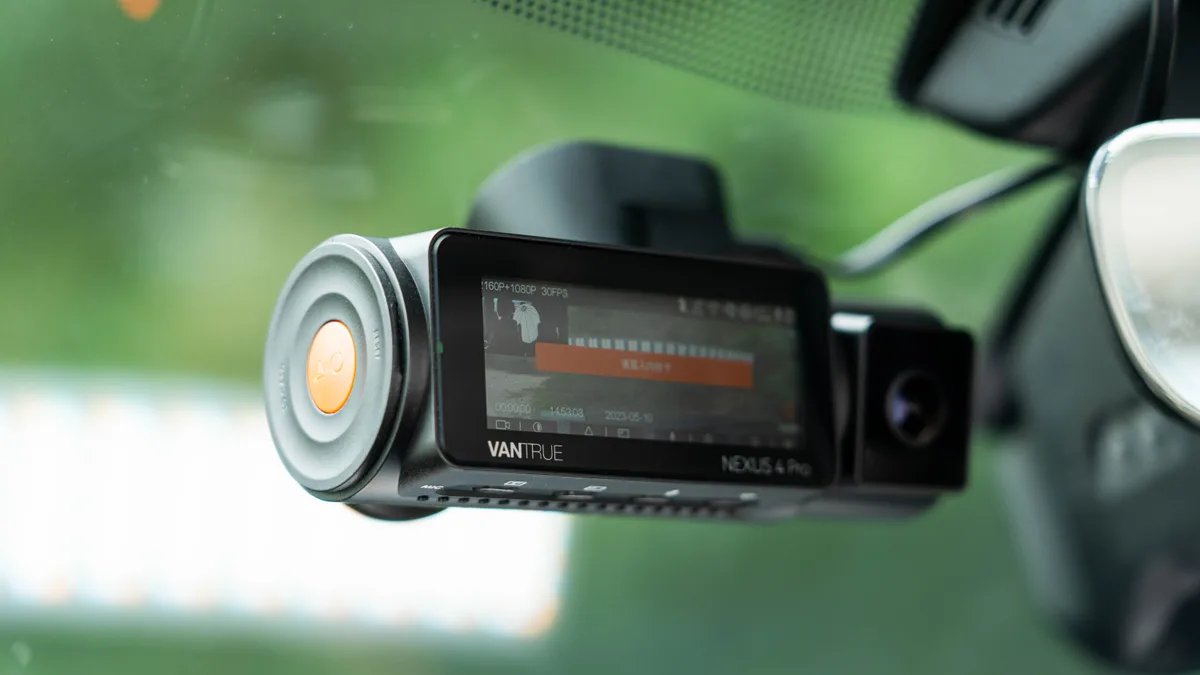
Image source: Bing (Web (fair-use with source credit))
There's nothing more frustrating than looking back at footage after a close call, only to find your Vantrue N4 Pro not recording. The good news is that this problem almost always has a straightforward fix. You just need to know where to look first.
Manufacturer specifications indicate that the N4 Pro supports microSD cards up to 256GB with a U3 or V30 speed rating. Anything less, and the camera may stop recording without warning. As of 2026, aggregate reviews report that the most common causes are simple fixes you can do yourself.
Let's start with the quickest checks.
Quick Answer
A Vantrue N4 Pro not recording usually has one of three causes. The SD card is wrong or needs formatting. Power is intermittent.
Or a setting is overriding the recording. This guide will help you find which one.
Start Here: The One-Minute Quick Fix Checklist
Before you dive into settings or firmware, run through these five checks. Most problems resolve at this stage.
- Check the power LED. If it's off, the camera isn't getting power. Confirm the 12V adapter is plugged in fully and the cigarette lighter socket works. Try a different car or a USB power bank to rule out a vehicle wiring issue. If you suspect a power problem, a similar troubleshooting approach covers some of the same checks.
- Check the recording LED. Solid red means it's recording. A blinking red LED usually means parking mode or an event was triggered. If the LED is off but the camera is on, check the display for a "No SD Card" or "Card Error" message.
- Reseat the SD card. Remove it and reinsert it firmly. Listen for a click. A loose connection is a surprisingly common cause of a Vantrue N4 Pro not recording.
- Format the SD card inside the camera. Use the menu option under "Format". This is not the same as formatting on a computer. The camera creates the proper file structure.
- Test with a different power source. A faulty 12V adapter is a known weak point. Borrow a known-good charger or hardwire kit to test.
If nothing above works, the issue is likely a setting or a deeper hardware problem. Move to the decision tree.
The Decision Tree: Track Down the Real Cause
This is where we get specific. The answer changes based on what your camera is doing right now. Follow the branch that matches your situation.
Check 1: Does the Camera Power On?
If the camera is completely dead, start with power. The N4 Pro uses a supercapacitor, not a battery. It should power up almost instantly when you connect power.
If it doesn't, inspect the power cable for damage. Check the fuse in your hardwire kit or the cigarette lighter fuse. A loose connection in the hardwire kit can cause intermittent power loss.
The process for isolating a faulty cable is similar to our step-by-step guide for other cameras.
If the camera powers on but a Vantrue N4 Pro not recording issue persists, move to Check 2.
Check 2: What's the Recording LED Doing?
The LED status tells you a lot. Here's a quick reference table.
| LED Status | What It Means |
|---|---|
| Solid red | Camera is recording normally. The issue is likely elsewhere. |
| Blinking red once per second | Parking mode is active. The camera is waiting for an event. |
| Blinking red rapidly | G-sensor event triggered. The file is being saved as an event. |
| Off (camera on) | No SD card detected or card error. Check the card. |
| Off (camera off) | No power. See Check 1. |
If the LED is solid red but you still have no footage, check the playback menu. You may have set the resolution too high, causing the camera to skip frames. Or, you may have accidentally turned off the rear or interior camera channels in the menu.
Check 3: Is the SD Card Compatible and Formatted?
This is the single most common culprit. The N4 Pro requires a U3 or V30 speed rating. A slower card will cause the camera to stop recording, often without an error message.
Counterfeit cards are also a problem. They show a fake capacity, so the camera thinks it has space when it doesn't.
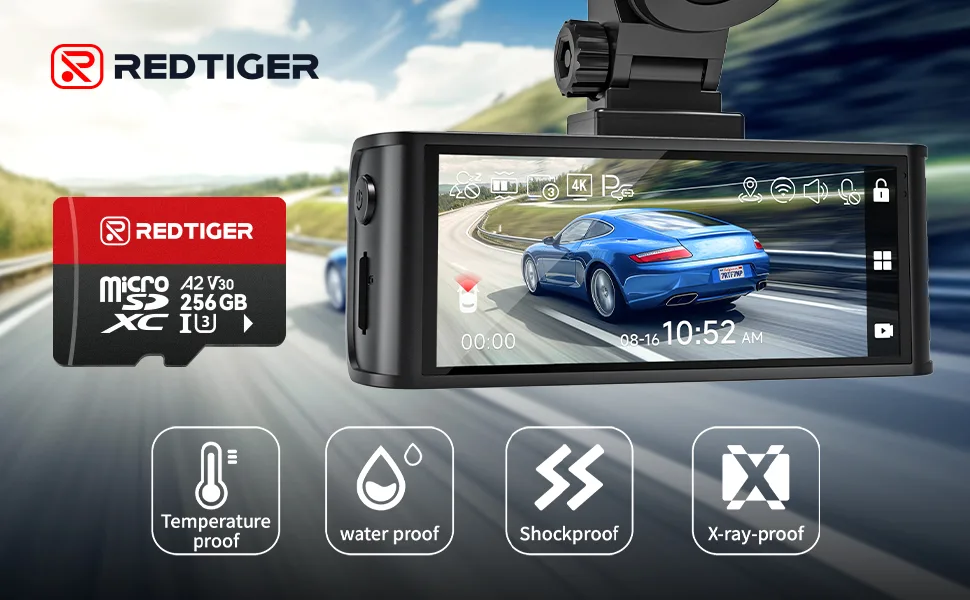
Image source: Bing (Web (fair-use with source credit))
Always format the card inside the camera. A computer format leaves a different file system. The camera needs a specific allocation unit size.
If you've tried a new card and it still fails, test with a different brand. Common recording storage issues explain why some cards work better than others.
Check 4: Are Your Settings Overriding Recording?
This is where many people get stuck. The N4 Pro has several settings that can prevent recording, even when the camera is on.
- Parking mode. If you have parking mode set to "Motion Detection" or "Time-Lapse", the camera will stop normal recording when the car is parked. That's normal. But if you don't want that, set parking mode to "Off".
- G-sensor sensitivity. Set it too high, and the camera will lock every bump as an event. This fills the card with protected files. Once the card is full, the camera stops recording. Lower the sensitivity to "Low" or "Medium".
- Loop recording. If loop recording is turned off, the camera will stop when the card is full. Ensure it's set to 1, 3, or 5 minutes.
- Recording resolution. The camera can record three channels at once. If you turn off the rear or interior camera, the menu may still show "Recording" but no footage is saved for those channels.
Configuring motion detection correctly can be tricky. A motion detection setup guide covers the same principle: if the sensor is too sensitive, it creates false events that fill the card.
Check 5: Is It a Firmware or Hardware Issue?
If you've checked everything above and a Vantrue N4 Pro not recording problem persists, it's time to update the firmware. Vantrue releases updates that fix known bugs. Check the official Vantrue support page for the latest version.
The process is simple: download the file, copy it to a formatted SD card, insert it, and power on the camera. It will update automatically.
If the firmware update doesn't help, try a factory reset. Use the reset button inside the camera (a small pinhole). Press and hold for 10 seconds.
This clears all settings.
If the camera still doesn't record, the hardware may be faulty. This is rare, but it happens. Contact Vantrue support for a warranty claim or RMA.
The N4 Pro has a 12-month warranty.
Why SD Cards Are Usually the Culprit (And How to Fix It)
Let's dig deeper into the SD card issue because it trips up so many people. The N4 Pro records high-bitrate 4K video from the front camera. That's a lot of data.
A slow card can't write fast enough, so the camera drops frames or stops recording entirely.
The correct card specs are straightforward. You need a microSD card with a U3 or V30 speed rating. This means the card can write at least 30 MB per second.
Cards with a lower rating, like U1, will cause problems. The maximum capacity is 256GB, though some users report success with 512GB cards.
But even a high-end card can fail if it's counterfeit. Fake cards are common on online marketplaces. They report a fake capacity, so the camera thinks it has 256GB of space when it actually has 8GB.
Once the real space is full, the camera stops recording. The only way to verify a card is to test it with a tool like h2testw or the official SD Association formatter software.
Another common mistake is formatting the card on a computer. The camera uses a specific allocation unit size. If you format on a PC, it may use a different size, causing the camera to reject the card.
Always format the card inside the camera using the menu option.
If you're still having issues, try a different brand. Some cards have better compatibility with the N4 Pro than others. SD card troubleshooting advice covers similar steps for other cameras.
Parking Mode and G-Sensor Settings: The Hidden Saboteurs
Parking mode is a great feature, but it can also cause a lot of confusion. The N4 Pro has three parking mode options: buffered, motion detection, and time-lapse. Each one behaves differently.
Image source: Web (Bing) / drivetechgear.com (Web image (fair-use with source credit))
- Buffered parking mode. The camera records a few seconds before and after an event. It's the most useful option, but it also keeps the camera in a constant state of readiness. If you're not parked, you shouldn't be in this mode. Check your settings.
- Motion detection parking mode. The camera only records when it detects motion. This is a common cause of a Vantrue N4 Pro not recording if you're driving. The camera thinks it's parked and only records when it sees movement. The result is a gap in footage.
- Time-lapse parking mode. The camera records one frame per second. This creates a time-lapse video. It's useful for overnight parking, but it won't capture fast events like a break-in.
The key is to ensure you're in the correct mode for your situation. If you're driving, parking mode should be set to "Off". If you're parked, choose the mode that fits your needs.
The G-sensor is another hidden saboteur. It detects impacts and locks the file so it doesn't get overwritten. If the sensitivity is set too high, every bump in the road locks a file.
Eventually, the card fills up with locked files, and the camera can't write new ones. The solution is to lower the G-sensor sensitivity to "Low" or "Medium". You can also turn it off entirely, but that's not recommended because you'll lose event detection.
The voltage cutoff setting is also important. If you're using a hardwire kit, the camera can shut off to protect your car battery. The N4 Pro has four voltage cutoff options: 11.6V, 12.0V, 12.2V, and 12.4V.
If you set it too high, the camera will shut off early, especially in cold weather. Set it to 11.6V or 12.0V for most vehicles.
Firmware, Resets, and When to Call Support
If you've worked through the SD card checks and adjusted your parking mode settings, but the camera still won't record, firmware is the next suspect. The N4 Pro runs on software that controls everything from boot times to file writing. An outdated version can cause intermittent recording failures.
Vantrue releases firmware updates to fix known bugs. Check the official Vantrue support page for the latest version. The update process is straightforward.
Download the file to your computer. Copy it to a formatted microSD card. Insert the card into the camera and power it on.
The camera will detect the update and install it automatically.
A factory reset is another option. It clears all settings back to their defaults. This is useful if you've changed settings that are causing conflicts.
To reset, use the pinhole button on the side of the camera. Press and hold it for 10 seconds with the camera powered on. The camera will restart with fresh settings.
If neither the firmware update nor the factory reset works, the hardware may be faulty. This is rare, but it does happen. The N4 Pro has a 12-month warranty.
Contact Vantrue support for an RMA. They will walk you through additional diagnostics before authorizing a replacement.
Common hardware failures include a faulty power port, a damaged supercapacitor, or a dead internal component. If the camera powers on but won't write files even with a known-good SD card, the mainboard may be the issue. Support can confirm this.
Frequently Asked Questions: The Edge Cases
Why does my N4 Pro stop recording after a few minutes?
This is usually a heat issue. The N4 Pro uses a supercapacitor, which handles heat better than a battery, but it can still overheat in direct sunlight. If the camera gets too hot, it will shut down to protect itself.
Try lowering the recording resolution or moving the camera away from direct sun.
Can I use a 512GB SD card in the N4 Pro?
The official maximum is 256GB. Some users report success with 512GB cards, but Vantrue does not guarantee compatibility. A 256GB card at 4K resolution gives about 10 to 12 hours of continuous recording.
That is enough for most users.
What do the different LED colors mean on the N4 Pro?
A solid red LED means the camera is recording normally. A blinking red LED means parking mode is active or an event was triggered. A blue LED means the GPS module is connected.
If the LED is off but the screen is on, the card is missing or faulty.
How do I format the SD card inside the camera?
Go to the menu by pressing the Menu button. Scroll to "Format" using the up or down buttons. Press the OK button to confirm.
This will erase all files on the card. Do this every few weeks to maintain performance. It prevents file corruption from fragmented data.
Will a hardwire kit fix my recording issues?
A hardwire kit can help with power stability, but it won't fix an SD card or settings issue. If your camera is losing power from the cigarette lighter adapter, a hardwire kit provides a more reliable connection. Make sure you set the voltage cutoff correctly to avoid draining your car battery.
Can I use the N4 Pro without an SD card for testing?
No, the camera will not record without an SD card. It may power on and show a live view on the screen, but it will not save any footage. Always use a card with a U3 or V30 speed rating for reliable performance.

Similar Posts