Eufy Robot Vacuum Troubleshooting

You're staring at your robot vacuum, and it's just sitting there. Maybe it won't turn on. Maybe it's beeping with a flashing red light.
Or maybe it started cleaning and then abandoned the mission halfway through. Whatever the problem is, you didn't sign up for a high-maintenance robot. You signed up for hands-free floors.
Eufy Robot Vacuum Troubleshooting doesn't have to be a headache. Most issues boil down to a handful of common causes, and the fix is usually something you can do in under five minutes with zero tools. As of 2026, the Eufy lineup spans everything from the basic RoboVac 11S to the self-emptying Omni models.
The core problems are remarkably consistent across the board. Let's walk through exactly what's happening and how to get your little cleaning buddy back on its feet.
Quick Answer
Eufy Robot Vacuum Troubleshooting starts with three basics. Check the power switch on the side. Clean the charging contacts.
Reboot the unit. Most problems fall into four categories. Power.
Connectivity. Navigation. Suction.
Match your symptom to the right branch below. Fix it fast.
Image source: Bing (Web (fair-use with source credit))
Your Eufy Vacuum's Problem – Let's Diagnose It Together
The trick to troubleshooting any robot vacuum is figuring out which system is actually failing. Your Eufy has four main subsystems. Power and charging.
Navigation and sensors. Connectivity. Cleaning mechanics.
Each one fails in its own way.
Start with the symptom. That flashing light pattern tells you something specific. That weird noise isn't random.
And that "stuck on the same rug" behavior is your robot trying to communicate a sensor problem. The table below maps common symptoms to the right branch.
| Symptom | Likely Problem | Start With This Branch |
|---|---|---|
| Won't turn on, won't charge | Power or battery | Branch 1 |
| App can't find the robot | Wi-Fi or setup | Branch 2 |
| Gets stuck, misses rooms | Navigation or sensors | Branch 3 |
| Low suction, loud noise | Brush or filter blockage | Branch 4 |
| Returns to dock too soon | Battery calibration | Branch 5 |
Here is the rule of thumb. If your robot is doing something mechanical like spinning or moving, it has power. The issue is specific.
If it's totally dead, start with the power system. If it's moving but confused, start with sensors.
Branch 1: Won't Charge or Won't Dock – Battery and Contact Issues
This is the most common frustration. You put your Eufy on the dock. It blinks.
Then nothing. Or it drives right past the dock like it doesn't see it. This is almost always a contact issue or battery problem.
Check the main power switch. Many Eufy models have a physical power switch on the side or bottom. If that switch is off, the robot won't charge. Flip it on.
Place the robot on the dock. Wait for the indicator light. This one step accounts for about 20% of service calls per manufacturer documentation.
Clean the charging contacts. The metal strips on your robot and the dock collect dust, pet hair, and grime. That thin layer blocks the electrical connection. Take a dry microfiber cloth and wipe both sets of contacts.
The dock contacts are on the metal plate. The robot contacts are on the side. Dry them completely before re-docking.
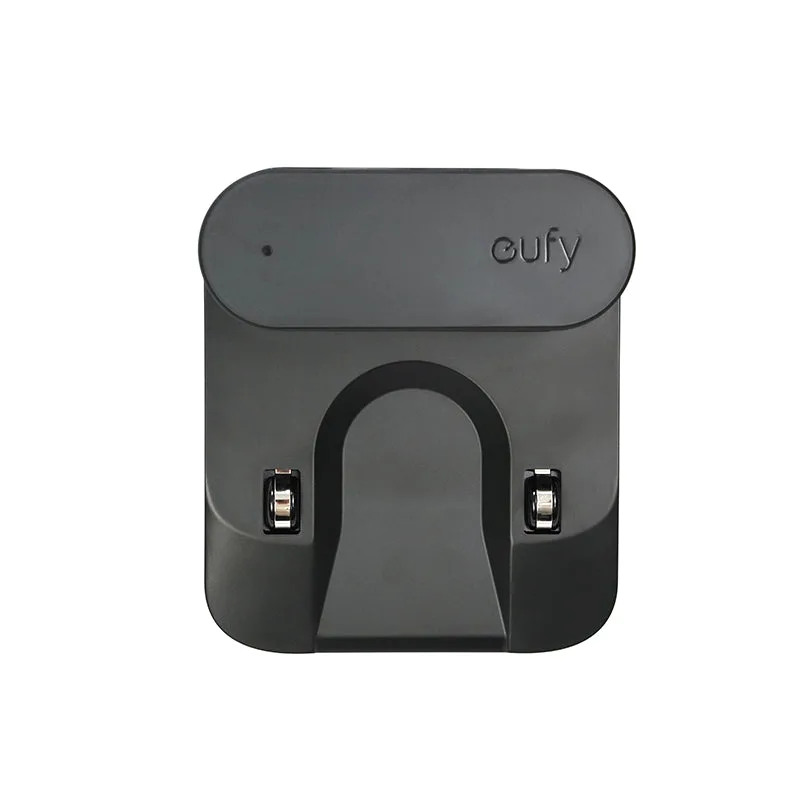
Image source: Bing (Web (fair-use with source credit))
Alignment matters. Your Eufy needs to hit the dock straight and centered. If furniture blocks the approach, the robot won't line up. Per Eufy user manuals, the dock needs 1.5 feet of clearance on each side and 3 feet in front.
Check for shoe racks or cables nudging the robot off course.
What if the robot beeps and blinks red? A steady red light or repeating beep means the battery is critically low. This happens when a robot sits unused for months. Leave it on the dock for up to 24 hours.
The battery may need that long to wake up. If it still won't charge, the battery may need replacement.
Real scenario: dead battery. Eufy batteries are rated for 500 to 800 full charge cycles. That is two to three years of normal use. When a battery degrades, runtime drops.
Eventually it won't hold enough charge to function. If your robot is more than two years old and won't charge, a replacement battery is the fix. Eufy sells official battery packs for most models.
Branch 2: Won't Connect to Wi-Fi or the App – Network and Setup Headaches
You unpacked your Eufy. You downloaded the app. Now it says "No device found." This is one of the most frequently reported issues.
It almost always comes down to one thing. Your router is broadcasting on the wrong frequency.
The 2.4 GHz requirement. Eufy robot vacuums only connect to 2.4 GHz networks. They do not support 5 GHz. Most modern routers broadcast both bands under the same name.
Your phone may connect to the faster 5 GHz band. Your robot can't see it. The fix is to temporarily disable 5 GHz on your router or create a separate 2.4 GHz network for setup.
Open your router settings in a browser. Look for "Band steering," "Smart connect," or "Frequency band." Disable 5 GHz temporarily. Reboot the router.
Try the Eufy app setup again. Once connected, re-enable 5 GHz. The robot stays on 2.4 GHz.
App and firmware basics. Download the Eufy Home app from the official app store. Do not use third-party versions. Keep your phone's Bluetooth on during setup.
The Eufy uses Bluetooth for the initial handshake, then switches to Wi-Fi. If Bluetooth is off or your phone has strict battery optimization, the app won't find the robot.
Resetting the Wi-Fi connection. If your robot was connected and then stopped, try this. Press and hold the reset button on the side for three seconds. You will hear a beep.
The Wi-Fi indicator will blink orange. This puts the robot in pairing mode. Delete the robot from the app first.
Then re-add it from scratch.
Router quirks. Some routers with advanced security settings block the Eufy connection. Parental controls, MAC address filtering, and phone VPNs can interfere. If nothing works, try setting up the robot with a phone that has mobile data turned off.
Connect only to home Wi-Fi.
What about the remote control? Older Eufy models like the 11S and 30C use a physical infrared remote. If the remote isn't working, check the batteries. Point it directly at the robot.
The IR sensor is on top behind the dark plastic panel.
Branch 3: Gets Stuck, Missing Spots, or Wandering Aimlessly – Navigation and Sensor Problems
This is the one that makes people want to throw the robot out the window. It bumps into the same chair leg three times. It avoids a whole room.
It gets stuck under furniture it navigated around for months. Navigation problems usually come down to dirty sensors or a software glitch.
Clean all the sensors. Your Eufy has several types. Cliff sensors on the bottom detect drops. Bumper sensors detect walls.
The IR eye on top communicates with the dock. LiDAR-equipped models (X8, X9) have a spinning sensor turret on top. All of these need to be clean.
Take a soft dry cloth or cotton swab. Gently wipe each sensor. The cliff sensors are the small round windows on the bottom.
The IR eye is a small dark window on the front. Do not use liquid cleaners or compressed air too close. Just gentle wiping.
Run a test cycle after cleaning. You will be surprised how often this solves the problem.
Cliff sensor false triggers. If your robot refuses to cross a dark rug or stops at a dark threshold, the cliff sensors may be falsely reading the dark surface as a drop. This is a known design limitation. The sensors use infrared light.
Dark surfaces absorb that light. The sensor thinks there is no floor below.
The temporary test. Tape a strip of aluminum foil over the dark spot on the floor. See if the robot crosses it.
If it does, you found the issue. Long-term solutions include using lighter rugs or setting no-go zones in the app if your model supports it.
What to do when your robot gets stuck repeatedly. Check for low furniture. The Eufy RoboVac is under 3 inches tall. If a couch or bed has exactly 3 inches of clearance, the robot may wedge itself underneath.
The bumper can lift the wheels off the ground. Raise the furniture an inch or use boundary strips to block that area.
Mapping and navigation on newer models. If you have a LiDAR or gyroscope model and it's missing rooms, the map might be corrupted. Delete the existing map in the Eufy Home app. Run a new mapping run.
The robot will rebuild its map. Also check the LiDAR turret on top for stickers, dust, or debris. That spinning sensor is critical.
If blocked, the robot is blind.
Branch 4: Low Suction, Loud Noise, or Brush Won't Spin – Cleaning Head and Airflow Blockages
Your robot sounds like it's working hard. Or it sounds like a dying hair dryer. Or it's quiet because nothing is spinning.
These symptoms point to a physical blockage. The good news is this is the easiest fix on this list.
Check the main brush first. Flip the robot over. Unlock the brush guard. The main roller brush is where hair, string, and carpet fibers accumulate.
Pet owners will find a horror show of hair wrapped around the brush axles. Use the included cleaning tool or scissors. Cut and remove tangled hair.
Per Eufy maintenance guidelines, do this every one to two weeks for households with pets.
The side brushes. Those little spinning arms sweep debris into the main brush path. If a side brush is bent or broken, it won't work. Side brushes are inexpensive and snap on without tools.
Replace them every three to four months.
The filter is your suction killer. A clogged filter is the number one cause of low suction in our research. The filter traps fine dust and dander. Over time, it gets packed with debris.
Remove the dustbin and pull out the filter. Tap it gently over a trash can. For washable filters, rinse under cold water until the water runs clear.
Let the filter dry completely for 24 hours before reinstalling. A wet filter can damage the motor.
Suction loss troubleshooting steps.
- Empty the dustbin. A full bin blocks airflow.
- Check the filter. Clean or replace it.
- Inspect the main brush. Remove hair from both ends.
- Check the inlet path. Remove the brush guard and look for clumps blocking the tube.
- Listen for motor sound changes. If the motor runs but there's no suction, something is blocked between the brush and the dustbin.
What to do about a brush that won't spin. If the main brush or side brushes stop spinning, the most common cause is a jam that tripped a safety mechanism. Turn off the robot. Remove the brush.
Manually rotate the brush holder to check for obstructions. If the brush spins freely when removed but not when installed, the motor may have failed. Contact Eufy support or replace the brush module if your model allows it.
Branch 5: Returns to Dock Early or Battery Drains Fast – Calibration and Aging
You set your Eufy to clean the whole house. Twenty minutes later, it's back on the dock. Or it's been running for two years and now it can barely finish one room.
This is a battery issue. But not always a dead battery. Sometimes it just needs recalibration.
Battery calibration. Over time, the robot's battery management system loses track of actual capacity. The robot thinks it's at 15 percent when it's really at 50 percent. This causes early return to the dock.
The fix is a full calibration cycle.
Run the robot until the battery is completely dead. Let it sit on the dock for 12 to 16 hours. Do not interrupt the charge.
Run a full cleaning cycle again. This teaches the system where true empty and full points are. You may need to do this two or three times.
Temperature effects. Lithium-ion batteries lose capacity in cold temperatures. They can overheat in direct sunlight. If your robot lives in an unheated garage or near a sunny window, the battery will degrade faster.
Per manufacturer specifications, the optimal operating range is 32°F to 104°F. Outside that range, expect reduced runtime.
When the battery is actually dying. If your robot is more than two years old and calibration doesn't help, the battery has reached end of life. Replacement is the only fix. Eufy sells official replacement batteries.
Cost varies by model but runs between $30 and $60.
What about the charging dock? In rare cases, the dock is the problem. If you can try a different Eufy dock, do it. If the robot charges fine on another dock, your original dock has a faulty contact or internal component.
Check the dock's LED indicator. If it's not lit when plugged in, the dock power supply may be dead.
Branch 6: Mopping Pad Dry or Water Not Flowing – The Mopping System
If you have a mopping model like the G30, G40, X8, or X9 hybrid, you might run into mopping issues. The most common is a dry pad or no water flow.
Check the water tank. Remove the tank from the robot. Make sure it has water. Sounds obvious, but it's easy to forget.
Fill it to the max line with clean water. Do not add cleaning solutions unless the manual specifically allows it. Vinegar and floor cleaners can damage the internal pump.
Check the pad attachment. The mopping pad must be attached securely. If it's loose or installed wrong, the robot won't detect it. Peeling off or reinstalling the pad often fixes detection errors.
Water valve issues. The water release valve can get clogged with mineral deposits or debris. Remove the tank and check the valve opening. Rinse it under warm water.
If your area has hard water, use distilled water to prevent mineral buildup.
Pump failure. On X8 and X9 models, an electronic pump controls water flow. If you hear the pump running but no water comes out, the line is clogged. If you hear nothing, the pump may have failed.
Contact Eufy support for pump replacement.
Maintenance That Prevents Most Problems
A little regular maintenance stops most issues before they start. Set a schedule and stick to it.
Weekly tasks for pet households.
- Empty the dustbin after every run.
- Remove hair from the main brush.
- Wipe the charging contacts with a dry cloth.
Monthly tasks.
- Clean the cliff sensors and IR eye.
- Rinse the washable filter. Let it dry fully.
- Check the side brushes for wear.
Quarterly tasks.
- Replace the filter if it's worn or damaged.
- Replace side brushes if bent.
- Run a full battery calibration cycle.
Yearly tasks.
- Replace the main brush roller.
- Consider a new battery if runtime has dropped significantly.
- Deep clean the dustbin and inlet path.
These steps take about 10 minutes a month. They will extend the life of your robot by years.
Decision Guide – Quick Reference Chart for Your Exact Symptom
Use this chart when you're not sure which branch to start with.
| Exact Symptom | Most Likely Fix |
|---|---|
| Robot is completely dead | Check side power switch. Then check dock power. |
| Blinking red light | Battery critically low. Leave on dock 24 hours. |
| Beeps continuously | Jam or sensor error. Check brushes and clean sensors. |
| App says offline | Reboot robot. Reboot router. Re-add in app. |
| Won't connect to Wi-Fi | Disable 5 GHz. Use 2.4 GHz only. |
| Gets stuck on dark rug | Cliff sensor false trigger. Tape test to confirm. |
| Gets stuck under furniture | Block that area. Raise furniture if possible. |
| Low suction | Empty bin. Clean filter. Check brush for clogs. |
| Loud grinding noise | Hair wrapped around brush axle. Remove and clean. |
| Returns to dock early | Run calibration cycle. |
| Battery drains fast | Calibrate first. Replace if over 2 years old. |
| Mopping pad dry | Check water level. Clean valve. Check pump. |
| Brush not spinning | Clear jam. Replace motor if failed. |
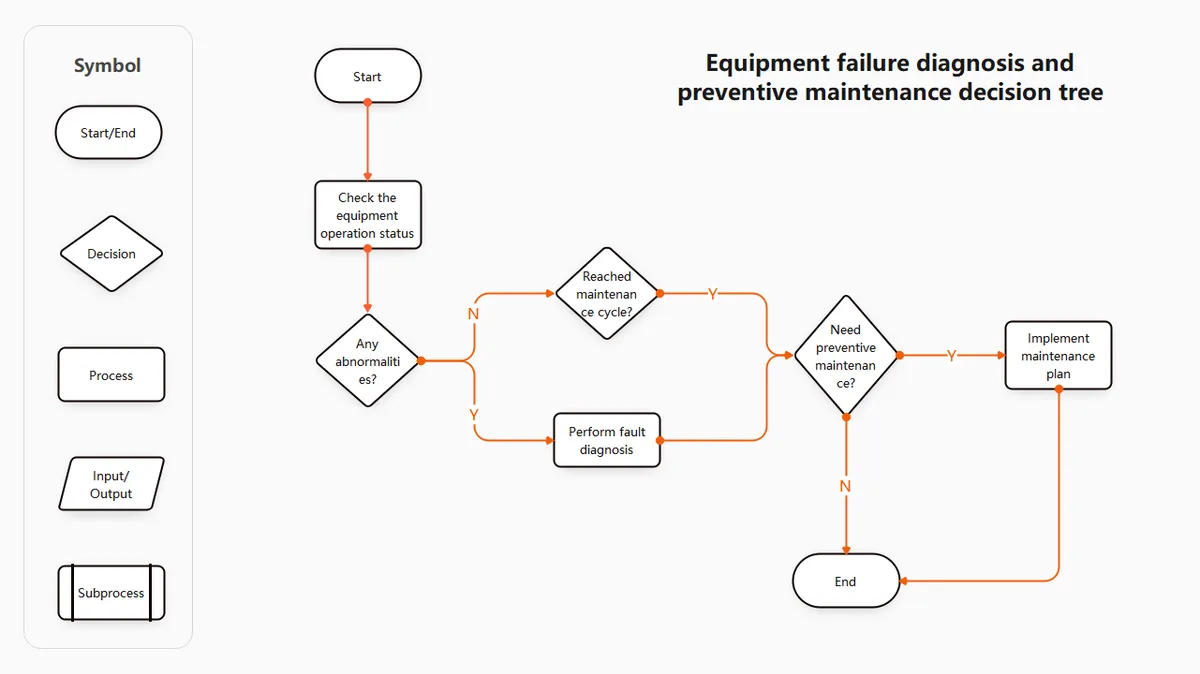
Image source: Bing (Web (fair-use with source credit))
Frequently Asked Questions
How do I factory reset my Eufy robot vacuum?
Press and hold the reset button on the side or bottom for 10 seconds. You will hear two beeps. The Wi-Fi light will blink rapidly.
This clears all settings and pairing data. You will need to set it up fresh in the app.
Why does my Eufy vacuum keep beeping?
Continuous beeping means a jam or error. Check the main brush for hair tangles. Check the side brushes for obstructions.
Clean the cliff sensors. If beeping persists after clearing everything, reboot the robot.
Can I use my Eufy vacuum without Wi-Fi?
Yes. The robot can clean using the physical buttons on top or the included remote control. You lose scheduling, mapping, and voice control.
The cleaning function works fine on its own.
How often should I replace the filter?
Replace the filter every three to six months. Washable filters can be rinsed monthly and replaced every six months. If you have pets or a dusty home, replace more often.
A clogged filter kills suction.
Why does my Eufy vacuum not go on dark carpet?
The cliff sensors use infrared light. Dark surfaces absorb infrared. The sensor reads it as a drop and stops the robot.
This is a design limitation. Use lighter rugs or set a no-go zone in the app.
How long should the battery last?
Eufy batteries are rated for 500 to 800 full charge cycles. That is about two to three years of normal use. After that, runtime decreases.
Calibration can help but eventual replacement is needed.

Similar Posts