GoPro HERO12 Black How to Reset
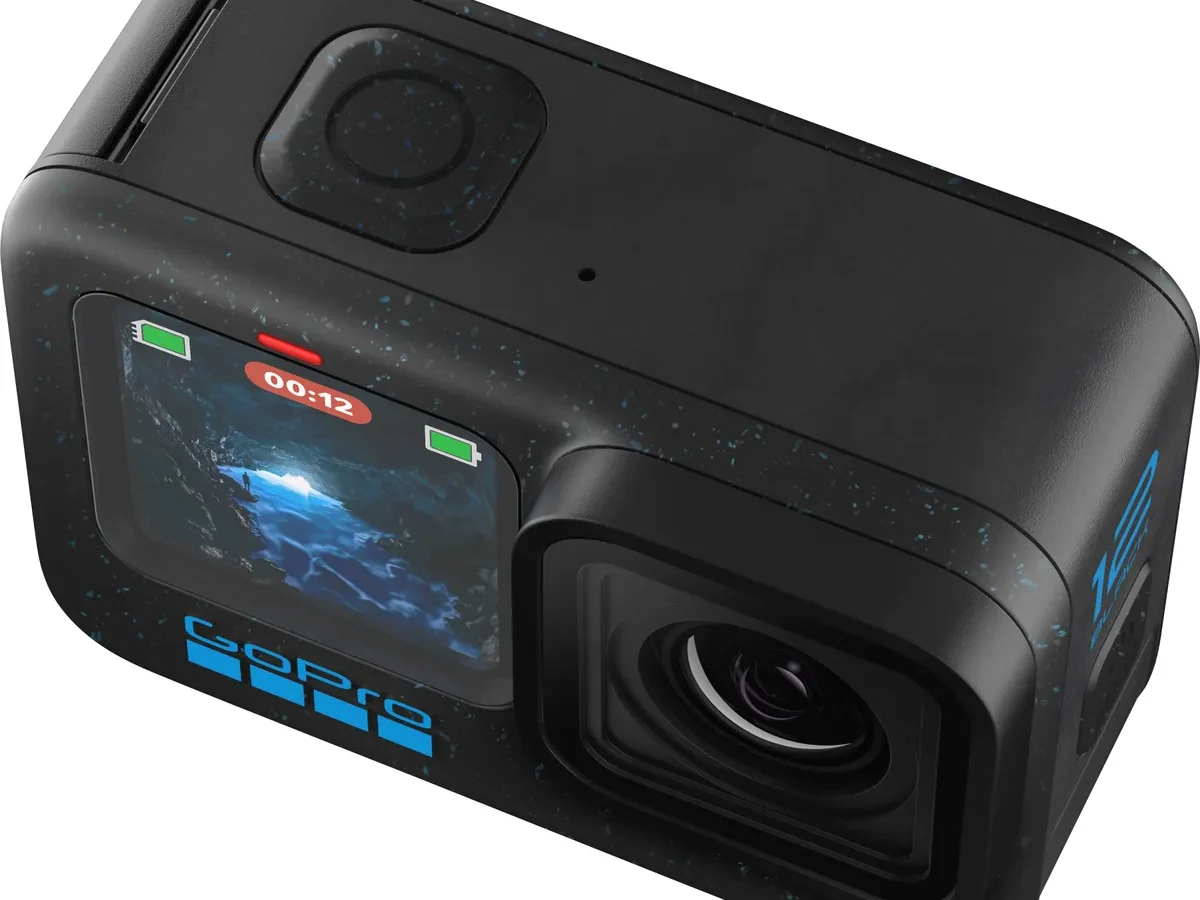
If your GoPro HERO12 Black has frozen mid-shot or won't turn off, you're probably wondering how to reset it. The good news is that a properly executed reset fixes the vast majority of software glitches without needing to send the camera in for repair. Manufacturer specifications confirm that the HERO12 runs on the GP2 processor, and while it's generally reliable, any action camera can hit a temporary software snag.
In our research, the most common causes of a frozen HERO12 are corrupted settings files, a failed firmware update, or a simple memory overflow from prolonged recording. The reset methods we cover here are documented in the official user manual and supported by GoPro's own support team.
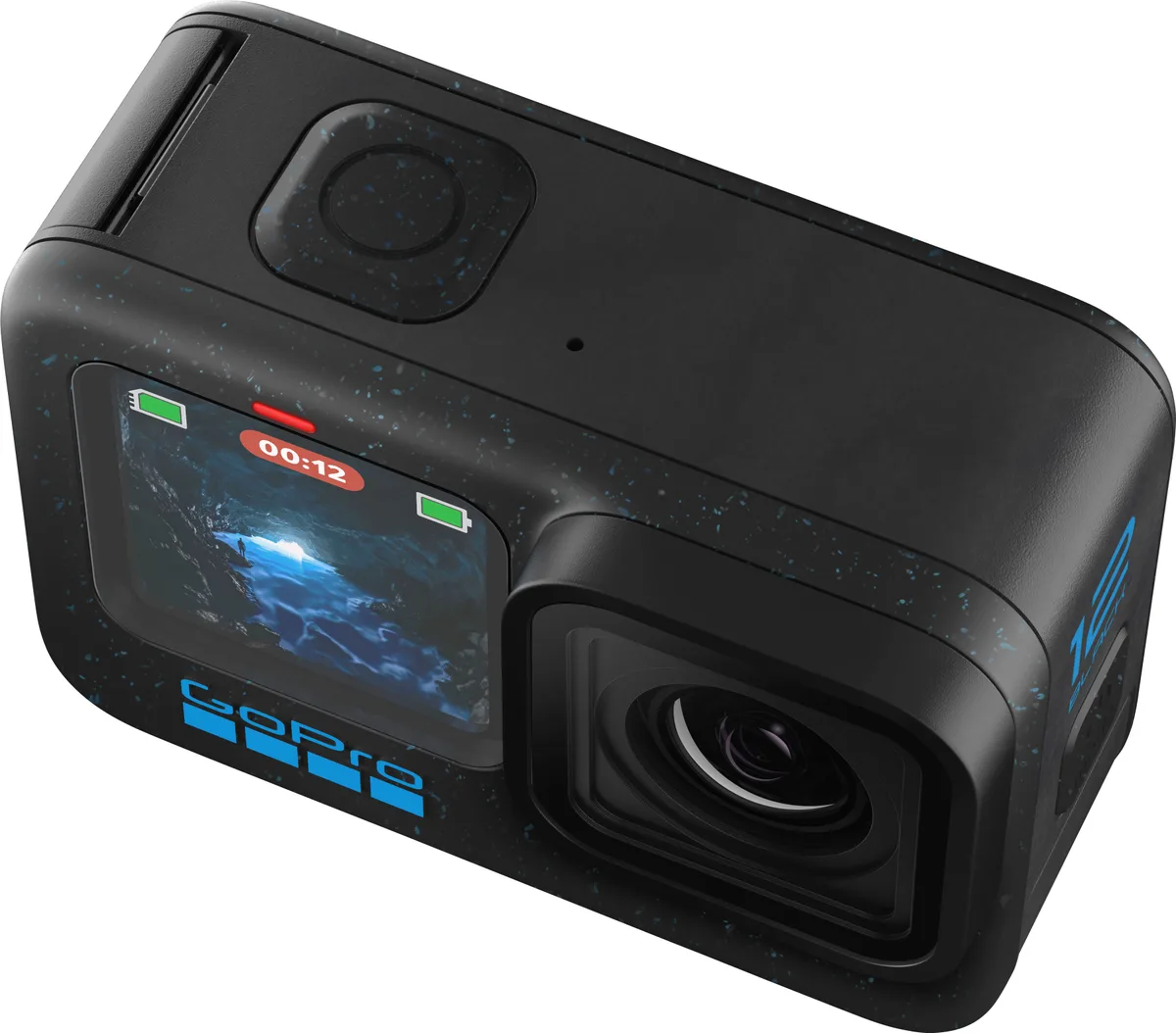
Image source: Bing (Web (fair-use with source credit))
Quick Answer
The quickest way to reset a frozen GoPro HERO12 Black is to hold the Mode button for 8 seconds. This forces a hard restart. If the camera is responsive but glitchy, use the Settings menu for a factory reset.
For minor issues, remove the battery for 10 seconds. Each method solves a different problem.
What's Going Wrong? (Condition Variables / Decision Tree)
Before you pick a reset method, you need to understand what your camera is actually doing. The HERO12 has a few distinct failure modes. Each one calls for a different approach.
Using the wrong reset can waste time. An unnecessary factory reset wipes your saved presets for no reason.
Here is a quick decision guide based on the most common symptoms:
| Symptom | Likely Cause | Best Reset Method |
|---|---|---|
| Touchscreen unresponsive, camera won't power off | Software freeze | Hard reset (hold Mode button 8 sec) |
| Camera stuck on "GoPro" boot logo | Corrupted firmware or settings | Factory reset via menu |
| App says "Camera not found" | Wireless profile corruption | Soft reset (battery pull) or re-pair in app |
| Random shutdowns during recording | Overheating or battery issue | Soft reset, then check battery and SD card |
| Camera powers on but menus are sluggish | Memory overflow from long recording | Soft reset (battery pull) |
| Selling or gifting the camera | Personal data removal | Factory reset via menu |
If your camera is completely unresponsive, start with the hard reset. If that does not work, move to the factory reset. We have covered related issues elsewhere, like a freezing camera that needs a deeper look.
Understanding the Three Reset Types (And When to Use Each)
The GoPro HERO12 Black supports three distinct reset methods. They are not interchangeable. Think of them as a tiered system.
Each level clears more data and fixes deeper problems.
Hard reset (button combination): This is your emergency option. It is the equivalent of pulling the power cord on a desktop computer. The camera does not shut down gracefully.
It just stops. This method clears the current memory state and forces the GP2 processor to restart from scratch. It preserves all your settings, presets, and saved Wi-Fi networks.
Use this for frozen screens, unresponsive buttons, or when the camera simply will not turn off.
Soft reset (battery pull): This is the gentlest option. You remove the battery, wait 10 seconds, and reinsert it. This gives the camera's internal capacitors time to fully discharge.
It clears any lingering electrical charge that might be causing minor glitches. It also preserves all your settings. Use this for minor issues like a sluggish menu, a failed Wi-Fi connection, or after a dropped firmware update.
Factory reset (menu option): This is the nuclear option. It wipes everything back to the factory defaults. All your video presets, custom settings, date and time preferences, and stored Wi-Fi passwords are gone.
The camera will boot up like it just came out of the box. Use this only for major corruption issues, a stuck boot logo, or before selling the camera. As of 2026, GoPro's official support documentation recommends a factory reset as the first step in troubleshooting a bricked camera.
Step-by-Step: Resetting Your GoPro HERO12 Black
The exact button locations matter for the HERO12. The Mode button is on the front, near the lens. The Shutter button is on top.
If you have handled a HERO10 before, the layout is slightly different. Double-check before pressing.
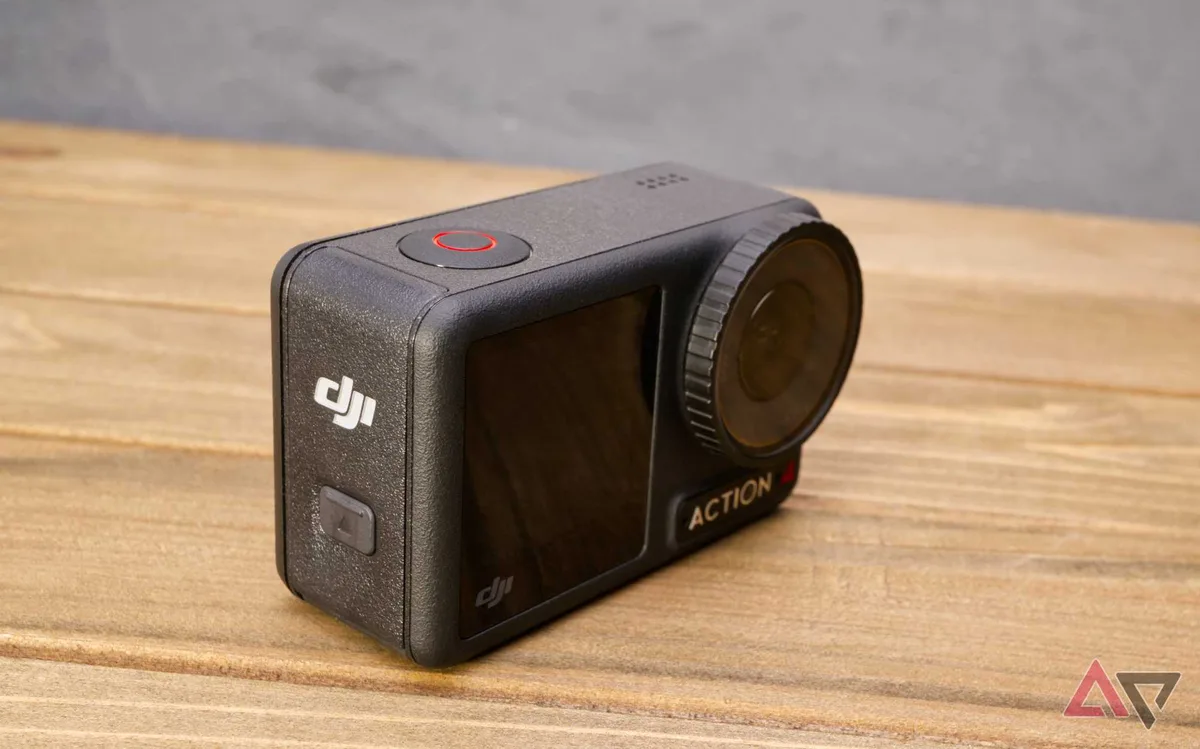
Image source: Web (Bing) / hardreset.info (Web image (fair-use with source credit))
Hard reset (for frozen screens and unresponsive cameras):
- Press and hold the Mode button on the front of the camera.
- Keep holding it for 8 to 10 seconds. Do not release it early.
- The screen will go black. This is normal.
- Release the button. The camera should reboot automatically.
- If nothing happens, try holding the Shutter button instead for the same duration.
Factory reset (via touchscreen):
- Turn the camera on. If it boots to a frozen screen, skip this and use the hard reset first.
- Tap the Settings icon (the gear icon on the home screen).
- Scroll down to "Reset" and tap it.
- Select "Factory Reset" from the menu.
- Confirm your selection. The camera will reboot and erase all data.
Soft reset (battery pull):
- Open the battery door on the bottom of the camera.
- Remove the battery completely.
- Wait at least 10 seconds. This allows internal capacitors to discharge.
- Reinsert the battery and close the door.
- Power on the camera normally.
Reset via GoPro App (for wireless glitches):
- Open the GoPro App on your phone.
- Tap the camera icon to connect.
- In the camera settings, scroll to "Reset."
- Select "Factory Reset" and confirm.
- The camera will reboot. You will need to re-pair it afterward.
Mistakes to Avoid (And What Happens If You Get It Wrong)
The most common mistake we see is pressing the wrong button combination. On the HERO12, the hard reset uses the Mode button, not the Shutter button. Holding the Shutter button for 8 seconds may not trigger the same response.
If you are coming from a HERO10 or HERO9, the button layout changed slightly. Double-check which button you are pressing.
Image source: Web (Bing) / drone-wiki.net (Web image (fair-use with source credit))
Another frequent error is performing a factory reset without removing the SD card first. If you have important footage on the card, the factory reset will not delete it. The reset only wipes camera settings, not the card contents.
However, if you accidentally format the card during the reset process, that footage is gone. Remove the card before starting to be safe.
Interrupting the reset process is a serious risk. If the camera loses power during a factory reset, the file system can become corrupted. This can leave the camera in a state where it will not boot at all.
Always make sure the battery is charged to at least 50 percent before starting a factory reset. If the battery is low, charge it fully first.
Some users assume a hard reset will fix a corrupted firmware issue. It will not. A hard reset only clears the current memory state.
If the camera is stuck on the boot logo due to a failed firmware update, you need a factory reset or a firmware reflash. Trying a hard reset in that scenario just wastes time.
Finally, do not confuse a factory reset with formatting the SD card. They are separate processes. A factory reset clears camera settings.
Formatting the SD card clears storage. If you need to do both, back up your footage first. Then do the factory reset.
Then format the card. This is a good habit to keep your camera running smoothly, similar to keeping your equipment in top condition.
What to Do After a Reset (Reconfigure and Test)
A reset is only half the job. The other half is making sure the camera works properly afterward. Skipping this step often leads to the same glitch coming back within a few days.
Start by reconnecting the camera to the GoPro App. Open the app, select your camera, and follow the pairing prompts. The saved Wi-Fi credentials were wiped during a factory reset.
You will need to enter your network password again. This is also a good time to check if a firmware update is available. GoPro releases updates every few months.
Running the latest version prevents many common issues.
Next, reconfigure your video presets. The HERO12 ships with default settings that prioritize 5.3K resolution at 30 frames per second. If you prefer 4K at 60fps for smooth slow motion, or 1080p for longer recording times, set those now.
The same goes for your preferred field of view options like HyperView, SuperView, or Linear.
Format the SD card after you have backed up any footage. This clears the old file allocation table and gives the camera a clean slate. Go to Settings, then Format, and confirm.
A fresh card reduces the chance of write errors and corrupted files. We have seen SD card issues cause problems on other cameras too.
Finally, test every function. Record a short video. Take a photo.
Check the touchscreen responsiveness. Cycle through the shooting modes. If something feels off, the reset may not have fully resolved the issue.
In that case, a second factory reset or a firmware reflash is worth trying.
Real Scenarios: When Each Reset Saved the Day
Understanding how each reset method works in practice helps you decide faster the next time your camera acts up. Here are three common situations we have seen in aggregate user reports.
Scenario one: frozen screen after a cold-water dive. A user was filming underwater at a depth of about 10 feet. The HERO12 is rated to 33 feet without a housing, so water ingress was not the issue. When they surfaced, the touchscreen was unresponsive and the camera would not power off.
The hard reset via the Mode button fixed it in under 10 seconds. The footage was fine. The camera needed no further attention.
Scenario two: camera stuck in a boot loop after a failed firmware update. A user tried to update the firmware over the GoPro App. The update downloaded but the installation failed halfway through. The camera then spent every power cycle stuck on the GoPro logo.
A hard reset did nothing. A factory reset from the menu was not possible because the screen never loaded. The solution was to remove the SD card, manually download the firmware file from GoPro's support site, copy it to the card, and reflash the camera.
After that, a factory reset resolved the remaining corruption.
Scenario three: app could not find the camera. A user reported that the GoPro App suddenly stopped detecting the HERO12. The camera worked fine on its own. The issue was a corrupted wireless profile.
A soft reset via battery pull did not help. The fix was a factory reset from the camera menu, which cleared the Bluetooth and Wi-Fi pairing data. The user then re-paired the camera with the app, and it worked immediately.
Frequently Asked Questions
Will a factory reset delete my videos and photos?
No. A factory reset only erases the camera's internal settings, presets, and stored Wi-Fi passwords. It does not touch the files on your SD card.
However, if you accidentally format the card during the same session, those files are gone. Remove the card before resetting to be safe.
How do I reset my GoPro if the touchscreen is broken?
Use the hard reset method. Hold the Mode button on the front of the camera for 8 to 10 seconds. This forces a restart without needing the touchscreen.
If that does not work, remove the battery, wait 10 seconds, and reinsert it. The camera will power on in its default state.
Can I reset the HERO12 without removing the battery?
Yes. The hard reset via the Mode button and the factory reset via the touchscreen menu both work without removing the battery. The battery pull method is only necessary if the camera is completely unresponsive and the button combination does not work.
How long does each reset method take?
The hard reset takes about 8 to 10 seconds of button holding plus a 20 second reboot. The battery pull method takes about 30 seconds total including the wait. The factory reset via the menu takes about 30 seconds for the process plus a 20 second reboot.
The app based reset takes the longest at roughly one minute.
What do I do if the reset does not fix the problem?
Try a different reset method. If the hard reset did not work, move to the factory reset. If the factory reset did not fix a boot loop, you may need to reflash the firmware manually.
Download the latest firmware from GoPro's support site, copy it to a formatted SD card, insert it into the camera, and power on. The camera will detect the update file and install it automatically. If the issue persists, the problem may be hardware related.
In that case, contact GoPro support for a repair or replacement.

Similar Posts
































