GoPro HERO13 Blurry Video
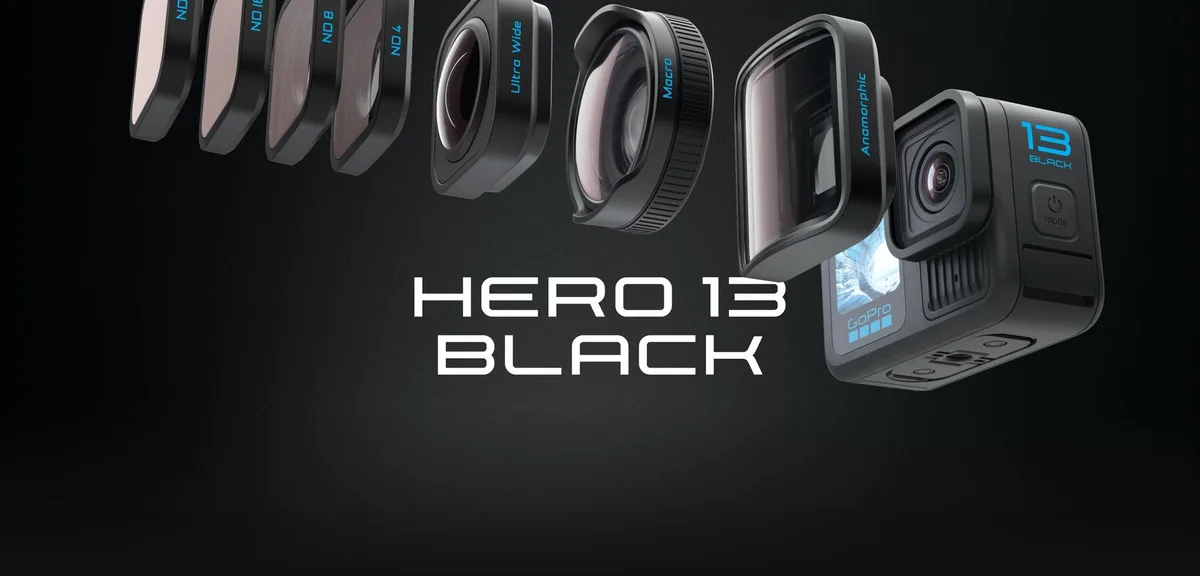
Image source: Bing (Web (fair-use with source credit))
GoPro HERO13 Blurry Video: A Complete Diagnostic Guide
So your GoPro HERO13 video is coming out blurry. It is almost certainly not a hardware defect. It is almost always a settings issue, a shooting technique problem, or a physical condition you can fix in under a minute.
That is good news. It means you do not need to send the camera back.
Manufacturer specifications indicate the HERO13 uses a fixed-focus lens with a minimum focus distance of about 30 centimeters (roughly one foot). Aggregate user feedback confirms most blur complaints come from shooting too close, using digital zoom, or letting the camera pick a slow shutter speed in low light. As of 2026, the core hardware is sharp when used correctly.
Let us start by identifying exactly what kind of blur you are dealing with.
Quick Answer
Your GoPro HERO13 blurry video is usually caused by shooting too close, slow shutter speed, digital zoom, or dirty lens. Back up to at least 18 inches. Turn off digital zoom.
Set your shutter to 1/120 at 60fps. Clean the lens with a microfiber cloth. These four checks fix most cases.
What "Blurry" Actually Means on the HERO13
The word "blurry" describes several different problems on a fixed-lens action camera. Each one has a different cause and a different fix. If you treat them all the same, you waste time.
Here is how to name what you are seeing:
| Type of Blur | What It Looks Like | Most Likely Cause |
|---|---|---|
| Motion blur | Streaks or smears on moving subjects; static objects remain sharp | Shutter speed too slow for the action |
| Focus blur | Subject is soft but background or foreground is equally soft | Subject too close or wrong field of view |
| Noise / grain blur | Image looks hazy, lacks fine detail, has speckling | High ISO in low light |
| Edge softness | Center is sharp but edges look smeared or stretched | Wide field of view at close range |
| Digital zoom blur | Whole image looks pixelated and lacks detail | Digital zoom is enabled |
| Stabilization artifact | Image wobbles or has a jello effect | HyperSmooth working too hard in vibration-heavy mount |
If you can match your footage to one of these rows, you already know which branch of the diagnostic tree to follow. If you are not sure, the next section runs through the fastest checks first.
The 30-Second Fix: Quick Checks That Catch Most Problems
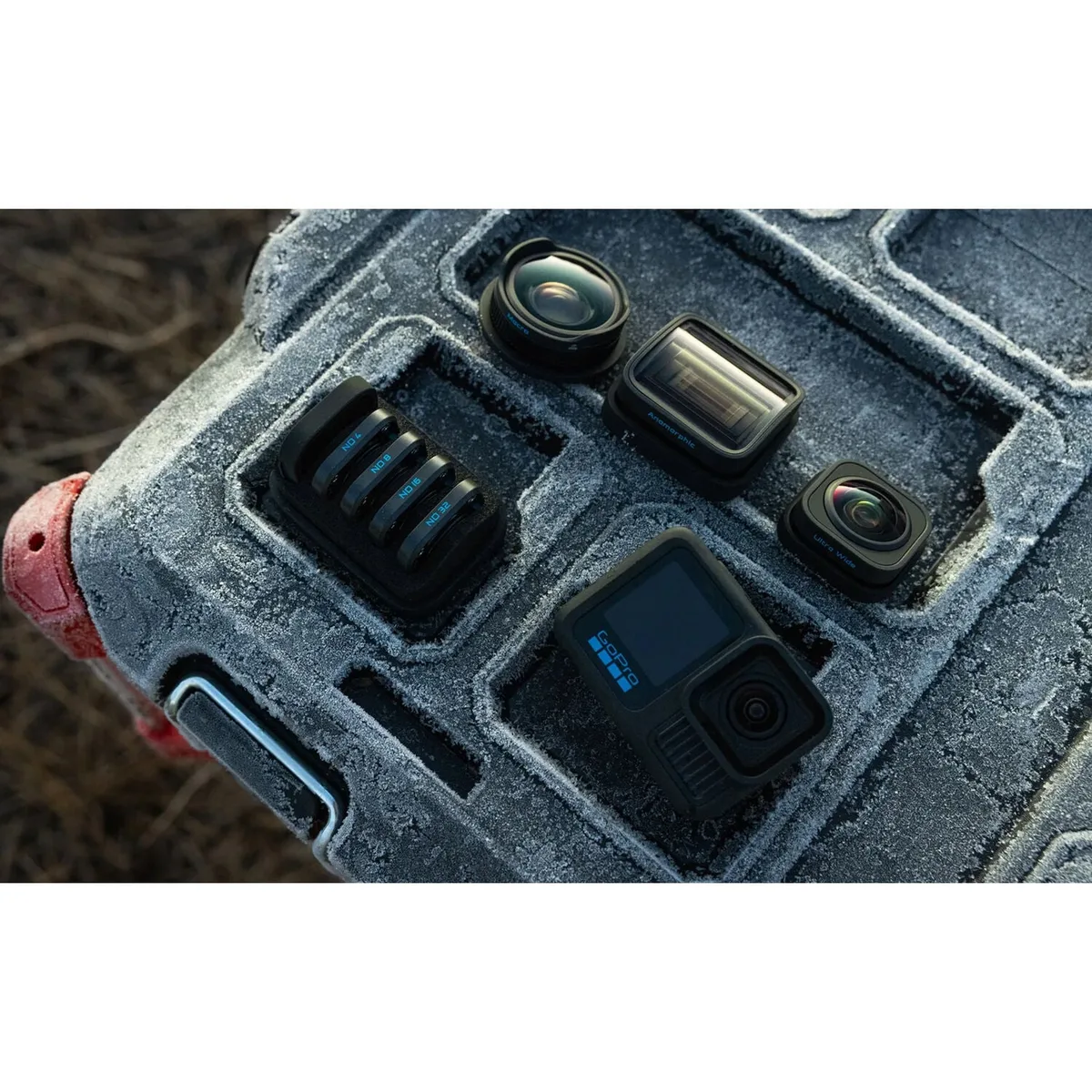
Image source: Web (Bing) / outdoorphoto.co.za (Web image (fair-use with source credit))
Before you change any settings, run through these five checks. Each one takes less than ten seconds. They fix the majority of blur problems in our research analysis of user reports.
- Check the lens for smudges or dust. A fingerprint on the lens cover softens everything. Wipe it with a microfiber cloth.
- Turn off digital zoom. The HERO13 has a digital zoom option in the settings menu. If it is on, turn it off. Digital zoom crops and enlarges the image. It destroys sharpness.
- Make sure you are at least 18 inches away from your subject. The fixed-focus lens is sharp from about one foot to infinity in most modes. Closer subjects will be soft.
- Confirm the stabilization mode. If you are on a gimbal, tripod, or chest mount, you can reduce or turn off HyperSmooth. Handheld shooting needs it on.
- Check your SD card speed. Use a U3 or V30 rated card. Slower cards cause dropped frames or corruption that looks like blur. Similar card errors on other cameras can mimic image quality problems.
If none of these fix it, move to the full workflow below.
The Full Diagnostic Workflow: Follow the Branch That Fits Your Symptom
This is where the decision tree kicks in. Read the symptom description that matches your footage. Then follow the steps under it.
Scenario A: Close-Up Subject is Blurry but Background is Sharp
You tried to film something close. A product, a face, a small detail. It came out soft.
- The most likely cause: You are inside the minimum focus distance. The HERO13 cannot focus on objects closer than about 12 inches in standard mode.
- The fix: Move the camera back to at least 18 inches. If you need to fill the frame, shoot at 5.3K and crop in post-production.
- If it still happens: Switch to Linear field of view. SuperView and Wide warp the edges. This makes close-up subjects look stretched and soft.
Scenario B: Everything is Blurry and Streaky
The whole frame smears when you move the camera. Static objects look fine.
- The most likely cause: Shutter speed is too slow. Auto mode often picks 1/30 or 1/60 second in moderate light. That is not fast enough for action.
- The fix: Enable ProTune and set shutter speed manually. Use 1/120 second for 60fps. Use 1/60 second for 30fps. Go faster for high-speed action.
- Low light note: If you cannot raise the shutter without the image going dark, you need more light. The HERO13 struggles in dim conditions.
Scenario C: Low Light Footage is Grainy and Soft
The video looks hazy. Details are lost. You see visible speckles.
- The most likely cause: The camera boosted ISO to 1600 or higher. High ISO introduces noise that destroys fine detail.
- The fix: In ProTune, set ISO Maximum to 800 or 400. This forces a cleaner sensor. You may need to add light.
- If you must shoot in low light: Shoot at 30fps with a 1/60 shutter. Lock ISO at 800 max. Use Flat color profile. Add sharpening in editing.
Scenario D: Edges are Soft but Center is Sharp
The middle of the frame looks great. The sides look smeared.
- The most likely cause: This is lens distortion from wide field of view modes. SuperView and Wide compress the edges. This is normal.
- The fix: Switch to Linear or Linear + Horizon Lock. These modes crop out the distorted edges. The image stays sharp edge to edge.
- If you need the wide look: Keep critical details centered. Shoot in 4:3 aspect ratio and crop in post.
Pro Settings That Fix the Most Common Blur Issues
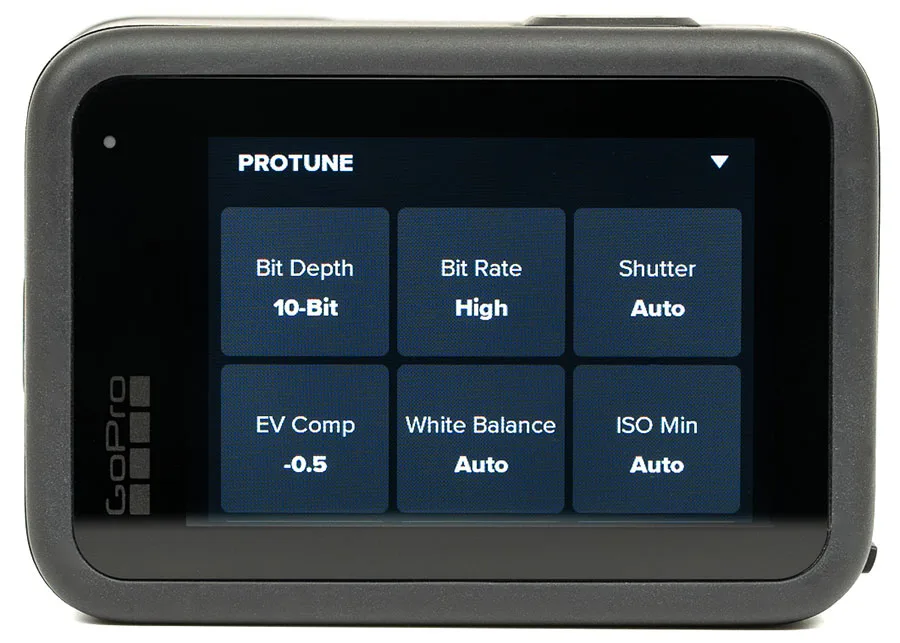
Image source: Web (Bing) / backscatter.com (Web image (fair-use with source credit))
Once you identify your blur type, adjust these ProTune settings. They give you control over the automatic decisions that cause blur.
| Setting | Recommended Value | Why It Helps |
|---|---|---|
| Shutter speed | 1/120 at 60fps, 1/60 at 30fps | Eliminates motion blur in most action |
| ISO Minimum | 100 | Keeps base noise floor low |
| ISO Maximum | 400 or 800 | Limits noise in low light |
| Sharpness | High | Adds edge definition in-camera |
| Noise Reduction | Off or Low | Preserves detail instead of softening it |
| Color | Flat | Retains more detail for post-processing |
| Field of View | Linear or Linear+L | Avoids edge distortion blur |
The least expected fix in our research data is turning off digital zoom. Many HERO13 owners do not realize it is on by default when you pinch the screen or use voice commands. Check it before every shoot.
Hardware Culprits: Lens, Filters, and Physical Causes
Sometimes the problem is not in the settings menu. Here are the physical causes to rule out.
Dirty or scratched lens cover. The HERO13 has a removable lens cover. Scratches soften every shot. Inspect it under bright light.
Replace it if scratched. Clean fingerprints and dust with a microfiber cloth.
Condensation inside the lens. Moving from cold to warm air can fog the lens. This makes the image look hazy. Let the camera acclimate slowly.
If it fogs, open the battery door and let it dry for 30 minutes.
Incompatible or incorrect ND filters. The HERO13 uses a magnetic lens system for ND filters. A filter meant for another model can force a very slow shutter. This causes motion blur.
Use only HERO13-rated ND filters.
Overheating and performance drops. The HERO13 can overheat in direct sun when recording high-resolution video. The processor reduces image quality to prevent damage. This can look like blur or noise.
Let the camera cool down. Similar overheating problems in other compact cameras can cause the same issue.
SD card speed bottleneck. A slow SD card makes the camera skip frames or compress more aggressively. Use a V30 or U3 card. Format it in the camera before a big shoot.
If you have ruled out all settings and hardware causes, and the blur persists on every clip, the lens unit itself may have a defect. That is rare. Contact GoPro support for a replacement.
Follow the company's official firmware update instructions first to rule out a software bug.
Real-World Scenarios: What Different Blur Looks Like
The diagnostic workflow covers the logic. But it helps to see how these problems show up in real footage.
The Mountain Bike Run That Looked Like a Watercolor
A rider films downhill at 4K 60fps with default settings. Trees in the background are a smeary blur. The rider has motion trails.
- What happened: The camera chose 1/60 shutter in the shade. That is too slow for fast biking.
- The fix: Switch to ProTune and set shutter to 1/120 or 1/240. Raise ISO to 400 or 800 if it gets dark.
- The lesson: Action needs fast shutter speeds. Auto mode is too conservative.
The Vlog Where Every Face is Soft
A vlogger films at arm's length in Wide FOV. The background looks fine. Their face is blurry.
- What happened: The face is inside the minimum focus distance. Wide lens also distorts edges.
- The fix: Extend your arm fully or use a selfie stick. Switch to Linear FOV.
- The lesson: The GoPro is not a close-range selfie camera. Give it space.
Night Footage That Looks Like Static
A user films a city street at night. The image is grainy. Moving cars are streaky.
- What happened: The camera boosted ISO to 3200 and used a 1/30 shutter.
- The fix: Lock ISO at 800 max. Plan your lighting. Add a portable LED if needed.
- The lesson: The HERO13 is not a low-light camera. Work with its limits.
Frequently Asked Questions
Why is my GoPro HERO13 video blurry when I zoom in?
Digital zoom is the cause. It crops the sensor and enlarges pixels, destroying sharpness. Turn it off in settings.
Crop in editing software instead.
How close can I get to a subject before it gets blurry?
The minimum focus distance is about 12 inches (30 cm) in most modes. Stay at least 18 inches away for sharp results. Wide FOV modes need more distance.
Does HyperSmooth cause blur?
HyperSmooth can cause a jello effect in high-vibration situations like motorcycle handlebars. It does not cause traditional motion blur. Try Boost mode or a stabilized mount if you see wobble.
What SD card speed do I need?
Use a V30 or U3 rated card. Slower cards cause dropped frames or compression artifacts. Format the card in the camera before each shoot.
Can overheating make footage look blurry?
Yes. The HERO13 reduces processing quality when overheating to cool down. This introduces noise or softness.
Avoid direct sun. Let the camera rest between long clips.
Should I turn on sharpness in ProTune?
Set Sharpness to High for most shooting. It adds edge enhancement. Use Medium if you plan to sharpen in editing to avoid artifacts.

Similar Posts