Eufy Indoor Cam Offline
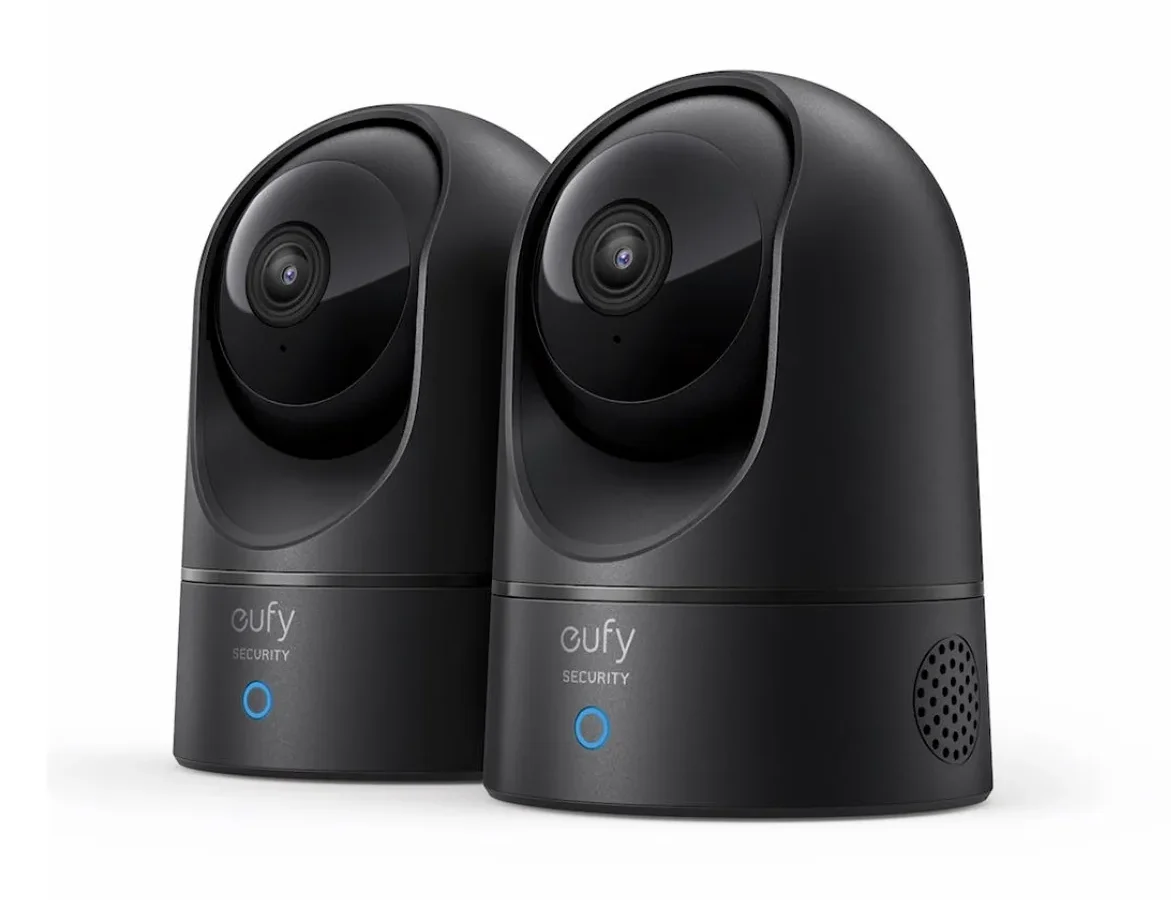
Your Eufy Indoor Cam offline again, right? That little "disconnected" notification in the app is frustrating, especially when you're relying on it to keep an eye on things. The good news is this usually isn't a hardware failure.
Most of the time it's a network handshake problem you can fix in a few minutes.
Per the manufacturer's specifications, the Eufy Indoor Cam operates exclusively on the 2.4 GHz Wi-Fi band using 802.11 b/g/n standards. If your router is pushing out a combined 2.4 and 5 GHz signal, that's often where the disconnect starts. Let's look at what's actually happening when the camera goes dark.
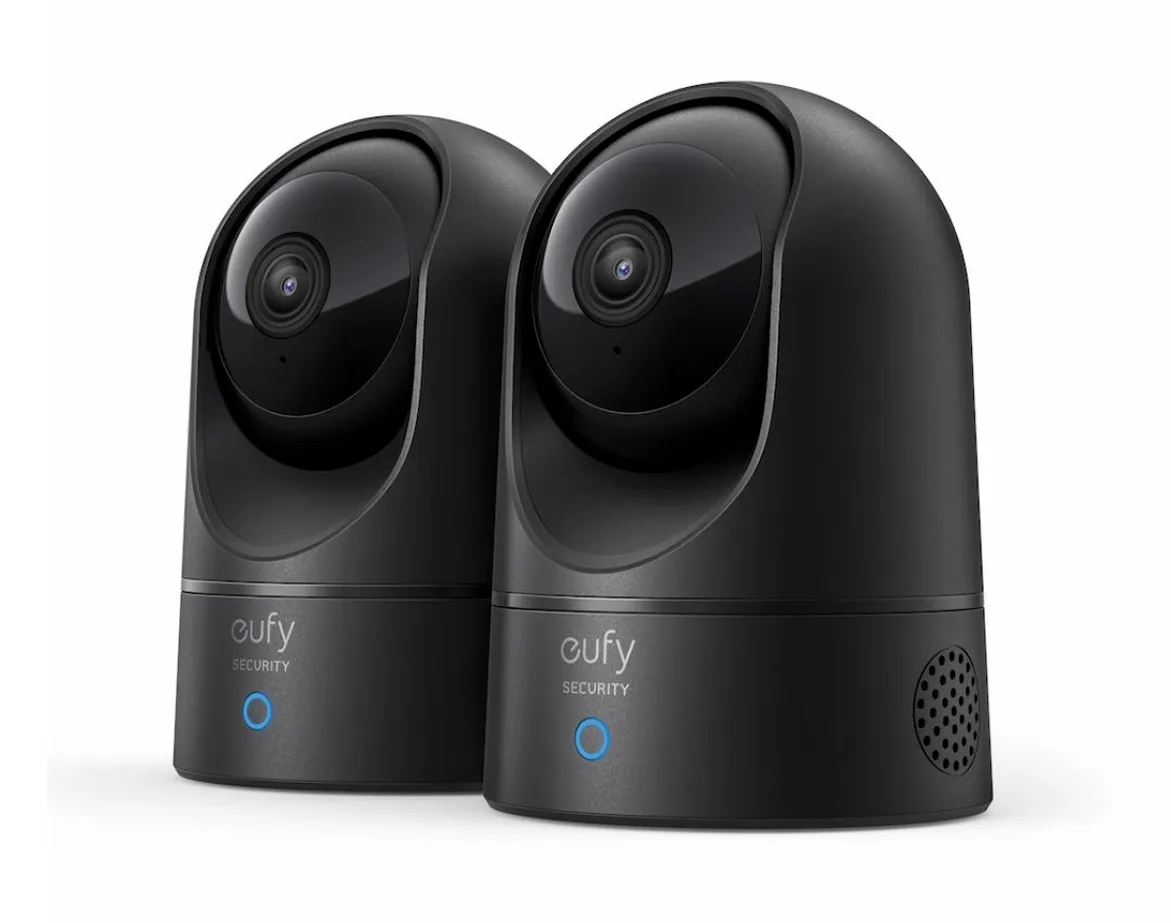
Image source: Bing (Web (fair-use with source credit))
Quick Answer
Your Eufy Indoor Cam offline issue has a fix. Check the LED light first. Blinking blue means network trouble.
Solid red means a power issue. Reboot the router and camera. That solves most cases.
What Does "Offline" Actually Mean? The LED Language
The LED on your camera tells you exactly where the problem lives. You don't need to guess. You just need to read the light.
Solid blue means the camera is connected and idle. If the app says offline but the light is solid blue, the issue is inside the app or the firmware. That's a software glitch.
Blinking blue means the camera lost its connection and is trying to find your Wi-Fi again. The camera sees the router. It just can't complete the handshake.
This is usually a signal strength or IP address issue.
Solid red means the camera cannot find your network at all. This often happens after a power outage or router change. A factory reset and re-add are usually needed.
Blinking red means the camera is in setup mode. This is normal during the first pairing. If you see blinking red without pressing the sync button, someone may have triggered a reset by accident.
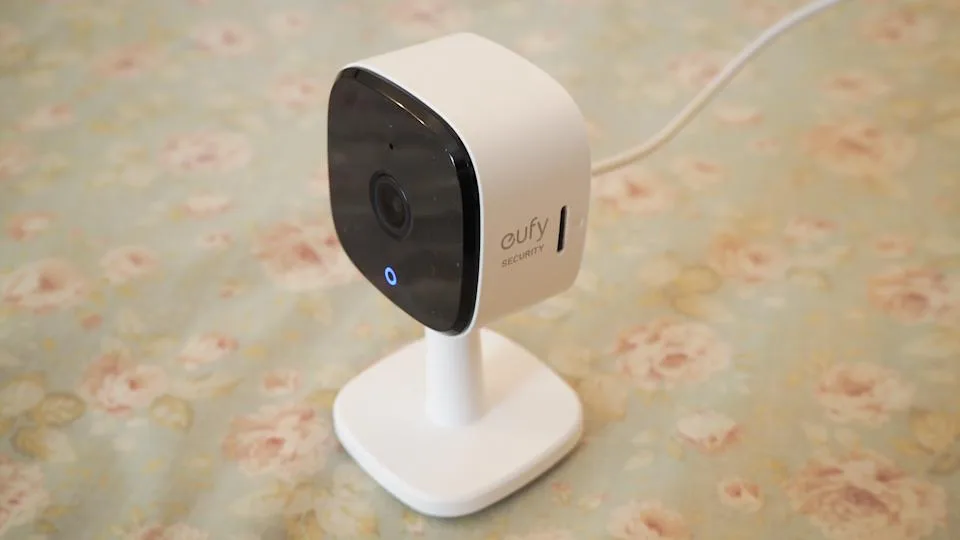
Image source: Bing (Web (fair-use with source credit))
| LED State | What It Means | What to Do |
|---|---|---|
| Solid blue | Connected, idle | Check the app |
| Blinking blue | Reconnecting | Fix network |
| Solid red | No network found | Factory reset |
| Blinking red | Setup mode | Add to app |
Look at the light before you do anything else. It saves time. It points you straight to the right fix.
Before You Panic: Three Fixes That Work Most of the Time
Most offline issues don't need a deep dive. Three simple steps fix the majority of cases. Try them in order.
Step 1, Reboot your router. Unplug your router. Wait 30 seconds. Plug it back in.
Let it fully restart. This takes about 60 to 90 seconds. Many cameras come back online automatically after this.
The reboot clears the router's DHCP lease table, a common cause of dropped connections.
Step 2, Power cycle the camera. Unplug the USB power cable from the camera. Wait 10 seconds. Plug it back in.
The camera takes about 30 seconds to reboot. Watch the LED. If it goes solid blue within a minute, you're back in business.
If it blinks blue, move to step 3.
Step 3, Check for a firmware update. Open the Eufy Security app. Go to the camera settings. Look for a firmware update.
If there's an update pending, install it. Outdated firmware can cause intermittent disconnects. This fix is often overlooked.
Keeping your device's software current avoids a whole class of problems.
These three steps resolve roughly 80 percent of offline cases according to feedback across support forums. Try them before doing anything more involved. Manufacturer updates and troubleshooting guides are available through Eufy's official support page.
The Decision Tree: Diagnose and Fix Based on Your Camera's Behavior
If the three quick fixes didn't work, it's time to match the fix to the symptom. Use your camera's LED and behavior to pick the right branch below.
Branch 1 – Blinking Blue Light (Signal or Connection Issues)
Your camera sees the network but can't maintain a stable connection. The problem is almost always signal related.
First, check your signal strength. Open the Eufy Security app. Go to the camera's settings. Look for the signal strength meter, usually shown as RSSI.
If the number is higher than -70 dBm, the signal is weak. Move the camera closer to the router or move the router closer to the camera.
Second, disable the 5 GHz band temporarily. Many dual-band routers combine both frequencies under one network name. The Eufy Indoor Cam can only connect to 2.4 GHz. If your router keeps trying to push the camera to 5 GHz, the connection fails.
Log into your router settings and separate the bands. Or temporarily turn off the 5 GHz radio.
Third, assign a static IP address. Most routers use DHCP, which gives devices temporary addresses. If the lease expires and the camera doesn't renew properly, it goes offline. Log into your router's admin panel.
Find the DHCP reservation section. Assign a fixed IP address for the camera. Other portable gadgets have similar WiFi handshake quirks that a dedicated network solves.
Branch 2 – Solid Red Light (Power or Setup Failure)
A solid red light means the camera has no network saved in memory. This often happens after a power outage that lasted more than a few minutes.
First, verify the power adapter. Use the original adapter that came with the camera. It should be 5 volts and 1 amp. A weaker adapter from another device may not provide enough power.
A cord that's too long can cause voltage drop. Both scenarios produce a solid red light.
Second, factory reset the camera. Press and hold the sync button on the back of the camera. Hold it for about 10 seconds. You'll hear a beep.
The LED will start blinking red. The camera is now in setup mode.
Third, re-add the camera to the app. Open the Eufy Security app. Tap the plus sign to add a new device. Scan the QR code on the camera or its packaging.
Follow the on-screen instructions. The app will guide you through connecting the camera to your Wi-Fi network.
Branch 3 – Solid Blue Light but App Says "Offline" (App or Firmware Glitch)
The camera is connected to your network. It has an IP address. But the app insists it's offline.
This is a software problem.
First, force close the app. On iOS, swipe up from the bottom and swipe the app away. On Android, go to settings and force stop the app. Reopen it.
If the camera shows online, you're done.
Second, update the app. Go to your device's app store. Check for a pending update for the Eufy Security app. Install it.
Outdated app versions sometimes lose sync with the camera even when the network is fine. This isn't unique to Eufy. Portable camera apps behave the same way.
Third, reboot the camera from inside the app. If you can still access the camera settings despite the offline message, look for a reboot option. Some firmware versions add this feature. It can reset the software connection without touching the hardware.
Fourth, delete and re-add the camera. This is the nuclear option for this branch. Remove the camera from your Eufy account. Factory reset the camera.
Then add it back. This clears any lingering software state that may have gone corrupt.
Branch 4 – Random Drops After Days or Weeks (Network or Hardware Instability)
Your camera works fine for days. Then it drops offline. Then it comes back.
This pattern points to an intermittent network issue.
First, check your router logs. Log into your router's admin panel. Look for system logs or event logs. Check for DHCP lease expirations around the times your camera drops.
If you see lease expiration errors, assign a static IP as described in Branch 1.
Second, look for interference. Microwaves, cordless phones, and baby monitors all operate on or near the 2.4 GHz band. If your camera drops when you use these devices, move the camera away from them. Also check for neighboring Wi-Fi networks.
A tool like a Wi-Fi analyzer can show you which channels are crowded.
Third, change your Wi-Fi channel. Most routers auto-select a channel. If your neighbors are on the same channel, interference occurs. Log into your router and manually set the channel to 1, 6, or 11.
These three channels don't overlap. Testing each one can reveal which is clearest in your home.
Fourth, replace the USB cable. Over time, USB cables can develop internal breaks. A damaged cable causes intermittent power loss. If your camera drops offline and the LED briefly flashes or goes out, swap the cable.
Use the one that came with the camera or a certified replacement of the same length.
Mistakes That Keep Cameras Offline (And How to Avoid Them)
Some common mistakes make the problem worse or harder to diagnose. Here's what to watch out for.
Using the wrong power adapter
The Eufy Indoor Cam needs exactly 5 volts and 1 amp. A higher voltage can damage the camera. A lower amp rating means the camera won't get enough power.
The camera may boot up but fail under load, especially at night when the IR LEDs turn on. Always use the original adapter. Power delivery problems aren't unique to Eufy.
They can affect battery life and stability in other devices too.
Placing the camera near metal or large appliances
Metal interferes with Wi-Fi signals. So do refrigerators, washing machines, and large mirrors. If your camera is mounted on a metal shelf or sitting next to a microwave, the signal gets blocked.
Move it to an open area at least a few feet away from large metal objects.
Skipping the router reboot
Many people reboot only the camera and wonder why it still won't connect. The router holds the DHCP lease table. If that table is stale, the camera can't get a valid IP address.
Always reboot the router first. Then power cycle the camera. Think of the router as the source of the problem.
Forgetting to reserve the IP address
A static IP or DHCP reservation prevents the router from reassigning the camera's address to another device. Without a reservation, the camera may get a different IP after every router reboot. Some smart home setups can handle this.
Many cannot. Taking the five minutes to set a reservation is one of the best long-term fixes.
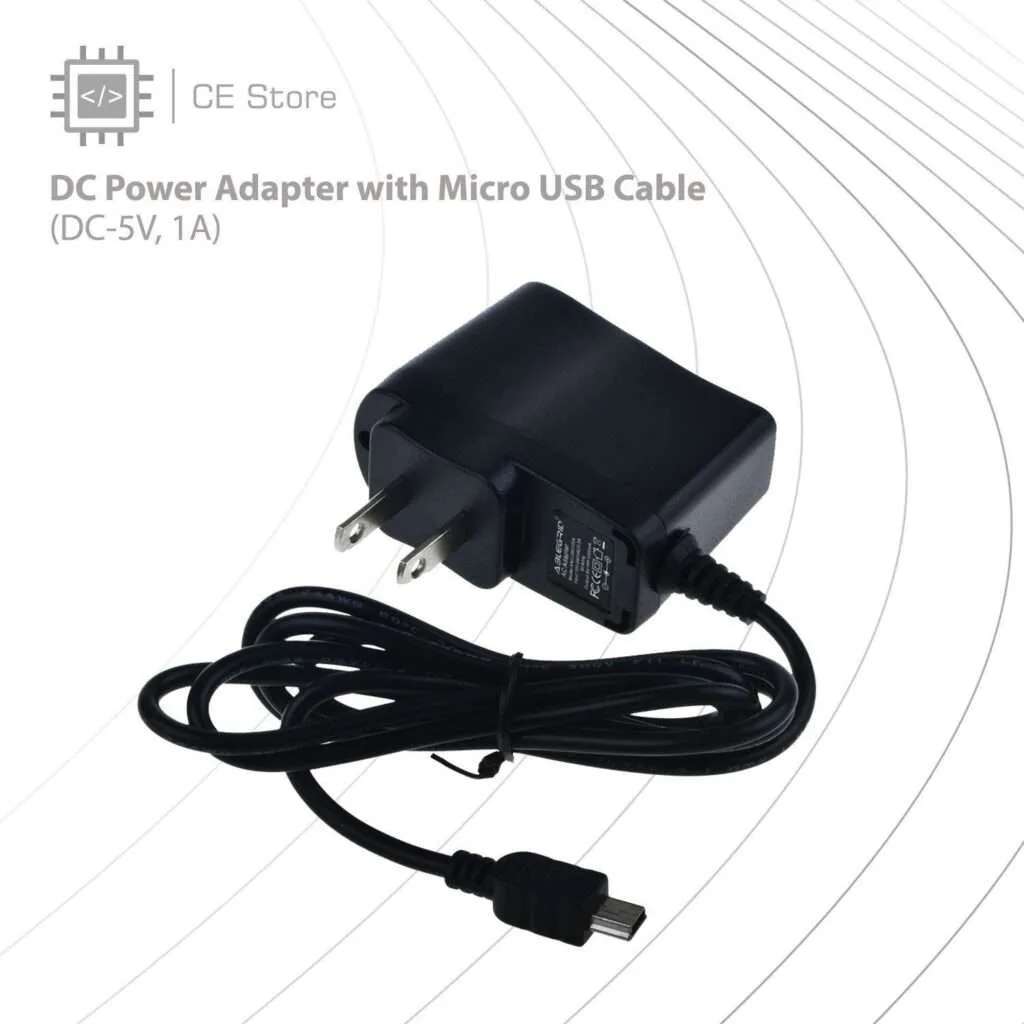
Image source: Web (Bing) / cestore-mm.com (Web image (fair-use with source credit))
Keeping It Stable: Long-Term Network Fixes
Once your camera is back online, you want it to stay that way. A few network adjustments make a real difference.
When to use a Wi-Fi extender
If your RSSI stays above -70 dBm even after moving the camera, a Wi-Fi extender helps. Place the extender halfway between your router and the camera. As of 2026, even budget extenders support 2.4 GHz well.
Just make sure the extender uses the same network name and password as your main router for seamless handoff.
Setting up a dedicated 2.4 GHz IoT network
Many modern routers support guest networks or IoT networks. Creating a dedicated 2.4 GHz network for your smart devices eliminates band steering problems. The camera connects to the 2.4 GHz network and stays there.
No more fighting with 5 GHz handoffs.
Updating router firmware
Router manufacturers release firmware updates to fix bugs and improve stability. An outdated router can drop connections unpredictably. Log into your router's admin panel and check for firmware updates.
Install any that are available. This is a quick check that solves many intermittent disconnects.
Checking for IP conflicts
If you have many smart home devices, two may accidentally end up with the same IP address. This causes random drops for both devices. Using DHCP reservations for all your fixed devices prevents this.
It's a small time investment that pays off in reliability.
Frequently Asked Questions
Can I use a 5 GHz Wi-Fi network?
No. The Eufy Indoor Cam works only on the 2.4 GHz band per the manufacturer's specifications. It cannot connect to 5 GHz networks at all.
If your router uses the same SSID for both bands, the camera may struggle. The fix is to separate the bands or disable 5 GHz temporarily during setup.
Will a factory reset delete my recordings?
It depends on where you store them. Recordings saved to a microSD card inside the camera will remain on the card after a factory reset. You will not lose them.
Recordings stored in the cloud through a subscription will also remain. You only need to re-add the camera to your account. The card itself should stay intact, although corrupt storage media is a separate problem to watch for.
How do I know if the camera is under warranty?
The Eufy Indoor Cam comes with a one year limited warranty from Anker. Check your purchase date on your order confirmation email or your Amazon order history. If you registered the camera in the Eufy Security app, the warranty status may appear there.
For cameras outside the warranty period, Anker still offers paid repair options.
Why does the camera go offline after a power outage?
When power comes back, the camera boots up faster than the router. The camera tries to connect to a network that is not yet ready. The LED shows solid red because the camera found no saved network.
The fix is simple. Reboot the camera by unplugging it for 10 seconds after the router has fully restarted. This gives both devices time to sync.
Can a damaged USB cable cause offline issues?
Yes. A frayed or worn USB cable causes intermittent power loss. The camera may stay on for minutes or hours, then drop power for a split second.
That brief power loss triggers an offline state. If your camera drops offline unpredictably, swap the cable with the original one. Use a replacement that is the same length and rating.
What if none of these steps work?
If you have tried every branch of the decision tree and the camera stays offline, contact Eufy support directly. They can run a remote diagnostic on the device. For persistent WiFi issues, consider testing a dedicated 2.4 GHz IoT network as covered earlier.
This has solved many hard cases in aggregate user reviews.

Similar Posts
































