Reolink Argus 4 Troubleshooting
Image source: Bing (Web (fair-use with source credit))
Reolink Argus 4 Troubleshooting
If your Reolink Argus 4 isn't recording, the battery is dead by noon, or the app says it's offline, you don't need to guess what's wrong. Most issues come down to a handful of common causes you can fix in minutes without calling support.
Per the manufacturer's official specs, the Argus 4 packs a 6400 mAh rechargeable battery rated for up to two weeks on a single charge under moderate use. If you're recharging every other day, something is off. Let's walk through the most frequent problems step by step.
Quick Answer
Check the LED color on the camera. Solid blue means it is connected. Flashing red means low battery or Wi-Fi lost.
Start with a full charge. Restart the camera by removing the battery. If that fails, do a hard reset using the pinhole button.
Update the firmware through the Reolink app. Most problems fix in under ten minutes.
Quick Decision Guide: Find Your Problem in 10 Seconds
The LED on the front of the Argus 4 tells you exactly where to start. Match your pattern to the fix below.
| LED Pattern | What It Means | What to Do |
|---|---|---|
| Solid blue | Camera is connected and working. | Check the app for motion alerts or recorded clips. |
| Slow flashing blue | Camera is in pairing mode. | Complete the Wi-Fi setup in the Reolink app. |
| Fast flashing red | Low battery or power issue. | Charge the battery fully (3-6 hours via USB-C). |
| Slow flashing red | Wi-Fi signal lost or can't find the router. | Move the camera closer or check router settings. |
| No LED at all | Battery is completely dead or the camera is off. | Charge for at least 30 minutes and try again. |
A solid red light during charging is normal. It turns off when the charge completes.
Battery Drain and Charging Issues
Image source: Bing (Web (fair-use with source credit))
The 6400 mAh battery inside the Argus 4 should last one to two weeks. If you get two days or less, one of these three things is usually the cause.
Cold weather. Lithium-ion batteries lose capacity below 0°C. If your camera is mounted in a spot that sees frost, bring it inside to warm up. Charge it completely.
Then remount it. The Reolink solar panel helps in winter, but it needs direct sunlight. If you're dealing with persistent power loss in the cold, the U.S.
Consumer Product Safety Commission offers standard battery care guidance for extreme temperatures.
High motion activity. The Argus 4 wakes up to record every time the PIR sensor detects movement. If you placed it near a busy street or tree branches that sway in the wind, the camera may record hundreds of clips per day. That kills the battery fast.
Lower the motion sensitivity from the default level 5 to level 3. Draw tighter detection zones in the app so only your property triggers recording.
Solar panel misalignment. The optional solar panel needs direct sunlight for most of the day. A panel shaded by a roof overhang or facing north won't supply enough current. Adjust the angle toward the sun.
Clean the panel surface every few weeks. If the panel still isn't keeping up, the camera may have a defective battery. Contact Reolink support for a replacement.
Firmware bugs. Outdated firmware can cause excessive power draw. Check Device Settings then Firmware Update in the app. Install the latest version.
This fix alone resolves many battery drain complaints in aggregate user reviews.
Wi-Fi Connectivity and Offline Camera Issues
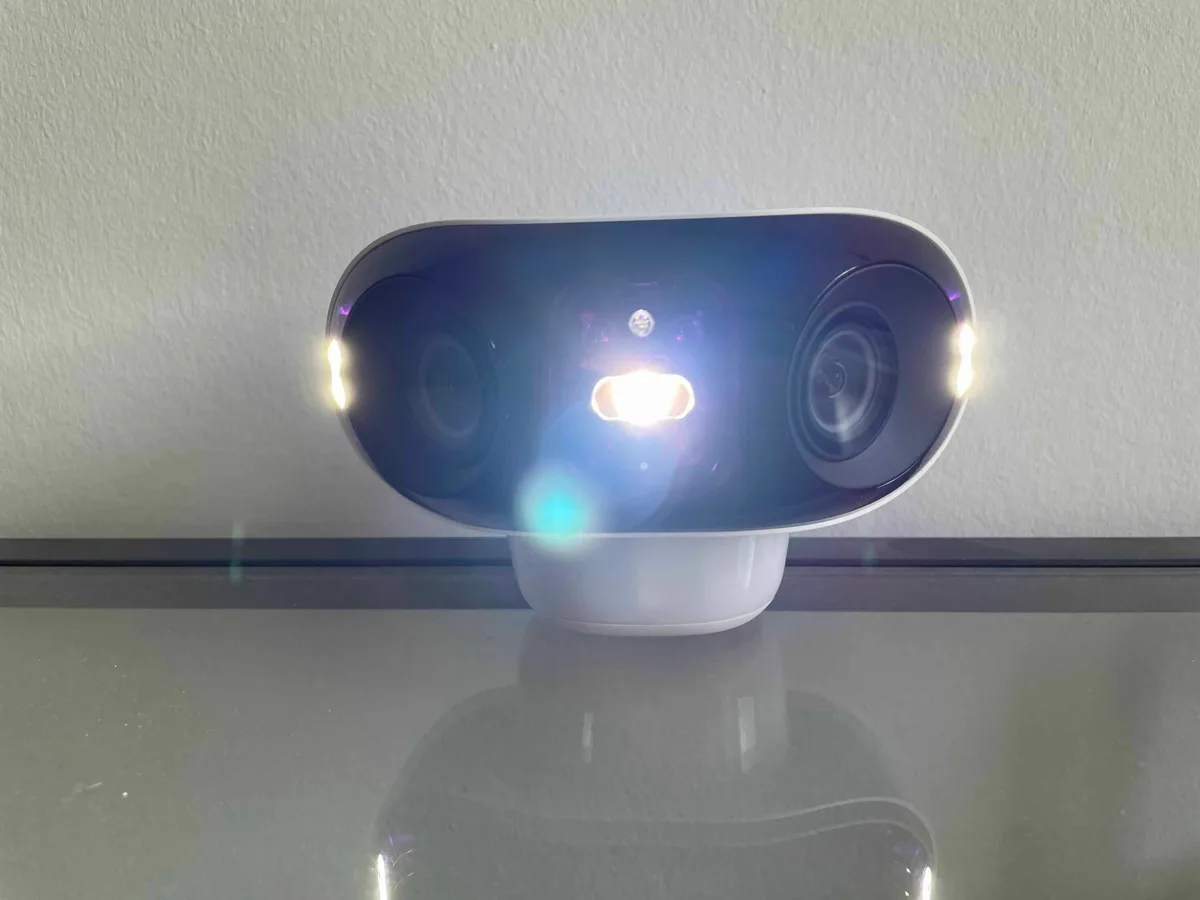
Image source: Bing (Web (fair-use with source credit))
The Argus 4 supports both 2.4 GHz and 5 GHz Wi-Fi. The 5 GHz band is faster but doesn't travel through walls as well. If your camera shows a slow-flashing red LED, follow these steps.
Switch to 2.4 GHz. Go to Device Settings then Wi-Fi Network. Choose the 2.4 GHz band. This signal penetrates walls and reaches farther, which matters when your camera is mounted 30 or 40 feet from the router.
Check signal strength. Open Device Settings then Signal Strength. You want at least 3 bars. If you see 1 or 2 bars, move the camera closer to the router.
Or install a Wi-Fi extender. Don't use a mesh node that forces the camera to hop between points. A dedicated extender works better.
Reboot your router. Restarting the router clears interference from other devices. Unplug it. Wait 30 seconds.
Plug it back in. The camera should reconnect automatically.
Update firmware. Persistent offline issues often stem from a known connectivity bug. Update the camera to the latest firmware version through the app. For similar wireless connectivity hiccups on other gear, the same approach to power cycling and re-pairing applies.
If the camera stays offline after all this, consider pairing it with the Reolink Home Hub. The Hub keeps the camera functional even when Wi-Fi drops.
Motion Detection and Night Vision Not Working
Two of the Argus 4's key features are its PIR-based motion alerts and color night vision with the built-in spotlight. When either stops working, here's how to narrow it down.
Motion detection not triggering. Open the app and check Motion Detection Settings. Make sure detection is turned on. If it still isn't working, adjust the sensitivity slider.
The default of 5 works for most yards. Dial it up to 8 or 9 if you need to catch a person walking 40 feet away. Also check that Person and Vehicle Detection are enabled under AI Detection.
If those are off, the camera records everything including blowing leaves, which increases false triggers and battery drain.
Night vision not switching on. The Argus 4 uses a Starlight sensor and a spotlight for color night video. If the image stays black after dark, first check that Night Vision Mode isn't set to Off. Choose Auto so it switches based on ambient light.
If the spotlight doesn't come on, check the Spotlight Brightness setting. It must be above zero. A firmware glitch can also disable night vision.
A quick reboot (pull the battery, wait 10 seconds, reinsert) usually fixes it.
False alerts flooding your phone. If the camera triggers 50 times an hour on an empty driveway, you have a detection zone problem. Use the Motion Detection Zone tool in the app. Paint out areas where you don't want alerts: the street, a neighbor's yard, or a tree.
Keep the active zone tight around your door or walkway.
Storage card errors. If the camera records clips to a microSD card and you get an error, format the card inside the camera using the Format Storage option. Never format it on a computer. The camera uses a specific file system.
For handling similar memory issues, the same formatting approach applies across many devices that use removable storage.
Common FAQs: Still Stuck?
How do I factory reset my Reolink Argus 4?
Find the pinhole button on the back. Insert a paperclip and hold it for ten seconds. The LED flashes red briefly, then returns to solid blue.
This wipes all saved settings including your Wi-Fi credentials.
Can I use the Argus 4 without the Reolink app?
No. The app handles setup, recording configuration, firmware updates, and live viewing. You cannot control the camera through a browser or third-party software.
The app is free on iOS and Android as of 2026.
Why does my Argus 4 record in 1080p instead of 4K?
Check the video stream setting in Device Settings then Video Quality. The camera defaults to a lower resolution to extend battery life. Switch it to Clear for full 4K.
Keep in mind that 4K clips use more storage and drain the battery faster.
How far can the camera sit from the router?
Reolink states a stable 2.4 GHz connection at up to 300 feet with a clear line of sight. In real homes, walls, metal, and brick cut that dramatically. If your camera is 50 feet away through two walls, expect a weak signal.
Is the Argus 4 compatible with a Home Hub?
Yes. Pairing with the Reolink Home Hub offloads recording and extends storage. It also keeps the camera functional if Wi-Fi drops.
This is a common fix for cameras that go offline repeatedly.
Why does the camera show a black screen at night?
Open Night Vision Mode and confirm it is set to Auto. If it is, the spotlight may be disabled. Raise the Spotlight Brightness to at least 50 percent.
If the screen stays black after that, a firmware update typically resolves it.
When All Else Fails: Reset, Re-Pair, or Reinstall
If you have tried every fix and the camera still refuses to cooperate, it is time for a complete system restart.
Step 1: Hard reset. Use the pinhole button on the back. Hold it for ten seconds until the LED flashes red. The camera wipes all settings including the paired Wi-Fi network.
Step 2: Delete the camera from the app. Open Device Settings. Tap Remove Device. Confirm.
This clears cached data that may be corrupting the connection.
Step 3: Reinstall the app. Uninstall the Reolink app from your phone. Reboot the phone. Download the app fresh from the official store.
A clean install removes stale preferences and buggy cached data.
Step 4: Repower the camera. Remove the battery. Wait 60 seconds. Reinsert it.
Charge it fully before starting setup again. A full charge prevents low-battery interruptions during pairing.
Step 5: Pair from scratch. Launch the app. Tap Add Device. Scan the QR code on the camera.
Connect to your 2.4 GHz Wi-Fi network only. Complete the setup. Let the camera download any pending firmware update automatically.
If the camera still fails after this full sequence, the hardware may be defective. Contact Reolink support directly. The Argus 4 carries a two-year warranty from the original purchase date.
They may send a replacement if the issue is repeatable.
One last thought: many common problems trace back to the camera's position. If motion alerts miss activity, move the camera higher and angle it downward slightly. If the battery drains fast, reduce the recording duration to 10 seconds per event and lower the sensitivity.
Small adjustments often solve what feels like a broken camera.

Similar Posts
































