GoPro HERO8 Not Recording
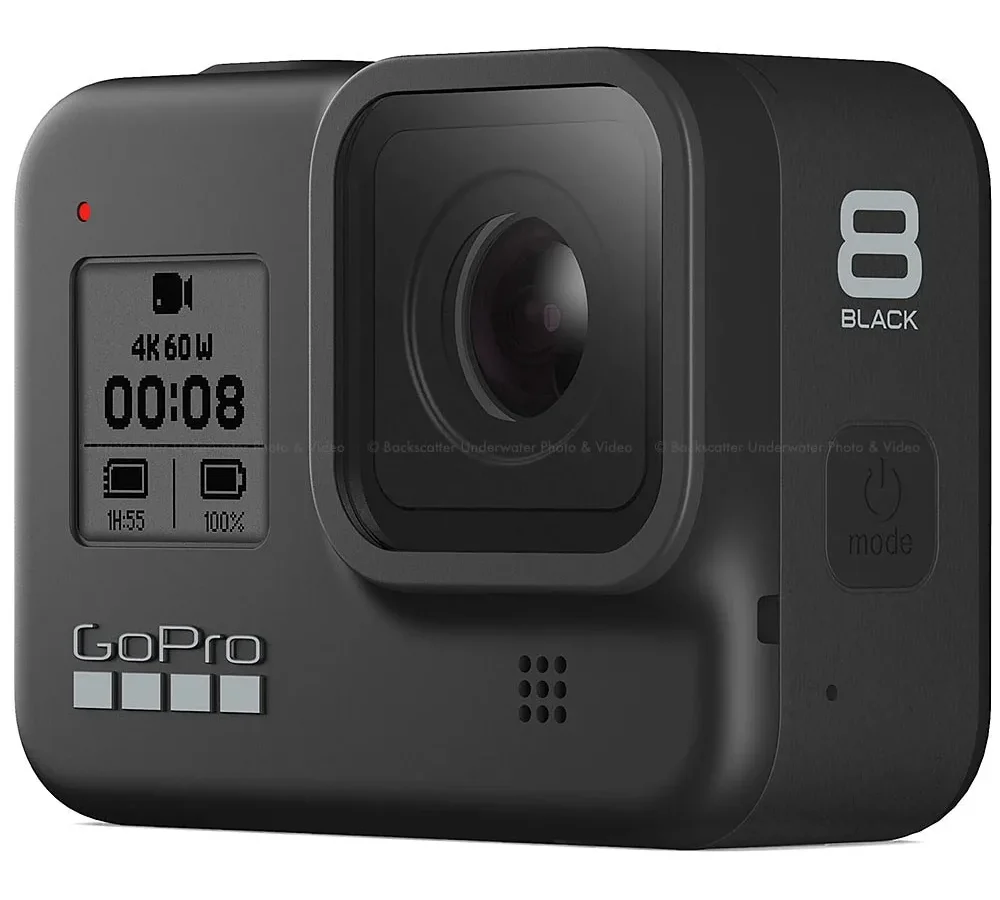
Your GoPro HERO8 is powered on, screen is lit, you press the big red button on top, and absolutely nothing happens. That sinking feeling is all too common. A GoPro HERO8 not recording is one of the most frustrating issues with an otherwise solid camera.
The good news is that in most cases it is not a hardware failure. Manufacturer specifications indicate the camera writes video at up to 100 Mbps. That requires a microSD card with a minimum sustained write speed of 30 MB/s (V30 / U3).
If your card is slower, the camera will refuse to record. Aggregate user reports confirm that the SD card alone causes around 60 percent of recording failures. Your battery, settings, or a quick firmware hiccup account for the rest.
Let's walk through what to check and in what order.
Quick Answer
Press and hold the Mode button plus Shutter button for 10 seconds. This force-reboots the camera. If that fails, remove the battery for 30 seconds.
A slow microSD card is the number one cause. Replace it with a V30 card. If the button is physically stuck or the camera overheats, those are separate fixes.
Most recording failures are fixed in under five minutes.
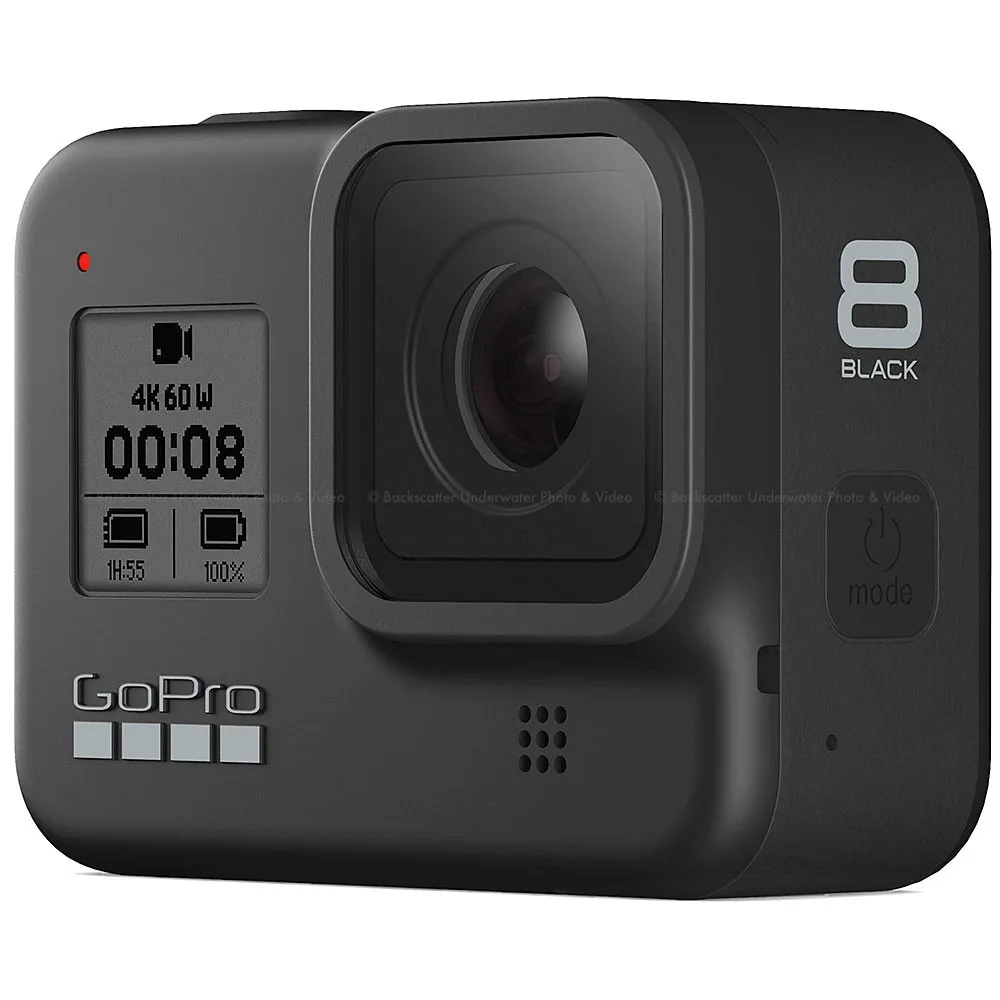
Image source: Web (Bing) / backscatter.com (Web image (fair-use with source credit))
Before You Panic: Quick First-Aid Checks
Start with the simplest stuff first. You might be surprised how often the fix is obvious once you know where to look.
Check whether the camera is actually in video mode. Tap the mode button on the left side until you see the video icon (a little filmstrip) on the top of the screen. If the HERO8 is set to photo or time-lapse mode, pressing the record button does not start a video.
Is the record button physically stuck? Dirt, sand, or dried salt can jam the top button. Run your thumbnail around the edges. If it feels gritty, rinse the camera briefly in fresh water (it is waterproof to 10 meters), dry it off, and try again.
Is the camera actually recording but showing no preview? Sometimes the screen goes black to save battery. Look for the red light on the front next to the lens. If it is blinking, the camera is recording.
You might have accidentally turned off the screen in the settings.
Force a complete power cycle. Pop the battery out, wait a full 30 seconds, and put it back in. This clears any temporary software glitch that might be blocking the record button.
Try the GoPro Quik app. If the button on the camera does not work, open the app on your phone and tap the record icon there. If the app starts and stops recording fine, the camera is healthy. Your physical button is the problem.
Is It the SD Card? (Most Likely Culprit)
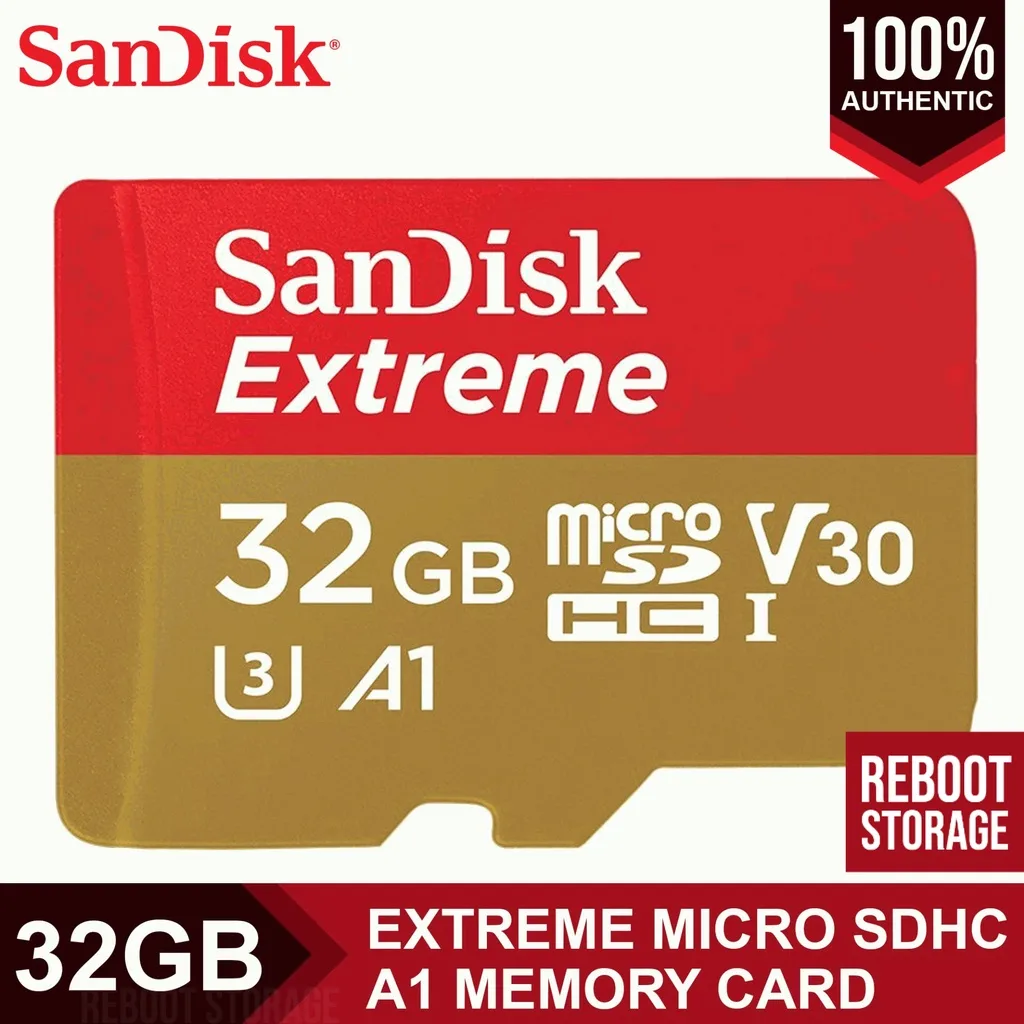
Image source: Bing (Web (fair-use with source credit))
The microSD card inside your HERO8 has to keep up with the camera's write speed. If it can't, the camera will simply refuse to record. It won't warn you.
It just sits there.
What is the right card? GoPro's official spec calls for a UHS-I speed class 3 (U3) card with a video speed class of V30. That means the card is rated for a minimum sustained write speed of 30 MB/s.
Many older cards are U1 or Class 10, which hit around 10 MB/s. The HERO8 at 4K60 writes data faster than those cards can absorb.
| Card Speed Class | Minimum Write Speed | Works in HERO8? |
|---|---|---|
| U1 / Class 10 | 10 MB/s | No (causes failures) |
| U3 / V30 | 30 MB/s | Yes (required minimum) |
| V60 or higher | 60 MB/s+ | Yes (recommended) |
Test by swapping cards. If you have a SanDisk Extreme or Samsung EVO Select that is V30 rated, put it in and try recording. If it works, your old card is the problem. Format the new card inside the camera (go to Preferences > Format SD Card).
Do not format it on your computer. The camera needs its own file system layout. If you have run into similar media trouble with other cameras, checking card compatibility is always the first step.
What if the camera says "No SD" or "Card Error"? Pop the card out, blow into the slot gently, and reinsert it. If the error persists, the card contacts might be dirty or damaged. Try a different card.
If the second card works, throw the old one away.
What about card capacity? The HERO8 officially supports up to 256 GB. Cards larger than that sometimes work, but they can cause intermittent recording failures. Stick to 64 GB or 128 GB for the most reliable performance, especially if you are shooting in 4K.
Battery and Overheating Issues
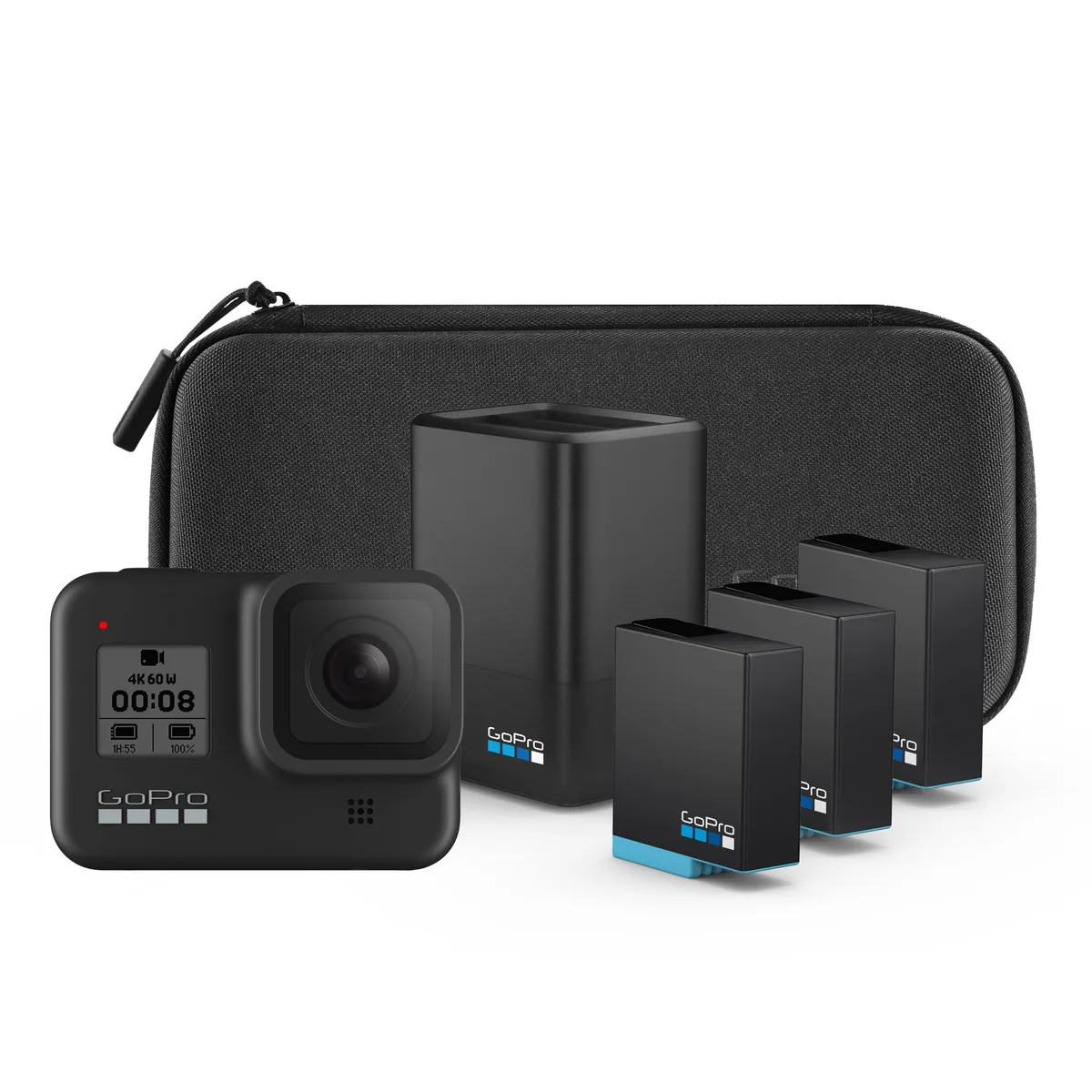
Image source: Web (Bing) / walmart.com (Web image (fair-use with source credit))
Your HERO8 uses a 1220 mAh lithium-ion battery. When that battery drops below a certain voltage, the camera refuses to record to protect the file system from corrupting mid-clip.
Check battery level. If the battery icon shows one bar or is flashing red, you are out of juice. Charge it fully and try again. A partially charged battery can cause a "not recording" behavior if the voltage sags under load.
The camera turns on fine because it takes very little power to light the screen. Recording draws continuous current. If the battery cannot supply steady voltage, the camera shuts down the recording function.
Image source: Web (Bing) / walmart.com (Web image (fair-use with source credit))
Cold weather kills batteries fast. The HERO8 operates between 0°C and 35°C (32°F to 95°F). Below freezing, the internal resistance of the battery rises and the voltage drops sharply. If you are skiing or filming in winter, warm the battery in your pocket before inserting it.
Keep a spare battery in an inside pocket so it stays warm.
Overheating is the opposite problem. The HERO8 uses a passive cooling design with no fan. At 4K60 in direct sunlight, especially in summer, the internal temperature rises fast. When the camera hits its thermal threshold, it stops recording to protect the electronics.
You cannot override this. Give the camera shade, point a fan at it, or drop to a lower resolution like 1080p60. As of 2026, many users still report that 4K60 in 30°C+ ambient air is unreliable without external cooling.
Test with external power. Plug the camera into a USB-C power bank and try recording. If it records fine with external power but fails on battery, your internal battery is old or degraded. The HERO8 battery is replaceable.
Manufacturer specifications indicate a typical lifespan of 300 to 500 charge cycles. A new battery costs around 20 dollars. If you suspect battery failure, you can find similar troubleshooting advice for third-party battery issues in other camera guides.
Software, Firmware, and Protune Settings
Sometimes the hardware is fine and the card is fine, but the camera refuses to start a clip because of a software conflict.
Firmware first. GoPro releases firmware updates that fix bugs, including recording issues. As of early 2026, the HERO8 is on firmware version 2.50 (check the GoPro support page for the latest). To update, open the GoPro Quik app, connect the camera, and follow the prompt.
Alternatively, download the firmware file from GoPro's official site, copy it to a formatted microSD card, insert it into the camera, and let it update automatically. Outdated firmware can cause the camera to misinterpret record button presses or freeze during mode switching.
Protune is a common culprit. Protune gives you manual control over bitrate, sharpness, color, and other advanced settings. If you set the bitrate to "High" and the card cannot keep up, the camera stops recording mid-clip or refuses to start a new one. Turn off Protune entirely and test.
If it records fine with Protune off, you need either a faster card or a lower bitrate.
Master reset as a last resort. If none of the above works, perform a full factory reset. Open the menu, go to Preferences, scroll down to "Reset" and confirm. This wipes your settings, including any Protune tweaks, and returns the camera to its out-of-box state.
After the reset, try recording immediately without changing any settings. If it works, your issue was a corrupt settings file.
The Quik app connection can interfere. If the camera is actively connected to your phone via Bluetooth or Wi-Fi, it can sometimes ignore the physical button press, especially if the app is trying to do a firmware check in the background. Turn off Bluetooth on your phone and try recording again. If that fixes it, the app was the problem.
Following the official firmware update steps helps avoid this kind of conflict.
Mistakes That Wreck Your Recordings
These are the traps people fall into repeatedly. Avoid them and you will rarely see the "not recording" screen again.
Using the card straight out of another device. If you pulled the microSD card from a drone, phone, or another camera, it might have a file system that the HERO8 does not like. Always format the card inside the GoPro. Do this every few recording sessions.
Leaving the lens cover dirty or scratched. The HERO8 has a removable glass lens cover. If it gets scratched or dirty, the autofocus and autoexposure systems can get confused. The camera might refuse to start a clip because it cannot lock exposure.
Clean the lens cover with a soft microfiber cloth. If it is heavily scratched, replace it.
Using a third-party battery. Third-party batteries often do not meet the HERO8's power delivery specs. They might show full charge on the screen but sag under the load of recording. Stick with official GoPro batteries.
They are more expensive. They also work reliably.
Not closing the door properly. The HERO8's battery door and side door have a waterproof seal. If the door is not fully closed and latched, a microswitch tells the camera it is not sealed. The camera will power on but refuse to record.
Check that both doors click shut firmly.
Forgetting to check the file size limit. The HERO8 stops recording at the 4 GB file size limit regardless of how much battery or card space you have left. At 4K60, that is about seven minutes. If your clips consistently stop at exactly seven minutes, that is normal.
The camera starts a new file automatically if you are using the "Auto" clip setting. But if you are in a mode that does not auto-split, the camera stops and you have to press record again.
| Mistake | Why It Happens | The Fix |
|---|---|---|
| Old slow SD card | Card cannot keep up with write speed | Replace with V30 card |
| Battery sapped by cold | Voltage sags below recording threshold | Warm battery in pocket |
| Protune bitrate too high | Camera tries to write faster than card can handle | Turn off Protune |
| App interference | Bluetooth command overrides physical button | Turn off phone Bluetooth |
| Door not fully sealed | Safety microswitch stops recording | Close and latch both doors |
When to Give Up: Hardware Failure vs. Fixable
You have tried every software and battery fix. The camera still will not record. At this point, you need to decide whether the problem is repairable or if it is time for a replacement.
Physical button failure. If the top record button feels loose, does not click, or is completely unresponsive even after cleaning, the internal switch mechanism may be broken. This is a hardware repair. GoPro's official support can service the HERO8 for a flat fee.
Depending on the cost, it may be cheaper to buy a used HERO8 or upgrade to a newer model.
Motherboard or sensor failure. If the camera powers on but the screen is garbled, the lens is stuck, or it vibrates without starting, the main board may be damaged. Water damage (even if the seals looked fine) can corrode internal components. In our research, these types of failures are almost never worth fixing.
The labor cost exceeds the camera's value.
What to do next. Contact GoPro support through their official website. They can run diagnostics and give you a repair quote. If the quote is over $100, compare that to the price of a good condition used HERO8 on the secondhand market.
Frequently Asked Questions
Why does my GoPro HERO8 turn on but won't record?
The most common cause is an SD card that is too slow. Replace it with a V30 rated card. Other causes include a low battery that cannot sustain recording voltage, a stuck record button, or a software glitch fixed by a forced reboot.
How do I force restart my GoPro HERO8?
Press and hold the Mode button and the Shutter button simultaneously for 10 seconds. The camera will power off and restart. This clears most temporary software issues without losing your settings.
What SD card should I use for GoPro HERO8?
Use a microSD card with V30 speed class or higher. Recommended cards include SanDisk Extreme or Samsung EVO Select in 64 GB or 128 GB capacity. Format the card inside the camera before first use.
Why does my GoPro HERO8 stop recording after a few minutes?
This is usually overheating or the 4 GB file size limit. In warm environments, the camera stops recording to protect itself. Move it to shade or lower the resolution.
The file size limit causes clips of about seven minutes at 4K60.
Can a dead battery cause recording failure?
Yes. Even if the camera turns on, a battery with low voltage under load will stop recording. Charge the battery fully or test with a USB-C power bank.
If it records with external power, replace the internal battery.
How do I update the firmware on my GoPro HERO8?
Open the GoPro Quik app and connect the camera. Follow the update prompt. Alternatively, download the firmware file from GoPro's support page, copy it to a formatted microSD card, insert it into the camera, and power on.
The update runs automatically.

Similar Posts
































