GoPro HERO10 USB Connection Problems
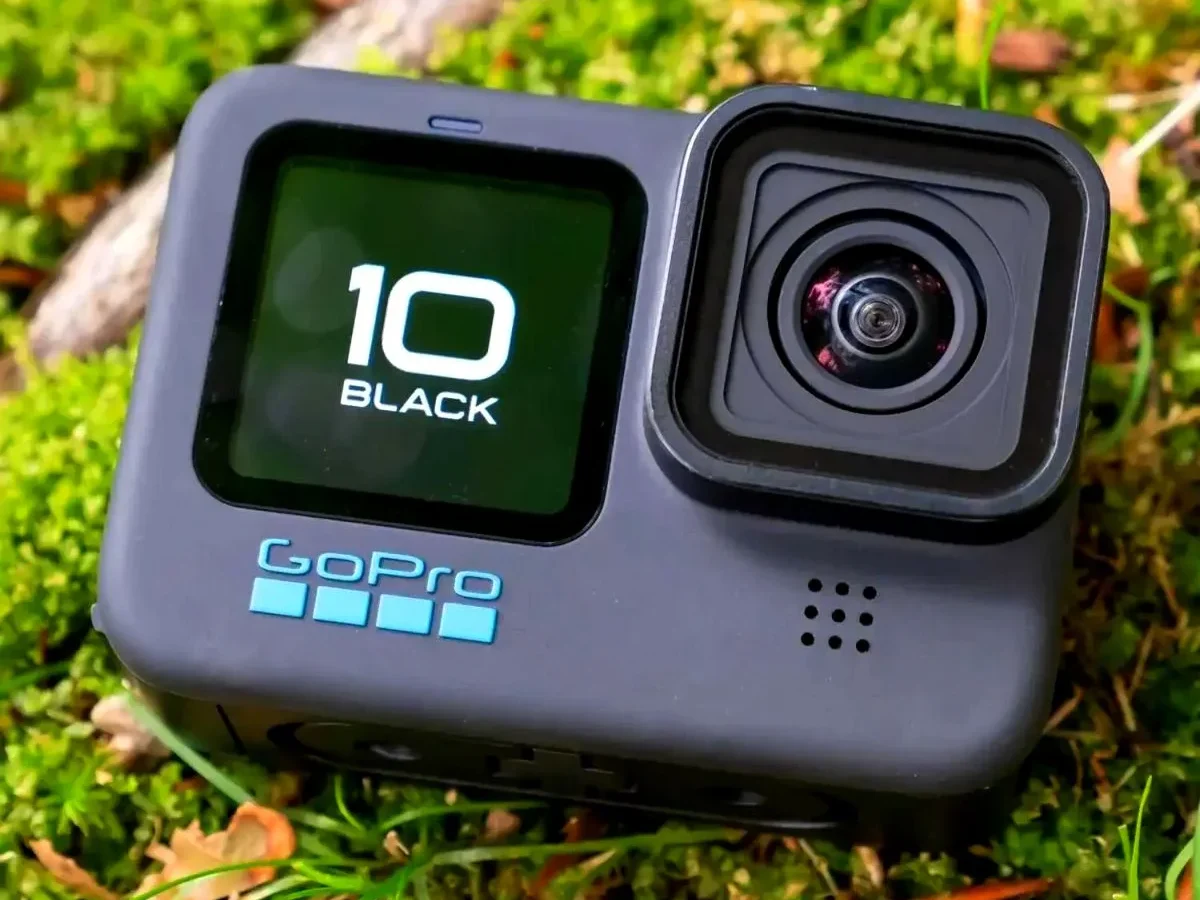
If you've ever plugged your GoPro HERO10 into a computer and gotten nothing but silence, you're not alone. GoPro HERO10 USB connection problems are one of the most common frustrations owners run into. The camera sits there charging but your PC or Mac doesn't see it.
No files. No data transfer. Just a blank stare.
Manufacturer specifications indicate the HERO10 uses a USB 3.0 capable USB-C port. But aggregate user reviews report that the port can be surprisingly selective about which cables and conditions it will accept. The good news is that about 90% of these problems trace back to just two or three easily fixable causes.
Let's walk through them.
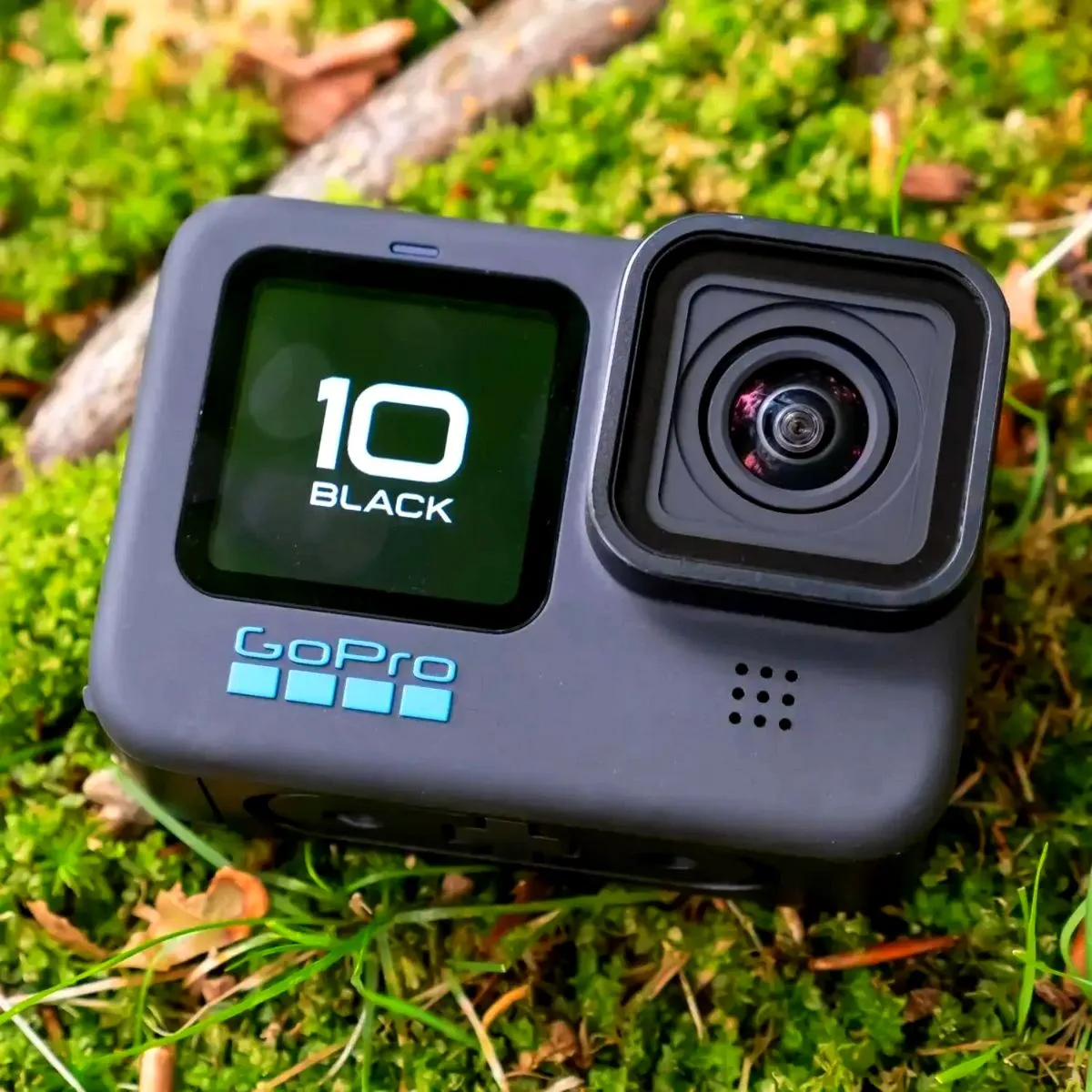
Image source: Web (Bing) / proaventura.com.br (Web image (fair-use with source credit))
The Quick Fix That Works 9 Times Out of 10
Swap your cable. That's it. Most connection failures come from a cable that only handles charging.
A phone charger cable often won't work for data. Use a USB-C cable that explicitly supports data transfer. That fixes roughly nine out of ten cases.
How do you know if your cable is the problem? Try it with another device first. Plug it into a laptop or a phone and see if files transfer.
If it charges but doesn't move data, it's a charging-only cable. The HERO10 won't mount as a drive with one of those.
Also check the battery level. The camera needs enough juice to stay awake during transfer. If the battery is critically low, the HERO10 may power off as soon as you plug it in.
Charge it up past 20% first, then try the connection again.
If the camera shows a battery icon on screen but your computer shows nothing in File Explorer or Finder, the cable is almost always the culprit. Swap it first. Mess with settings second.
Why the HERO10's USB Port Is So Picky
The HERO10's USB-C port follows the USB 3.0 standard. But GoPro implemented it in a way that prioritizes charging over data transfer. When you plug the camera in, it doesn't automatically enter mass storage mode like a USB flash drive would.
It waits for a handshake from the host computer.
That handshake can fail for several reasons. A bad cable is the most common. But the camera's own firmware plays a role too.
As of 2026, GoPro has released multiple firmware updates that tweaked USB behavior. If your camera is running old firmware, it may behave differently than one on the latest version.
The port itself is also physically deep. The USB-C receptacle sits inside a recessed opening. Some cables with thicker rubber hoods won't seat fully.
They look connected but the pins don't make proper contact. This is a known quirk specific to the HERO10's housing design.
The camera needs to be powered on and awake to transfer data. If it's off or sleeping, plugging in a USB cable will only trigger charging. The computer won't see it as a drive until you manually wake the camera.
This catches new owners off guard all the time.
Diagnose Your Problem Using This Simple Decision Tree
Camera charges but computer doesn't see it. If the battery icon shows a lightning bolt but no drive appears on your desktop, your cable is almost certainly charging-only. Swap to a known data cable. If that doesn't work, try a different USB port on your computer.
Avoid front-panel ports on desktop PCs. They often deliver less power and weaker data signal.
Computer sees the camera but transfer fails mid-way. This often points to a corrupted SD card. The HERO10 uses the exFAT file system for large files. If the card wasn't formatted in the camera, file errors can accumulate.
Copy everything off the card, then format it inside the camera. Retry the transfer after that.
Nothing happens when you plug it in. No charging. No connection. Check the USB-C port for debris.
Lint, sand, or dust can block the connector. Shine a light inside the port and look carefully. Use compressed air or a soft brush to clean it.
If the port is physically damaged, you'll need a repair. Don't force a cable in if it feels wrong.
Windows says "USB device not recognized" or macOS shows nothing. Try a different computer if possible. Some USB host controllers don't play well with GoPro's implementation. Aggregate user feedback reports that Intel-based systems tend to work better than some AMD chipsets.
Also check for driver conflicts. GoPro doesn't require special drivers on modern Windows or macOS. But a corrupted USB driver set can cause issues.
Intermittent connection. Works sometimes, fails others. This is often a cable that's starting to fail. USB-C cables wear out at the connector end.
If wiggling the cable changes the connection, replace it. Also ensure the camera is on a stable surface. A dangling camera puts stress on the port.
The Cable Trap: Why Most USB Problems Start Here
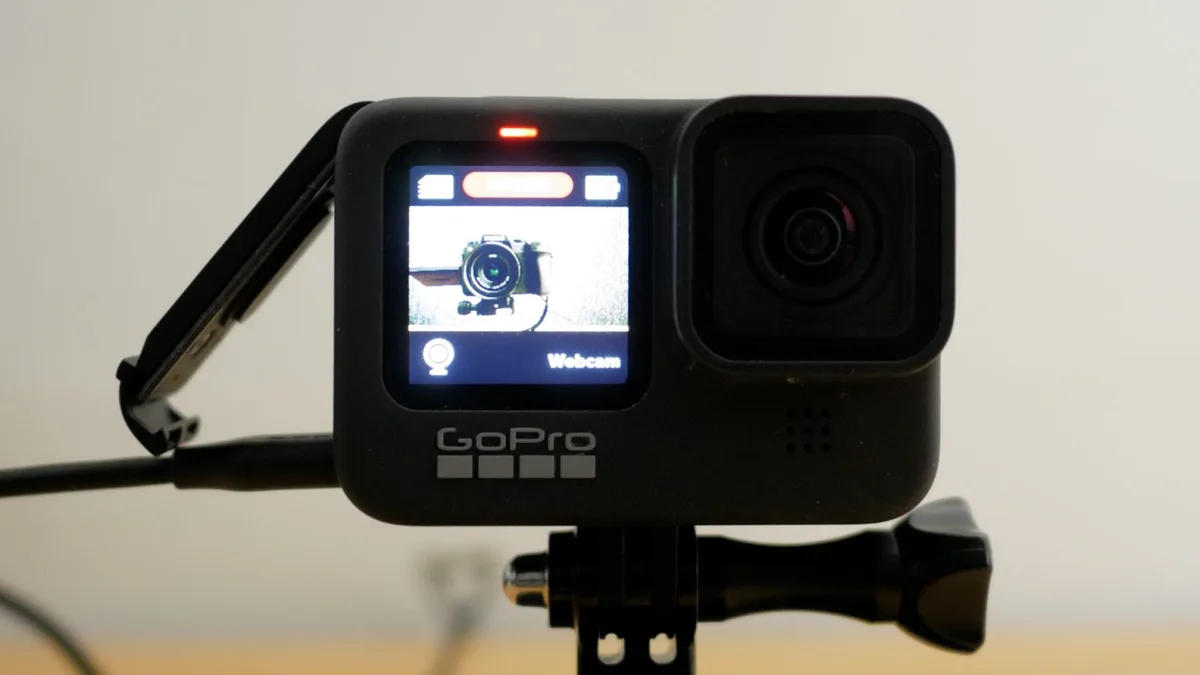
Image source: Web (Bing) / sct.com.tw (Web image (fair-use with source credit))
The cable is the most overlooked component in the chain. You probably have a drawer full of USB-C cables from old phones, earbuds, and random gadgets. Most of them only carry power.
They lack the data lines needed for file transfer.
USB-C cables are not all created equal. A cable that fast-charges your phone may have only two power wires inside. No data wires at all.
The HERO10 needs all four wires (power plus data pair) to mount as a storage device.
How do you spot a data cable? Look at the plug. Data cables usually have a USB-IF certification logo or a marking that says "USB 3.0" or "SuperSpeed." Charging-only cables often have no markings at all.
If there's a 56k ohm resistor built into the cable (common on charging cables), data transfer won't work.
Cable length matters too. USB 3.0 signals degrade over longer runs. A 6-foot cable may work fine for charging but fail for data.
Stick to cables under 3 feet for the most reliable connection. Aggregate reviews report that shorter cables consistently outperform longer ones for the HERO10.
The cable you use to charge the camera from a wall adapter may never work for data. Wall chargers don't need data lines. Cable manufacturers know this and often skip them to save cost.
Keep a dedicated data cable for your computer and label it so you don't mix them up.
If you've had similar frustrations with other camera gear, the advice on Sony A7S III battery problems covers how power and data issues overlap in similar ways.
When You Should Give Up on USB and Use a Card Reader
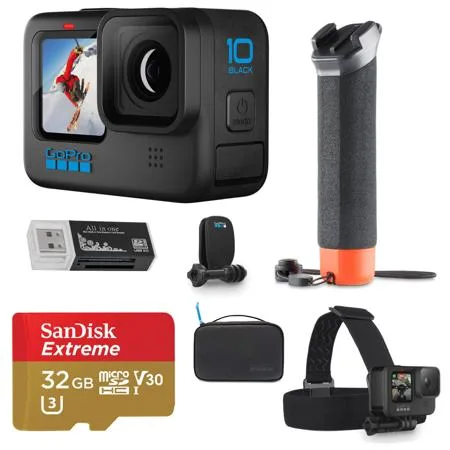
Image source: Bing (Web (fair-use with source credit))
Sometimes the USB port just won't cooperate. You've swapped cables. You've tried different ports.
You've updated firmware. Still nothing. At that point, the smart move is to bypass the camera entirely.
A dedicated SD card reader is faster and more reliable than the HERO10's USB connection. The card reader connects directly to the microSD card's data pins. There's no camera firmware, no battery state, and no quirky USB handshake in the way.
It just works.
Transfer speeds are better too. The HERO10's USB 3.0 port can theoretically hit 5 Gbps. But in practice through the camera, you'll see real-world speeds around 100 to 150 MB per second.
A good USB 3.0 card reader connected to the same computer can easily push 200 MB per second or more.
This also saves battery life. Every time you connect the camera to a computer, it's drawing power to stay awake and handle the data handshake. A card reader uses no camera battery at all.
Your HERO10 stays off and fully charged.
Anyone who transfers files daily should use a reader. Content creators, vloggers, and travelers who offload footage every night will save time and frustration with a reader. It's a cheap upgrade.
A decent USB 3.0 microSD card reader costs under $20 as of 2026.
The one downside is that you have to remove the microSD card from the camera. That means powering down, opening the side door, and handling a small card. Lose the card and you lose your footage.
But if you're careful, this is the most reliable method by far.
Quick Comparison: USB Cable vs. Card Reader
| Factor | USB Cable (Camera) | Dedicated Card Reader |
|---|---|---|
| Average transfer speed | 100-150 MB/s | 200+ MB/s |
| Battery drain | Moderate (camera stays on) | None (camera stays off) |
| Setup time | 30-60 seconds | 10-15 seconds |
| Cable dependency | Yes (must be data-capable) | No cable needed |
| Failure points | Cable, port, firmware, battery | Reader and card only |
| Cost (one time) | $10-20 for good cable | $15-25 for reader |
| Best for | Occasional transfers | Daily or frequent transfers |
Pro Tips for a Rock-Solid USB Connection Every Time
Manage the camera's power state. The HERO10 can fall asleep during long file transfers. If you're moving several gigabytes of 5.3K footage, the screen may dim and the connection can drop.
Tap the shutter button every few minutes. Or set the sleep timer to "Never" before plugging in. This one habit prevents most mid-transfer failures.
Think about your USB port choice. Desktop PC front-panel ports often share a single internal header. That means less power and a weaker signal.
Use a rear motherboard port instead. Or invest in a powered USB hub with its own AC adapter. The HERO10 draws about 2 amps during active data transfer.
A cheap unpowered hub can't keep up.
Keep the port clean. Adventure cameras collect dust, sand, and lint. That's just part of owning a GoPro.
Inspect the USB-C port every few weeks if you shoot in dirty conditions. Use compressed air or a soft brush. A clean connection is a reliable connection.
Label your data cable. Keep one dedicated USB-C cable that you know works for data transfer. Mark it with a piece of tape or a colored tag.
Never use it for charging your phone. This way you always know which cable to grab when you need to offload footage.
Check firmware periodically. GoPro has released several updates that specifically address USB behavior. As of 2026, the latest firmware versions include USB stability improvements.
Update through the GoPro Quik app.
Common USB Mistakes to Avoid
Using a cable that worked yesterday but not today. Cables fail. USB-C connectors wear out after hundreds of insertions. If a previously working cable suddenly stops transferring data, replace it before troubleshooting anything else.
Forgetting to wake the camera. This is the second most common mistake. The HERO10 does not automatically enter data transfer mode when you plug it in. If the camera is off or sleeping, the computer only sees a charging device.
Press the mode button to wake it up. Then plug in the cable.
Plugging into a USB hub that lacks power. Many unpowered hubs cannot supply enough current. The camera may show a connection briefly and then drop it. Use a powered hub or plug directly into the computer.
Ignoring SD card health. A corrupted or failing microSD card can mimic a USB connection problem. The camera may appear to connect, but the computer can't read the file system and shows nothing. Test the card in a reader.
If it works there, the USB chain is fine. If it doesn't, reformat the card in the camera.
Using a cable longer than 3 feet. USB 3.0 signals degrade over distance. A 6-foot cable may charge fine but fail for data. Stick with shorter cables for the most reliable connection.
When to Repair or Replace the USB-C Port
Sometimes the problem is physical. A damaged USB-C port requires professional attention. Signs of physical damage include a loose connection where the cable wiggles, visible bent pins inside the port, or a cable that only works when held at a specific angle.
If you see any of these, stop using the port immediately. Continued use can worsen the damage.
The HERO10's USB-C port is soldered to the main circuit board. Replacing it requires micro-soldering skills and specialized tools. This is not a DIY repair for most people.
GoPro's official support can provide a repair quote. Authorized service centers typically charge between $80 and $150 for a port replacement as of 2026.
If the repair cost feels too high, consider your alternatives. A card reader solves the data transfer problem permanently. Wireless transfer through the GoPro Quik app works for smaller files.
And you can still charge the camera using an external battery charger that bypasses the USB port entirely.
Don't keep forcing cables into a damaged port. That can crack the solder joints on the motherboard and turn a $100 repair into a $300 replacement. If the port feels wrong, stop.
Use the card reader. It's the smarter long-term move.
GoPro HERO10 USB Connection FAQs
Why won't my computer recognize my GoPro HERO10?
The most common cause is a charging-only cable that can't transfer data. Swap to a cable that explicitly supports data transfer. Also make sure the camera is powered on and awake.
If it's asleep or off, the computer will only see a charging device, not a storage drive.
Can I use any USB-C cable with my HERO10?
No. Many USB-C cables are built for charging only and lack the data wires needed for file transfer. Look for cables marked with USB 3.0, SuperSpeed, or the USB-IF certification logo.
Cables under 3 feet long tend to be more reliable for data than longer ones.
Why does my HERO10 charge but not transfer files?
This is the classic sign of a charging-only cable. The cable carries power but has no data lines inside. Plugging it in triggers the charging circuit but the camera never gets the handshake signal it needs to mount as a drive.
Replace the cable with a data-capable one.
Should I use a card reader instead of USB for file transfers?
Yes, for speed and reliability. A microSD card reader bypasses the camera's hardware entirely. Transfers are faster, the camera battery stays untouched, and there are fewer points of failure.
It's the best option for anyone who moves footage regularly.
What if my HERO10 still won't connect after trying everything?
If you've swapped cables, cleaned the port, updated firmware, and tested on multiple computers, the issue may be hardware related. A damaged USB-C port inside the camera requires professional repair. Contact GoPro support or an authorized service center.
In the meantime, a card reader is your most reliable workaround.
How do I update HERO10 firmware via USB?
Download the GoPro Quik app on your computer or phone. Connect the camera with a data cable. The app will check for available firmware updates and guide you through the process.
Make sure the camera battery is above 50% before starting.

Similar Posts

































[…] cameras. These issues are not unique to Insta360, but they are worth keeping in mind. For example, checking for known USB connection issues can help narrow down whether the problem is your cable, your port, or the camera […]