How to Format SD Card in DSLR Camera
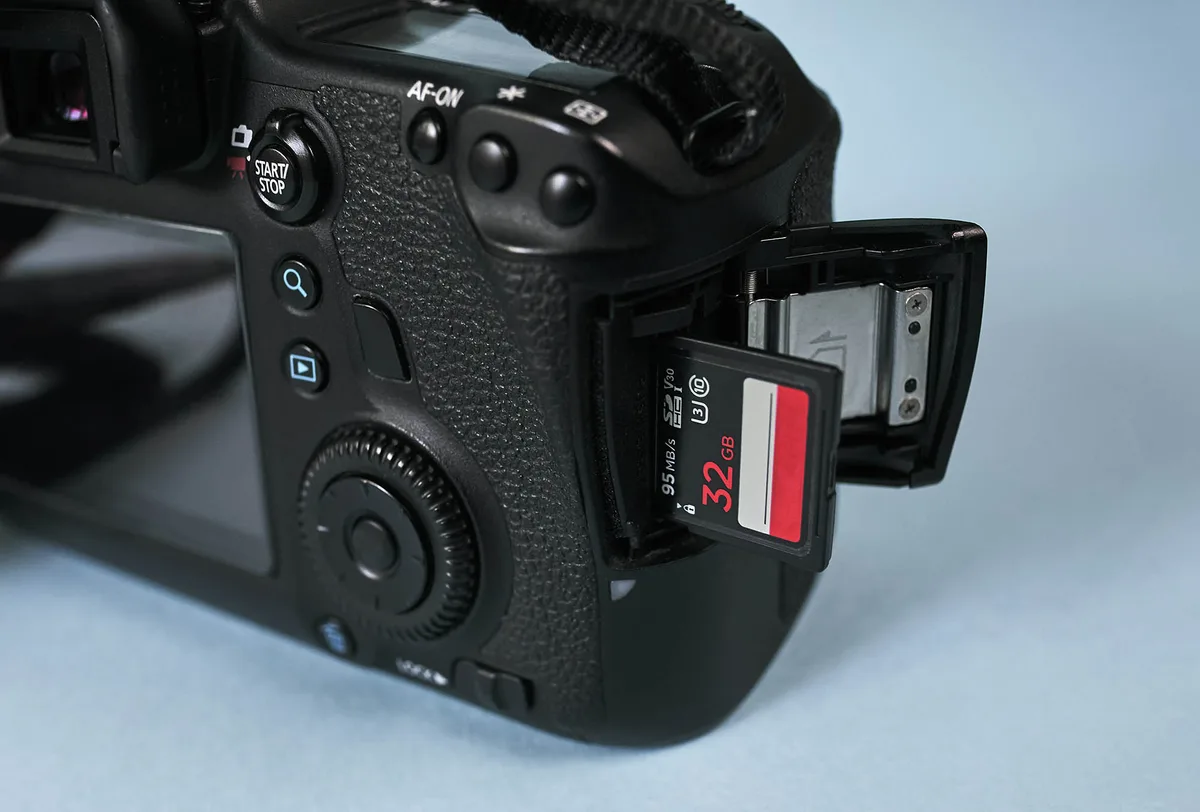
If you’ve ever wondered how to format SD card in DSLR camera the right way, you’re not alone. It’s a simple process, but one wrong move can wipe out shots you’ll never get back. The good news is that doing it safely takes less than a minute once you know the rules.
Our research shows that formatting in-camera rather than on a computer dramatically reduces the risk of file system errors. The SD Association’s standards confirm that cameras handle their own file structure better than any desktop tool. Here’s how to get it right, every time.
Image source: Web (Bing) / cleverfiles.com (Web image (fair-use with source credit))
Quick Answer
Format your SD card inside your DSLR. Back up your photos first. Go to the setup menu.
Select Format. Confirm the action. Wait for the progress bar to finish.
That’s the safest method. It prevents corruption and ensures compatibility.
Why Formatting In-Camera Matters (and When It Doesn’t)
Formatting creates a fresh file system. It doesn’t just delete your images. It rebuilds the card’s directory structure.
That’s why it’s faster than deleting every file manually.
Your camera writes to a specific format, usually FAT32 or exFAT. A computer can mess with that. The SD Association’s official standards say cameras format cards in a way that maximizes performance and reliability.
This is why you should always format in-camera unless you have a specific reason not to.
A common exception is when a brand new card needs initial formatting, or when you’re recovering from a deep error. But for regular clearing, your camera is the best tool.
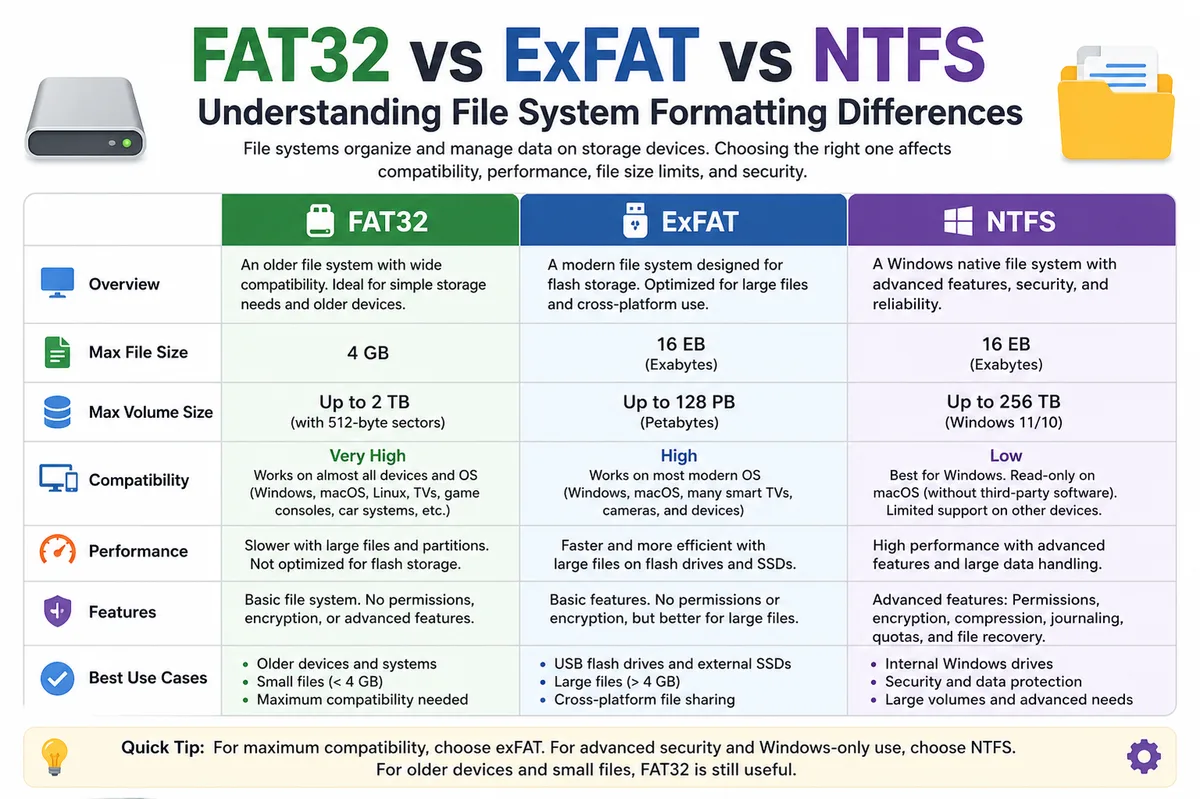
Image source: Web (Bing) / exam-topics.com (Web image (fair-use with source credit))
The Right Way to Format Your SD Card (Step by Step)
Step 1: Back up everything first. This is non-negotiable. Copy the files to a computer or external drive. Double check you have them all.
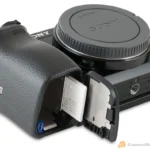
Step 2: Insert the SD card into your camera. Make sure the write-protect switch on the side is unlocked. Slide it up if it’s locked.
Step 3: Power on the camera and find the format option. It’s usually in the setup or wrench menu. On Canon bodies, it’s under the wrench icon. For Nikon, it’s in the setup menu.
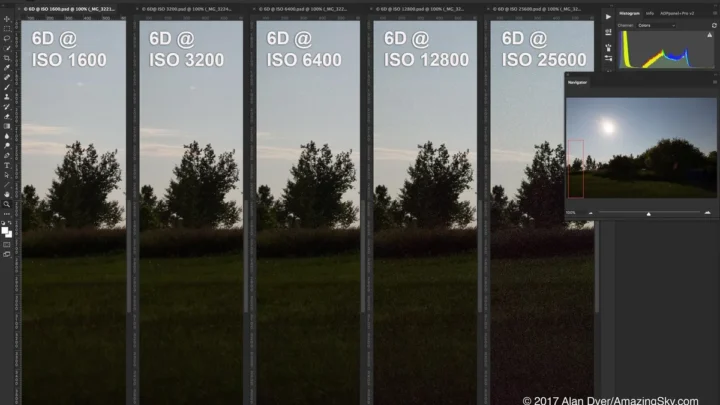
On Sony, it’s in the toolbox. The exact path varies, but every camera has it. The process is similar on most models, including those suited for low light work, where reliable card performance matters most.
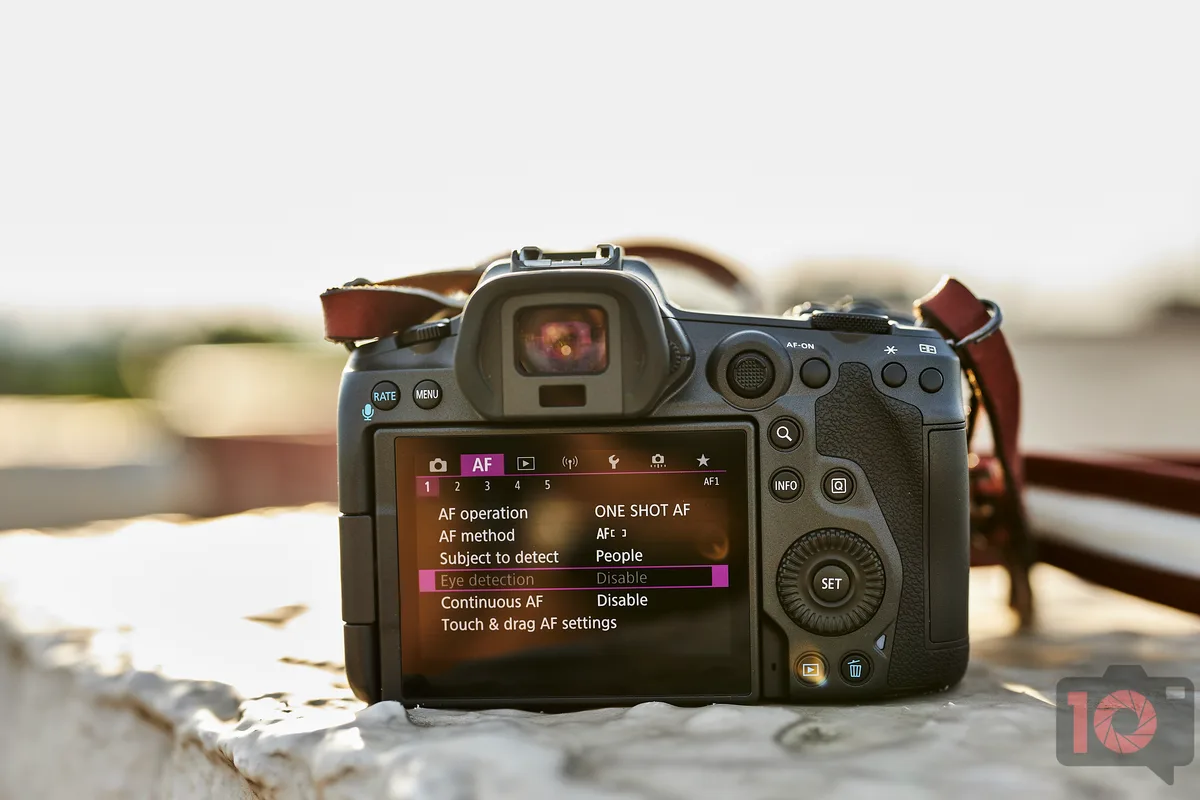
Image source: Web (Bing) / thephoblographer.com (Web image (fair-use with source credit))
Step 4: Select Format and confirm. Some cameras ask if you want a low-level format. Ignore that for now. A standard quick format is fine.
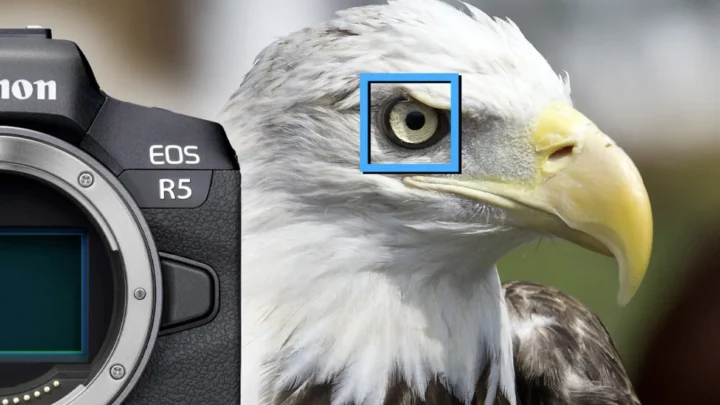
Step 5: Wait for the progress bar to finish. Don’t turn off the camera or remove the card. When it’s done, you’re ready to shoot. If you’re shooting fast action, like birds in flight, a freshly formatted card helps maintain write speeds.
What Can Go Wrong — and How to Fix It
Accidentally formatting the wrong card. Stop using the card immediately. Use data recovery software to get the files back. It’s not guaranteed, but you have a good chance if you act fast.
Card error after formatting. Try a different card. If that works, the first card might be faulty. Format it again in-camera.
If it fails again, replace it.
Write-protect switch is locked. Slide it up. It’s on the left edge of the card. Unlock it, then insert it again.
Card is too large for your camera. Older DSLRs can’t handle cards over 32GB in FAT32. Newer cameras use exFAT for larger cards. Check your camera’s manual.
If it’s too large, use a smaller card. Some budget street photography DSLRs, for example, have this limitation. If you’re shooting at night, card errors are the last thing you need, nighttime photography setups demand reliable storage.
Frequently Asked Questions
Should I format a brand new SD card before using it?
Yes. Always format a new card in your camera before first use. This sets up the correct file system and ensures compatibility.
Even if it works out of the box, formatting removes any preloaded junk.
How often should I format my card?
Format every time you finish a shoot and back up your files. Some photographers do it before each shoot. It clears the card and rebuilds a fresh file structure, reducing the chance of corruption.
Can I format a card in camera and then use it in a different camera?
Yes, but it’s not ideal. Different cameras write differently. The card will work, but performance might drop.
For best results, format the card in the camera you intend to use it with.
Does formatting wear out my SD card?
No. Formatting is a light operation. It rewrites a small amount of data.
It’s the write and erase cycles from shooting and deleting that wear out the card, not the occasional format.
Should I use quick format or full format in camera?
Quick format is fine for most cases. Full format (low level) checks for bad sectors. Use it only if you suspect card errors.
It takes longer and isn’t necessary for routine clearing.
What if I accidentally formatted a card with photos I needed?
Stop using the card immediately. Don’t shoot anything new. Use data recovery software.
The files are still there until new data overwrites them. Your chances are good if you act fast.
The Final Word on Formatting SD Cards in Your DSLR
The one sentence rule: Format in your camera, every time, after backing up. That’s all you need to remember. It’s the safest, fastest, and most reliable method.
When you break the rule, you take a risk. It’s a small risk, but why take it? The process takes less than a minute.
Your photos are worth it.

Similar Posts














[…] You can find more on formatting your memory card inside the camera. […]
[…] Double‑check the latest manual for your specific model. And before you shoot, make sure you’re formatting your memory card in the […]
[…] prevents file corruption. If you're unsure how to do this, the process for preparing your memory card is […]