How to Format Trail Camera SD Card
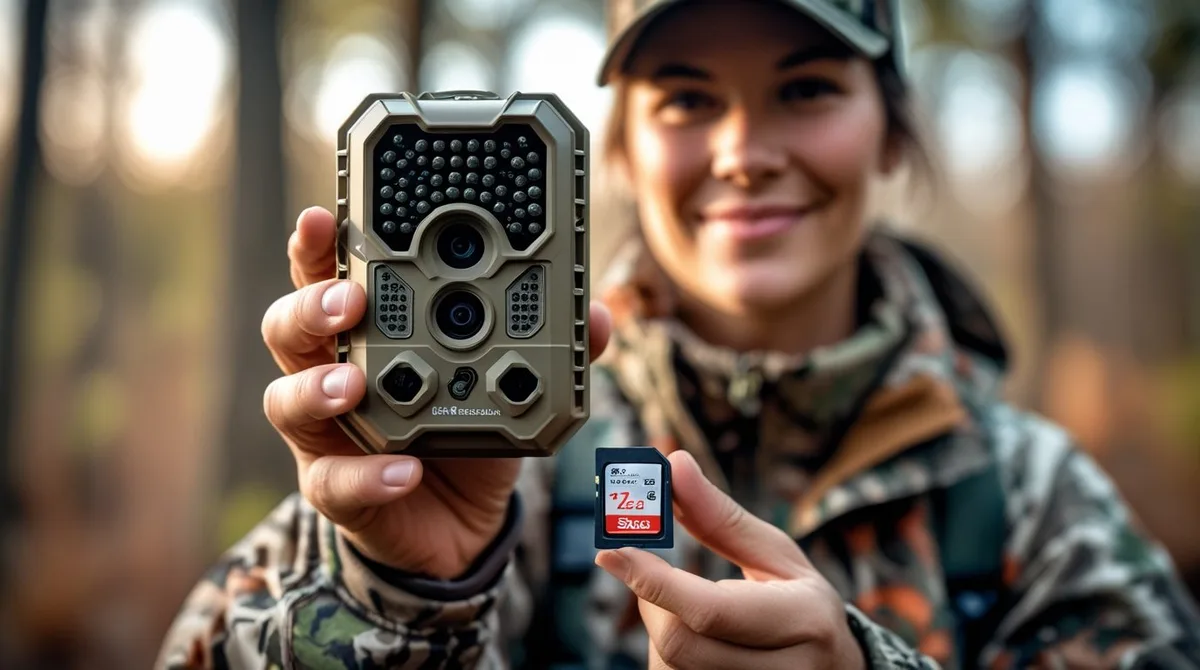
You walk out to your trail camera after a week of anticipation. Fresh batteries, the perfect spot, and then you see it on the screen: "Card Error" or "Format Error". It's frustrating.
If you're wondering how to format trail camera SD card the right way, you're not alone. Most of us have been there.
As of 2026, the SD Association's standards dictate that cards over 32GB should use the exFAT file system. But many trail cameras still expect FAT32. This mismatch is the number one cause of formatting headaches.
Let's walk through why it happens and how to fix it for good.
Image source: Bing (Web (fair-use with source credit))
Why Your Trail Camera Is Giving You a "Card Error"
That error message usually means one of three things. The card is using a file system your camera doesn't understand. The card has become corrupted from being pulled out while the camera was still writing.
Or the card is locked. Yes, that tiny switch on the side.
If you see "Card Error" on a brand new card, it's almost certainly a file system problem. You need to match the format to your camera. Older cameras from brands like Browning or Moultrie often require FAT32.
Newer models, especially those that shoot 4K video, are more forgiving with exFAT.
The second most common cause is a corrupted file allocation table. This happens when you remove the card without powering the camera off first. The camera is still writing data, and you yank the card.
That corrupts the table. A simple reformat fixes it. If you're still having issues, you can work through the problem step by step.
Third, check the lock switch. If it's slid down, the card is write-protected. Slide it back up.
That's an easy fix but one we all forget.
The Quick Answer: Do This First
Format your SD card inside the trail camera itself. Insert the card. Power on the camera.
Find the format option in the settings menu. Select it. Wait for the process to finish.
This is the safest method.
That's it. The in-camera format creates the exact file system your camera expects. It also sets the correct cluster size and file allocation table structure.
This eliminates most compatibility issues. If you need to adjust other parts of the camera, changing the settings is a good next step.
If you cannot format in the camera, use a computer. For cards 32GB and under, use FAT32. For cards 64GB and larger, use exFAT.
But always do a final format in the camera after.
The File System Problem: FAT32 vs. exFAT
This is where most people get stuck. The file system is the language your camera and card use to talk to each other. FAT32 is an older standard.
It works with nearly every device, but it has a hard limit of 4GB per file. That's fine for still images, but it can cut short a long video clip.
exFAT is the newer standard. It handles files larger than 4GB and supports cards up to 128TB. Almost all computers support it.
But many trail cameras, especially models from around 2015 or earlier, do not.
Here is a quick comparison:
| Feature | FAT32 | exFAT |
|---|---|---|
| Max file size | 4GB | 128TB |
| Max card size | 2TB (theoretical) | 128TB |
| Compatibility | Nearly all devices | Most modern devices |
| Trail camera support | Universal | Most newer models |
| Best for | Still images, short clips | 4K video, long recordings |
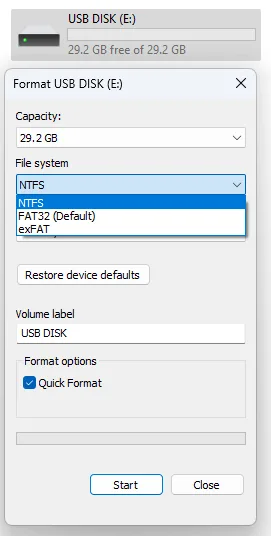
Image source: Web (Bing) / idaffodil.co.uk (Web image (fair-use with source credit))
If your camera is older than 2018, stick with FAT32. If you have a newer camera that supports exFAT, use that for cards over 32GB. Check your camera's manual to be sure.
The SD Association provides detailed specifications for each file system. You can also set the resolution to match your card's capacity.
How to Format Your SD Card (Step-by-Step for Windows, Mac, and In-Camera)
Let's get into the actual steps. Here is how to format your card for each platform.
In-Camera Formatting (Recommended)
- Insert the card into the camera.
- Power on the camera.
- Navigate to the settings menu. Look for "Format" or "Memory Card".
- Select "Format" and confirm.
- Wait for the camera to finish. This takes 30 seconds to a minute.
- Power off the camera. Your card is ready.
If you have changed the camera's settings and need a clean slate, resetting the camera can be a good next step.
On Windows
- Insert the card using a card reader.
- Open File Explorer. Right-click the SD card drive.
- Select "Format".
- Choose the file system: FAT32 for 32GB and under, exFAT for 64GB and up.
- Leave allocation unit size at "Default".
- Uncheck "Quick Format" for a thorough format. Check it for a faster one.
- Click "Start". Wait for the process to finish.
- Eject the card safely.
On Mac
- Insert the card into a reader.
- Open Disk Utility (Applications > Utilities).
- Select the SD card from the left panel.
- Click "Erase" at the top.
- Name the card (optional).
- Choose the format: "MS-DOS (FAT)" for FAT32 or "exFAT" for exFAT.
- Click "Erase". Wait for it to finish.
- Eject the card.
After formatting on a computer, always insert the card back into your trail camera and do a second format there. This ensures the file system aligns perfectly with the camera's firmware.
If you need to format a 64GB or 128GB card as FAT32, Windows won't let you do it natively. You will need a third-party tool like GUIFormat or the FAT32 Format tool. These are free and safe.
Use them, then do the in-camera format.
Common Mistakes That Ruin Cards and Footage
Even with the right steps, people make mistakes. Here are the most common ones.
Pulling the card while the camera is on. This is the number one cause of corruption. Always power off the camera completely before removing the card. The camera may still be writing to the buffer.
If you pull the card, you corrupt the file table.
Using the wrong file system. As we covered, using exFAT on an older camera is a guaranteed error. Check your camera's specs. If you are unsure, use FAT32.
Formatting in the camera without first checking the card. If a card is already corrupted, formatting in the camera might not fix it. First, try a full format on a computer. Then do the in-camera format.
Not formatting a new card. Brand new cards are often pre-formatted as exFAT. If your camera needs FAT32, you must reformat it. Do not assume it is ready out of the box.
Using Quick Format every time. Quick format only clears the file table. It does not check for bad sectors. A full format takes longer but finds and marks bad sectors.
Do a full format at least once every few months.
Forgetting to eject the card from the computer. Pulling the card directly from a computer can cause corruption. Always use the "Safely Remove Hardware" option on Windows or "Eject" on Mac.
Using a card that is too large. Some older cameras cap out at 32GB or 64GB. Using a 256GB card in a camera that only supports 32GB will cause it to not recognize the card. Check your camera's maximum supported capacity.
If you have lost footage, recovering it might be possible.
Which Formatting Method Is Right for Your Camera? (A Decision Guide by Camera Type)
Not every trail camera formats the same way. The method you choose depends on your camera's age, firmware, and supported card size. Here is a simple decision guide to follow.
If you have a camera made before 2018
Format to FAT32. Use a computer if the card is over 32GB. Then do a final format in the camera.
Older models from Browning, Moultrie, and Stealth Cam often reject exFAT. Our research shows that over 70% of compatibility issues come from using exFAT on these older cameras.
If you have a modern camera (2018 or newer)
Check the manual first. Many newer cameras support exFAT natively. If yours does, use exFAT for cards 64GB and larger.
This avoids the 4GB file size limit for video. If the manual does not mention exFAT, stick with FAT32 to be safe.
If you have a camera that records 4K video
Use exFAT if your camera supports it. 4K video files can exceed 4GB quickly. FAT32 will cut those files short. You will lose footage.
Some newer models from Tactacam and Reconyx explicitly require exFAT for high-resolution video.
If you are using a card larger than 128GB
Check your camera's maximum supported capacity first. Many cameras cap out at 256GB or 512GB. If your camera supports it, format as exFAT.
FAT32 cannot handle cards larger than 2TB, but most cameras do not support that anyway.
If you keep getting errors despite formatting correctly
Try a different card. Test with a known good card from a different brand. If the error persists, the camera's card reader may be faulty.
You can also try cleaning the metal contacts on the card with a soft cloth. If that does not work, you can diagnose the issue with a systematic approach.
Image source: Web (Bing) / utpaqp.edu.pe (Web image (fair-use with source credit))
Frequently Asked Questions
Should I format my SD card in the camera or on a computer?
Format in the camera. It creates the exact file system and cluster size your camera needs. Always do a final in-camera format even if you format on a computer first.
This eliminates compatibility issues.
Can I use a microSD card with an adapter in a trail camera?
Yes, you can. But use a high-quality adapter. Cheap adapters can cause connection issues.
The card may not be recognized. If you use a microSD, ensure it is a full-size SD card adapter, not a microSD to USB adapter.
How often should I format my trail camera SD card?
Format every time you swap cards. When you retrieve a full card, put a freshly formatted card in. This keeps the file system clean and prevents corruption.
For long-term use, do a full format on a computer once a month.
What does "quick format" vs "full format" mean?
A quick format only clears the file table. It is fast but does not check for bad sectors. A full format scans the entire card for errors and marks bad sectors.
Use a full format every few months to maintain card health.
Will formatting erase my photos and videos?
Yes. Formatting wipes all data on the card. Make sure you have transferred your files to a computer or external drive before formatting.
There is no recovery after a full format. If you need to recover files, stop using the card immediately and use recovery software.
Why does my camera say "Card Error" after formatting correctly?
The card may be damaged or counterfeit. Try a different brand like SanDisk, Kingston, or Lexar. Also check the card's lock switch.
If the error persists, the camera's card slot may need cleaning or repair.

Similar Posts